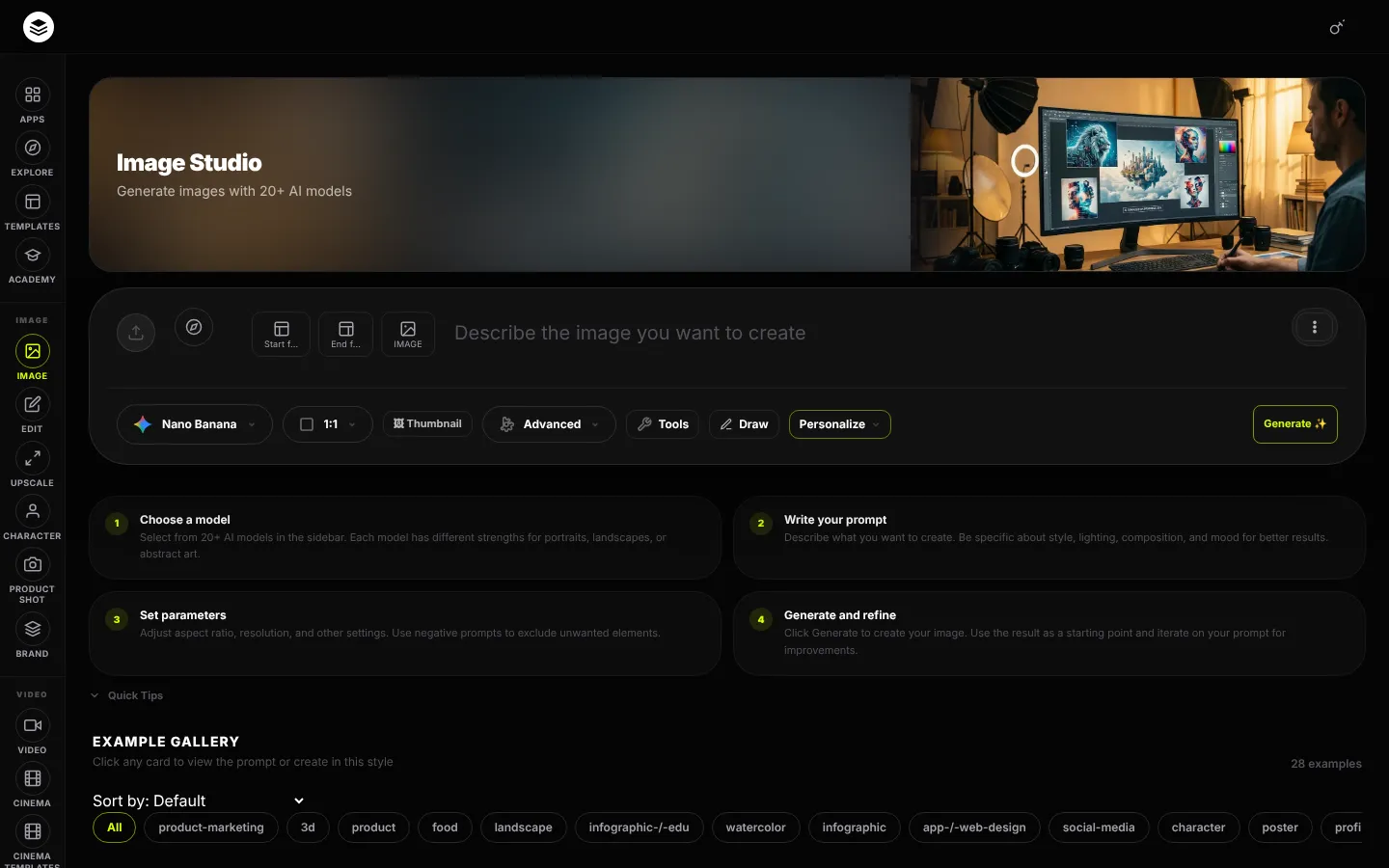
Quick Generators · Feature guide

Image to Video Feature Guide

Browse image-animation models and examples, then animate in Video Studio.

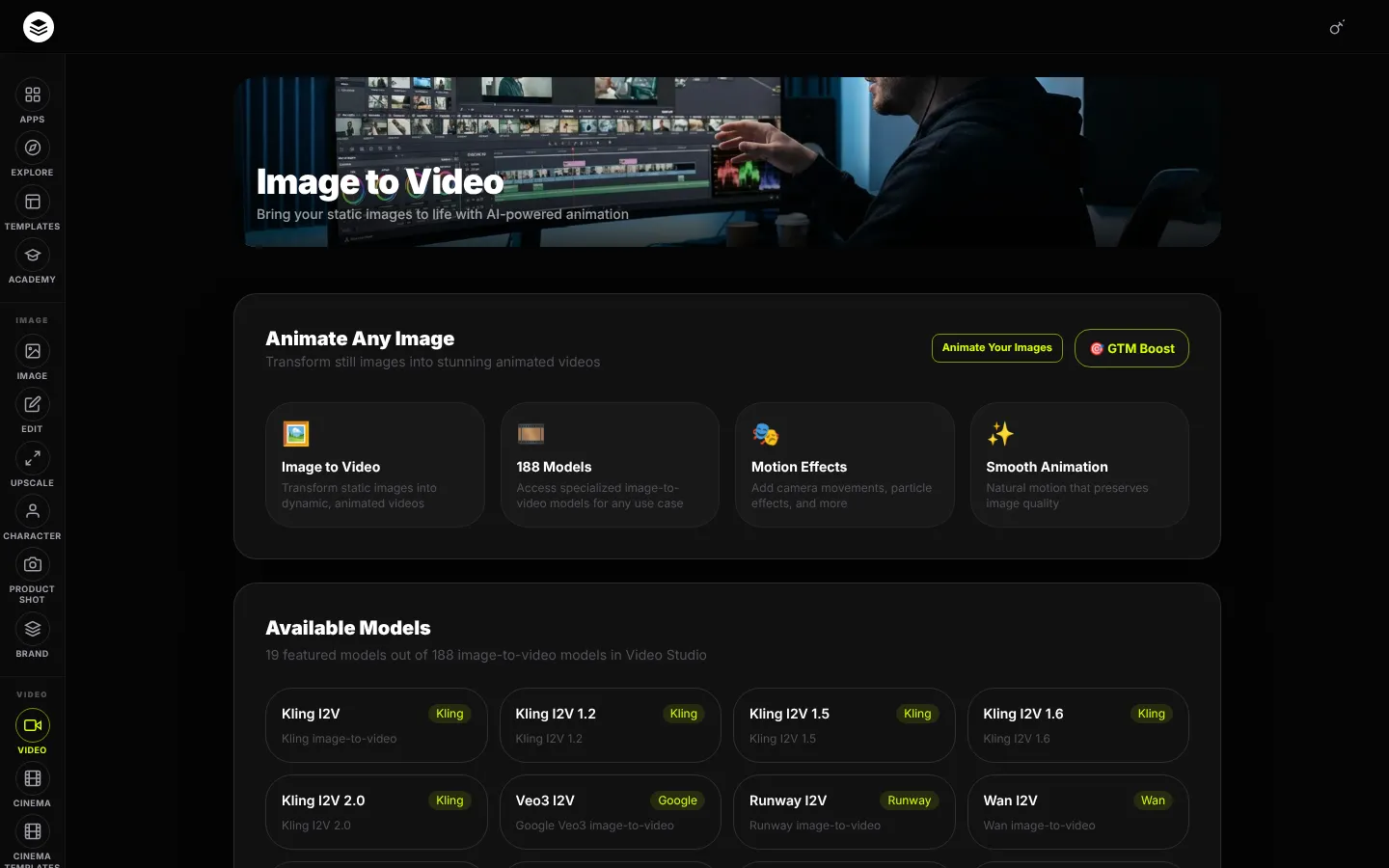
Image to Video is an overview page: browse 19 animation models and example motions, then open Video Studio to animate your image.

Best for: Users who want ideas for animating a still image and a quick way into Video Studio.

Image to Video screenshot

Watch the Image to Video tour

A 1:25 captioned walkthrough of the studio, with a sample file and prompt.

VIDEO · 1:25

What is Image to Video?

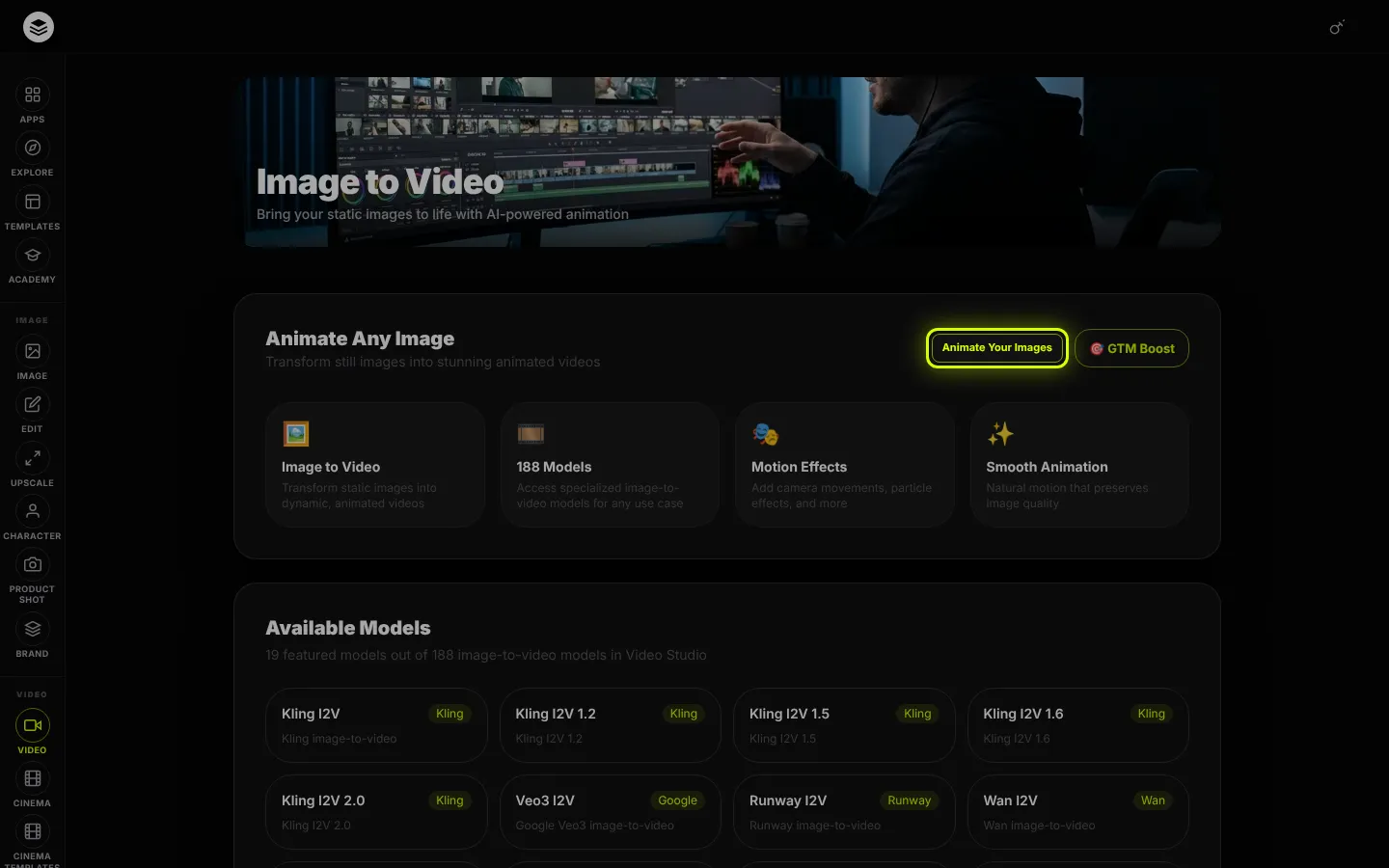
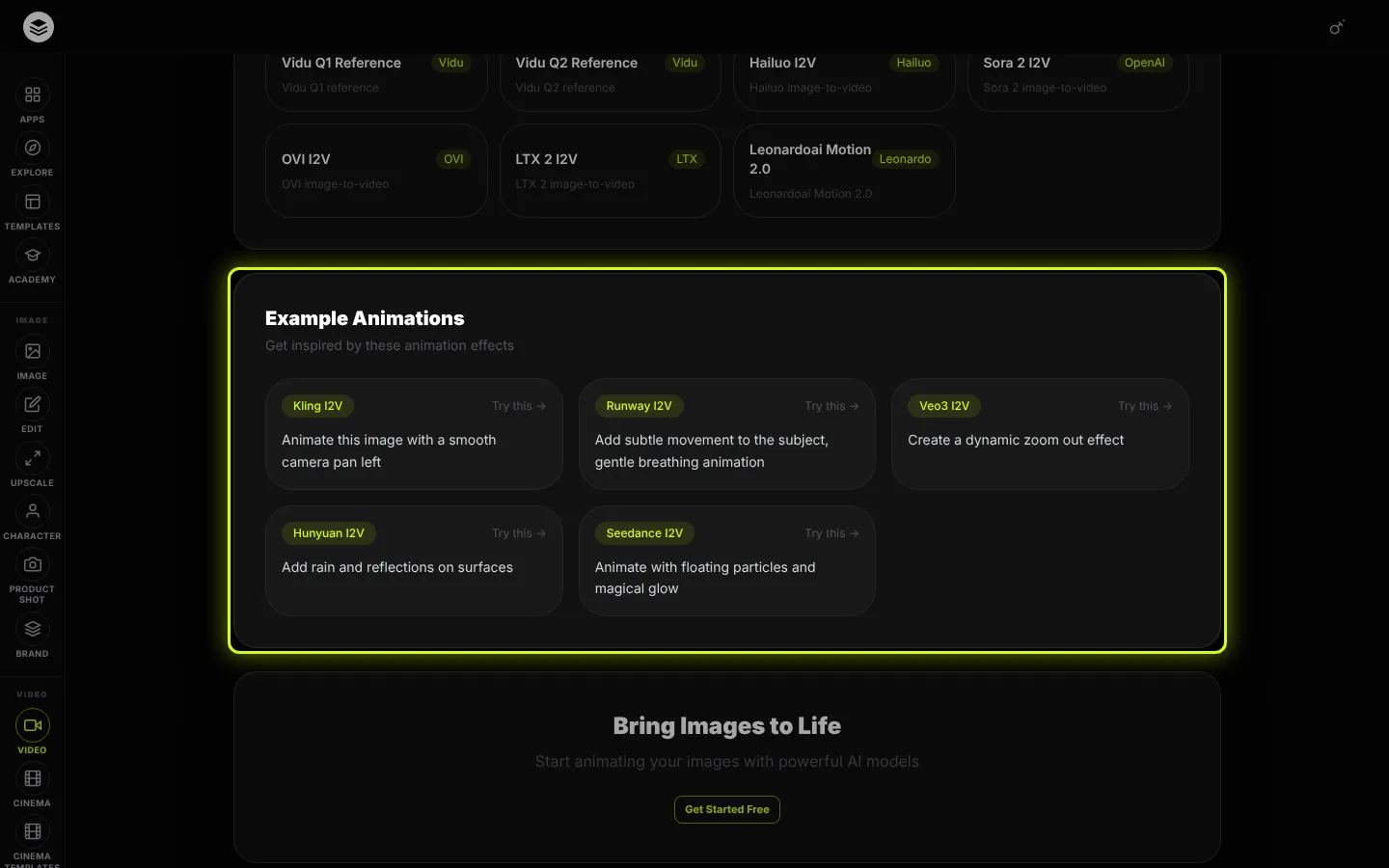
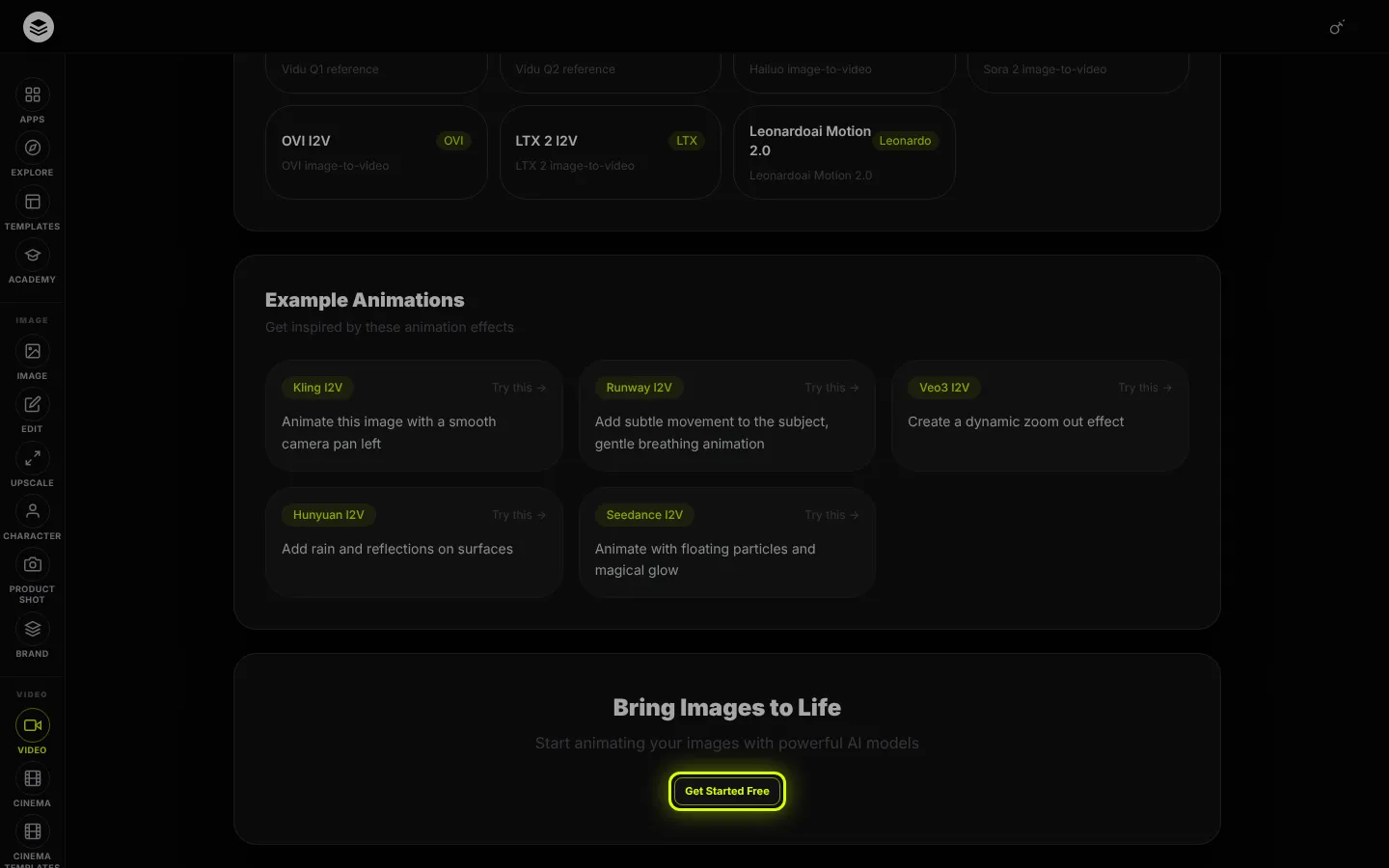
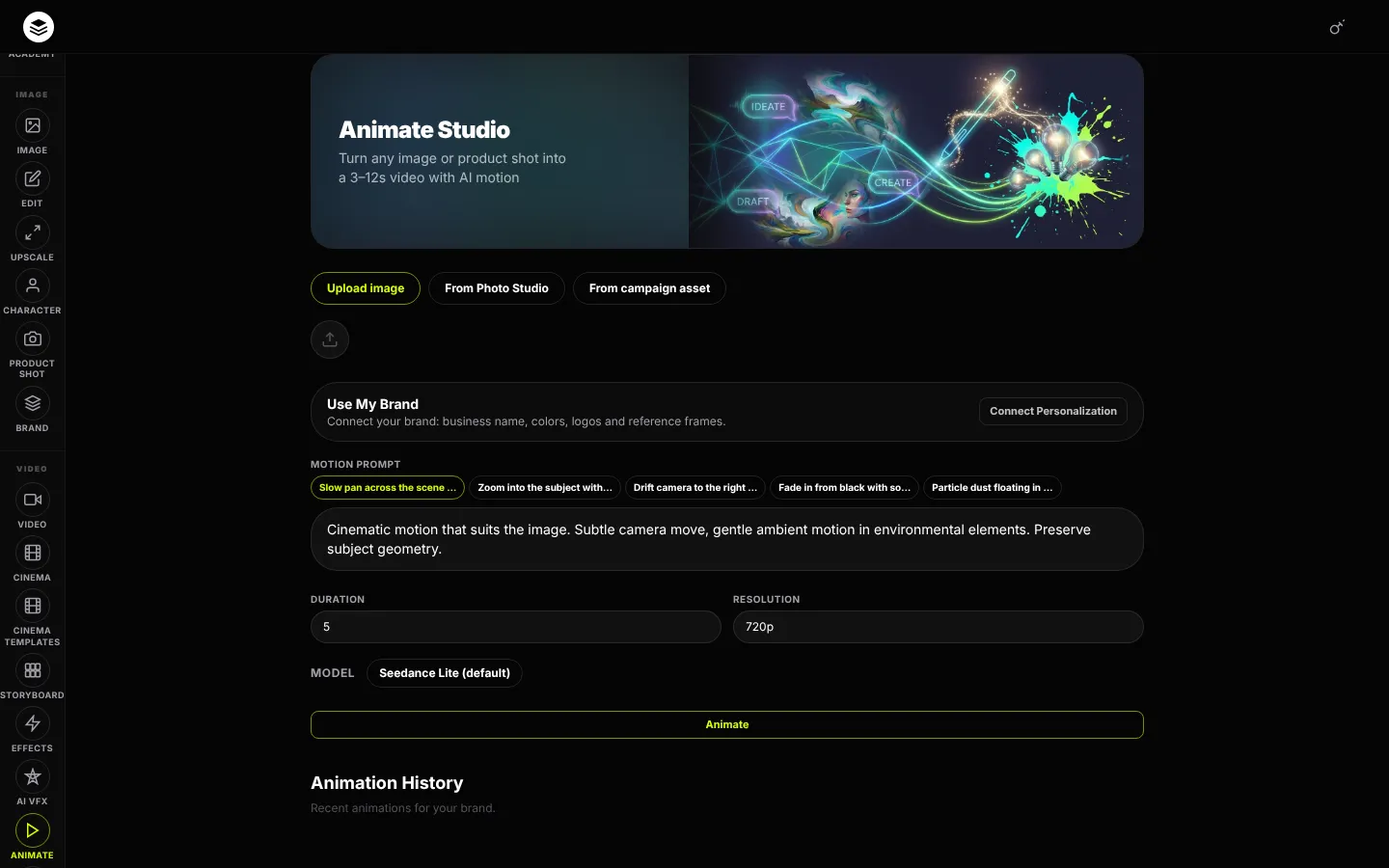
Image to Video (#/image-to-video) is a starting page, not a generator. It has an 'Animate Any Image' section with 'Animate Your Images' and '🎯 GTM Boost', four highlight cards, an 'Available Models' grid ('19 featured models out of 188 image-to-video models in Video Studio'), five 'Example Animations' with 'Try this →', and a 'Bring Images to Life' section with 'Get Started Free'. There is no image upload or Generate button here: everything opens Video Studio (#/video). An example puts its motion prompt into Video Studio's prompt box. The model you click is not selected in Video Studio (it opens on its text-to-video list, and the page passes no model), and no image is passed, so in Video Studio you add your start image, which switches it to image-to-video, then pick the model.

When to use it

  • You want to see image-to-video model families (Kling I2V, Veo3 I2V, Runway I2V, Seedance I2V, Hailuo I2V, Sora 2 I2V...).
  • You want an example motion prompt ('smooth camera pan left', 'gentle breathing animation') filled into Video Studio.
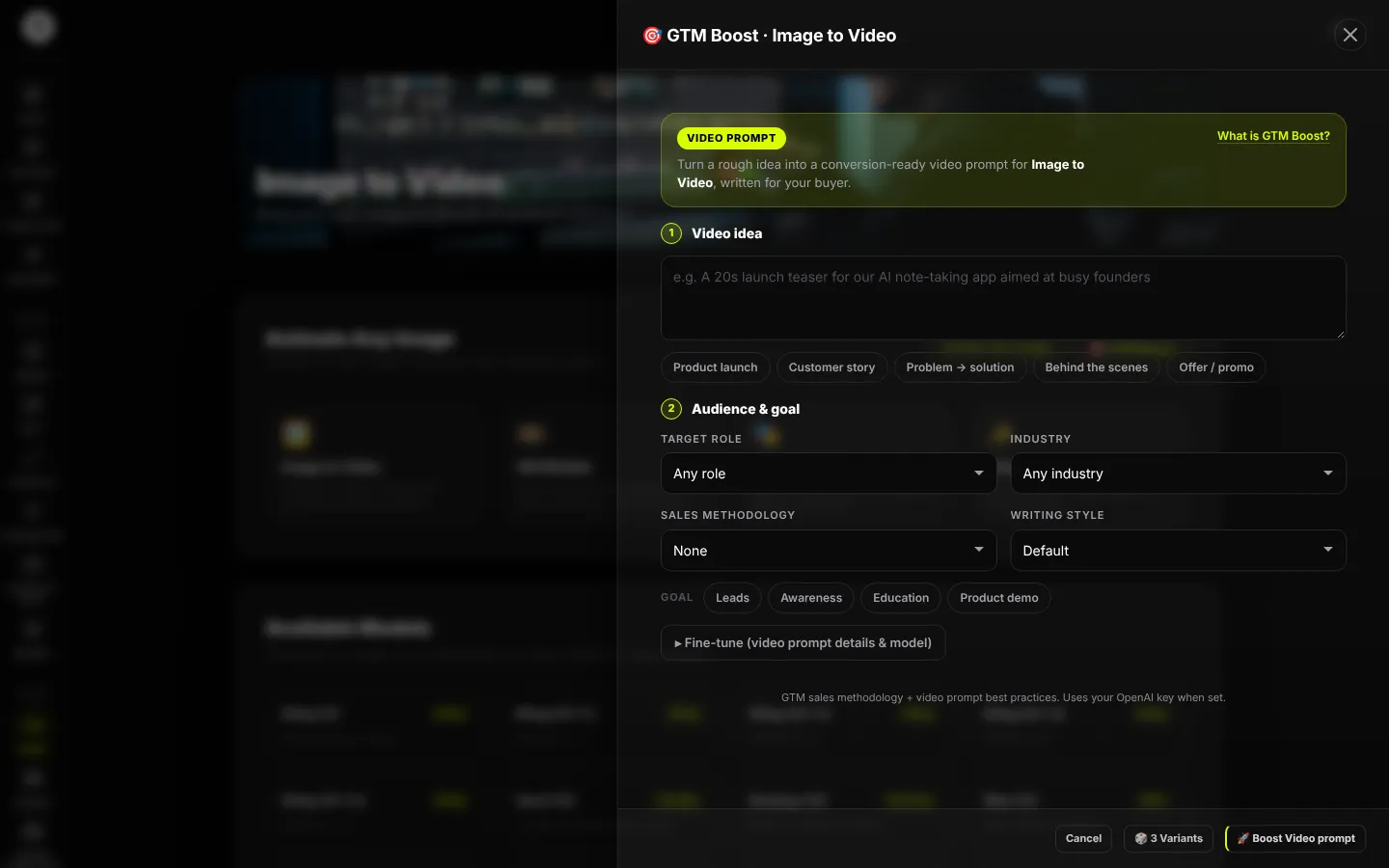
  • You want GTM Boost to write a marketing video prompt.
  • 'Animate Your Images' and 'Get Started Free' buttons that open Video Studio.
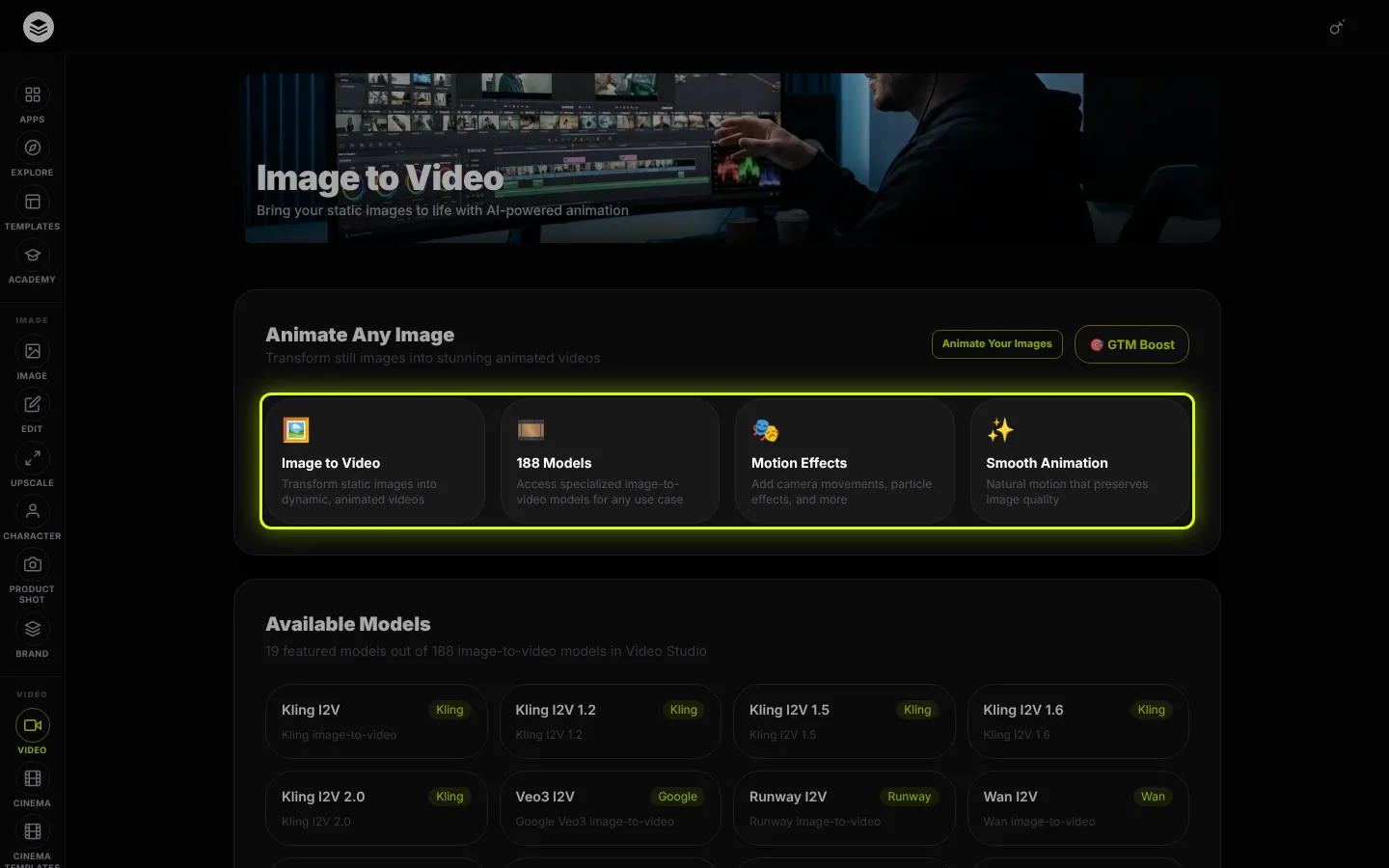
  • Highlight cards (information only).
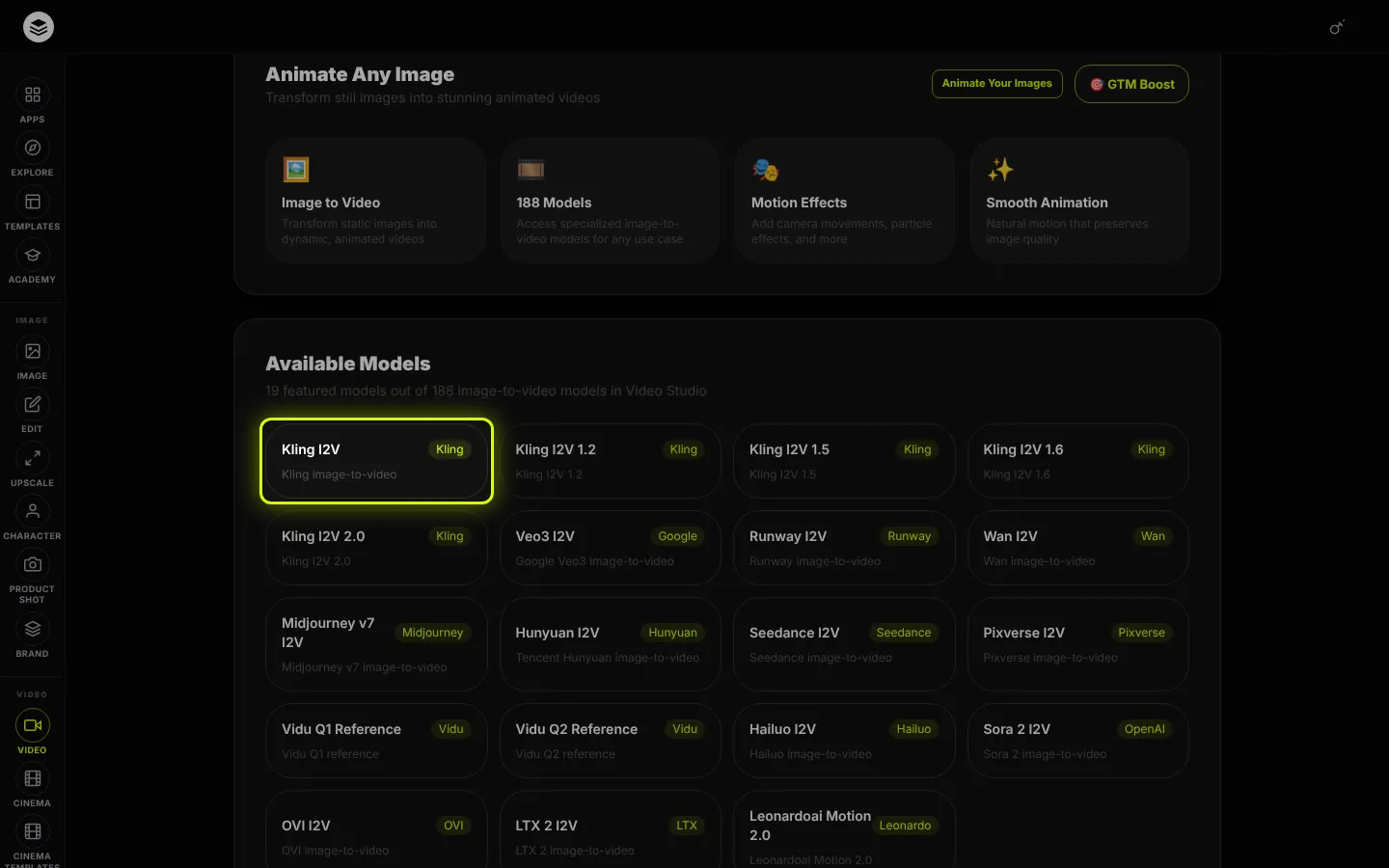
  • 'Available Models' grid of 19 image-to-video models.
  • 'Example Animations' with 'Try this →' that fill Video Studio's prompt box.
  • '🎯 GTM Boost' prompt helper.

Every Image to Video feature, explained

6 features, each with a definition, why you would use it, what it needs and its limits.

Animate Your Images in Image to Video
Animate Your Images
FEATURE 01

Animate Your Images

What it is: In 'Animate Any Image', the 'Animate Your Images' button opens Video Studio (#/video).

Why use it
Fastest way to start animating.
What you need
None here; add your image in Video Studio.
Limits and rules
No upload on this page.
GTM Boost in Image to Video
GTM Boost
FEATURE 02

GTM Boost

What it is: The '🎯 GTM Boost' button opens the GTM Boost window ('🎯 GTM Boost · Image to Video'). You write your idea, pick an angle, audience and goal, and click the Boost button to get a conversion-focused prompt. 'Apply' closes the window and opens Video Studio with that prompt already in the prompt box.

Why use it
Turn a rough marketing idea into a ready-to-use prompt before you start.
What you need
An idea in step 1 (otherwise the window says 'Add your ... idea first.').
Limits and rules
Without an OpenAI key the window shows 'Add your OpenAI key for AI-written results. Until then GTM Boost uses a built-in template.'
Highlight cards in Image to Video
Highlight cards
FEATURE 03

Highlight cards

What it is: Four information cards: 'Image to Video', '188 Models', 'Motion Effects' and 'Smooth Animation'. They are not buttons.

Why use it
Summary of what animating an image can do.
What you need
None.
Limits and rules
'188 Models' is the number of image-to-video models in Video Studio; the page grid shows 19 featured ones.
Available Models in Image to Video
Available Models
FEATURE 04

Available Models

What it is: A grid of 19 cards ('19 featured models out of 188 image-to-video models in Video Studio'): Kling I2V (and 1.2, 1.5, 1.6, 2.0), Veo3 I2V, Runway I2V, Wan I2V, Midjourney v7 I2V, Hunyuan I2V, Seedance I2V, Pixverse I2V, Vidu Q1/Q2 Reference, Hailuo I2V, Sora 2 I2V, OVI I2V, LTX 2 I2V and Leonardoai Motion 2.0. Clicking a card opens Video Studio.

Why use it
See which animation model families exist.
What you need
A click on a card.
Limits and rules
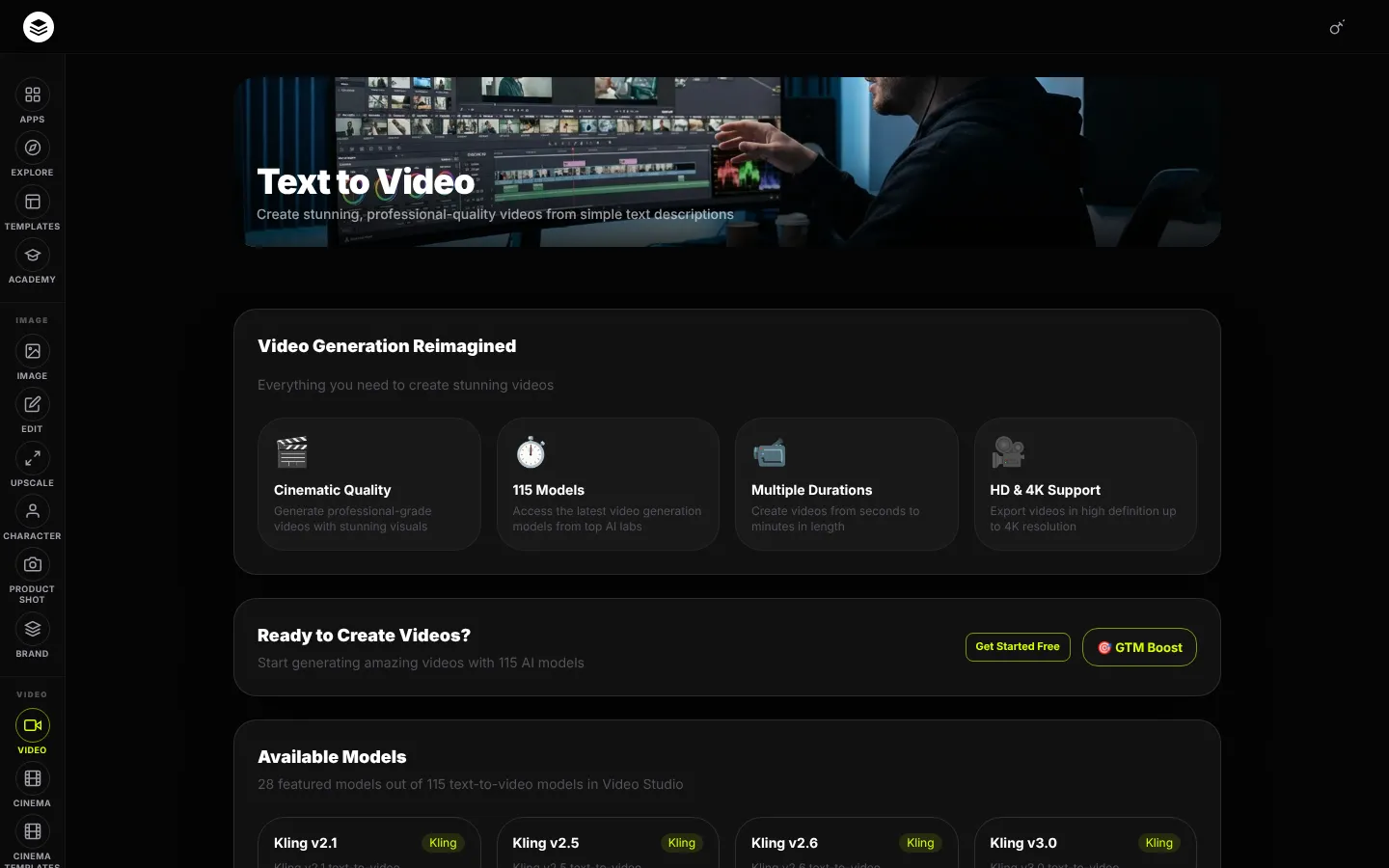
No model is passed to Video Studio, so it opens on its default text-to-video model (Seedance Lite). Add your image, then pick the image-to-video model in Video Studio.
Example Animations in Image to Video
Example Animations
FEATURE 05

Example Animations

What it is: Five example cards with a model badge and 'Try this →' (for example 'Animate this image with a smooth camera pan left' with Kling I2V). Clicking one opens Video Studio with that text in the prompt box.

Why use it
Ready-made motion wording.
What you need
A click on an example.
Limits and rules
The badge model is not selected and no image is attached; add your image in Video Studio before generating.
Get Started Free in Image to Video
Get Started Free
FEATURE 06

Get Started Free

What it is: In 'Bring Images to Life', 'Get Started Free' opens Video Studio.

Why use it
Open the generator after browsing.
What you need
None.
Limits and rules
Nothing is generated here.

How to use Image to Video

  1. Open #/image-to-video.
  2. Click an example or 'Animate Your Images'.
  3. In Video Studio, attach your start image.
  4. Pick an image-to-video model.
  5. Click Generate in Video Studio.

Generation modes

The ways this studio can work, and when to pick each one.

Launcher

Every control opens Video Studio; examples also fill the prompt.

Best for: Get a motion idea, then animate in Video Studio.

Inputs and outputs

What you give the studio, and what you get back.

InputDescriptionWhen to useRules
Example animation
Optional
One of five motion prompts placed in Video Studio's prompt box.For motion wording.No image or model is carried over.
Model card
Optional
One of 19 image-to-video model names.To learn the families.Not selected in Video Studio.

What you get

  • No output on this page; it opens Video Studio, optionally with a prompt filled in.

Use cases and example workflows

Real jobs you can do, step by step.

Bringing stills to life

Find a motion idea and open Video Studio ready to animate.

  1. Pick an example
  2. Attach image in Video Studio
  3. Generate
Result: Video Studio with the motion prompt filled in.

Animate a product photo

  1. Open #/image-to-video.
  2. Click 'Try this →' on 'Create a dynamic zoom out effect'.
  3. In Video Studio attach the product photo.
  4. Pick an image-to-video model and click Generate.

Tips and best practices

  • Describe motion and camera movement, not the picture itself; the image already shows the content.
  • Always attach the image in Video Studio before generating.
  • Use this page for ideas; pick the model in Video Studio after the image is attached.

Limitations and troubleshooting

Know the limits before you start, and how to fix common problems.

LimitationWhat it meansWorkaround
Model not pre-selectedVideo Studio opens on Seedance Lite (text-to-video).Attach your image, then choose the model in Video Studio's picker.
No image passedGenerating right away would make a text-to-video clip.Attach your start image in Video Studio first.

The model I clicked is not selected

Why: The page does not pass a model to Video Studio, which opens on its text-to-video list.

Fix: Search for the model in Video Studio's picker after attaching your image.

Glossary

Terms used in Image to Video.

Prompt
The text you write to describe the video.
Model
The AI engine that makes the clip; each one has its own durations, ratios and options.
Prefill
When this page passes a prompt or model to Video Studio so it is already filled in.
GTM Boost
A helper window that rewrites your idea as a marketing-focused video prompt.
Image-to-video
Making a video clip that starts from a still image you supply.
Start frame
The image the generated video begins from.

Frequently asked questions

Can I generate directly on this page?

No. This page has no prompt box, upload, ratio or Generate button. Every button and card opens Video Studio (#/video), where the actual generation happens.

Where do I upload my image?

In Video Studio, using its image (start frame) button. This page has no upload.

Try Image to Video now

Open the studio and put these features to work, or browse the guides for all 53 studios.