Image Studios · Feature guide

AI Influencer Feature Guide

Design a consistent AI influencer and their content

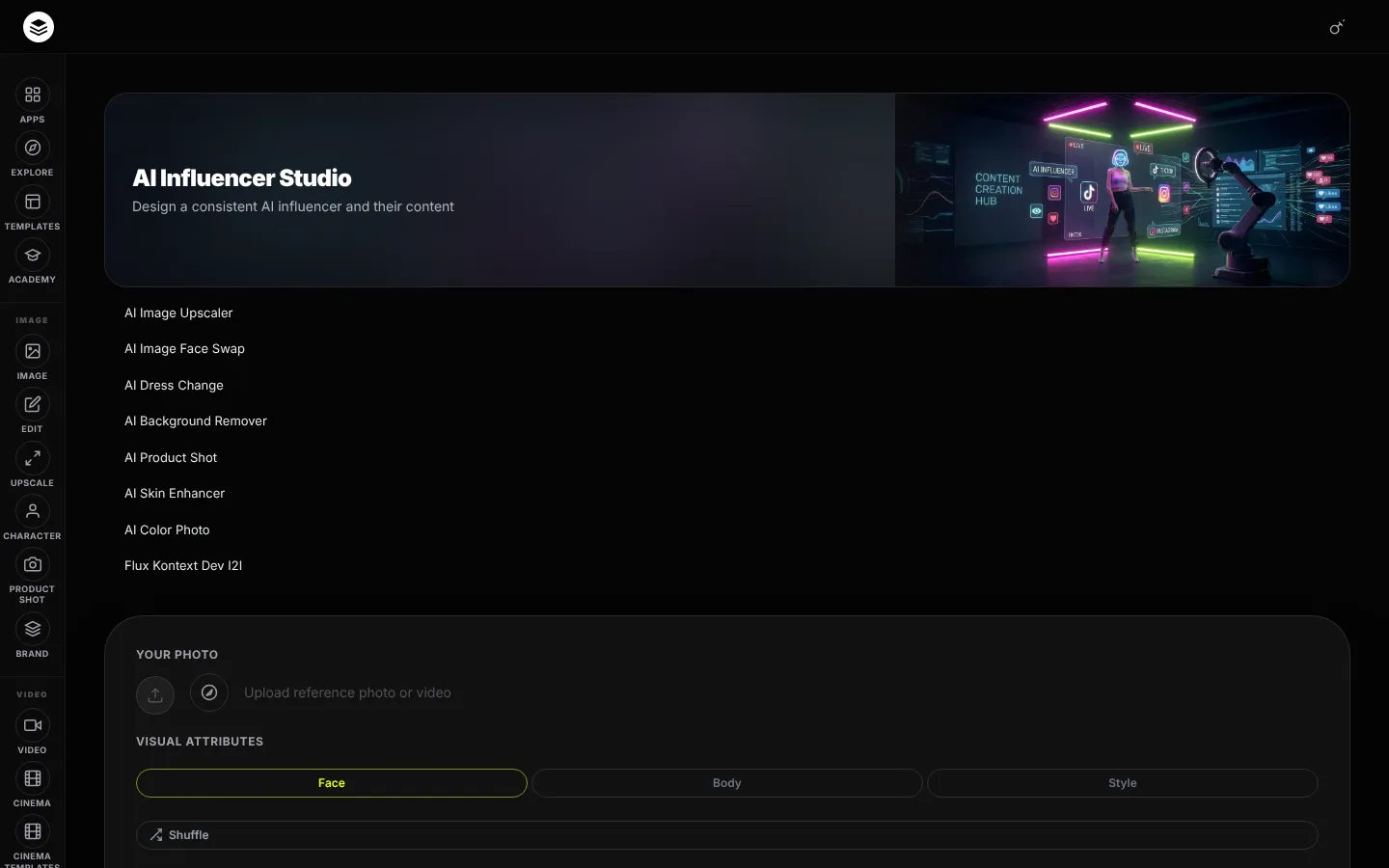
AI Influencer Studio lets you design a consistent-looking AI character by picking visual attributes (face, body, style), a style preset and an output format, then generates a portrait from your reference photo. It is reachable at #/influencer but is not shown in the side menu.

Best for: Creators and brands who want to invent a stylised virtual influencer or character look (realistic, anime, cartoon or 2D) and produce social-ready portraits, and who like building a character from picture options rather than writing long prompts.

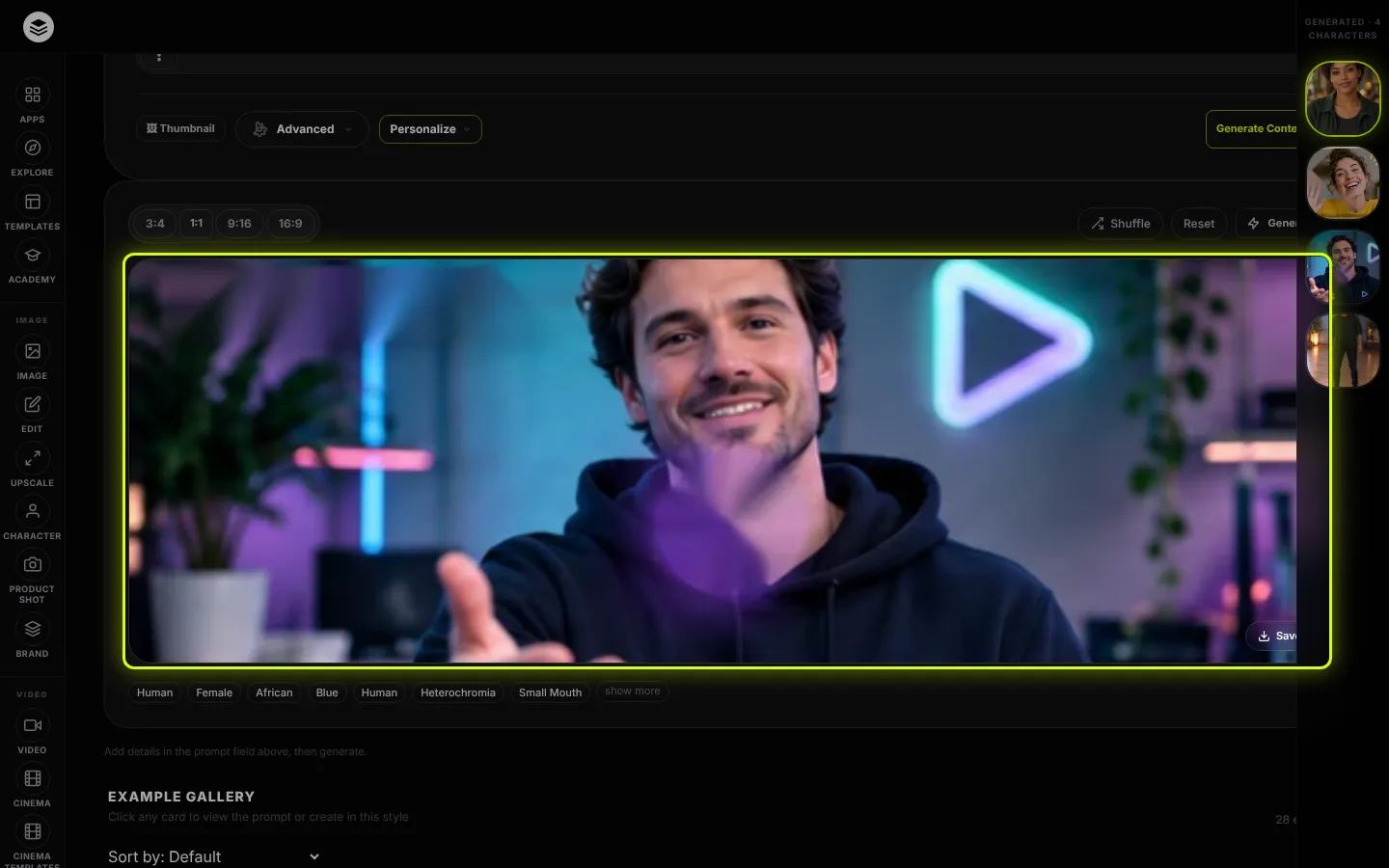
AI Influencer screenshot

Watch the AI Influencer tour

A 2:07 captioned walkthrough of the studio, with a sample file and prompt.

VIDEO · 2:07

What is AI Influencer?

AI Influencer Studio (route #/influencer; the page title is 'AI Influencer Studio' and the app's route list calls it 'AI Influencer' in the Image category) is an image-to-image character builder. You upload a reference photo (or video, or a Pexels stock photo), then build the character with a 'Visual Attributes' panel split into Face, Body and Style tabs, each with picture-card options (character type, gender, ethnicity/origin, eye color and type, mouth, ears, horns, skin conditions, skin material and pattern, body type, arms and legs, hair, accessories and rendering style). Shuffle randomises all attributes and Reset clears them. You also choose one of 20 Style Presets and one of four Output Formats, optionally add instructions, and click Generate Content. Results appear in a 3:4 preview with a Save button and a History strip of your last 50 images. It makes still images only: there is no voice, script or video in this studio.

When to use it

  • You want to design a character by choosing options (gender, eye color, hair, body type, rendering style) instead of writing a prompt.
  • You want a style preset such as Quiet luxury, Y2K Posters or Tokyo Streetstyle on your portrait.
  • You want output sized for Instagram Post, Story / Reel, YouTube Thumb or Pinterest Pin.
  • You want to randomise ideas quickly with Shuffle.
  • You want a running history of the characters you generated.
  • Reference upload for a photo or video, plus a Pexels stock-photo button.
  • Visual Attributes with Face, Body and Style tabs and about 20 sub-categories of picture options.
  • Shuffle (randomise) and Reset (clear) buttons.
  • 20 Style Presets, default Realistic.
  • 4 Output Formats: Instagram Post (1:1), Story / Reel (9:16), YouTube Thumb (16:9), Pinterest Pin (2:3), plus quick ratio buttons 3:4, 1:1, 9:16, 16:9 above the preview.
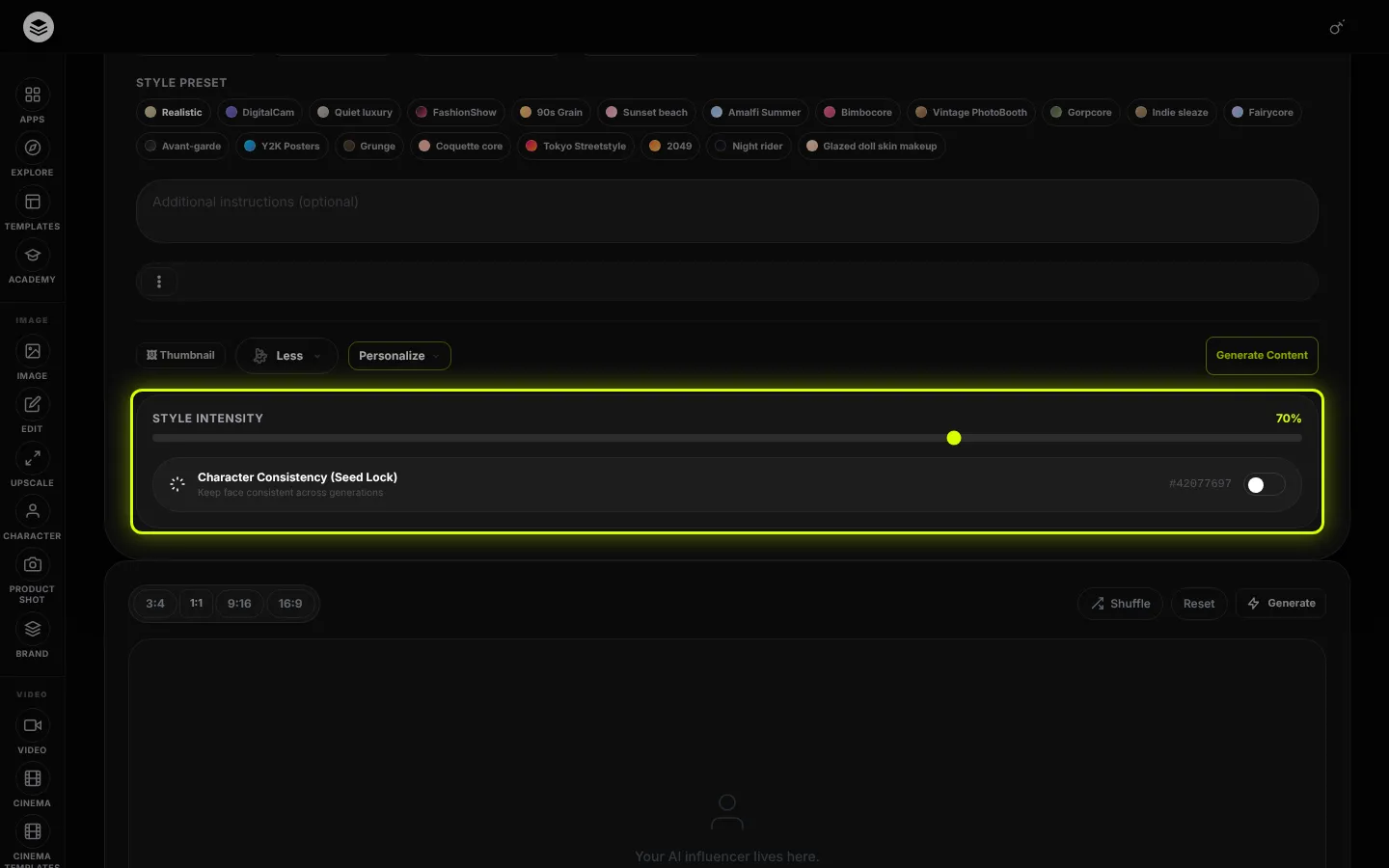
  • Style Intensity slider (0-100%, default 70%) and Seed lock toggle in the Advanced panel.
  • Optional 'Additional instructions' text box.
  • Model selector listing the app's image-to-image models.
  • History strip of up to 50 generated characters with download and delete.
  • Thumbnail, Personalize, GTM Boost, Recipes and Prompts helpers.
  • Example Gallery at the bottom.

Every AI Influencer feature, explained

9 features, each with a definition, why you would use it, what it needs and its limits.

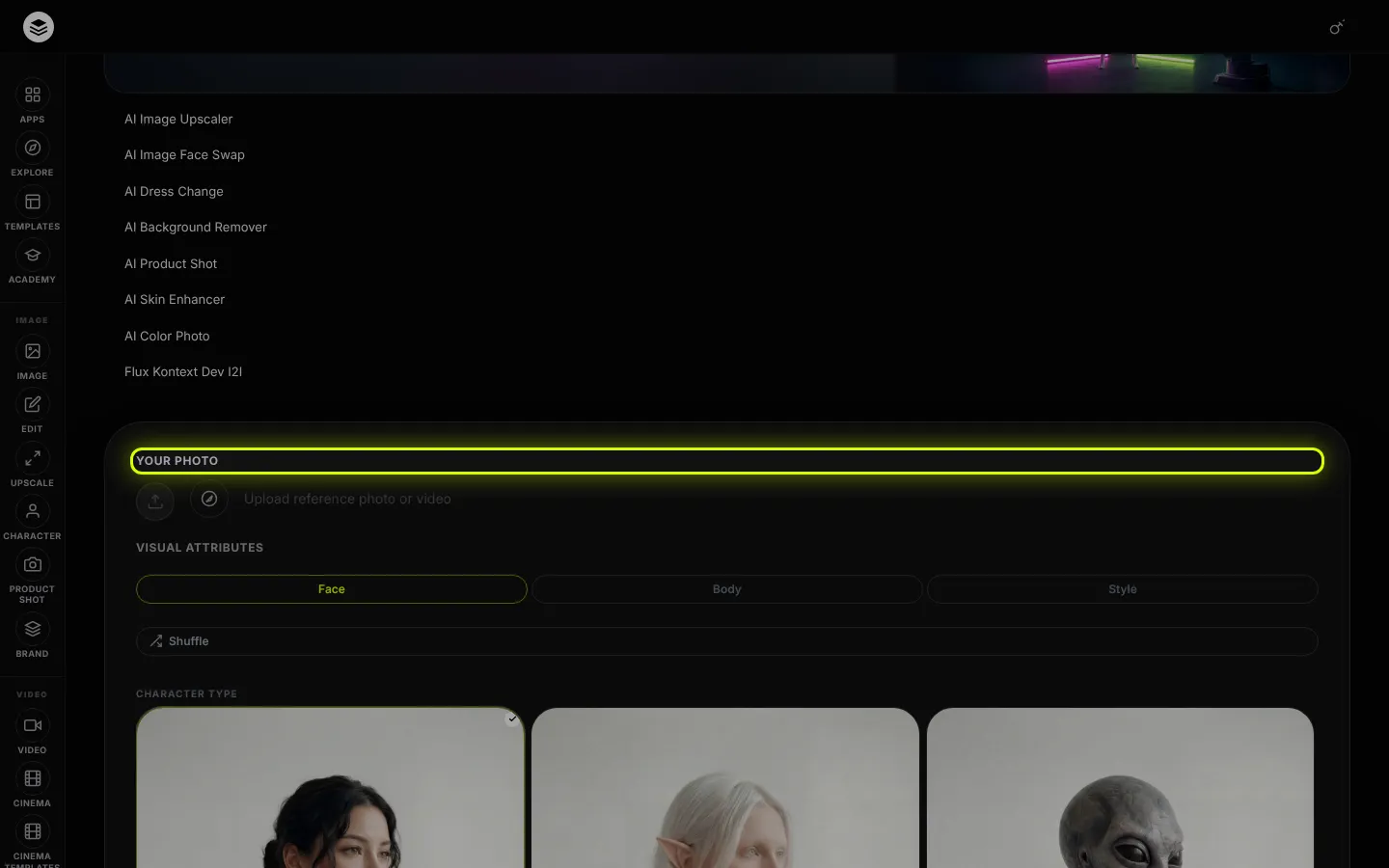
Your Photo (reference upload) in AI Influencer
Your Photo (reference upload)
FEATURE 01

Your Photo (reference upload)

What it is: An upload button with hint 'Upload reference photo or video' and a Pexels button (tooltip 'Browse stock photos from Pexels'; after picking, the hint reads 'Media from Pexels').

Why use it
The generated character is built from this image.
What you need
Required. Without it: toast 'Upload a photo first'.
Limits and rules
Shared upload limits: images 10MB, videos 50MB.
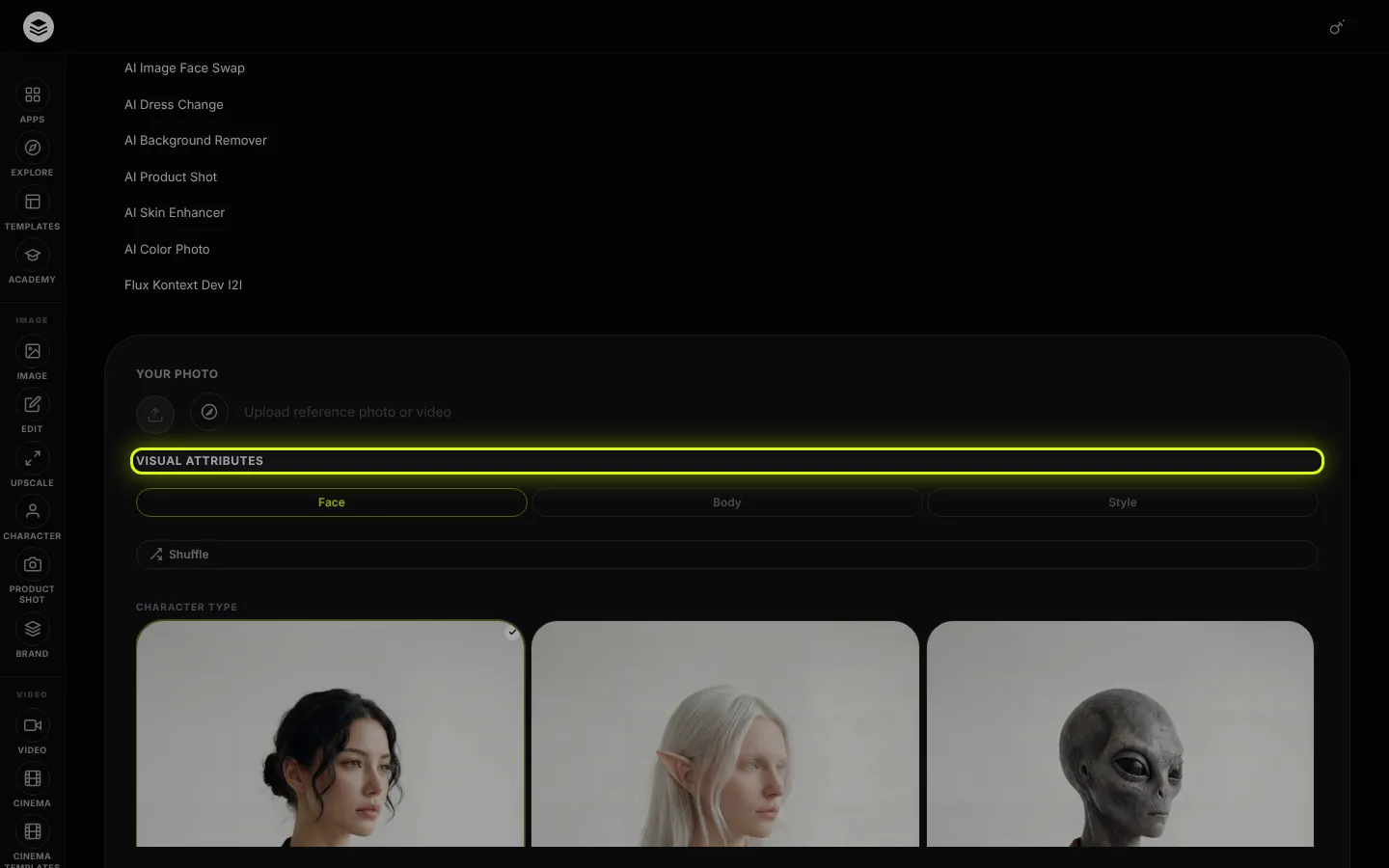
Visual Attributes (Face / Body / Style tabs) in AI Influencer
Visual Attributes (Face / Body / Style tabs)
FEATURE 02

Visual Attributes (Face / Body / Style tabs)

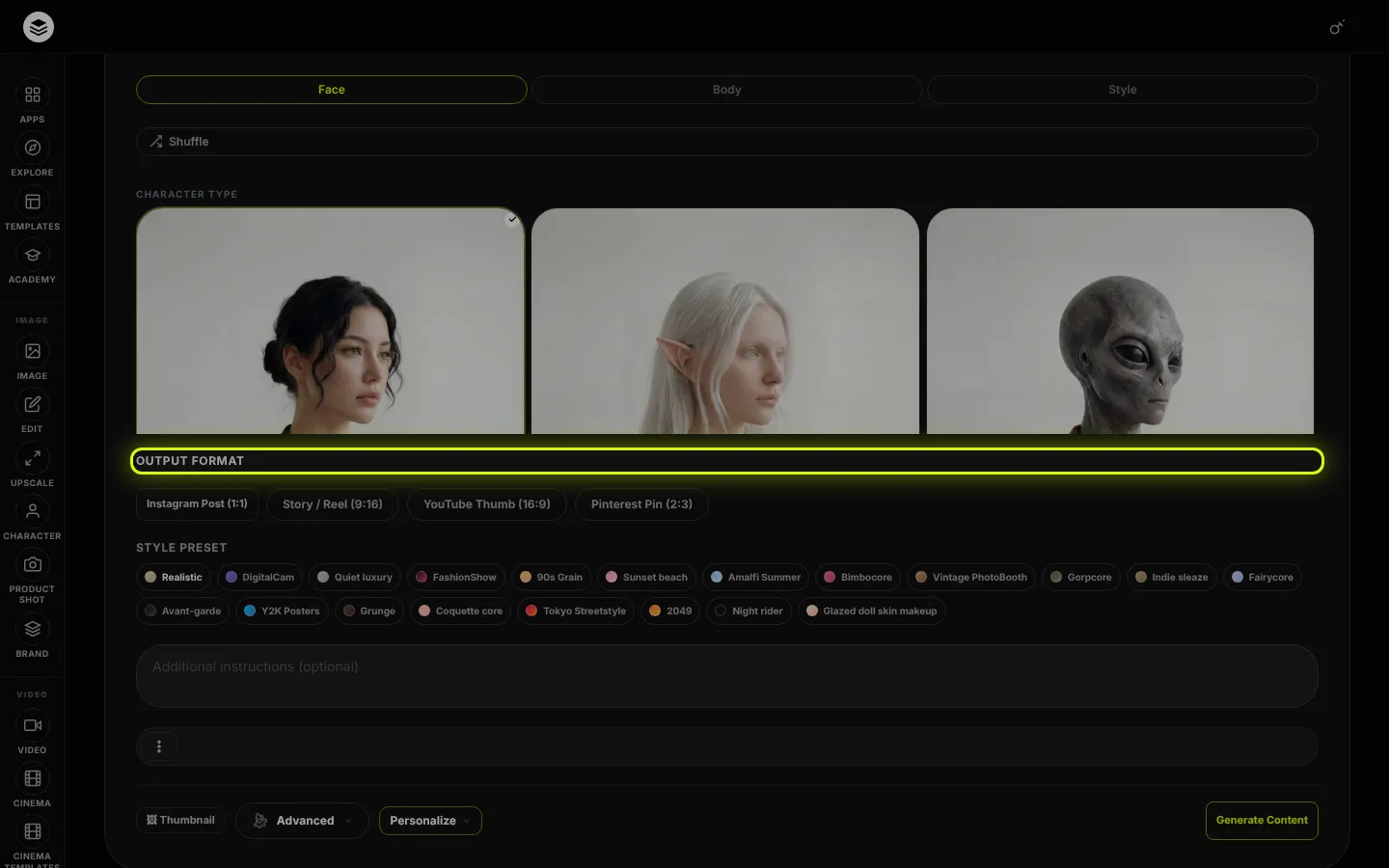
What it is: Picture cards you click to choose one option per sub-category. Face: Character Type (Human, Elf, Alien, Amphibian, Reptile, Mantis, Bee, Octopus, Crocodile, Iguana, Lizard, Beetle, Ant), Gender, Ethnicity / Origin, Eye Color, Eye Type, Eye Features, Mouth & Teeth, Ears, Horns, Skin Conditions. Body: Face Skin Material, Skin Pattern, Body Type, Left/Right Arm, Left/Right Leg. Style: Hair / Head Growth, Accessories & Markings, Rendering Style (Hyper-Realistic, Anime, Cartoon, 2D Illustration). A tag bar below shows the chosen options ('show more' / 'hide').

Why use it
Build a detailed character without writing a prompt.
What you need
Optional, but every sub-category starts with its first option selected (for example Human, Female, African, Blue eyes, Normal arms and legs, Bald), and those are sent to the model unless you change or Reset them.
Limits and rules
One option per sub-category. Some options (for example 'no left arm', 'no ears') are literal descriptions.
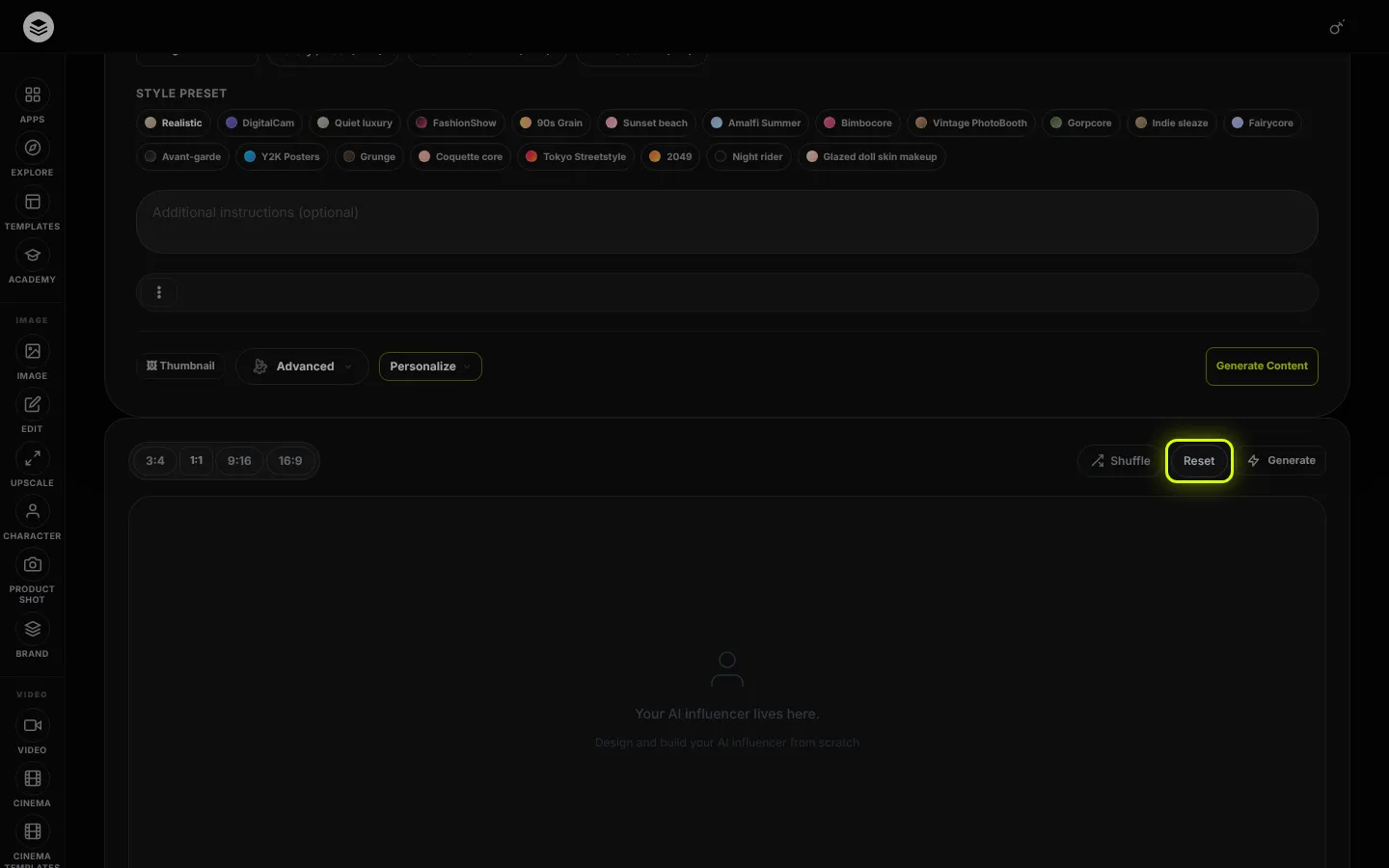
Shuffle and Reset in AI Influencer
Shuffle and Reset
FEATURE 03

Shuffle and Reset

What it is: Shuffle picks a random option in every sub-category. Reset clears every choice so no attribute wording is sent.

Why use it
Shuffle for ideas; Reset to rely on your photo and text only.
What you need
None.
Limits and rules
Shuffle changes all sub-categories at once.
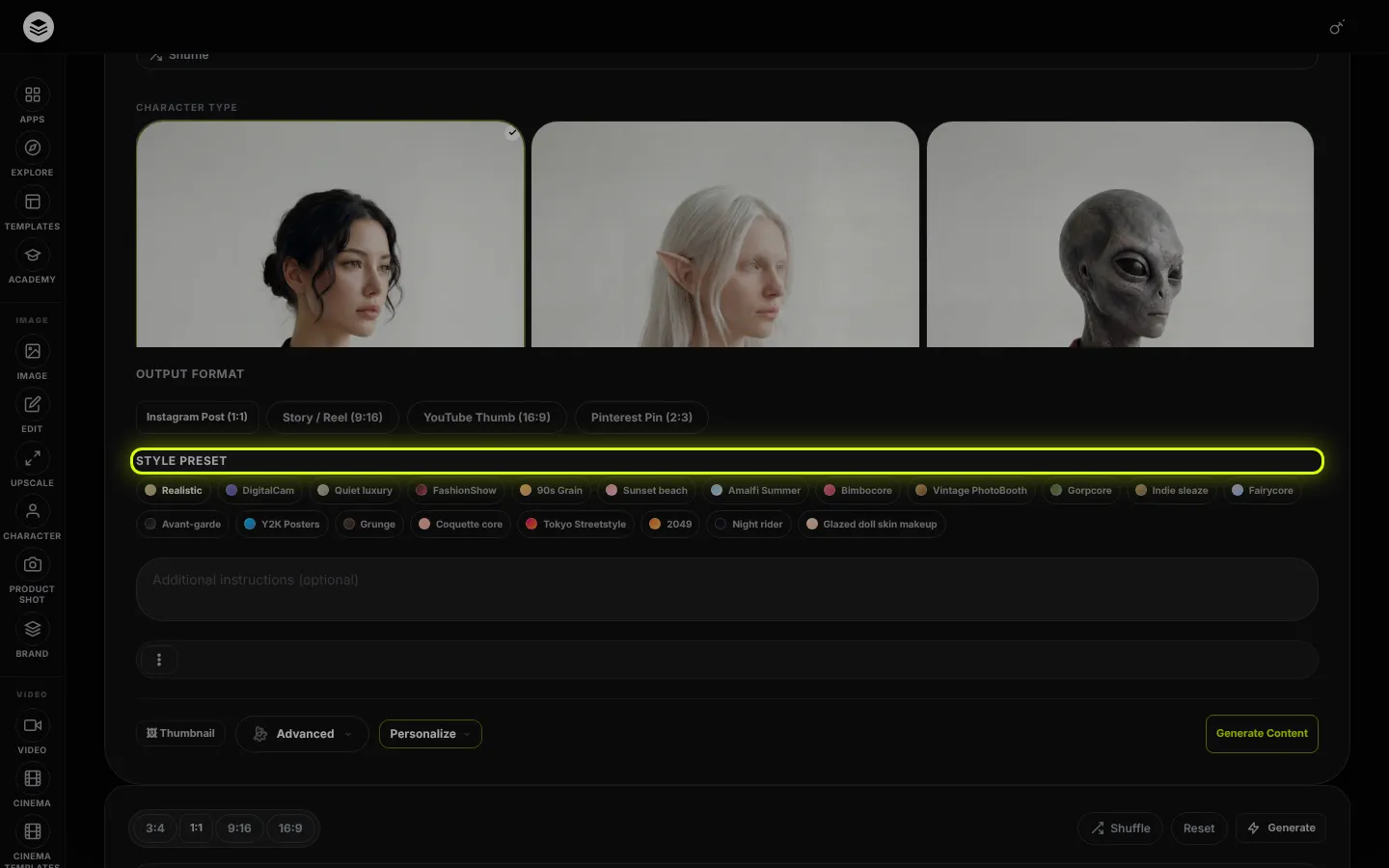
Style Preset in AI Influencer
Style Preset
FEATURE 04

Style Preset

What it is: Twenty chips: Realistic, DigitalCam, Quiet luxury, FashionShow, 90s Grain, Sunset beach, Amalfi Summer, Bimbocore, Vintage PhotoBooth, Gorpcore, Indie sleaze, Fairycore, Avant-garde, Y2K Posters, Grunge, Coquette core, Tokyo Streetstyle, 2049, Night rider, Glazed doll skin makeup. The preset name is added to the prompt as 'Style preset: <name>'.

Why use it
One-click overall look.
What you need
Defaults to Realistic.
Limits and rules
Choose one.
Output Format in AI Influencer
Output Format
FEATURE 05

Output Format

What it is: Instagram Post (1:1), Story / Reel (9:16), YouTube Thumb (16:9), Pinterest Pin (2:3). Quick ratio buttons 3:4, 1:1, 9:16 and 16:9 above the preview change the aspect ratio sent.

Why use it
Match the platform.
What you need
Defaults to Instagram Post (1:1).
Limits and rules
The 3:4 button is the only way to choose 3:4; 2:3 comes from the Pinterest Pin preset.
Style Intensity and Seed lock (Advanced) in AI Influencer
Style Intensity and Seed lock (Advanced)
FEATURE 06

Style Intensity and Seed lock (Advanced)

What it is: Style Intensity is a 0-100% slider in steps of 5, default 70%, sent as 0.0-1.0. Seed lock is a switch ('Toggle seed lock'); when on, a fixed random number shown as '#<number>' is sent as the seed.

Why use it
Intensity to strengthen or soften the style; seed lock to repeat a look.
What you need
Optional.
Limits and rules
Whether the chosen model honours these settings depends on the model; see notConfirmed.
Additional instructions in AI Influencer
Additional instructions
FEATURE 07

Additional instructions

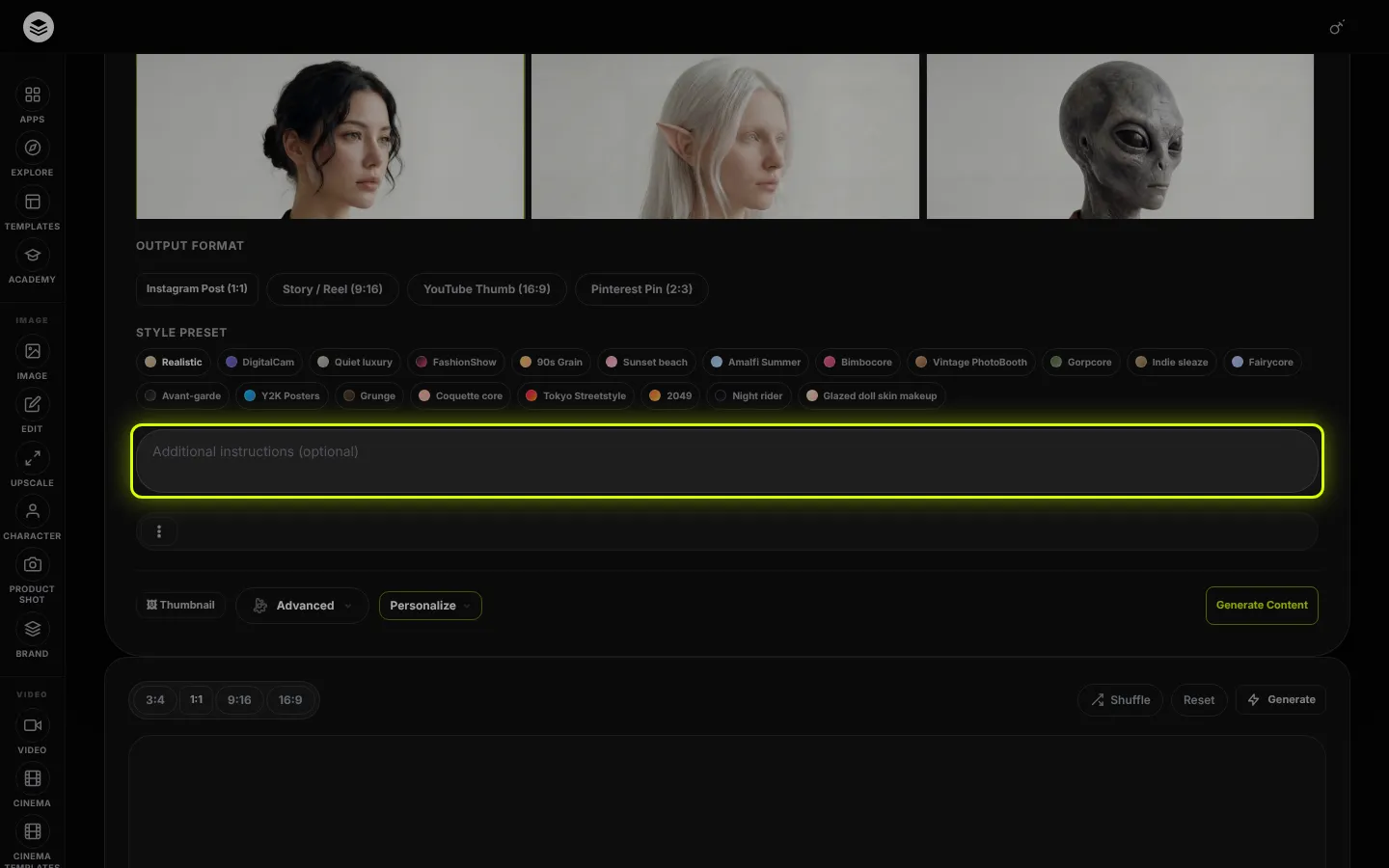
What it is: Text box with placeholder 'Additional instructions (optional)'. If empty, 'Fashion editorial photo, professional quality' is used.

Why use it
Add pose, outfit, setting or mood.
What you need
Optional.
Limits and rules
Contact tokens are replaced if a contact profile is selected (Personalize).
History strip in AI Influencer
History strip
FEATURE 08

History strip

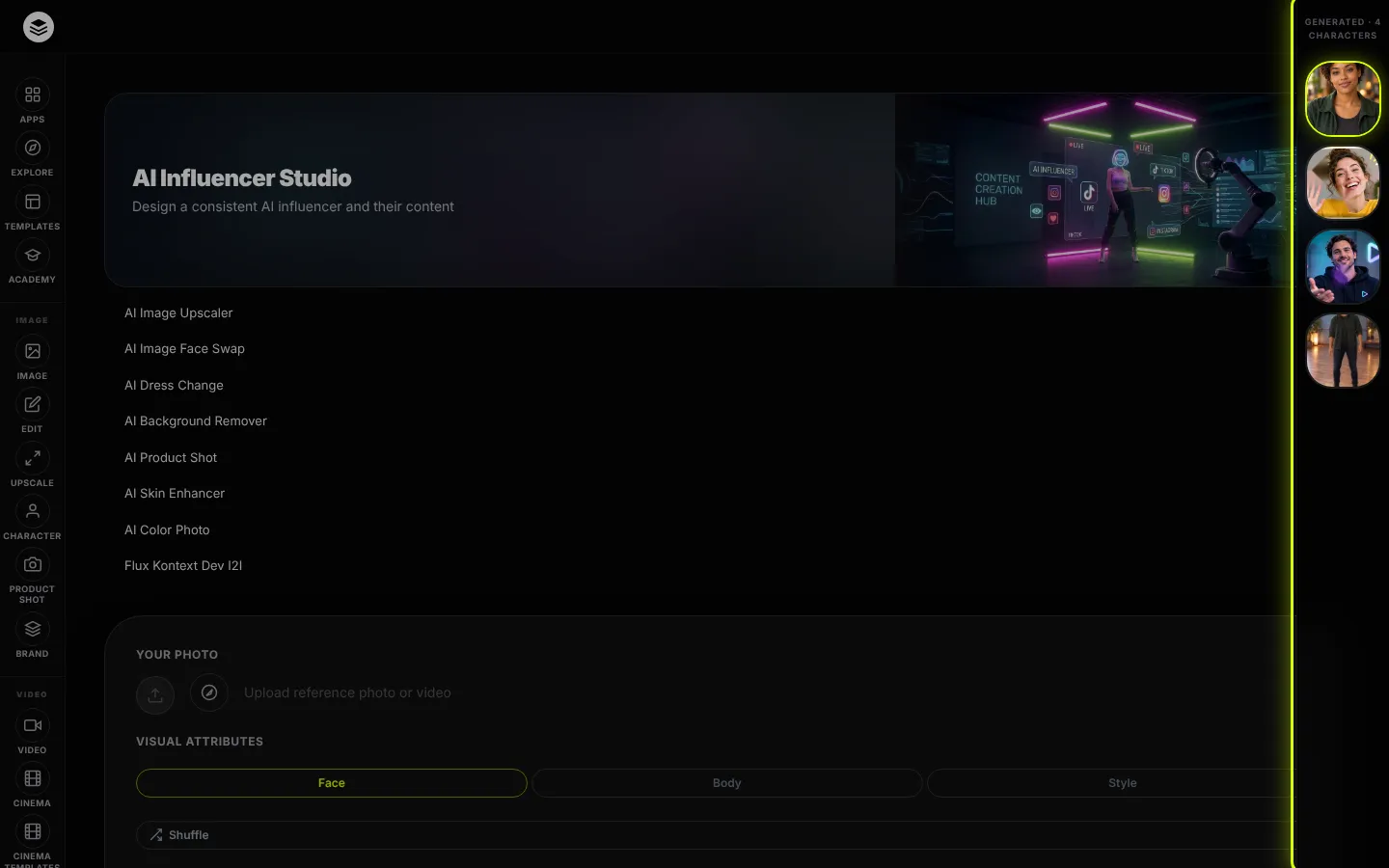
What it is: A side strip labelled 'Generated - N characters' showing up to 50 thumbnails. Hover for Download and Delete; clicking a thumbnail shows it with Download and Generate Again.

Why use it
Compare and re-download earlier results.
What you need
None.
Limits and rules
Stored in your browser only (key influencer_history).
Result preview and Save in AI Influencer
Result preview and Save
FEATURE 09

Result preview and Save

What it is: A 3:4 preview area shows the newest image with a Save button that downloads it. Generate and Generate Content buttons both start a run.

Why use it
See and keep results.
What you need
None.
Limits and rules
The preview shows a placeholder until the first result.

How to use AI Influencer

  1. Open #/influencer.
  2. Upload a reference photo.
  3. Pick attributes in Face, Body and Style tabs (or Shuffle/Reset).
  4. Choose a Style Preset and Output Format.
  5. Optionally adjust Style Intensity and Seed lock under Advanced.
  6. Add optional instructions.
  7. Click Generate Content and Save the result.

Generation modes

The ways this studio can work, and when to pick each one.

Image-to-image

Your photo plus a prompt built from attributes, style preset and instructions goes to the selected model.

Best for: Creating a stylised influencer or character portrait.

Inputs and outputs

What you give the studio, and what you get back.

InputDescriptionWhen to useRules
Your Photo
Required
Reference photo or video.Always.Images up to 10MB, videos up to 50MB.
Visual Attributes
Optional
Picture-card choices across Face, Body and Style tabs.To define the character.Defaults are the first option of each group until you change or Reset them.
Style Preset
Optional
One of 20 look presets.To set an overall aesthetic.One at a time.
Output Format
Optional
Four social formats.Match your platform.None.
Style Intensity
Optional
Slider 0-100% (steps of 5).To control style strength.Default 70%.
Seed lock
Optional
Switch that reuses one fixed seed number.To repeat a result more closely.Seed changes each time you reload the page.

What you get

  • One still image per run
  • Preview with Save
  • History entry (up to 50 in the browser)
  • Generation-history entry (studio: influencer)

Use cases and example workflows

Real jobs you can do, step by step.

Virtual influencer profile images

Create a recognisable character look.

  1. Define attributes.
  2. Generate with the same preset repeatedly.
  3. Pick favourites from History.
Result: A set of stylised portraits.

Fantasy or sci-fi character art

Use Character Type, Horns, Ears and Eye Features.

  1. Choose Elf or Alien and extras.
  2. Pick Anime or Cartoon.
Result: Character concept images.

Thumbnail faces

Generate faces in YouTube Thumb 16:9.

  1. Choose YouTube Thumb.
  2. Generate.
Result: 16:9 character images.

Quiet luxury fashion portrait

  1. Upload a reference photo.
  2. Click Reset.
  3. Choose Gender, Hair and Body Type you want.
  4. Pick Style Preset 'Quiet luxury' and Instagram Post (1:1).
  5. Click Generate Content, then Save.

Random character ideas

  1. Upload any photo.
  2. Click Shuffle several times.
  3. Click Generate each time and review the History strip.

Vertical story image

  1. Pick Story / Reel (9:16).
  2. Add instructions like 'standing on a sunset beach'.
  3. Generate and Save.

Tips and best practices

  • Click Reset first if you want full control.
  • Keep choices consistent with each other.
  • Use Shuffle for inspiration, then fine-tune.
  • Use the same reference photo and preset for a consistent series.
  • Save images you like; history is browser-only.
  • Use only photos you have the right to use.
  • Check generated images before publishing as a real person's likeness.

Limitations and troubleshooting

Know the limits before you start, and how to fix common problems.

LimitationWhat it meansWorkaround
Default attributes are always sentYour result may include features you did not choose (for example 'female', 'african heritage', 'striking blue eyes').Click Reset, then choose only the attributes you want.
No voice or videoCannot make a talking influencer here.Download and use Avatar, Lip Sync, Audio or Video studios.
Browser-only historyHistory disappears if you clear site data.Click Save on images you want to keep.

Unexpected eyes, hair or skin

Why: Default first options are sent.

Fix: Use Reset.

Rendering style not what I wanted

Why: Rendering Style default is Hyper-Realistic.

Fix: Select Anime, Cartoon or 2D Illustration on the Style tab.

Image cropped

Why: Chosen ratio differs from the preview 3:4 box.

Fix: Download the image; the file uses your chosen ratio.

Glossary

Terms used in AI Influencer.

Visual Attributes
The picture-card options for building a character.
Style Preset
A named overall look added to the prompt.
Style Intensity
A 0-100% slider for how strongly the style is applied.
Seed
A number that starts the random generator; reusing it can repeat a look.
Shuffle
Randomises all attributes.
Reset
Clears all attributes.
History
Your last 50 generated images stored in this browser.

Frequently asked questions

Is AI Influencer Studio the same as Character Studio?

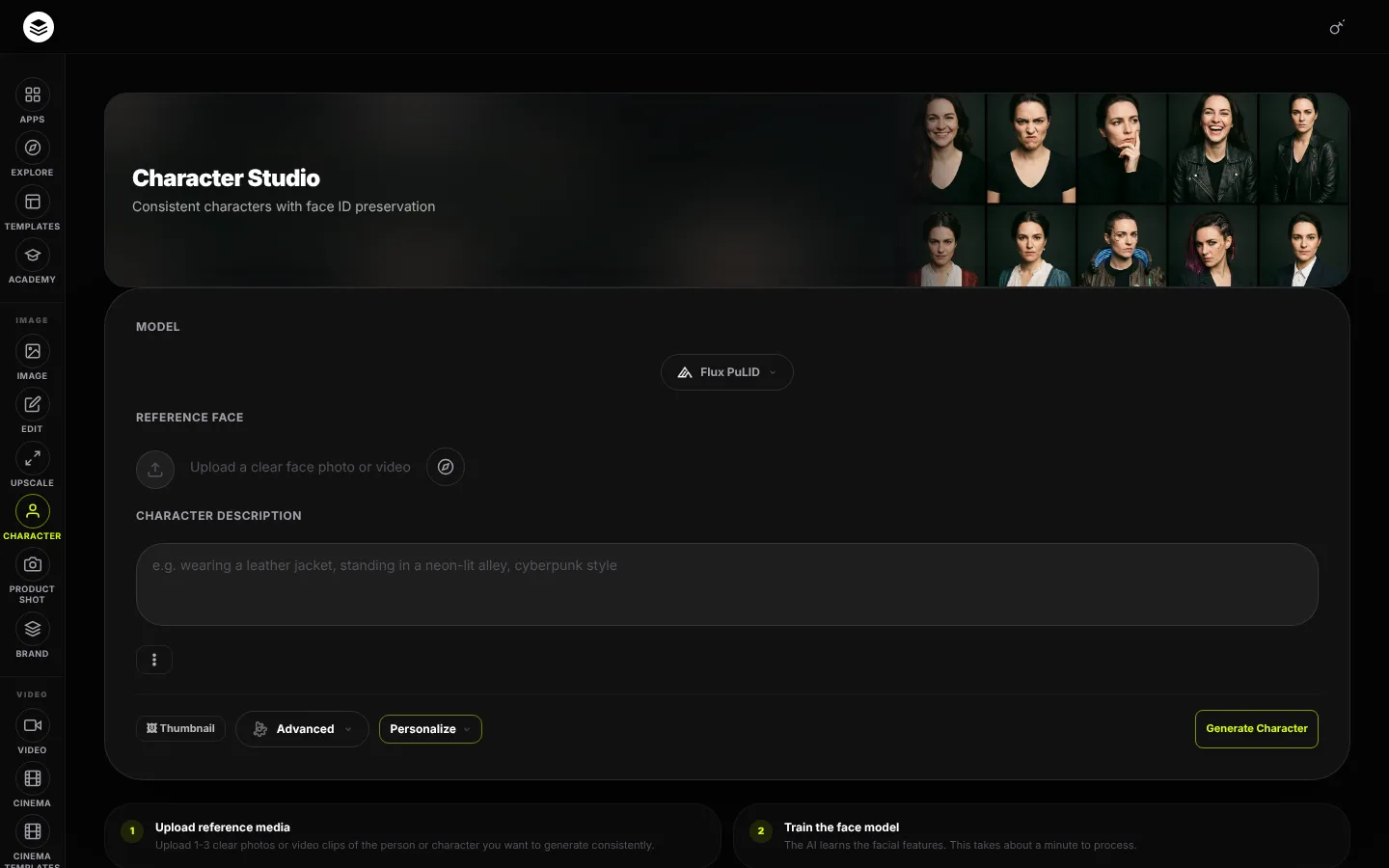
No. Character Studio focuses on keeping a real face with two face-preserving models and expression presets. AI Influencer Studio focuses on building a stylised character from attribute options and style presets.

Why is it not in the side menu?

It is reachable at #/influencer; the menu does not list it.

Can it clone a voice or make videos?

No. This studio only generates images.

How many images does History keep?

Up to 50, stored in your browser.

What does Shuffle do?

Randomly selects an option in every attribute group.

What does Reset do?

Clears all attribute choices.

What are the default settings?

Style Preset Realistic, Instagram Post (1:1), Style Intensity 70%, Seed lock off.

Does the seed lock guarantee identical results?

No. It sends a fixed seed, but whether a model repeats results depends on the model.

Try AI Influencer now

Open the studio and put these features to work, or browse the guides for all 53 studios.