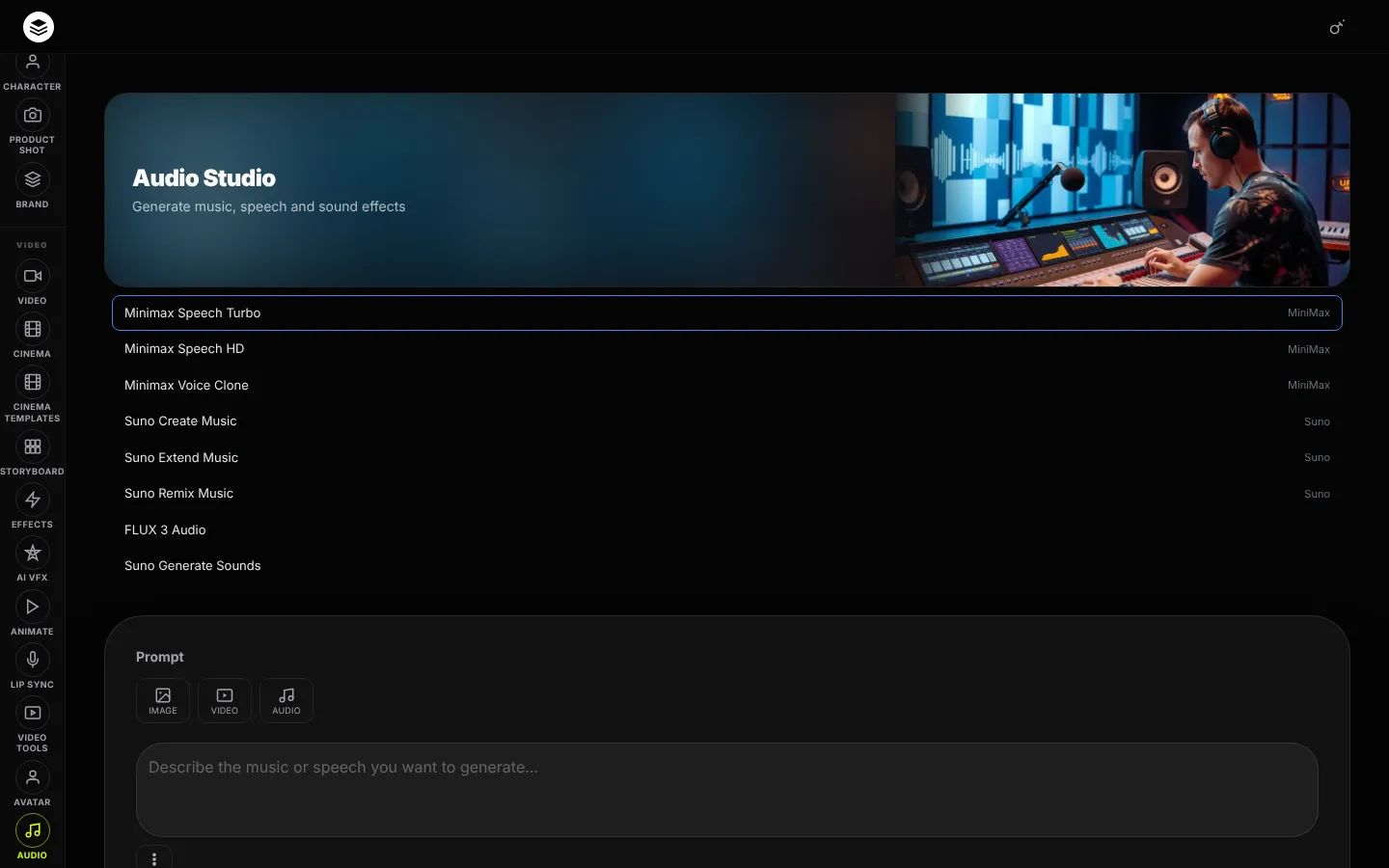
Audio Studio generates music, speech (text-to-speech) and sound effects from a text prompt, using a model you pick from a list. Results play on a waveform player with a Download Audio button.
Best for: Creators who need background music, a voice-over, a song, or sound effects for videos, and beginners who want to try several audio models from one place.
A 1:53 captioned walkthrough of the studio, with a sample file and prompt.
VIDEO · 1:53
What is Audio Studio?
Audio Studio is one form for several kinds of audio. You choose a model (for example Suno for songs, MiniMax, ElevenLabs, Gemini or Fish Audio for speech, Lyria or MiniMax Music for music, Suno Generate Sounds or MM Audio for sound effects), type a prompt, set the controls the model offers, and click 'Generate Audio'. The form changes with the model: music models show a Style list, speech models show a Voice list, and many newer models show their own controls (voice, lyrics, tempo, reference audio, and so on) built from the model's options. Generated tracks appear in a waveform player with play, mute, volume, a Download Audio button and an Audio Editor panel, and are kept in a history grid. You can also drag an audio file onto the page to use as a reference input for models that accept audio.
When to use it
You need background music or a full song for a video.
You need a narration or voice-over from written text (text-to-speech).
You need sound effects or ambience.
You want to clone a voice, extend, remix or add vocals/instrumentals to an existing track using the Suno or MiniMax tools.
You need an audio file to feed into Lip Sync Studio or Avatar Studio.
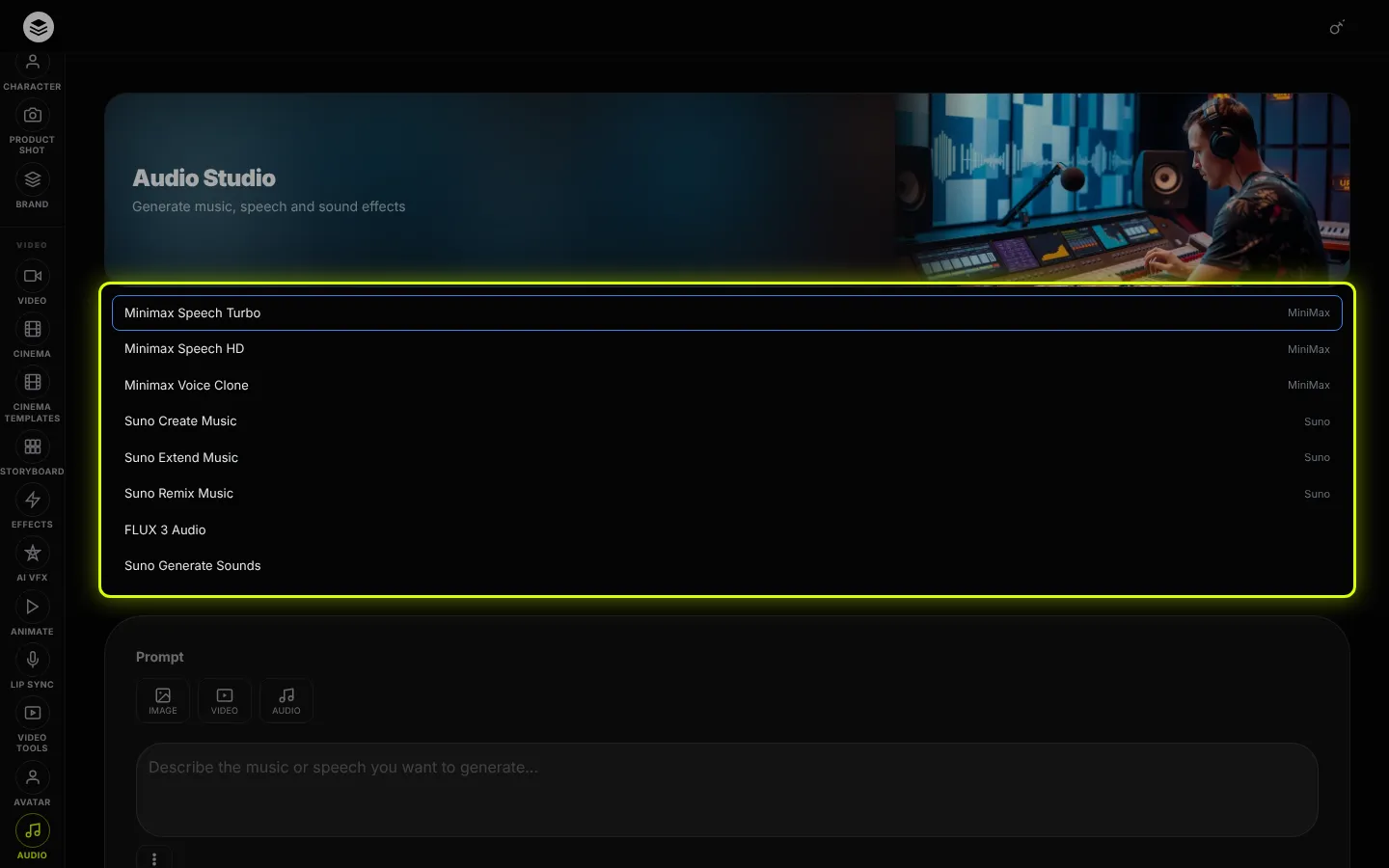
Model picker with search and provider filter covering music, speech, voice cloning and sound-effect models.
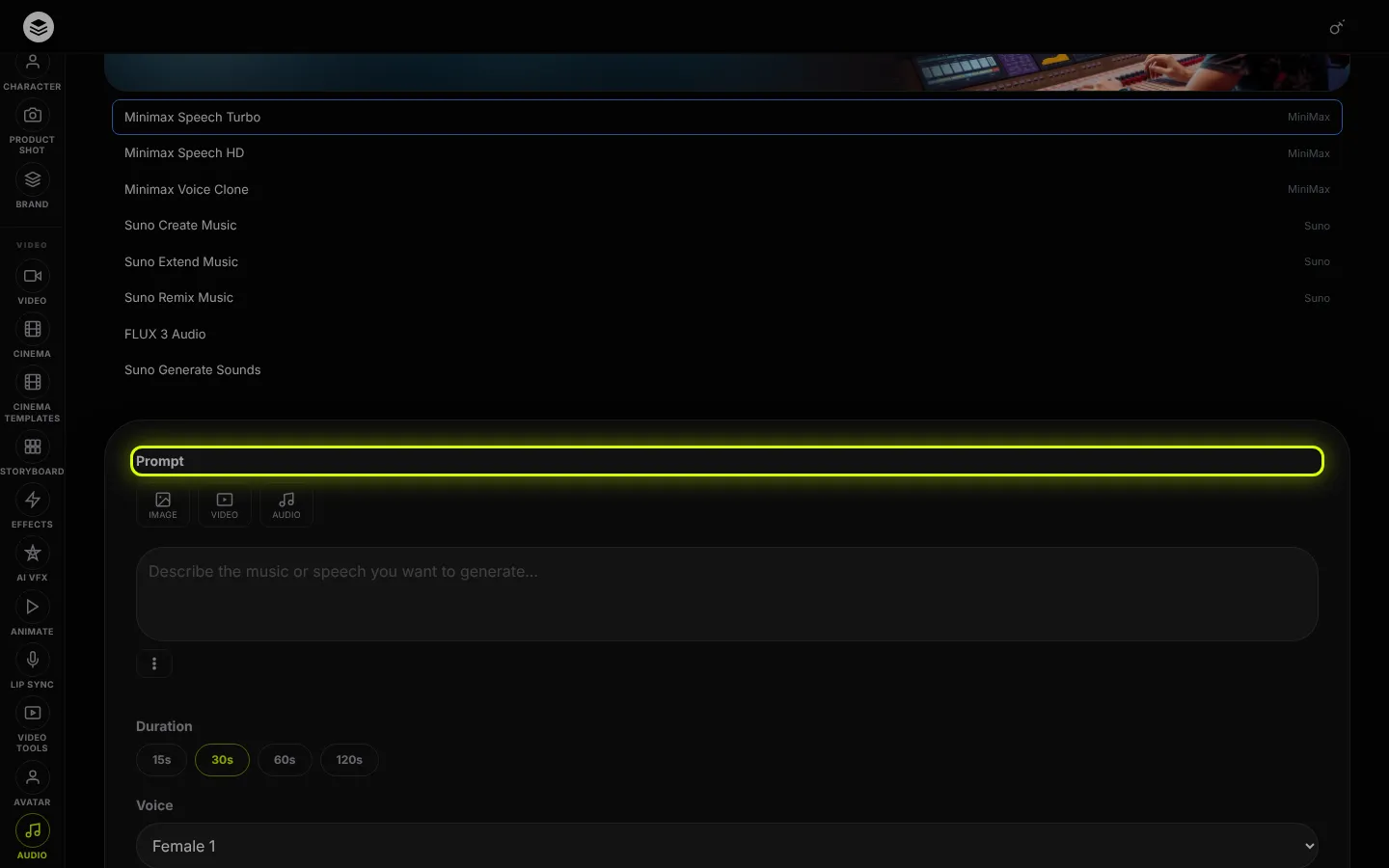
Prompt box: 'Describe the music or speech you want to generate...'.
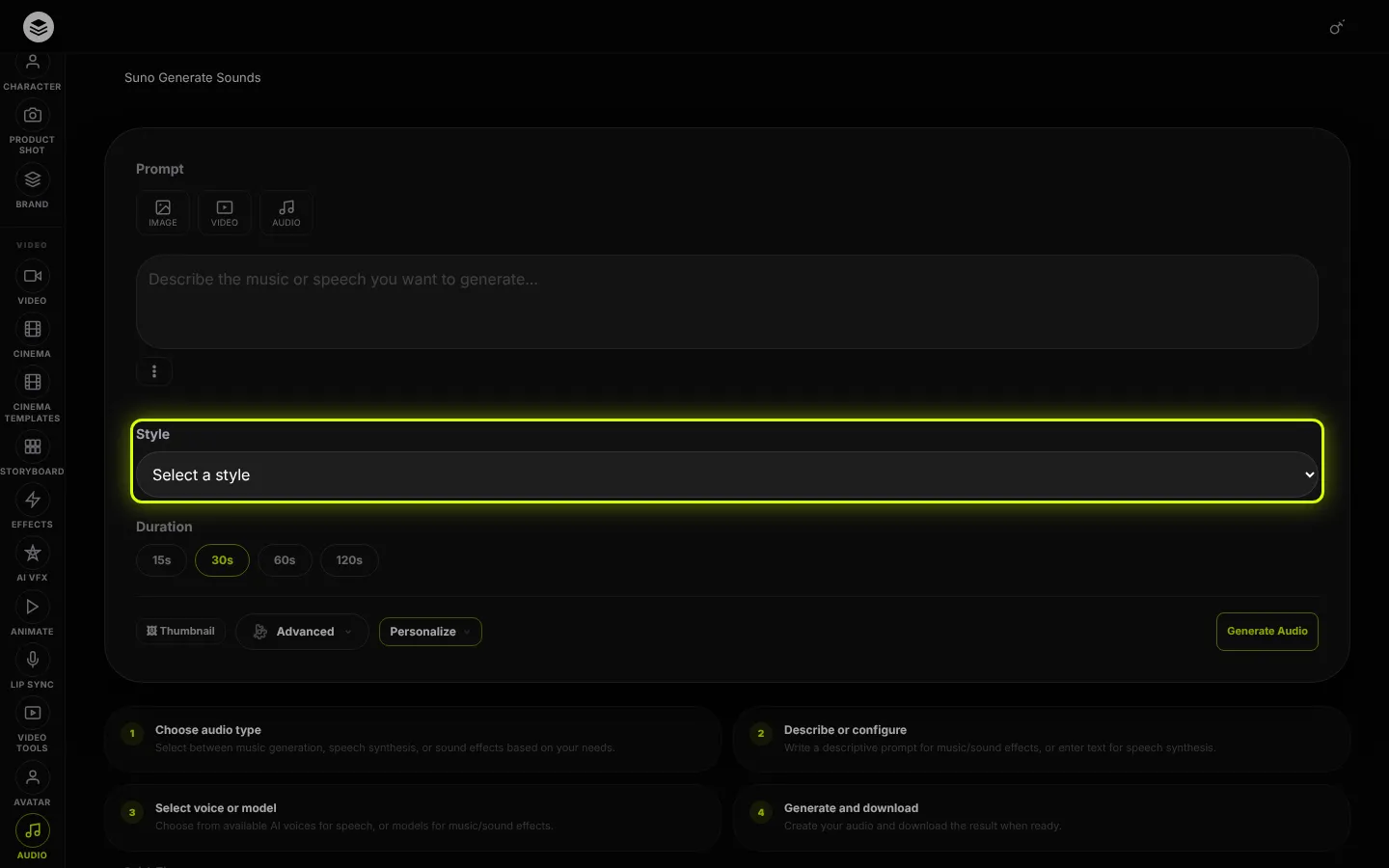
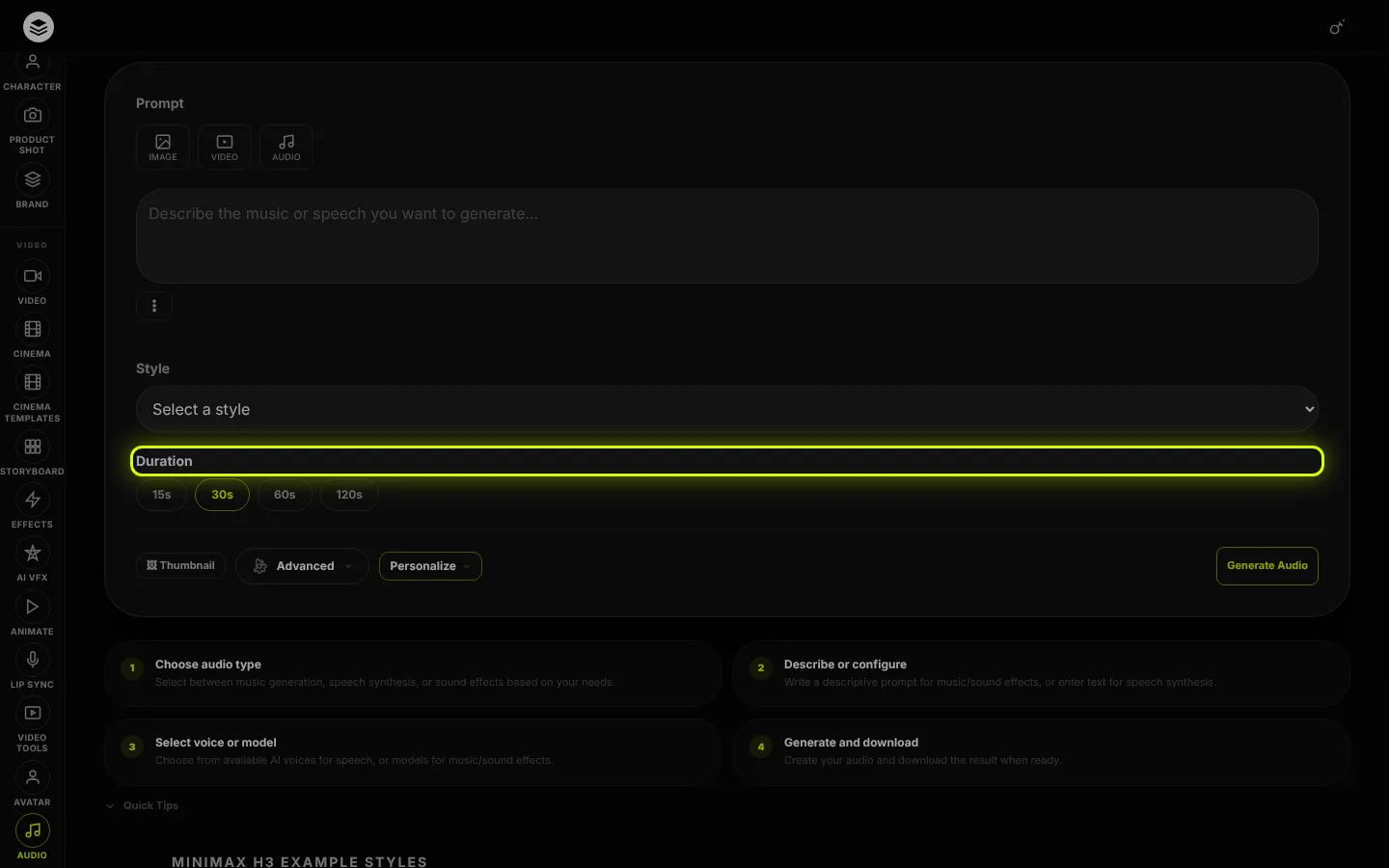
Style list for music models: Pop, Rock, Electronic, Classical, Jazz, Hip Hop, Ambient.
Duration buttons: 15s, 30s, 60s, 120s.
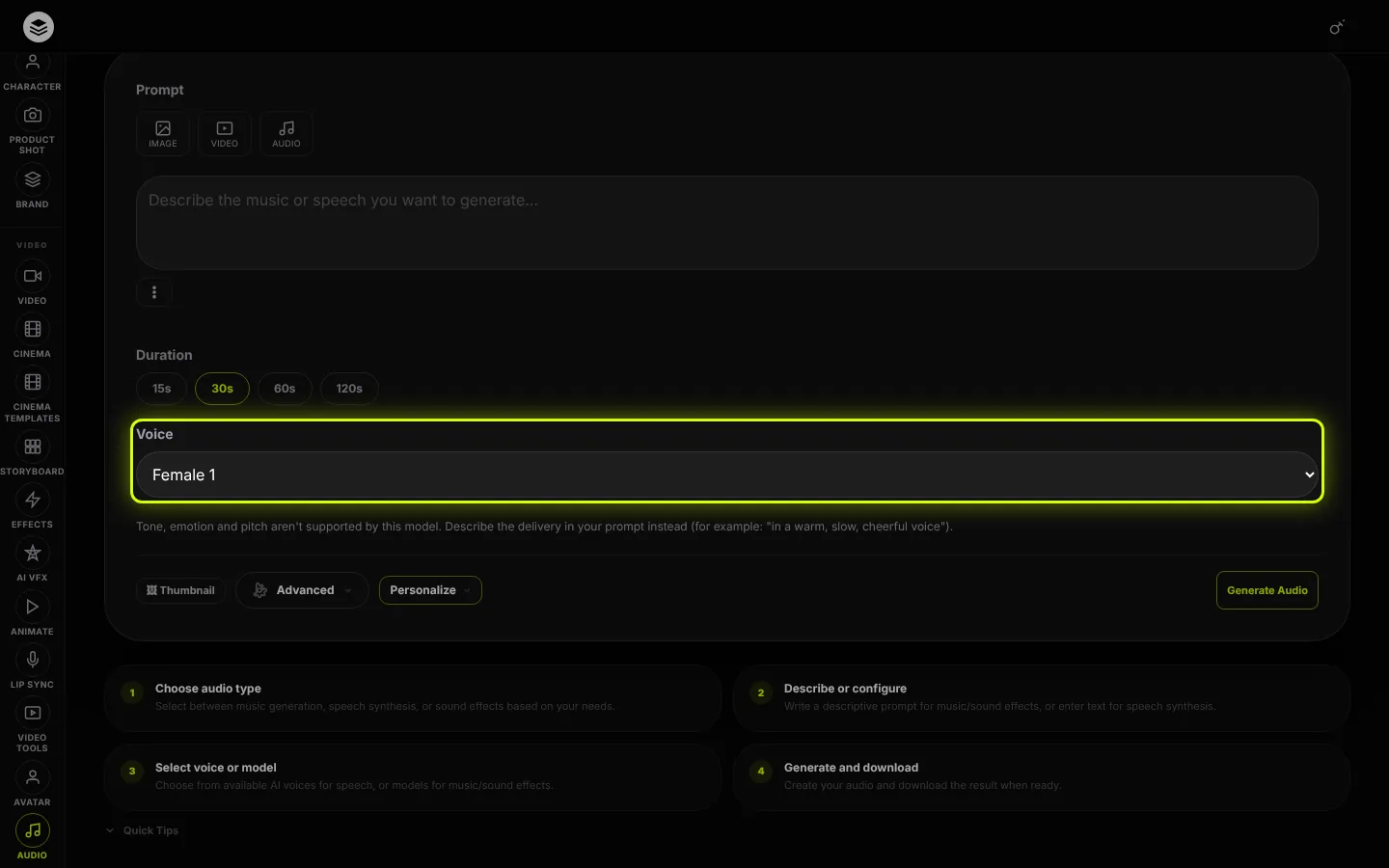
Voice list for MiniMax speech models: Female 1, Male Qingse.
Tone list (Neutral, Cheerful, Serious, Excited, Calm, Empathetic, Warm, Authoritative): shown only for a model whose settings include a tone field. No current model has one.
Emotion list (None, Happy, Sad, Angry, Surprised, Fearful, Disgusted, Neutral): shown only for a model whose settings include an emotion field. No current model has one.
Speed slider (0.5x to 2.0x) for speech models. A Pitch slider appears only for a model whose settings include a pitch field; for speech models without one, the studio shows a hint to describe the delivery in the prompt.
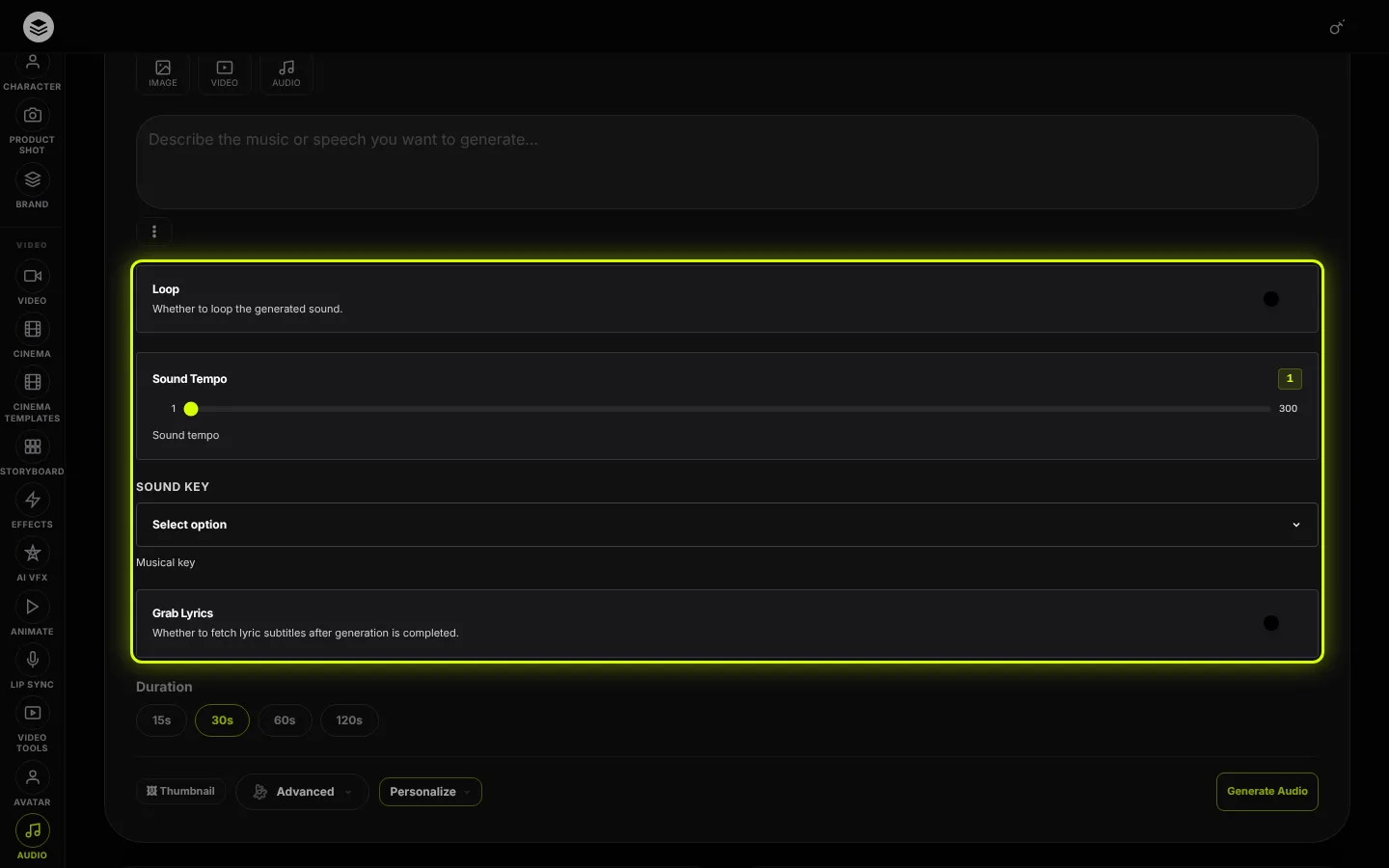
Model-specific controls built from each model's options: toggles, dropdowns, sliders, audio uploaders.
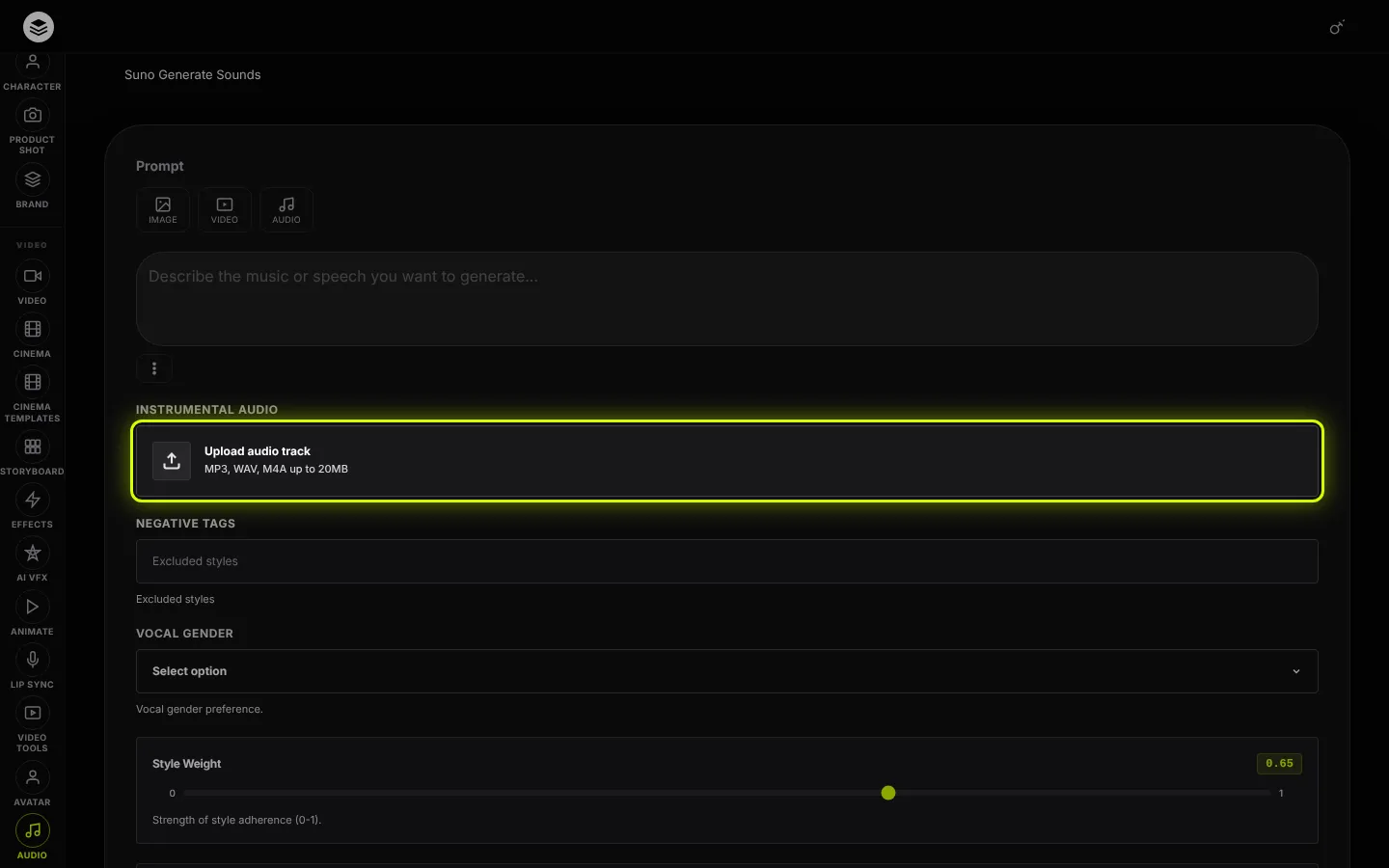
Reference attachments: upload an audio track (or drop an audio file on the page).
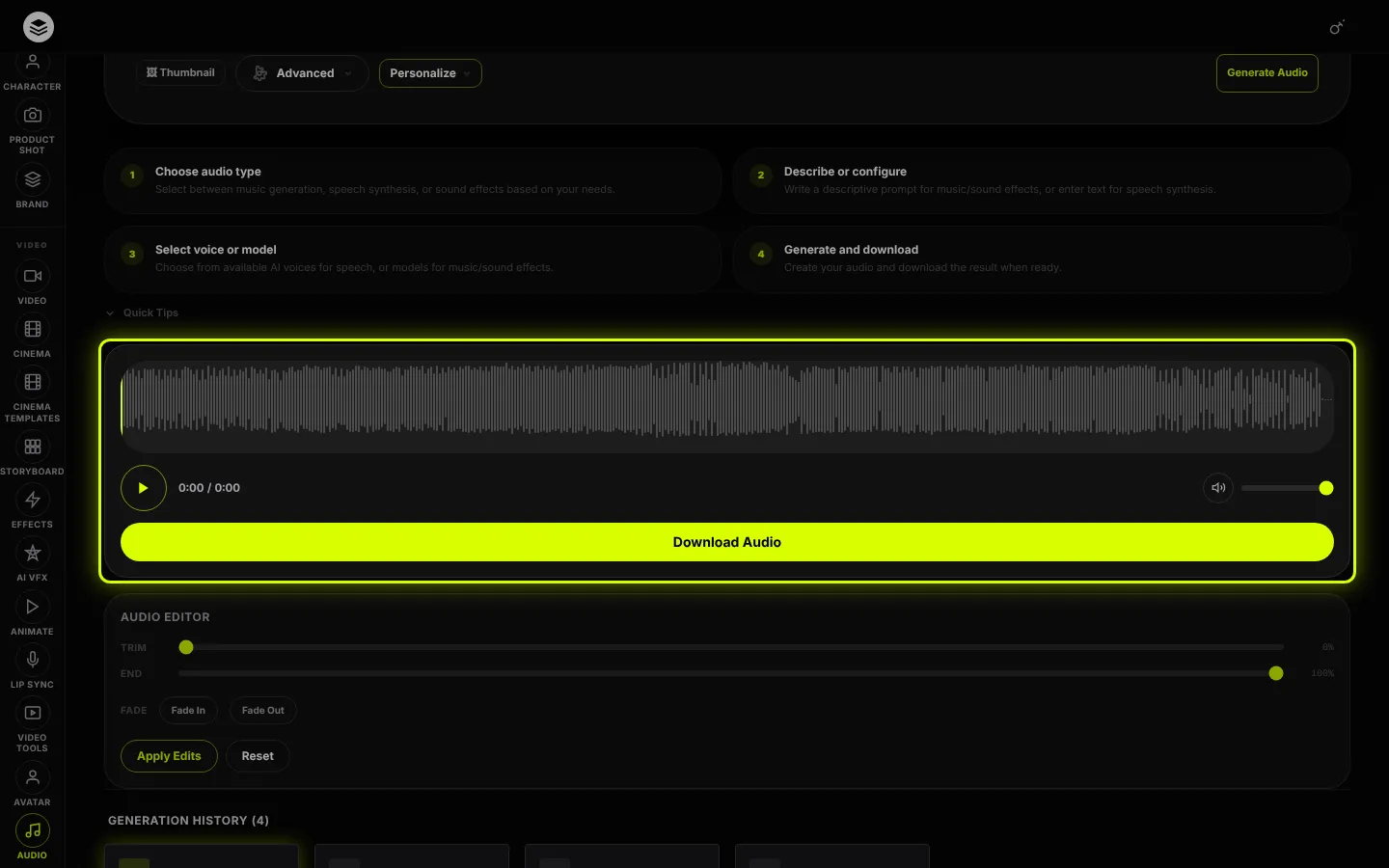
Waveform player with Play, Mute, Volume, time display and 'Download Audio'.
Audio Editor with Trim and End sliders, Fade In, Fade Out, Apply Edits and Reset.
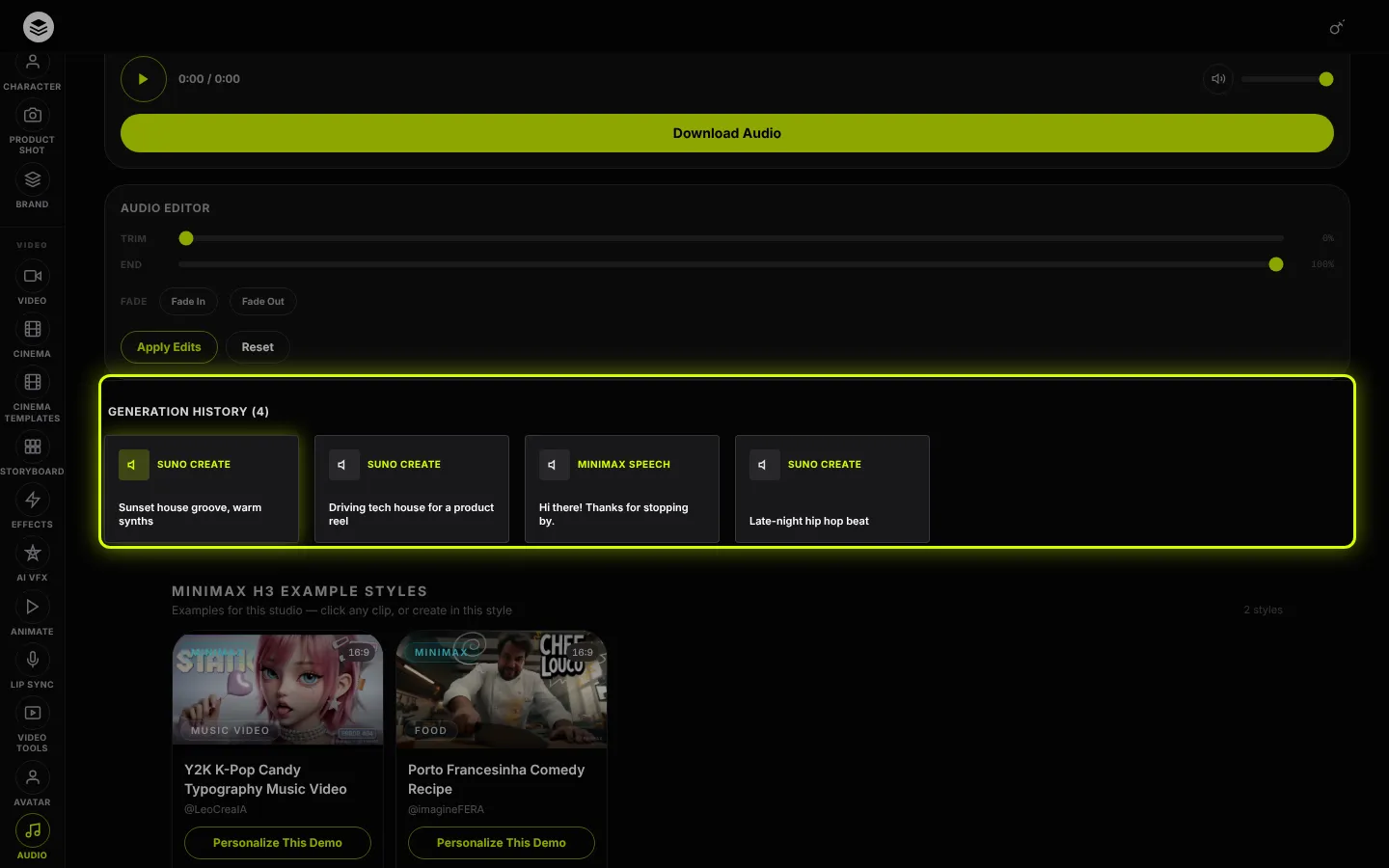
History grid of your last 30 results and recovery of jobs still running after a page reload.
Thumbnail button (square cover art), more-tools menu (GTM Boost, Recipes, Prompts) and Personalize.
Every Audio Studio feature, explained
9 features, each with a definition, why you would use it, what it needs and its limits.
Model selector
FEATURE 01
Model selector
What it is: Pick the audio model at the top of the page. The default is the first model in the list, Minimax Speech Turbo. Your last selected model and form values are remembered in this browser.
Why use it
Different models are built for songs, speech, sound effects or voice cloning.
What you need
None.
Limits and rules
Switching model clears model-specific options (they reset).
Prompt
FEATURE 02
Prompt
What it is: The text for the model: a description of the music, or the actual words to speak for speech models.
Why use it
It is the main instruction for generation.
What you need
Required for models that use a prompt. If empty: 'Please enter a prompt for this model.'
Limits and rules
Some models limit length: ElevenLabs v4 up to 2,000 characters, Lyria models up to 2,000 characters, Suno Generate Sounds up to 500 characters. The box is hidden for voice-clone models that take no prompt.
Style (music)
FEATURE 03
Style (music)
What it is: A dropdown with 'Select a style' plus Pop, Rock, Electronic, Classical, Jazz, Hip Hop, Ambient. Shown for music models and models flagged as supporting styles.
Why use it
Quickly steer the genre.
What you need
Optional.
Limits and rules
Only visible for music-type or style-supporting models.
Duration
FEATURE 04
Duration
What it is: Buttons 15s, 30s, 60s and 120s (30s is the default). The value is sent for music and other non-speech models.
Why use it
Choose how long the track should be.
What you need
Optional.
Limits and rules
Some models decide length themselves; for example Lyria 3 is described as producing clips up to 30 seconds. The button row is always visible but is not sent for MiniMax speech models.
Voice and Speed (speech)
FEATURE 05
Voice and Speed (speech)
What it is: For MiniMax speech models (type tts) you get a Voice list (Female 1, Male Qingse) and a Speed slider from 0.5x to 2.0x. Some speech models, such as ElevenLabs Turbo 2.5, show their own Speed setting in the model options instead.
Why use it
Adjust how a narrator sounds.
What you need
Optional (defaults: Female 1, 1.0x).
Limits and rules
Tone, Emotion and Pitch controls appear only for a model that has those fields, and are then sent. None of the current models do, so speech models show a hint instead: describe the delivery in your prompt (for example 'in a warm, slow, cheerful voice').
Model-specific controls
FEATURE 06
Model-specific controls
What it is: Newer models show their own options right under the prompt, for example ElevenLabs 'Voice' (voice_daniel, voice_liam), Suno 'Loop', 'Sound Tempo' and 'Sound Key', Suno vocal gender and style weight, MiniMax Music lyrics and instrumental toggle, and Gemini TTS speakers/scene settings.
Why use it
Get the most out of that particular model.
What you need
Depends on the model.
Limits and rules
Options and limits come from each model; read the small help text under each control.
Audio upload and drag and drop
FEATURE 07
Audio upload and drag and drop
What it is: Models that need audio (for example Suno Add Vocals, Add Instrumental, Voice Cloning, Mashup) show an 'Upload audio track' area ('MP3, WAV, M4A up to 20MB'). Mashup shows up to 2 tracks. You can also use the attachment toolbar or drop an audio file anywhere on the page ('Drop audio to use as input').
Why use it
Remix, extend, clone or add vocals to existing audio.
What you need
Only for models that need audio.
Limits and rules
Own check: files over 20MB are rejected with 'Audio file exceeds 20MB limit.' The shared upload adapter may apply a stricter limit and show its own message. Dropping a non-audio file shows 'Drop an audio file (mp3, wav, m4a…)'.
Waveform player and Audio Editor
FEATURE 08
Waveform player and Audio Editor
What it is: After generation you see a waveform with Play, Mute, Volume and 'Download Audio'. Below it the Audio Editor offers Trim and End sliders (percent), Fade In, Fade Out, Apply Edits and Reset.
Why use it
Preview and make quick edits.
What you need
A finished track.
Limits and rules
Applying edits shows the toast 'Audio edits applied (trim/fade simulation)', which indicates the editor is a simple preview-style tool; use Timeline Studio or Workbench for real editing.
History and job recovery
FEATURE 09
History and job recovery
What it is: Results are added to a history grid (up to 30). If you reload while a job runs, the studio recovers it and shows 'Recovered a generation that finished while you were away'.
Why use it
Do not lose long jobs.
What you need
None.
Limits and rules
Stored locally in this browser.
How to use Audio Studio
Pick an audio model.
Write a prompt (description for music or the words to speak for speech).
Set style, duration, voice or other options.
Upload reference audio if the model asks for it.
Click Generate Audio.
Play the result and click Download Audio.
Generation modes
The ways this studio can work, and when to pick each one.
Music
Generates songs or instrumentals from a description, with optional Style and Duration.
Best for: Background music, jingles, songs.
Speech
Turns your text into spoken audio with a chosen voice.
Best for: Voice-overs and narration.
Voice cloning
Models Minimax Voice Clone and Suno Voice Cloning create a voice from an audio sample.
Best for: Reusing a consistent voice.
Sound effects
Suno Generate Sounds and MM Audio V2 create effects and ambience from a description.
Best for: Foley, impacts, ambience.
Inputs and outputs
What you give the studio, and what you get back.
Input
Description
When to use
Rules
Prompt Required
Music description or the text to be spoken.
Almost always.
Model length limits apply (2,000 characters for ElevenLabs v4 and Lyria; 500 for Suno sounds).
Style Optional
Genre choice for music models.
When you want a clear genre.
Shown for music models only.
Duration Optional
15s, 30s, 60s or 120s.
Music and sound effects.
Default 30s; not sent for MiniMax speech.
Voice Optional
Female 1 or Male Qingse for MiniMax speech models. Other speech models offer their own voice list in the model options.
Speech.
Default Female 1.
Speed Optional
Slider 0.5x to 2.0x in 0.1 steps, default 1.0x, for speech models.
Speech.
Sent to the speech model. Tone, Emotion and Pitch are not offered unless the selected model has such a field.
Upload audio track Optional
An audio file for models that edit, clone or extend audio.
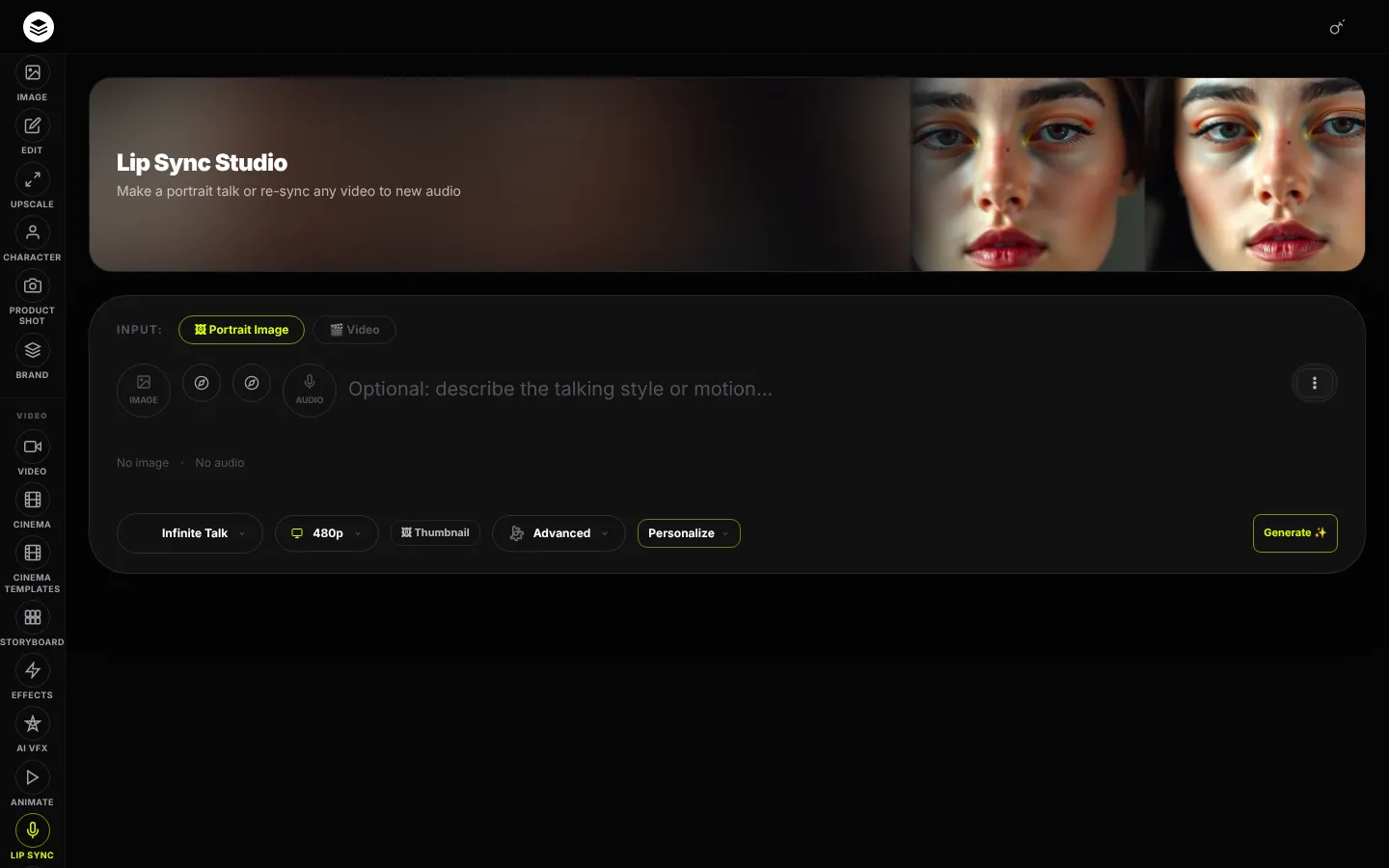
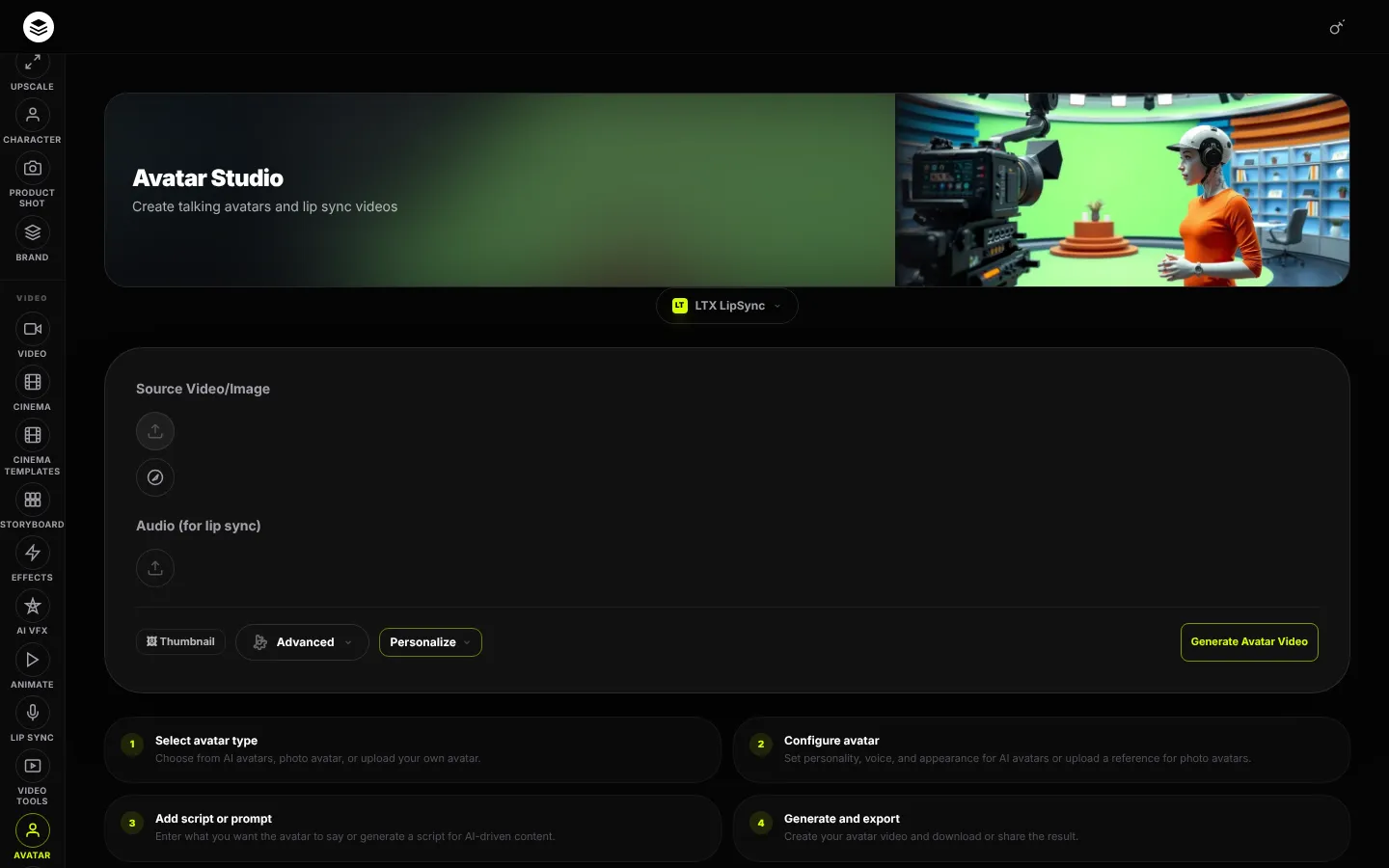
Open Lip Sync Studio (#/lipsync) or Avatar Studio (#/avatar).
Upload the portrait and the audio file.
Result: A talking-head video.
Short jingle
A 15 to 30 second music clip for intros.
Choose a music model.
Describe mood and instruments.
Pick Duration 15s or 30s.
Generate.
Result: A short music clip.
Voice-over for a video
Choose Minimax Speech HD or Eleven v4.
Paste your script in Prompt.
Pick a Voice.
Click Generate Audio.
Download Audio and add it to a video in Timeline Studio.
Background music
Choose Suno Create Music.
Write 'calm lo-fi beat with soft piano' as the prompt.
Pick Style: Ambient or Electronic.
Choose Duration 60s.
Click Generate Audio and download.
Sound effect
Choose Suno Generate Sounds.
Type 'A car passing by'.
Toggle Loop if you need a loopable sound.
Generate and download.
Tips and best practices
Be specific with music genres and moods.
Use SSML tags for advanced speech control (where the chosen speech model supports them).
Combine multiple sound effects for ambience.
Write numbers and acronyms the way you want them spoken.
Download your favorite results; history is only stored in this browser.
Test with a short prompt and duration first.
Put genre, mood, tempo and instruments in the prompt for music.
Use separate generations for narration and music and mix them in a timeline.
Use a stricter, shorter script for clearer speech.
Limitations and troubleshooting
Know the limits before you start, and how to fix common problems.
Limitation
What it means
Workaround
No tone, emotion or pitch controls
You cannot dial in tone, emotion or pitch with a control; the studio shows a hint instead.
Put the desired delivery in the prompt text (for example 'in a calm, warm voice'), or choose a model with its own expressive settings (for example Eleven v4 or Gemini TTS).
Fixed duration buttons
You cannot enter an exact length such as 45 seconds.
Generate the nearest length and trim in the Audio Editor or Timeline Studio.
Basic editor
Trim and fade are simple.
Download and edit in Timeline Studio (#/timeline) or Workbench (#/workbench).
My model has different controls than another model
Why: The form is built from each model's options.
Fix: Read the control labels and help text for your model.
A model needs an audio upload but I only have text
Why: Edit tools like Add Vocals, Add Instrumental, Voice Cloning and Mashup need an input track.
Fix: Generate a track first with Suno Create Music, download it, then upload it.
My settings were remembered from last time
Why: The studio saves your model, prompt and options in this browser.
Fix: Change them in the form or clear the prompt.
Glossary
Terms used in Audio Studio.
TTS
Text-to-speech: turning written text into spoken audio.
Voice cloning
Making a synthetic voice that resembles a sample you provide.
Style
A genre choice for music.
Duration
How long the generated audio should be.
Waveform
A picture of the sound over time shown in the player.
Trim / Fade
Cutting the start or end of a track, or fading volume in or out.
Frequently asked questions
Can Audio Studio make songs with lyrics?
Yes, with models such as Suno Create Music and MiniMax Music 3.0 (which has a lyrics option). Describe the song or enter lyrics where the model provides a lyrics field.
Which model is the default?
The first in the list, Minimax Speech Turbo, unless the studio restored a previously used model.
How long can the audio be?
The Duration buttons offer 15s, 30s, 60s and 120s, but each model decides what it can really produce; for example Lyria 3 is described as clips up to 30 seconds.
Can I clone a voice?
Yes, with Minimax Voice Clone or Suno Voice Cloning by uploading an audio sample. Make sure you have permission to use the voice.
Is there a Tone, Emotion or Pitch control?
Only for a model that has those settings, and none of the current models do, so the studio shows a hint instead. Describe the delivery in your prompt, or use a model with expressive settings such as Eleven v4 or Gemini TTS.
Where do I use the audio I make?
Download it, then upload it to Lip Sync Studio, Avatar Studio, Timeline Studio or Render Studio.