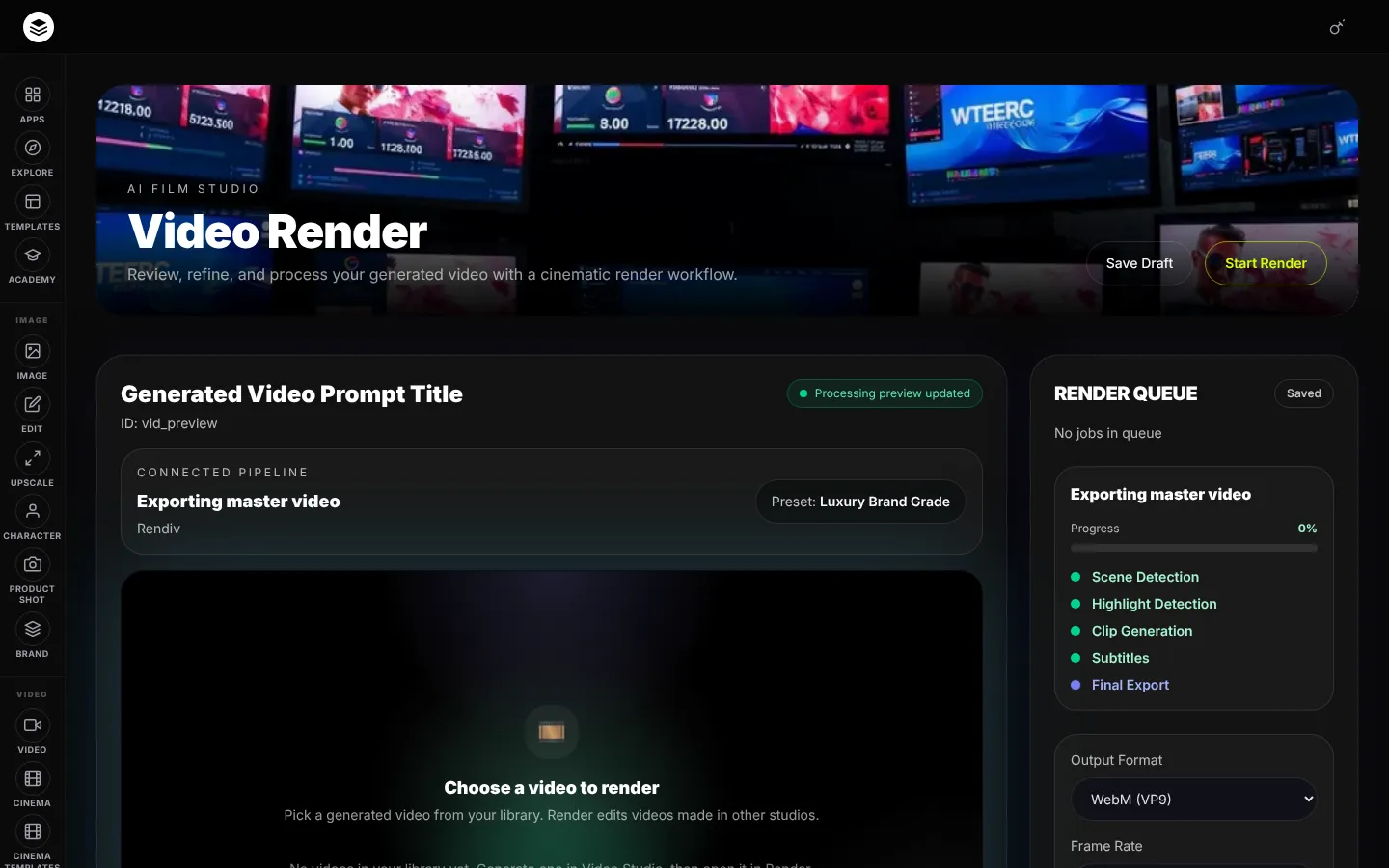
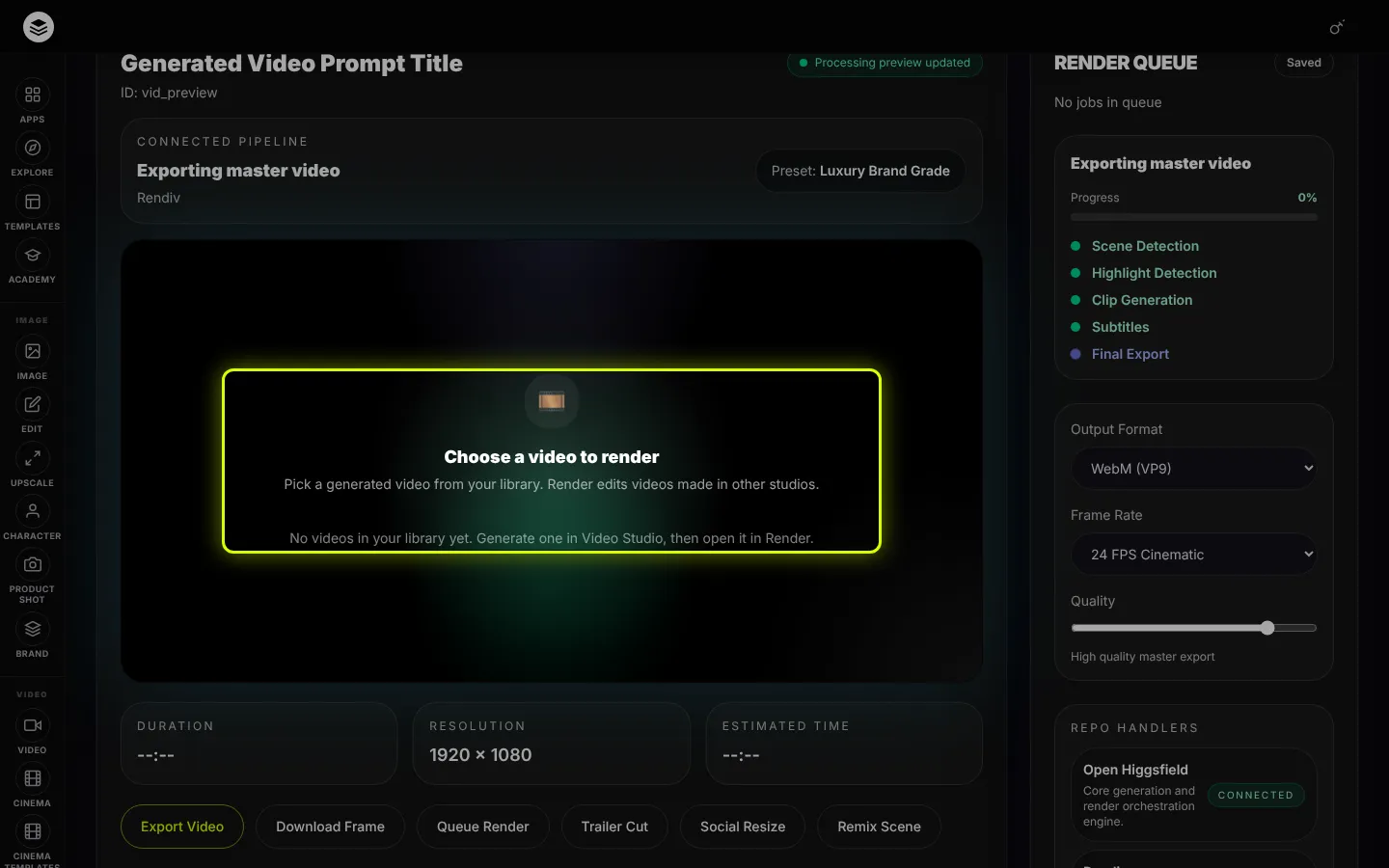
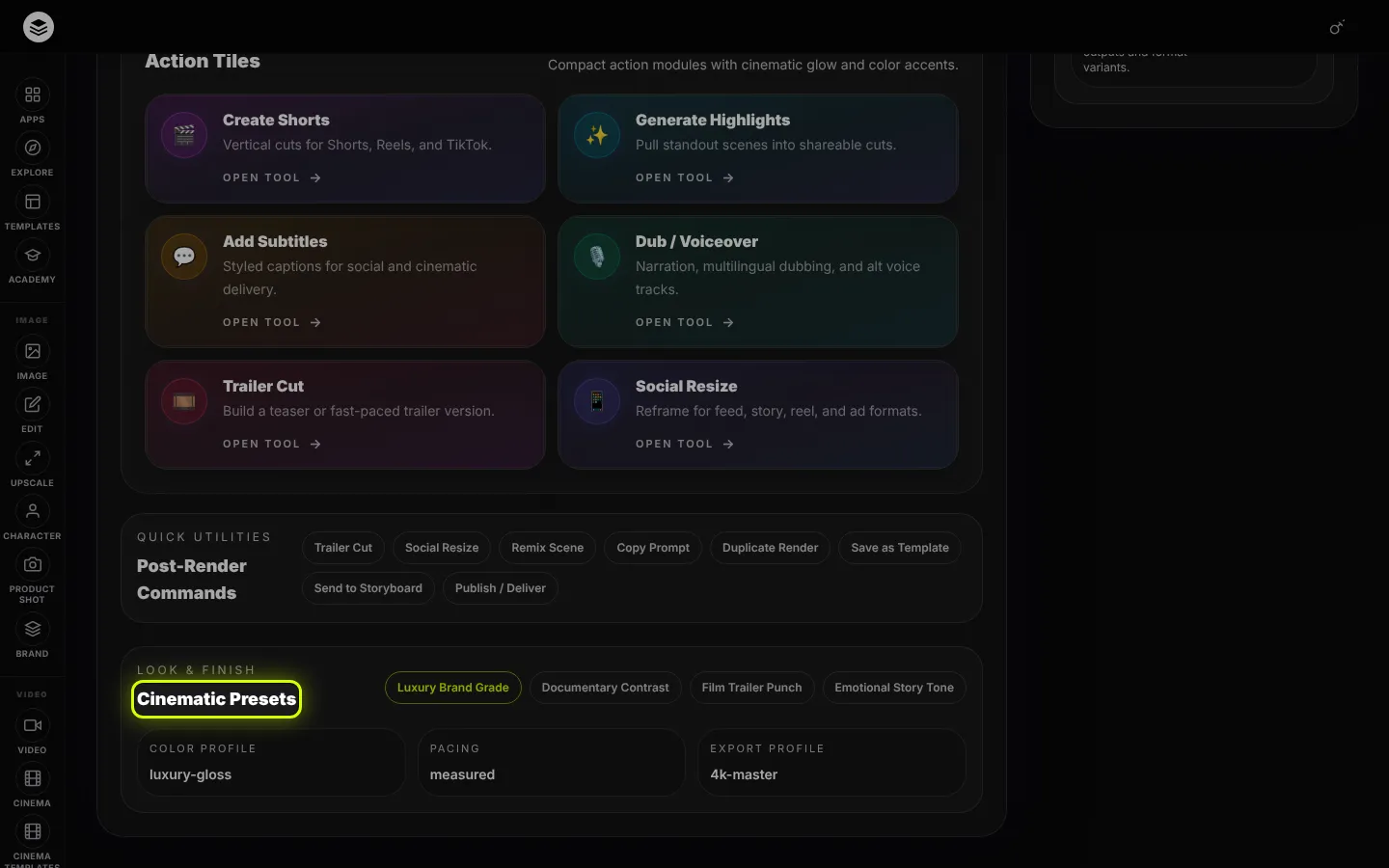
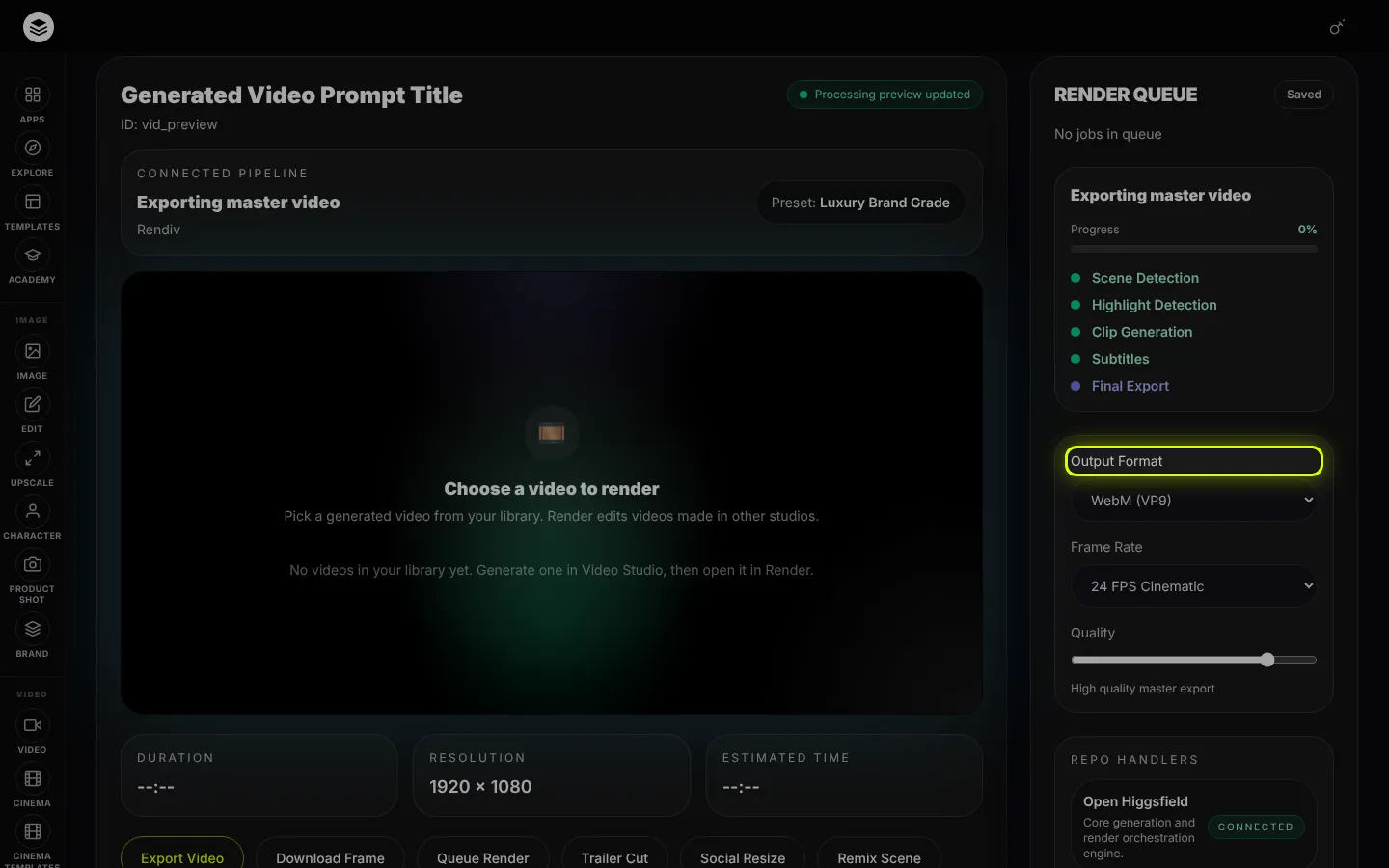
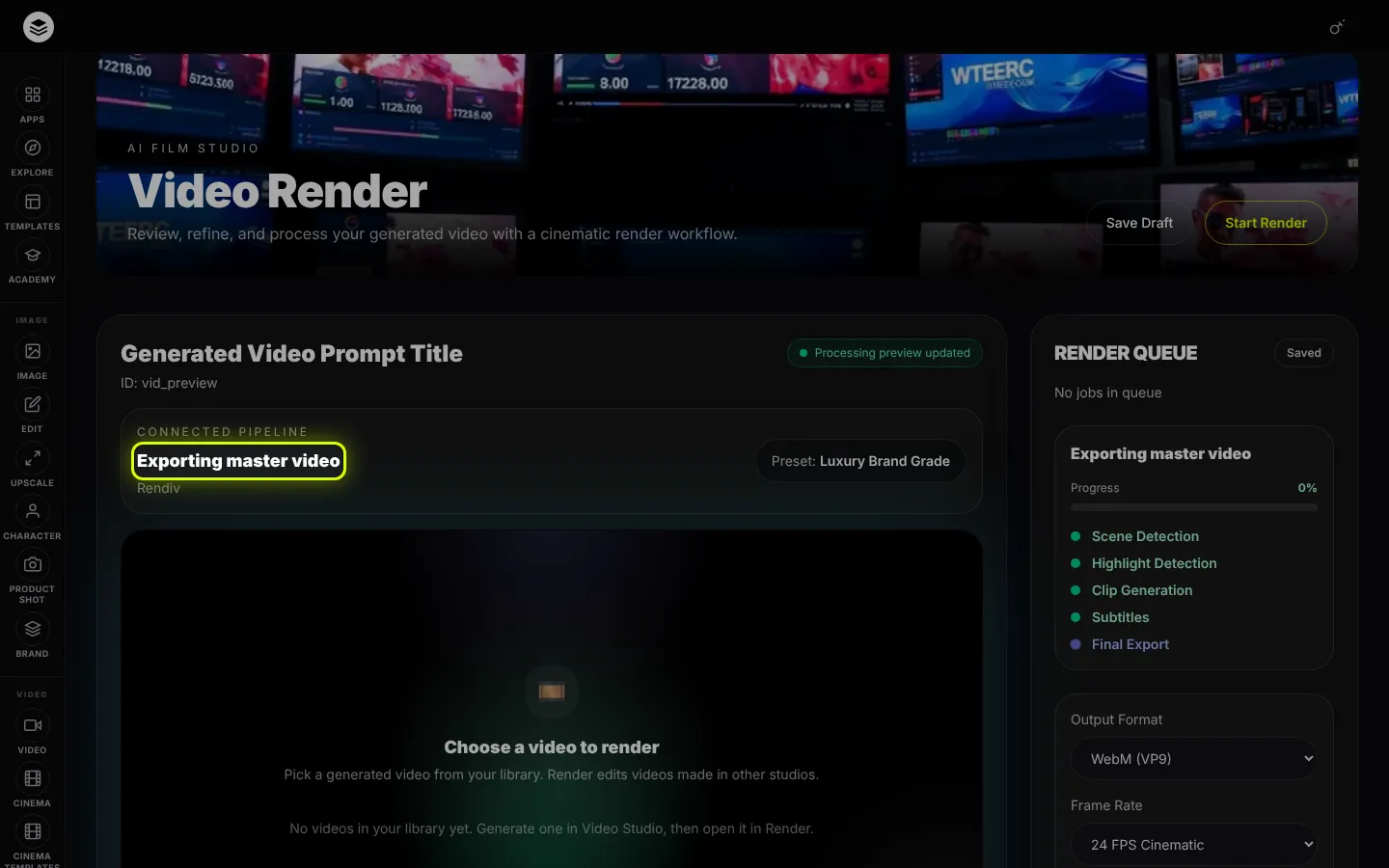
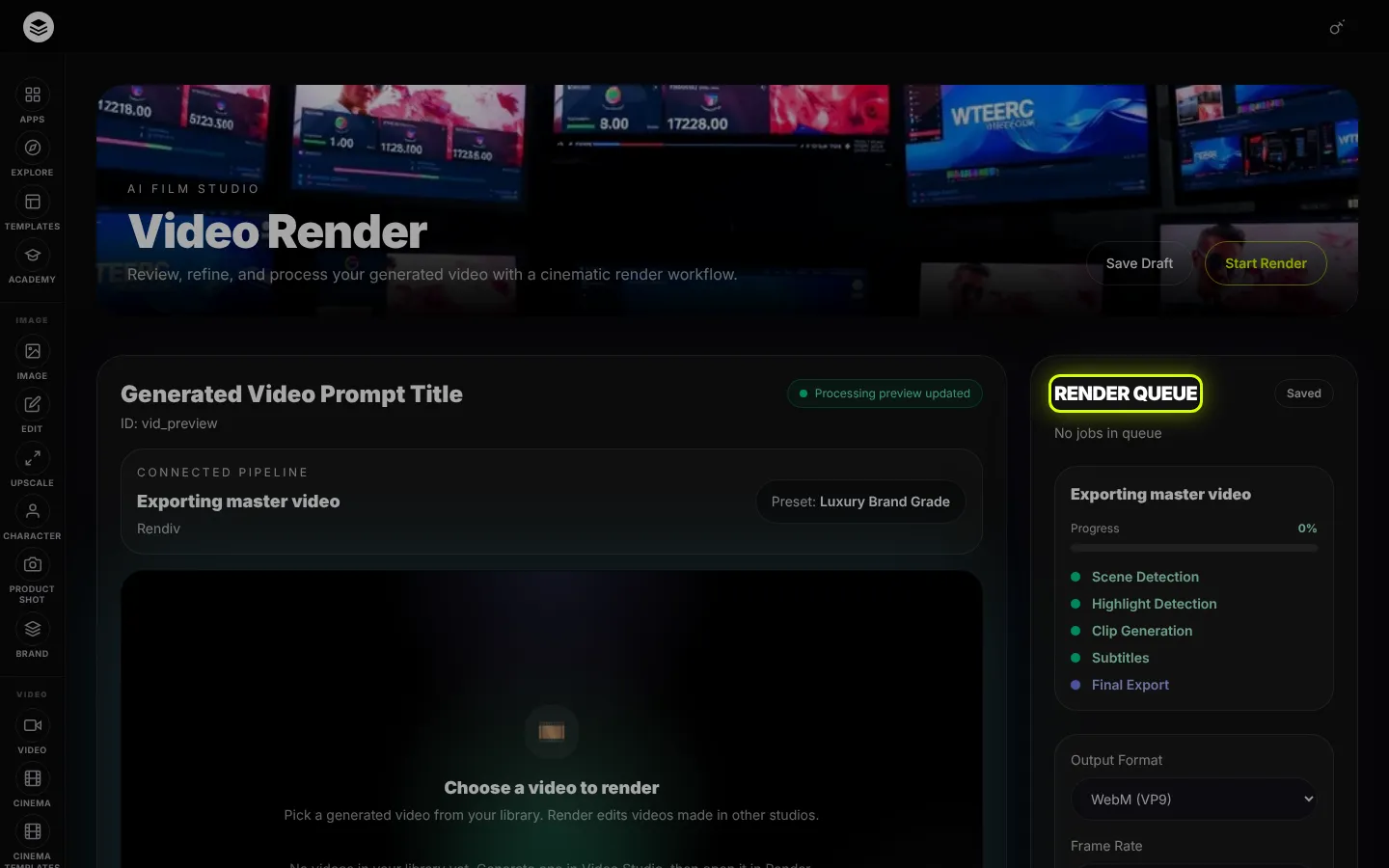
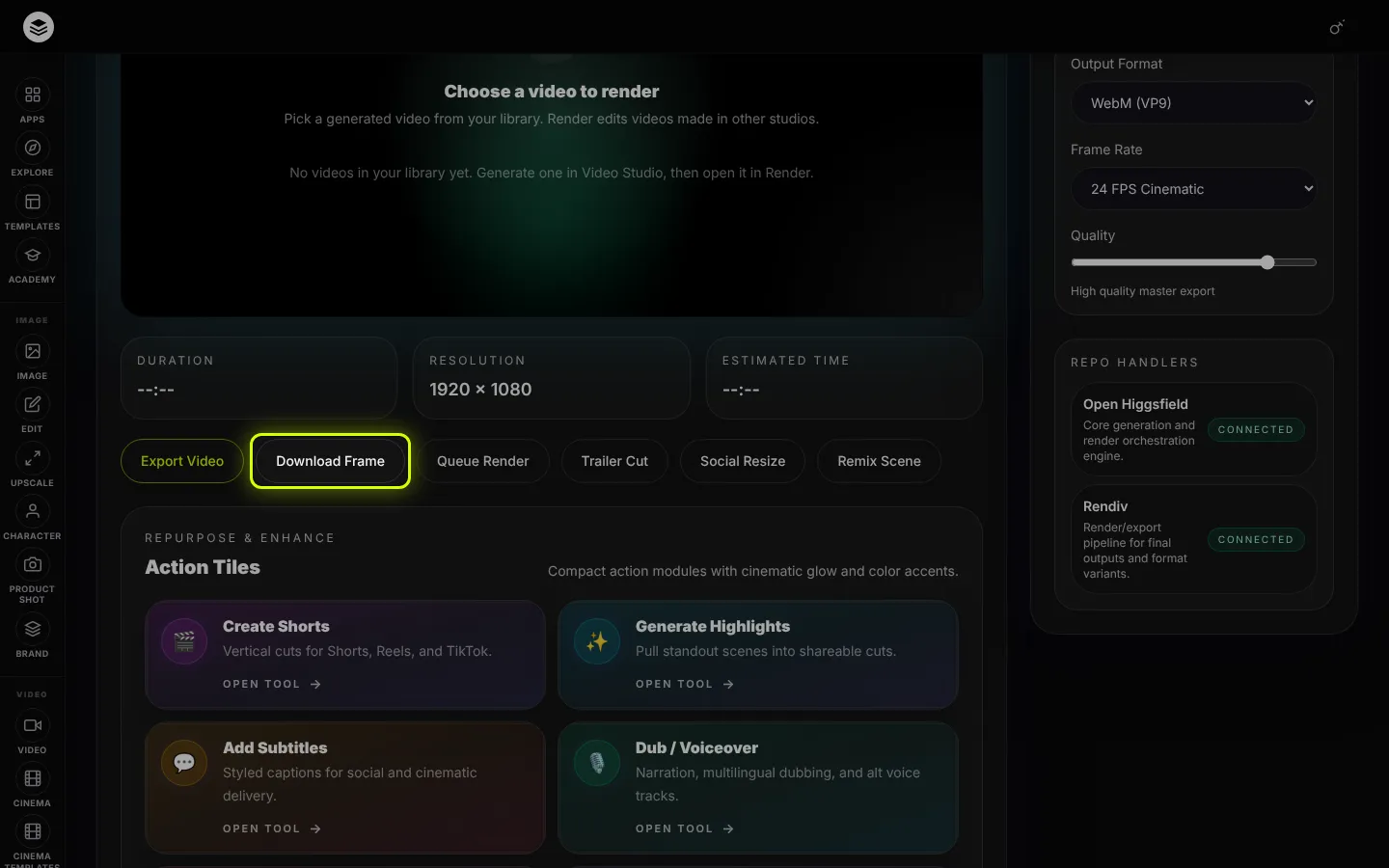
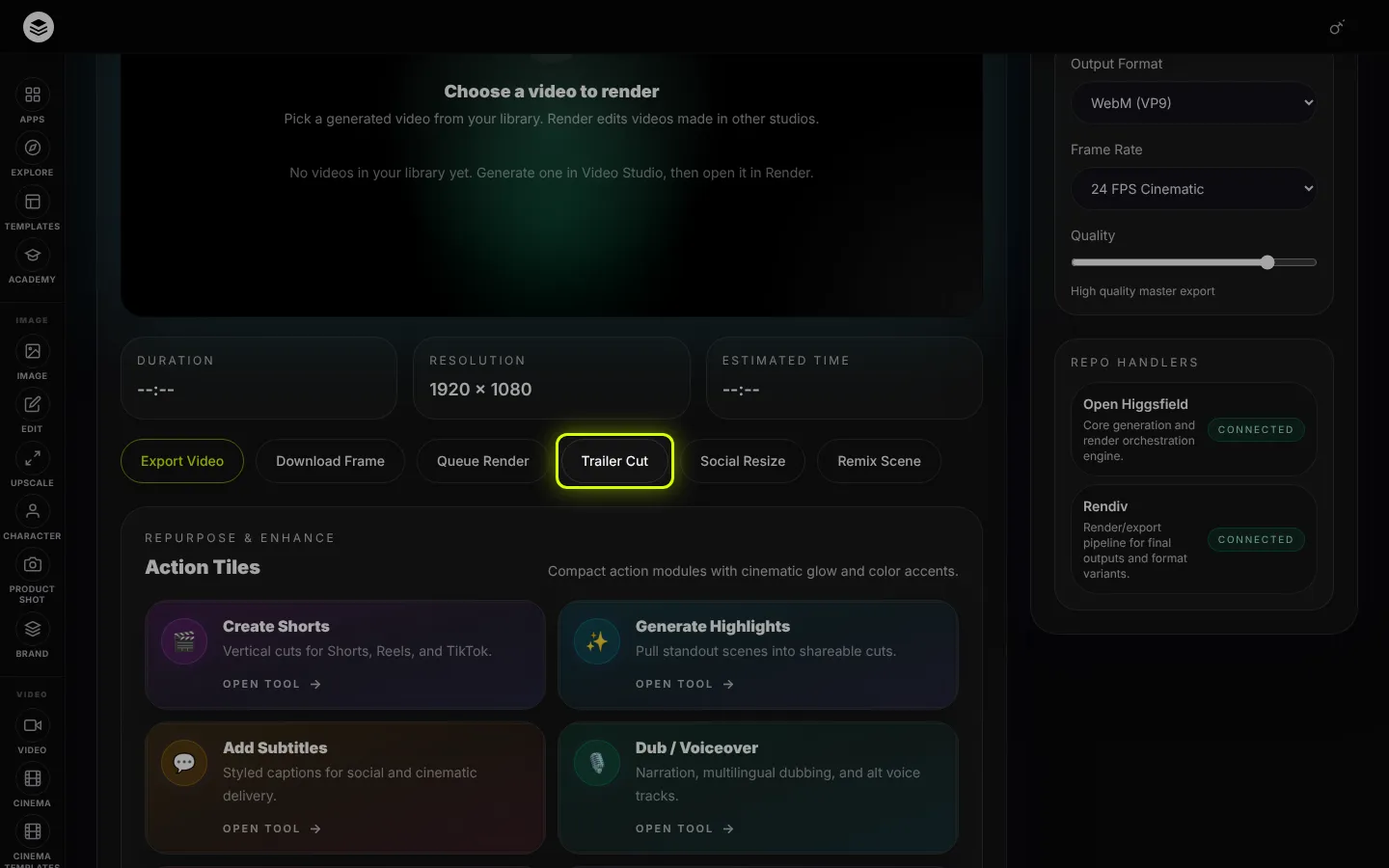
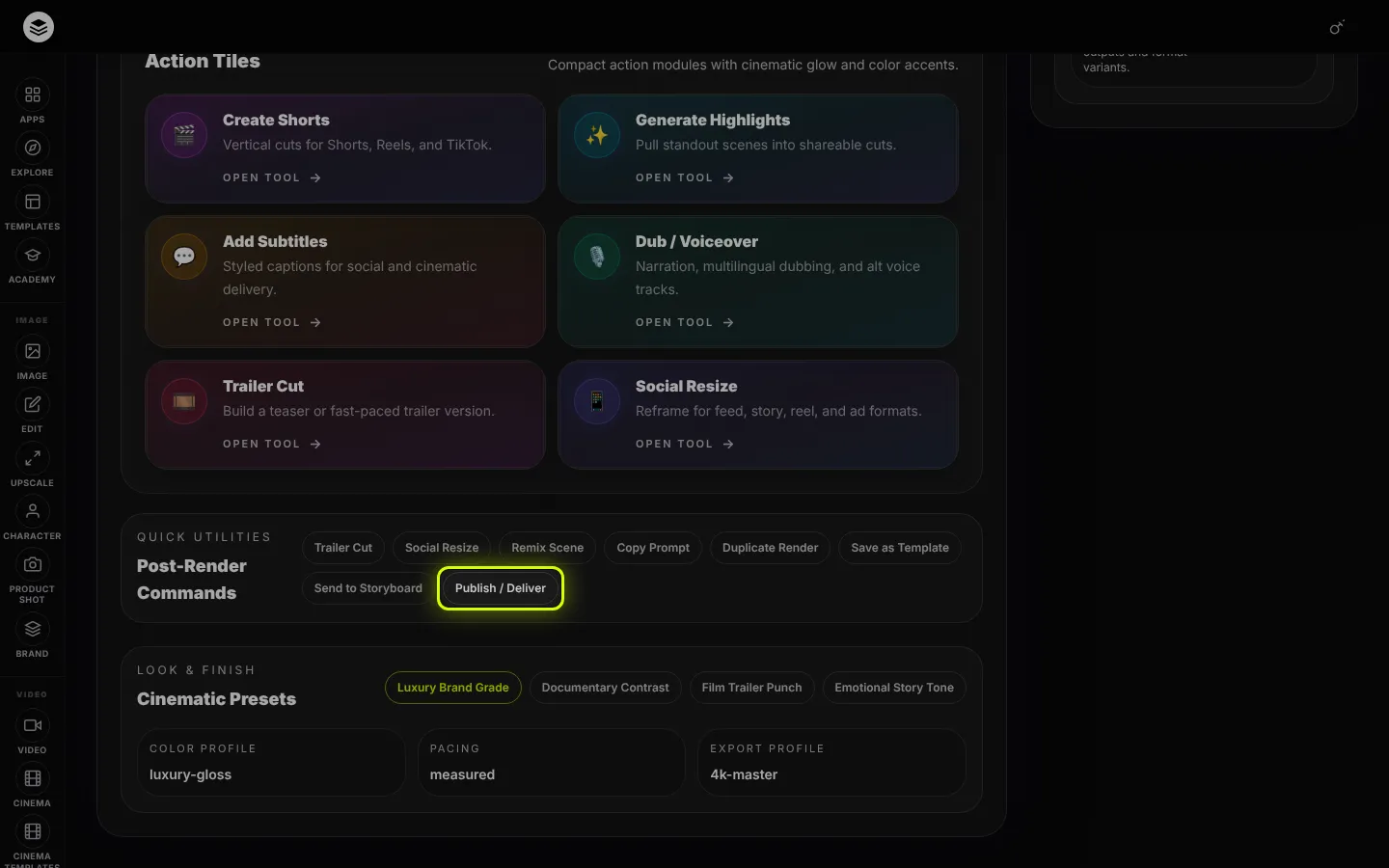
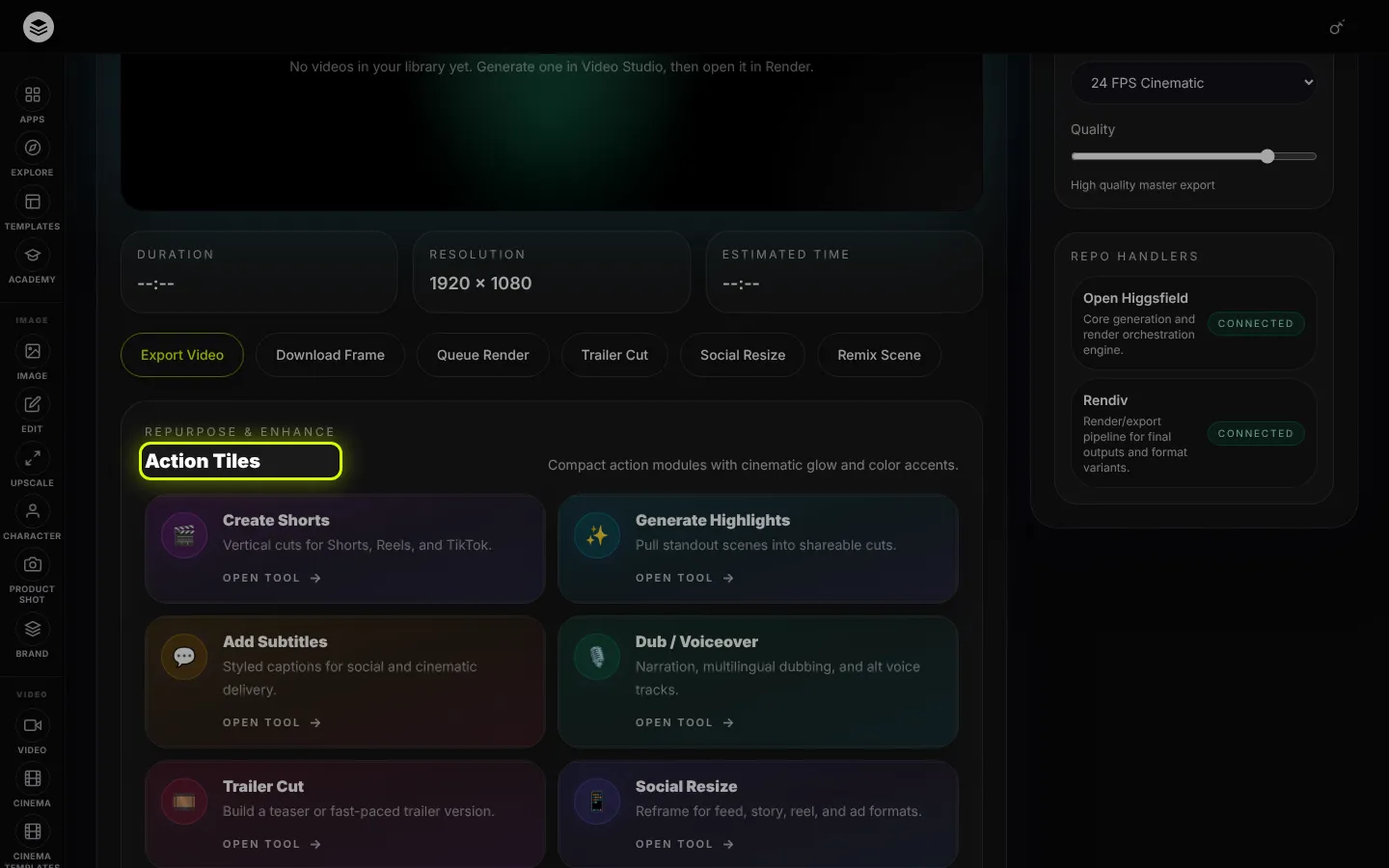
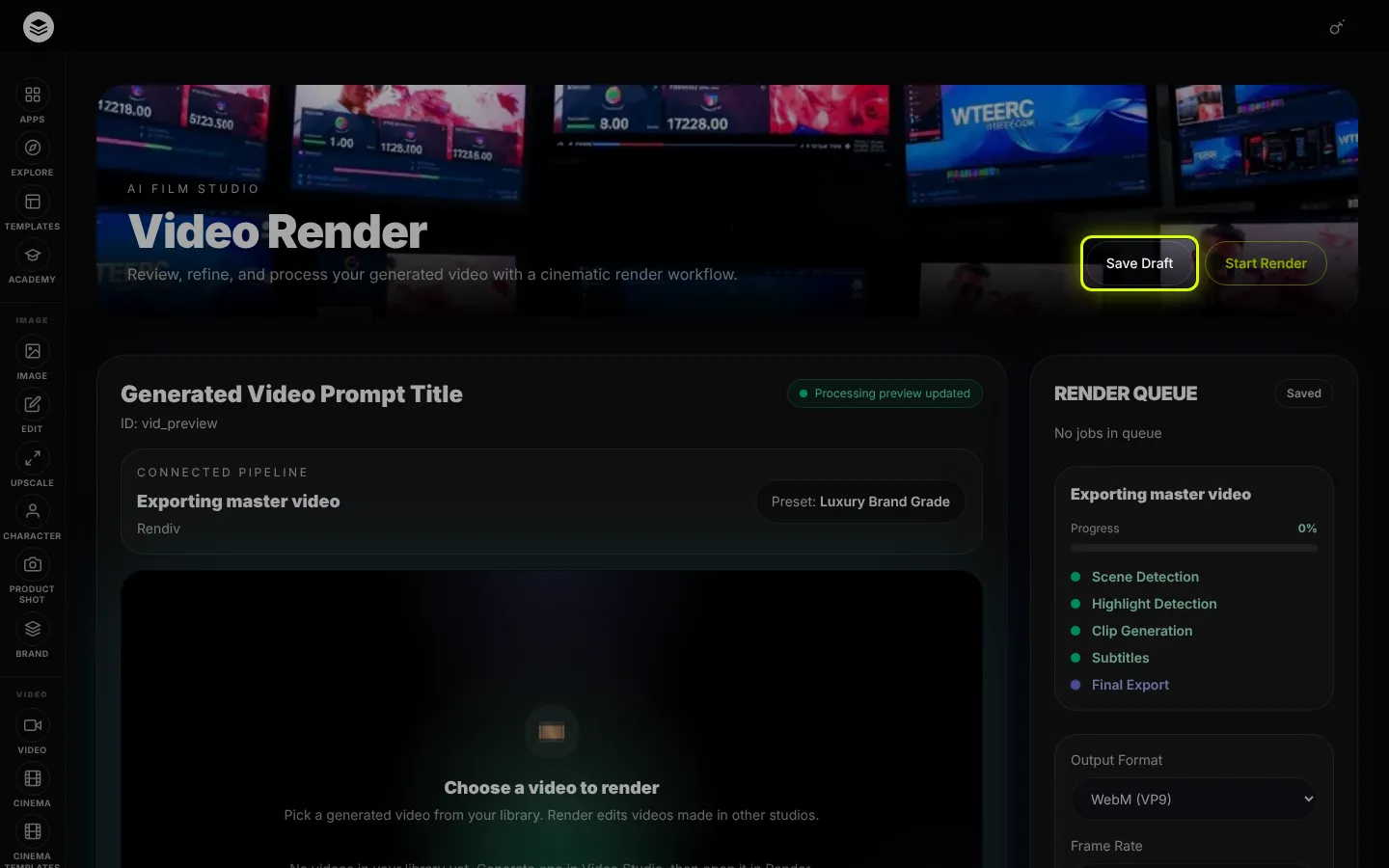
Video Render (#/render, not in the side menu) edits videos made in other studios. If no video is selected it shows 'Choose a video to render' with a grid of your library videos. Once a video is loaded you pick a look preset (Luxury Brand Grade, Documentary Contrast, Film Trailer Punch or Emotional Story Tone), set Output Format, Frame Rate and Quality, and use action buttons such as Export Video, Download Frame, Queue Render, Trailer Cut, Social Resize and Remix Scene, plus AI tiles like Create Shorts, Generate Highlights, Add Subtitles and Dub / Voiceover. Exports happen in your browser. A render queue lists jobs with progress and a Download render link, and you can save drafts and templates.
When to use it
- You have a video in your library and want to export it as WebM or MP4.
- You want a trailer cut, short vertical clips, highlights or subtitles.
- You want social formats (9:16, 1:1, 4:5, 16:9) from one video.
- You want to queue renders and download them later.
- Video picker from your library ('Choose a video to render')
- Four presets: Luxury Brand Grade, Documentary Contrast, Film Trailer Punch, Emotional Story Tone
- Output Format: WebM (VP9), MP4 (H.264), MP4 (H.265), depending on what your browser can encode
- Frame Rate: 24 FPS Cinematic, 30 FPS Standard, and 60
- Quality slider from 1 to 100, default 82
- Action buttons: Export Video, Download Frame, Queue Render, Trailer Cut, Social Resize, Remix Scene
- Quick actions: Copy Prompt, Duplicate Render, Save as Template, Send to Storyboard, Publish / Deliver
- AI tiles: Create Shorts, Generate Highlights, Add Subtitles, Dub / Voiceover, Trailer Cut, Social Resize
- Render queue with progress, Remove and Download render
- Save Draft and a Saved list of drafts and templates