My Work · Feature guide

Library Feature Guide

Everything you generated and uploaded, in one place.

Library is where everything you generate in any studio is saved automatically, plus your uploaded files. You can filter, search, preview, download, copy prompts, save to Content, delete, or send an upload to a studio.

Best for: Finding, previewing, downloading and reusing anything you have made or uploaded.

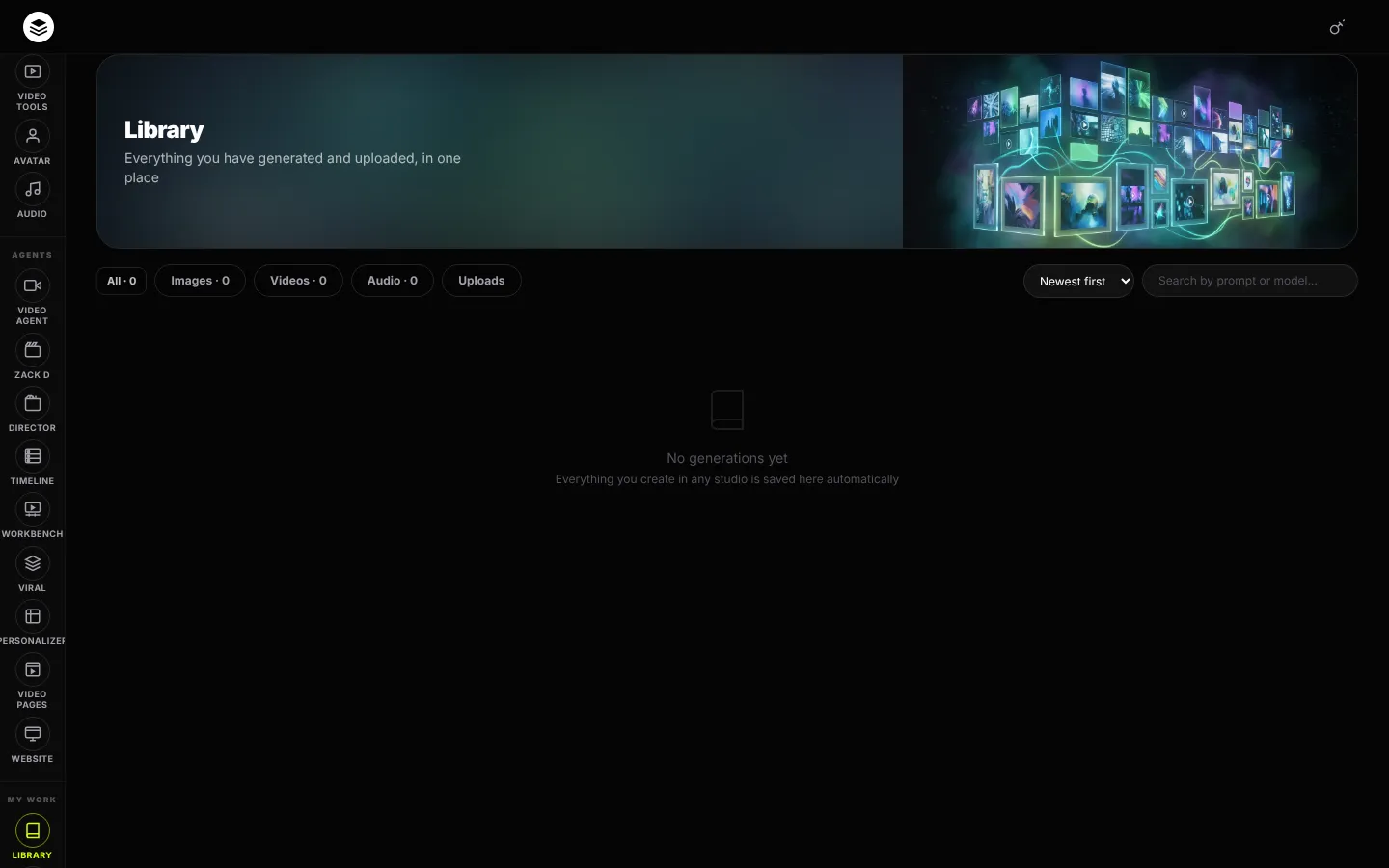
Library screenshot

Watch the Library tour

A 1:27 captioned walkthrough of the studio, with a sample file and prompt.

VIDEO · 1:27

What is Library?

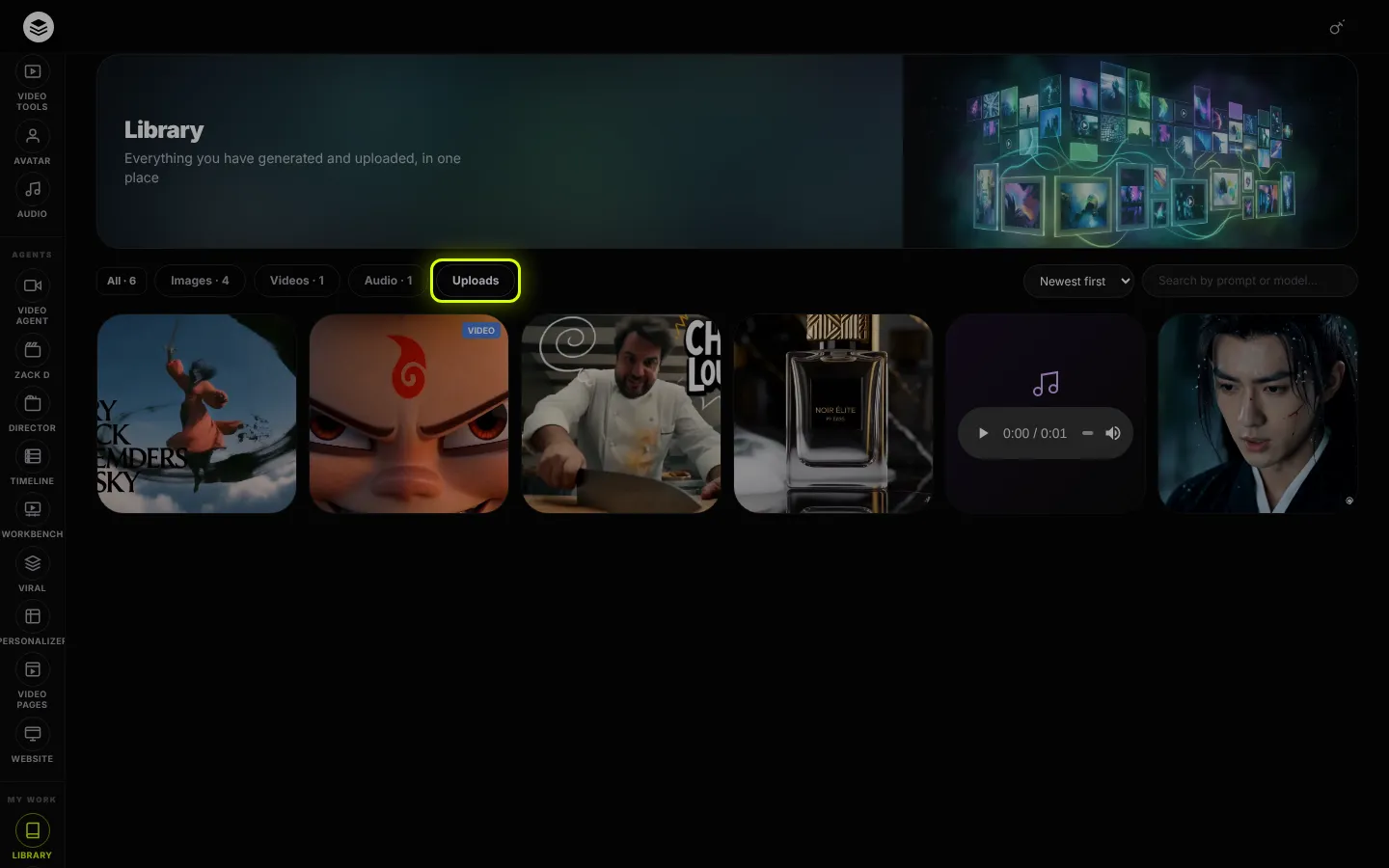
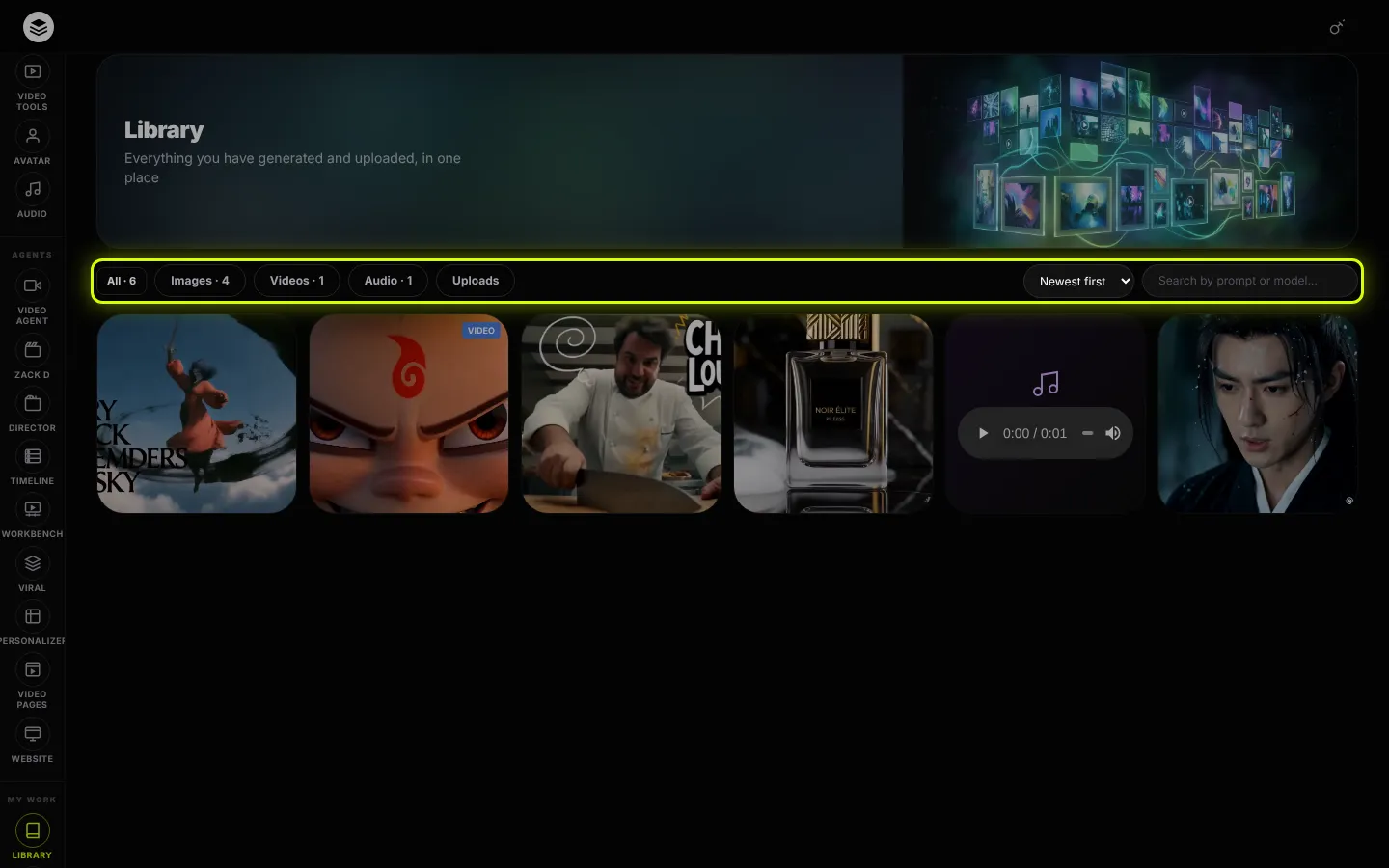
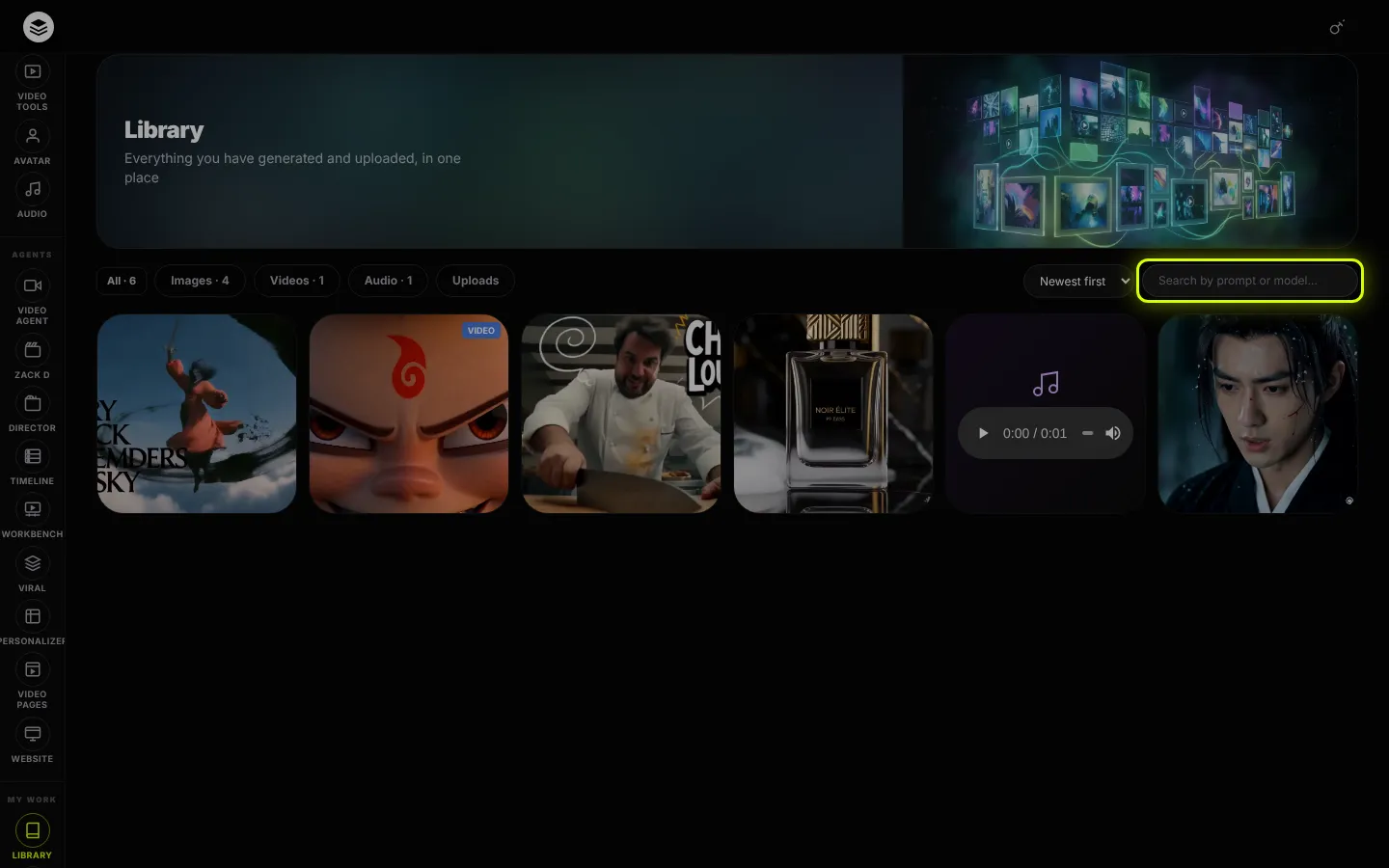
Library (route #/library) is headed "Library" with the line "Everything you have generated and uploaded, in one place". The empty state says "Everything you create in any studio is saved here automatically". It shows a grid of your images, videos and audio clips with filter buttons (All, Images, Videos, Audio, Uploads) that show counts such as "Images · 4", a sort menu (Newest first, Oldest first) and a search box ("Search by prompt or model..."). History is loaded from cloud storage (Supabase) and from this browser, merged without duplicates; when a MuAPI key is saved, MuAPI's own generation history is also folded in on a best-effort basis. The Uploads view is a separate permanent Asset Library of files you uploaded in studios. The old "pexels-media" page now redirects to Library.

When to use it

  • You generated something and want to find or download it.
  • You want to copy the prompt of a past result.
  • You want to reuse an uploaded file in another studio without uploading again.
  • You want to keep a favourite by saving it to Content.
  • Filters: All, Images, Videos, Audio, Uploads (with counts).
  • Sort: Newest first / Oldest first.
  • Search by prompt or model (also matches template name).
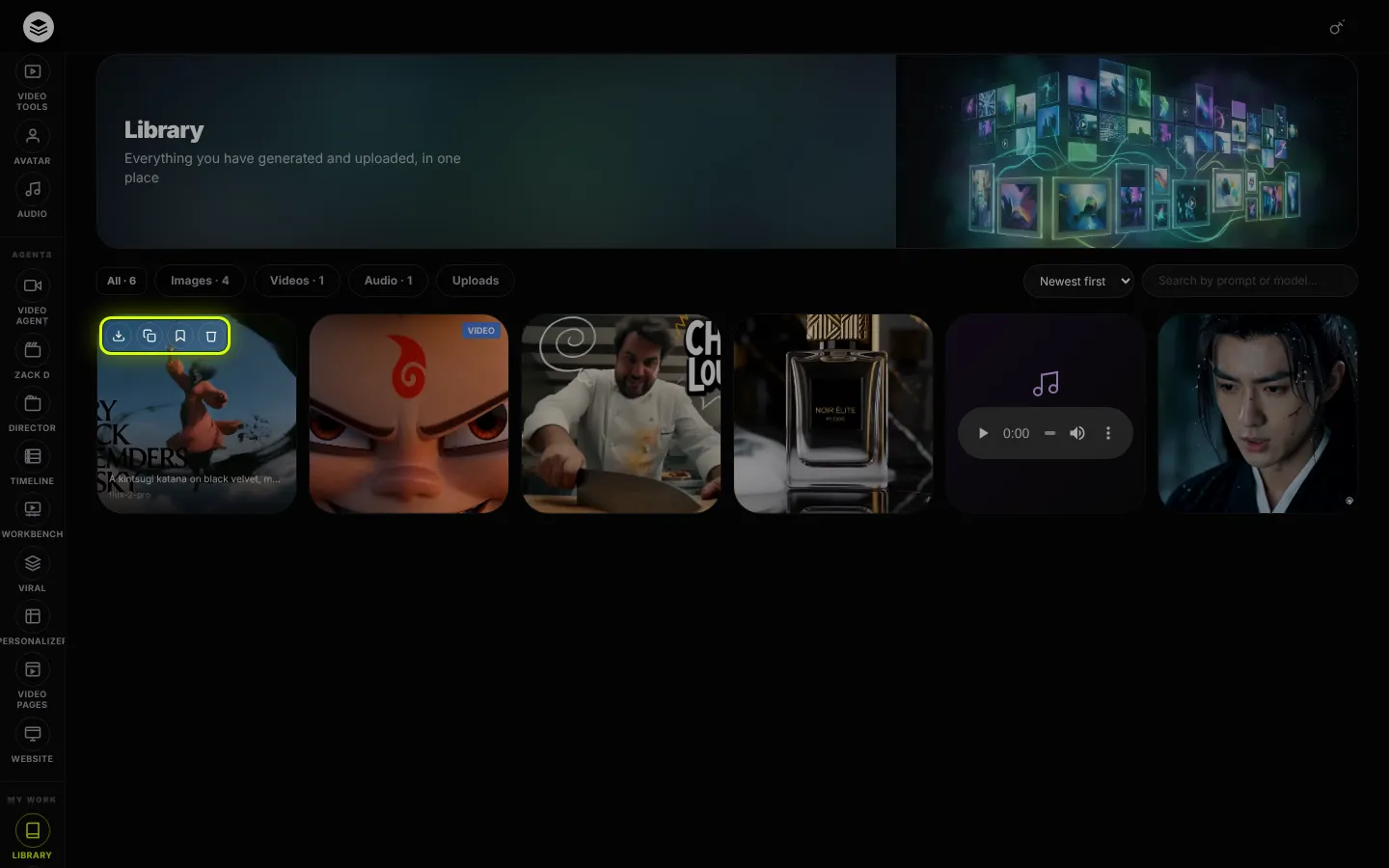
  • Hover quick actions: Download, Copy prompt, Save, Delete.
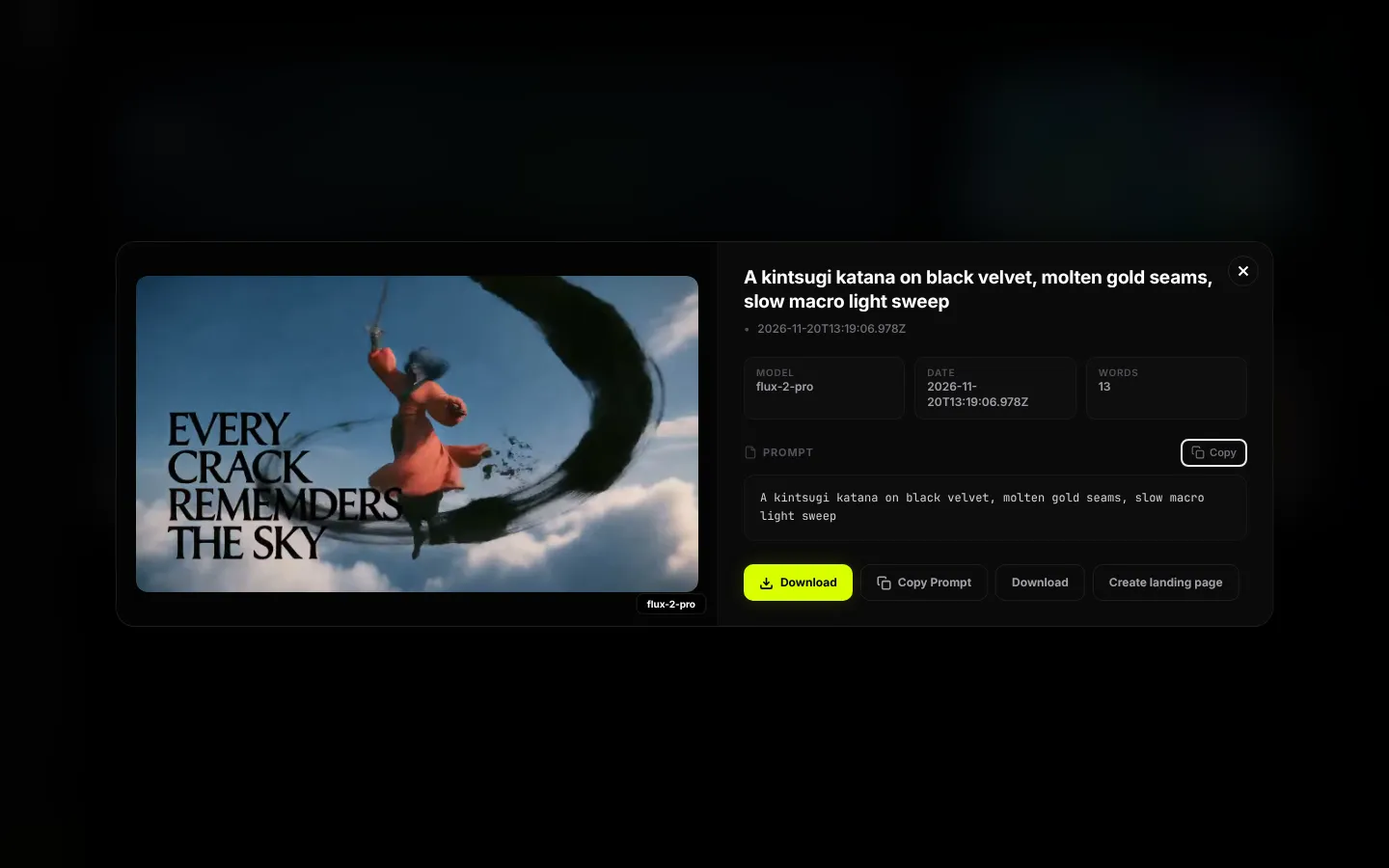
  • Click an image or video to open a detail view with a Download button.
  • Uploads view with "Use in studio" and Delete.
  • Audio clips play inline with a player.

Every Library feature, explained

5 features, each with a definition, why you would use it, what it needs and its limits.

Filters and counts in Library
Filters and counts
FEATURE 01

Filters and counts

What it is: Buttons labelled All, Images, Videos, Audio and Uploads. The first four show a count after loading, for example "Videos · 3". Uploads shows your permanent uploaded files instead of generations.

Why use it
Narrow a long history.
What you need
None
Limits and rules
Counts cover generations only (not Uploads).
Search and sort in Library
Search and sort
FEATURE 02

Search and sort

What it is: Type in "Search by prompt or model..." to match the prompt text, model name or template name. The sort menu offers "Newest first" and "Oldest first".

Why use it
Find an item by what you typed or which model made it.
What you need
Any text
Limits and rules
Search matches text metadata only, not image content.
Quick actions in Library
Quick actions
FEATURE 03

Quick actions

What it is: Hover over an item to see four small buttons at the top left: Download, Copy prompt (only if the item has a prompt; shows "Prompt copied"), Save (copies it to Content; shows "Saved to Content") and Delete (asks "Delete this generation? This cannot be undone.").

Why use it
Act without opening the item.
What you need
None
Limits and rules
Delete removes it from your Library history; MuAPI history will not bring it back.
Preview in Library
Preview
FEATURE 04

Preview

What it is: Click an image or video to open a detail view showing the prompt, model and date with a Download action. Audio items are played with the inline player instead.

Why use it
Look closely, read the prompt, download.
What you need
None
Limits and rules
Audio items do not open the detail view.
Uploads and Use in studio in Library
Uploads and Use in studio
FEATURE 05

Uploads and Use in studio

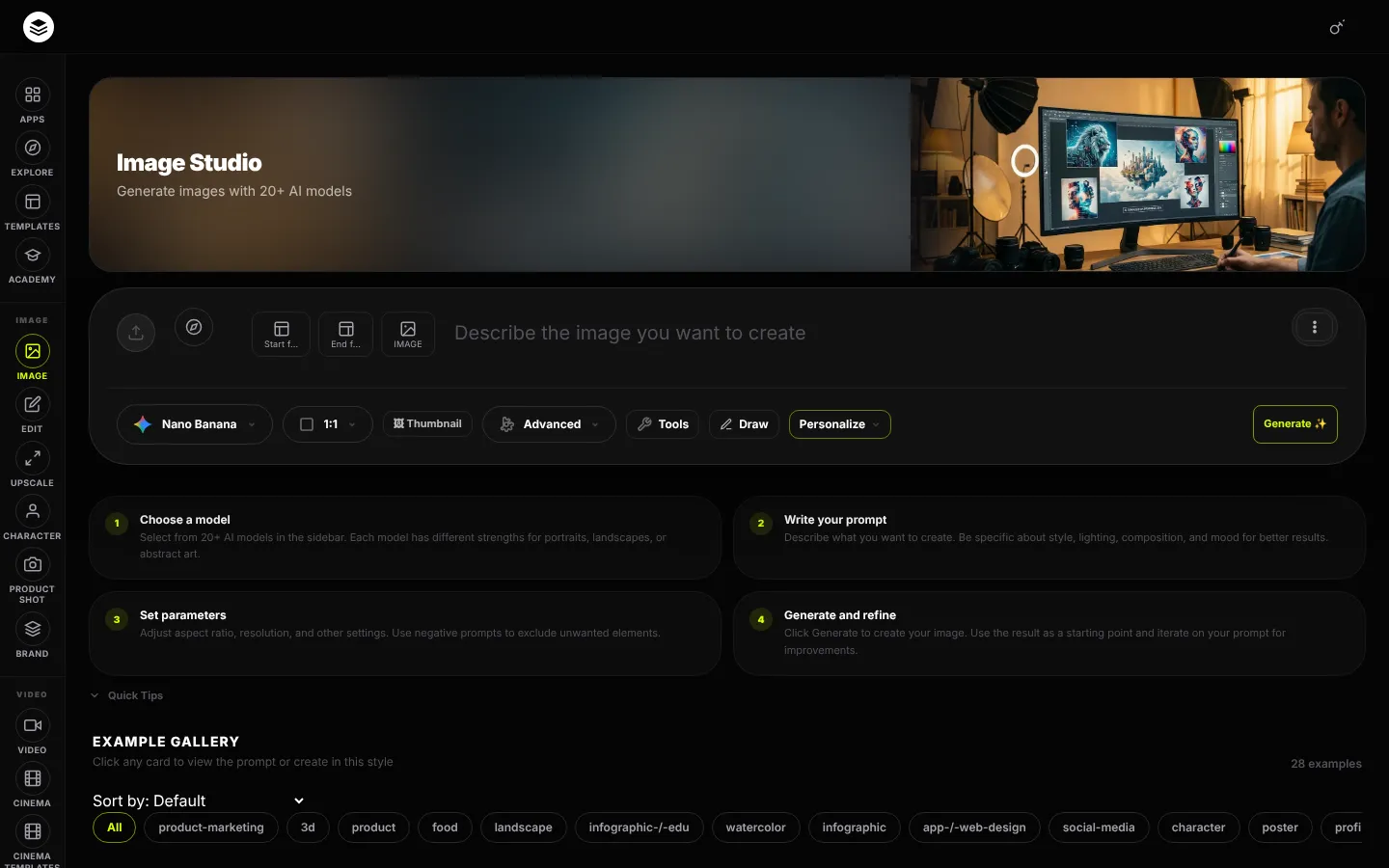
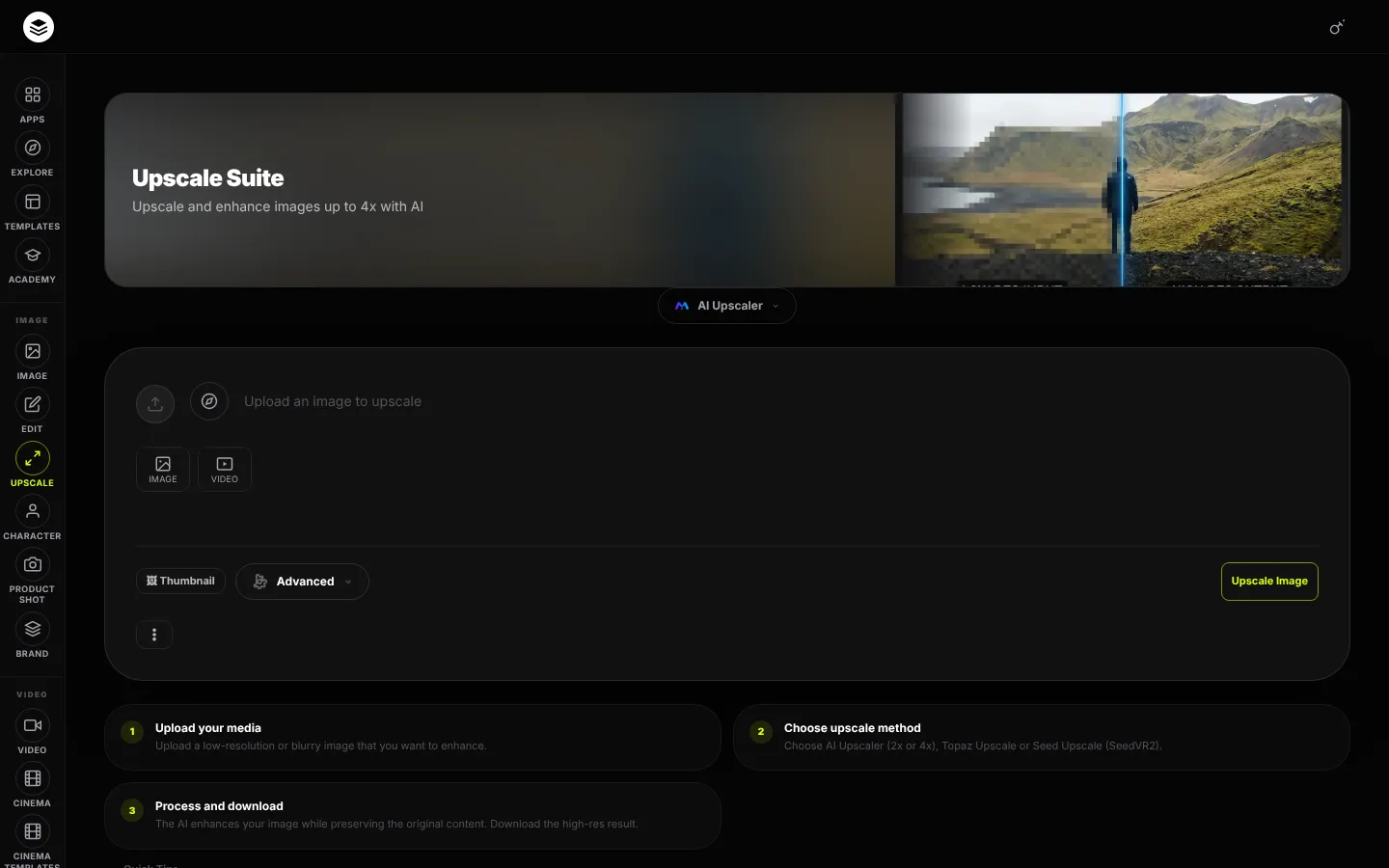
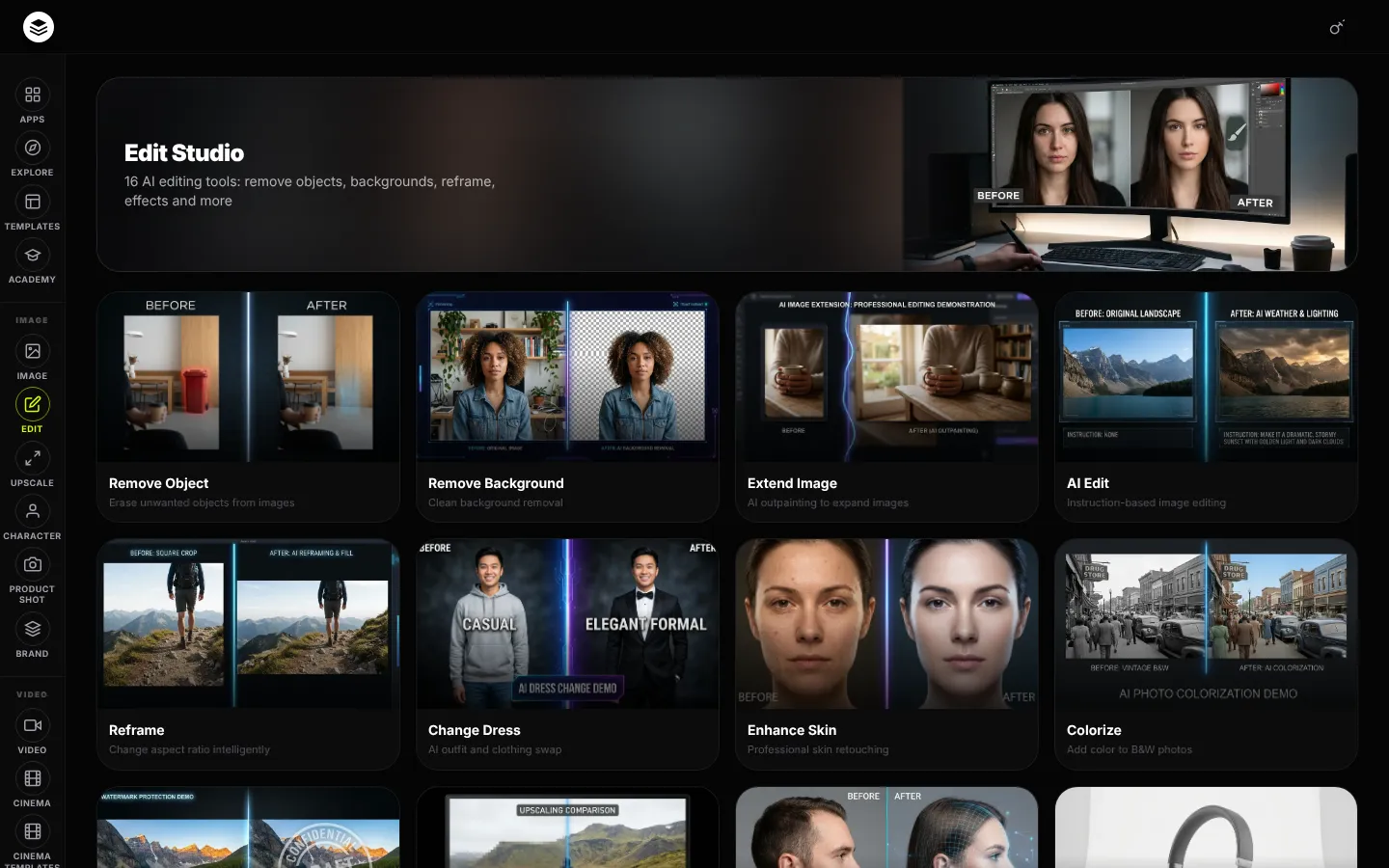
What it is: The Uploads filter lists files you uploaded in a studio (stored permanently). Hover for "Use in studio" and "Delete". Use in studio opens a chooser listing Image Studio, Edit Studio, Upscale Suite, Effects Studio, Cinema Studio, Storyboard Studio, Video Tools and Audio Studio, plus Cancel. If the chosen studio is already open it receives the file; otherwise the file is queued and the studio opens.

Why use it
Reuse a reference image or video without re-uploading.
What you need
None
Limits and rules
Only those eight studios appear in the chooser.

How to use Library

  1. Open Library from the left side menu.
  2. Choose All, Images, Videos, Audio or Uploads.
  3. Search or change the sort order if needed.
  4. Hover an item for Download, Copy prompt, Save, Delete; or click it to preview.
  5. In Uploads choose "Use in studio" to reuse a file.

Inputs and outputs

What you give the studio, and what you get back.

InputDescriptionWhen to useRules
Search by prompt or model...
Optional
Filters visible items by prompt, model or template text.Long histories.Case-insensitive text match.

What you get

  • Downloaded files, copied prompts, items saved to Content, assets sent to a studio.

Use cases and example workflows

Real jobs you can do, step by step.

Find a past prompt

Search and copy the prompt of an earlier result.

  1. Search by a word you remember.
  2. Hover the item and press Copy prompt.
Result: The prompt copied to your clipboard.

Reuse an upload

  1. Open Library, choose Uploads.
  2. Hover a file and press Use in studio.
  3. Pick Upscale Suite.

Keep a favourite

  1. Hover a result.
  2. Press Save.
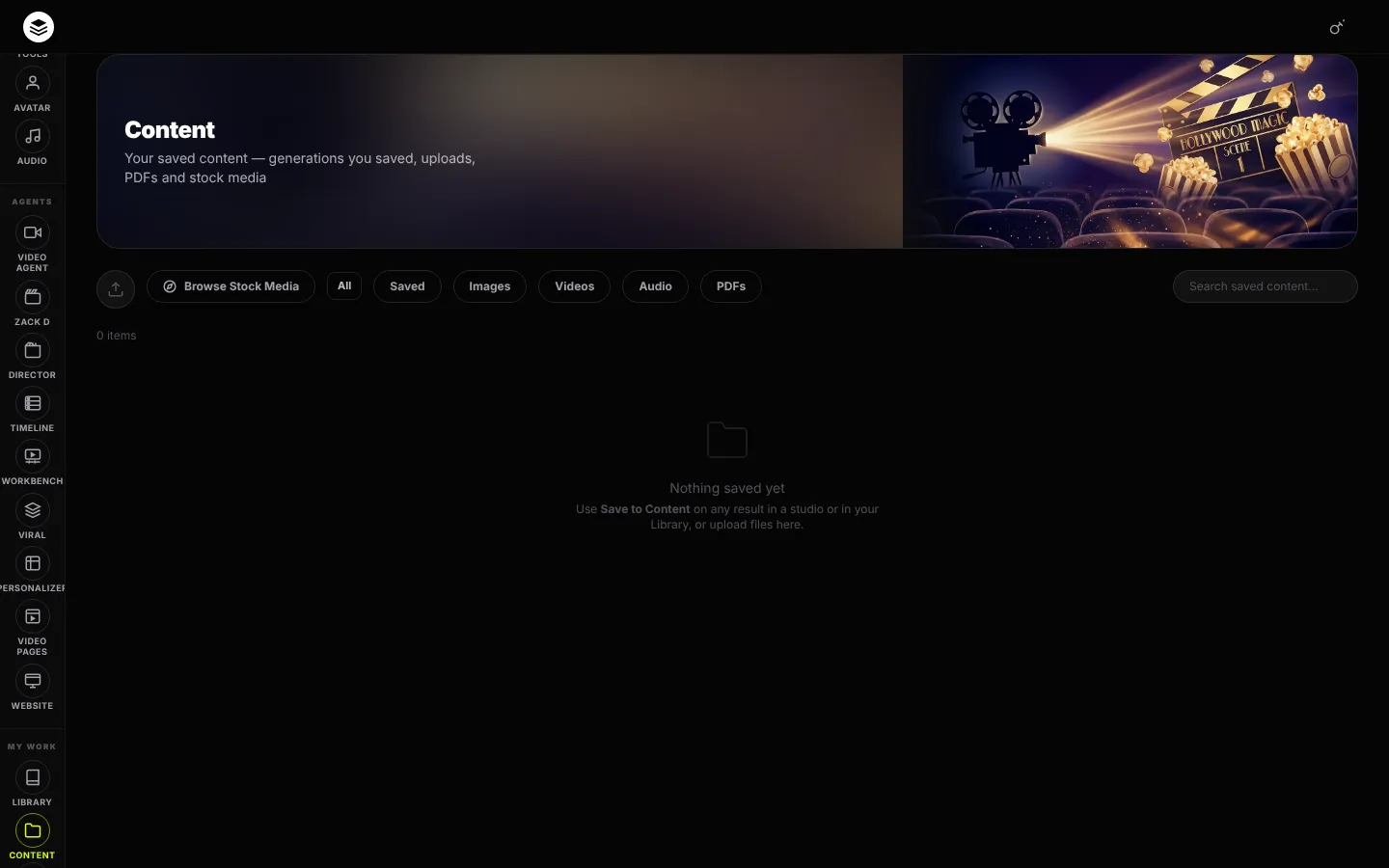
  3. Find it later under Content.

Tips and best practices

  • Search by model name to compare results from the same model.
  • Use Copy prompt to rebuild a good result.
  • Save the best results to Content.
  • Download important results soon after generating.
  • Save keepers to Content so you can find them quickly.

Limitations and troubleshooting

Know the limits before you start, and how to fix common problems.

LimitationWhat it meansWorkaround
Library does not edit mediaYou cannot trim or restyle inside Library.Send an upload to a studio with Use in studio, or open the Timeline Editor.

Deleted something by mistake

Why: Delete asks once, then removes it from your Library history.

Fix: It cannot be undone from Library; regenerate it using the prompt if you copied it.

Glossary

Terms used in Library.

Generation
An image, video or audio clip created in a studio.
Uploads
Files you uploaded in a studio, kept permanently in the Asset Library.
Use in studio
Hands an upload to a studio so you do not upload it again.

Frequently asked questions

Where do my generated files go?

Everything you create in any studio is saved to Library automatically. Open Library from the left side menu.

What is the difference between Library and Content?

Library is the automatic history of everything generated or uploaded. Content is what you chose to keep: items you Saved, uploads, PDFs and stock media. Removing something from Content leaves it in Library.

How do I download a result?

Hover it and press Download, or click it and use Download in the detail view.

How do I delete a result?

Hover it, press Delete and confirm "Delete this generation? This cannot be undone."

Can I reuse an uploaded file in another studio?

Yes. Library > Uploads > Use in studio, then pick Image Studio, Edit Studio, Upscale Suite, Effects Studio, Cinema Studio, Storyboard Studio, Video Tools or Audio Studio.

Try Library now

Open the studio and put these features to work, or browse the guides for all 53 studios.