Image Studios · Feature guide

Upscale Suite Feature Guide

Enlarge and sharpen images with AI (AI Upscaler, Topaz, Seed Upscale).

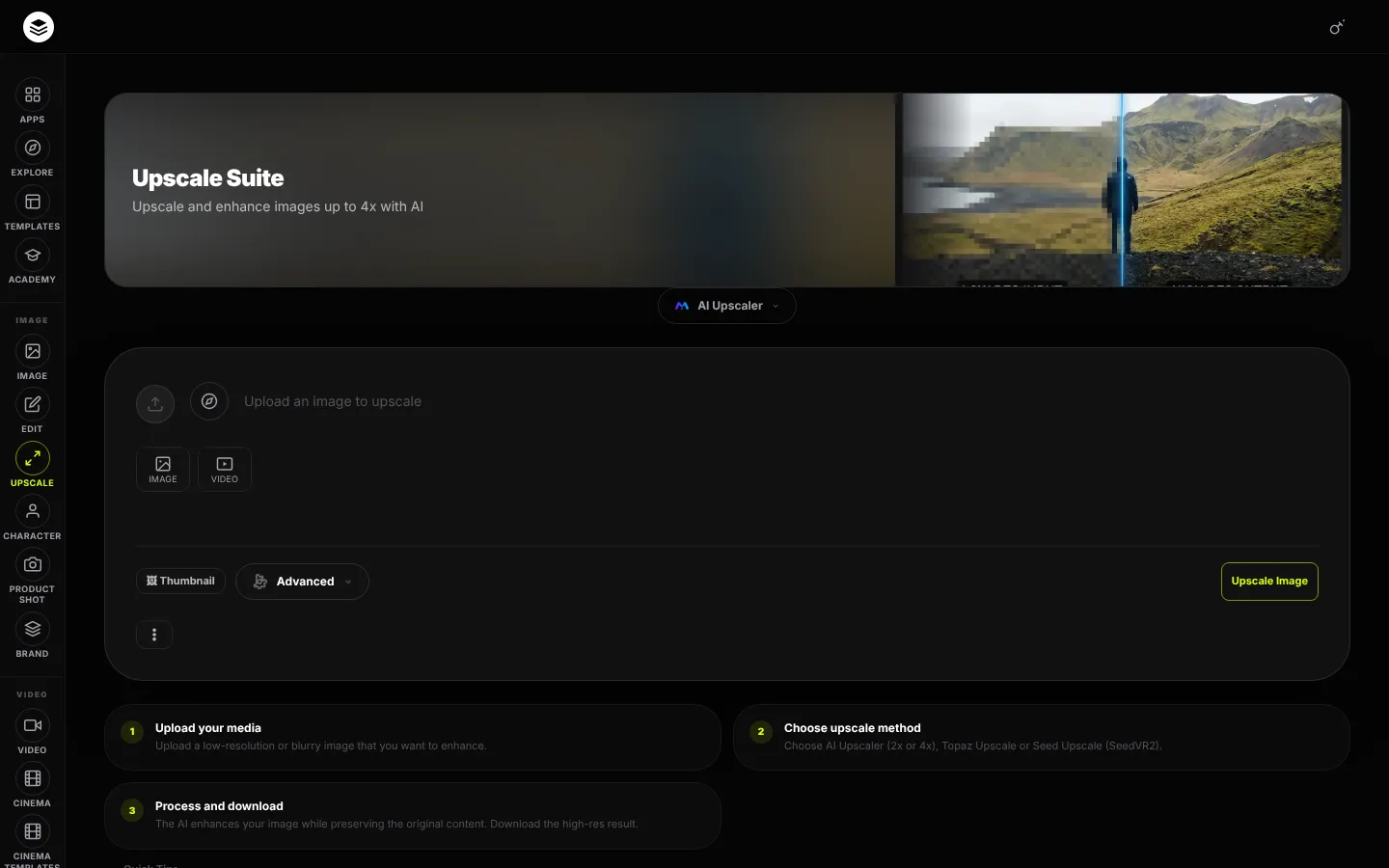
Upscale Suite makes a low-resolution or soft image larger and sharper with AI. You upload an image, pick one of three upscale methods, click Upscale Image and download the bigger result.

Best for: Anyone with a good picture that is too small, blurry or low resolution for print, a website banner or a presentation: old photos, AI images generated at a small size, screenshots, product photos.

Upscale Suite screenshot

Watch the Upscale Suite tour

A 1:40 captioned walkthrough of the studio, with a sample file and prompt.

VIDEO · 1:40

What is Upscale Suite?

Upscale Suite is a small, single-purpose studio. At the top you choose a method with a button that defaults to 'AI Upscaler'; the method list has three entries: AI Upscaler (general-purpose, with a 2x or 4x scale factor), Topaz Upscale (premium Topaz-quality enhancement) and Seed Upscale (SeedVR2 high-fidelity upscaling). You upload an image (or pick a Pexels stock photo), click 'Upscale Image', and the enlarged image appears below with a Download link and a Publish to Social button. The header reads 'Upscale and enhance images up to 4x with AI'. The studio upscales still images; the three methods are image-upscale models.

When to use it

  • A picture is too small or pixelated for where you want to use it.
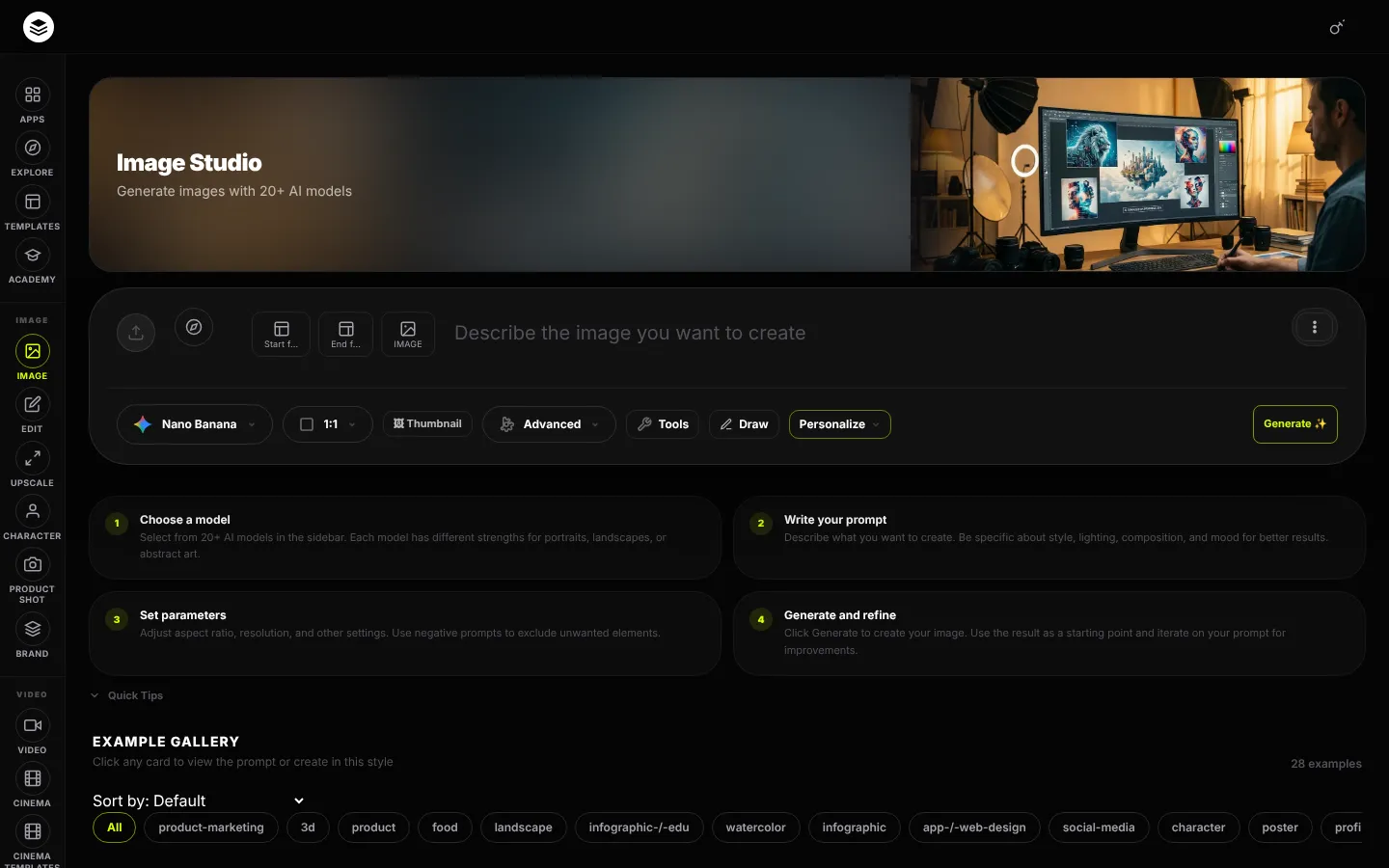
  • You generated an image in Image Studio at a low resolution and want a bigger version.
  • You want a quick, one-click enlargement without writing a prompt.
  • You want to try a premium method (Topaz Upscale) or a high-fidelity method (Seed Upscale) on the same image.
  • Three upscale methods in a provider-style picker: AI Upscaler (MuAPI), Topaz Upscale (Topaz) and Seed Upscale (ByteDance).
  • Scale Factor choice of 2x or 4x for AI Upscaler (default 2x), found in the Advanced panel.
  • Upload an image with the picker button, or browse stock photos with the Pexels button.
  • 'Upscale Image' button that shows 'Upscaling...' while it works.
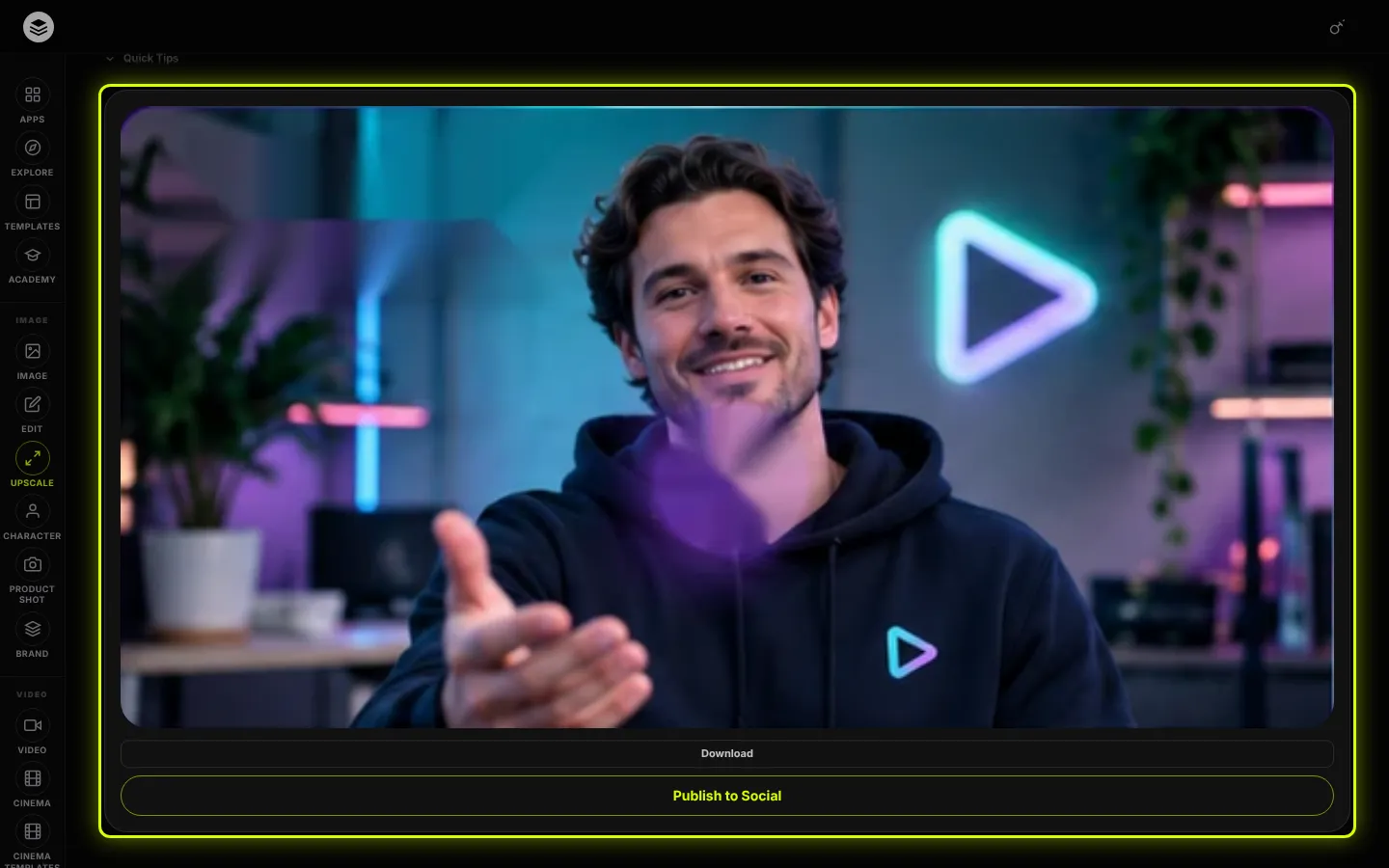
  • Result card with the enlarged image, a Download link and a Publish to Social button.
  • Thumbnail button to generate a custom studio thumbnail.
  • Tools menu (three dots) with Recipes and Prompts.
  • Every upscale is added to your generation history so you can find it in the Library.

Every Upscale Suite feature, explained

6 features, each with a definition, why you would use it, what it needs and its limits.

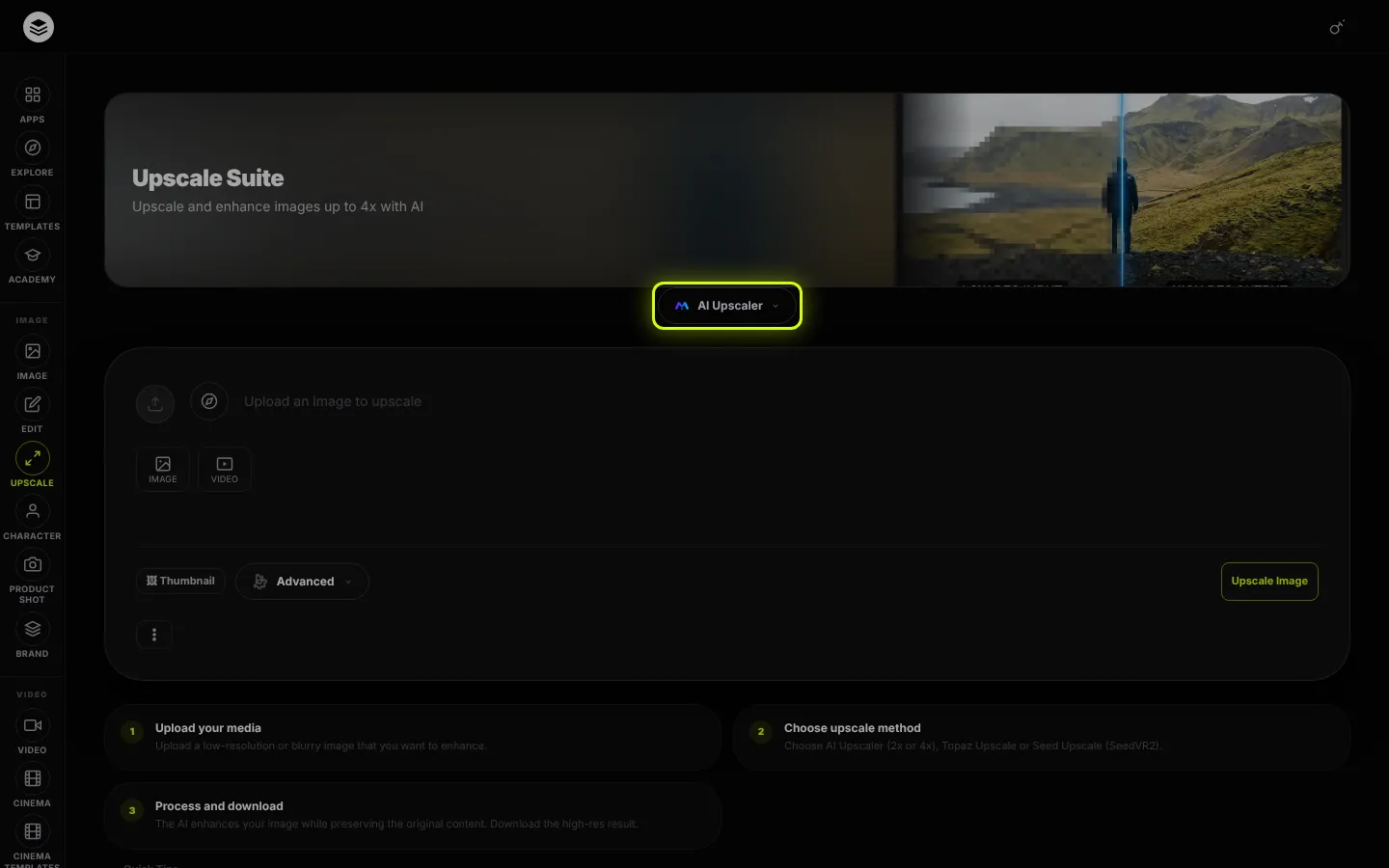
Method picker in Upscale Suite
Method picker
FEATURE 01

Method picker

What it is: The button at the top shows the current method (default 'AI Upscaler') with a provider logo. Click it to open a list with AI Upscaler ('General-purpose AI upscaling with 2x/4x factor'), Topaz Upscale ('Premium Topaz-quality enhancement') and Seed Upscale ('SeedVR2 high-fidelity upscaling').

Why use it
Different methods give different looks; try more than one on important images.
What you need
None.
Limits and rules
Choosing a method resets the scale factor: AI Upscaler goes back to 2x; Topaz and Seed Upscale have no factor button.
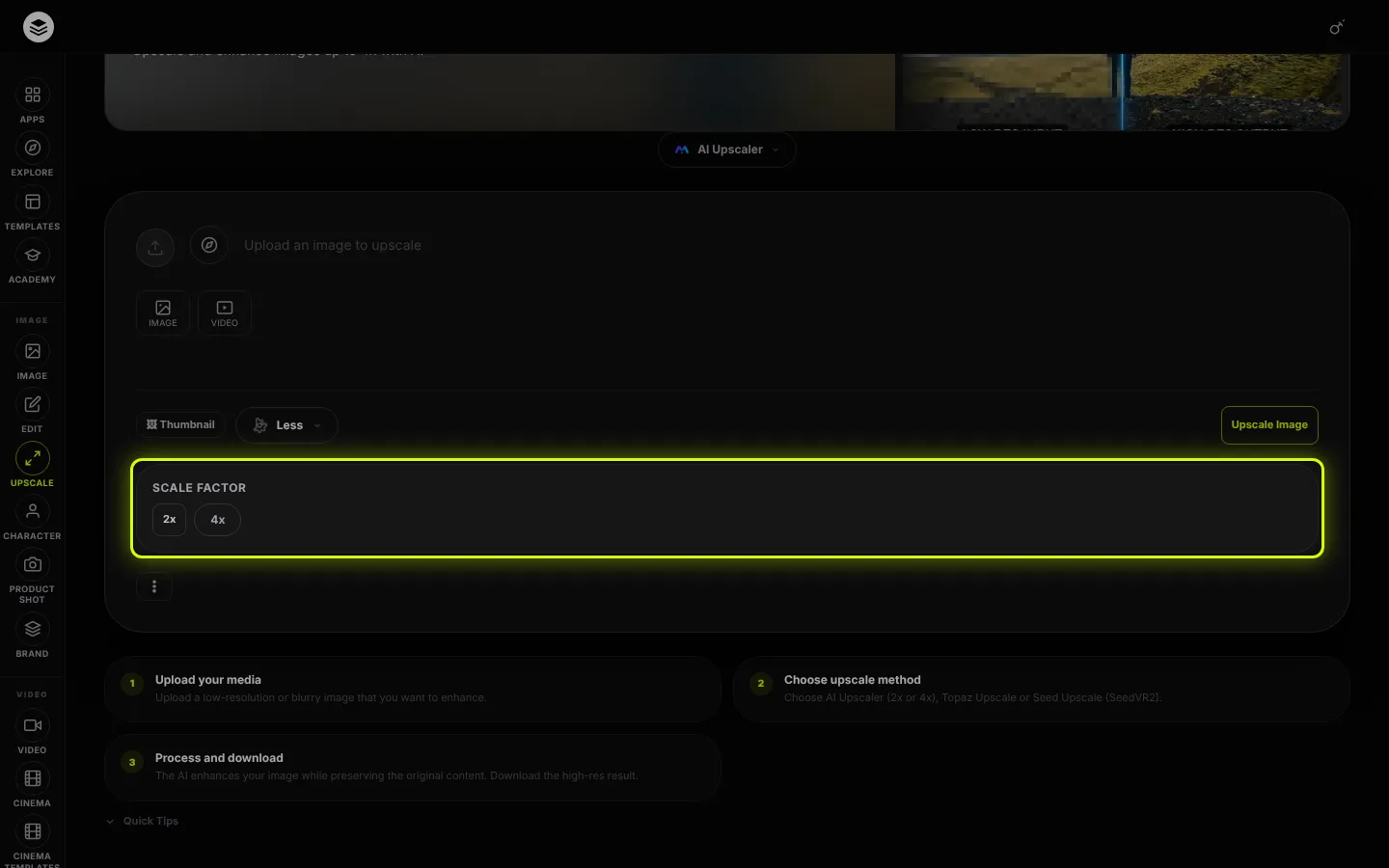
Scale Factor in Upscale Suite
Scale Factor
FEATURE 02

Scale Factor

What it is: Click the Advanced button (it changes to Less) to open the panel. For AI Upscaler it shows a 'Scale Factor' label with 2x and 4x buttons.

Why use it
2x doubles width and height; 4x makes the image four times wider and taller.
What you need
None (default 2x).
Limits and rules
Only AI Upscaler shows a factor here. For Topaz Upscale and Seed Upscale the studio sends no factor, so the model's own default is used. If you need to choose a Topaz factor (1, 2, 4 or 8) or a Seed resolution (2k, 4k or 8k), use the Upscale tool in Edit Studio.
Upload and Pexels in Upscale Suite
Upload and Pexels
FEATURE 03

Upload and Pexels

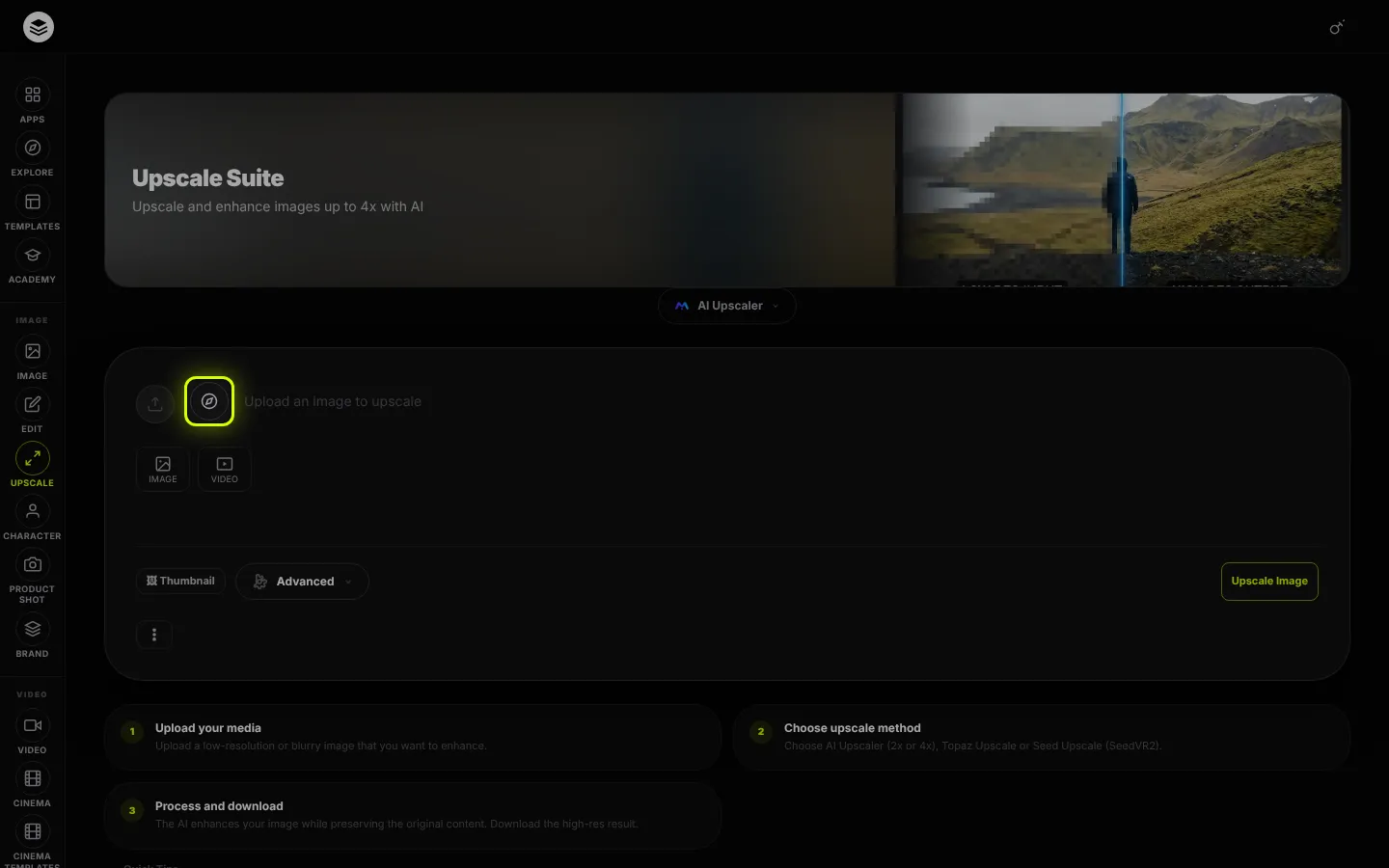
What it is: The round picker button at the left of the form opens the upload panel (upload a file, choose from your upload history, paste, or use a URL). The compass-style button titled 'Browse stock photos from Pexels' lets you pick a free stock photo. The hint text next to them says 'Upload image or video to upscale'.

Why use it
Get your source image in.
What you need
One image.
Limits and rules
Images up to 10MB (picker limit). The picker also lists video and document types, but the three methods are image upscalers, so use images. Pexels images show an attribution chip.
Upscale Image in Upscale Suite
Upscale Image
FEATURE 04

Upscale Image

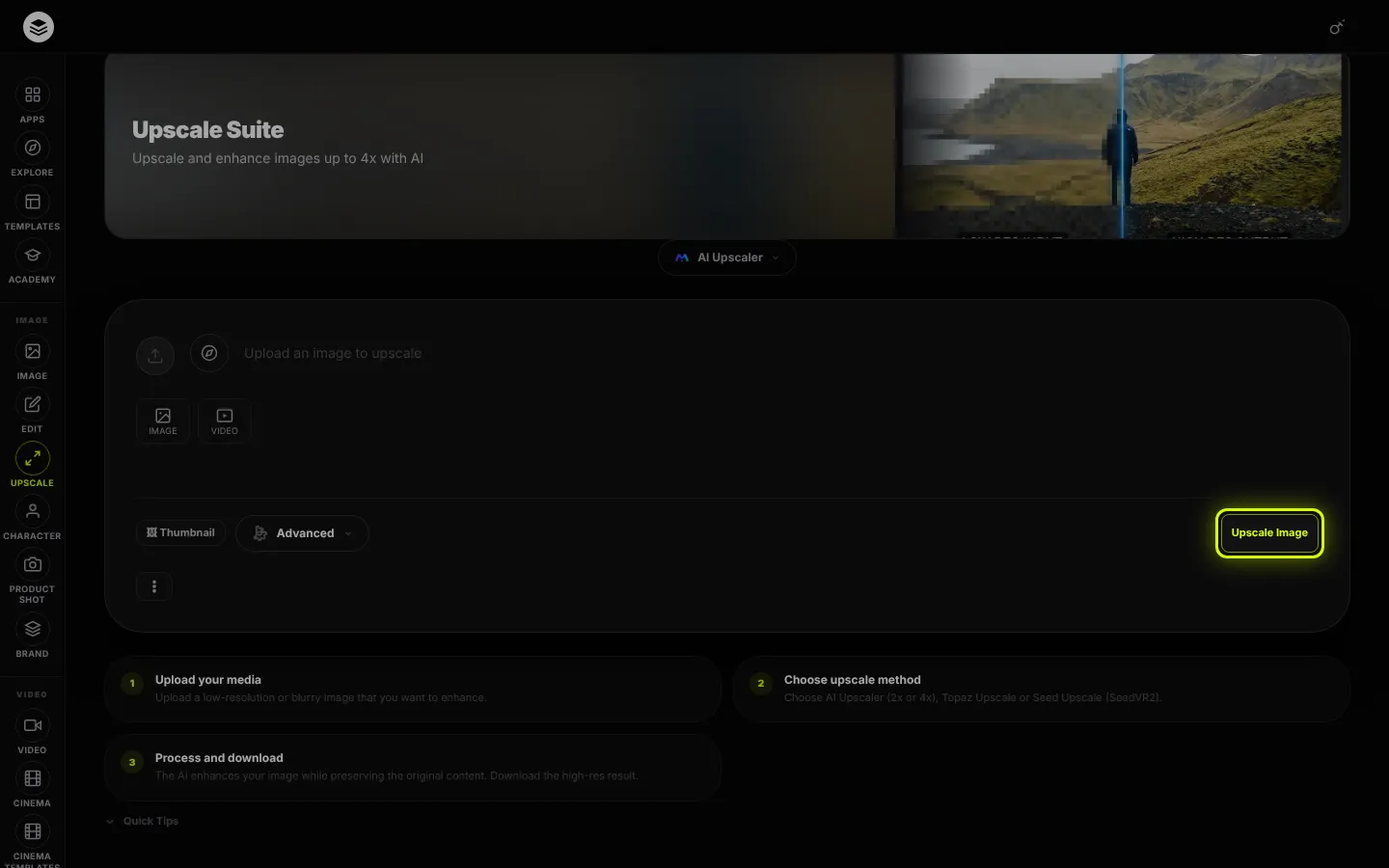
What it is: Starts the job. The button becomes 'Upscaling...' and returns to 'Upscale Image' when done. The finished image appears in a result card.

Why use it
Run the upscale.
What you need
An uploaded image; a signed-in account with access; an API key.
Limits and rules
If no image is loaded you get an alert: 'Upload an image first'. Errors appear as an alert 'Error: <message>'.
Result card: Download and Publish to Social in Upscale Suite
Result card: Download and Publish to Social
FEATURE 05

Result card: Download and Publish to Social

What it is: Download saves the enlarged image. Publish to Social opens the social publishing dialog with the image.

Why use it
Save or share the result.
What you need
A finished upscale.
Limits and rules
Only the latest result is shown on the page.
Thumbnail, Tools menu and attachments in Upscale Suite
Thumbnail, Tools menu and attachments
FEATURE 06

Thumbnail, Tools menu and attachments

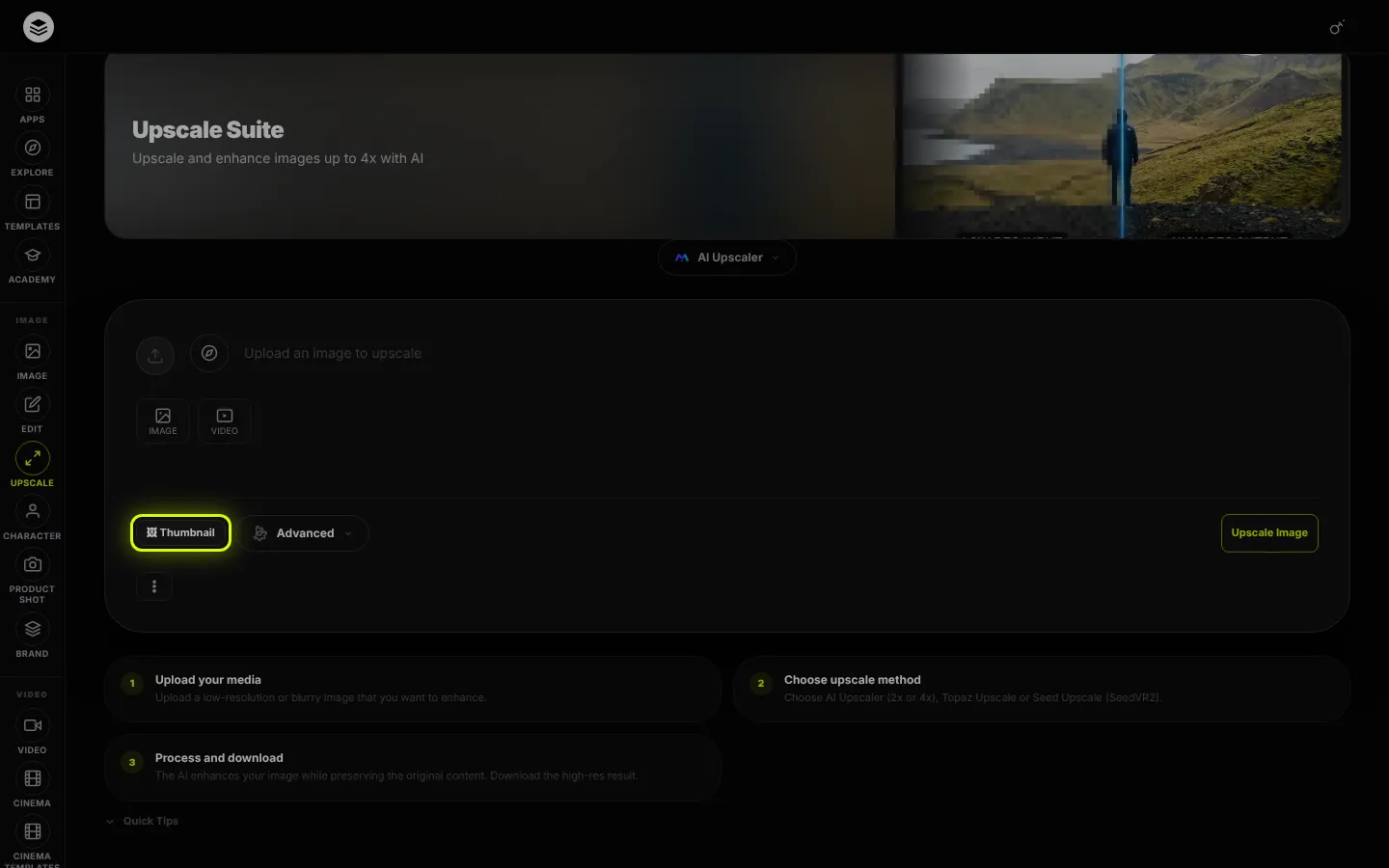
What it is: Thumbnail opens a generator for a custom studio thumbnail. The three-dots menu has Recipes and Prompts. An attachment toolbar in the form lets you add reference images or videos.

Why use it
Optional extras shared with other studios.
What you need
None.
Limits and rules
These do not change how the upscale looks in a way confirmed by the code; reference files are passed along with the request but the effect on an upscaler is not confirmed.

How to use Upscale Suite

  1. Choose a method with the method button.
  2. Upload the image (or pick one from Pexels).
  3. For AI Upscaler, open Advanced and choose 2x or 4x.
  4. Click Upscale Image.
  5. Download or Publish to Social from the result card.

Generation modes

The ways this studio can work, and when to pick each one.

AI Upscaler

General-purpose AI upscaling with a 2x or 4x factor. Catalog description: 'AI-powered image upscaling and resolution enhancement.'

Best for: Everyday enlargement; the default.

Topaz Upscale

Premium Topaz-quality enhancement. Catalog description: 'Topaz Labs AI image upscaling and detail enhancement.' In Edit Studio the same model offers factors 1, 2, 4 and 8 (default 2).

Best for: When you want pro-grade detail recovery.

Seed Upscale

SeedVR2 high-fidelity upscaling. Catalog description: 'ByteDance SeedVR2 AI image upscaling and restoration.' In Edit Studio the same model offers resolution 2k, 4k or 8k (default 4k).

Best for: Restoring and enlarging images to a target resolution.

Inputs and outputs

What you give the studio, and what you get back.

InputDescriptionWhen to useRules
Image to upscale
Required
The picture you want enlarged. Add it with the picker button or the Pexels button.Always.Up to 10MB per image in the picker. Use a clean, well-exposed original; AI upscaling cannot invent perfect detail from a very tiny or heavily compressed image.
Method
Required
AI Upscaler, Topaz Upscale or Seed Upscale.Pick by look and fidelity; all three are image upscalers.Default is AI Upscaler.
Scale Factor
Optional
2x or 4x, shown as buttons in the Advanced panel.Use 2x for most images; 4x for very small ones.Shown only for AI Upscaler. The other two methods show no factor.
Attachments
Optional
Optional reference images or videos added through the attachment toolbar.Normally not needed for upscaling.Start frame, end frame and audio attachments are turned off in this studio.

What you get

  • An upscaled image shown in a result card
  • A Download link for the image
  • A history entry (type upscale) available in the Library

Use cases and example workflows

Real jobs you can do, step by step.

Prepare images for print or large displays

Increase pixel size of web images.

  1. Upload
  2. Choose AI Upscaler and 4x
  3. Upscale Image
  4. Download
Result: A larger, sharper image.

Restore old or low-quality photos

Try Seed Upscale for restoration-style enlargement.

  1. Upload scan
  2. Choose Seed Upscale
  3. Upscale Image
Result: An enlarged, cleaner version.

Enlarge an AI-generated image for print

  1. Generate and download an image in Image Studio.
  2. Open Upscale Suite and upload it.
  3. Keep AI Upscaler, open Advanced, choose 4x.
  4. Click Upscale Image and then Download.

Compare three methods on an old photo

  1. Upload the photo and run AI Upscaler at 2x; download.
  2. Click the method button, choose Topaz Upscale, click Upscale Image; download.
  3. Choose Seed Upscale and repeat.
  4. Open the three downloads side by side and keep the best.

Clean up then enlarge

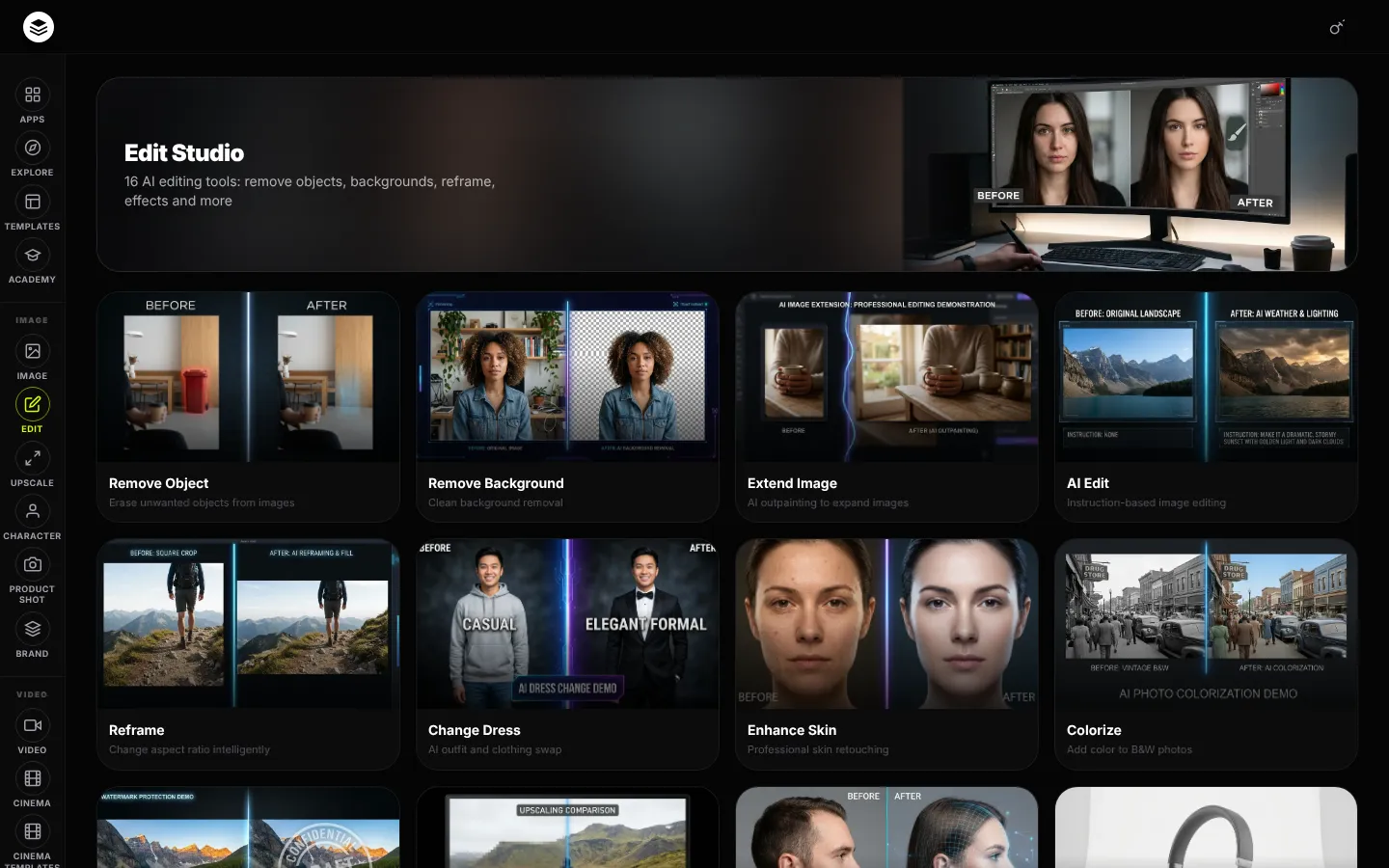
  1. In Edit Studio use Remove Object or Enhance Skin and download the result.
  2. Upload it in Upscale Suite and run an upscale.
  3. Publish to Social or download.

Tips and best practices

  • Start from the best original you have.
  • Try 2x before 4x; bigger is not always cleaner.
  • Run the same image through two methods and compare.
  • Upscale as the last step, after editing and generating.
  • Keep a copy of the original.
  • Download the upscaled result right away; only the latest one is shown on the page.
  • Use Edit Studio's Upscale tool when you need Topaz 4x/8x or SeedVR2 resolution control or a Before/After slider.

Limitations and troubleshooting

Know the limits before you start, and how to fix common problems.

LimitationWhat it meansWorkaround
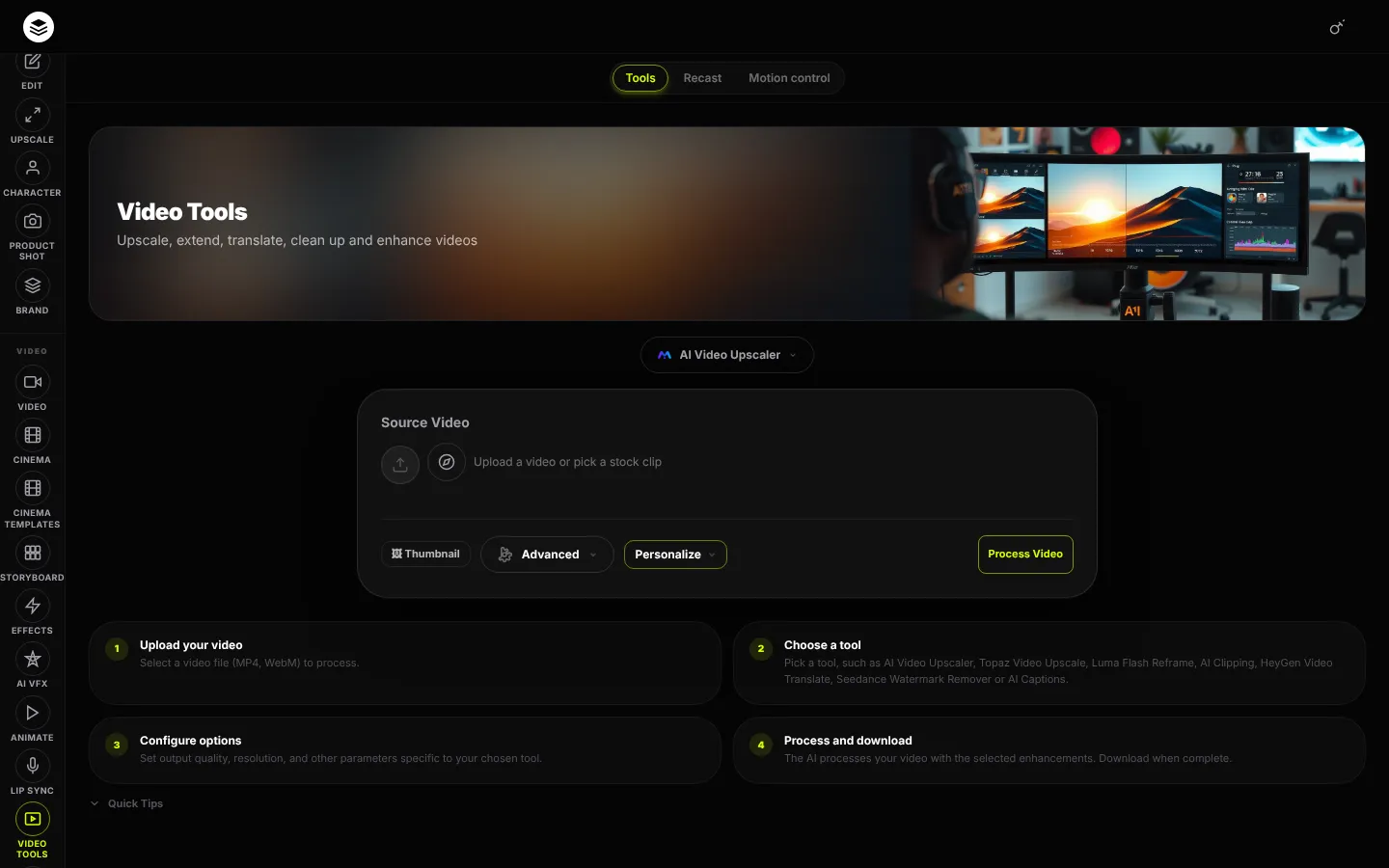
No video upscaleUploading a video will not give you an upscaled video.Use Video Tools (#/videotools) or another video studio for video.
No factor control for Topaz and Seed Upscale hereYou cannot choose 4x or 8k on this page for those two methods.Open Edit Studio (#/edit), choose the Upscale tool, pick the model and use its own setting (Topaz factor or SeedVR2 resolution).
No comparison viewYou judge the result by eye.Edit Studio's Upscale tool has a Before / After slider.

Result looks over-sharpened or plastic

Why: AI upscalers add detail that was not in the original.

Fix: Try another method (Seed Upscale for restoration, Topaz for detail) or use 2x instead of 4x.

Factor buttons missing

Why: Only AI Upscaler has them, and they sit in Advanced.

Fix: Choose AI Upscaler and click Advanced.

Cannot upload a big file

Why: Image uploads are capped at 10MB.

Fix: Reduce the file size first.

Glossary

Terms used in Upscale Suite.

Upscale
Making an image larger (more pixels) while trying to keep it sharp.
2x / 4x
Doubling or quadrupling the width and height.
Topaz
A company known for photo enhancement; its model is one of the three methods.
SeedVR2
ByteDance's upscaling and restoration model, offered as Seed Upscale.
Resolution
The number of pixels in an image.

Frequently asked questions

How much bigger will my image be?

With AI Upscaler you choose 2x or 4x (default 2x). For Topaz Upscale and Seed Upscale this page does not let you choose; use Edit Studio's Upscale tool for Topaz factors 1/2/4/8 or SeedVR2 resolutions 2k/4k/8k.

Can I upscale a video here?

No. The three methods are image upscalers and the upload asks for an image. Use Video Tools or a video studio for clips.

Which method is best?

The code does not rank them. AI Upscaler is the quick everyday default, Topaz Upscale is described as premium, and Seed Upscale as high-fidelity. Try them on your own image.

Where do my upscaled images go?

The latest one is shown on the page with a Download link, and every upscale is registered in your generation history (Library).

Is there a prompt box?

No. Upscaling needs only the image and, for AI Upscaler, a factor.

How big can the source file be?

Up to 10MB for an image.

Does it change what is in my picture?

It aims to keep the content and add resolution, but AI upscalers can add or alter fine detail. Check the result before using it.

Try Upscale Suite now

Open the studio and put these features to work, or browse the guides for all 53 studios.