My Work · Feature guide

Content Feature Guide

Your saved content: saved generations, uploads, PDFs and stock media.

Content is your saved-content shelf: generations you saved from a studio or Library, files you uploaded, PDFs and stock media from Pexels. Its side-menu label is "Content" and its route is #/content-library.

Best for: Keeping and reusing the files you care about: favourites, reference uploads, PDFs and licensed stock clips/photos.

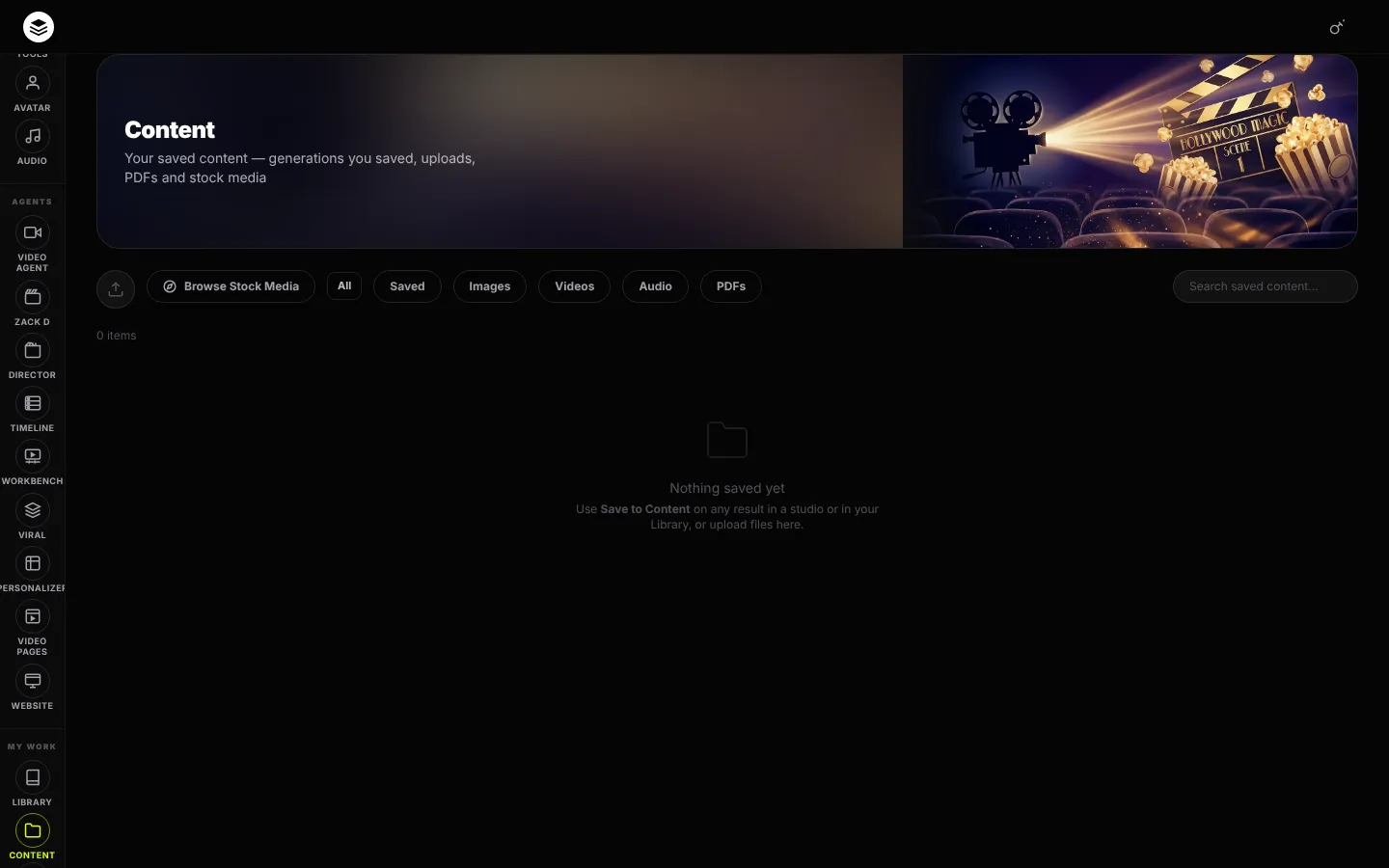
Content screenshot

Watch the Content tour

A 1:41 captioned walkthrough of the studio, with a sample file and prompt.

VIDEO · 1:41

What is Content?

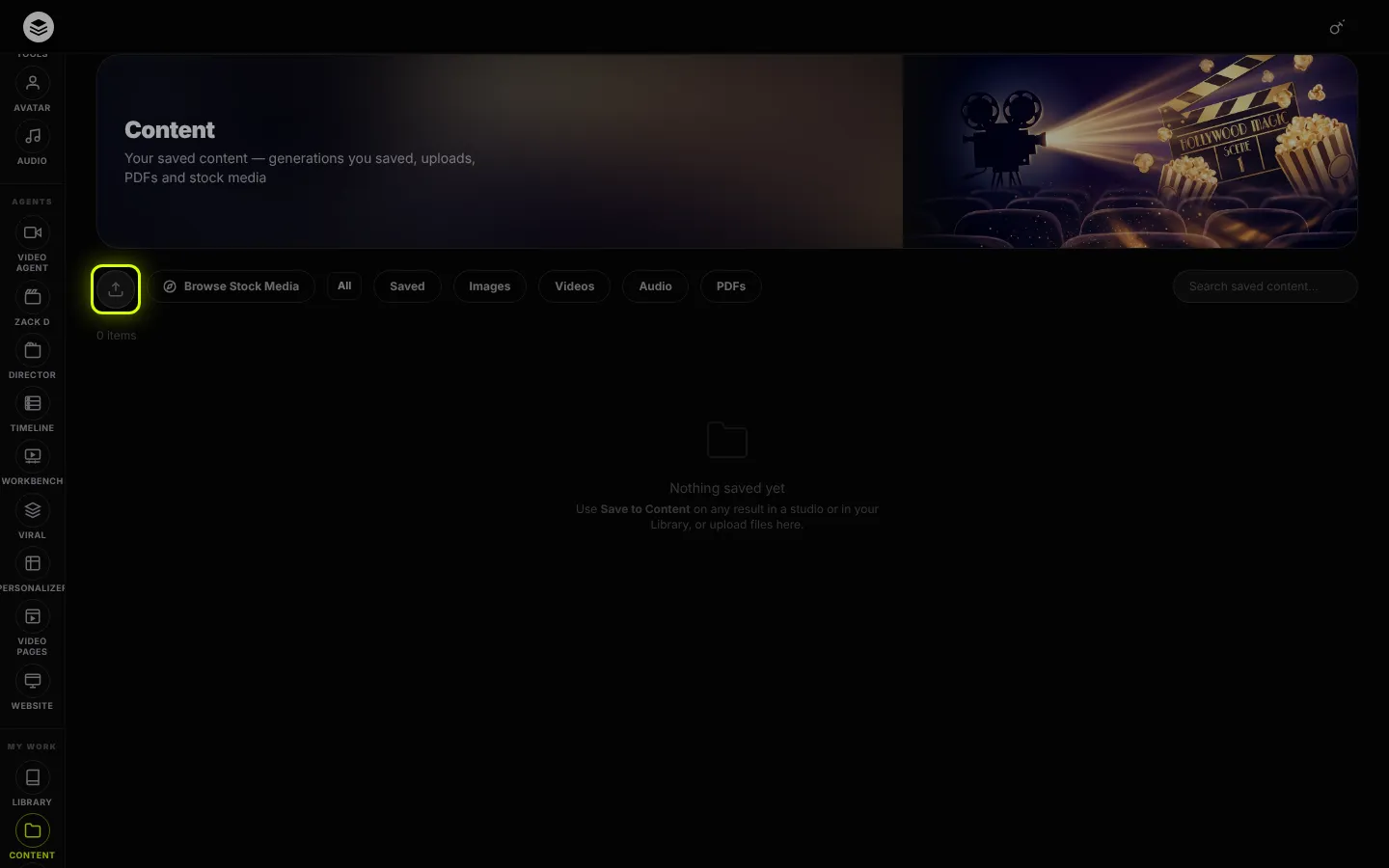
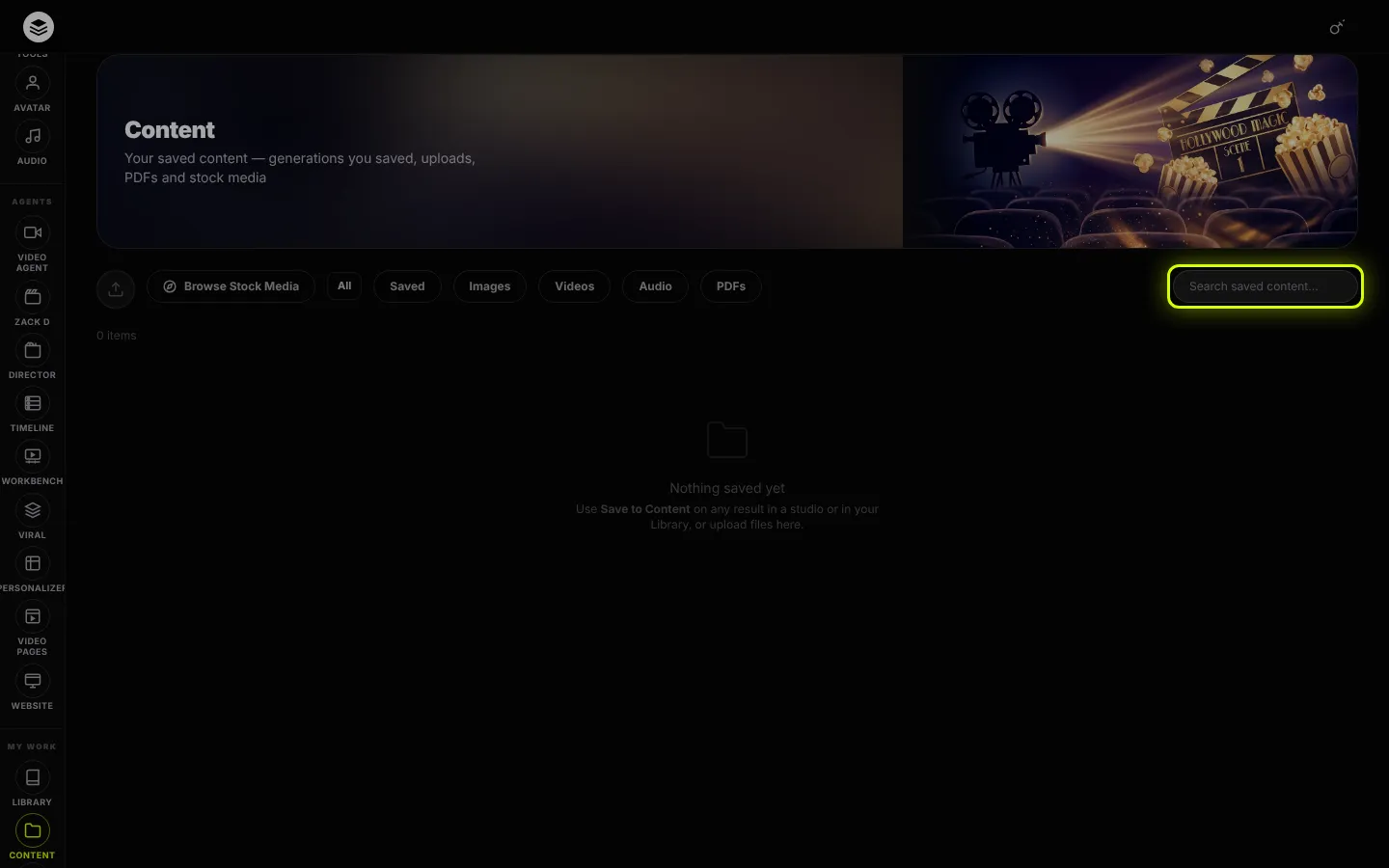
Content (route #/content-library, shown in the menu as "Content") is headed "Content" with the line "Your saved content — generations you saved, uploads, PDFs and stock media". Filter tabs are All, Saved, Images, Videos, Audio and PDFs. There is a search box ("Search saved content..."), a "Browse Stock Media" button (Pexels), and an upload button (upload picker, up to 10 images, videos accepted). A status line shows the count, for example "3 items in saved". Empty state: "Nothing saved yet - Use Save to Content on any result in a studio or in your Library, or upload files here." Saved generations are kept in your browser (local storage), so saving always works; uploads and stock-media entries go to the cloud content library when the deployment has it configured, otherwise they are kept in the browser too.

When to use it

  • You want a short list of keepers apart from your full history.
  • You want to upload PDFs or videos to reuse.
  • You want free stock photos or videos from Pexels.
  • Tabs: All, Saved, Images, Videos, Audio, PDFs.
  • Search saved content by filename, prompt or model.
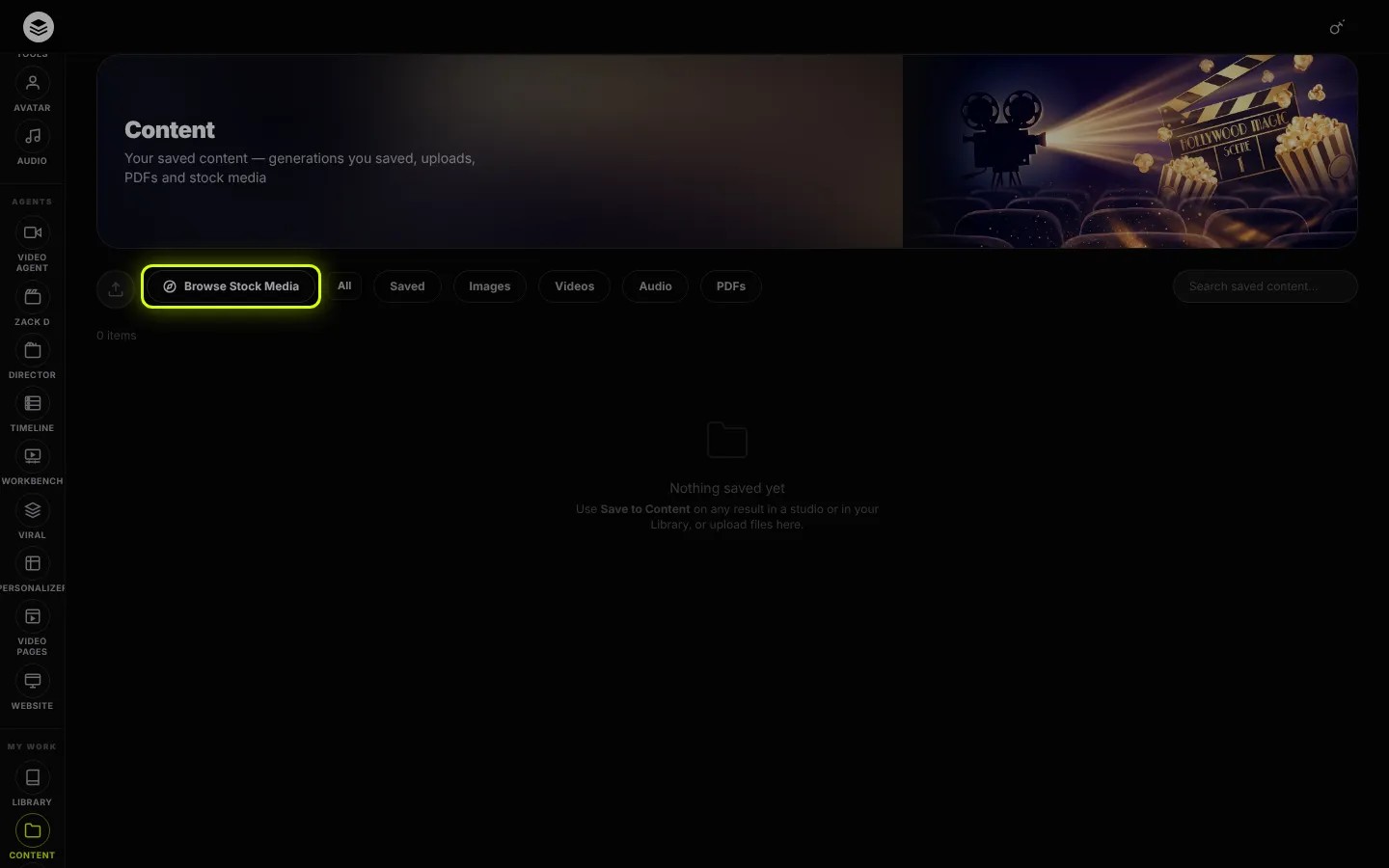
  • Browse Stock Media (Pexels) with automatic attribution.
  • Upload files (images, videos; PDFs are supported in the content library).
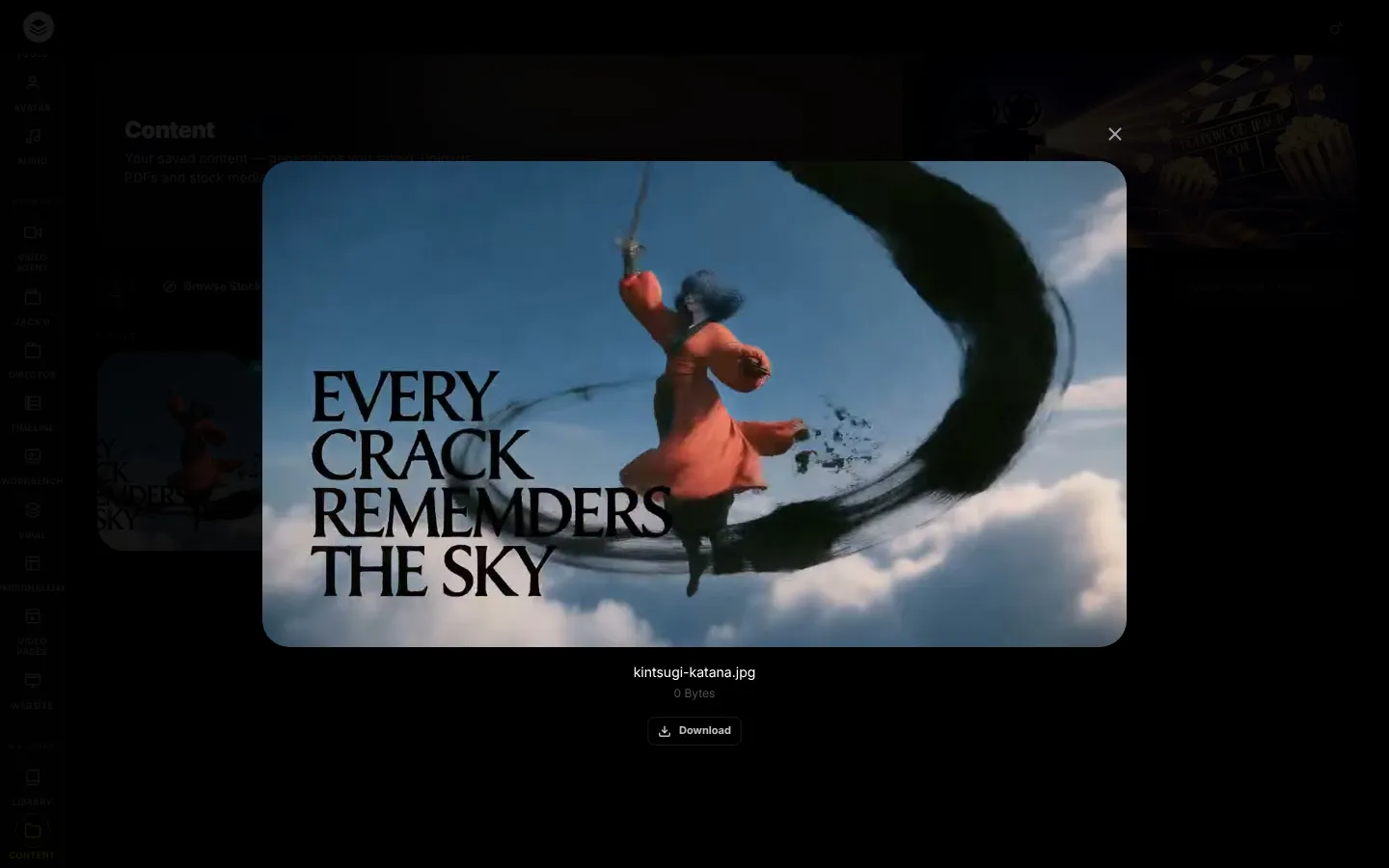
  • Preview overlay with Download.
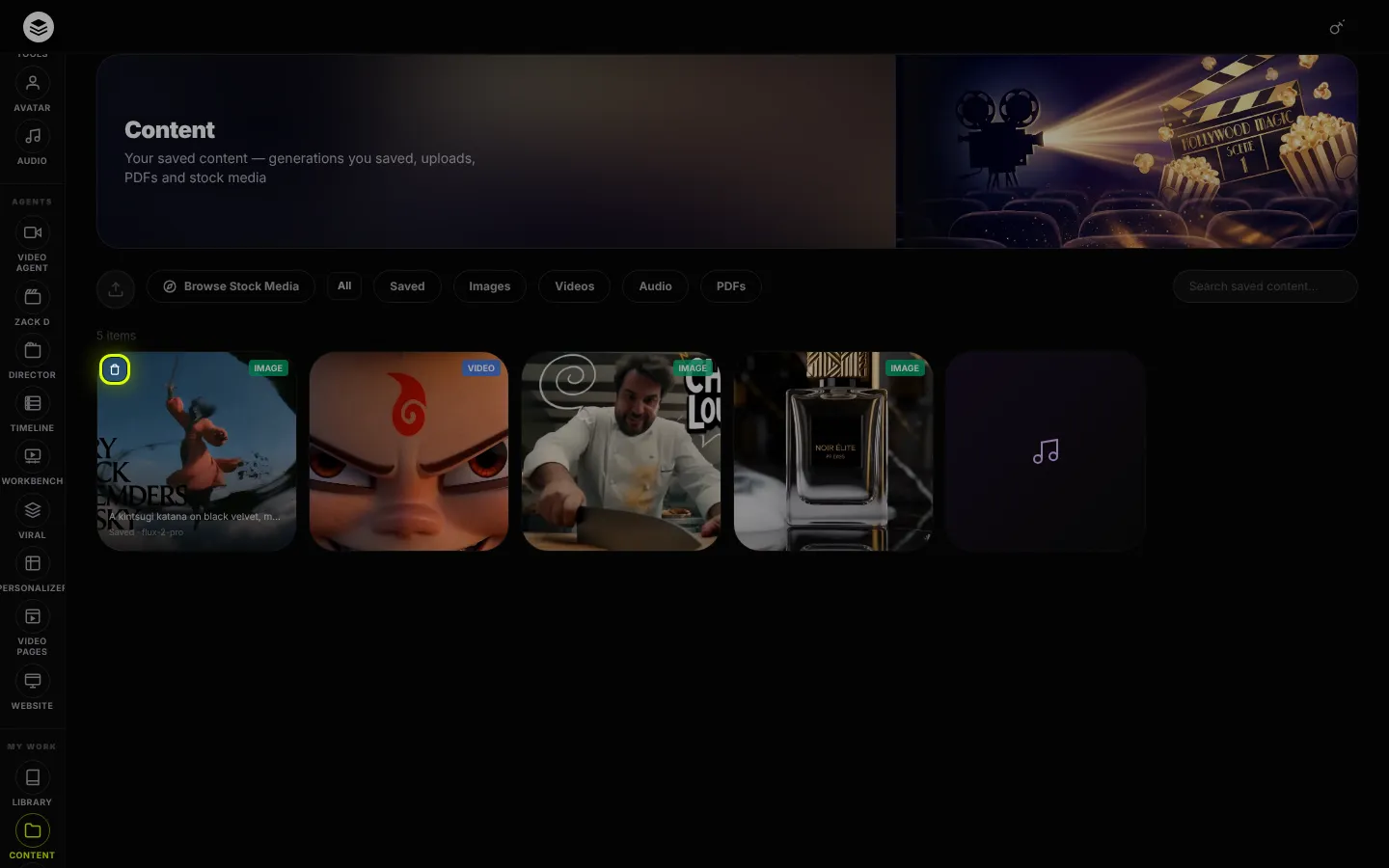
  • Badges: IMAGE, VIDEO, PDF, PEXELS.

Every Content feature, explained

5 features, each with a definition, why you would use it, what it needs and its limits.

Save to Content in Content
Save to Content
FEATURE 01

Save to Content

What it is: In a studio result or in Library, press Save (the toast says "Saved to Content"). The item then appears here under Saved with its prompt and model.

Why use it
Mark keepers.
What you need
None
Limits and rules
Saved generations are stored in this browser, so they do not follow you to another browser or device.
Browse Stock Media in Content
Browse Stock Media
FEATURE 02

Browse Stock Media

What it is: Opens a stock picker titled "Stock Media" for images and videos from Pexels. Choosing one saves it here with the photographer credit ("Name on Pexels") and a PEXELS badge.

Why use it
Free stock for backgrounds and b-roll.
What you need
Search in the picker
Limits and rules
You can add your own Pexels key in Settings (optional); otherwise shared access is used. Keep the attribution when you publish.
Upload in Content
Upload
FEATURE 03

Upload

What it is: Use the upload button to add files; each is saved to Content. The cloud content library accepts PDFs and videos.

Why use it
Keep references and documents.
What you need
A file
Limits and rules
Cloud upload accepts only PDF and video files ("Only PDF and video files are allowed."). Without the cloud setup, entries stay local.
Remove / delete in Content
Remove / delete
FEATURE 04

Remove / delete

What it is: Hover an item and press the red delete button. For saved items the prompt is "Remove this from Content? (It stays in your Library.)". For other files it asks to delete the file by name.

Why use it
Tidy up.
What you need
Confirm
Limits and rules
Deleting a saved item only removes it from Content.
Preview in Content
Preview
FEATURE 05

Preview

What it is: Click an item to see it large (image, video with controls, audio player or PDF viewer), its filename, attribution if any, size, and a Download button.

Why use it
Check and download.
What you need
None
Limits and rules
Close with the X or by clicking outside.

How to use Content

  1. Open Content from the left side menu.
  2. Add items by Save (from Library/studios), Browse Stock Media, or upload.
  3. Filter with the tabs and search.
  4. Click an item to preview or download.
  5. Delete items you no longer need.

Inputs and outputs

What you give the studio, and what you get back.

InputDescriptionWhen to useRules
Search saved content...
Optional
Matches filename, prompt and model.Finding an item.Text match only.
Upload picker
Optional
Adds files (up to 10 images at once, videos accepted).Bringing your own files.Cloud storage accepts PDFs and videos.

What you get

  • A personal shelf of saved items you can preview and download.

Use cases and example workflows

Real jobs you can do, step by step.

Favourites board

Save the best generations.

  1. In Library press Save on keepers.
  2. Open Content and use the Saved tab.
Result: A short list of your best results.

Collect stock b-roll

  1. Open Content.
  2. Press Browse Stock Media.
  3. Choose clips; they appear with a PEXELS badge.
  4. Open one and press Download.

Tips and best practices

  • Use the Saved tab for a quick favourites view.
  • Keep attribution text when publishing Pexels media.
  • Download critical files; saved items are stored in this browser.

Limitations and troubleshooting

Know the limits before you start, and how to fix common problems.

LimitationWhat it meansWorkaround
Saved items do not sync across browsersSaved items disappear if you clear site data or switch device.Download important files from the preview.

Removed from Content but still in Library

Why: Content and Library are separate shelves; removing a saved item keeps the original in Library.

Fix: Delete it from Library too if you want it gone.

Glossary

Terms used in Content.

Saved
Items you saved from a studio or Library.
PEXELS
Badge for stock media from Pexels.
Attribution
The photographer credit stored with stock media.

Frequently asked questions

What is Content?

The shelf for what you chose to keep: saved generations, uploads, PDFs and Pexels stock media.

How is Content different from Library?

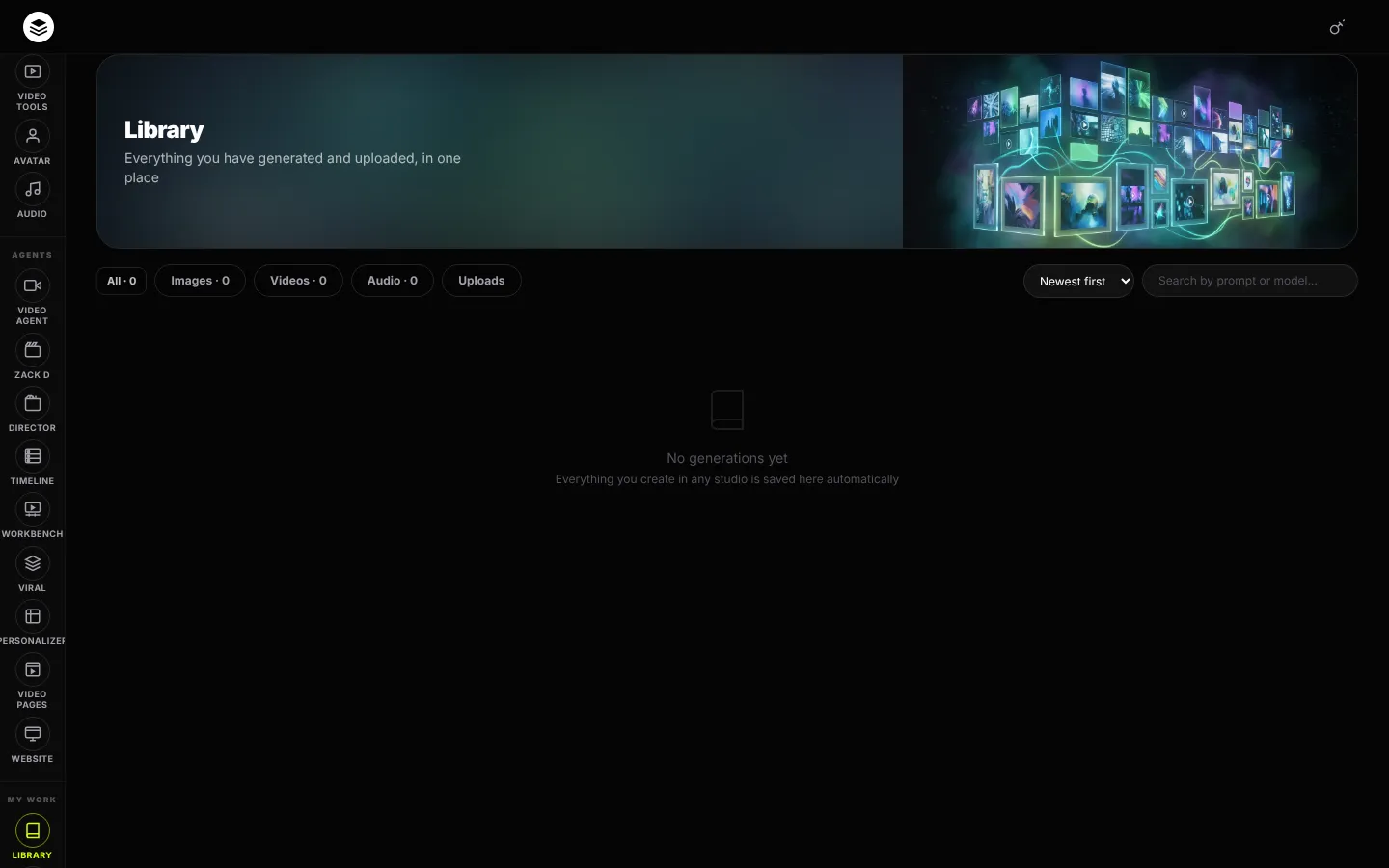
Library holds everything you generate automatically. Content holds items you saved or added. Removing from Content keeps the item in Library.

How do I save something to Content?

Press Save on a result in a studio or hover an item in Library and press Save.

Is stock media free to use?

The code credits the photographer ("Name on Pexels") and shows a PEXELS badge. Pexels licence terms are not described in the app, so check Pexels before commercial use.

Try Content now

Open the studio and put these features to work, or browse the guides for all 53 studios.