Getting Started · Feature guide

Apps Feature Guide

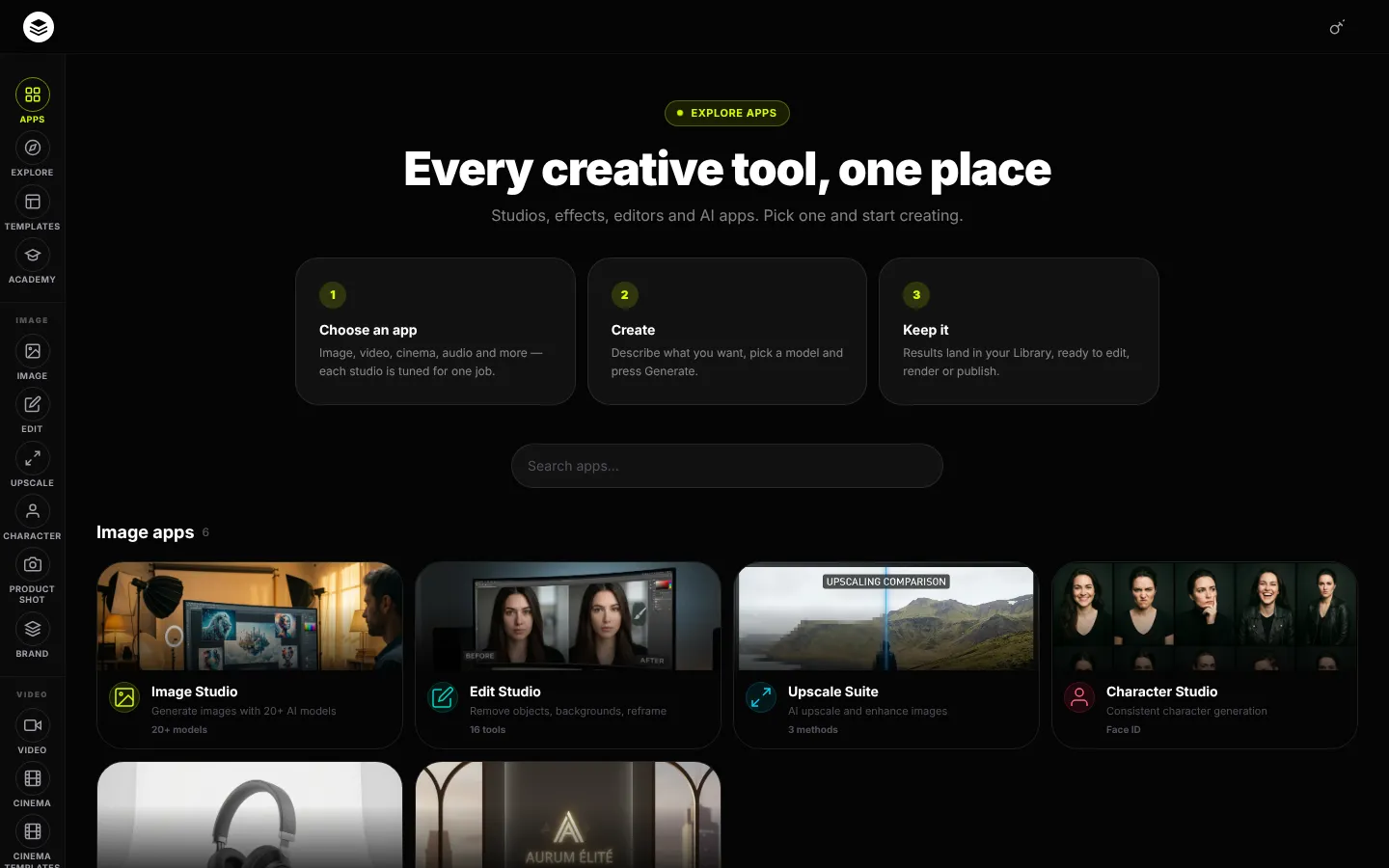
Searchable grid of all 26 tools. Pick one to open it.

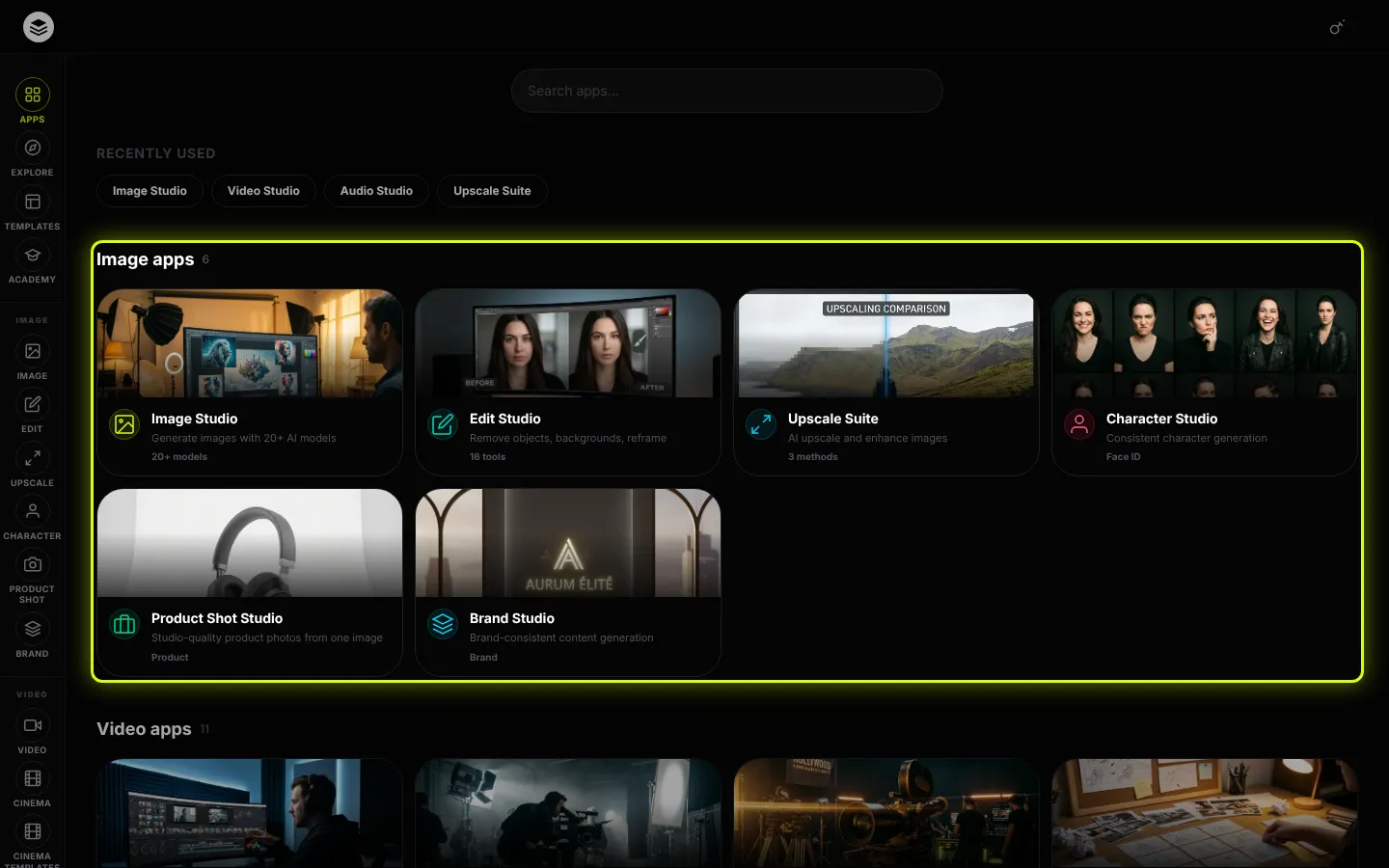
The Apps hub is the home screen of the app: a searchable grid of every creative tool, grouped as Image apps, Video apps, Agents apps and My Work.

Best for: Finding out what tools exist, jumping to the right studio when you are not sure where to start, and getting back to a tool you used recently.

Apps screenshot

Watch the Apps tour

A 0:59 captioned walkthrough of the studio, with a sample file and prompt.

VIDEO · 0:59

What is Apps?

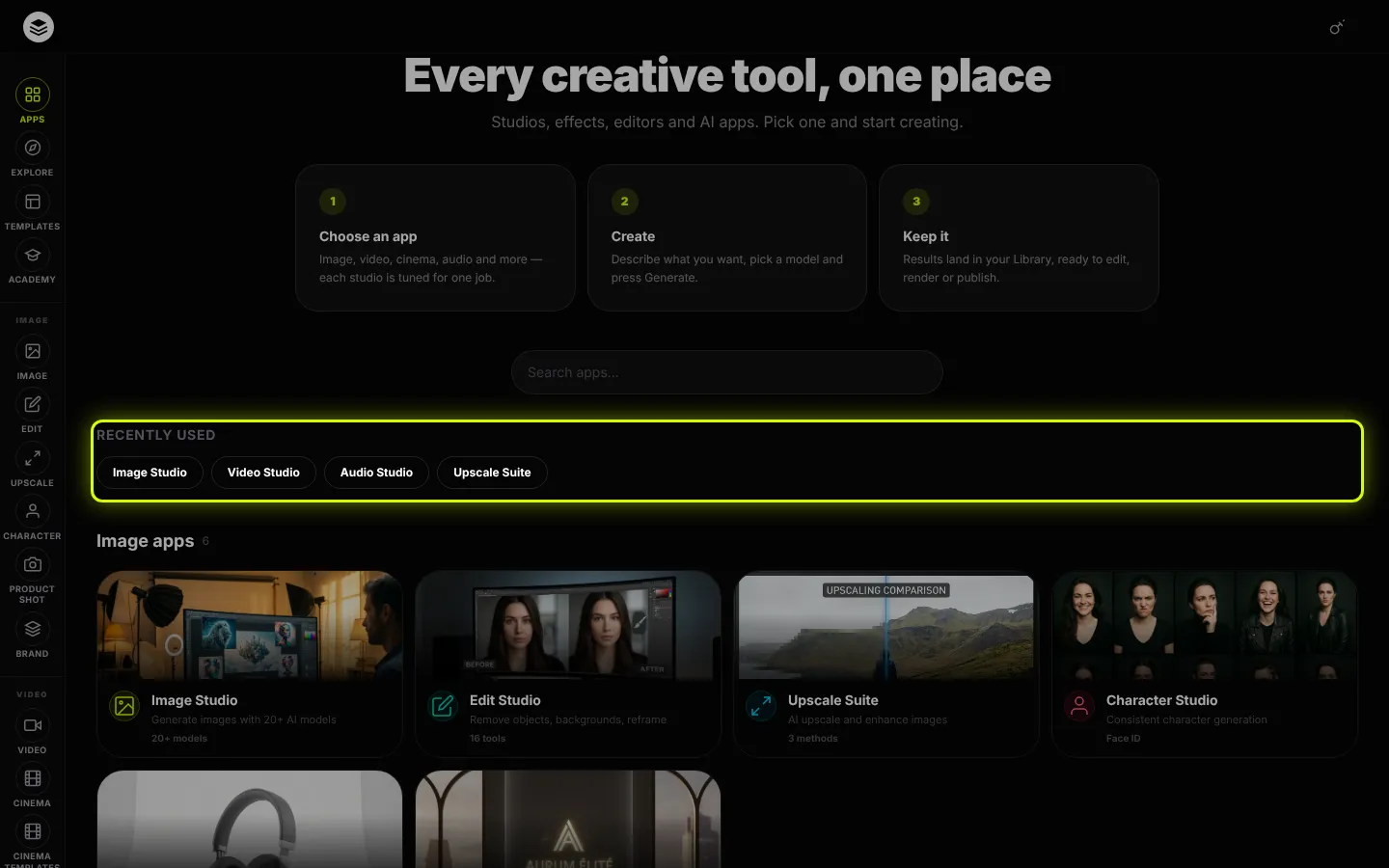
Apps (route #/apps) is a hub page titled "Every creative tool, one place" with the line "Studios, effects, editors and AI apps. Pick one and start creating." and a badge reading "Explore apps". It shows three step cards: "1 Choose an app" (Image, video, cinema, audio and more, each studio is tuned for one job), "2 Create" (Describe what you want, pick a model and press Generate) and "3 Keep it" (Results land in your Library, ready to edit, render or publish). Below that is a "Search apps..." box and the app cards. The cards are built from the side menu itself, so the hub and the left menu list the same tools. There are 26 cards in four sections. Clicking the logo at the top left of the header also goes to the Apps hub (its label is "All apps"). The retired Chat, Assist and Training pages now redirect here.

When to use it

  • You are new and want to see every tool in one place.
  • You know what you want to make (an image, a video, a voiceover) but not which studio does it.
  • You want to reopen a tool you used recently (the Recently Used row).
  • The side menu feels long and you want to search by name or description.
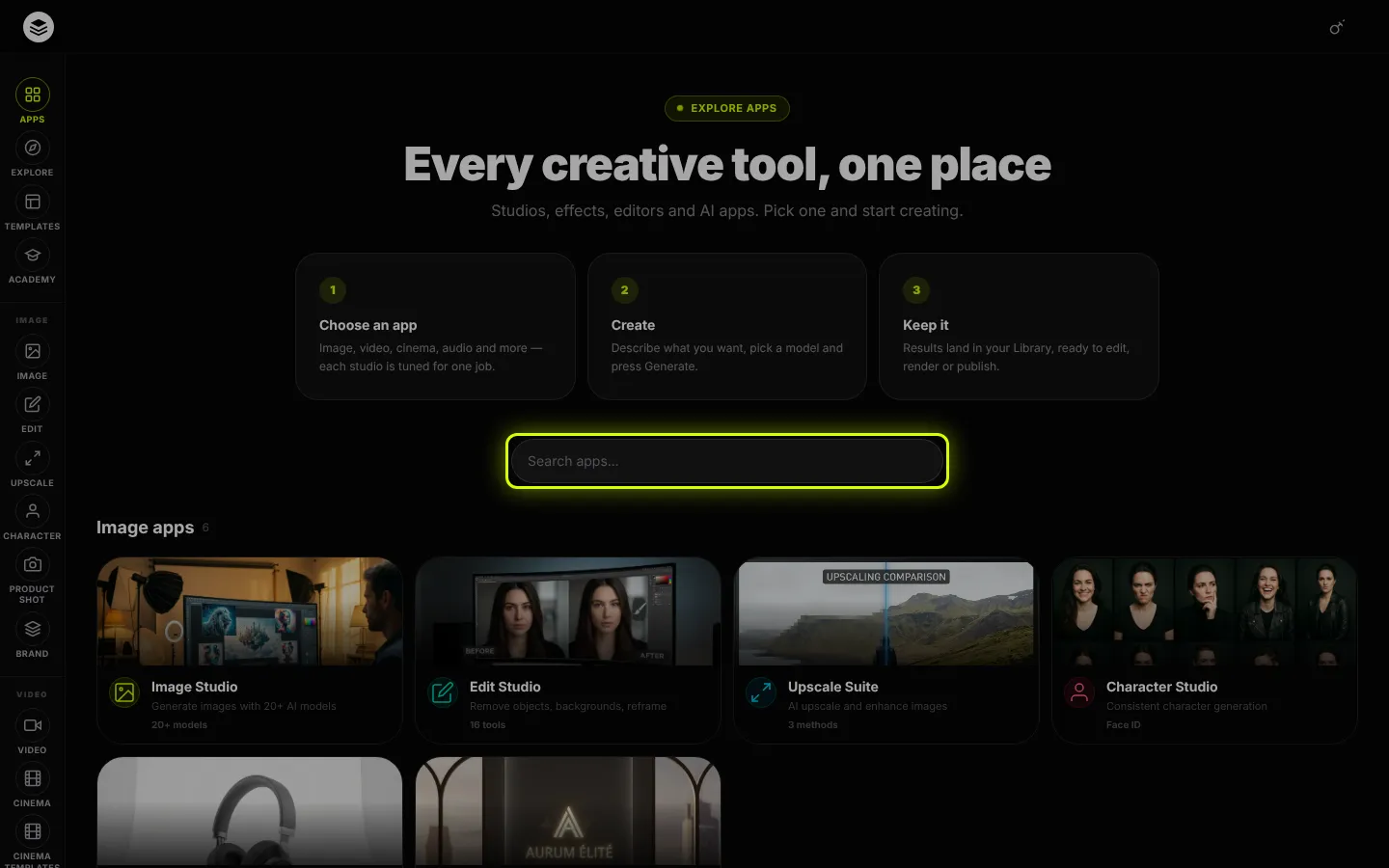
  • Search apps box (placeholder "Search apps...") that filters cards by name and description and hides empty sections.
  • Four sections: Image apps, Video apps, Agents apps, My Work, each with a count.
  • Each card shows a thumbnail, icon, name, one-line description and a small badge.
  • Recently Used row of up to 8 chips (shown only after you have opened a tool from this page).
  • Same tool list as the left side menu (the hub is generated from it).
  • No results message: No apps match "your search".

Every Apps feature, explained

3 features, each with a definition, why you would use it, what it needs and its limits.

Search apps in Apps
Search apps
FEATURE 01

Search apps

What it is: Type in the "Search apps..." box. Cards are matched on their name plus description text. Sections with no matching card disappear and the number beside each section title updates.

Why use it
Fastest way to find a tool such as "upscale" or "lip".
What you need
Any text
Limits and rules
Matches only card name and description, not model names or badges.
Recently Used in Apps
Recently Used
FEATURE 02

Recently Used

What it is: When you open an app by clicking its card on this page, its name is remembered in this browser and shown as a chip at the top next time (most recent first, up to 8 shown, 12 remembered).

Why use it
One click back to the tools you use most.
What you need
None
Limits and rules
Stored in your browser only; clearing site data empties it. Only tools opened from the hub cards are recorded.
Section groups in Apps
Section groups
FEATURE 03

Section groups

What it is: Image apps, Video apps, Agents apps and My Work match the group headings in the left side menu.

Why use it
Tells you whether a tool is for pictures, moving video, AI-agent workflows or your saved files.
What you need
None
Limits and rules
The first side-menu group (Apps, Explore, Templates) is navigation, not an app, so it has no cards here.

How to use Apps

  1. Open Apps from the left side menu or click the logo at the top left.
  2. Scan the four sections or type in "Search apps...".
  3. Click the card for the tool you want.
  4. To return, click the logo again or use the side menu.

Inputs and outputs

What you give the studio, and what you get back.

InputDescriptionWhen to useRules
Search apps...
Optional
Text box above the cards.When you know part of a tool name or what it does.Case-insensitive text match on name and description.

What you get

  • Navigation only: the Apps hub does not generate anything itself.

Use cases and example workflows

Real jobs you can do, step by step.

Discover what the app can do

Browse all 26 tools and their one-line descriptions.

  1. Open Apps.
  2. Read each section.
  3. Click anything that looks useful.
Result: You land in the chosen studio.

Find a tool by search

  1. Open Apps.
  2. Type "upscale" in Search apps...
  3. Click Upscale Suite.

Pick a starting tool for a short video

  1. Open Apps.
  2. Look under Video apps.
  3. Choose Video Studio for text/image to video, or Cinema Studio for camera-controlled shots.

Tips and best practices

  • Use the search box instead of scrolling.
  • Check the card badges for quick hints, e.g. "200+ effects" on Effects Studio.
  • Cards work with the keyboard: Tab to a card and press Enter.
  • Start from the output you want (image, video, audio) and pick that section.
  • Open Library after generating to find your results.

Limitations and troubleshooting

Know the limits before you start, and how to fix common problems.

LimitationWhat it meansWorkaround
Recently Used only updates from hub cardsTools you open from the side menu do not appear in the row.Open them from the Apps hub once.

Old Chat/Assist/Training link lands on Apps

Why: Those studios were retired; old links redirect to the Apps hub.

Fix: Pick the tool you need from the cards instead.

Glossary

Terms used in Apps.

Studio
A tool page focused on one job, such as Image Studio.
Agent
An AI-driven tool that plans or performs several steps for you, such as Video Agent or Director.
Recently Used
Chips of tools you opened from the hub.

Frequently asked questions

What tools exist in this app?

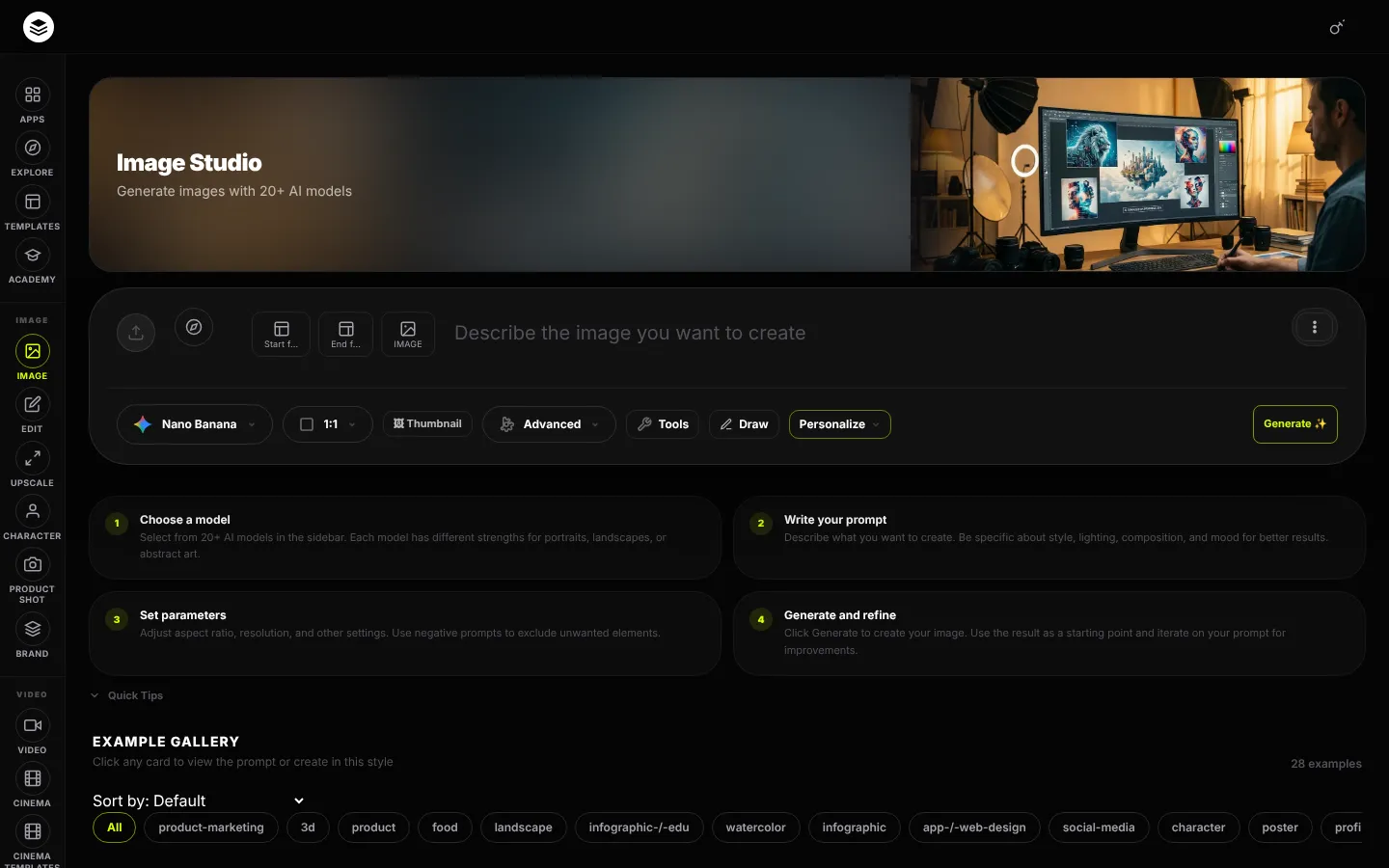
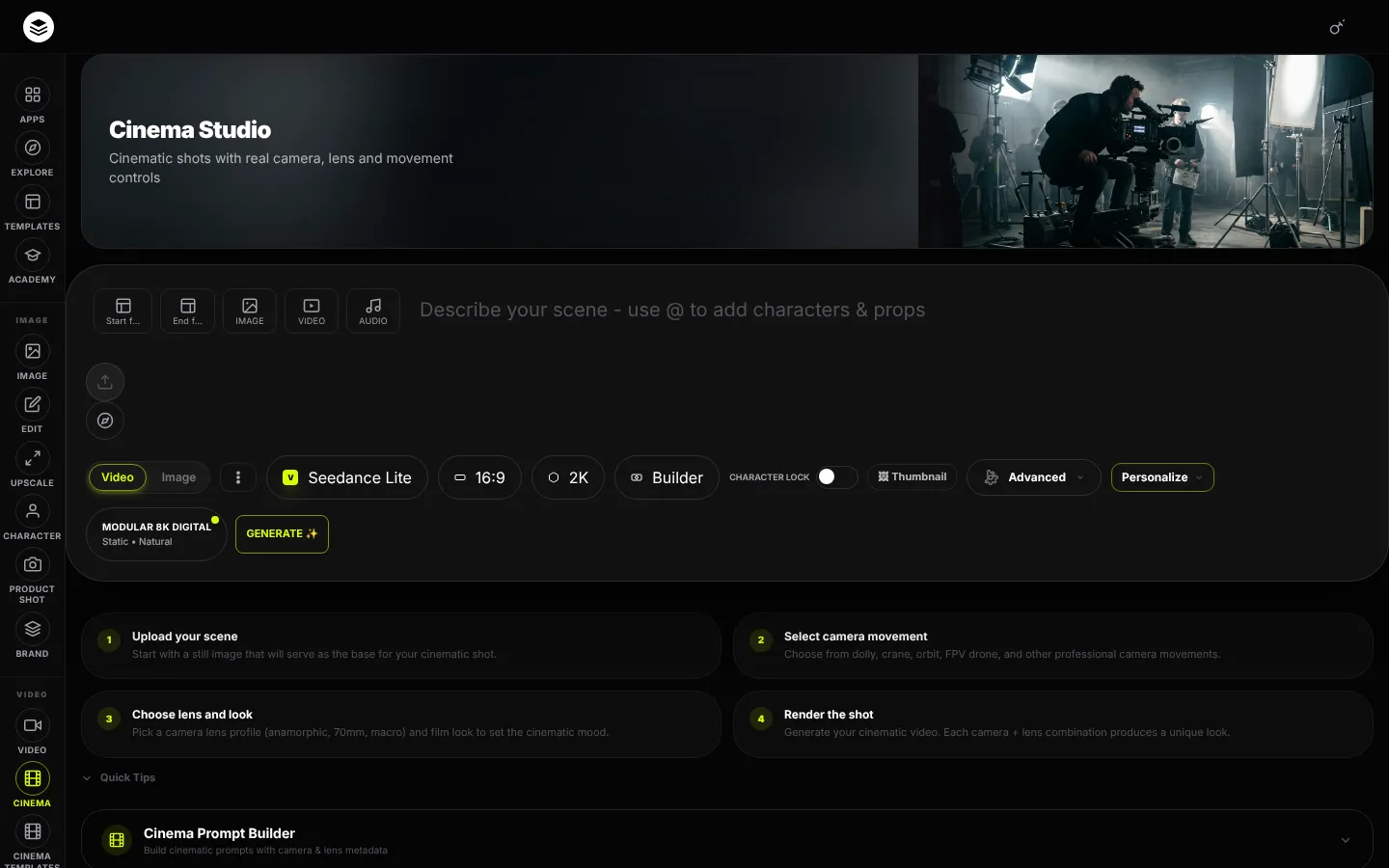
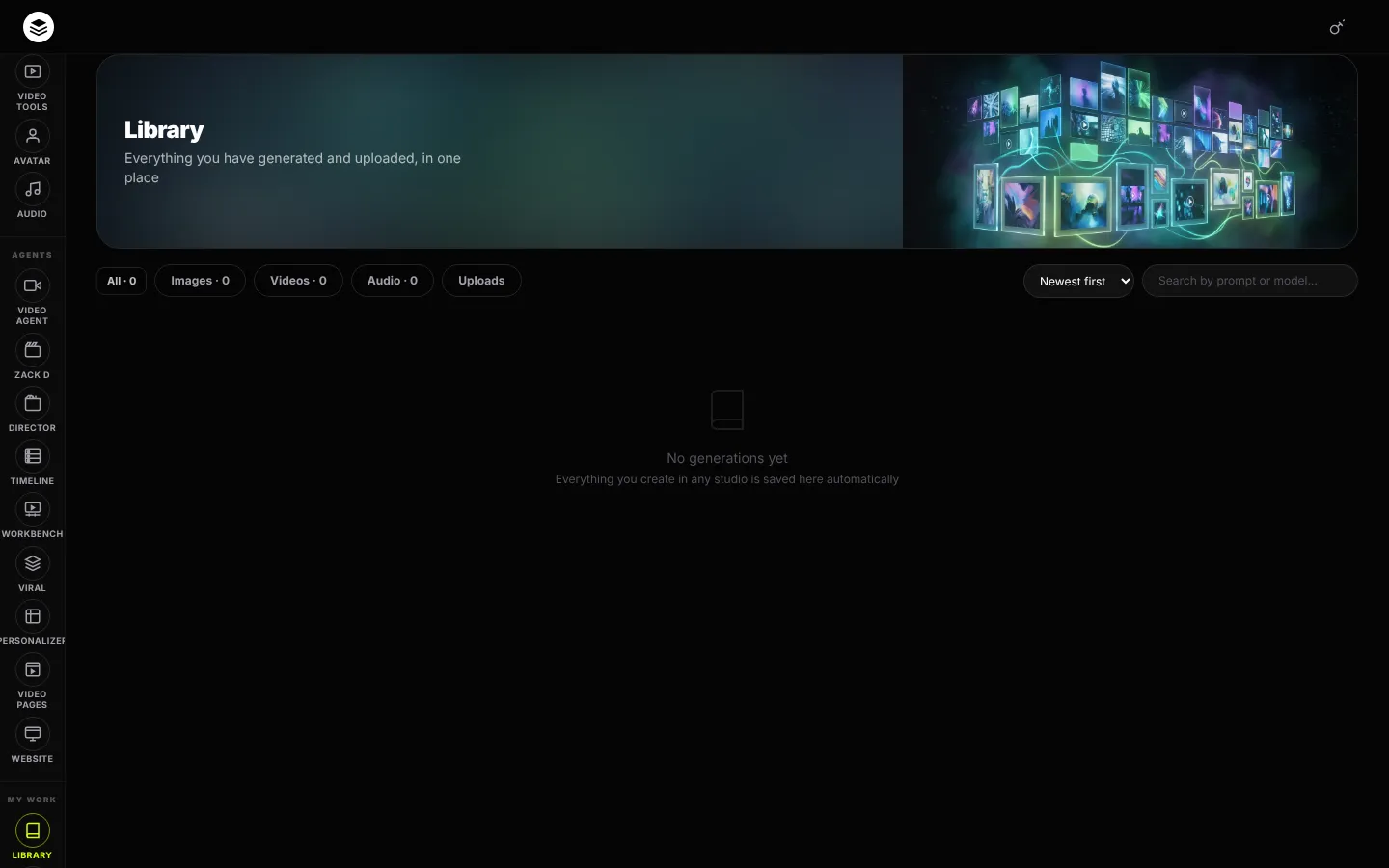
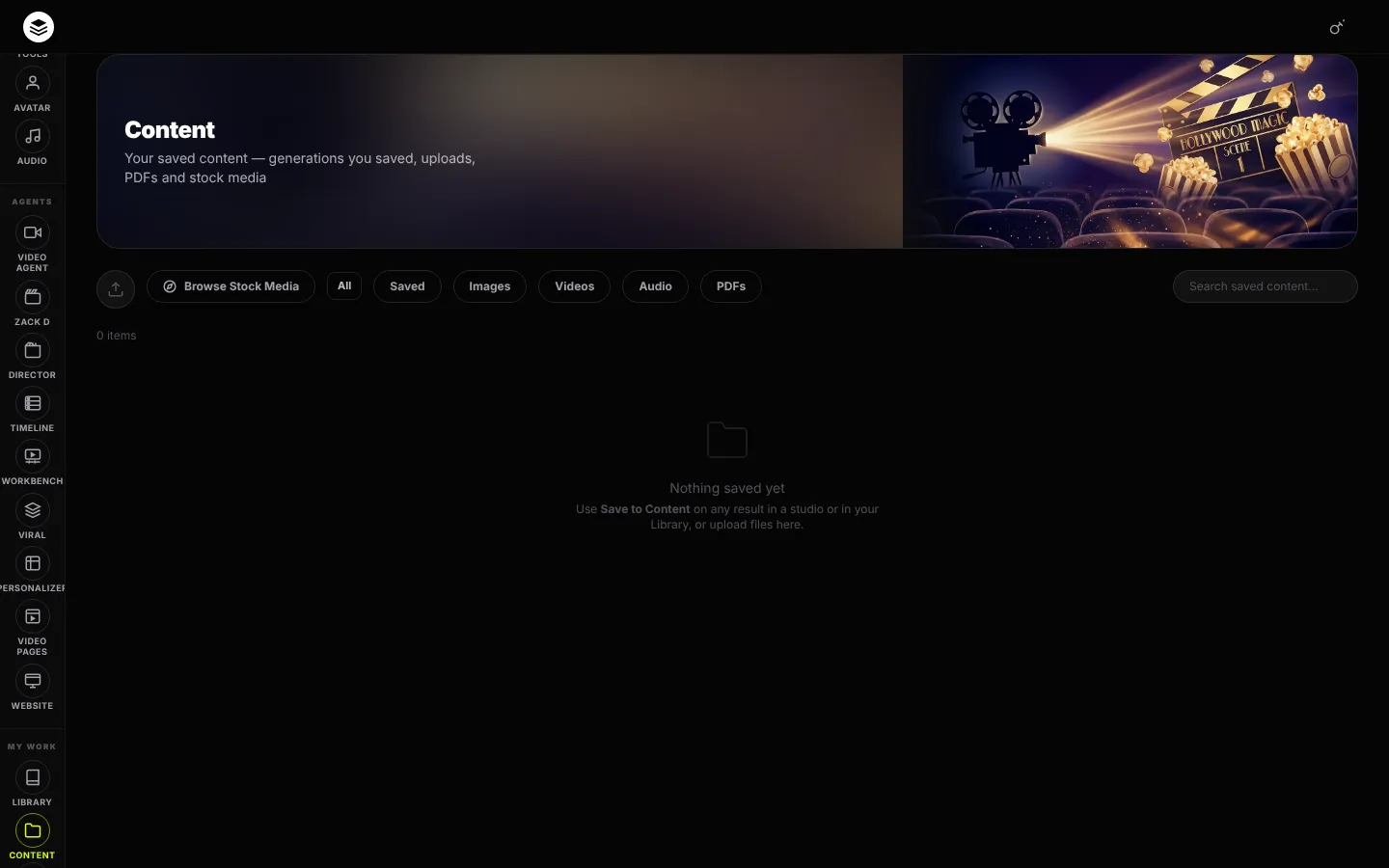
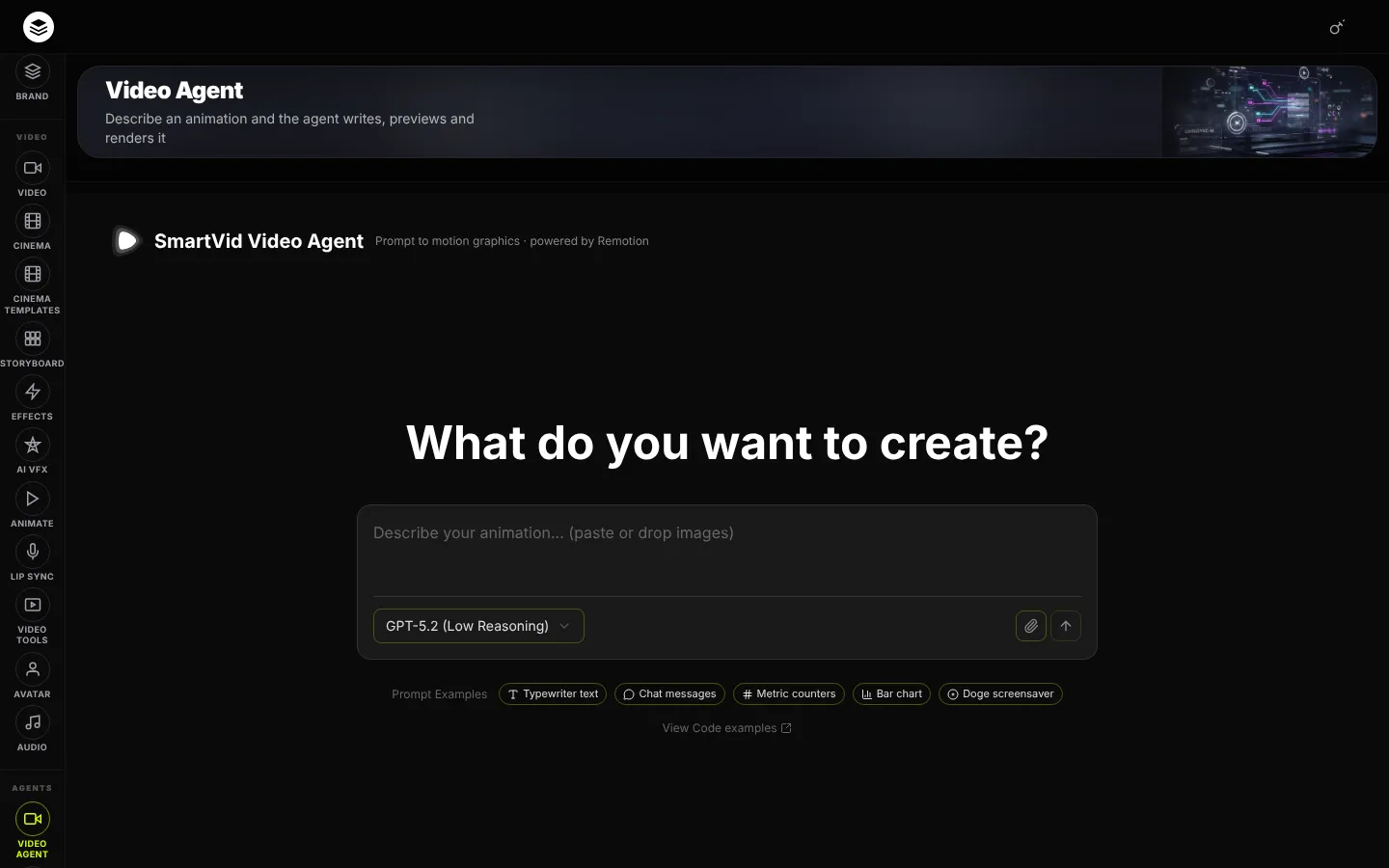
The Apps hub lists 26 tools. Image Studio (#/image): Generate images with 20+ AI models. Group: Image apps; badge "20+ models". Edit Studio (#/edit): Remove objects, backgrounds, reframe. Group: Image apps; badge "16 tools". Upscale Suite (#/upscale): AI upscale and enhance images. Group: Image apps; badge "3 methods". Character Studio (#/character): Consistent character generation. Group: Image apps; badge "Face ID". Product Shot Studio (#/commercial): Studio-quality product photos from one image. Group: Image apps; badge "Product" (side-menu label: Product Shot). Brand Studio (#/brand): Brand-consistent content generation. Group: Image apps; badge "Brand". Video Studio (#/video): Create AI videos from text and images. Group: Video apps; badge "15+ models". Cinema Studio (#/cinema): Cinematic shots with camera controls. Group: Video apps; badge "6 cameras". Cinema Templates (#/cinema-template): Ready-made cinematic templates: add your media and generate. Group: Video apps; badge "Templates". Storyboard Studio (#/storyboard): Multi-frame generation for sequences. Group: Video apps; badge "Frames". Effects Studio (#/effects): Apply 200+ motion and visual effects. Group: Video apps; badge "200+ effects". AI VFX Studio (#/ai-vfx): Camera moves, VFX and AI effects from one image. Group: Video apps; badge "VFX". Animate Studio (#/animate): Animate images and create motion graphics. Group: Video apps; badge "Motion". Lip Sync Studio (#/lipsync): Animate portraits or sync lips to audio with AI. Group: Video apps; badge "Lip Sync". Video Tools (#/videotools): Upscale, edit, translate, and enhance videos. Group: Video apps; badge "Video Tools". Avatar Studio (#/avatar): AI avatars and lip sync video generation. Group: Video apps; badge "AI Avatars". Audio Studio (#/audio): Generate music, speech, and sound effects. Group: Video apps; badge "AI Audio". Video Agent (#/video-agent): AI-powered video production assistant. Group: Agents apps; badge "Agent". Director (#/director): AI editor that cuts and directs your footage. Group: Agents apps; badge "AI Editor". Timeline Editor (#/timeline): Multi-track timeline for editing and rendering. Group: Agents apps; badge "Editor" (side-menu label: Timeline). Workbench (#/workbench): Node-based workspace to chain generations together. Group: Agents apps; badge "Workflow". Smart Video Viral (#/viral): AI-powered viral video generation. Group: Agents apps; badge "Viral" (side-menu label: Viral). Personalizer (#/personalizer): Personalize templates and assets with your data. Group: Agents apps; badge "Personalize". Website Builder (#/website-builder): Generate and publish a site from a prompt. Group: Agents apps; badge "Websites" (side-menu label: Website). Library (#/library): Everything you have generated, in one place. Group: My Work; badge "My work". Content (#/content-library): Browse and reuse your saved content. Group: My Work; badge "My work".

How many apps are there?

26 cards: Image apps 6, Video apps 11, Agents apps 7, My Work 2. Apps, Explore and Templates are navigation pages in the side menu, not cards.

What is the difference between Apps, Explore and Templates?

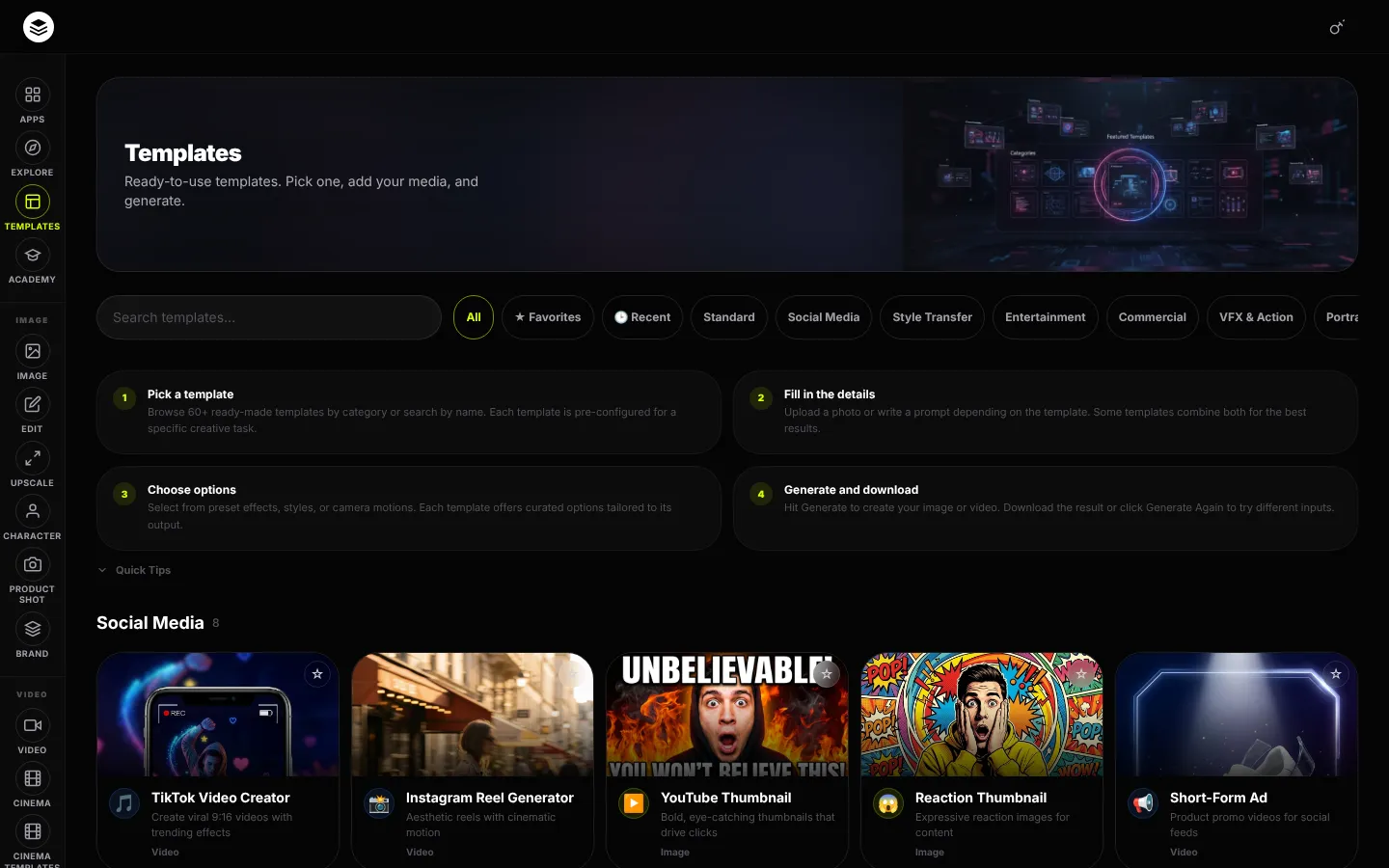
Apps lists every tool. Explore shows trending templates, a prompt library and category cards for inspiration. Templates is a browsable library of ready-made templates where you add your media and press Generate.

Where did Chat, Assist and Training go?

They were retired. Opening those links takes you to the Apps hub. Community opens Explore instead.

Why do side-menu names differ from card names?

The side menu uses short labels (Product Shot, Timeline, Viral, Website, Content); the hub cards use longer names (Product Shot Studio, Timeline Editor, Smart Video Viral, Website Builder).
Try Apps now

Open the studio and put these features to work, or browse the guides for all 53 studios.