Getting Started · Feature guide

Templates Feature Guide

Ready-made templates: pick one, add your media, generate.

Templates is a browsable library of ready-made image and video templates. Pick one, add your media, and generate. It has 292 templates in total: 52 standard templates in 8 categories and 240 industry (niche) video templates.

Best for: Getting a polished look or format fast without writing a long prompt: social videos and thumbnails, style conversions, product shots, VFX moments, and promo videos for local businesses.

Templates screenshot

Watch the Templates tour

A 1:46 captioned walkthrough of the studio, with a sample file and prompt.

VIDEO · 1:46

What is Templates?

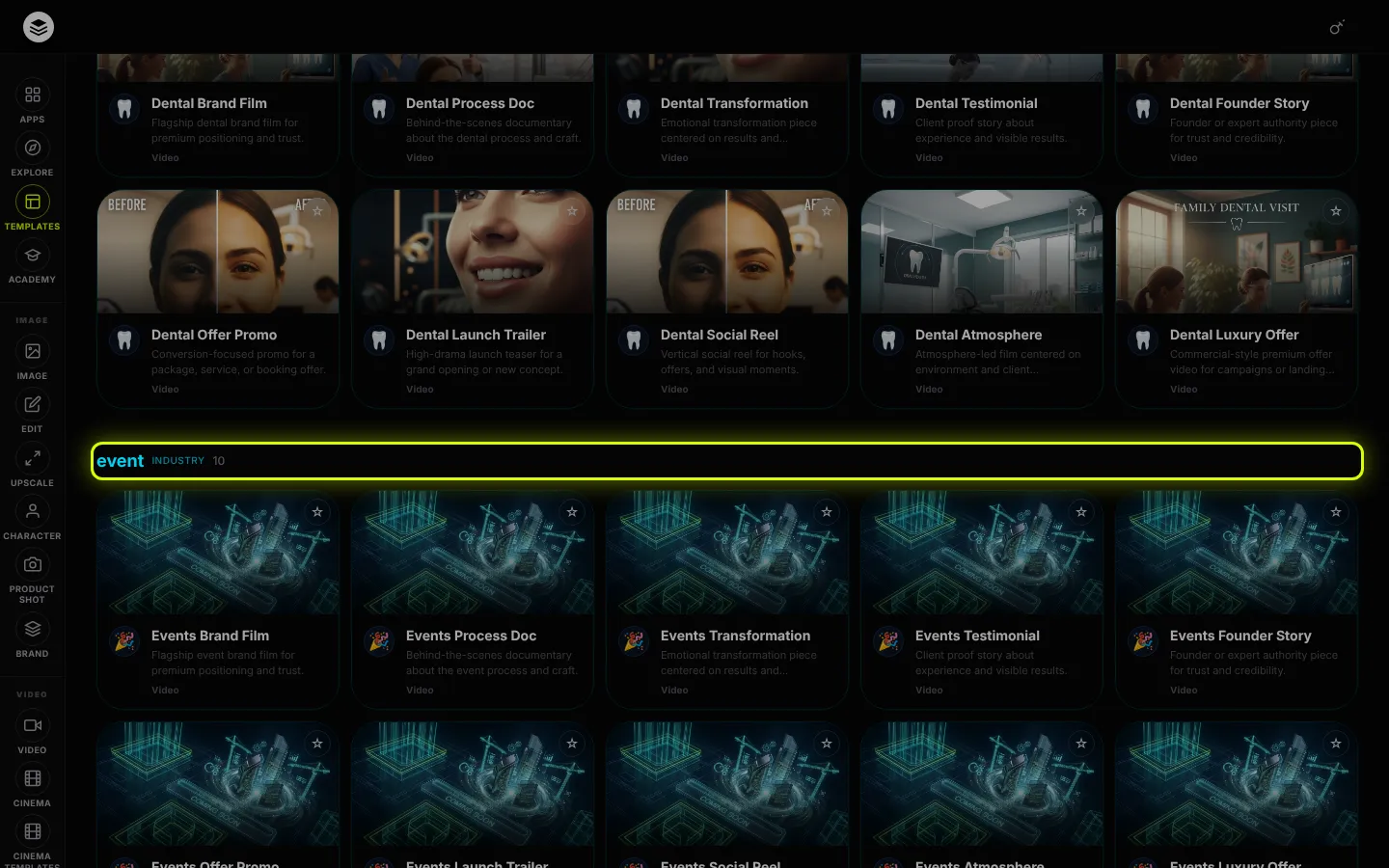
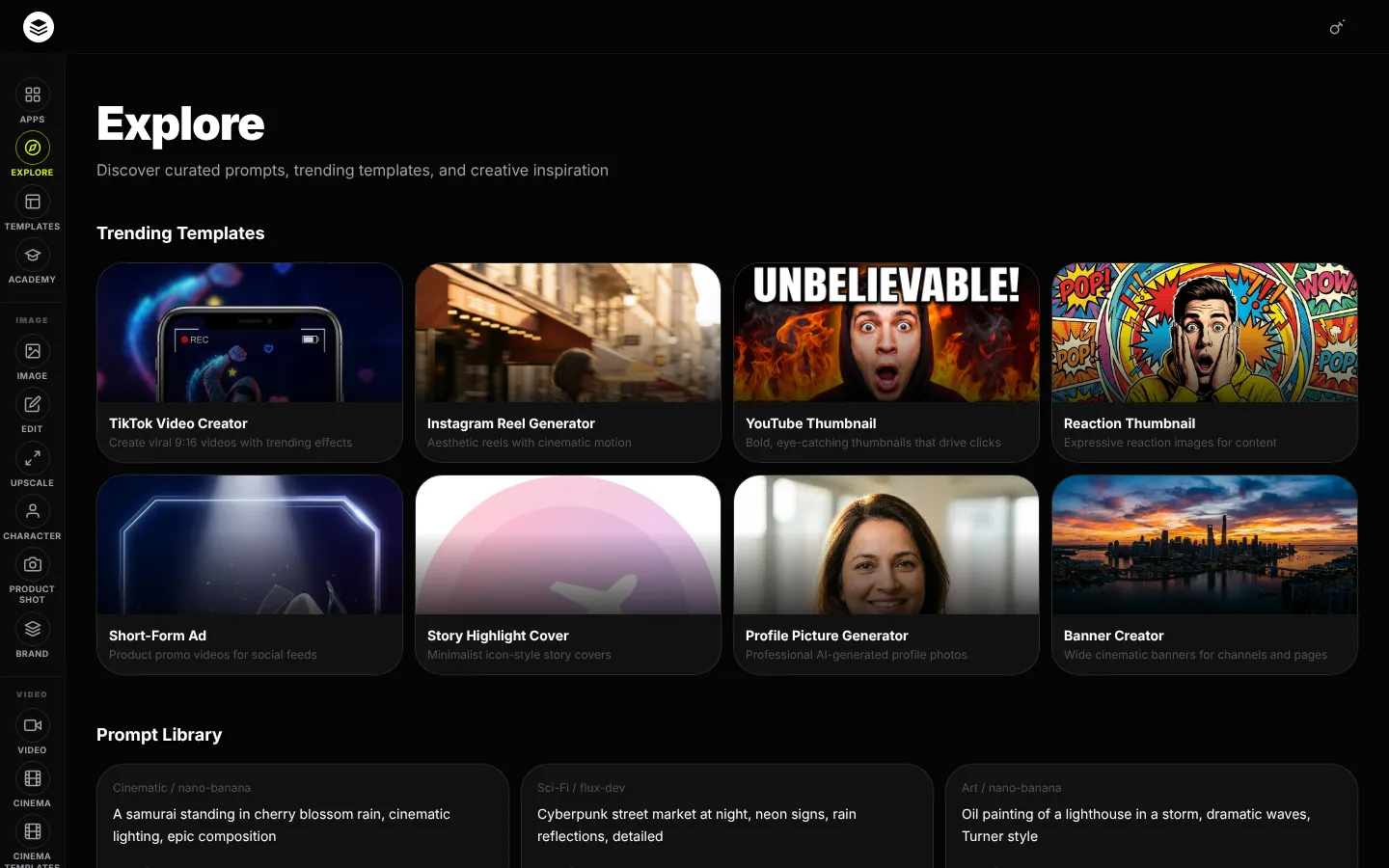
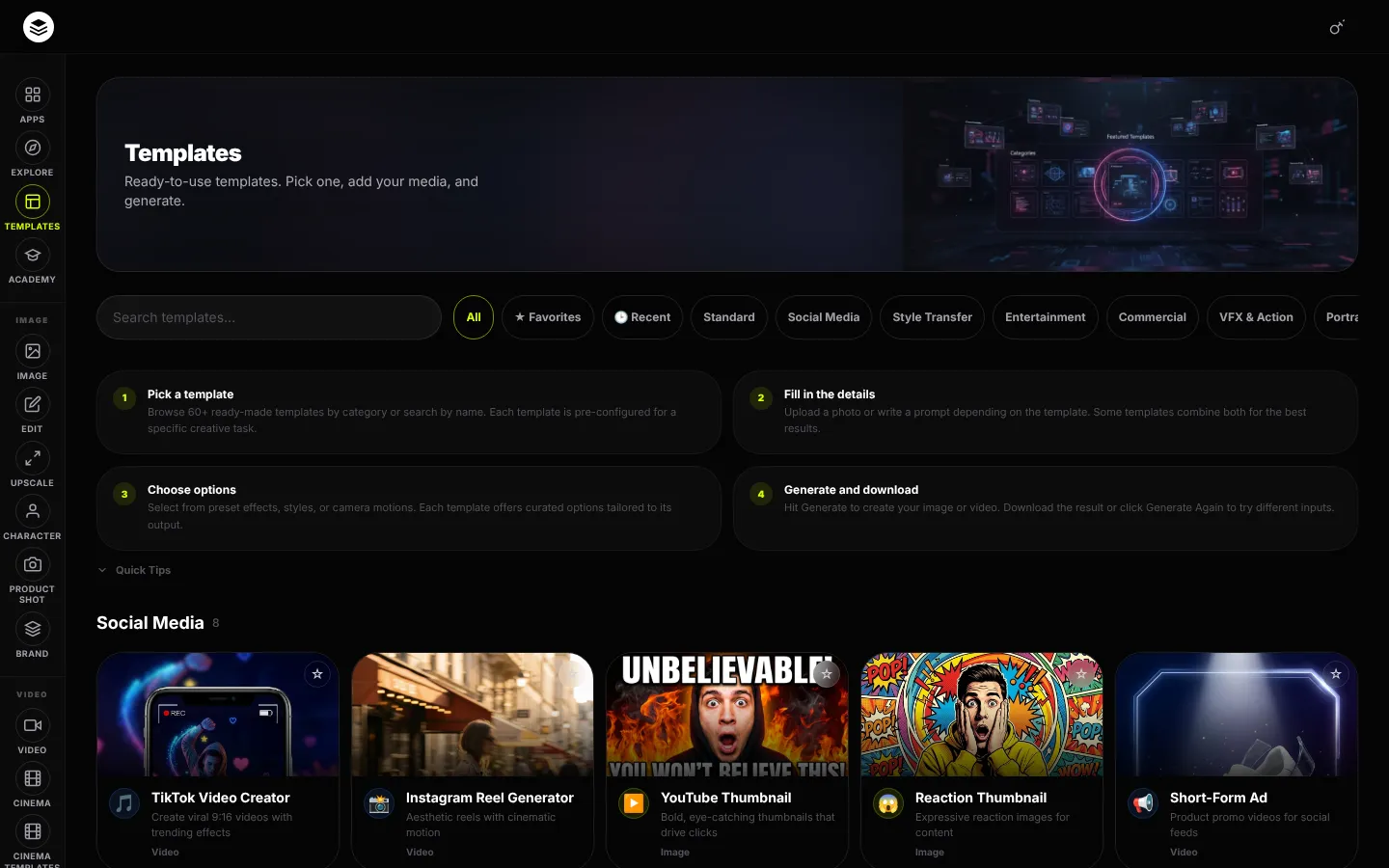
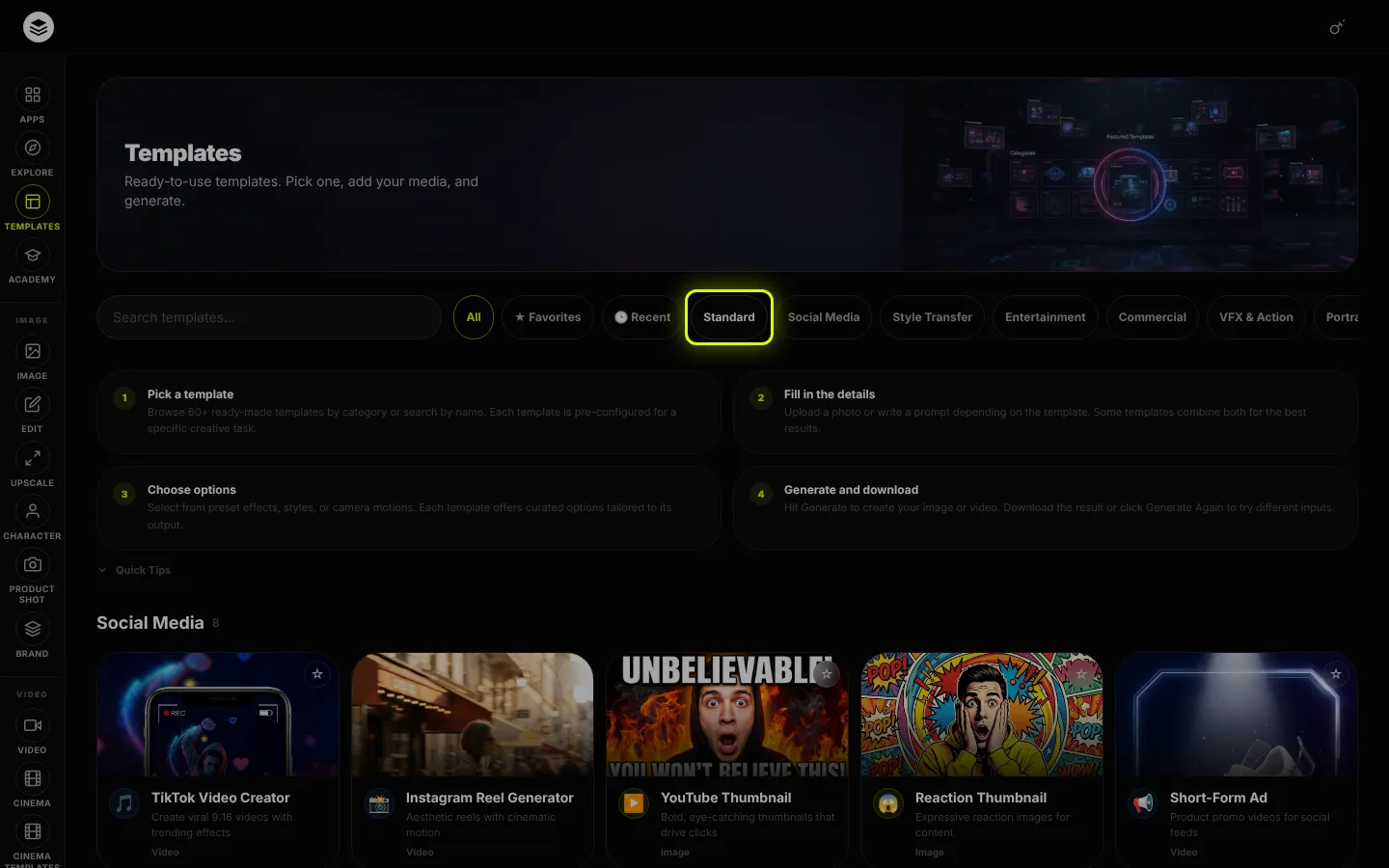
Templates (route #/templates) shows the line "Ready-to-use templates. Pick one, add your media, and generate." Under it are a "Search templates..." box, filter chips (All, Favorites, Recent, Prompts, Standard, the template categories, then a divider and the industry/niche names), a short how-to strip, and sections of template cards. Each card has a thumbnail, an icon, the template name, a one-line description and a small "Video" or "Image" tag. Clicking a card opens it in the Template Studio at #/template/<template id> (the side-menu highlight stays on Templates). The library currently holds 292 templates (counted from the code): 52 standard templates (Social Media, Style Transfer, Entertainment, Commercial, VFX & Action, Portrait & Creator, Decade & Era, Camera & Cinematic) and 240 industry templates across 12 industries. The studio has Media Sources, AI Enhancer, Advanced controls, Generate, Download and Regenerate.

When to use it

  • You have a photo and want a specific effect (anime, Ghibli, explosion, 1980s style).
  • You want a ready-made social format (TikTok, Reel, thumbnail, banner).
  • You run a local business (restaurant, salon, dental office, real estate and so on) and want a promo or brand film.
  • Search box "Search templates..." that filters cards by name, description, category, output type and niche.
  • Filter chips: All, Standard, categories, and an industry group after a "|" divider.
  • Industry sections are marked "Industry" with a count and a cyan style.
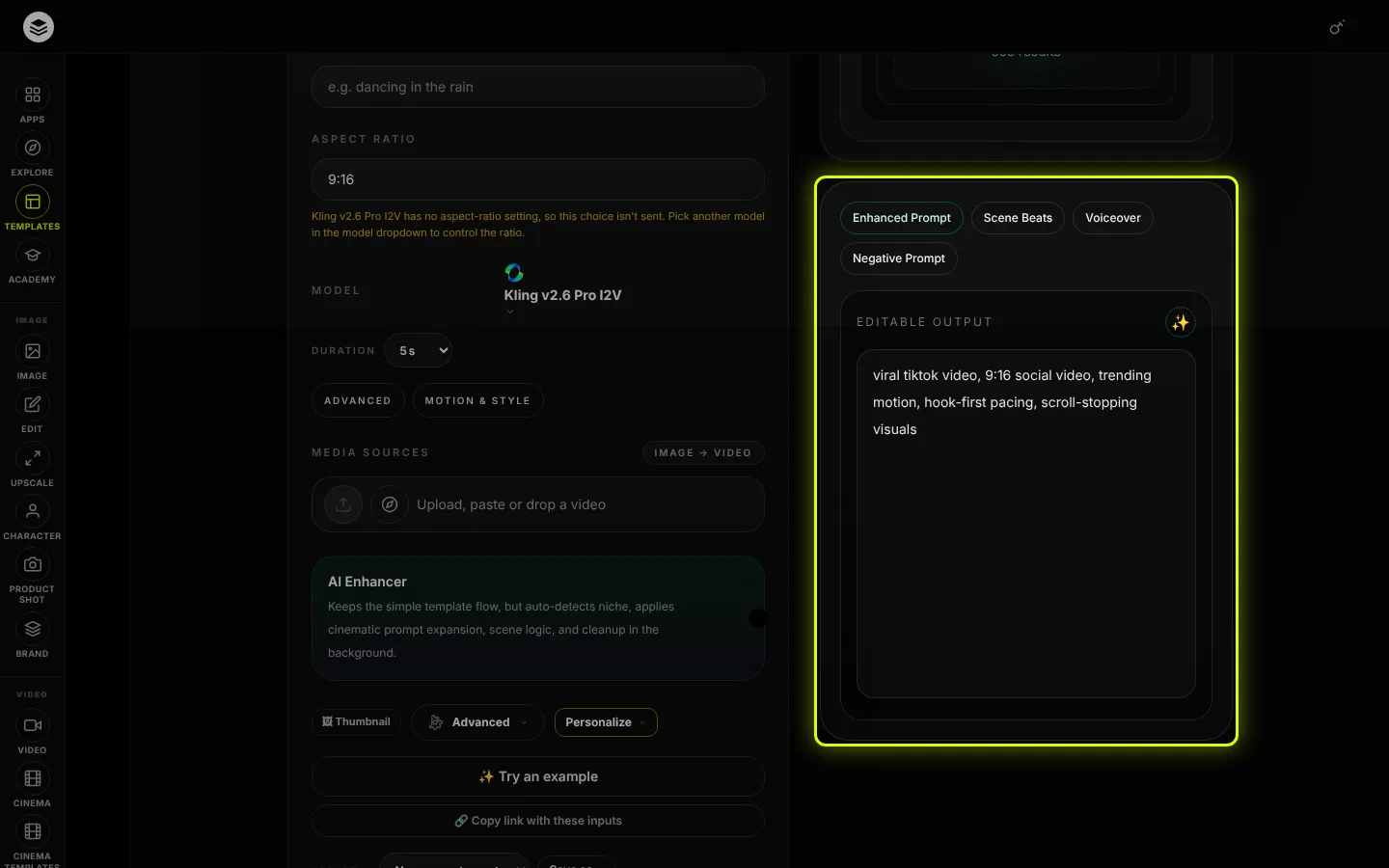
  • Template Studio with Model picker, Media Sources, AI Enhancer, Advanced controls, Generate, Download, Publish to Social, Regenerate.
  • Four output tabs: Enhanced Prompt, Scene Beats, Voiceover, Negative Prompt.

Every Templates feature, explained

6 features, each with a definition, why you would use it, what it needs and its limits.

Template categories (standard) in Templates
Template categories (standard)
FEATURE 01

Template categories (standard)

What it is: Eight categories with 52 templates: Social Media (8), Style Transfer (9), Entertainment (9), Commercial (6), VFX & Action (6), Portrait & Creator (6), Decade & Era (4), Camera & Cinematic (4). Full lists are in the FAQ.

Why use it
Pick the look/format you want.
What you need
Most standard templates ask for "Upload your photo" and a description; some (such as YouTube Thumbnail, Movie Poster, Billboard Ad) are text-to-image.
Limits and rules
Each template is tied to a default model (for example kling-v2.6-pro-i2v for most video templates).
Industry (niche) templates in Templates
Industry (niche) templates
FEATURE 02

Industry (niche) templates

What it is: 240 video templates across 12 industries: Restaurant & Cafe, Med Spa & Beauty, Salon & Barbershop, Gym & Fitness, Real Estate, Dental Office, Chiropractic & Wellness, Legal & Attorney, Automotive & Car, Fashion & Style, Events & Celebrations, Luxury & Premium. Each industry has two sets of 10. Examples: Restaurant & Cafe: Midnight Table Film, Signature Plate Showcase, Opening Night Trailer; Med Spa & Beauty: Velvet Glow Film; Salon & Barbershop: Final Cut Film; Gym & Fitness: Iron Frame Film; Real Estate: Open Door Film; Dental Office: Smile Frame Film; Legal: Authority Case Film; Automotive: Chrome Story Film; Luxury: House of Light Film. The second set is named per industry (for example Salon Brand Film, Salon Process Doc, Salon Transformation, Salon Testimonial) and shows under lowercase industry headings such as "salon" and "real-estate" in the All view.

Why use it
Ready-made business storytelling for local-service brands.
What you need
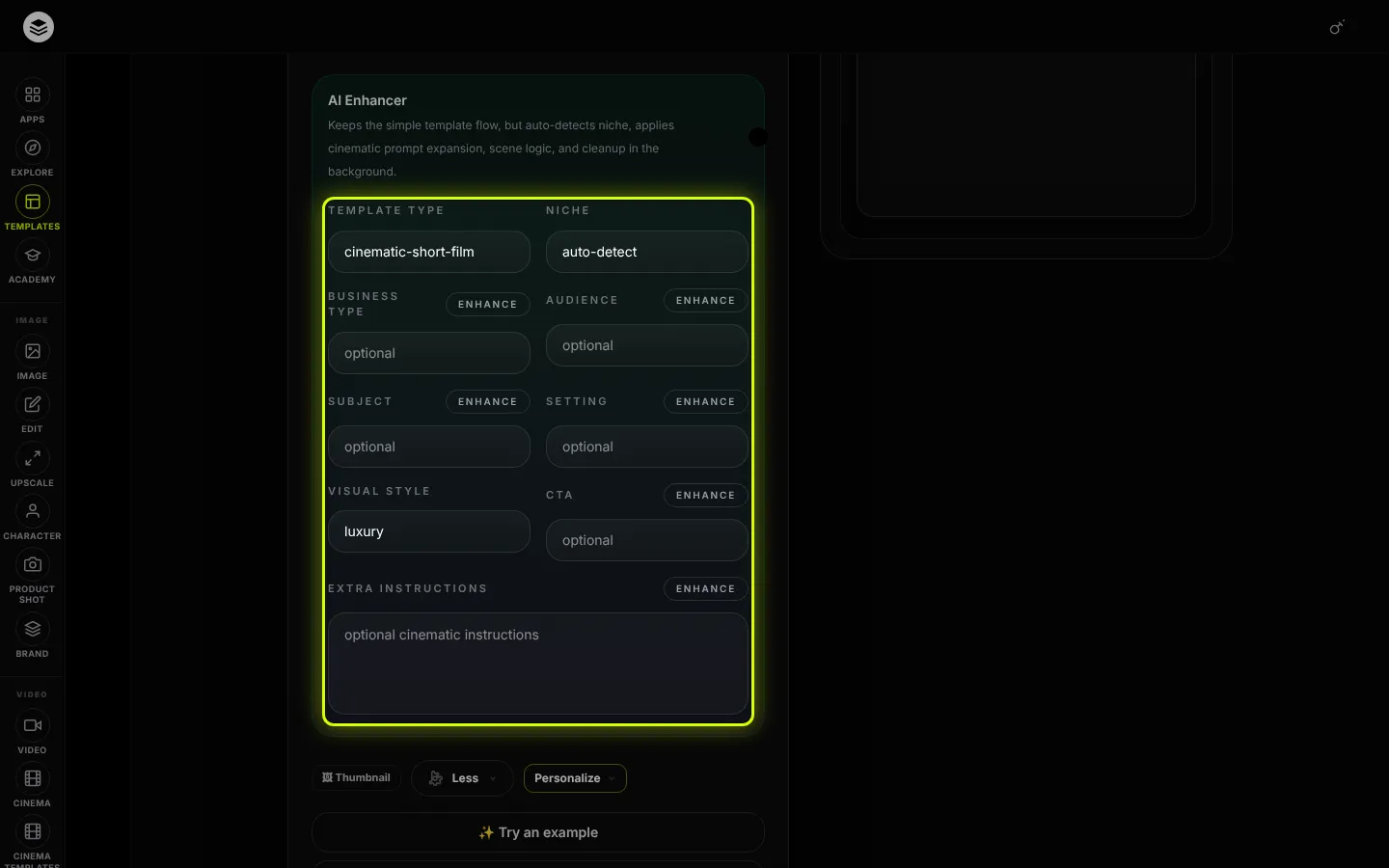
A description of your business or scene; the Advanced controls (Niche, Business Type, Audience, Subject, Setting, Visual Style, CTA) refine it.
Limits and rules
Lowercase-named sections only show under All.
Template Studio: Model and Media Sources in Templates
Template Studio: Model and Media Sources
FEATURE 03

Template Studio: Model and Media Sources

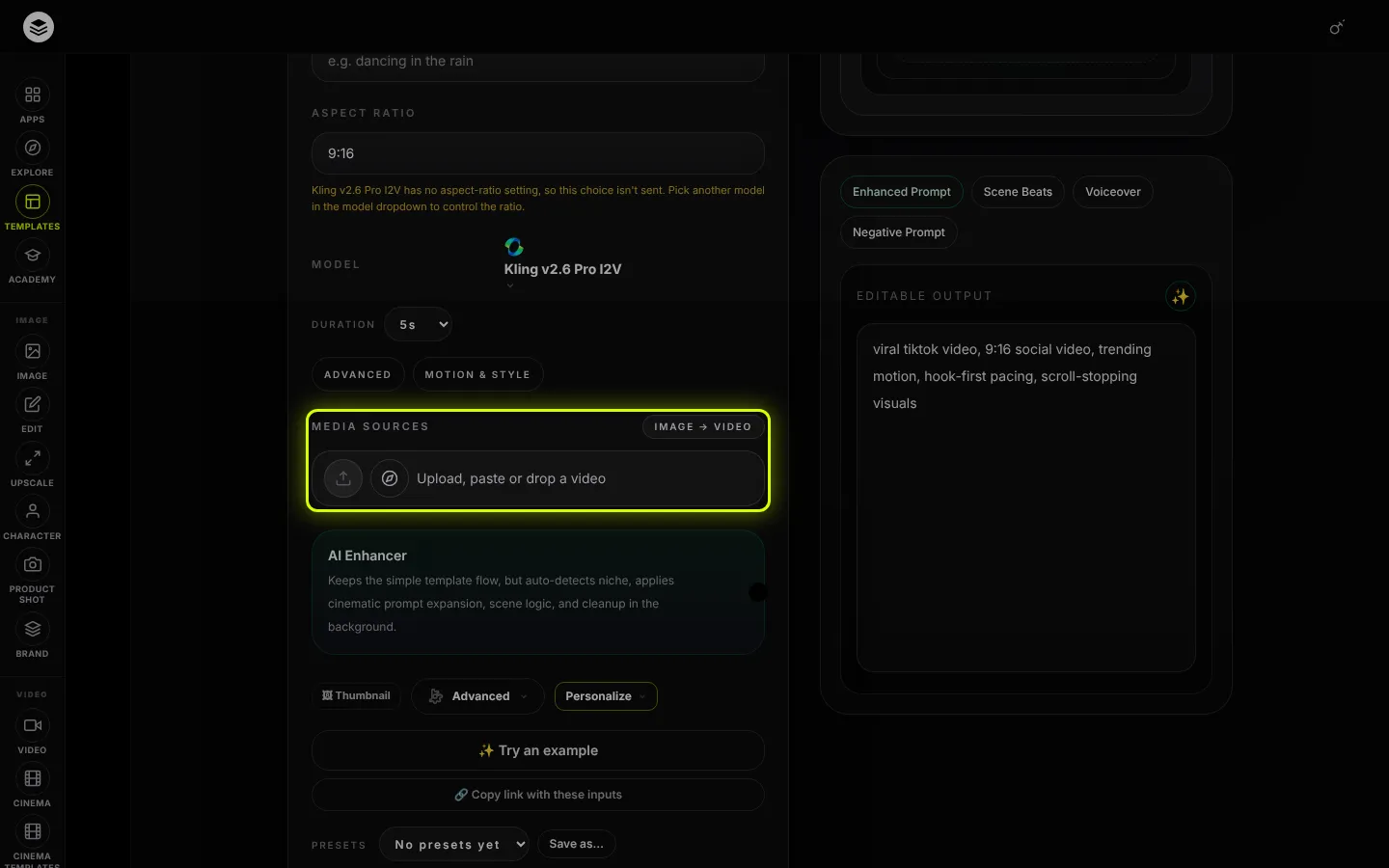
What it is: The Model picker shows "Model · <route>" where the route is Text → Video, Image → Video, Video → Video, Text → Image or Image → Image. For video templates, "Media Sources" lets you add a reference image (turns the run into image-to-video) or a source video (video-to-video); a badge shows which route Generate will take.

Why use it
Choose a different model or feed your own media.
What you need
Image templates and image-to-video templates need an image: otherwise you see "Please upload an image before generating."
Limits and rules
If you pick a model that cannot take your attached media, the studio falls back to the first model for that route and says so.
AI Enhancer in Templates
AI Enhancer
FEATURE 04

AI Enhancer

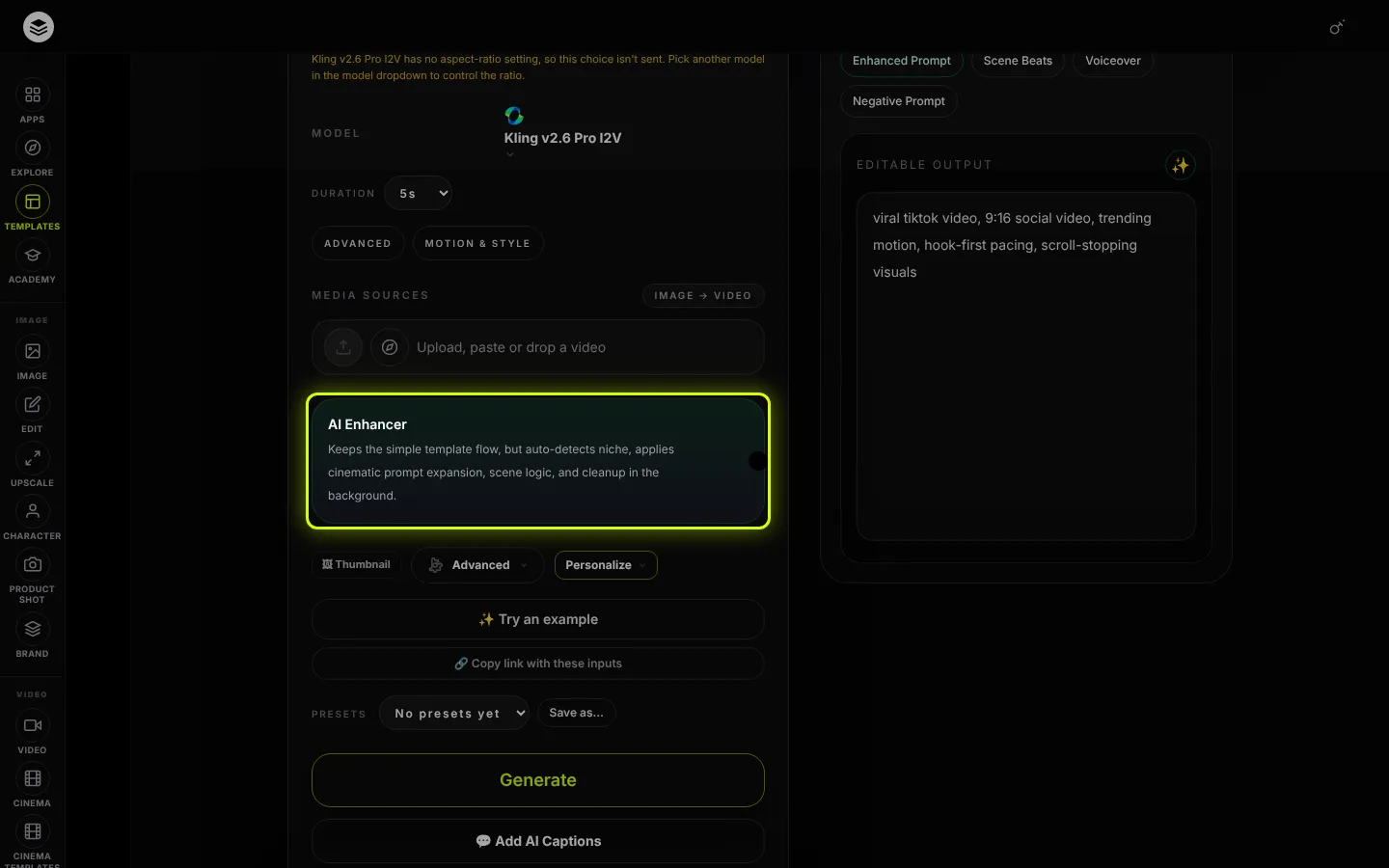
What it is: A toggle that is ON by default. It auto-detects the niche, applies cinematic prompt expansion, scene logic and cleanup in the background. Turn it OFF to send a rawer prompt.

Why use it
Better results from short descriptions.
What you need
None
Limits and rules
Per the user guide, enhancer keywords are cinematic/4K style words added to your prompt.
Advanced controls in Templates
Advanced controls
FEATURE 05

Advanced controls

What it is: Opened with the Advanced button. Fields: Template Type (video templates only), Niche, Business Type, Audience, Subject, Setting, Visual Style (luxury, dramatic, documentary, commercial), CTA, and Extra Instructions.

Why use it
Steer the story, tone and call to action.
What you need
All optional
Limits and rules
Template Type is hidden for image templates.
Output tabs in Templates
Output tabs
FEATURE 06

Output tabs

What it is: Right panel tabs: Enhanced Prompt (final prompt sent), Scene Beats (story structure), Voiceover (suggested script for video templates), Negative Prompt (what to avoid). A wand button next to the editable output enhances the text.

Why use it
See and tweak exactly what the AI receives; borrow the voiceover script.
What you need
None
Limits and rules
Editable text; changes apply to what you generate next.

How to use Templates

  1. Open Templates from the left side menu.
  2. Search or filter and click a template card.
  3. Upload your photo or enter the description/inputs shown.
  4. Check the Model picker and AI Enhancer toggle.
  5. Press Generate and wait; press Cancel during generation if you need to stop.
  6. Download, Regenerate or find the result in Library.

Generation modes

The ways this studio can work, and when to pick each one.

Text → Image (t2i)

Generates an image from your text only.

Best for: Thumbnails, posters, banners.

Image → Image (i2i)

Transforms your uploaded photo with a prompt and effect name.

Best for: Style transfer, decade looks, face/age effects, product shots.

Inputs and outputs

What you give the studio, and what you get back.

InputDescriptionWhen to useRules
Upload your photo
Required
Your starting image for image-based templates.Templates labelled image-to-image or image-to-video.Text-to-image templates (for example YouTube Thumbnail, Movie Poster) do not need a photo.
Description / Describe the video
Required
Short text of what you want, with a placeholder example such as "dancing in the rain".Always.The user guide says a prompt under 10 characters triggers "Please enter a longer prompt".

What you get

  • A generated image or video shown in the preview, plus Enhanced Prompt, Scene Beats, Voiceover and Negative Prompt text.
  • Saved automatically to Library; history strip of past template results.

Use cases and example workflows

Real jobs you can do, step by step.

Anime version of a photo

  1. Open Templates, search "Anime".
  2. Open Anime Converter.
  3. Upload your photo and add a description.
  4. Press Generate, then Download.

Tips and best practices

  • Use the search box: it matches name, description, category, output type and niche.
  • Describe subject, setting and mood in one or two sentences.
  • Upload a clear, well-lit photo for image-based templates.

Limitations and troubleshooting

Know the limits before you start, and how to fix common problems.

LimitationWhat it meansWorkaround
Some category chips show nothingChips named after industries that appear before the "|" divider (for example Industry Specific, Personal Story) filter standard templates only, and all industry templates carry an industry tag, so the list can be empty.Use the industry chips after the "|" divider, or choose All.

Glossary

Terms used in Templates.

t2i
Text to image.
i2i
Image to image.
i2v
Image to video.
Niche
An industry such as Real Estate.
AI Enhancer
Toggle that expands your prompt.

Frequently asked questions

How many templates are there?

292 in the code: 52 standard templates and 240 industry templates (12 industries x 10 x 2 sets).

What template categories and templates exist?

Standard categories and templates: Social Media (8): TikTok Video Creator, Instagram Reel Generator, YouTube Thumbnail, Reaction Thumbnail, Short-Form Ad, Story Highlight Cover, Profile Picture Generator, Banner Creator. Style Transfer (9): Anime Converter, Comic Book Style, GTA Loading Screen, Pixel Art Creator, Ghibli Style, Cyberpunk Style, VHS Retro, Film Noir, Glass Ball. Entertainment (9): Movie Poster, Magazine Cover, Bullet Time Scene, Action Figure, Disney / Pixar Style, Superhero Transform, Lego Style, Squid Game Style, 3D Figurine. Commercial (6): Product Hero Shot, Product Photography, Billboard Ad, ASMR Video, Product Placement, Unboxing Scene. VFX & Action (6): Building Explosion, Car Explosion, Disintegration, Electricity / Lightning, Tornado, Fire Breath. Portrait & Creator (6): Face Swap, Gender Swap, Age Progression, Younger Self, Fashion Stride, Glamour Portrait. Decade & Era (4): 1920s Style, 1950s Style, 1970s Style, 1980s Style. Camera & Cinematic (4): Drone FPV Shot, Dolly Zoom, Car Chase Scene, Matrix Shot. Industries: Restaurant & Cafe, Med Spa & Beauty, Salon & Barbershop, Gym & Fitness, Real Estate, Dental Office, Chiropractic & Wellness, Legal & Attorney, Automotive & Car, Fashion & Style, Events & Celebrations, Luxury & Premium.
What does AI Enhancer do?

It is ON by default and expands your prompt with cinematic detail, scene logic and cleanup. Turn it off for a raw prompt.

Do I need an API key?

Yes, a Muapi API Key saved in Settings. Without it a key prompt appears when you press Generate.

What is the difference between Templates and Cinema Templates?

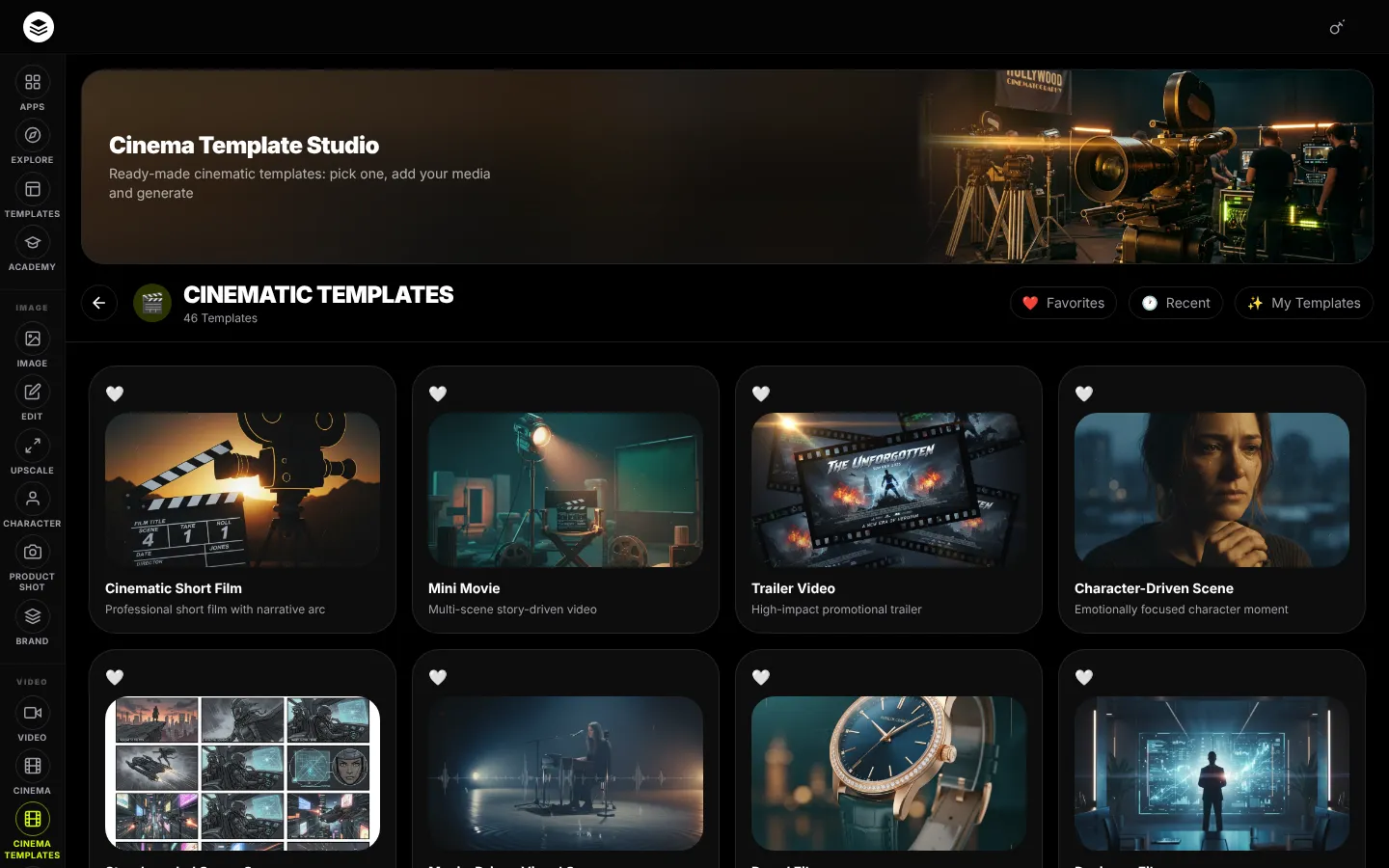
Templates (#/templates) is this library. Cinema Templates (#/cinema-template) is a separate app in the Video group for ready-made cinematic templates.

Try Templates now

Open the studio and put these features to work, or browse the guides for all 53 studios.