Getting Started · Feature guide

Explore Feature Guide

Inspiration: trending templates, 12 sample prompts, category cards.

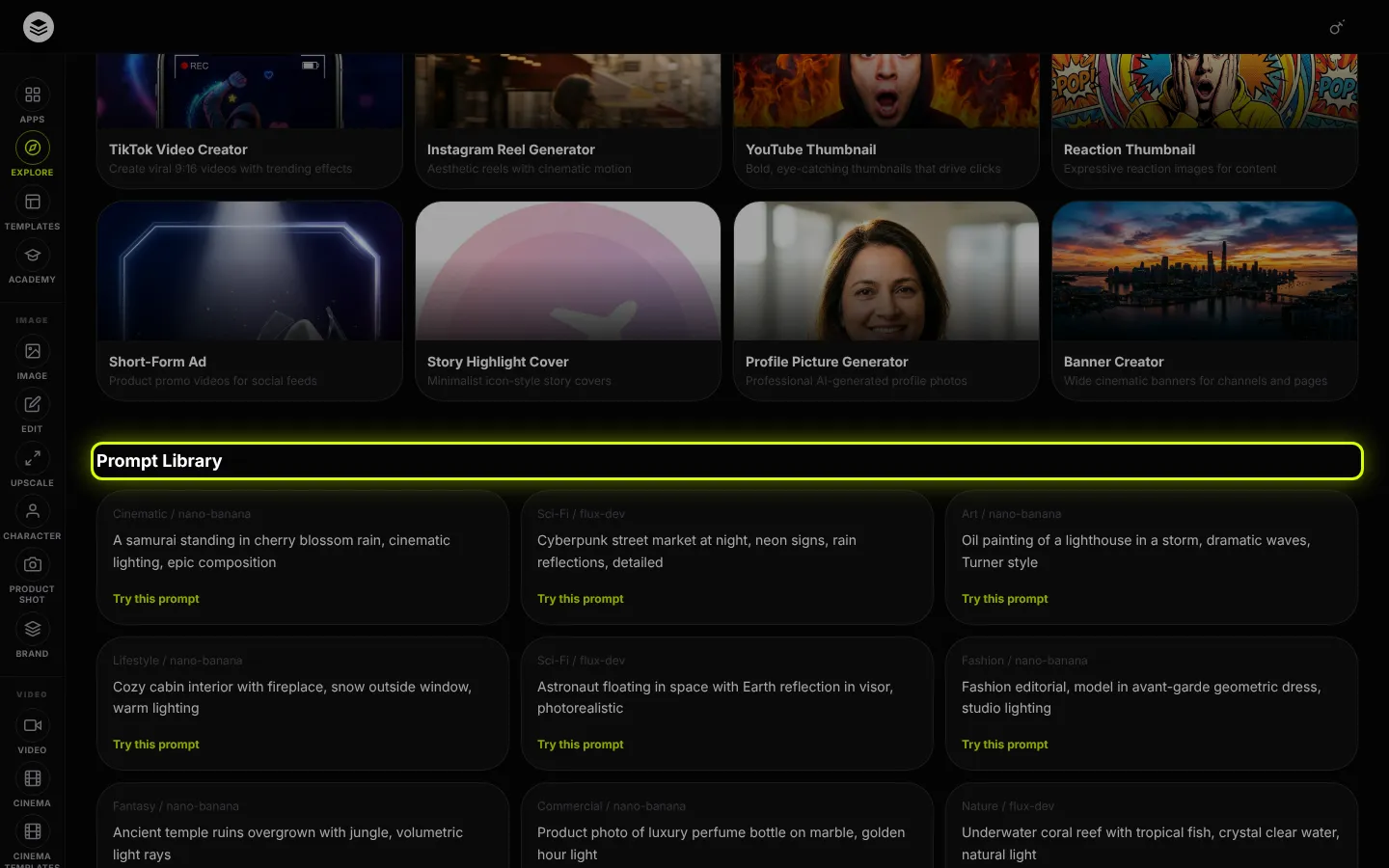
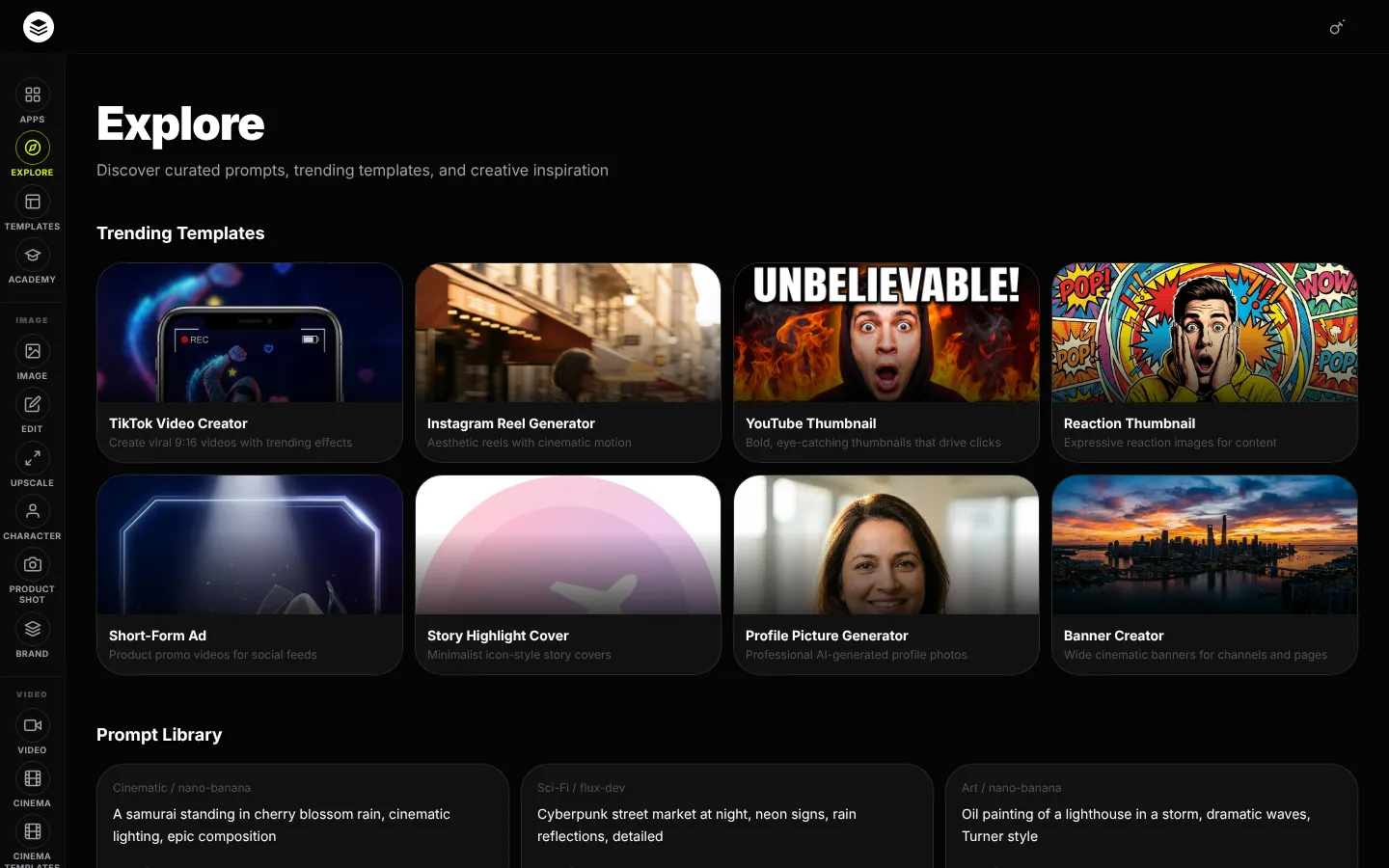
Explore is an inspiration page: Your favorites (plus recently opened templates), Trending Templates, a Prompt Library of 12 ready-to-try image prompts, Browse by Category, and All studios (a picture card for each of the 37 studios, each opening that studio).

Best for: Getting ideas, copying a good starting prompt into Image Studio, or jumping into a popular template.

Explore screenshot

Watch the Explore tour

A 1:05 captioned walkthrough of the studio, with a sample file and prompt.

VIDEO · 1:05

What is Explore?

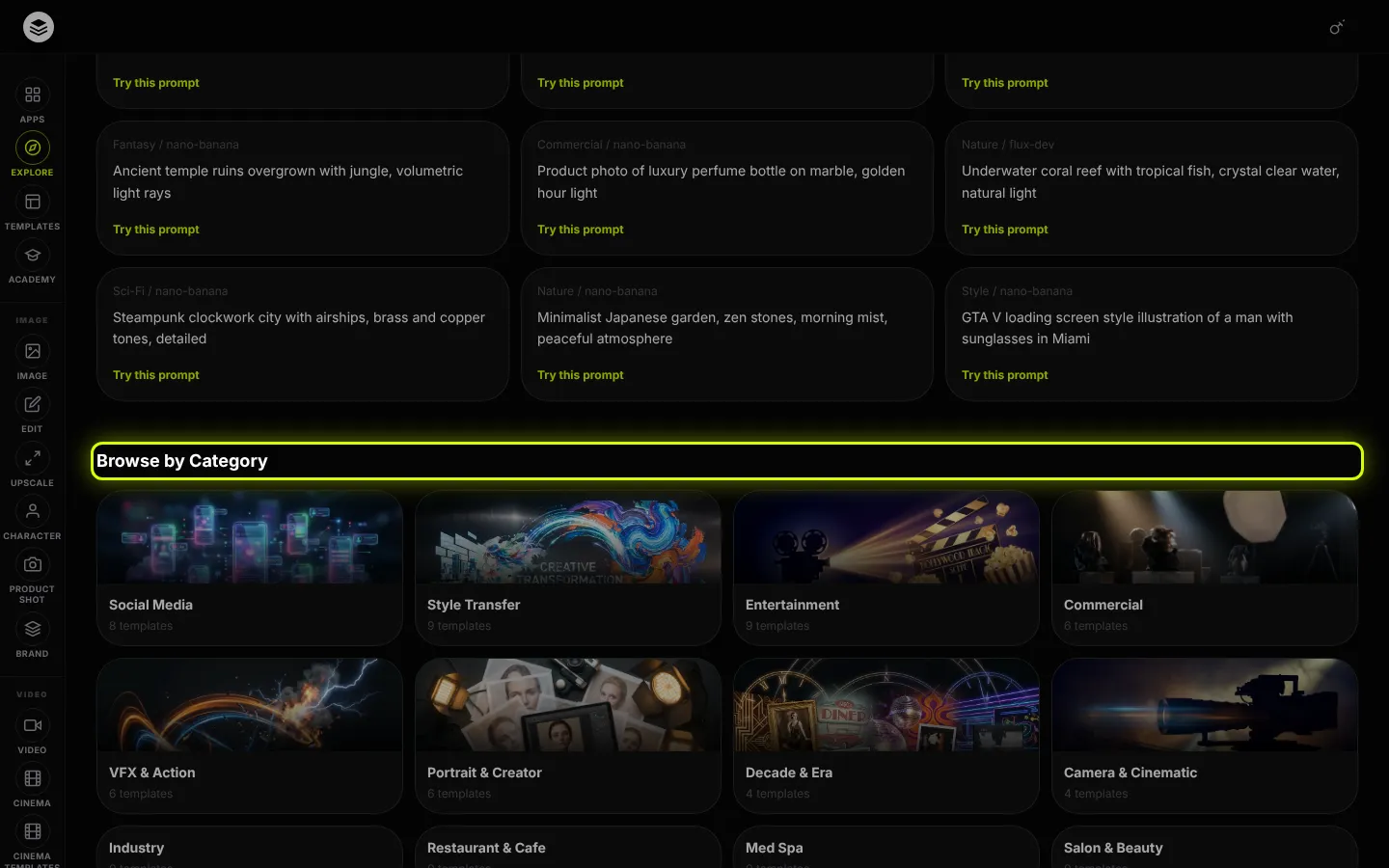
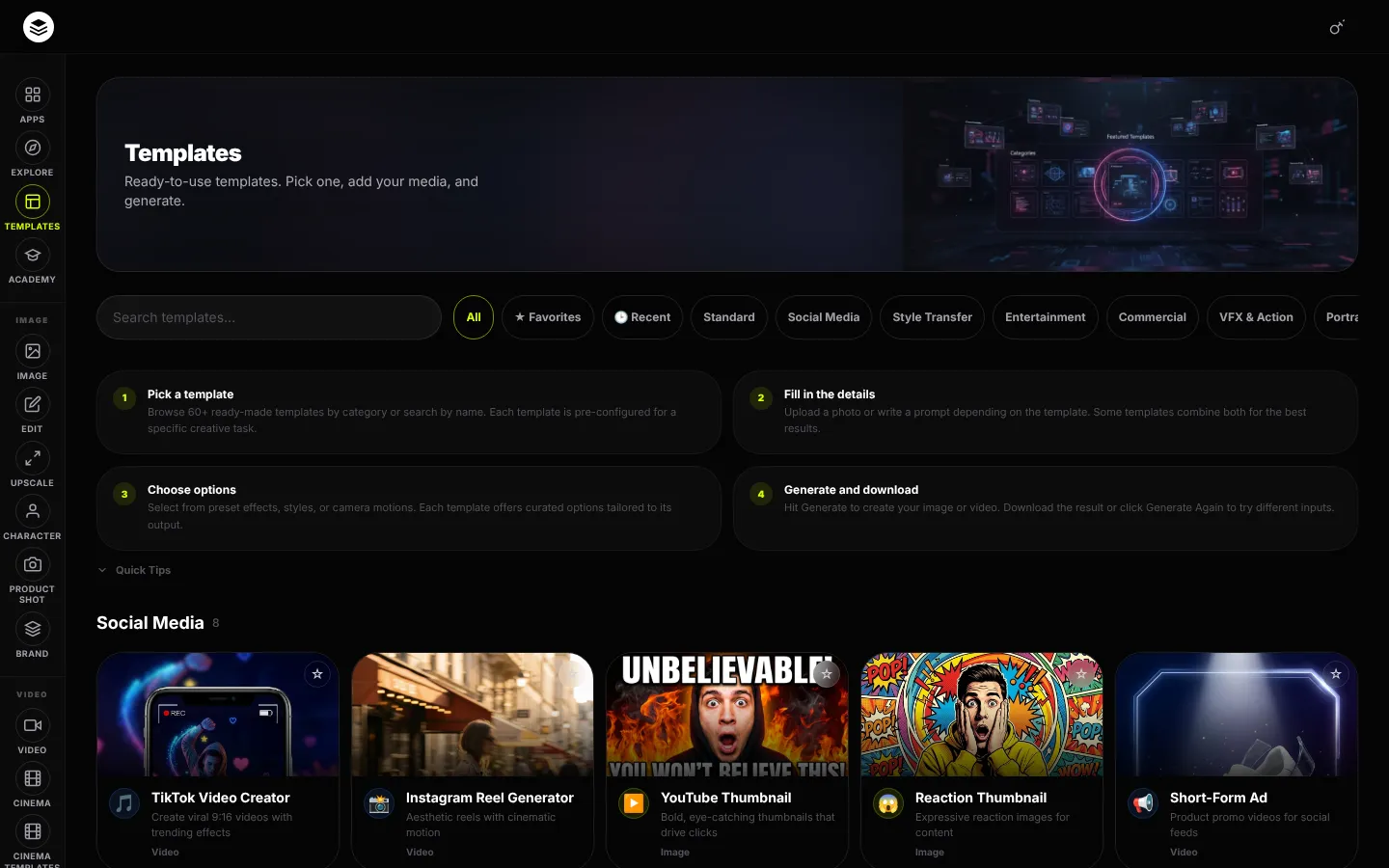
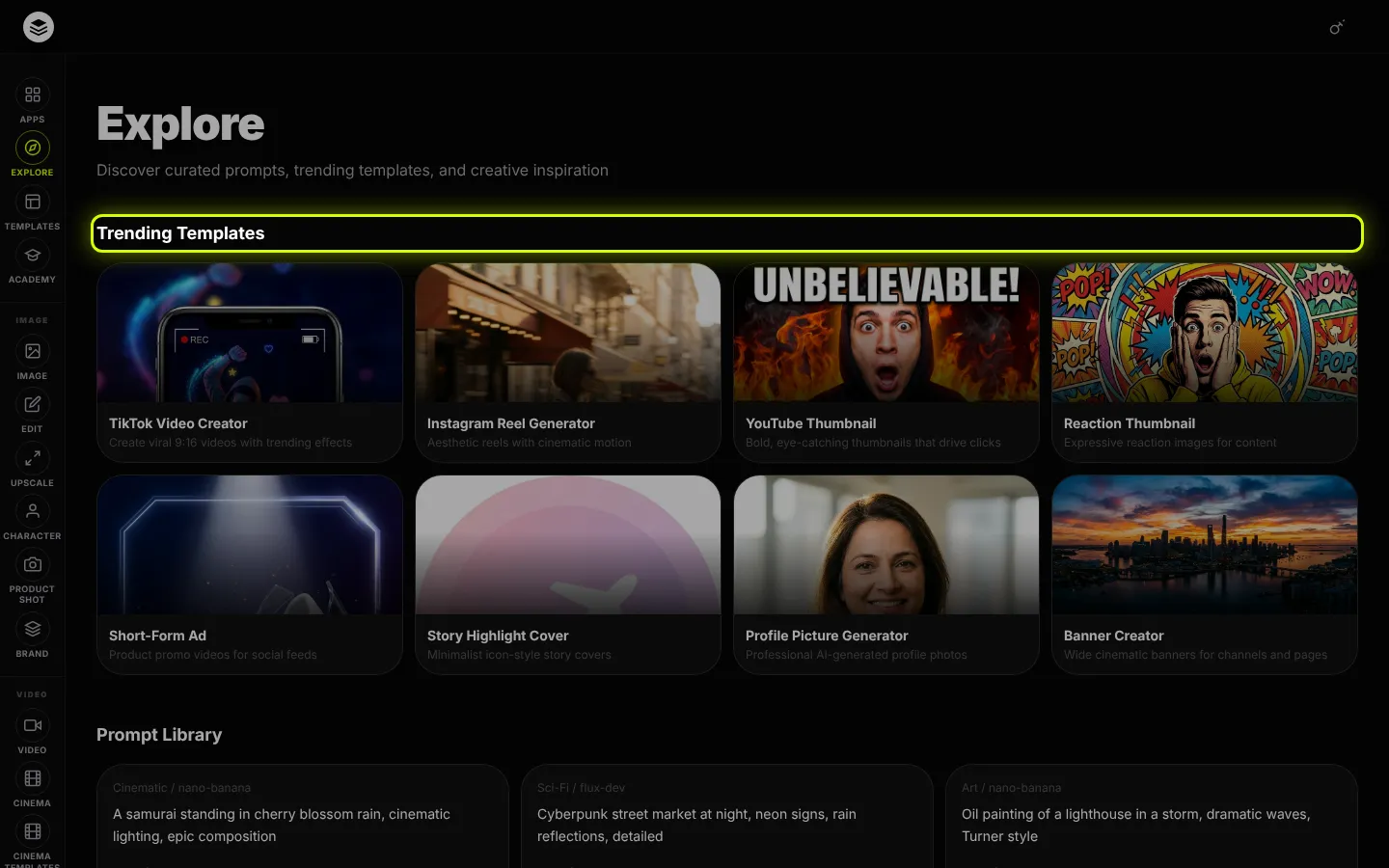
Explore (route #/explore) is headed "Explore" with the line "Discover curated prompts, trending templates, every studio, and creative inspiration". It has five sections. "Your favorites" lists the templates you starred, with your recently opened ones below; the star on any template card adds or removes a favorite, and when you are signed in favorites are saved to your account so they appear on every device (signed out, they stay in this browser). "Trending Templates" shows 8 template cards ranked by how many signed-in people opened or favorited them in the last 30 days; until enough people have used templates it shows a default set (TikTok Video Creator, Instagram Reel Generator, YouTube Thumbnail, Reaction Thumbnail, Short-Form Ad, Story Highlight Cover, Profile Picture Generator, Banner Creator). Clicking a card opens that template in the Template Studio. "Prompt Library" shows 12 curated prompts, each labelled with a category and a model name and a "Try this prompt" button that opens Image Studio with the prompt pre-filled. "Browse by Category" shows a row for every template category (the 8 standard ones plus the 12 industry ones), each with its real template count out of all 292 templates and its first four templates as cards with stars; "See all" on a row opens Templates already filtered to that category. "All studios" shows a card with a picture for every studio and app (37 of them); clicking one opens that studio. The old Community page now redirects to Explore. Explore does not generate anything itself.

When to use it

  • You do not know what to make yet.
  • You want a proven starting prompt for Image Studio.
  • You want to open one of the most popular templates quickly.
  • Trending Templates: 8 template cards with thumbnail, name and description.
  • Prompt Library: 12 curated prompts with category and model labels.
  • "Try this prompt" button that pre-fills Image Studio.
  • Browse by Category: a card per template category with its template count.

Every Explore feature, explained

3 features, each with a definition, why you would use it, what it needs and its limits.

Prompt Library in Explore
Prompt Library
FEATURE 02

Prompt Library

What it is: 12 curated image prompts. Each shows "Category / model" (for example "Cinematic / nano-banana") above the prompt. Press "Try this prompt" to save the prompt for Image Studio and navigate there.

Why use it
Gives you a well-formed prompt to learn from or tweak.
What you need
None
Limits and rules
The prompt text is pre-filled into Image Studio; the model label is informational. Check the model selected in Image Studio before you press Generate.
Browse by Category in Explore
Browse by Category
FEATURE 03

Browse by Category

What it is: One card per template category. The card shows the category name and "N templates".

Why use it
To see which template categories exist.
What you need
None
Limits and rules
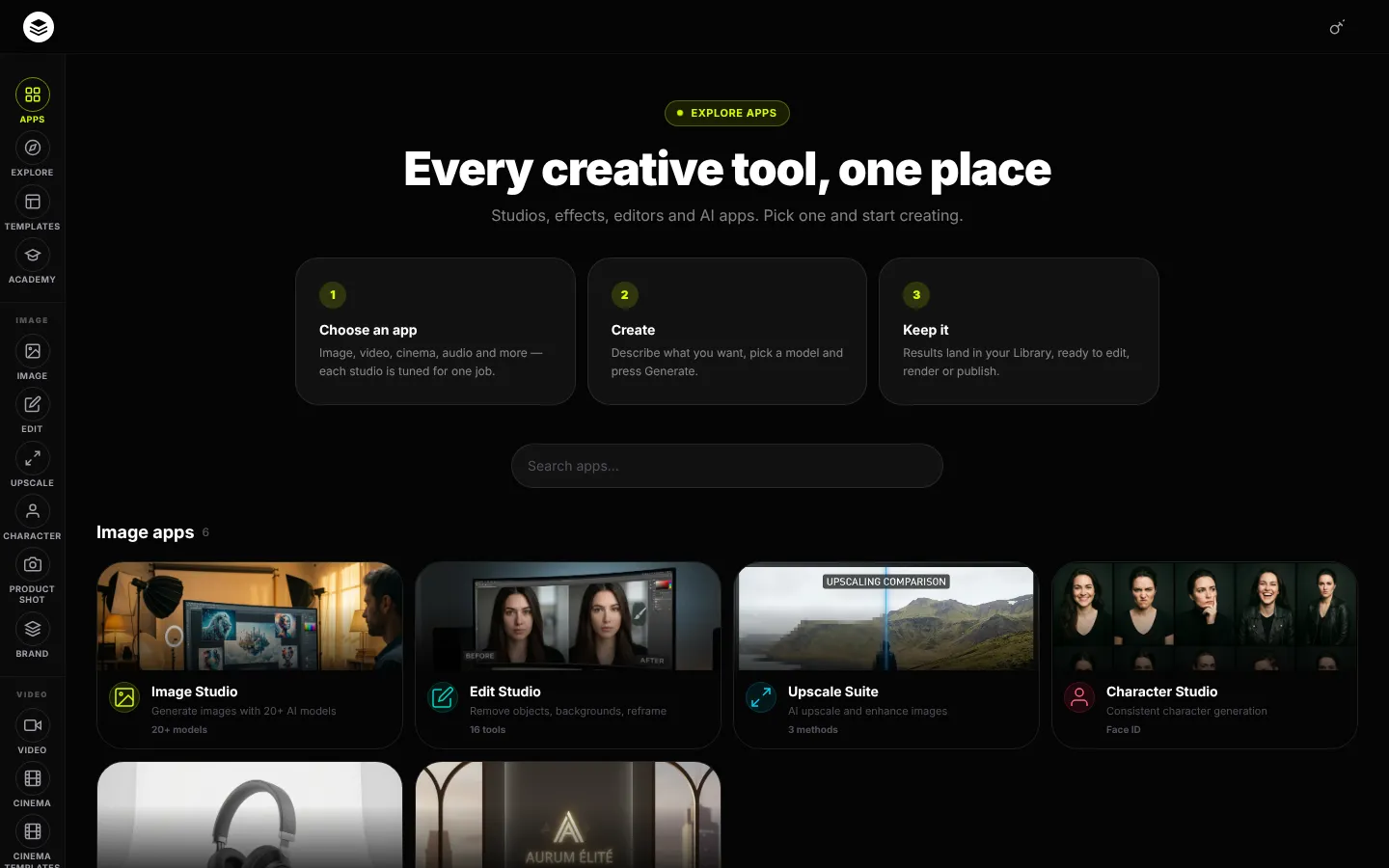
In the current code, clicking a category card opens the Apps hub (#/apps), not a filtered template list. Use Templates and its filter chips to filter by category.

How to use Explore

  1. Open Explore from the left side menu.
  2. Scroll to Prompt Library and click "Try this prompt" on one you like.
  3. In Image Studio check the prompt and the selected model, then press Generate.
  4. Or click a Trending Templates card to open it in the Template Studio.

Inputs and outputs

What you give the studio, and what you get back.

What you get

  • Navigation: opens Image Studio with a pre-filled prompt, or a template in Template Studio.

Use cases and example workflows

Real jobs you can do, step by step.

Find prompt inspiration

Read 12 examples covering cinematic, sci-fi, art, lifestyle, fashion, fantasy, commercial, nature and style looks.

  1. Open Explore.
  2. Read the Prompt Library.
  3. Try one.
Result: An image generated from the curated prompt.

Make an image from a curated prompt

  1. Open Explore.
  2. In Prompt Library choose "Cyberpunk street market at night, neon signs, rain reflections, detailed".
  3. Click "Try this prompt".
  4. Press Generate in Image Studio.
  5. Find the result in Library.

Open a trending template

  1. Open Explore.
  2. Click "TikTok Video Creator".
  3. Upload your photo, describe the video, press Generate.

Tips and best practices

  • Edit the pre-filled prompt: swap the subject but keep the lighting and style words.
  • Try the same prompt with a different model in Image Studio to compare.
  • Use curated prompts as patterns: subject, setting, lighting, style.

Limitations and troubleshooting

Know the limits before you start, and how to fix common problems.

LimitationWhat it meansWorkaround
Category cards open the Apps hubYou may expect a filtered template list.Go to Templates (#/templates) and click a category chip such as "Social Media".
Niche categories show 0 templatesIndustry categories (Restaurant & Cafe, Med Spa, Salon & Beauty, Fitness & Training, Real Estate, Dental, Chiropractic, Legal, Automotive, Fashion, Events, Luxury, Industry) are listed but are counted from the 52 standard templates only, so they show "0 templates".Open Templates and use the Industry filters there to see the niche templates.

Category card sends me to Apps

Why: Category cards link to the Apps hub in the current version.

Fix: Use Templates for category filtering.

Glossary

Terms used in Explore.

Prompt
The text that describes what you want generated.
Template
A pre-configured generator for a specific look or format.
nano-banana / flux-dev
Model names shown on prompt cards.

Frequently asked questions

What is in the Prompt Library?

12 prompts. 1. [Cinematic / nano-banana] A samurai standing in cherry blossom rain, cinematic lighting, epic composition 2. [Sci-Fi / flux-dev] Cyberpunk street market at night, neon signs, rain reflections, detailed 3. [Art / nano-banana] Oil painting of a lighthouse in a storm, dramatic waves, Turner style 4. [Lifestyle / nano-banana] Cozy cabin interior with fireplace, snow outside window, warm lighting 5. [Sci-Fi / flux-dev] Astronaut floating in space with Earth reflection in visor, photorealistic 6. [Fashion / nano-banana] Fashion editorial, model in avant-garde geometric dress, studio lighting 7. [Fantasy / nano-banana] Ancient temple ruins overgrown with jungle, volumetric light rays 8. [Commercial / nano-banana] Product photo of luxury perfume bottle on marble, golden hour light 9. [Nature / flux-dev] Underwater coral reef with tropical fish, crystal clear water, natural light 10. [Sci-Fi / nano-banana] Steampunk clockwork city with airships, brass and copper tones, detailed 11. [Nature / nano-banana] Minimalist Japanese garden, zen stones, morning mist, peaceful atmosphere 12. [Style / nano-banana] GTA V loading screen style illustration of a man with sunglasses in Miami
What does Try this prompt do?

It stores the prompt for Image Studio and opens Image Studio so it can be pre-filled.

Which templates are Trending?

TikTok Video Creator, Instagram Reel Generator, YouTube Thumbnail, Reaction Thumbnail, Short-Form Ad, Story Highlight Cover, Profile Picture Generator and Banner Creator.

What happened to Community?

The Community page was retired and its link now opens Explore.

Try Explore now

Open the studio and put these features to work, or browse the guides for all 53 studios.