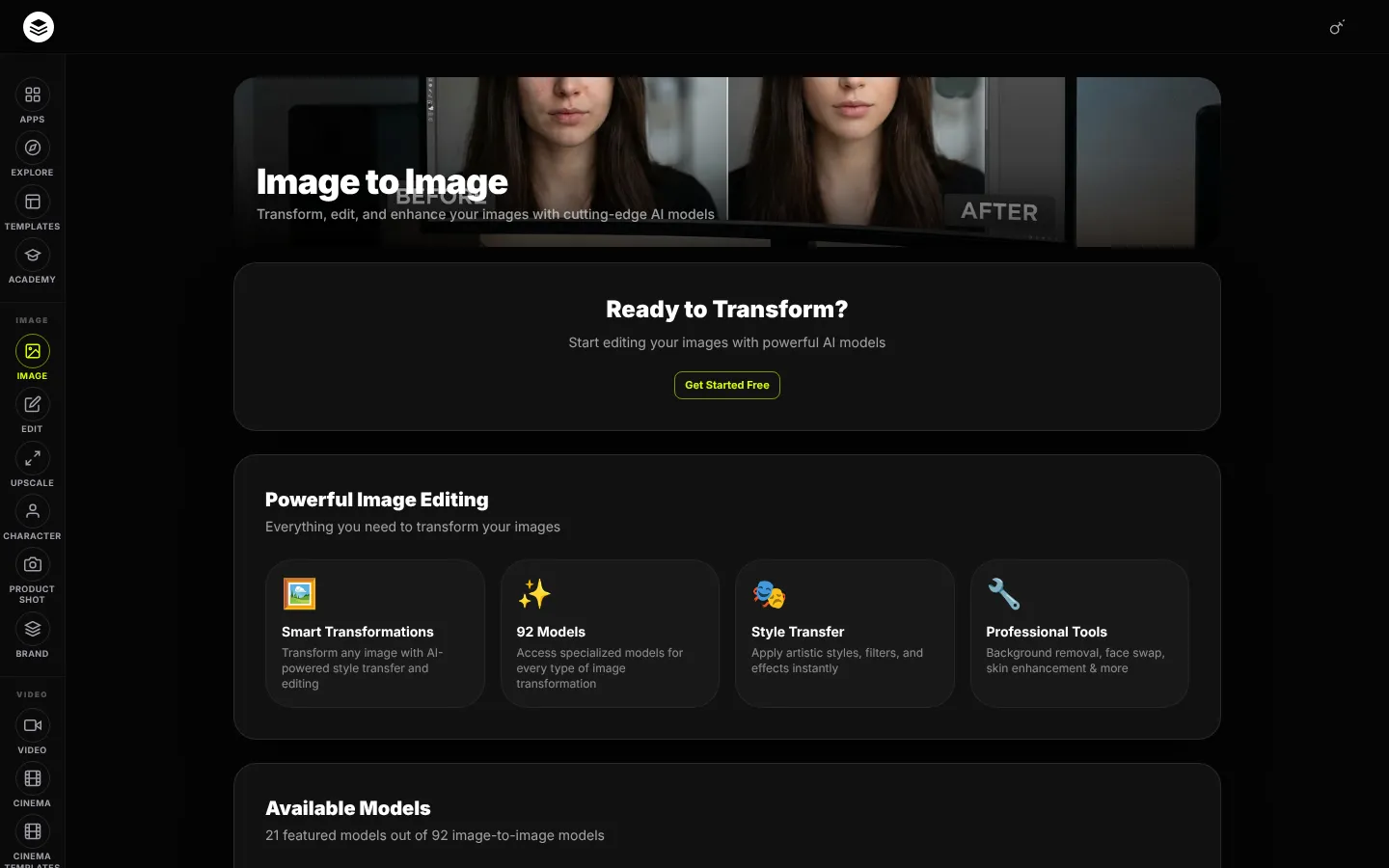
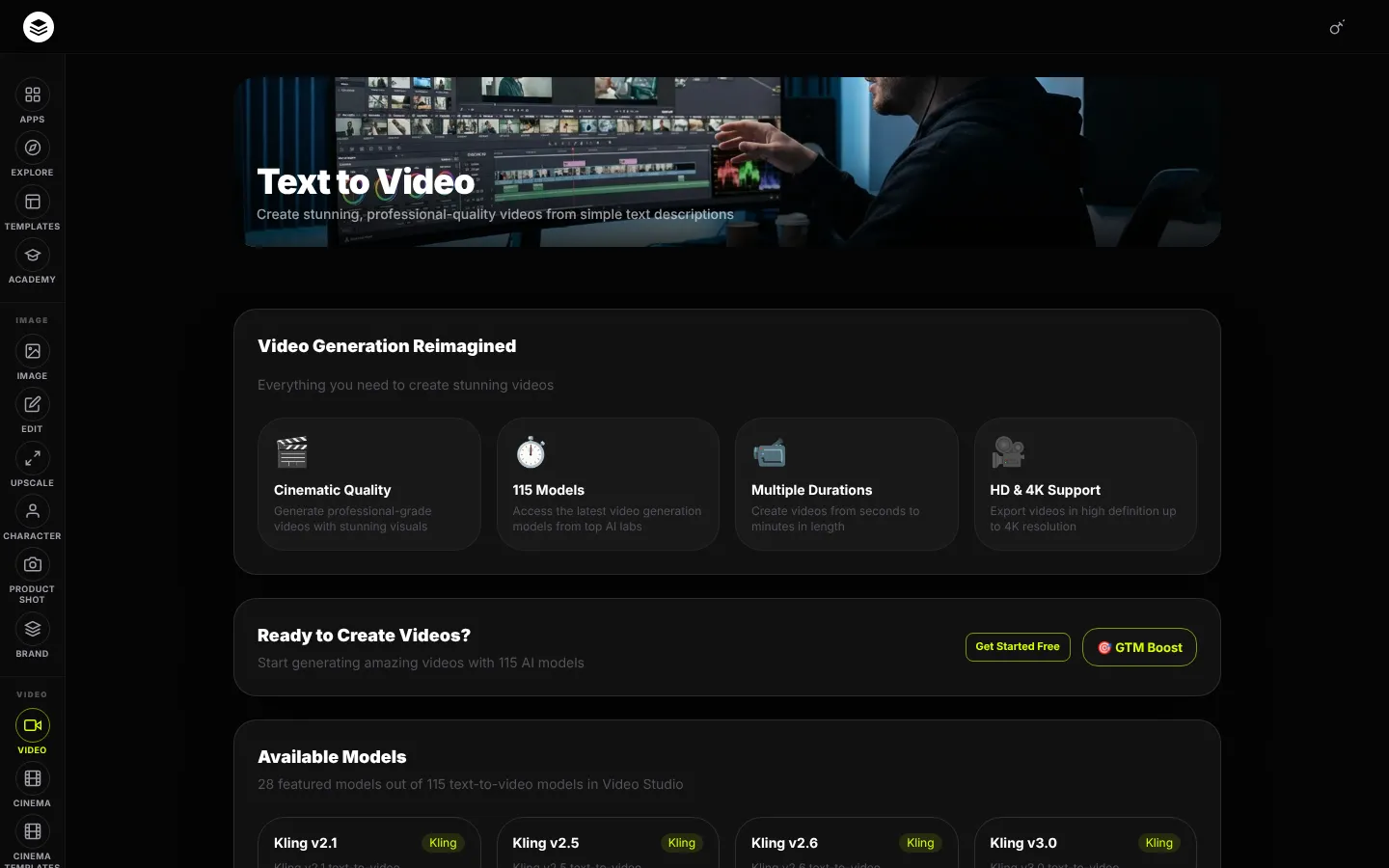
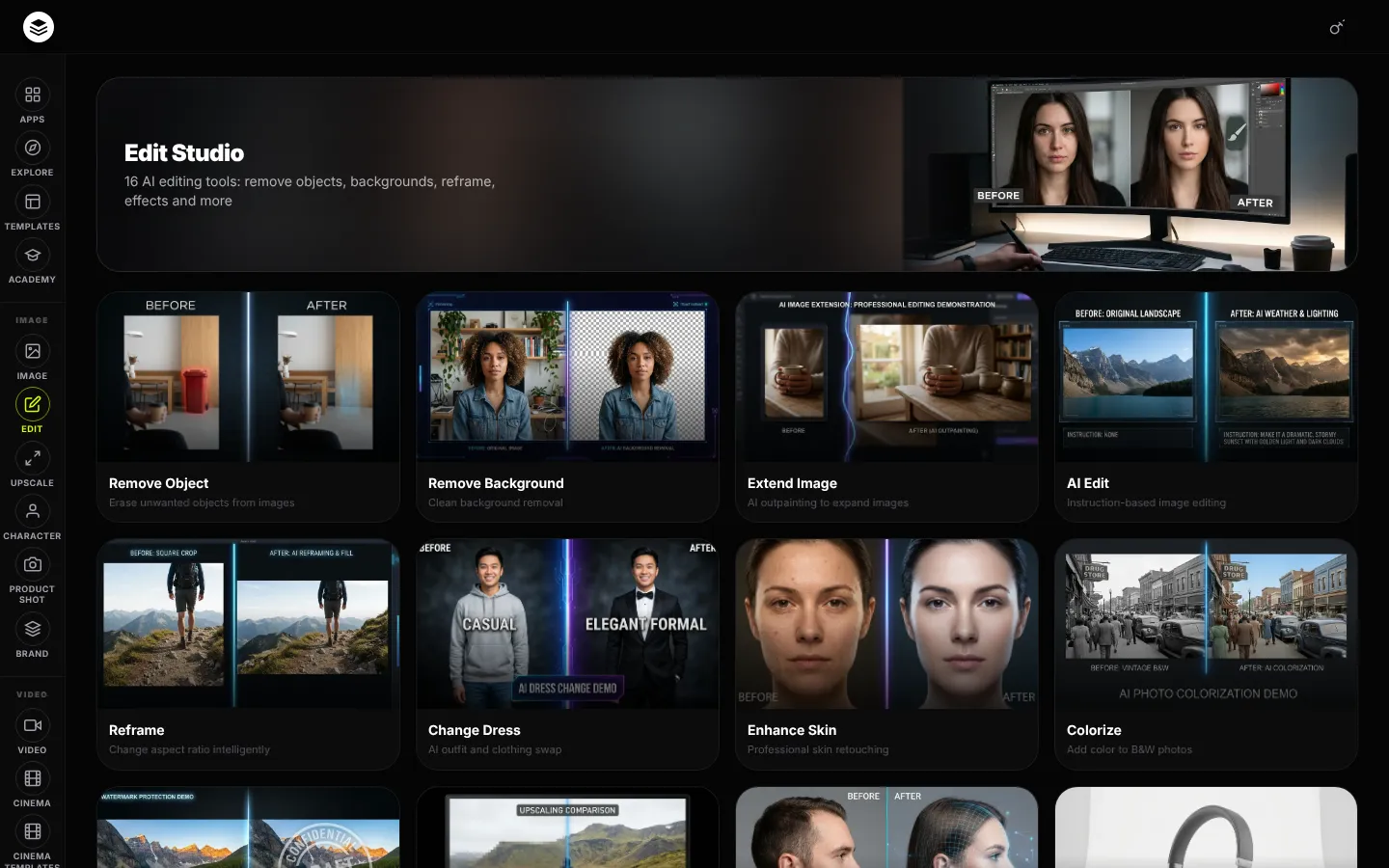
A 1:43 captioned walkthrough of the studio, with a sample file and prompt.
VIDEO · 1:43
What is Text to Image?
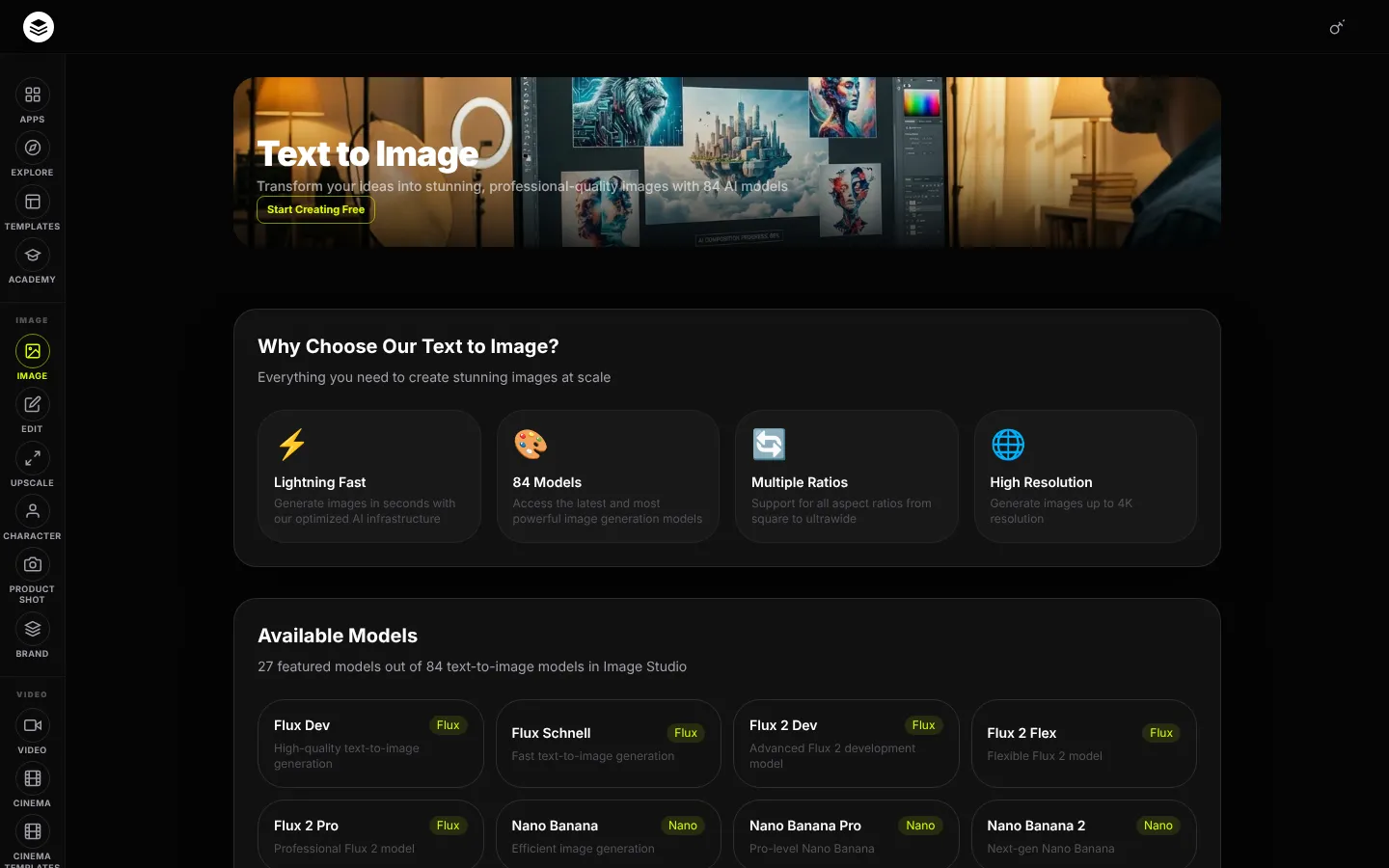
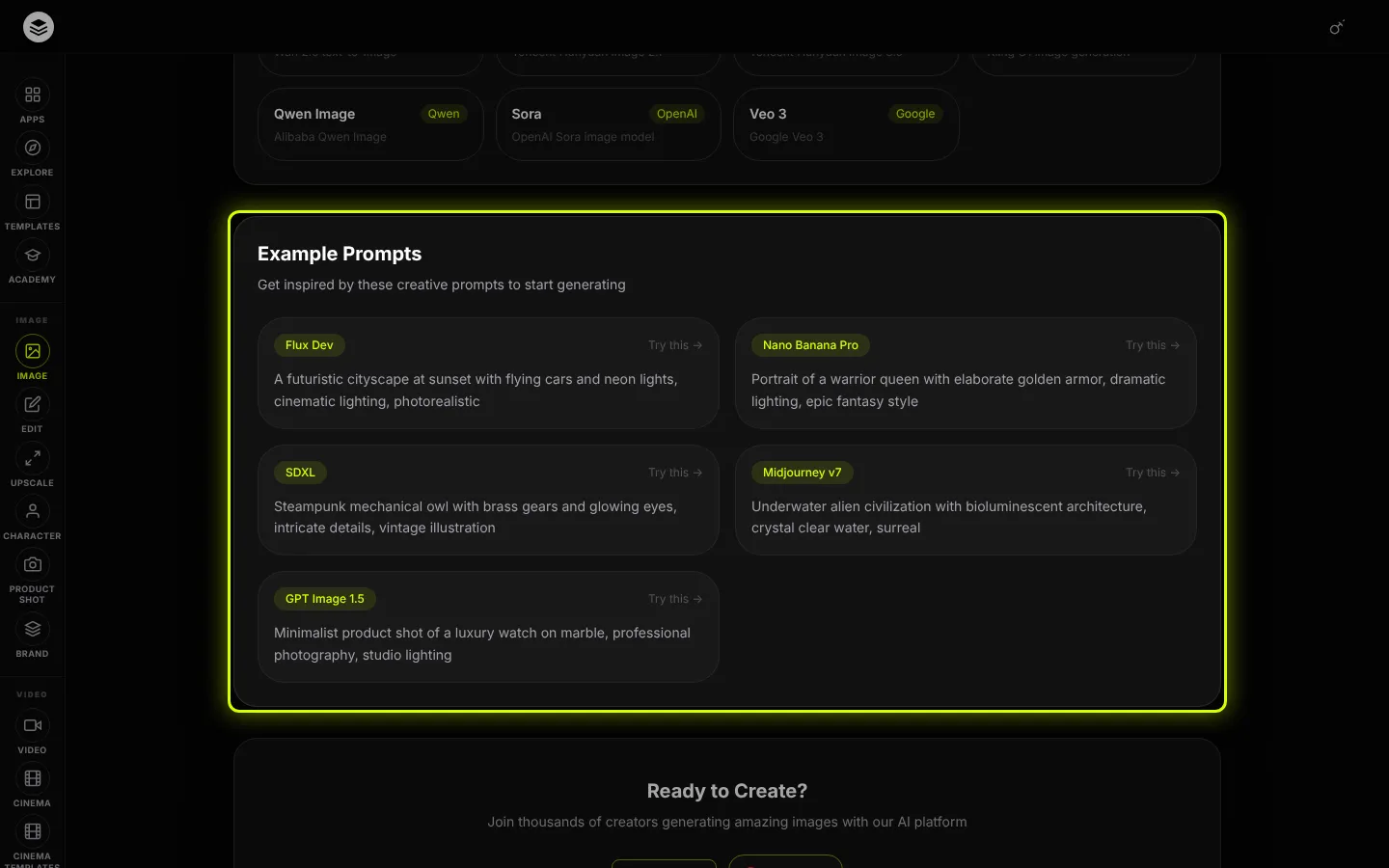
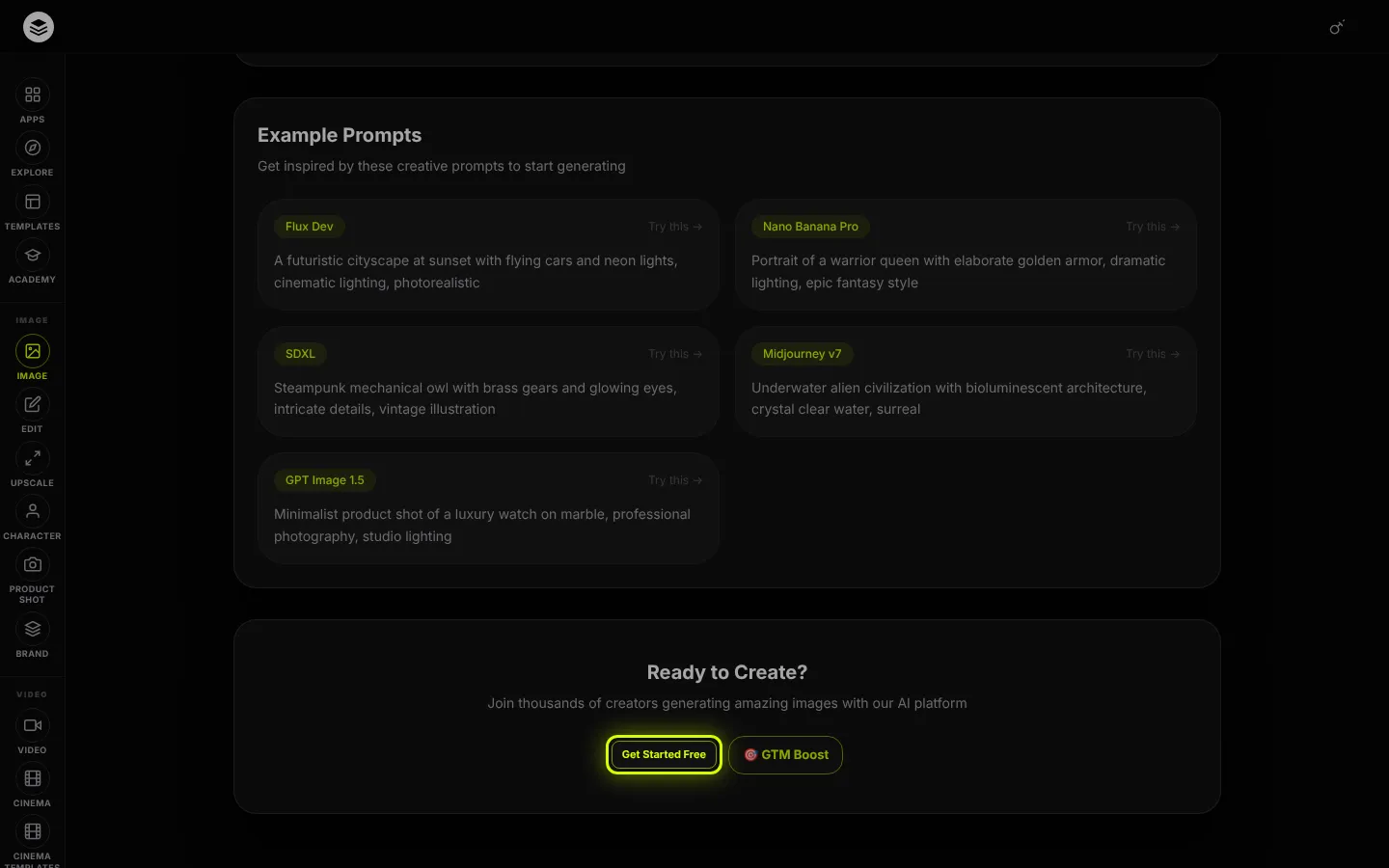
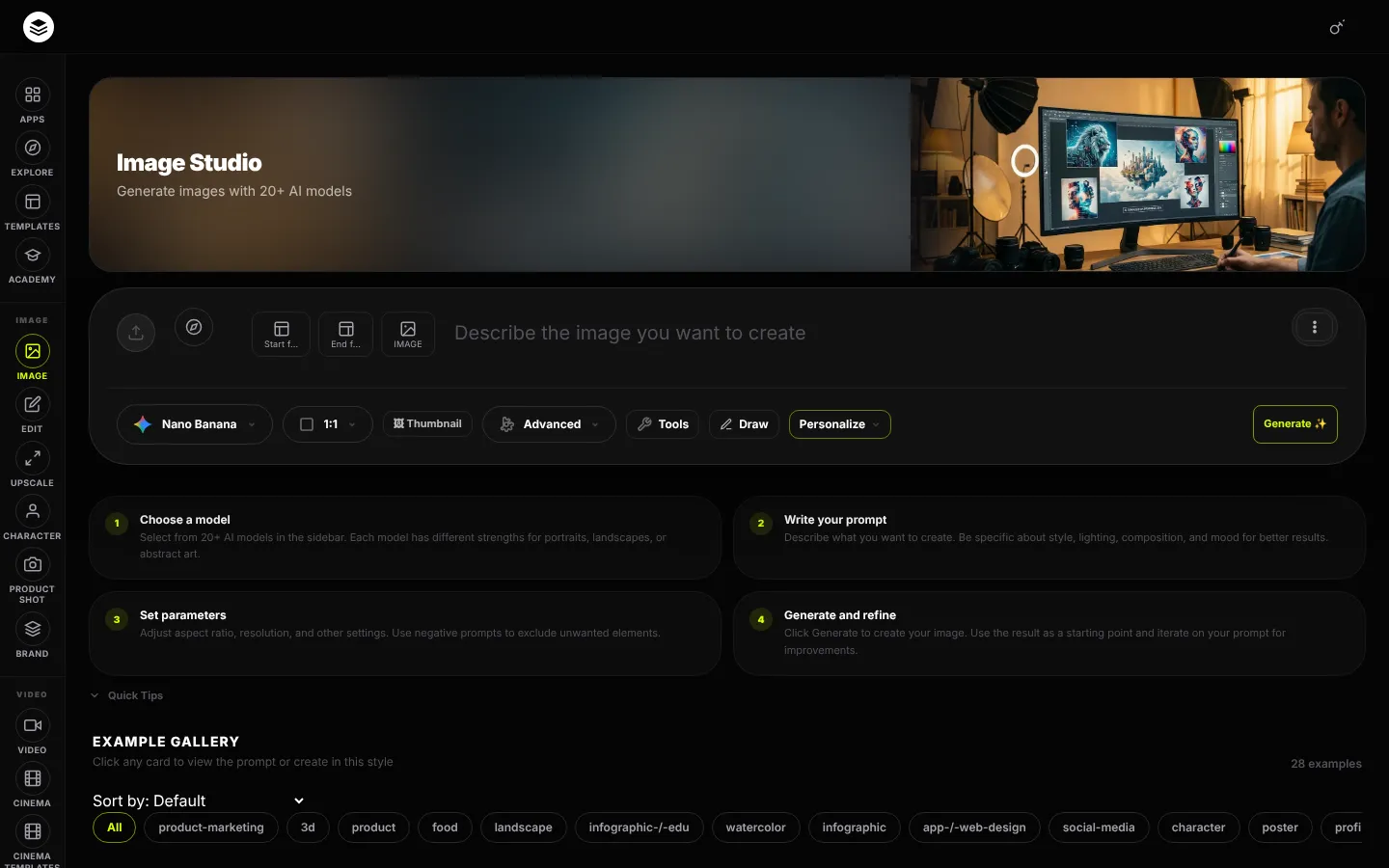
Text to Image (#/text-to-image) is a starting page, not a generator. It has a 'Start Creating Free' banner button, four 'Why Choose Our Text to Image?' highlight cards, an 'Available Models' grid of 27 featured model cards ('27 featured models out of 84 text-to-image models in Image Studio'), five 'Example Prompts' cards with 'Try this →', and a 'Ready to Create?' section with 'Get Started Free' and '🎯 GTM Boost'. There is no prompt box, upload, aspect ratio or Generate button here: every button and card opens Image Studio (#/image). Clicking a model card opens Image Studio with that model selected when Image Studio has a text-to-image model with the same name; clicking an example prompt also puts the prompt text into Image Studio's prompt box. You then set the ratio and click Generate in Image Studio.
When to use it
You want to browse image models by name and family before you start.
You want a ready-made example prompt filled into Image Studio for you.
You want help writing a marketing-style image prompt with GTM Boost.
'Start Creating Free' and 'Get Started Free' buttons that open Image Studio.
'Why Choose Our Text to Image?' highlight cards (information only).
'Available Models' grid of 27 model cards; a click opens Image Studio with that model selected when the name matches.
'Example Prompts' with 'Try this →' that fill Image Studio's prompt box and model.
'🎯 GTM Boost' prompt helper whose result is sent to Image Studio's prompt box.
Every Text to Image feature, explained
6 features, each with a definition, why you would use it, what it needs and its limits.
Start Creating Free
FEATURE 01
Start Creating Free
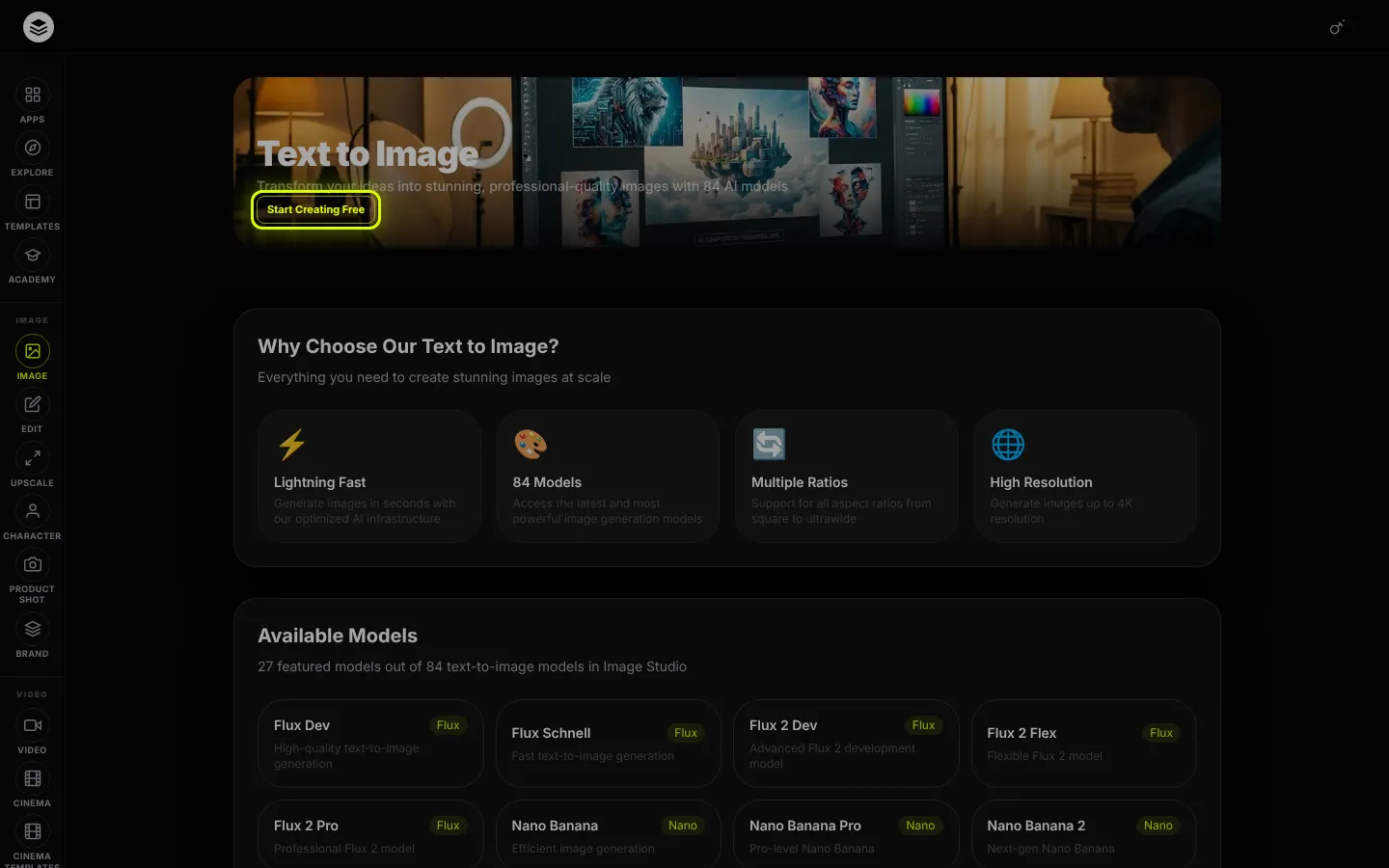
What it is: The 'Start Creating Free' button on the 'Text to Image' banner ('Transform your ideas into stunning, professional-quality images with 84 AI models') opens Image Studio (#/image).
Why use it
Quickest way from this page to the actual image generator.
What you need
None.
Limits and rules
It only opens Image Studio; nothing is generated here.
Why Choose Our Text to Image? cards
FEATURE 02
Why Choose Our Text to Image? cards
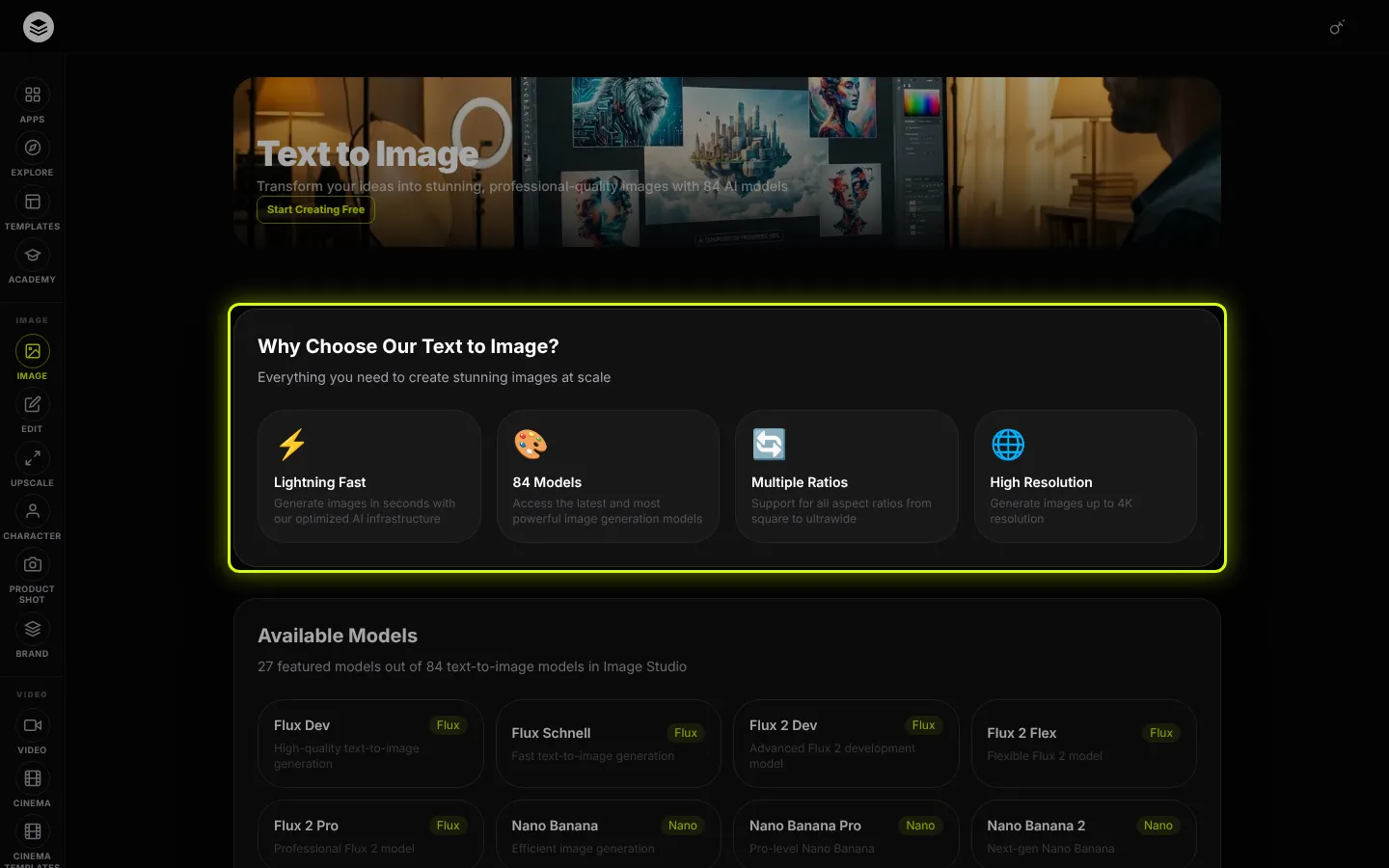
What it is: Four information cards: 'Lightning Fast', '84 Models', 'Multiple Ratios' and 'High Resolution' ('Generate images up to 4K resolution'). They are not buttons.
Why use it
A quick summary of what Image Studio offers.
What you need
None.
Limits and rules
'84 Models' is the number of text-to-image models in Image Studio; the page grid shows 27 featured ones. Available ratios and resolutions depend on the model you pick in Image Studio.
Available Models
FEATURE 03
Available Models
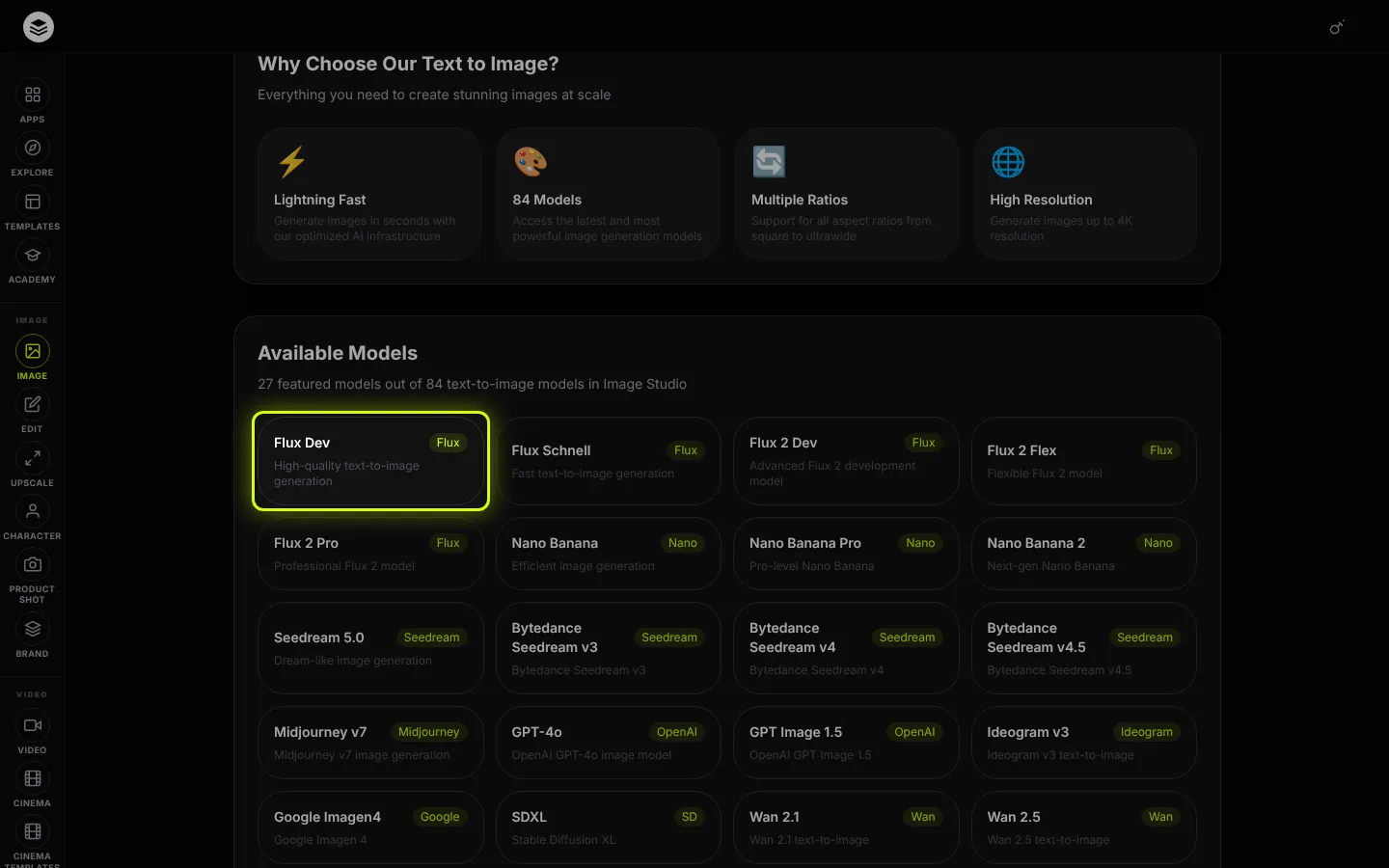
What it is: A grid of 27 model cards ('27 featured models out of 84 text-to-image models in Image Studio'), each with a name, a family badge (Flux, Nano, Seedream, Midjourney, OpenAI, Ideogram, Google, SD, Wan, Hunyuan, Kling, Qwen) and a one-line description. Clicking a card opens Image Studio and pre-selects that model if Image Studio has a text-to-image model with the same name.
Why use it
Start Image Studio on a specific model without searching its picker.
What you need
A click on a card.
Limits and rules
These names have no exact match in Image Studio, so it opens on your last-used (or default Nano Banana) model instead: Bytedance Seedream v3, GPT-4o, Ideogram v3, SDXL, Wan 2.1, Wan 2.5, Wan 2.6, Kling O1, Sora and Veo 3. Check the model button in Image Studio.
Example Prompts
FEATURE 04
Example Prompts
What it is: Five example cards, each with a model badge and a 'Try this →' button. Clicking the card or 'Try this →' opens Image Studio with the prompt text in the prompt box and the badge's model selected (when the name matches).
Why use it
Start from a proven prompt and edit it instead of writing from scratch.
What you need
A click on an example.
Limits and rules
The SDXL example's model name has no match in Image Studio, so only its prompt is carried over. You still click Generate in Image Studio.
Get Started Free
FEATURE 05
Get Started Free
What it is: In the 'Ready to Create?' section, 'Get Started Free' opens Image Studio (#/image), the same as 'Start Creating Free'.
Why use it
Open the generator after reading the page.
What you need
None.
Limits and rules
Nothing is generated on this page.
GTM Boost
FEATURE 06
GTM Boost
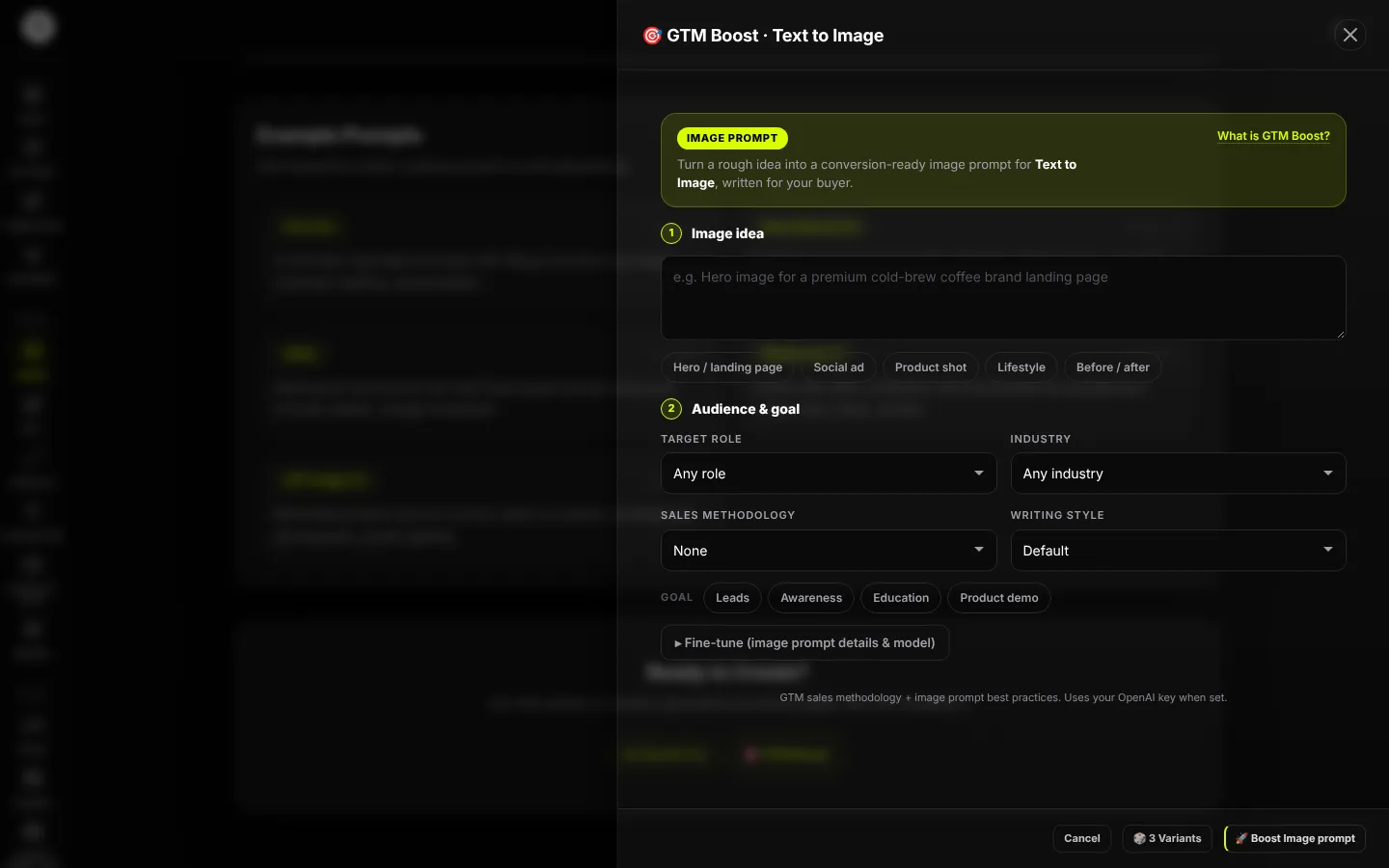
What it is: The '🎯 GTM Boost' button opens the GTM Boost window ('🎯 GTM Boost · Text to Image'). You write your idea, pick an angle, audience and goal, and click the Boost button to get a conversion-focused prompt. 'Apply' closes the window and opens Image Studio with that prompt already in the prompt box.
Why use it
Turn a rough marketing idea into a ready-to-use prompt before you start.
What you need
An idea in step 1 (otherwise the window says 'Add your ... idea first.').
Limits and rules
Without an OpenAI key the window shows 'Add your OpenAI key for AI-written results. Until then GTM Boost uses a built-in template.'
How to use Text to Image
Open #/text-to-image.
Click a model card, an example prompt, or 'Start Creating Free'.
In Image Studio, check the selected model and the prompt.
Set aspect ratio and other options in Image Studio.
Click Generate in Image Studio.
Generation modes
The ways this studio can work, and when to pick each one.
Launcher
Every control opens Image Studio, optionally with a model and/or prompt filled in.
Best for: Pick a starting point, then generate in Image Studio.
Inputs and outputs
What you give the studio, and what you get back.
Input
Description
When to use
Rules
Model card Optional
One of 27 named models. Passed to Image Studio, which selects it if the name matches one of its text-to-image models.
When you want to start on a specific model.
No match (Image Studio keeps its own model): Bytedance Seedream v3, GPT-4o, Ideogram v3, SDXL, Wan 2.1, Wan 2.5, Wan 2.6, Kling O1, Sora and Veo 3.
Example prompt Optional
One of five ready prompts; the text goes into Image Studio's prompt box.
When you want a starting prompt.
You can edit it in Image Studio before generating.
GTM Boost idea Optional
Your rough idea typed into the GTM Boost window; the boosted prompt is sent to Image Studio.
For marketing or ad images.
AI-written results need an OpenAI key; otherwise a built-in template is used.
What you get
No output on this page; it opens Image Studio, optionally with a model and prompt filled in.
Use cases and example workflows
Real jobs you can do, step by step.
Exploring models
See model names and families in one grid, then start Image Studio on one.
Click a model card
Write a prompt in Image Studio
Generate
Result: Image Studio opened on the chosen model (when the name matches).
Start from an example
Open #/text-to-image.
Click 'Try this →' on the Flux Dev cityscape example.
Image Studio opens with the prompt and Flux Dev selected.
Choose an aspect ratio and click Generate.
Marketing image with GTM Boost
Click '🎯 GTM Boost'.
Describe your idea, pick an angle and goal, click the Boost button.
Click Apply to open Image Studio with the prompt filled in.
Click Generate in Image Studio.
Tips and best practices
Use an example prompt as a template and change the subject.
Check Image Studio's model button after clicking a model card.
Treat this page as a menu; do your settings and generation in Image Studio.
Limitations and troubleshooting
Know the limits before you start, and how to fix common problems.
Limitation
What it means
Workaround
Some model cards are not pre-selected
Image Studio opens on your last-used or default model.
Pick the model again with Image Studio's model button.
Nothing is generated here
Clicking a card does not create an image.
Click Generate in Image Studio after it opens.
I clicked a model but nothing was generated
Why: This page only opens Image Studio.
Fix: Type a prompt in Image Studio and click Generate.
Glossary
Terms used in Text to Image.
Prompt
The text you write to tell the AI what to make.
Model
The AI engine that makes the result; each one has its own style and options.
Prefill
When this page passes a prompt or model to the studio so it is already filled in when the studio opens.
GTM Boost
A helper window that rewrites your idea as a marketing-focused prompt (GTM = go-to-market).
Frequently asked questions
Can I generate directly on this page?
No. This page has no prompt box, upload, ratio or Generate button. Every button and card opens Image Studio (#/image), where the actual generation happens.
Why does the page show 27 models but a card says 84?
The grid shows 27 featured names; '84 Models' is the full number of text-to-image models in Image Studio's model picker.