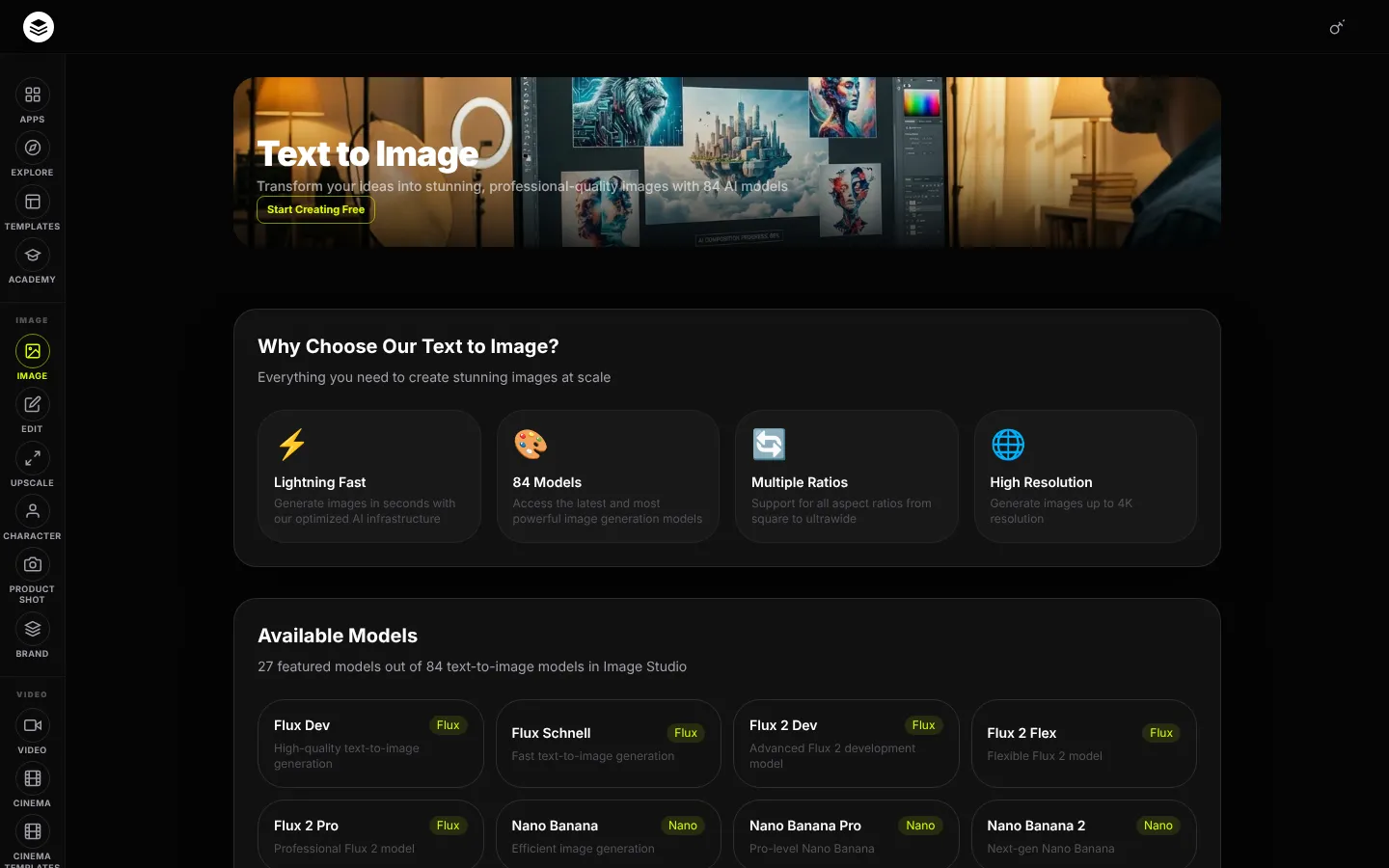
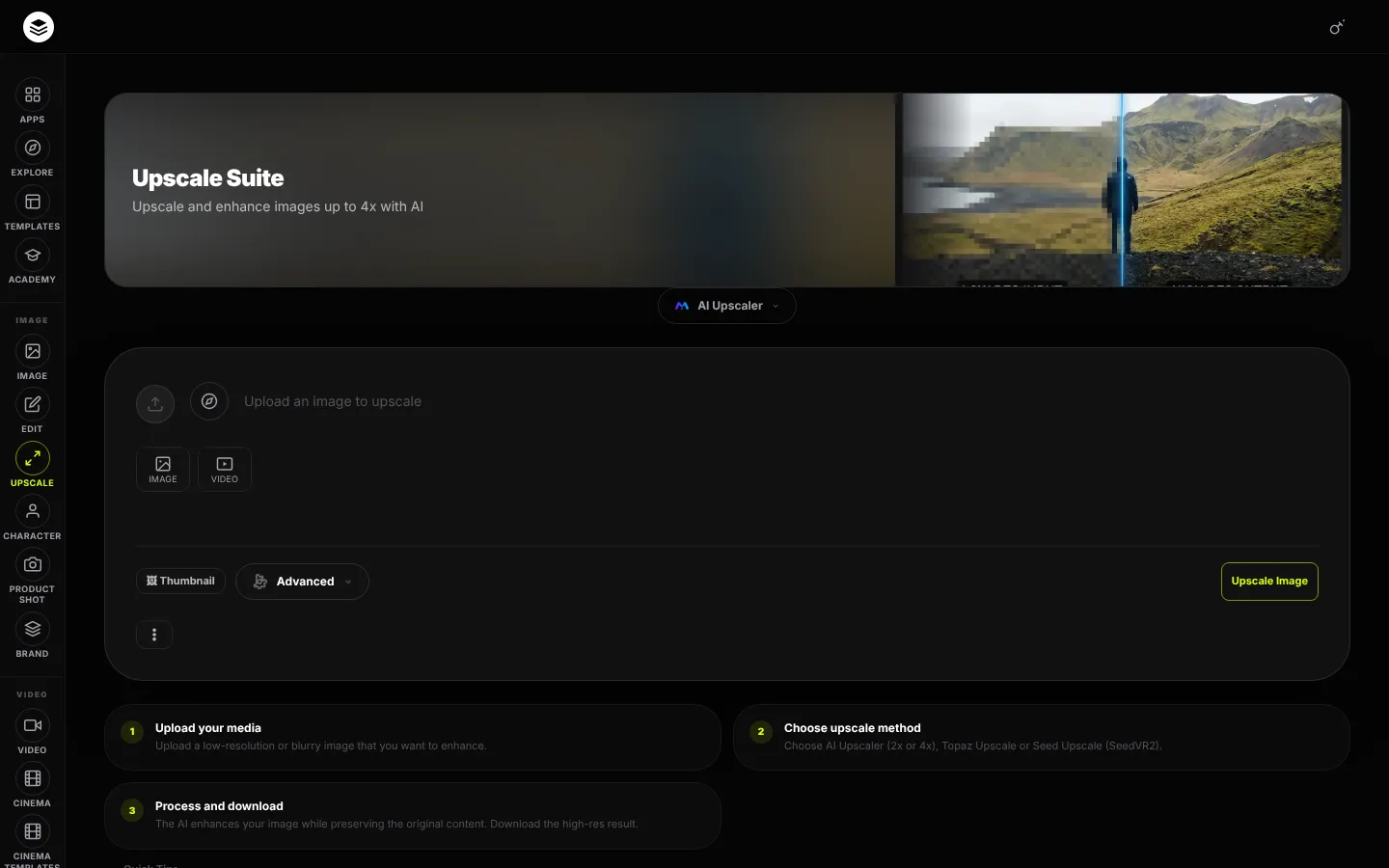
Quick Generators · Feature guide

Image to Image Feature Guide

Browse image editing models and examples, then edit in Edit Studio or Image Studio.

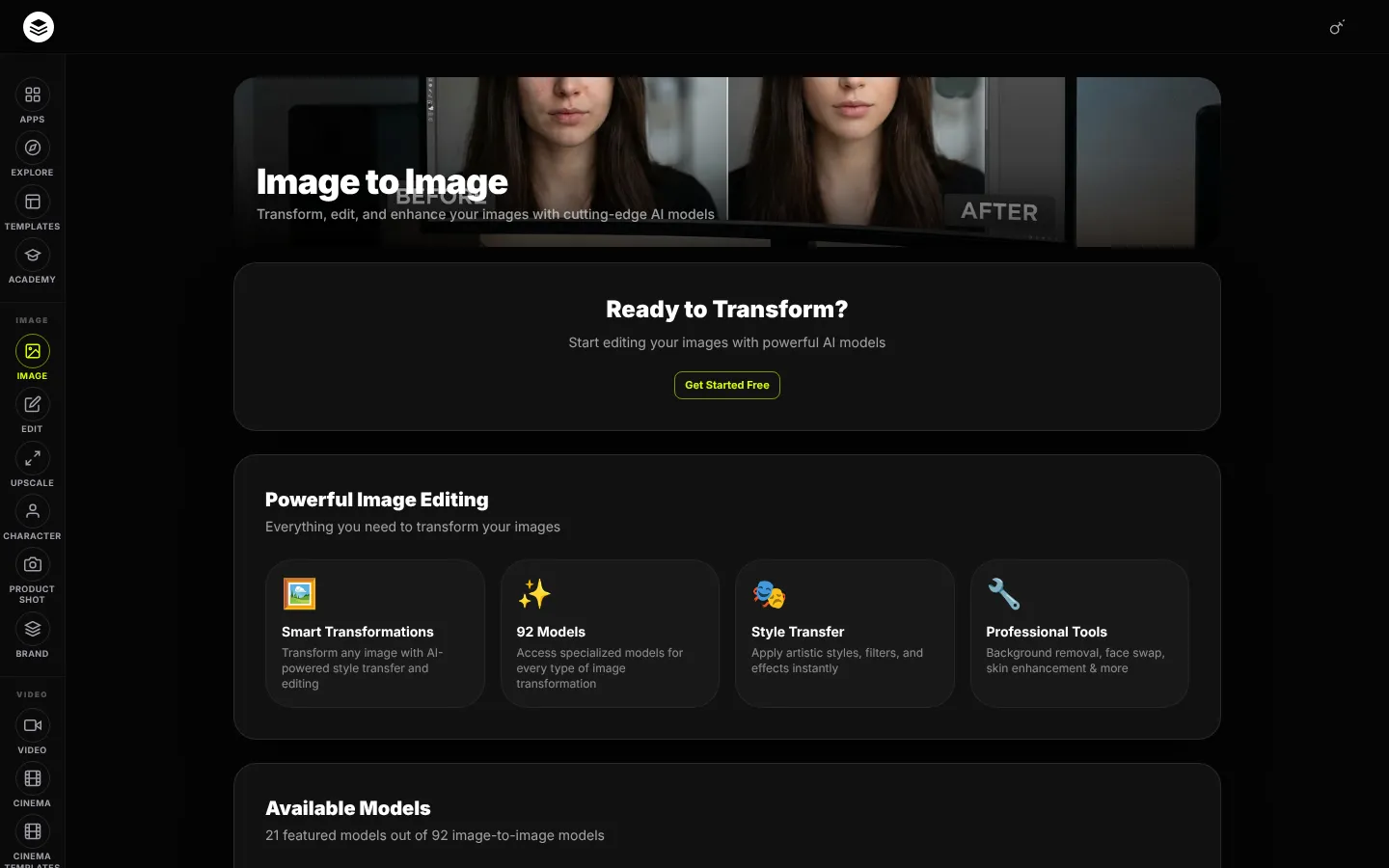
Image to Image is an overview page: browse 21 featured image editing models and example edits, then open Edit Studio to edit a photo or Image Studio to restyle one with a prompt.

Best for: Users who want to see what kinds of image edits and models are available before opening Edit Studio or Image Studio.

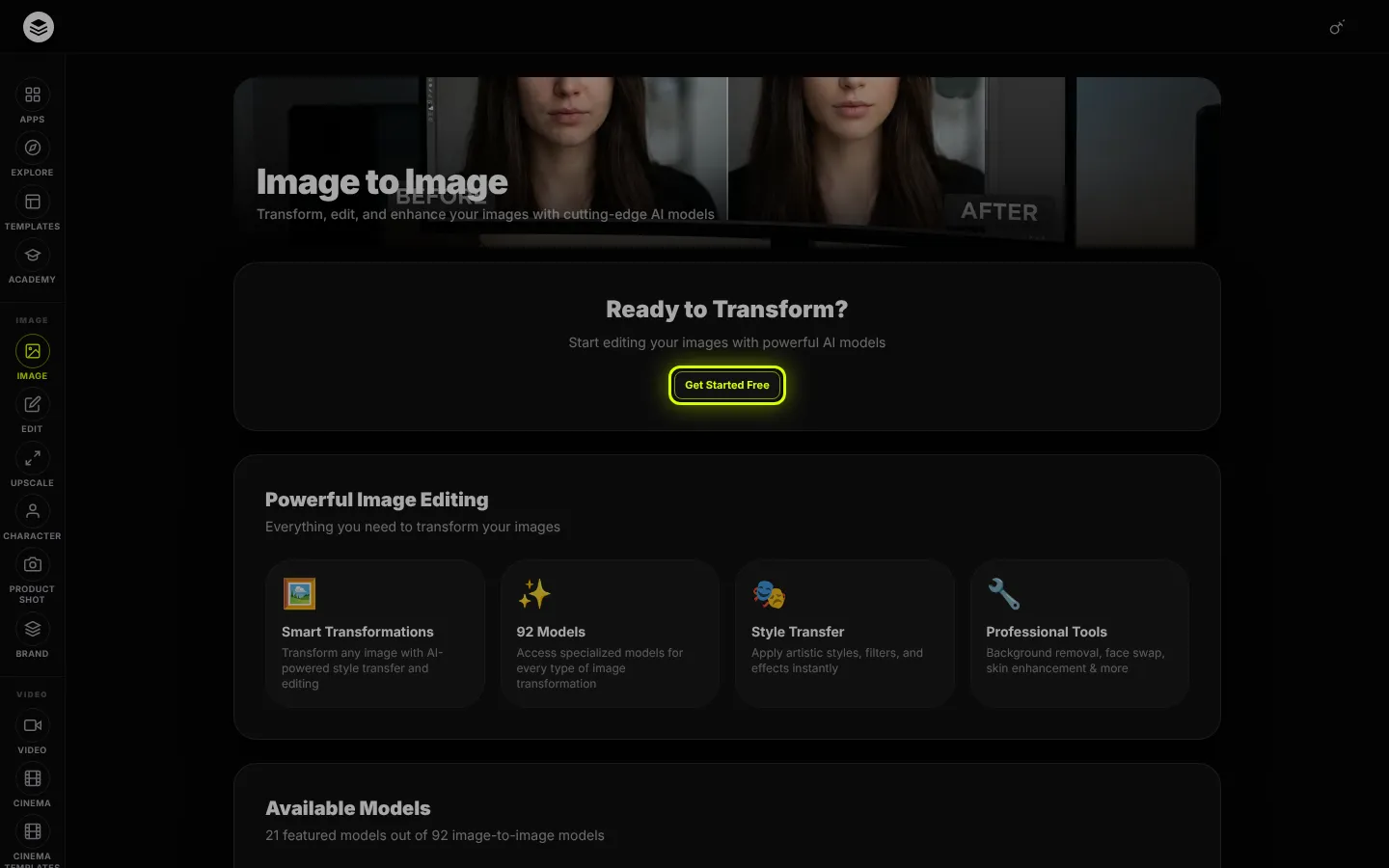
Image to Image screenshot

Watch the Image to Image tour

A 1:23 captioned walkthrough of the studio, with a sample file and prompt.

VIDEO · 1:23

What is Image to Image?

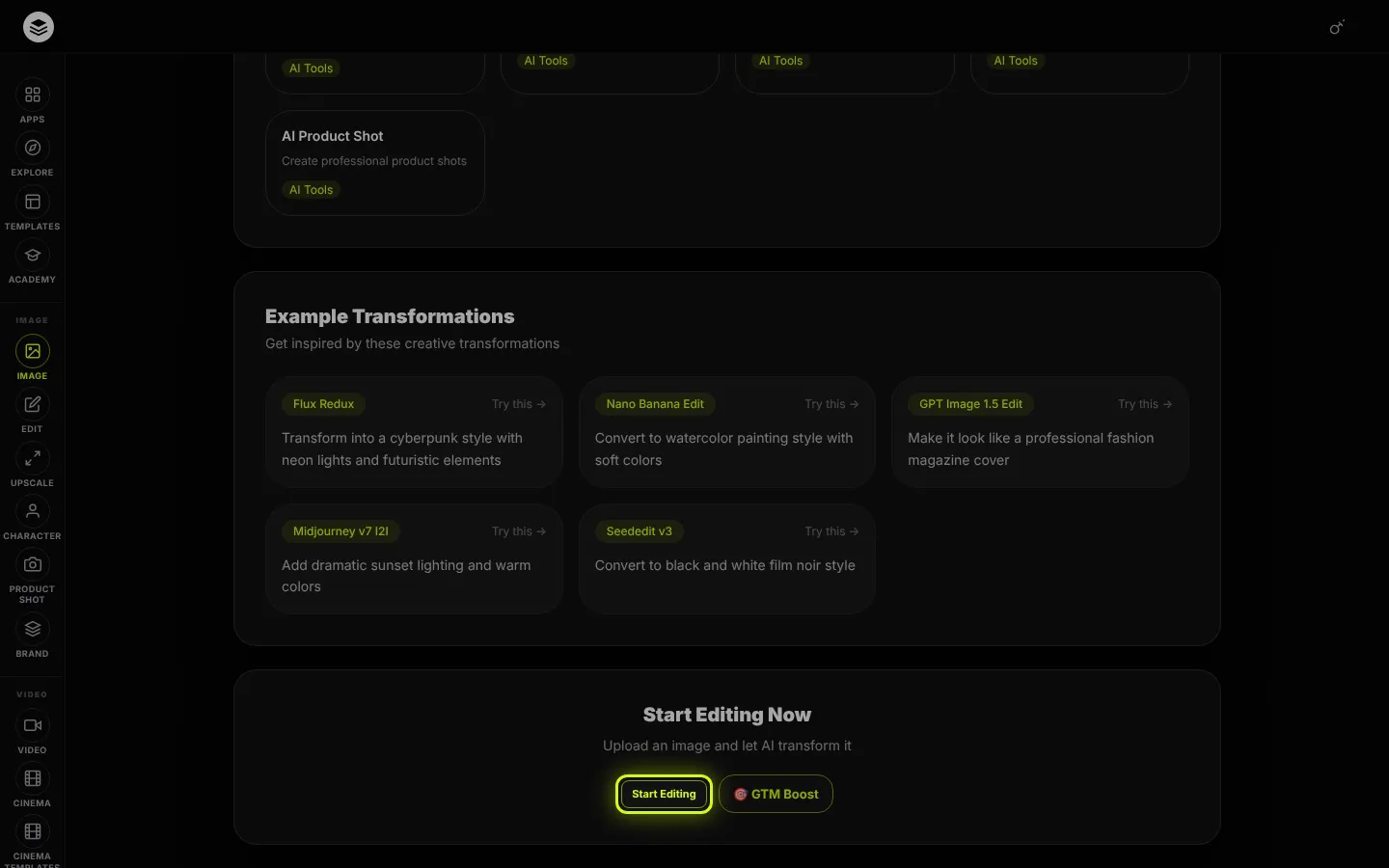
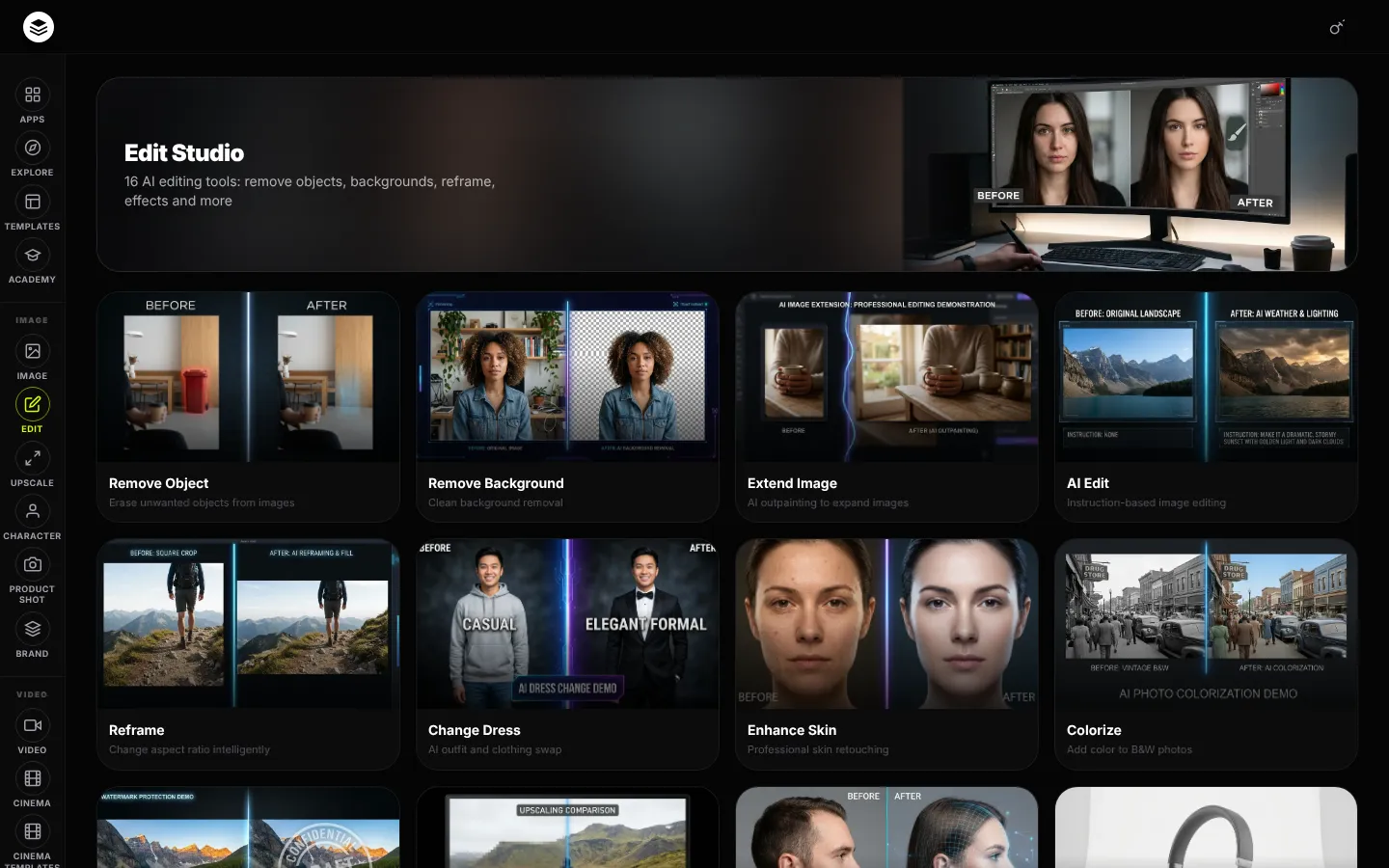
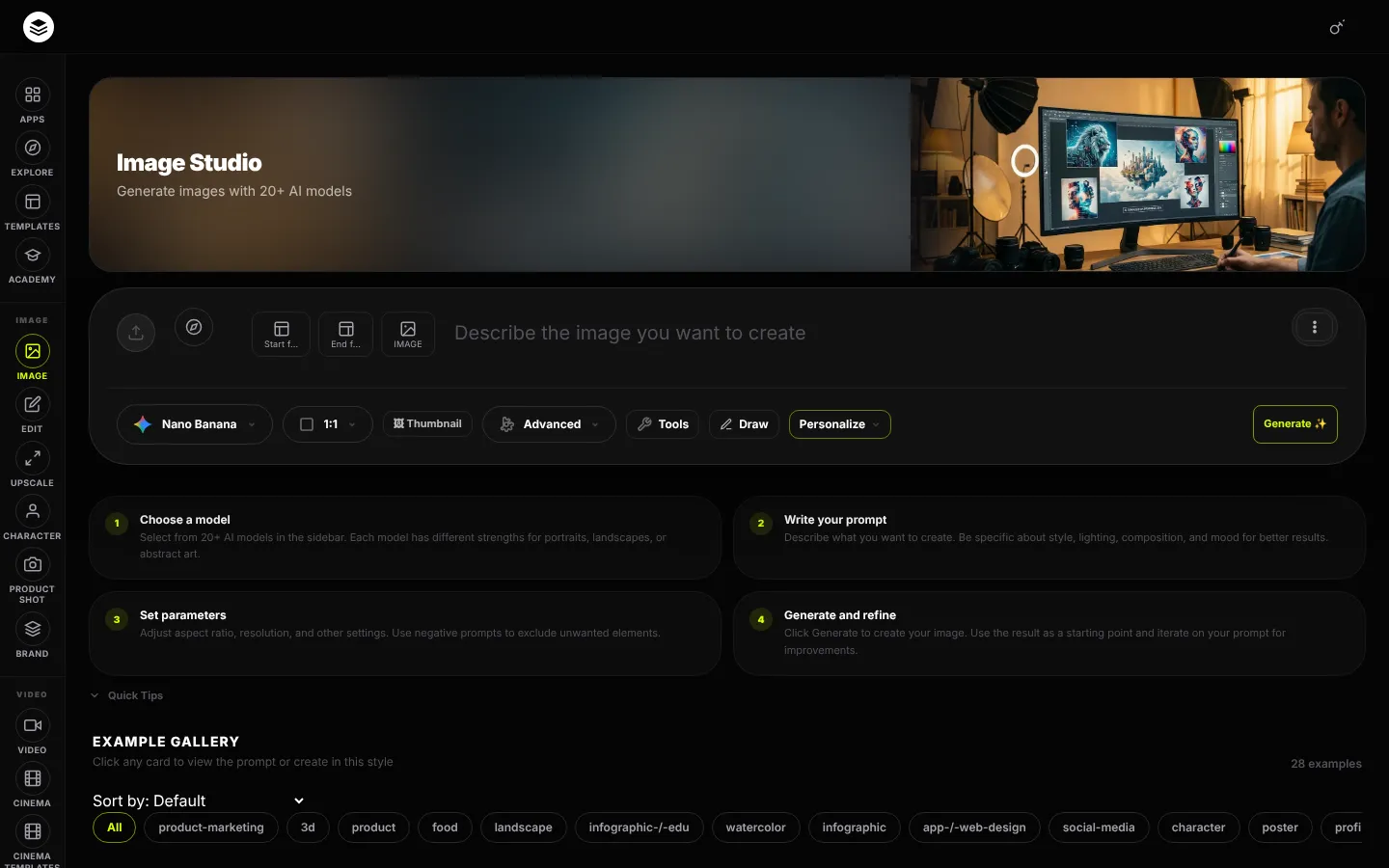
Image to Image (#/image-to-image) is a starting page, not an editor. It has a 'Ready to Transform?' section with 'Get Started Free', four 'Powerful Image Editing' highlight cards, an 'Available Models' grid ('21 featured models out of 92 image-to-image models'), five 'Example Transformations' cards, and a 'Start Editing Now' section with 'Start Editing' and '🎯 GTM Boost'. There is no upload, prompt box or Generate button here. 'Get Started Free' and 'Start Editing' open Edit Studio (#/edit), the photo editing tools. A model card, an example card and GTM Boost's Apply open Image Studio (#/image) instead: an example or GTM Boost prompt is placed in Image Studio's prompt box (and then cleared, so it does not reappear later), and a clicked model is selected only when Image Studio has a model with that exact name. Image Studio opens in text-to-image and switches to image-to-image models when you add a reference image.

When to use it

  • You want an overview of image editing models (Nano Banana Edit, Flux Kontext, GPT Image Edit, Seededit and more).
  • You want ideas for transformations (watercolor, film noir, cyberpunk...) carried into Image Studio's prompt box.
  • You want a quick link into Edit Studio.
  • 'Get Started Free' and 'Start Editing' buttons that open Edit Studio.
  • 'Powerful Image Editing' highlight cards (information only).
  • 'Available Models' grid of 21 featured editing models and AI tools; a click opens Image Studio.
  • 'Example Transformations' with 'Try this →' that put the prompt into Image Studio.
  • '🎯 GTM Boost' prompt helper that opens Image Studio with the prompt filled in.

Every Image to Image feature, explained

6 features, each with a definition, why you would use it, what it needs and its limits.

Get Started Free in Image to Image
Get Started Free
FEATURE 01

Get Started Free

What it is: The 'Get Started Free' button in the 'Ready to Transform?' section opens Edit Studio (#/edit).

Why use it
Fastest way to the photo editing tools.
What you need
None.
Limits and rules
Nothing is edited on this page. Edit Studio opens with no tool, model or prompt chosen.
Powerful Image Editing cards in Image to Image
Powerful Image Editing cards
FEATURE 02

Powerful Image Editing cards

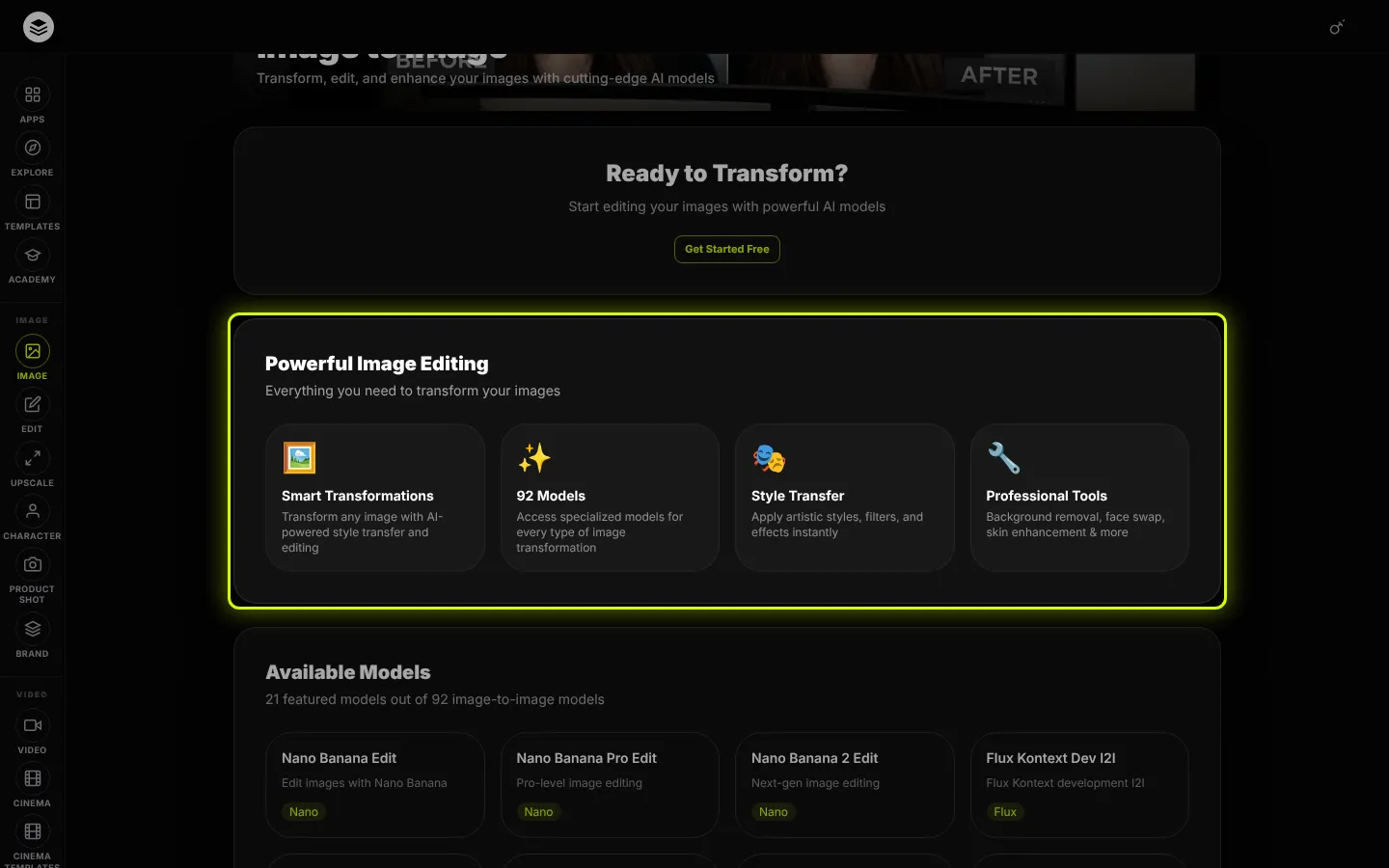
What it is: Four information cards: 'Smart Transformations', '92 Models', 'Style Transfer' and 'Professional Tools' ('Background removal, face swap, skin enhancement & more'). They are not buttons.

Why use it
Summary of the kinds of edits available.
What you need
None.
Limits and rules
'92 Models' is the number of image-to-image models in Image Studio; the page grid shows 21 featured ones.
Available Models in Image to Image
Available Models
FEATURE 03

Available Models

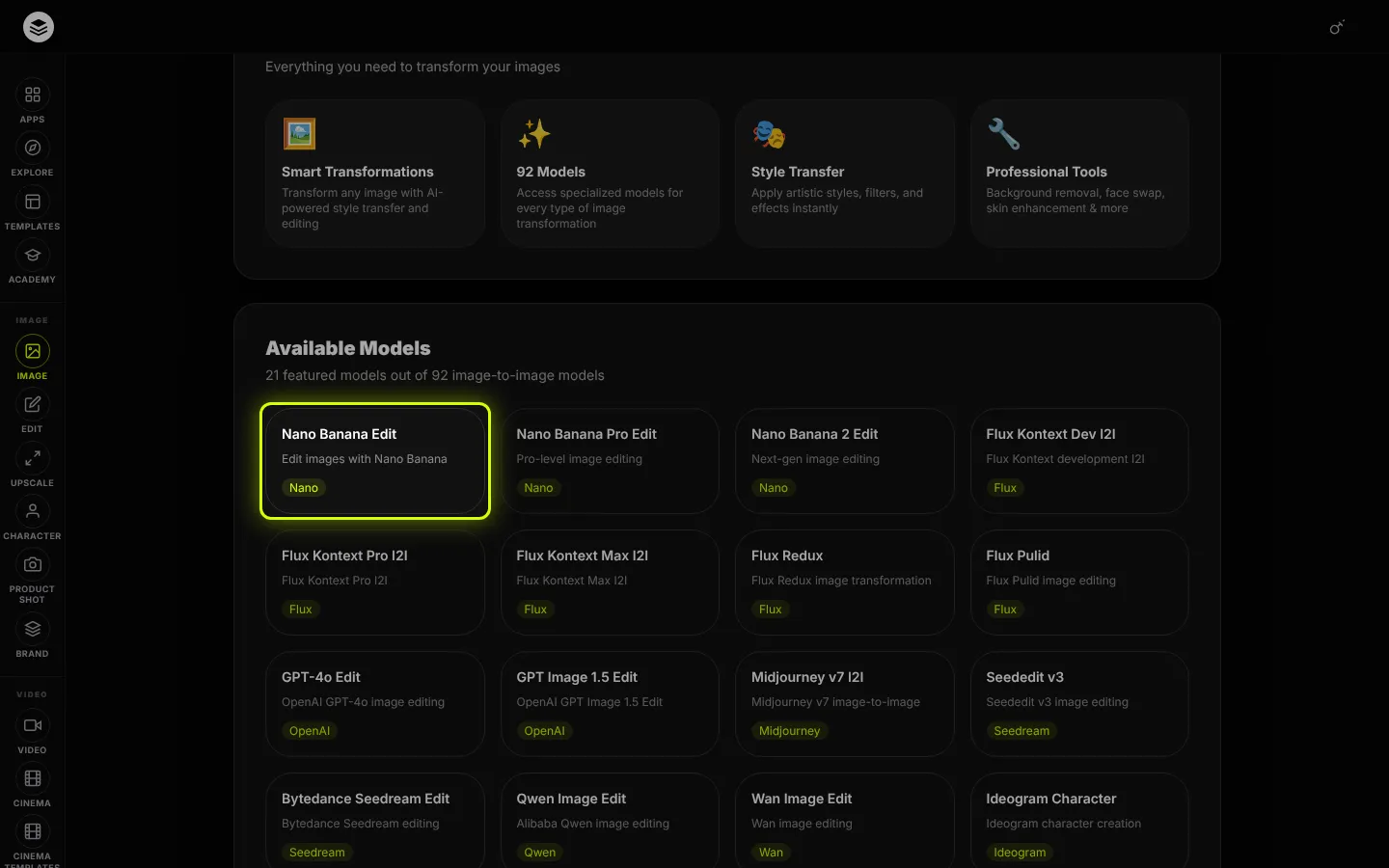
What it is: A grid of 21 cards ('21 featured models out of 92 image-to-image models'): editing models (Nano Banana Edit, Flux Kontext Dev/Pro/Max I2I, Flux Redux, Flux Pulid, GPT-4o Edit, GPT Image 1.5 Edit, Midjourney v7 I2I, Seededit v3, Bytedance Seedream Edit, Qwen Image Edit, Wan Image Edit, Ideogram Character) and AI tools (AI Background Remover, AI Face Swap, AI Dress Change, AI Skin Enhancer, AI Product Shot). Clicking a card opens Image Studio (#/image).

Why use it
See which editing models and tools exist.
What you need
A click on a card.
Limits and rules
Image Studio selects the clicked model only if its starting (text-to-image) list has a model with that exact name; of these cards only Flux Redux and Flux Pulid match. For the others Image Studio opens on your last-used (or default) model. Add a reference image to switch to image-to-image models and pick the editing model there, or use the matching Edit Studio tool (Remove Background, Face Swap, Change Dress, Enhance Skin, Product Shot).
Example Transformations in Image to Image
Example Transformations
FEATURE 04

Example Transformations

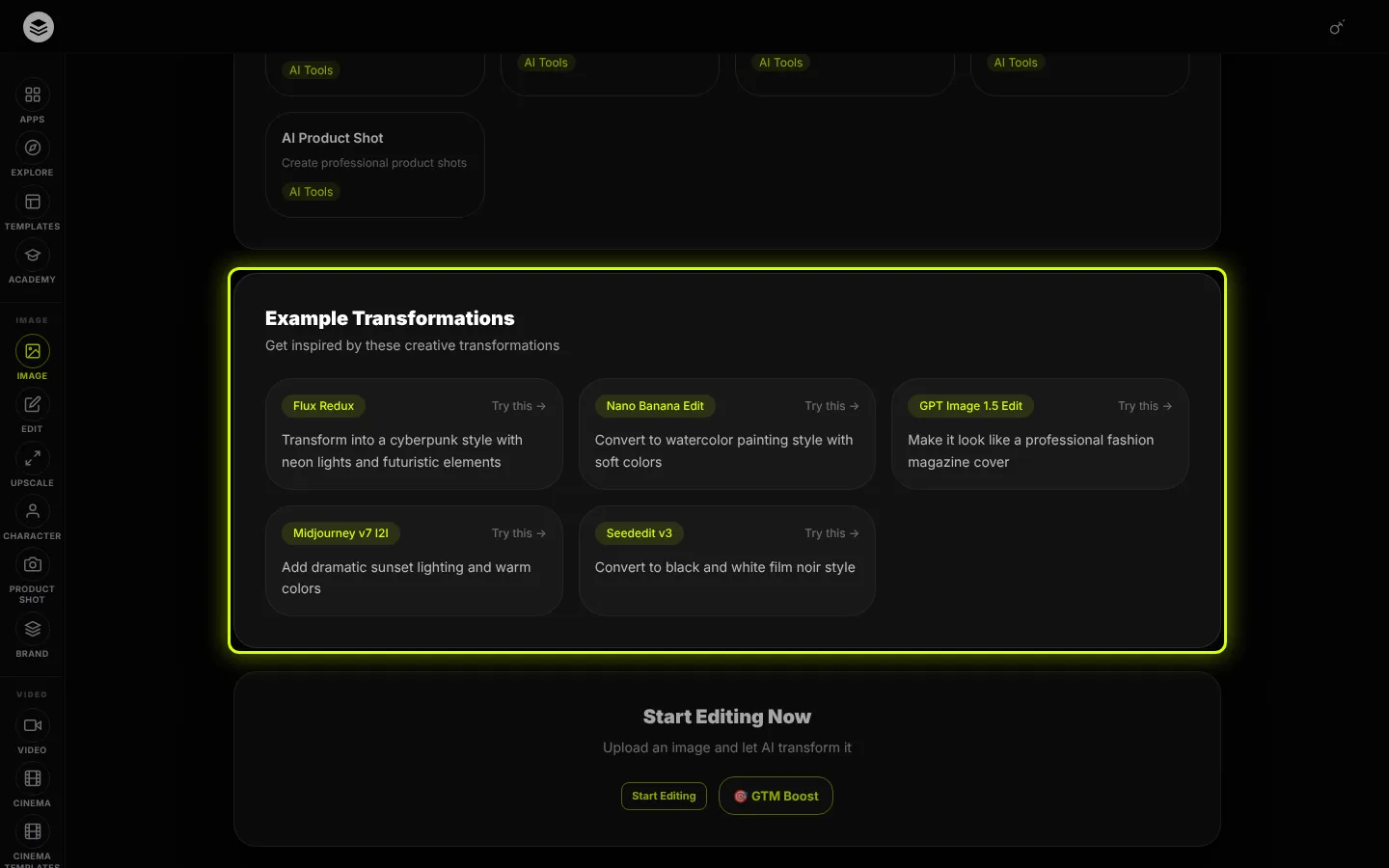
What it is: Five example cards with a model badge and 'Try this →' (for example 'Convert to watercolor painting style with soft colors' with Nano Banana Edit). Clicking the card or 'Try this →' opens Image Studio with the example text in the prompt box.

Why use it
Ideas for what to write when you edit.
What you need
A click on an example.
Limits and rules
Only the Flux Redux example's model is selected in Image Studio; the other badges (Nano Banana Edit, GPT Image 1.5 Edit, Midjourney v7 I2I, Seededit v3) have no exact match there. No image is attached: add your photo as a reference image in Image Studio before generating.
Start Editing in Image to Image
Start Editing
FEATURE 05

Start Editing

What it is: In 'Start Editing Now' ('Upload an image and let AI transform it'), 'Start Editing' opens Edit Studio, where you upload your image.

Why use it
Open the editor after reading the page.
What you need
None here; the upload happens in Edit Studio.
Limits and rules
No upload on this page. Edit Studio opens with no tool chosen.
GTM Boost in Image to Image
GTM Boost
FEATURE 06

GTM Boost

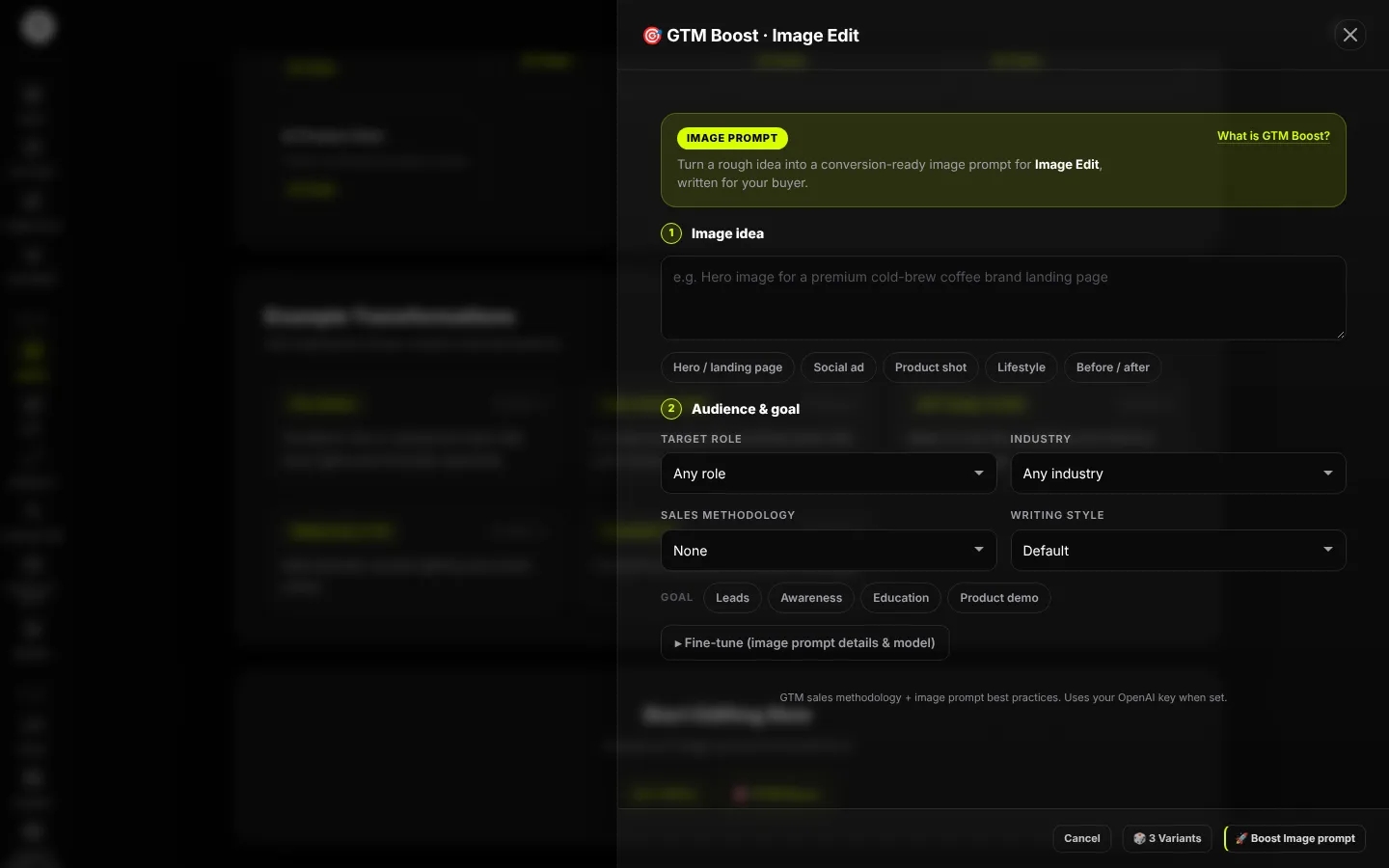
What it is: The '🎯 GTM Boost' button opens the GTM Boost window ('🎯 GTM Boost · Image Edit'). You write your idea, pick an angle, audience and goal, and click the Boost button to get a conversion-focused prompt. 'Apply' closes the window and opens Image Studio with that prompt already in the prompt box; add a reference image there to edit a photo with it.

Why use it
Turn a rough marketing idea into a ready-to-use prompt before you start.
What you need
An idea in step 1 (otherwise the window says 'Add your ... idea first.').
Limits and rules
Without an OpenAI key the window shows 'Add your OpenAI key for AI-written results. Until then GTM Boost uses a built-in template.' The prompt goes to Image Studio, not Edit Studio.

How to use Image to Image

  1. Open #/image-to-image.
  2. Pick an idea from the model or example cards.
  3. Click 'Start Editing' for Edit Studio's tools, or an example card for Image Studio.
  4. Upload or attach your image in that studio.
  5. Run the edit there.

Generation modes

The ways this studio can work, and when to pick each one.

Launcher

'Get Started Free' and 'Start Editing' open Edit Studio (#/edit); model cards, examples and GTM Boost open Image Studio (#/image).

Best for: Get ideas, then edit in the matching studio.

Inputs and outputs

What you give the studio, and what you get back.

InputDescriptionWhen to useRules
Model card
Optional
One of 21 editing models or AI tools; the click opens Image Studio.To learn what is available.Selected in Image Studio only when the name matches exactly (Flux Redux, Flux Pulid).
Example transformation
Optional
One of five example edit prompts; the click opens Image Studio with the text in the prompt box.For ideas.No image is attached; add your reference image in Image Studio.

What you get

  • No output on this page; it opens Edit Studio, or Image Studio with a prompt and sometimes a model filled in.

Use cases and example workflows

Real jobs you can do, step by step.

Choosing an editing approach

Compare editing models and AI tools before you start.

  1. Browse the grid
  2. Open Edit Studio or Image Studio
  3. Pick the tool or model
Result: The right studio opened, ready for your image.

Remove a background

  1. Open #/image-to-image and see 'AI Background Remover' in Available Models.
  2. Click 'Start Editing'.
  3. In Edit Studio choose Remove Background and upload your photo.
  4. Run the tool in Edit Studio.

Watercolor version of a photo

  1. Click the 'Convert to watercolor painting style with soft colors' example.
  2. Image Studio opens with that prompt.
  3. Add your photo as a reference image.
  4. Click Generate.

Tips and best practices

  • Click an example card to start Image Studio with its wording, then add your photo.
  • For background removal, face swap, dress change, skin or product shots, use the matching Edit Studio tool.
  • Treat this page as a menu; do your uploads and edits in Edit Studio or Image Studio.

Limitations and troubleshooting

Know the limits before you start, and how to fix common problems.

LimitationWhat it meansWorkaround
Clicked model is usually not pre-selectedImage Studio opens on your last-used or default model.Add a reference image in Image Studio, then choose the editing model with its model button.
Edit Studio gets no promptEdit Studio's tools open empty.Use an example card to send the prompt to Image Studio, or type it in Edit Studio yourself.

I clicked a model card but Image Studio shows another model

Why: The card's name has no exact match in Image Studio's starting model list.

Fix: Add your reference image, then choose the model with Image Studio's model button.

Glossary

Terms used in Image to Image.

Prompt
The text you write to tell the AI what to make.
Model
The AI engine that makes the result; each one has its own style and options.
Prefill
When this page passes a prompt or model to the studio so it is already filled in when the studio opens.
GTM Boost
A helper window that rewrites your idea as a marketing-focused prompt (GTM = go-to-market).
Image-to-image
Making a new or changed image starting from a photo you supply.

Frequently asked questions

Can I generate directly on this page?

No. This page has no prompt box, upload, ratio or Generate button. 'Get Started Free' and 'Start Editing' open Edit Studio (#/edit); model cards, examples and GTM Boost open Image Studio (#/image).

Where can I do prompt-based image-to-image with a reference photo?

In Image Studio (#/image): add a reference image and it switches to image-to-image models. The example cards here open it with the prompt filled in.

Will an example prompt show up again later in another studio?

No. Image Studio reads the prompt once and clears it.

Try Image to Image now

Open the studio and put these features to work, or browse the guides for all 53 studios.