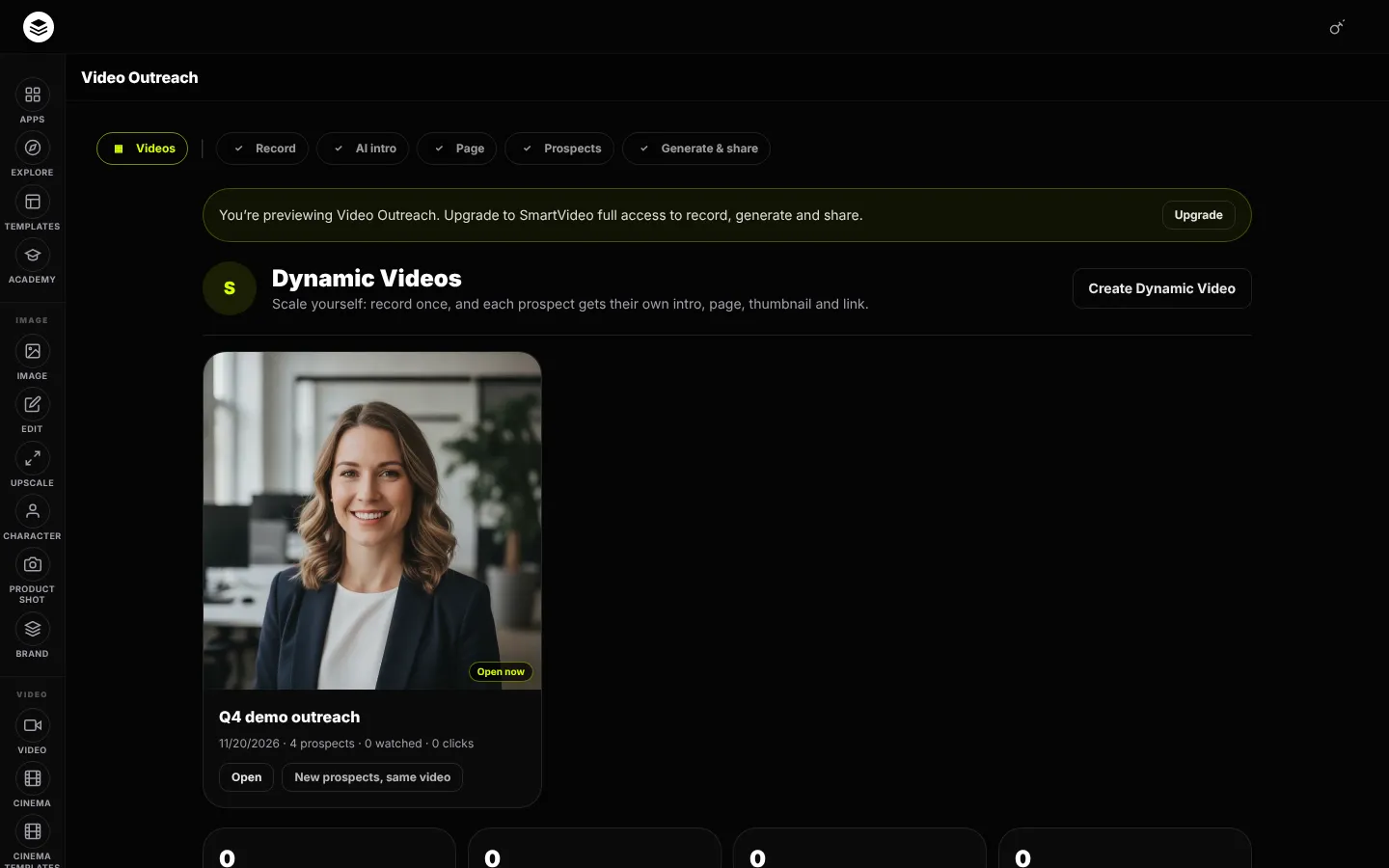
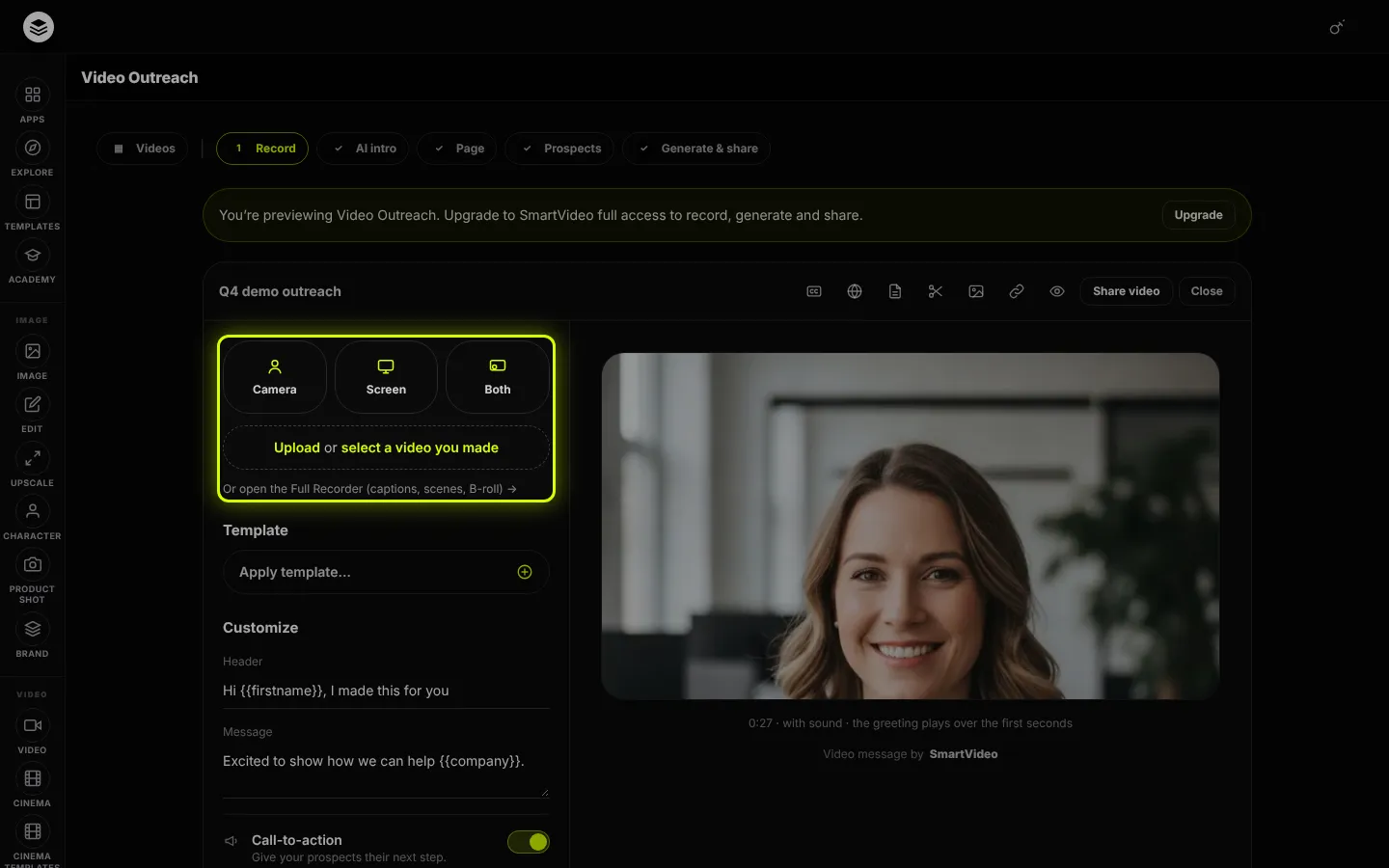
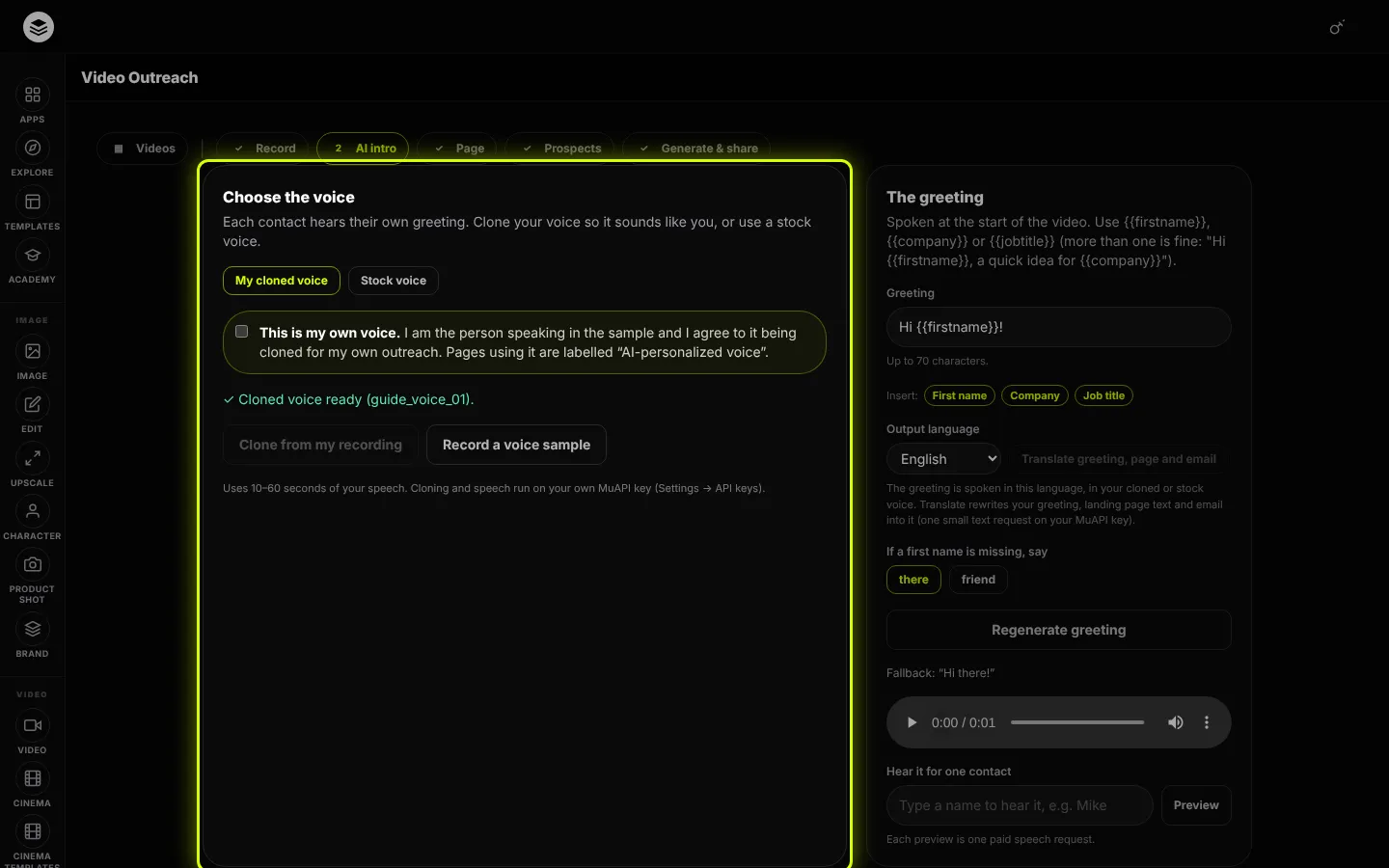
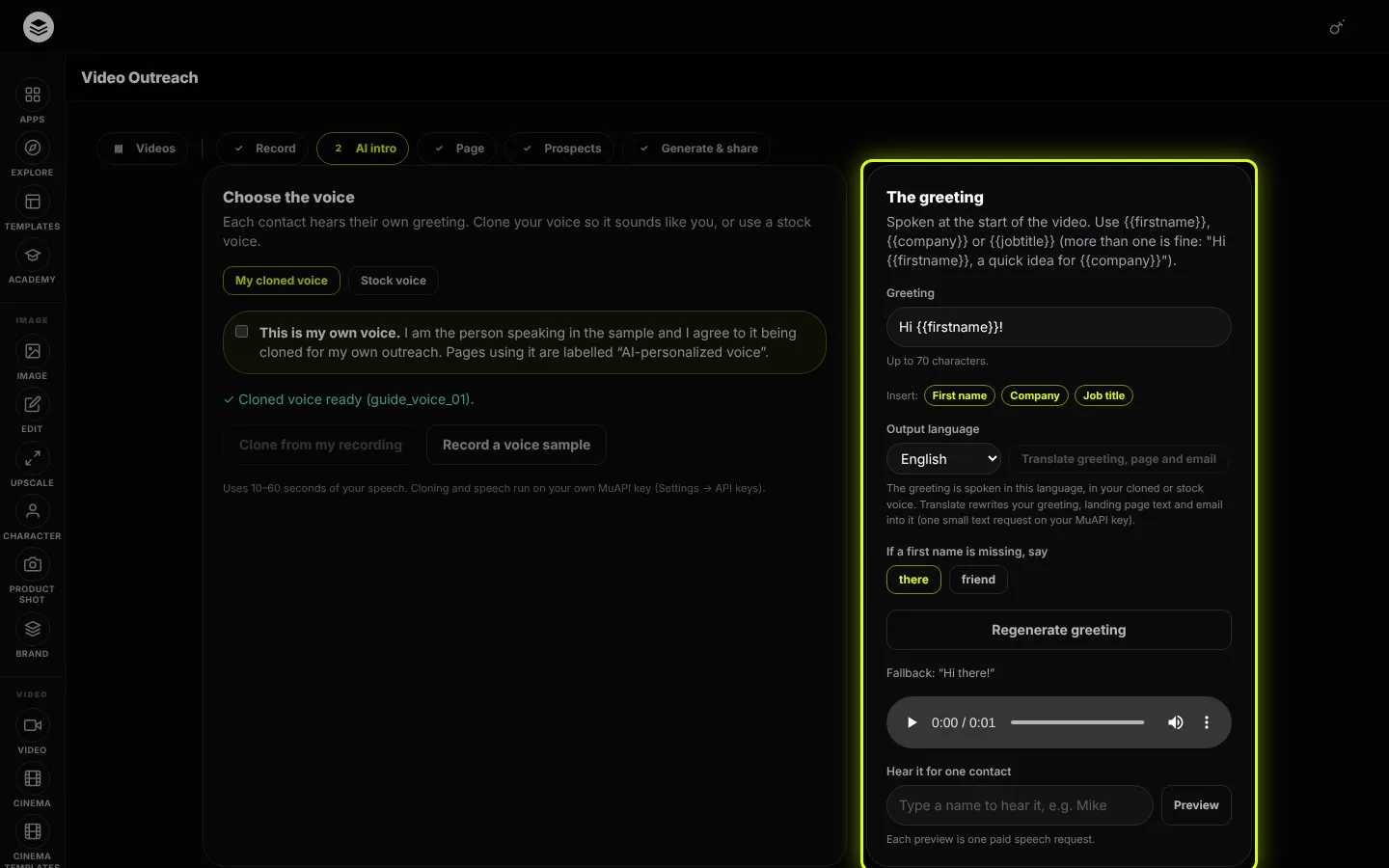
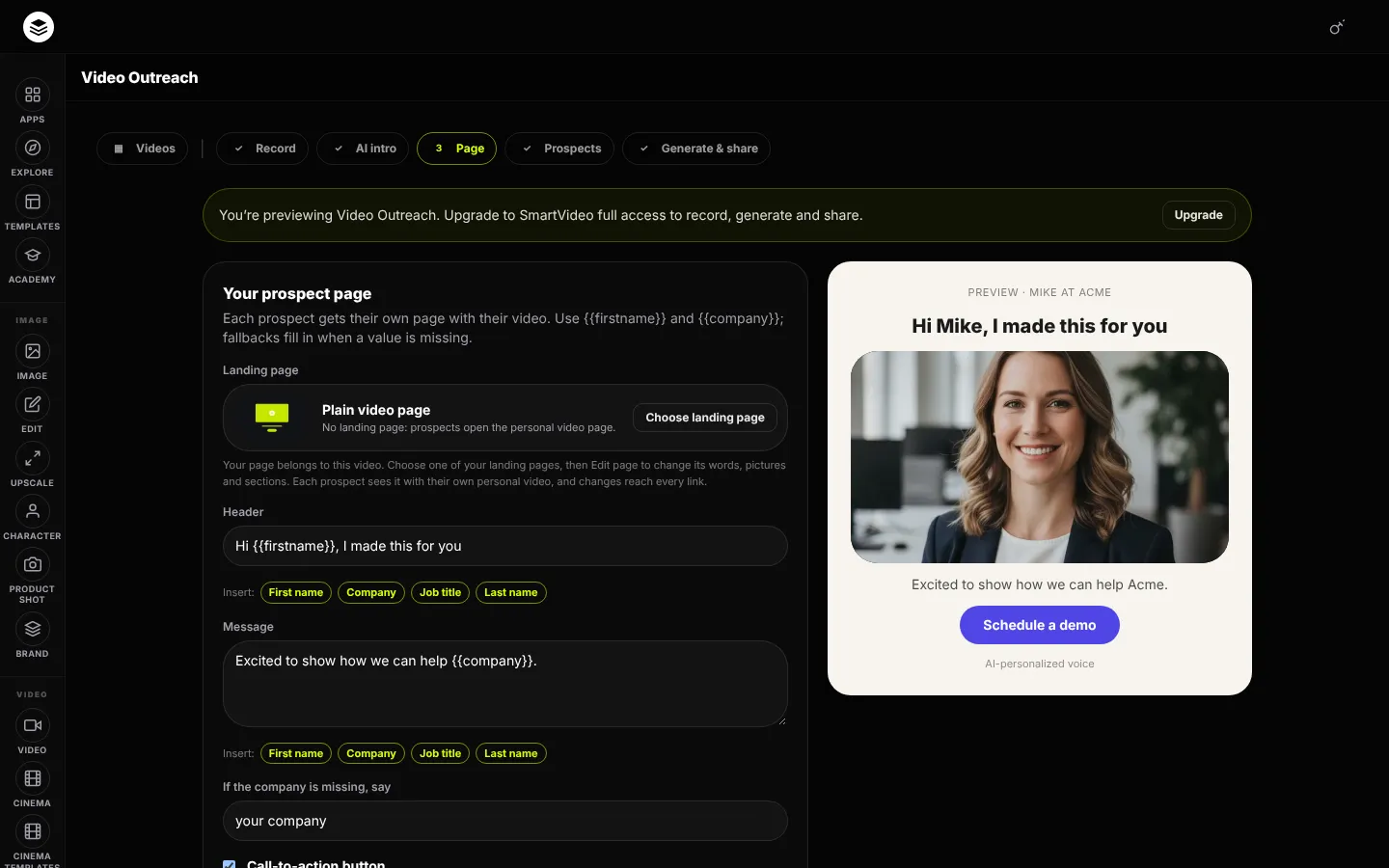
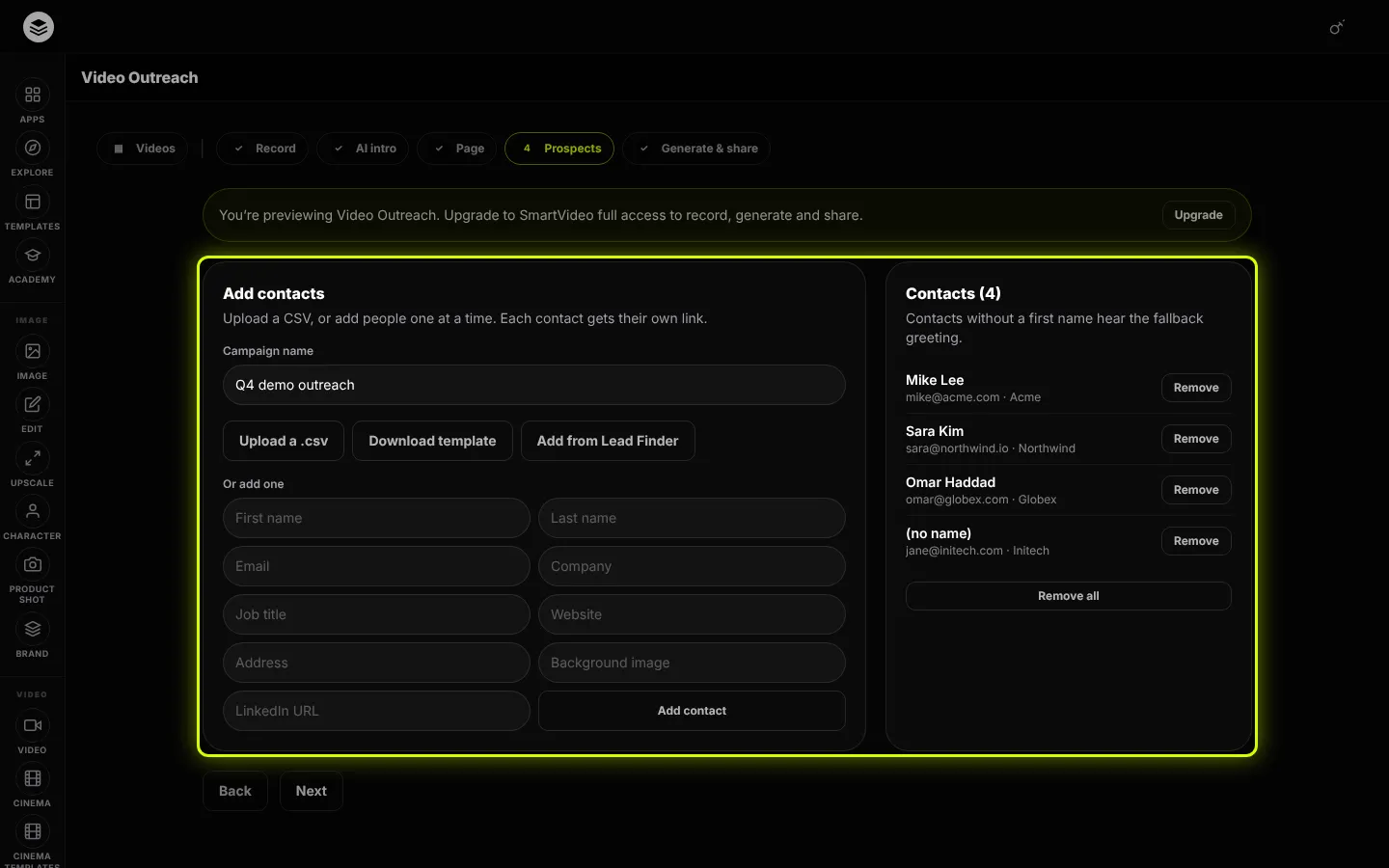
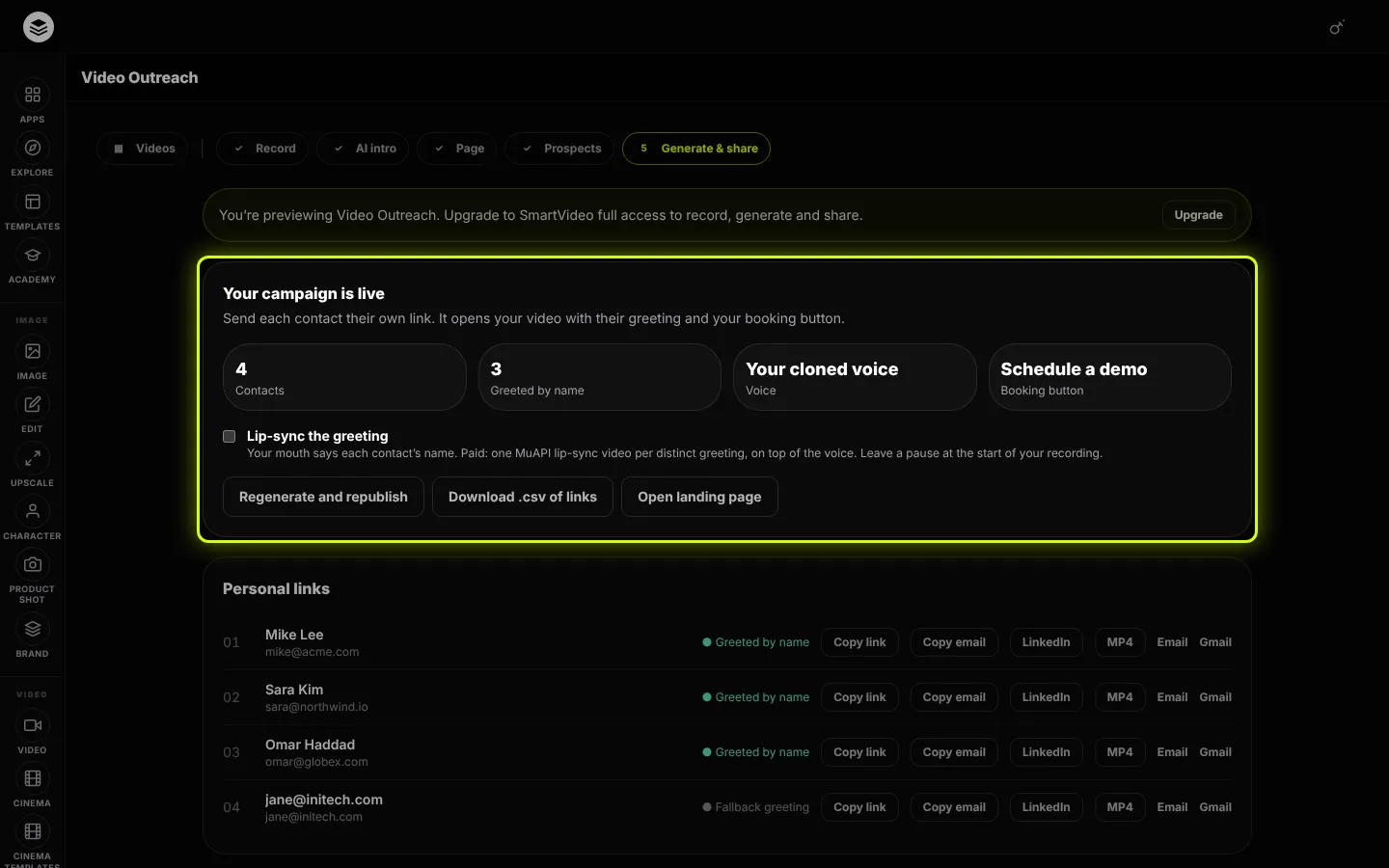
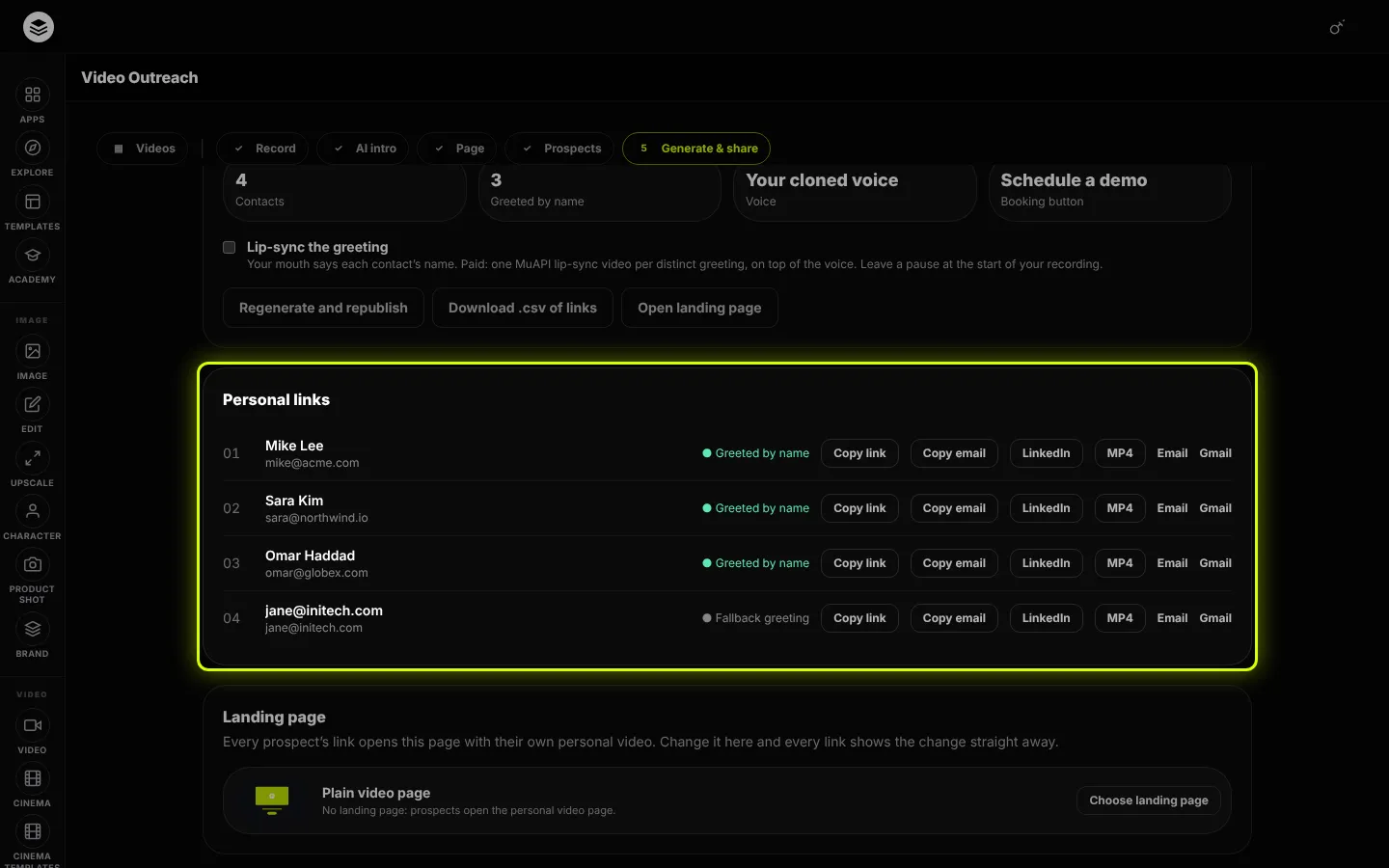
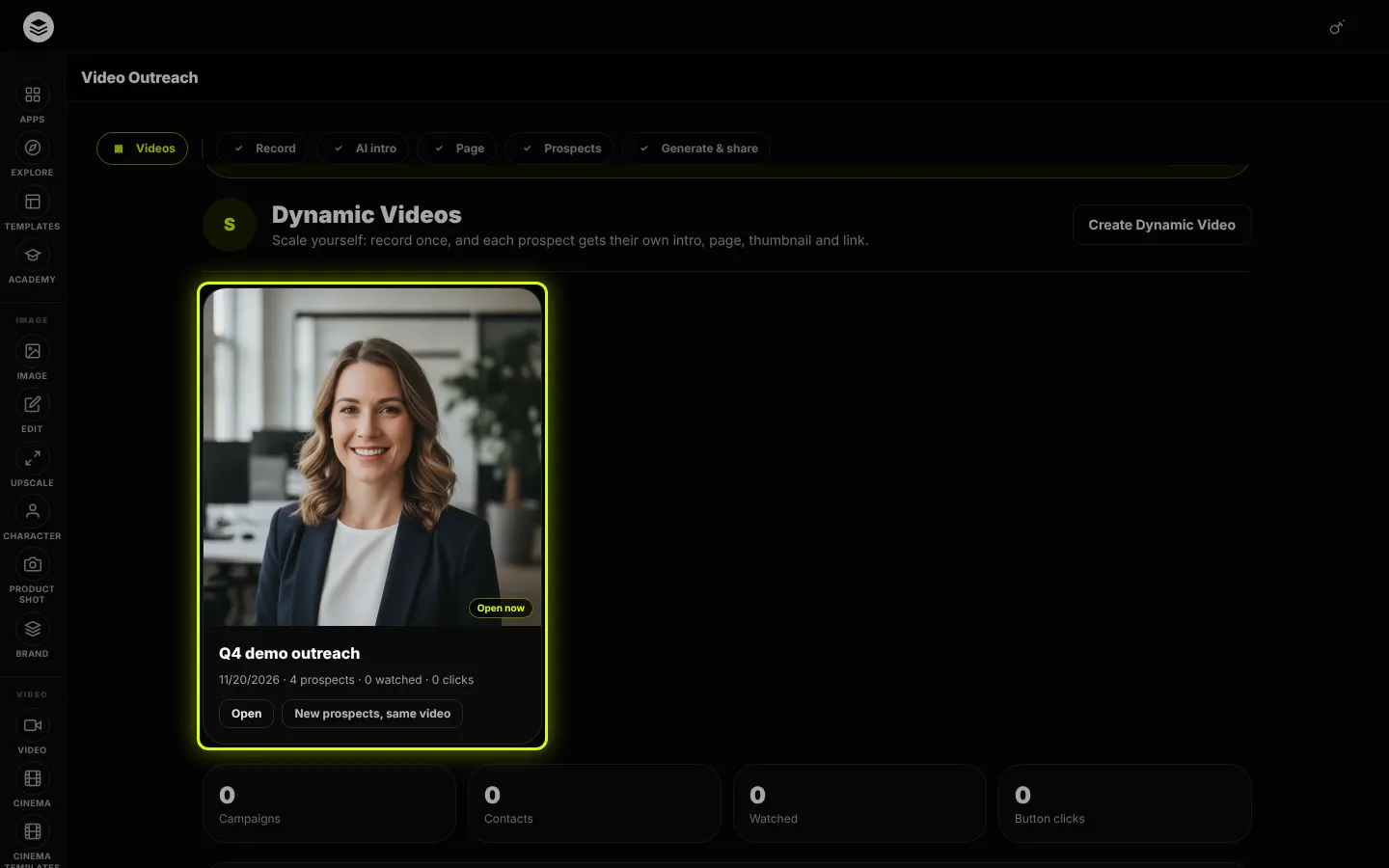
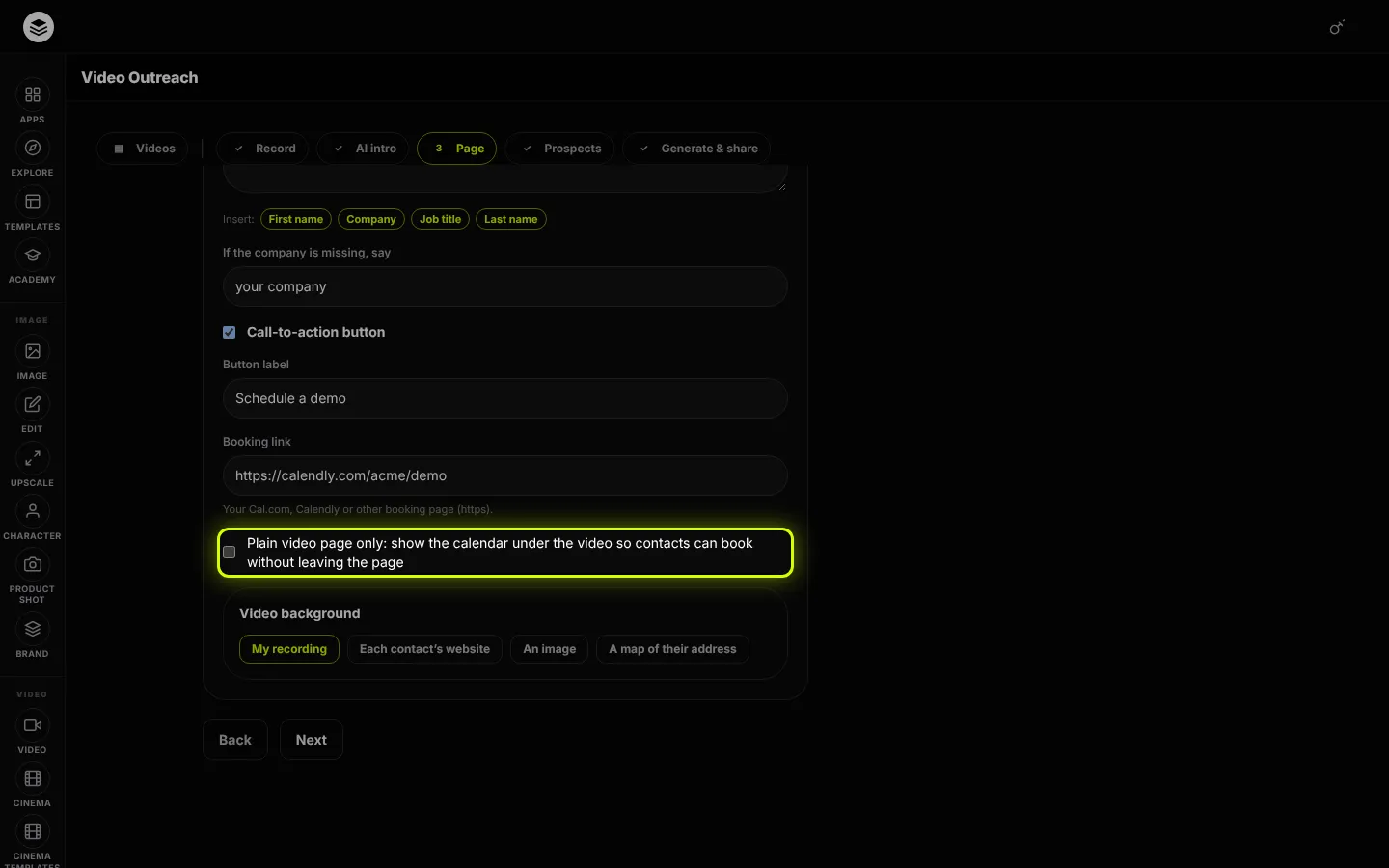
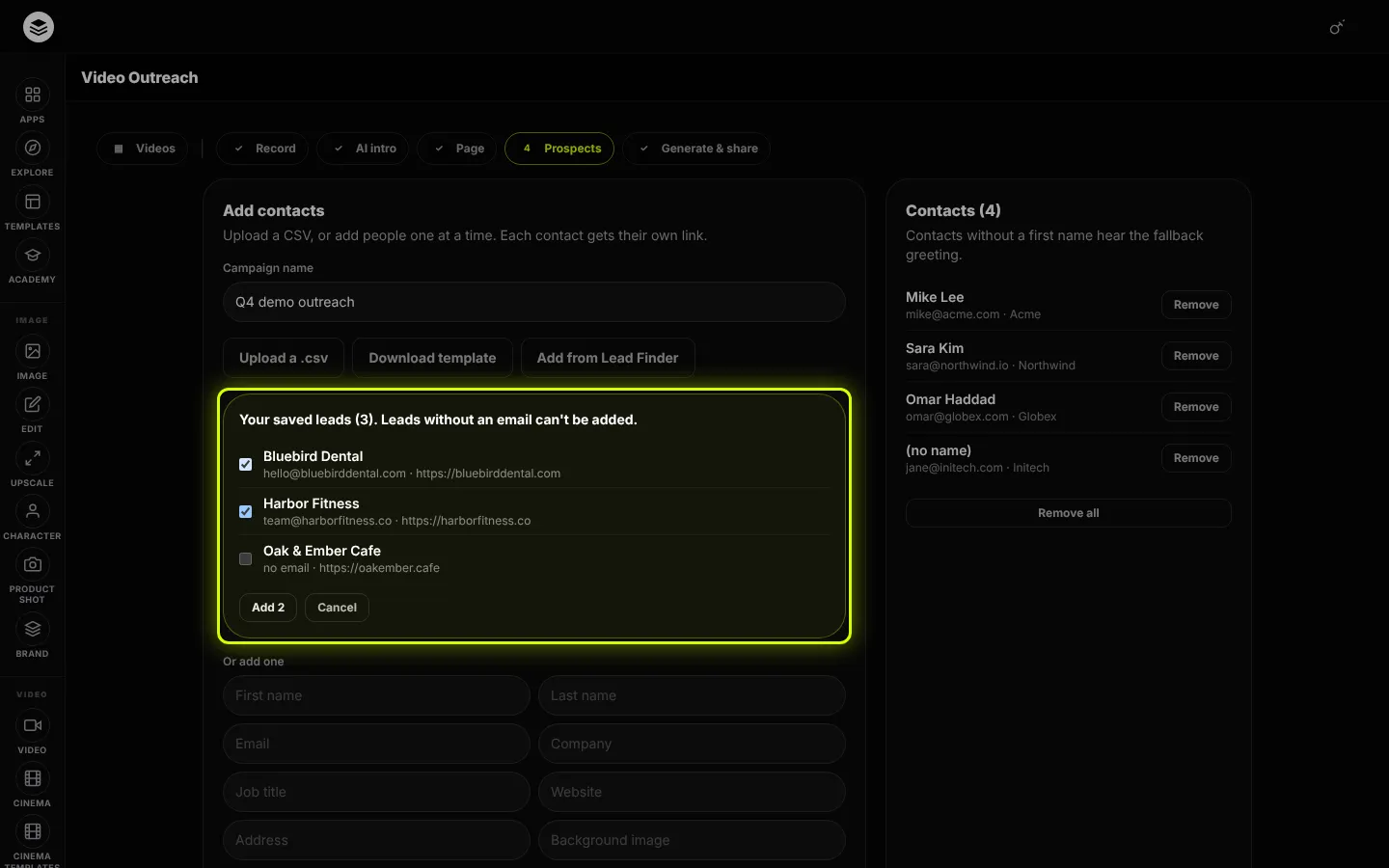
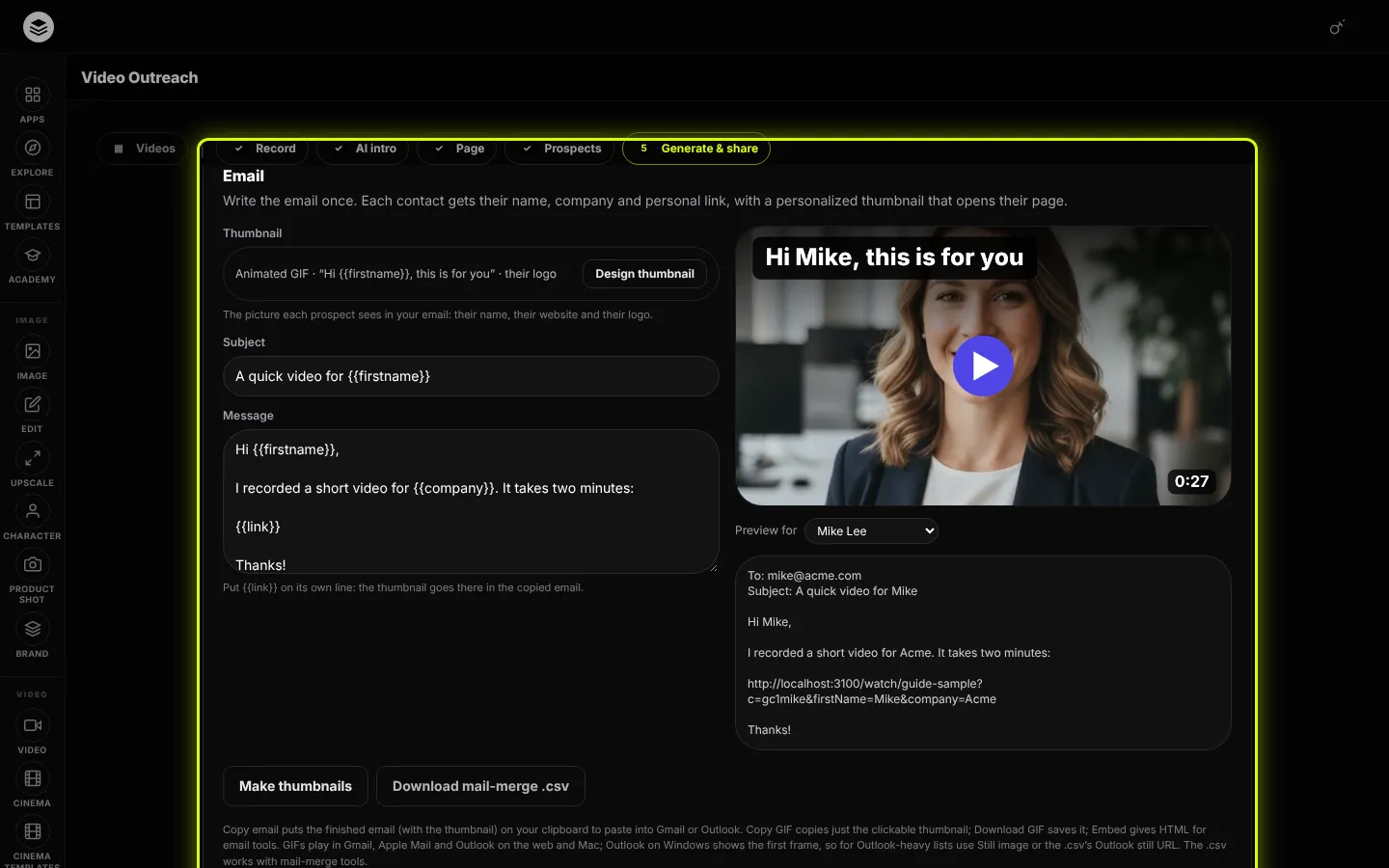
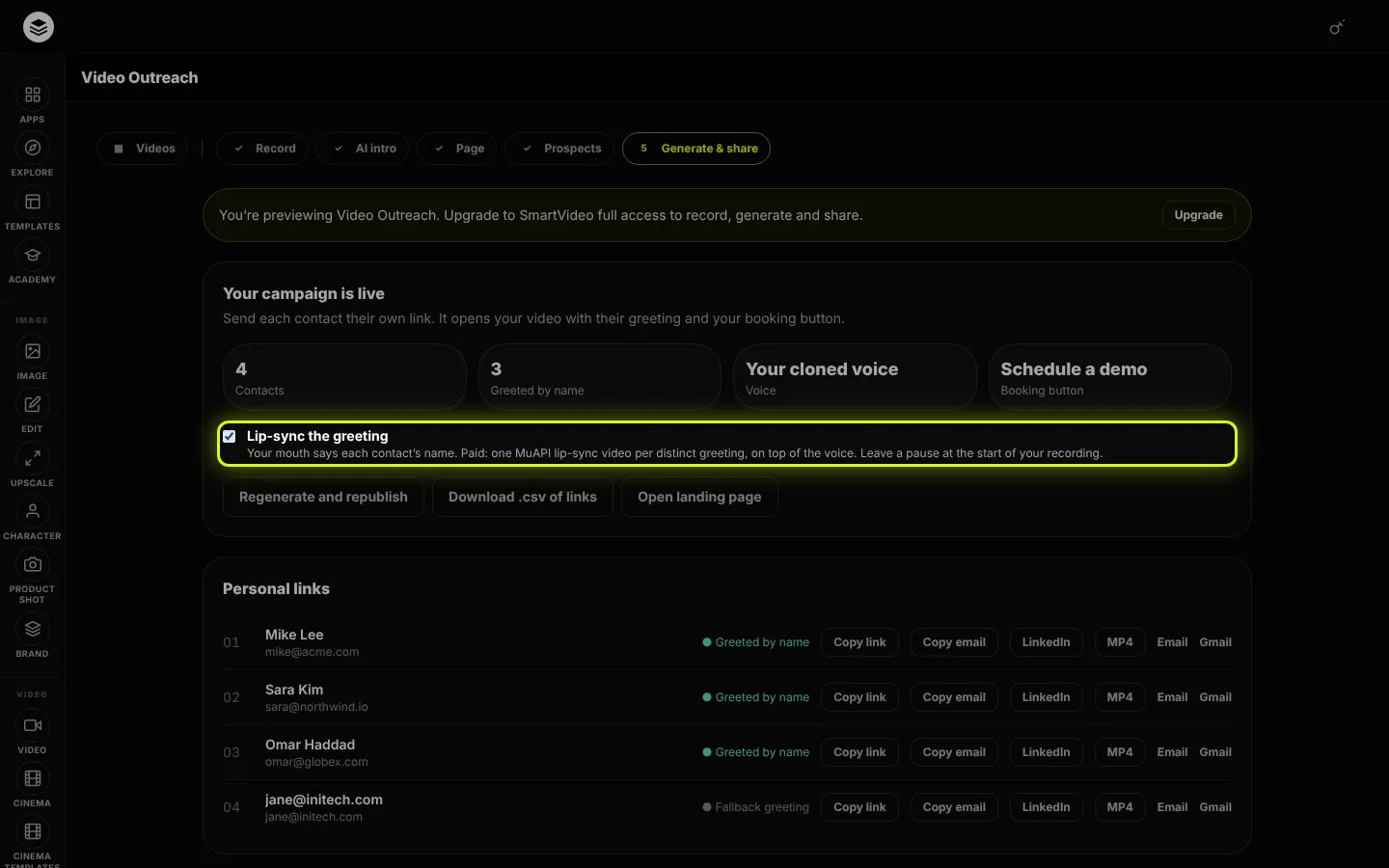
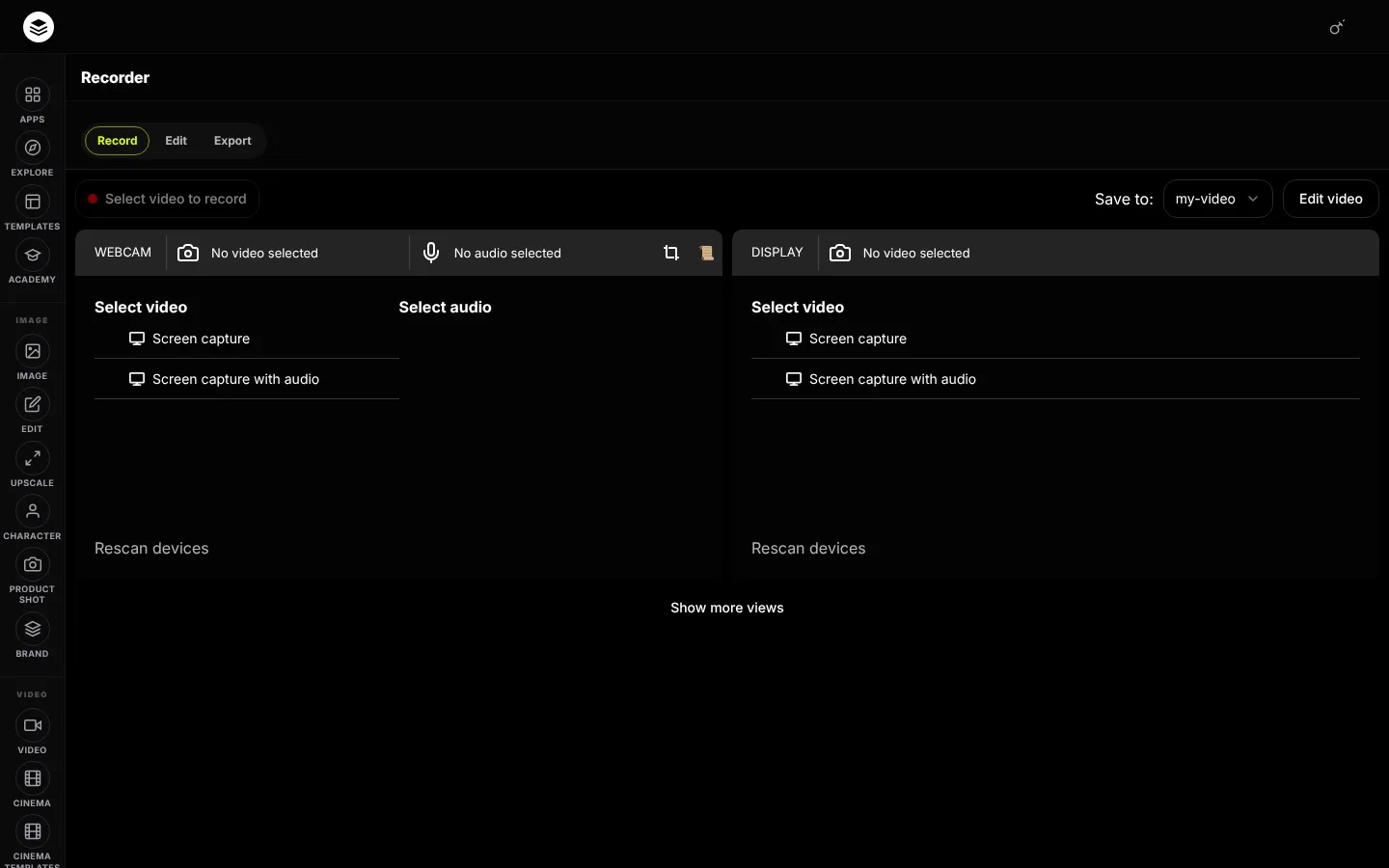
Video Outreach (#/outreach, under Agents in the side menu) runs a whole outreach campaign in six steps, without opening any editor. Record opens the recorder (Screen, Camera, Both or Audio) or takes an uploaded video. Voice clones your own voice from the recording or a separate sample, after you tick 'This is my own voice', or uses a stock voice; you write the greeting (for example 'Hi {{firstname}}!'), choose a fallback (there or friend) and click Generate greeting. Customize sets the landing page header, message, company fallback and a booking button with an https link, with a live preview. Contacts takes a CSV (with a column-matching table and a downloadable template) or contacts added one at a time. Generate voices the greeting for each contact on your MuAPI key, publishes the campaign as one video page, and lists every contact's personal link with Copy link, Download .csv of links and Open landing page. Campaigns lists your outreach campaigns with videos, watched and button clicks, and per-contact views, plays and clicks. Each personal link opens the public video page (/watch/<id>) with that contact's greeting, the header and message filled with their details, and your booking button. Landing page: like Sendspark, the page belongs to the dynamic video. On the Page step click 'Choose landing page' to pick one of your 33 landing pages (live pictures of each) or the plain video page, then 'Edit page' to change its words, pictures and sections in the visual editor with your recording playing in it, and 'Save page'. Each prospect's link opens that page with their own personal video in it; write {{firstname}} or {{company}} in the page's text to personalize it. After Generate, any change (Edit page, or choosing another page) updates the campaign's page at once, so every prospect's link shows it without generating again. Nothing is saved in Video Pages, and campaign pages are not listed there. The calendar option only applies to the plain video page. Video Outreach needs SmartVideo full access: anyone can open it and look around (a banner says it is a preview), and recording, uploading, generating greetings and campaigns, AI writing and making your first video open the upgrade screen with the plans; buying there carries on with what you clicked. The first time you open Video Outreach, a five-step SmartVideo welcome asks what you want to do first (Record personal videos or Dynamic videos), who else on your team might use SmartVideo, how many videos you expect to send per month, where you work (company, website, job title) and how you heard about SmartVideo. Back and Skip move between questions (where you work cannot be skipped), leaving half-way picks up at the same question, and your answers are saved to your account so it never shows again. Your company, job title and website fill in here. Then 'Your first video' makes a personalized video for you as the first prospect: check your first name, company and website, click 'Make my video' (about 2 minutes, one short speech request on your MuAPI key), watch it being made (your website, your name in the voice, the video, your landing page), then watch it or open it on your landing page. 'Make one for my prospects' opens Create Dynamic Videos; 'Do this later' skips it. Create Dynamic Video (on the Dynamic Videos page) asks for a campaign name and a kind: Multiple variables (the greeting says several details, like name and company), AI greeting ('Hi Name' in your voice) or Same audio (everyone hears your recording as it is, no AI voice; the AI intro step is skipped). Get started then shows how to record for that kind (language, fallback words for variables or a pause for the greeting, 10 seconds to 2 minutes), with Record (Camera, Screen, Camera and screen, or Upload a video), 'Test with our sample video' (the SmartVideo sample presenter) and 'Go Back' to change the name or kind. The Record step is a video editor: on the left Camera, Screen and Both, Upload or select a video you made, Template (Apply template picks the landing page; Edit page changes it), and Customize (Header, Message, Call-to-action, Calendar embed and Transcript switches); the video on the right; and tools along the top: the Thumbnail designer, in Sendspark's three tabs - Thumbnail (text overlay of about 5 words with First name, Company and Job title, the fallbacks such as 'there', and the logo overlay: each prospect's logo, one logo found by website or uploaded, or none), Edit Preview (Animated GIF or Still image, Select preview, what is behind your camera bubble) and Edit Styles (text and banner colours, play button, duration badge); GIFs are 600 by 338, 3 seconds, loop forever and stay under about 1.5 MB, and each GIF also gets an Outlook still (its first frame) because Outlook on Windows does not animate GIFs; each prospect's row has Download GIF and the mail-merge .csv has GIF URL and Outlook still URL columns (the picture in your emails: Animated GIF or Still image, the moment from your video, what is behind your camera bubble - as in the video, just your video, or an image you upload - the words with First name, Company and Job title chips, the play button and each prospect's logo, a live preview for any prospect, Download this picture, and Make or Remake thumbnails once the campaign is generated; the Email card's Design thumbnail opens it too), CC (captions and transcript), the language, the script and teleprompter, trim and cut, copy a prospect link, preview the page, Share video (on to the next step) and Close. The studio opens on Videos, your library of dynamic videos (like Sendspark): '+ New dynamic video' starts one (your voice, details and booking button carry over), each generated video is a card with its thumbnail, prospects, watched and clicks, Open brings it back with its links, and 'New prospects, same video' reuses the recording for a new list. The steps are Record, AI intro (voice and greeting), Page, Prospects and Generate & share. Variable chips (First name, Company, Job title, Last name) insert {{firstname}} and the others into the greeting, header and message. While generating, each prospect shows Waiting, Generating or Ready. Each prospect's row has Copy link, Copy email, Gmail (opens a ready Gmail draft), LinkedIn (copies a short message with their link and opens their profile from the LinkedIn URL column, or LinkedIn messages), Copy GIF, Embed, MP4 and Email. Page design (Page step) picks the plain video page or one of your Video Pages designs; one Generate click then voices every intro, publishes the campaign, publishes the prospect pages on that design and makes every prospect's thumbnail. Website backgrounds and errors: on the Prospects step, 'Check websites' captures every prospect's website now (free) and shows each prospect's status: Website ready, 'URL returned an error. Please use a different URL.', or No website. Error handling (on Prospects and in the Background card) chooses what happens to those prospects: 'Generate video using fallback data' (their video shows your Fallback URL) or 'Don't generate: show an error so I can update it' (Generate stops before anything is voiced or paid for and names them, so you can fix their website or remove them). In the prospect table, an orange Fallback tag marks prospects whose video uses the fallback website. LinkedIn profiles are never connected to or captured; use the Profile card background instead. Social pages as backgrounds: the Website column (shown as 'Website or social page'; CSV columns named Social, Social URL, YouTube, TikTok, Facebook or Instagram match it) also takes a prospect's social profile link, and their own profile page is captured (free, by SmartVideo's own browser) instead of the network's home page. YouTube channels (youtube.com/@name or /channel/...) and TikTok profiles (tiktok.com/@name) work. Facebook, Instagram and X show visitors a login page or block them, so those prospects get 'Page is content restricted. Please try a different page.' and the Error handling choice applies (fallback website, or stop and fix). LinkedIn links are not captured ('LinkedIn pages can't be captured. Use the Profile card background instead.'). A social page gives no logo for thumbnails. Capture with my browser (Prospects step, Website background): for pages that need you signed in (Facebook, Instagram, X), click 'Capture with my browser', which opens a tab named 'SmartVideo capture tab'; go back, click 'Start capturing', choose that tab in Chrome's share window and click Share. Each prospect's page loads in that tab, in your own signed-in browser, and a picture is kept (about 6 seconds a page; keep the tab open; Stop capturing keeps what was captured). SmartVideo never sees your password; the top bar of each page, where your own name and photo show, is cut off. Chrome and Edge on a computer only; LinkedIn is never captured. Each prospect shows a small picture of their background so a wrong one is easy to spot. Upload screenshot (on each prospect) uses your own picture of their page instead of a capture, also for prospects without a link; 'Use their link instead' removes it.
When to use it
- You want to record one video and send a personalized version to many contacts.
- You want each contact to hear 'Hi <their name>' in your own voice.
- You want a landing page with a booking button under the video.
- You want a guided setup before working in the Timeline Editor.
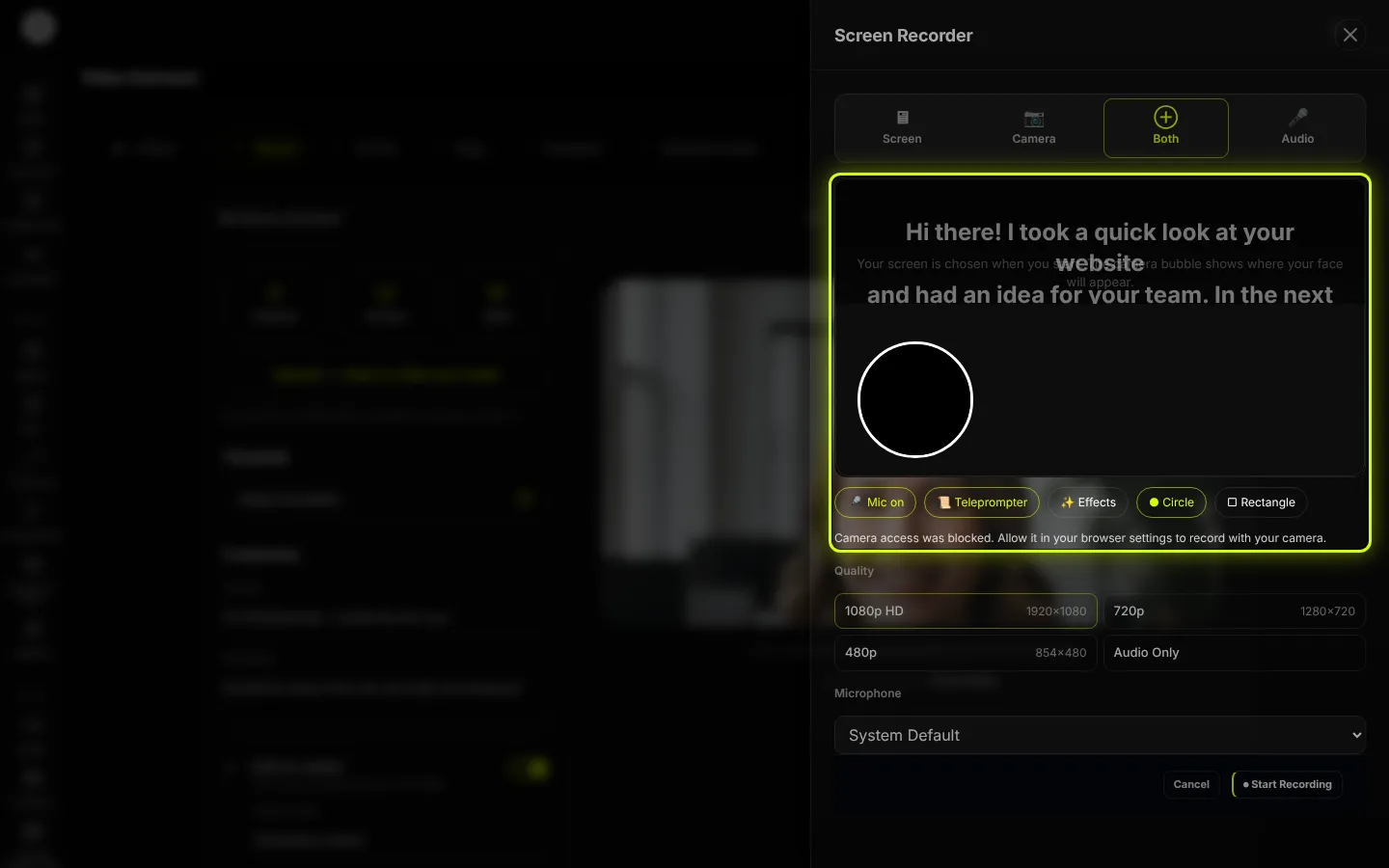
- Record step with Screen, Camera, Both (face bubble over the screen) and Audio modes, or Upload a video
- Full Recorder button: the browser Remotion Recorder (multiple cameras, captions, scenes, B-roll, end card); Use this video makes its export the campaign video
- Voice cloning from your recording or a separate 10 to 60 second voice sample, only after ticking 'This is my own voice'
- Stock voice option instead of cloning
- Greeting with {{firstname}} or {{company}}, up to 70 characters, with a first-name fallback (there or friend)
- Landing page header, message, company fallback and https booking button with live preview
- Contacts from a CSV (column matching, template download, repeated emails skipped) or added one at a time, up to 500
- Generate campaign: one voiced greeting per contact, a published video page and a personal link per contact, with Stop
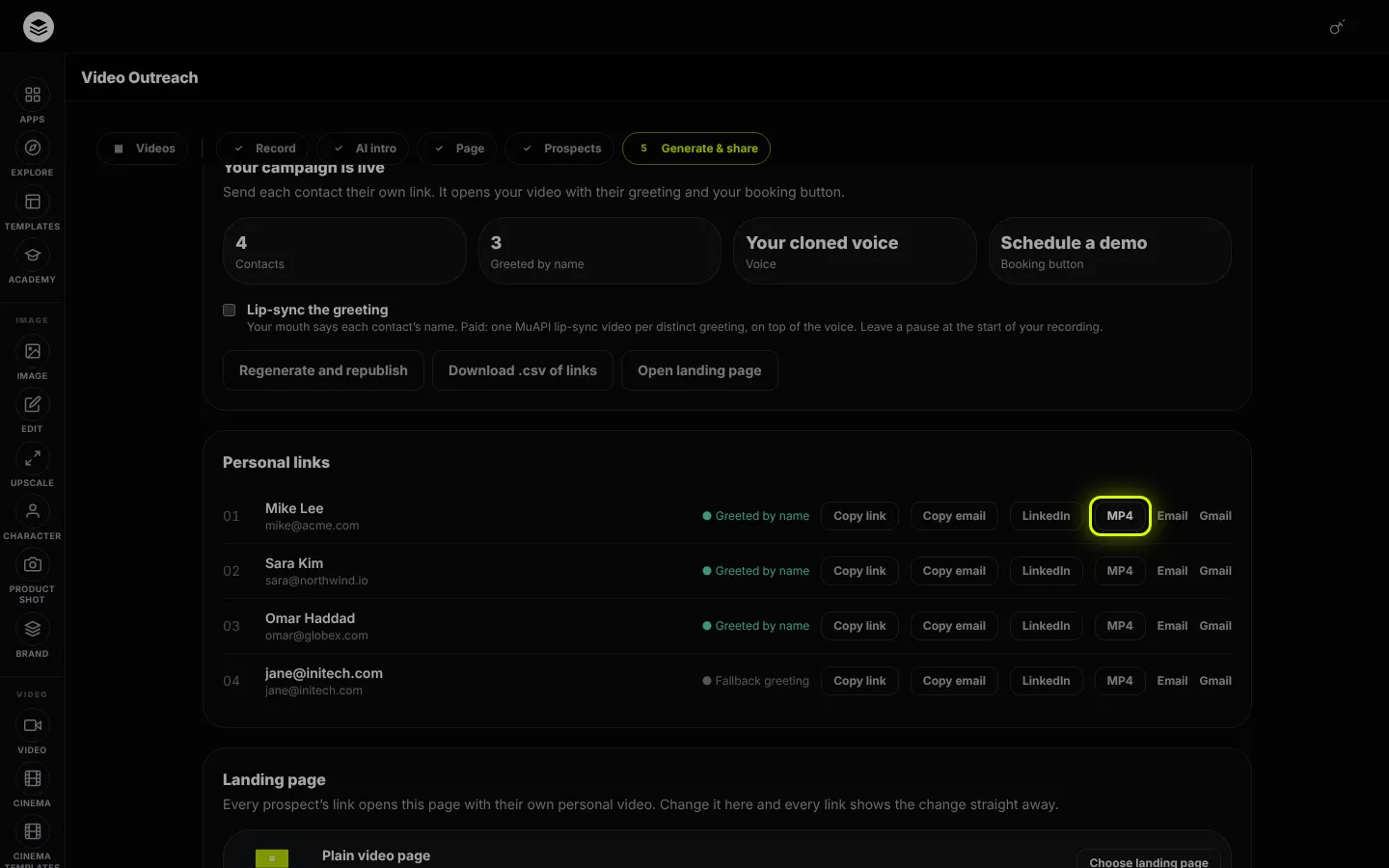
- Copy link, Download .csv of links and Open landing page
- Campaigns table with videos, watched and button clicks, and per-contact views, plays and clicks
- Show the calendar: Calendly, Cal.com, Google Calendar appointment, HubSpot, SavvyCal or TidyCal booking pages embedded under the video
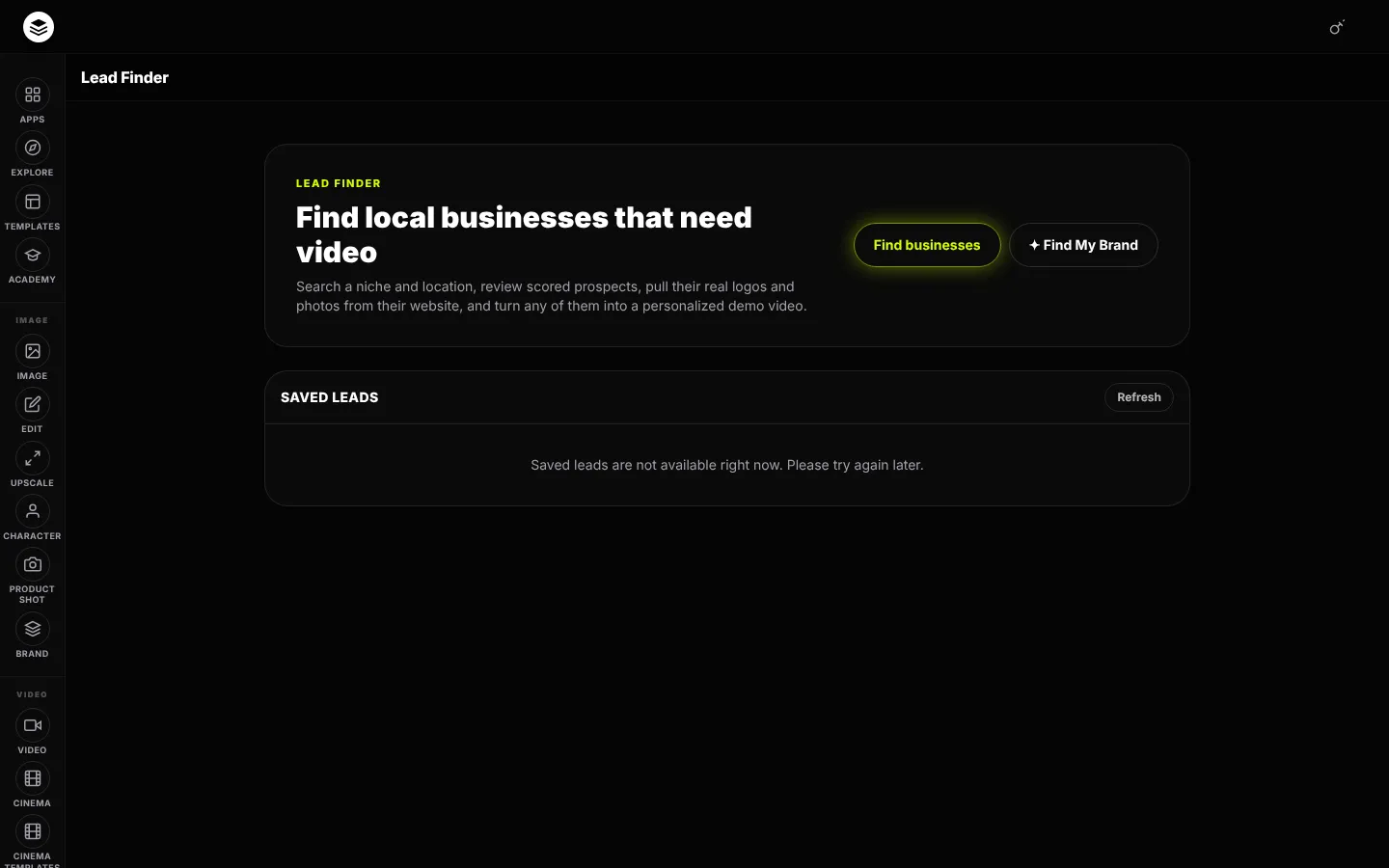
- Add from Lead Finder: pick saved leads with an email as contacts
- Email card: thumbnail text, subject and message with {{firstname}}, {{company}} and {{link}}; Make thumbnails; Copy email (with the thumbnail) and Email per contact; mail-merge .csv
- MP4 per contact: download that contact's finished video as a file
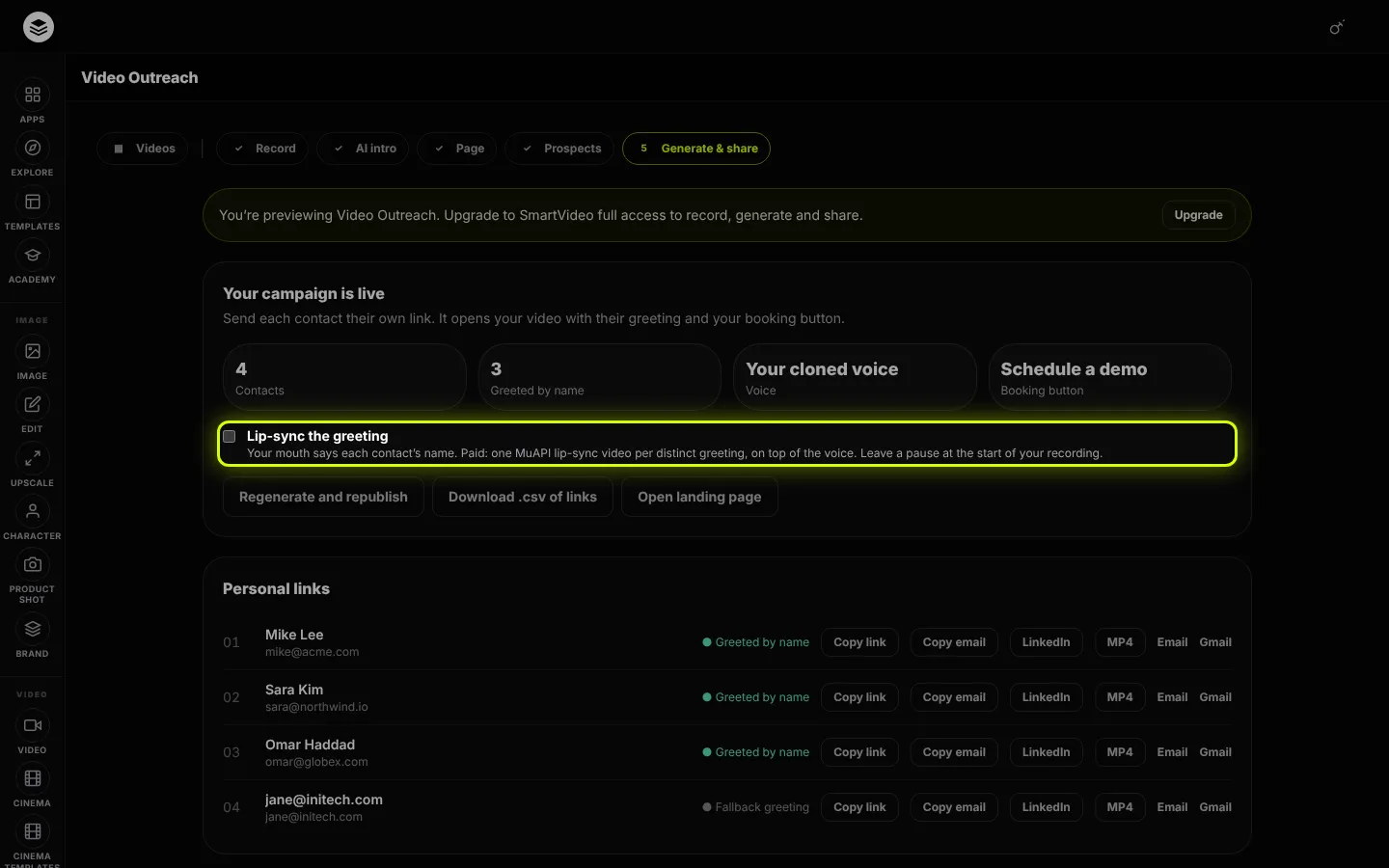
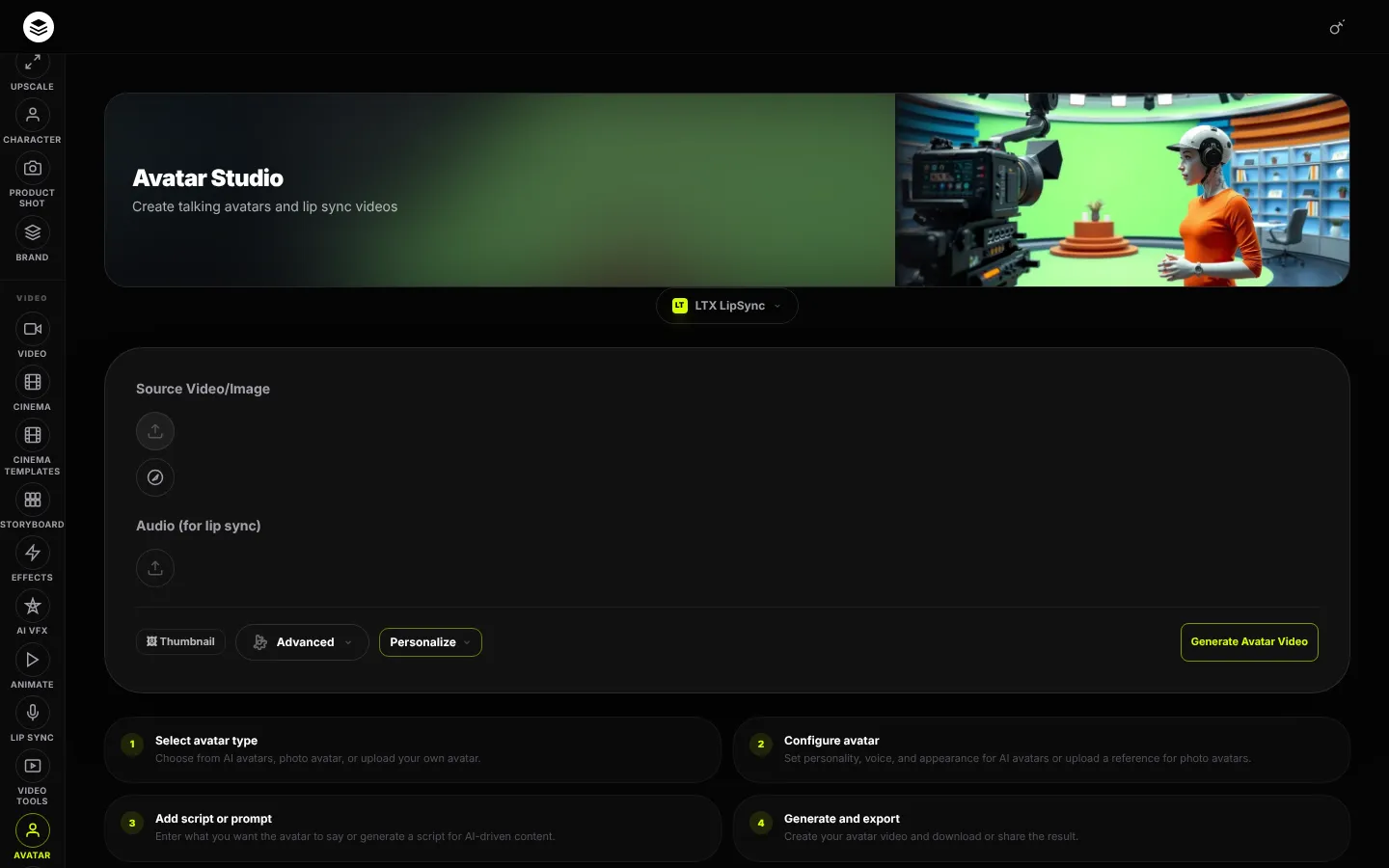
- Lip-sync the greeting (optional, paid): your mouth says each contact's name
- Thumbnails: animated GIF (3 seconds, choose where it starts) or still image; play button show/hide, style, colour and opacity; each prospect's company logo; text with {{firstname}}, {{company}}, {{jobtitle}}; Copy GIF and Embed per contact; Opened/Watched/Clicked per contact
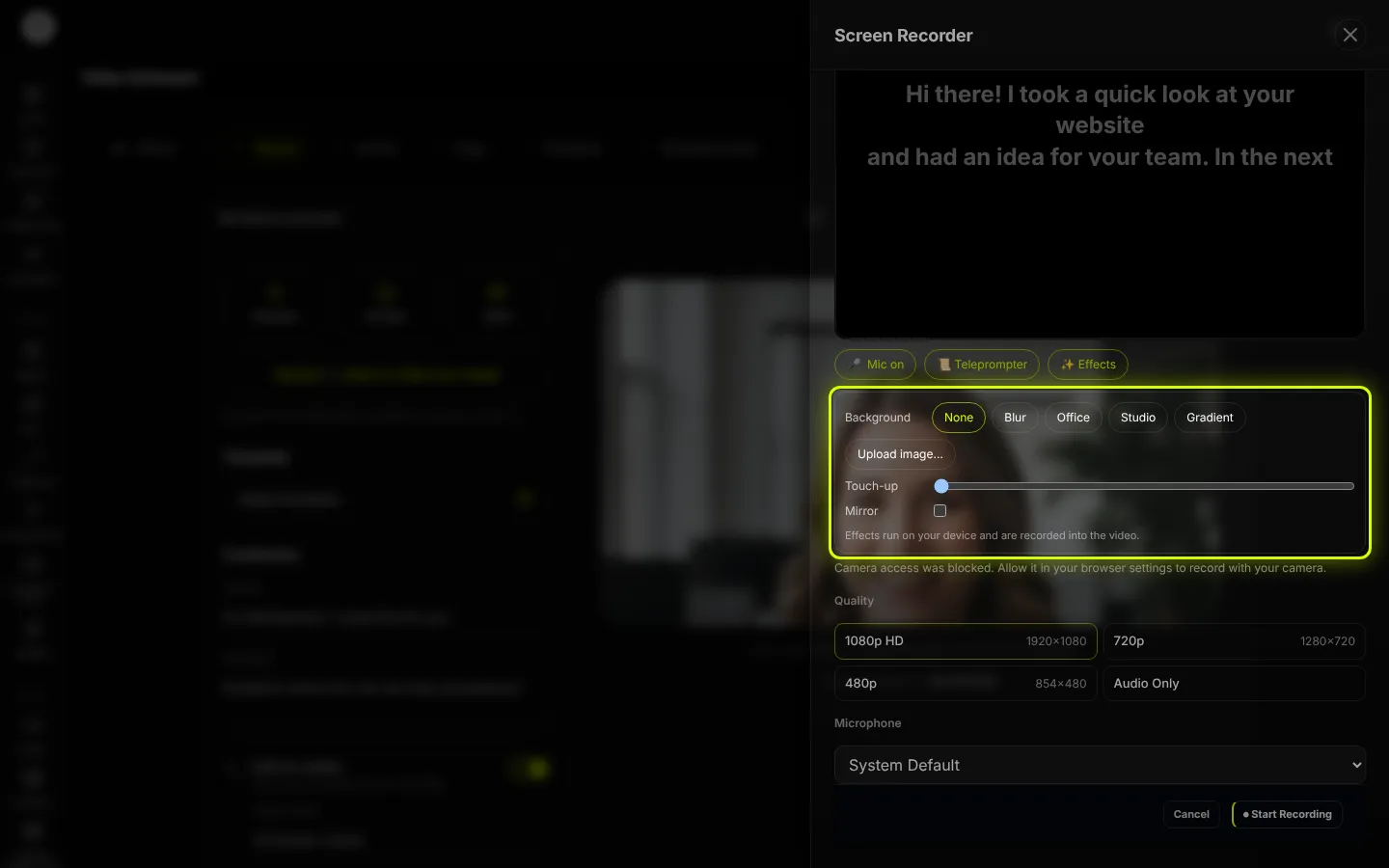
- Camera effects in the recorder: background blur, virtual backgrounds (Office, Studio, Gradient or your own image), touch-up and mirror, recorded into the video
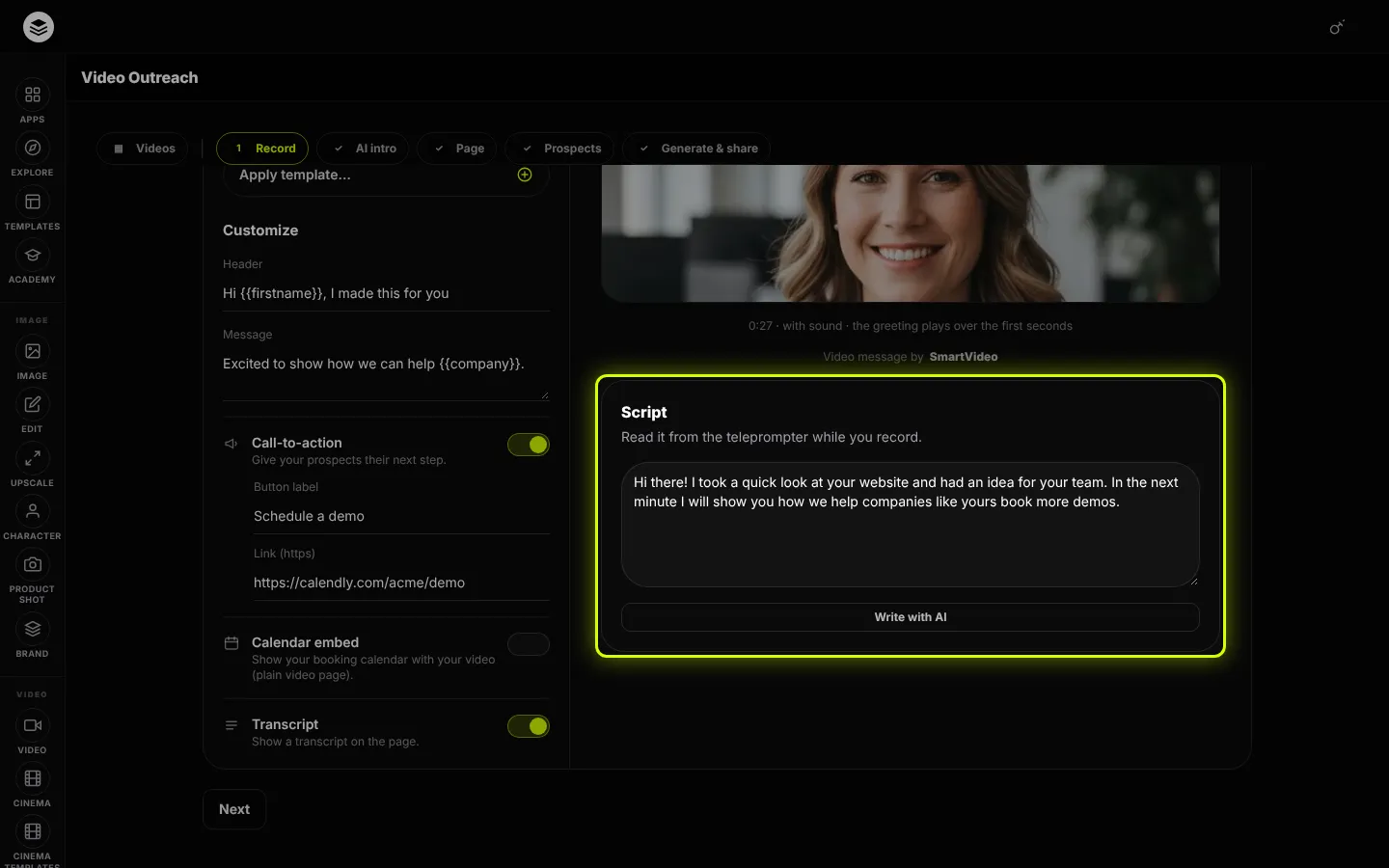
- Script card with an AI writer (Script, Email and Page tabs, language picker) and a teleprompter in the recorder
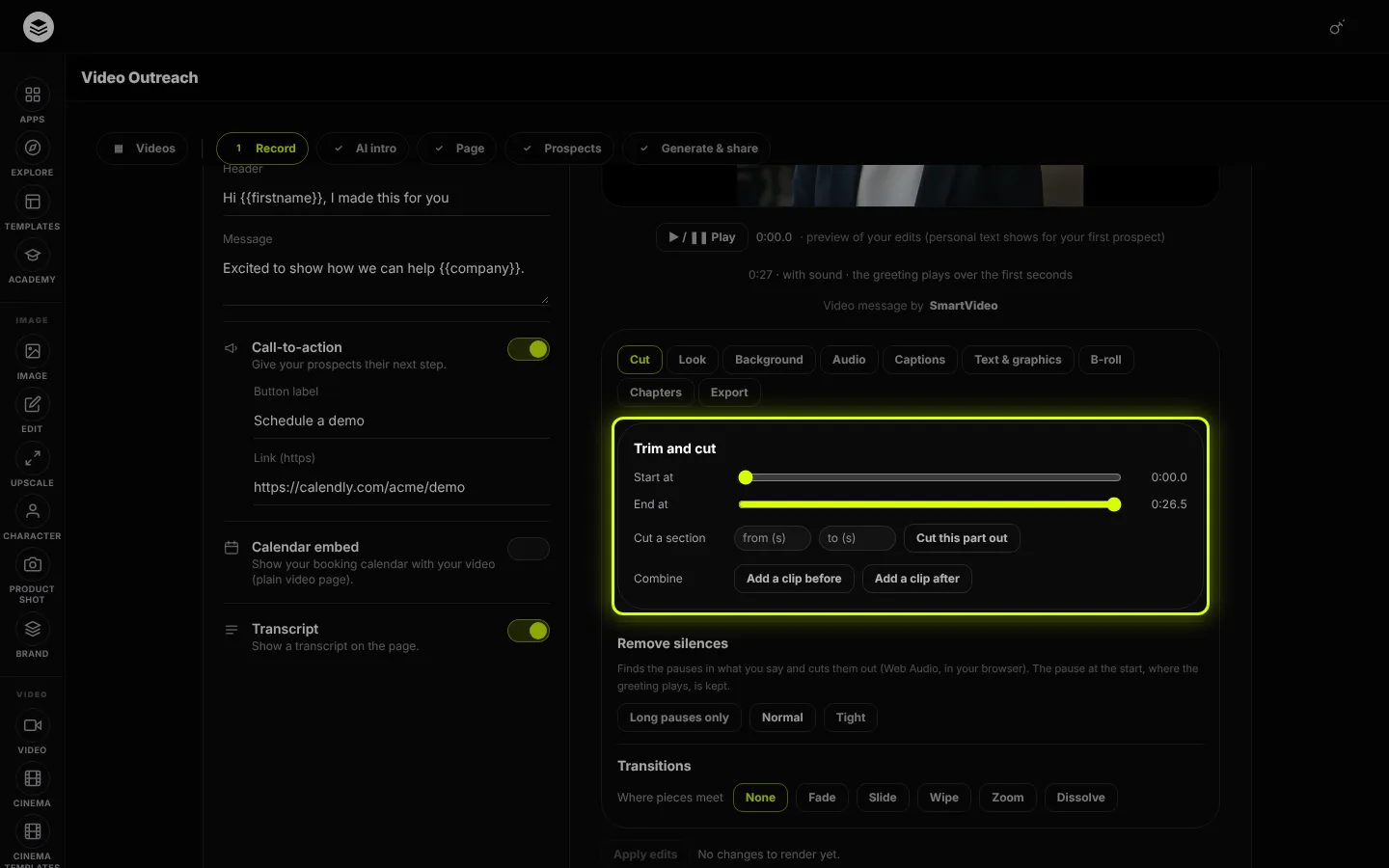
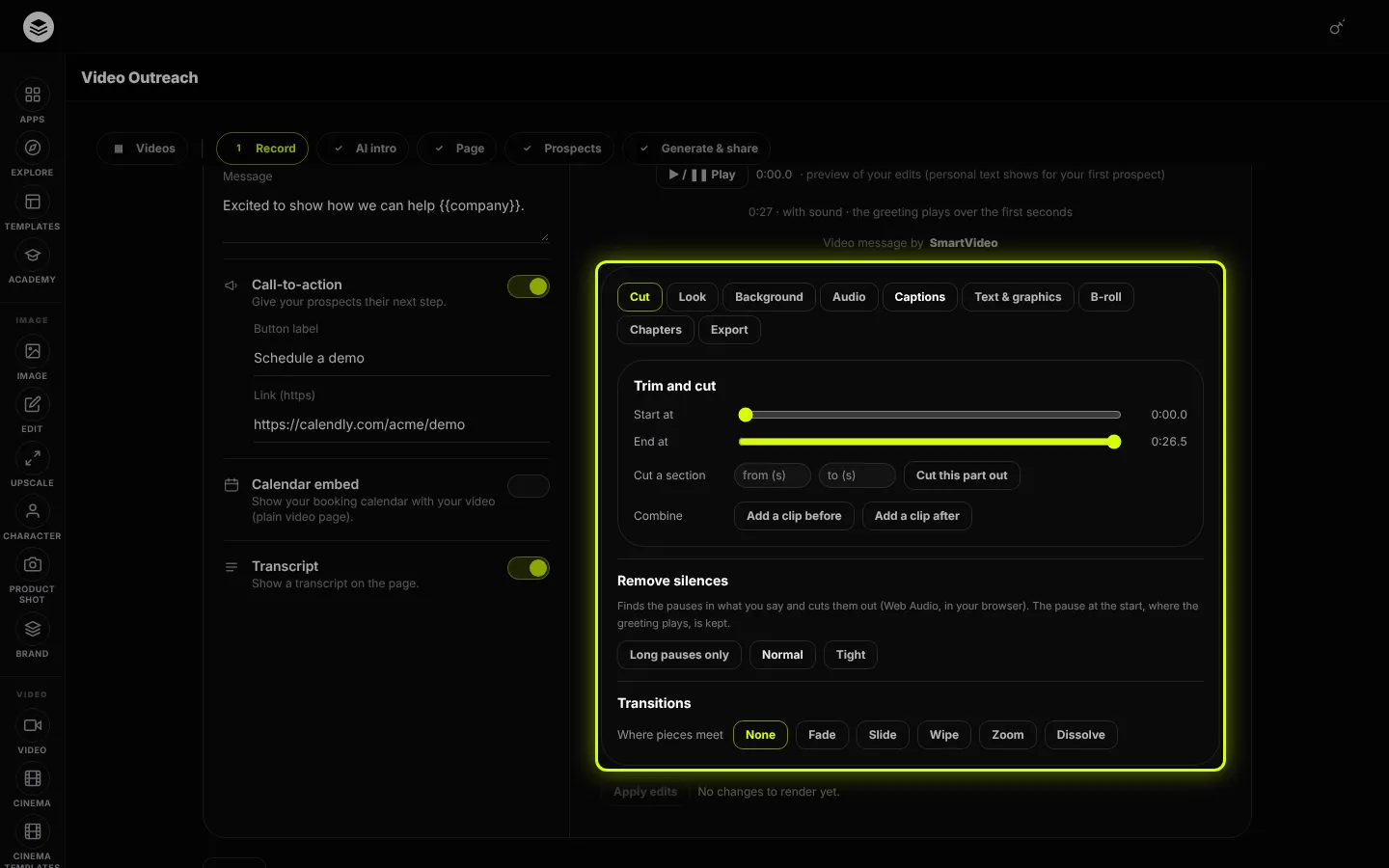
- Edit in the Record step: trim the start and end, cut sections out, add a clip before or after
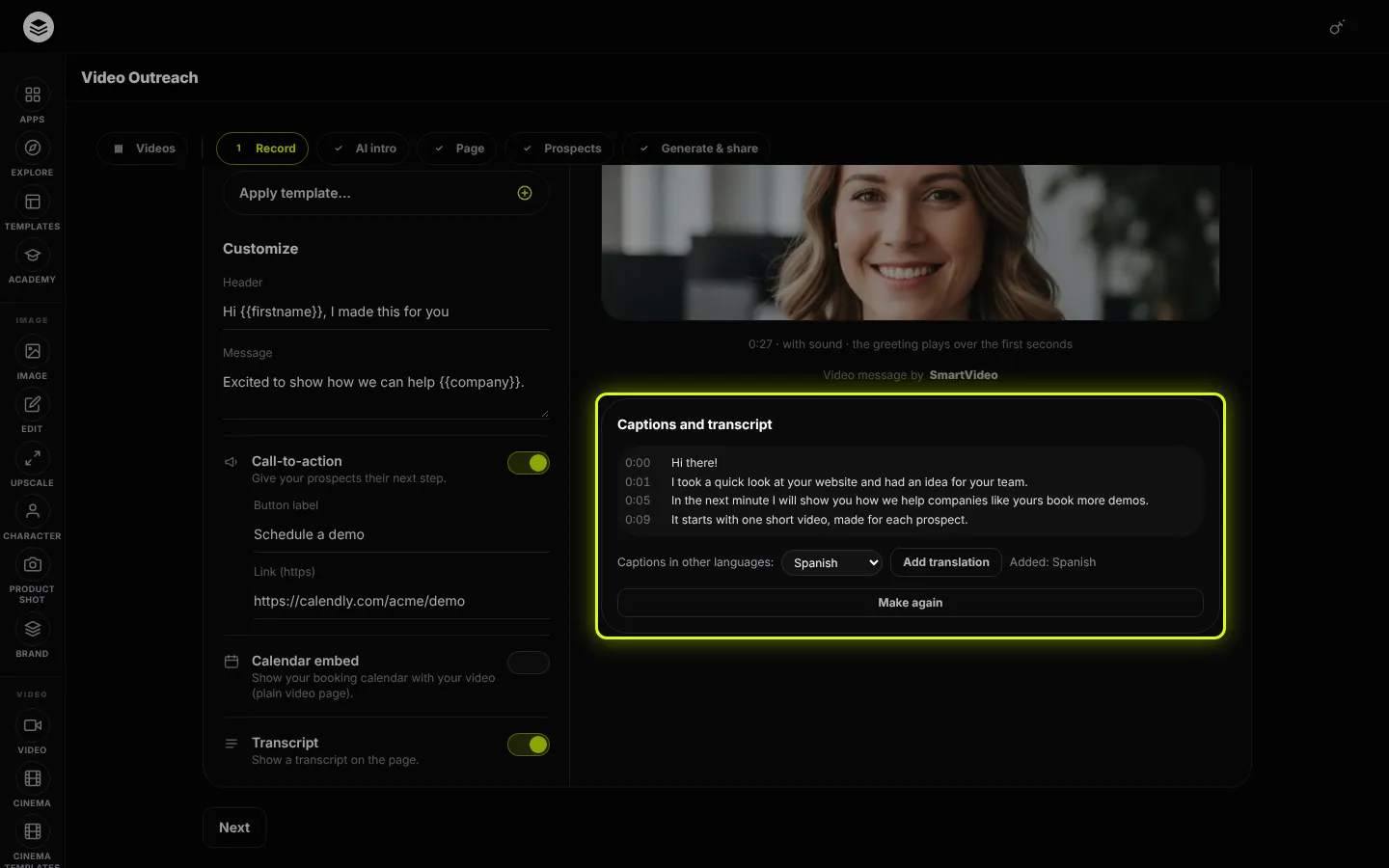
- Captions and transcript made in your browser, with translations into other languages
- Recorder tools: draw on the screen (pen, arrow, box), camera Spotlight, Restart and Delete
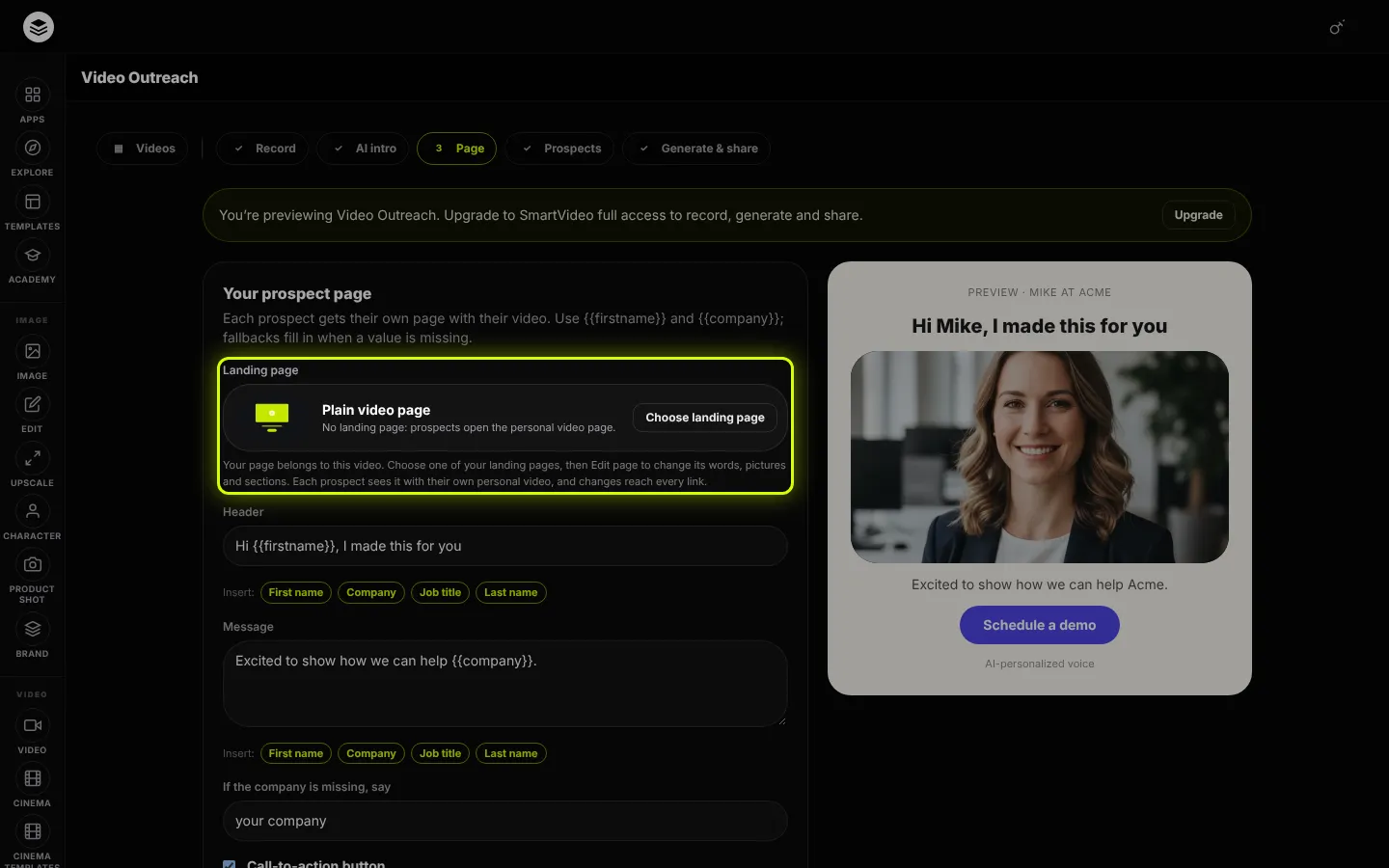
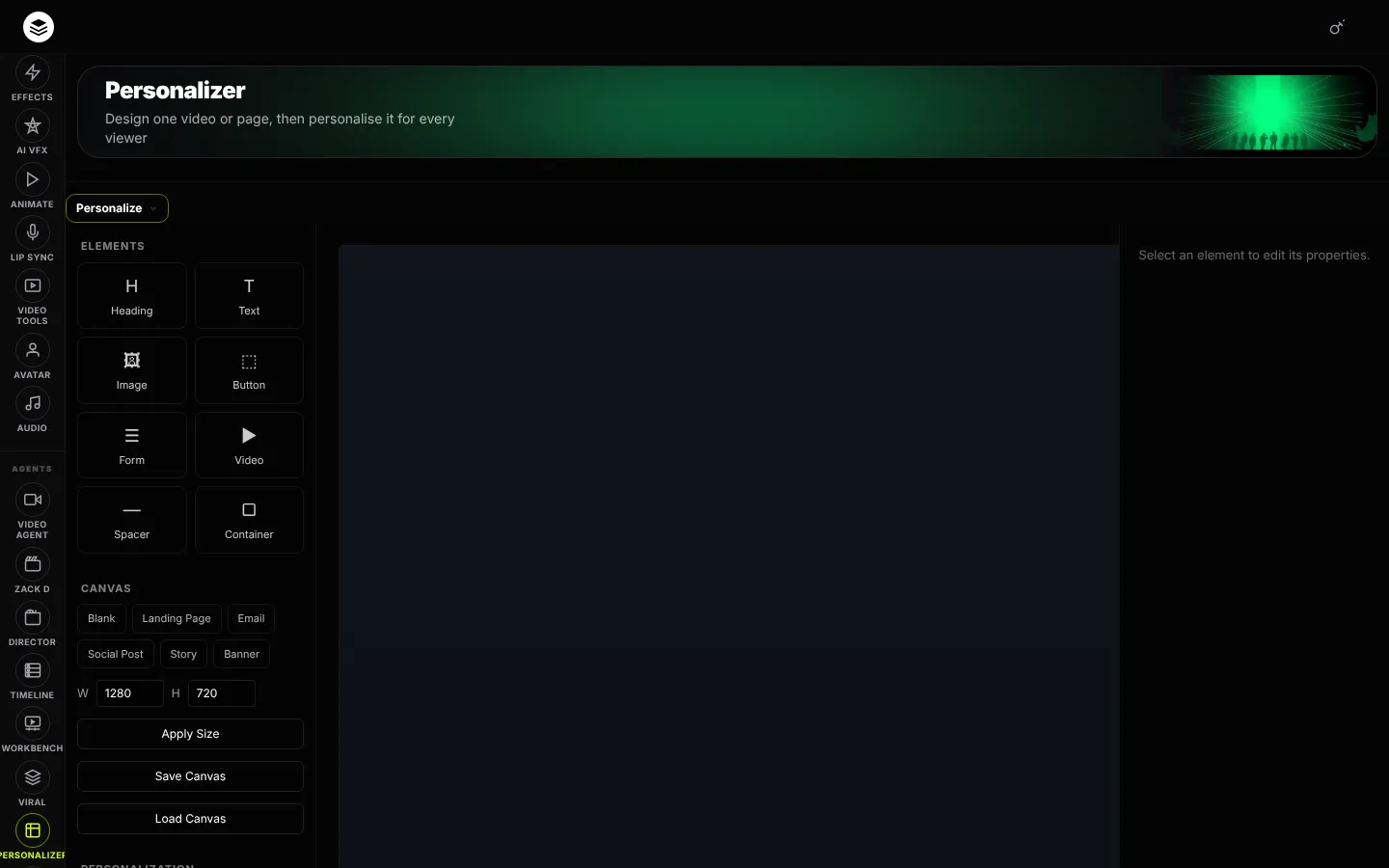
- Landing page: publish the campaign onto any of your Video Pages designs; each contact's link opens their personalized page with their personal video
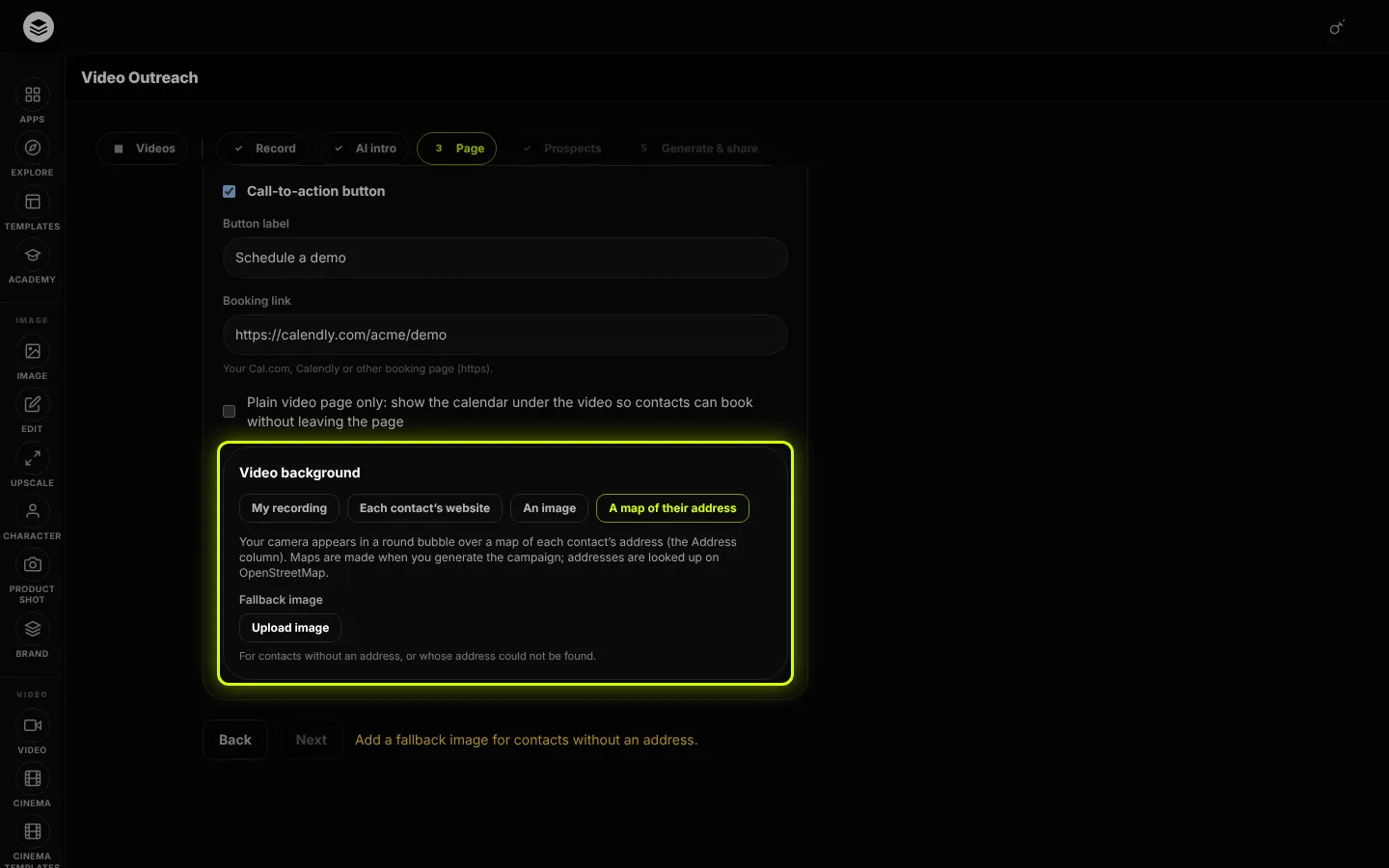
- Backgrounds behind your camera bubble: each contact's website (with a moving pointer), an image (theirs or yours), or a map of their address
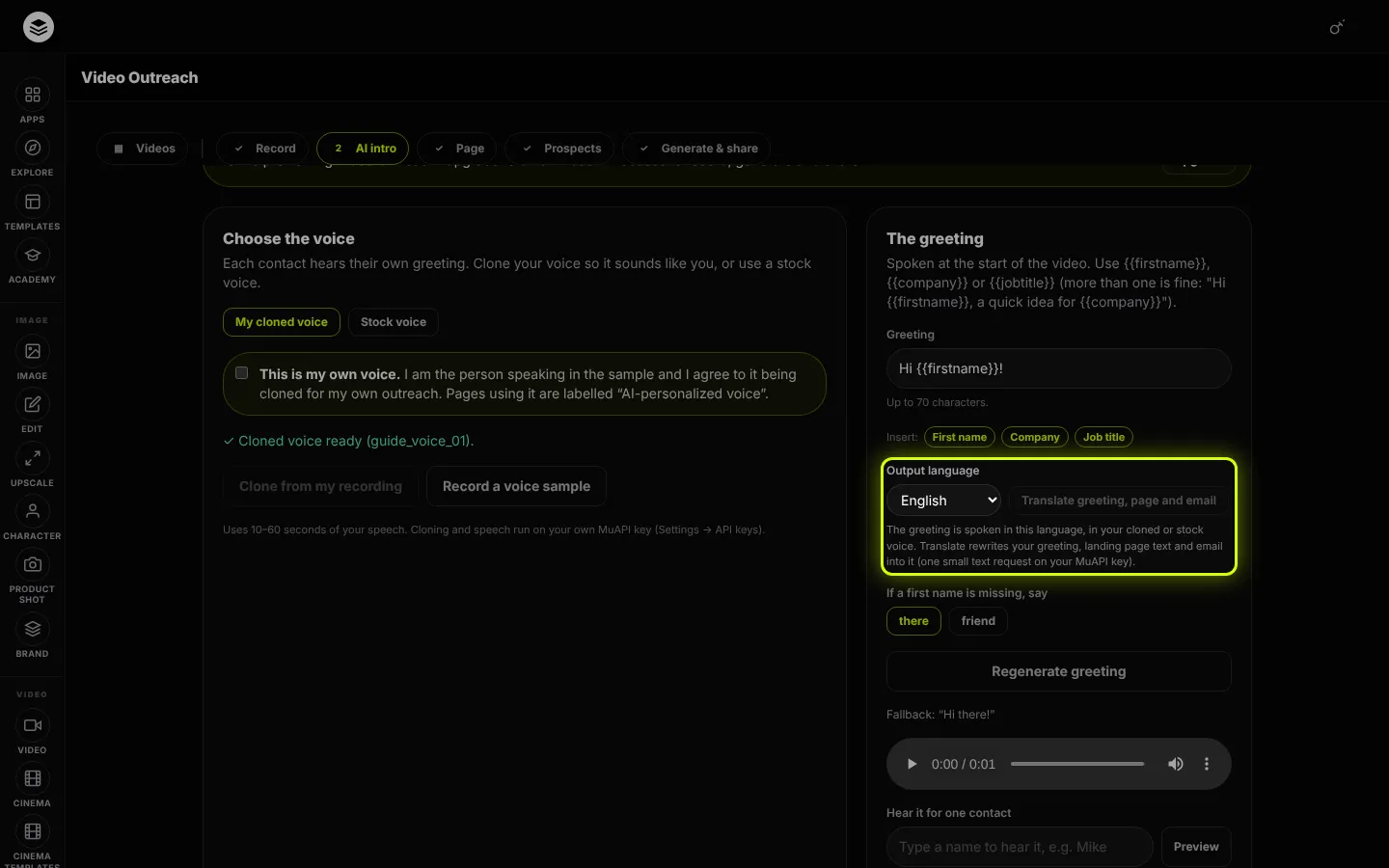
- Output language: the greeting spoken in another language, and one-click translation of greeting, page and email
- Greeting variables: {{firstname}}, {{company}}, {{jobtitle}}
- Videos library: + New dynamic video, Open, New prospects same video
- Variable chips for {{firstname}}, {{company}}, {{jobtitle}} and {{lastname}}
- Per-prospect Waiting / Generating / Ready while generating
- Gmail and LinkedIn share buttons per prospect
- Sendspark-style landing page on any Video Pages design, with Your details
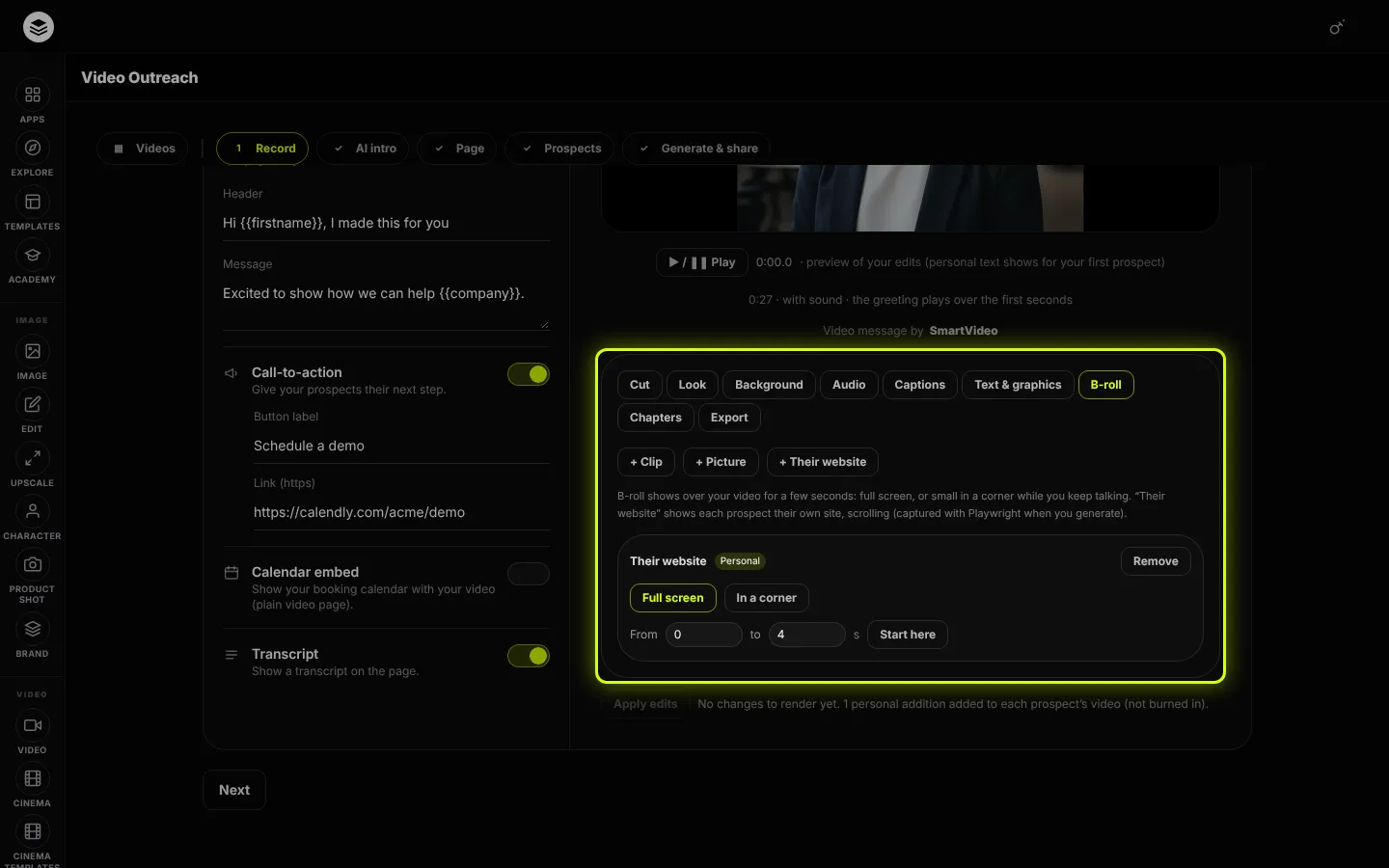
- Editor tools (scissors icon on the Record step): Cut, Look, Background, Audio, Captions, Text & graphics, B-roll, Chapters and Export, previewed live and rendered in your browser with Apply edits
- Lip-sync the greeting: your mouth says each prospect's name (one paid MuAPI lip-sync request per different greeting, about $0.05 each; ones already made are reused for free)
- Live alerts: the bell and the campaign's Alerts card update the moment a prospect watches or clicks
- Talk live: prospects can video-call you from their page while you're available
- Add from my contacts: pick prospects from your phone's contacts (Android Chrome)
- One tab edits a campaign at a time; another tab follows along read-only
- Full-screen recorder: camera and microphone pickers, live mic level meter, 3-2-1 countdown, review with trim, Retake / Download / Use this take
- Recorder audio settings: noise suppression, echo cancellation, automatic volume, computer sound in screen recordings, and Test my microphone