AI Agents & Automation · Feature guide

Lead Finder Feature Guide

Search local businesses by niche and location and save them as leads.

Find local businesses that may need video: search a niche and location, review scored prospects, pull their logos and photos from their website, and save leads with a pipeline stage.

Best for: Agencies and freelancers prospecting local businesses (roofers, salons, restaurants, and so on) who want a list of leads and a quick way to make a personalized demo for each.

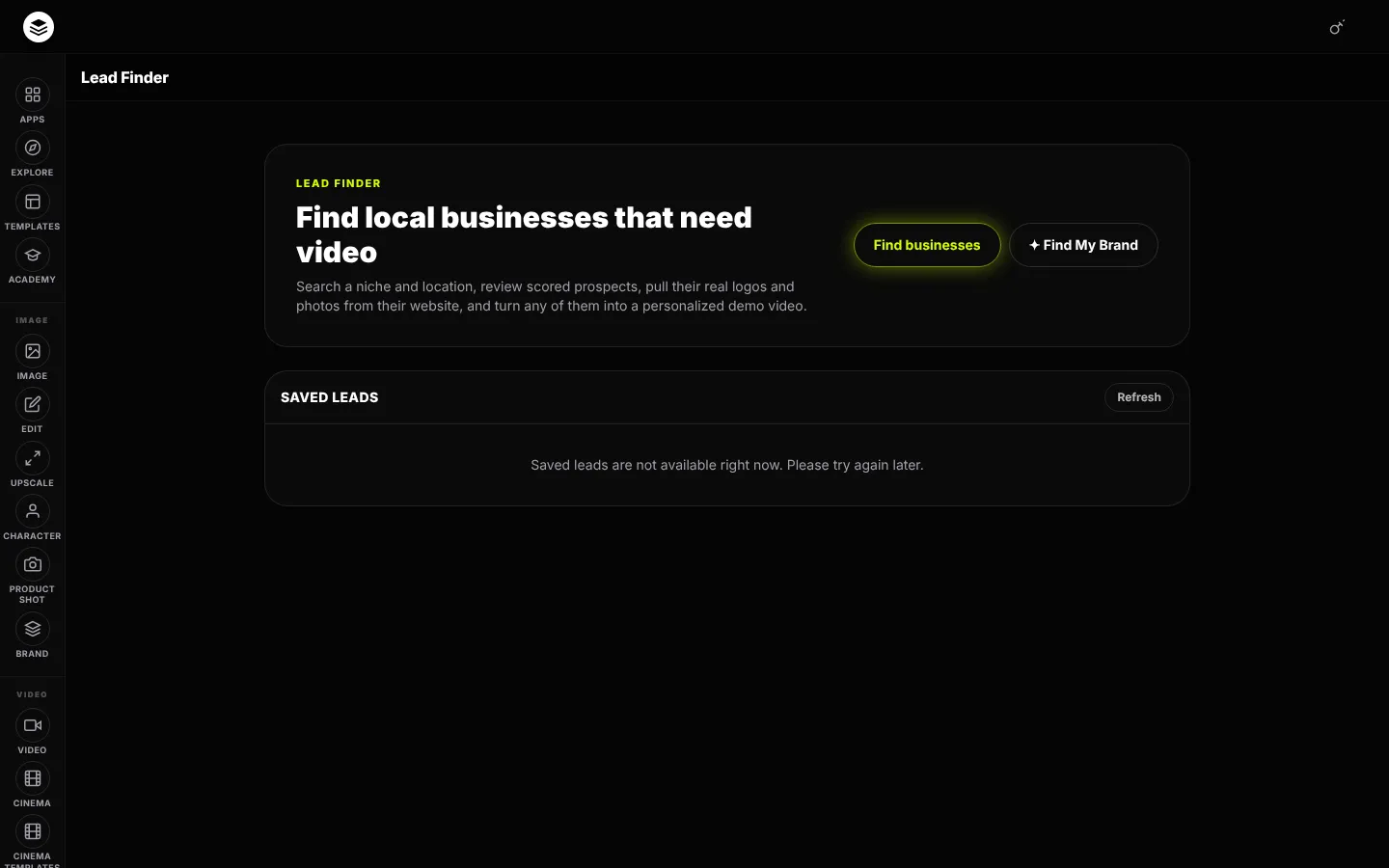
Lead Finder screenshot

Watch the Lead Finder tour

A 1:45 captioned walkthrough of the studio, with a sample file and prompt.

VIDEO · 1:45

What is Lead Finder?

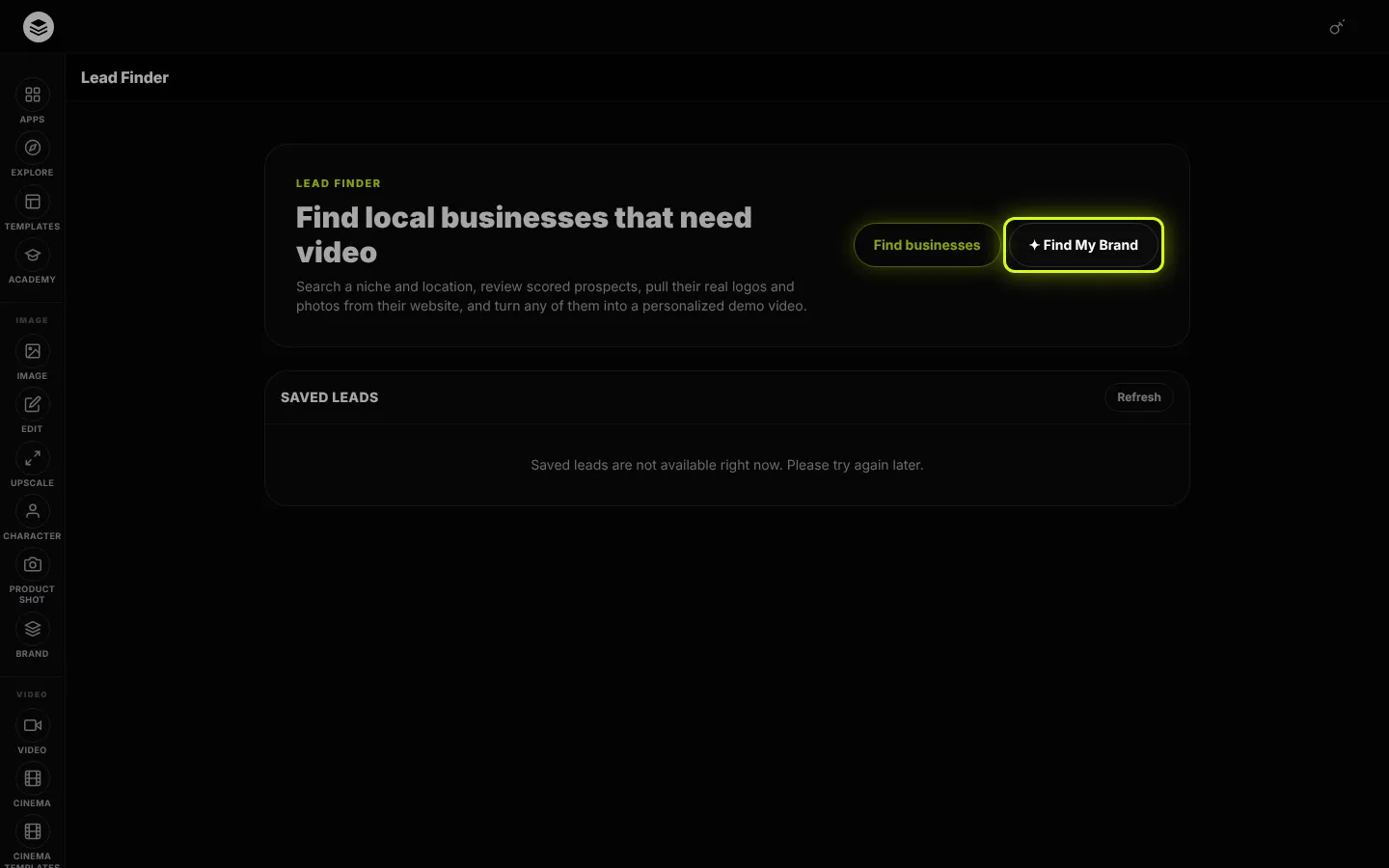
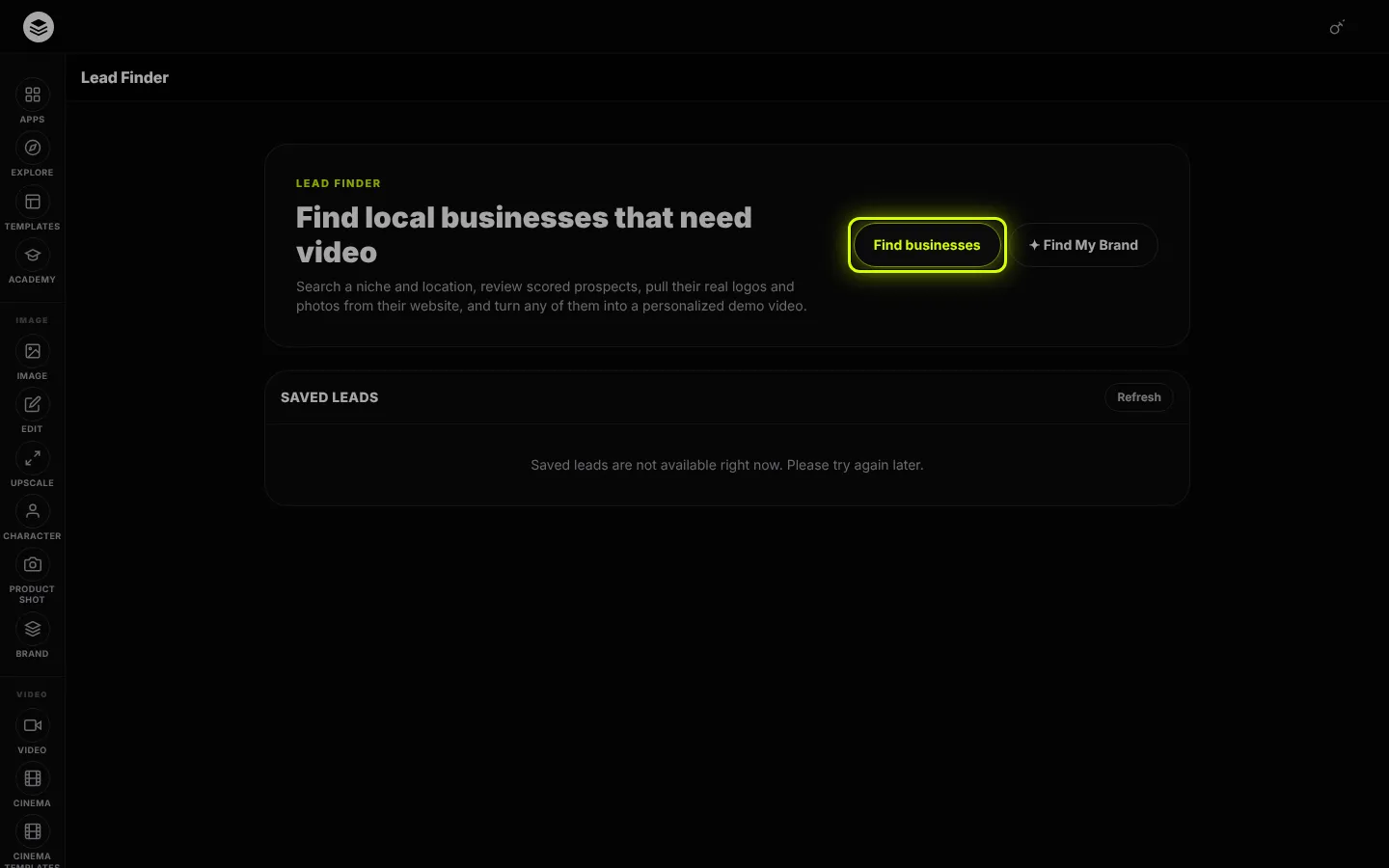
Lead Finder (#/leadfinder, not listed in the side menu) is an entry page for the Personalization and Lead Finder modal. Its hero reads 'Find local businesses that need video' and has two buttons: Find businesses (opens the modal at the Find business step) and Find My Brand (free, pastes a website to pull its branding). Below is a Saved leads list showing each lead's name, category and location, address, website, phone, a star if starred, and a pipeline stage badge. The search uses OpenStreetMap by business type and location, and saving leads needs you to be signed in.

When to use it

  • You need a list of local businesses in a niche and area.
  • You want to save prospects and track them through a sales pipeline.
  • You want to pull a prospect's real logo and photos from their website before making a demo video.
  • You want to review saved leads in one place.
  • Find businesses button that opens the search modal
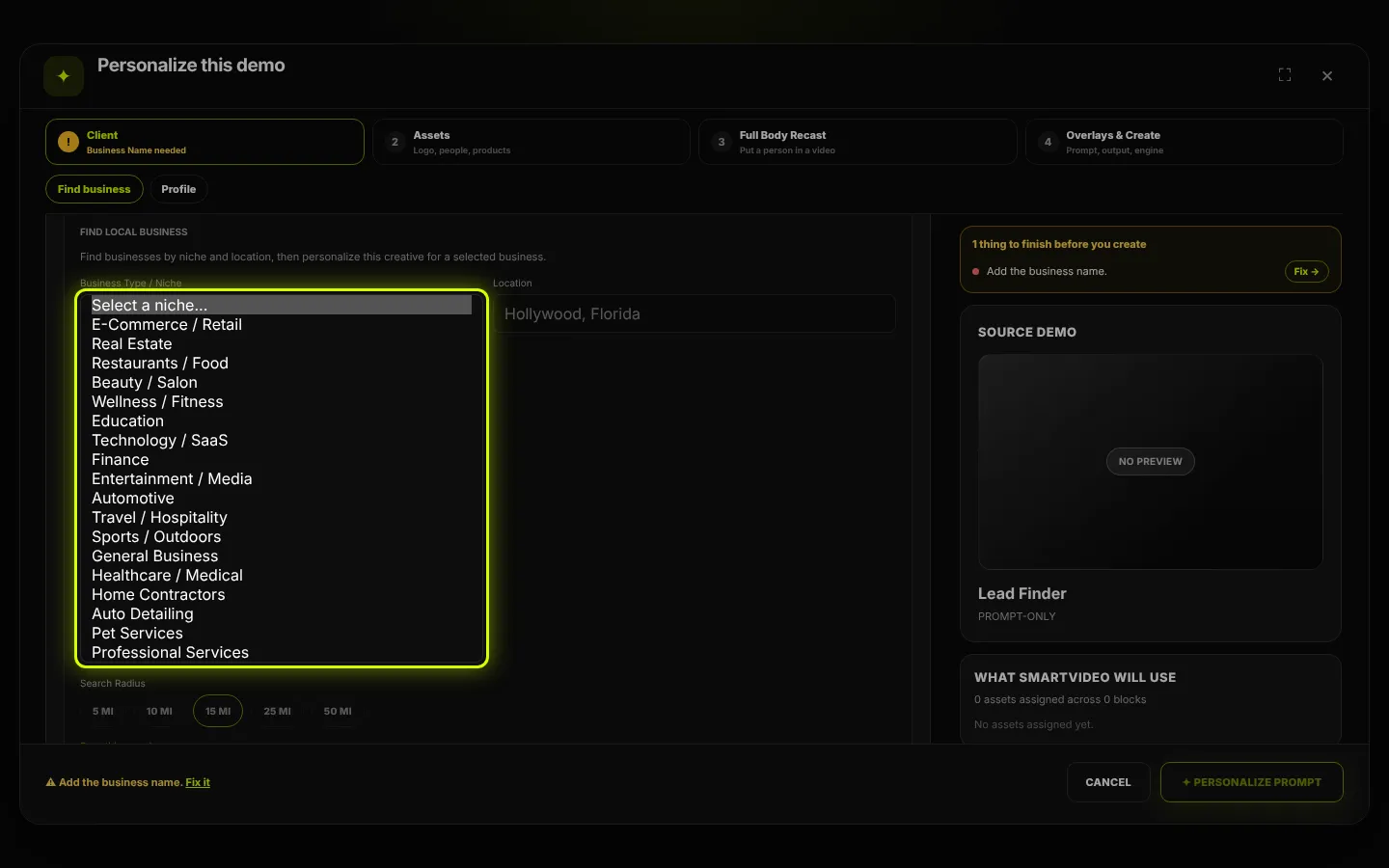
  • Business Type / Niche dropdown with 18 niches
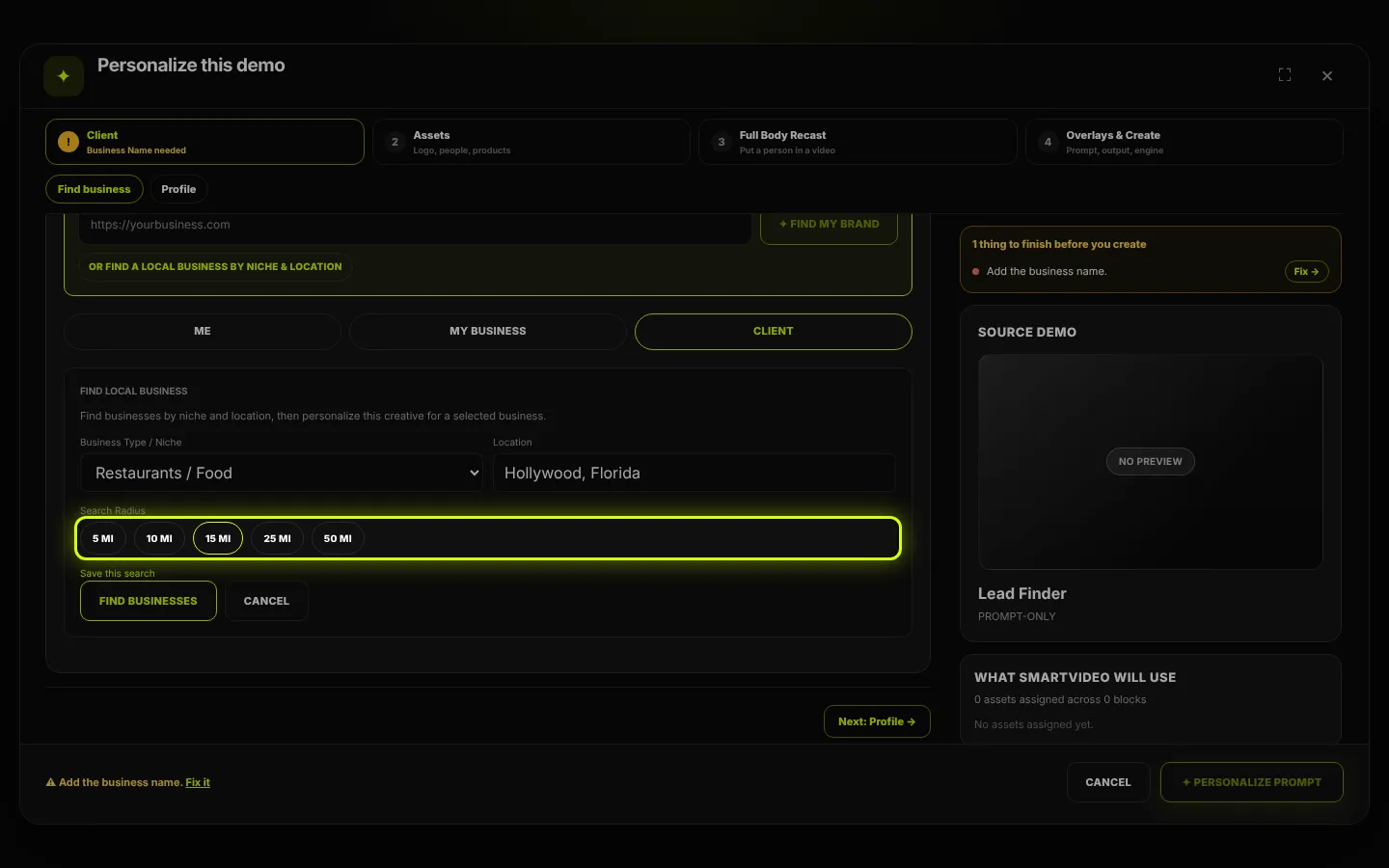
  • Location field and Search Radius buttons of 5, 10, 15, 25 or 50 mi
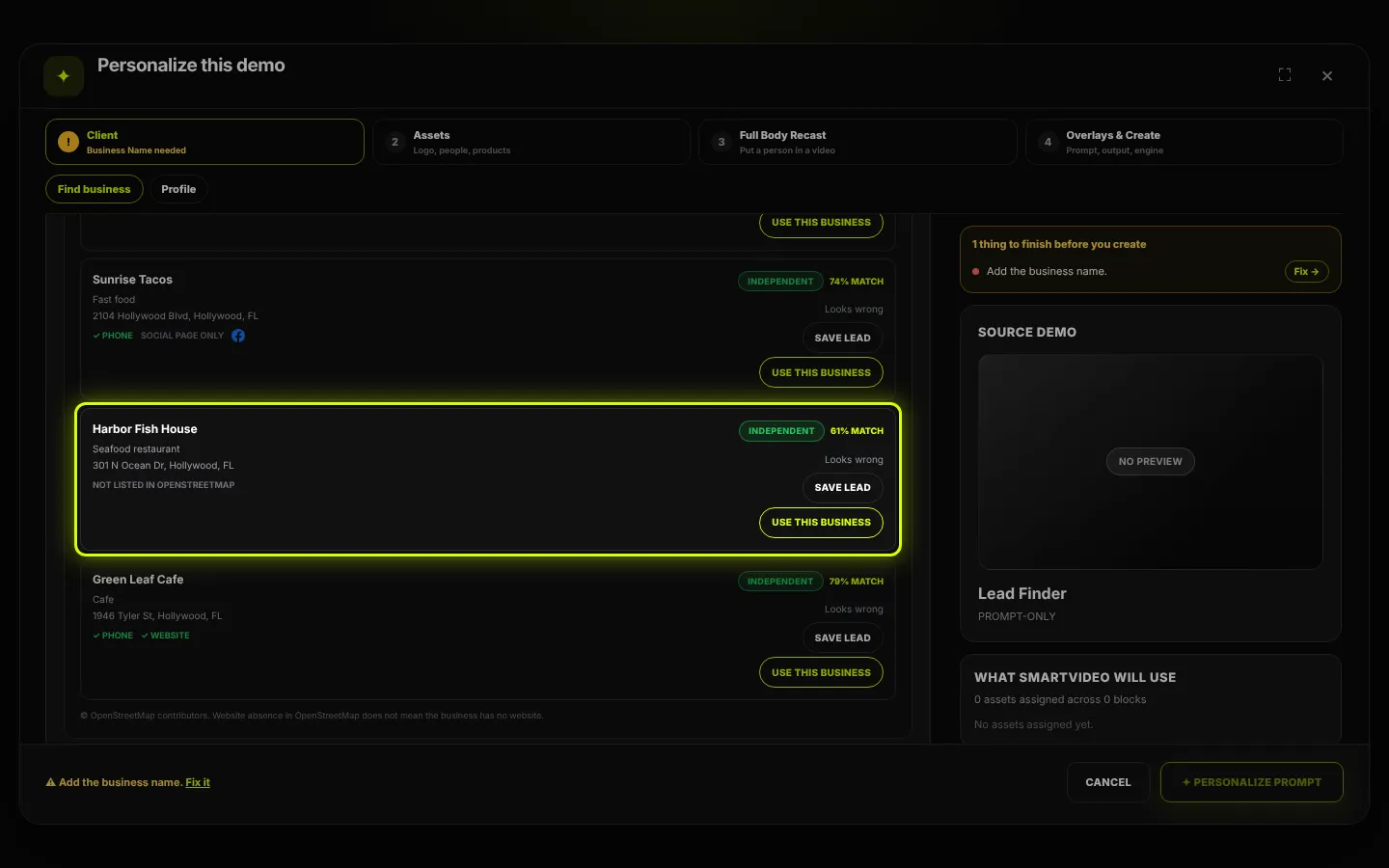
  • Scored search results, with a note when a business is Not listed in OpenStreetMap
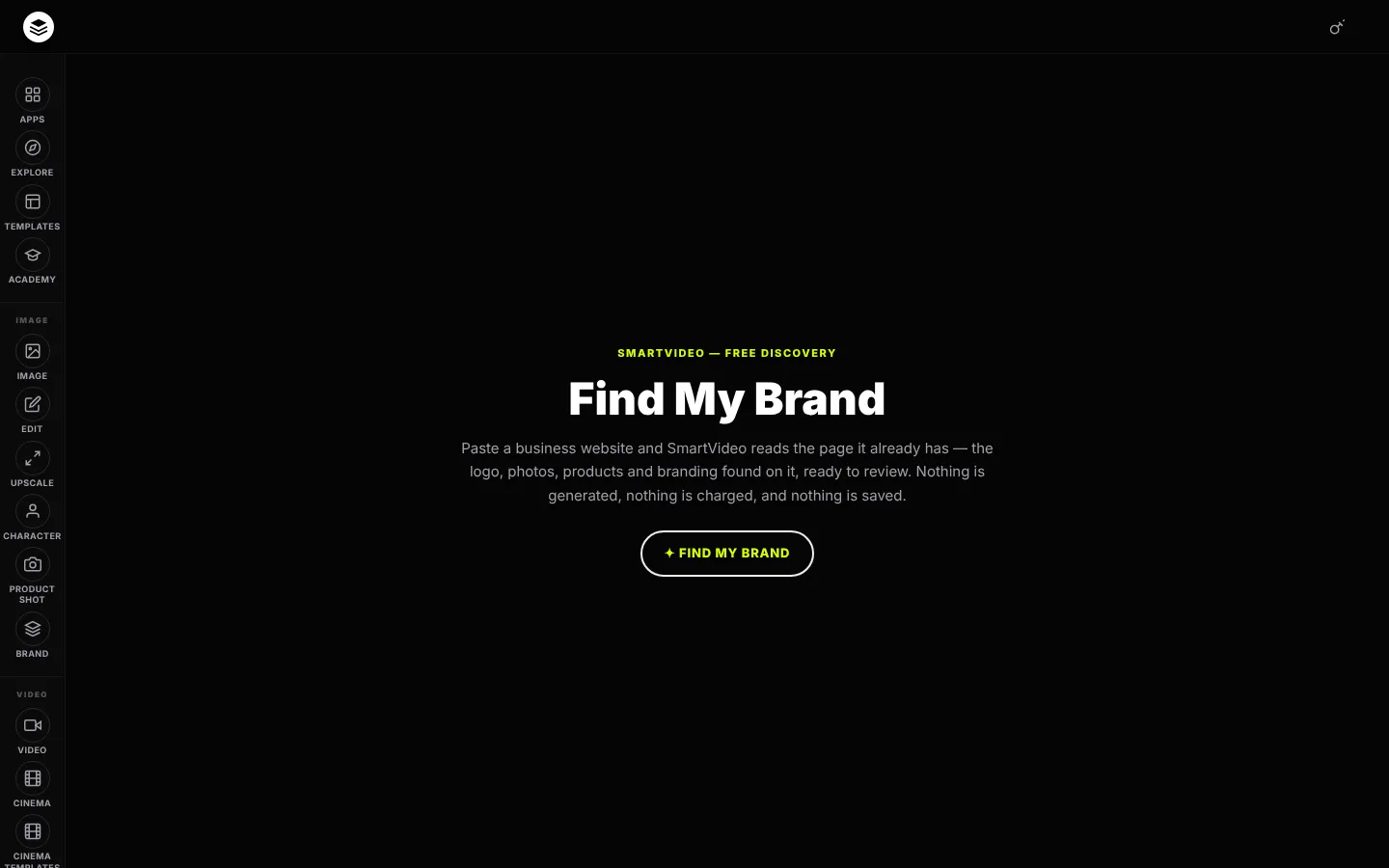
  • Find My Brand button for website discovery
  • Saved leads list with a Refresh button and a count
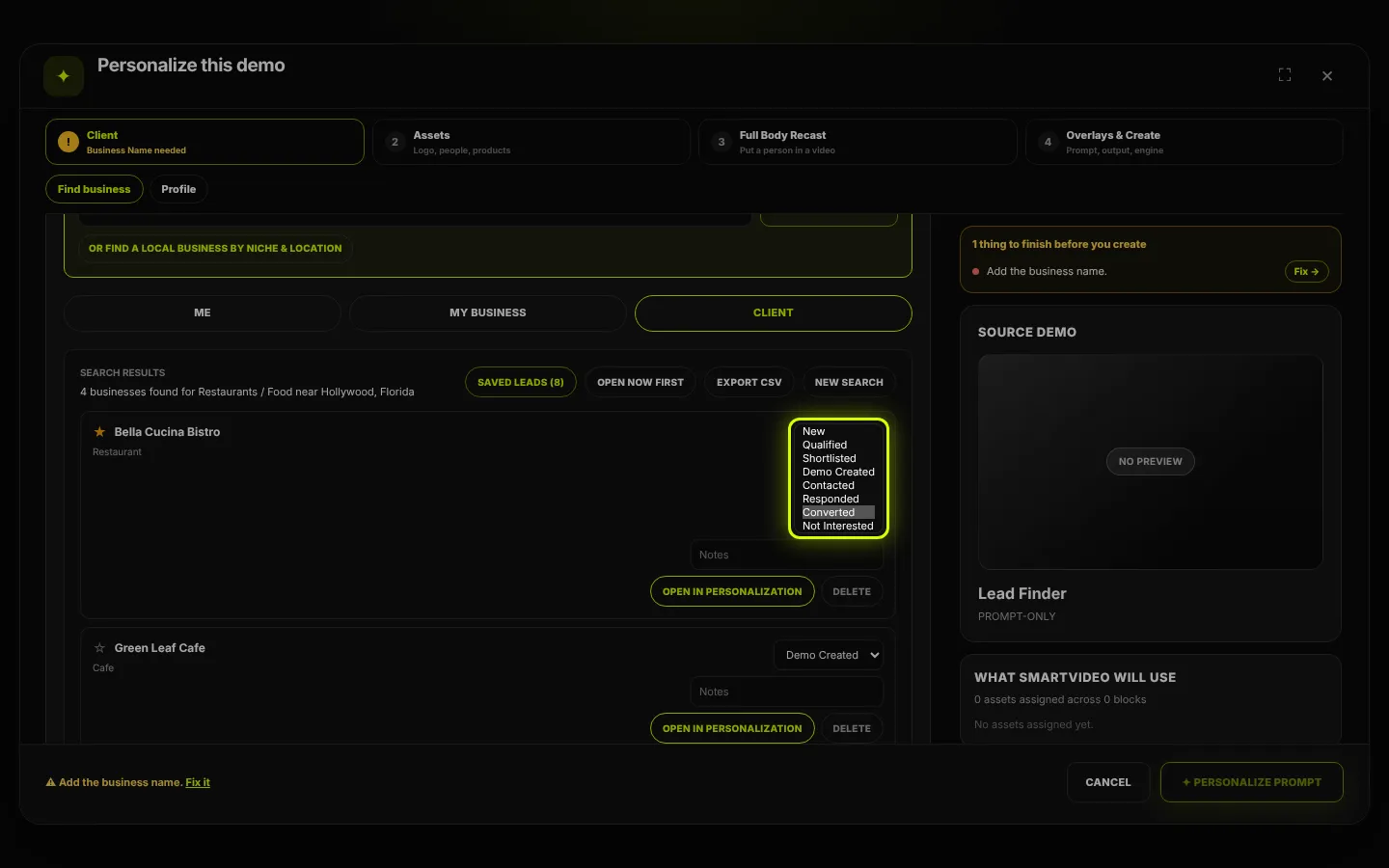
  • Eight pipeline stages: New, Qualified, Shortlisted, Demo Created, Contacted, Responded, Converted, Not Interested
  • Lead stage selector and a Notes field in the modal
  • Saved Clients and client profile (Save Client / Update Client)

Every Lead Finder feature, explained

8 features, each with a definition, why you would use it, what it needs and its limits.

Find businesses in Lead Finder
Find businesses
FEATURE 01

Find businesses

What it is: Opens the modal. Under Find Local Business choose a Business Type / Niche (Select a niche...), type a Location (placeholder example: Hollywood, Florida), choose a Search Radius and click Find Businesses. Results appear under Search Results.

Why use it
Builds a prospect list quickly.
What you need
Niche and location.
Limits and rules
The niche must be one of the supported options or the server rejects it. If the search fails you see Business Search Failed with the reason.
Niches in Lead Finder
Niches
FEATURE 02

Niches

What it is: The niche dropdown offers E-Commerce / Retail, Real Estate, Restaurants / Food, Beauty / Salon, Wellness / Fitness, Education, Technology / SaaS, Finance, Entertainment / Media, Automotive, Travel / Hospitality, Sports / Outdoors, General Business, Healthcare / Medical, Home Contractors, Auto Detailing, Pet Services and Professional Services.

Why use it
Narrows results to the right kind of business.
What you need
One niche.
Limits and rules
Only these listed niches.
Search Radius in Lead Finder
Search Radius
FEATURE 03

Search Radius

What it is: Buttons labeled 5 mi, 10 mi, 15 mi, 25 mi and 50 mi; clicking one runs the search with that radius.

Why use it
Widen or narrow the area.
What you need
A location.
Limits and rules
Radius is in miles.
Search data source in Lead Finder
Search data source
FEATURE 04

Search data source

What it is: Businesses come from OpenStreetMap. Some businesses may show 'Not listed in OpenStreetMap' when they were found another way.

Why use it
Understand why a business may have little detail.
What you need
None.
Limits and rules
OpenStreetMap coverage varies by area, so addresses, phones or websites can be missing.
Find My Brand button in Lead Finder
Find My Brand button
FEATURE 05

Find My Brand button

What it is: Opens the free discovery flow so you can paste a business website and see its logo, photos, products and branding. The tooltip says 'Paste a business website to pull its logo, photos and branding (free)'.

Why use it
Gather real assets for a demo.
What you need
A website URL.
Limits and rules
If a search result has no website you are told to paste one in the Website field and use Find My Brand.
Saved leads in Lead Finder
Saved leads
FEATURE 06

Saved leads

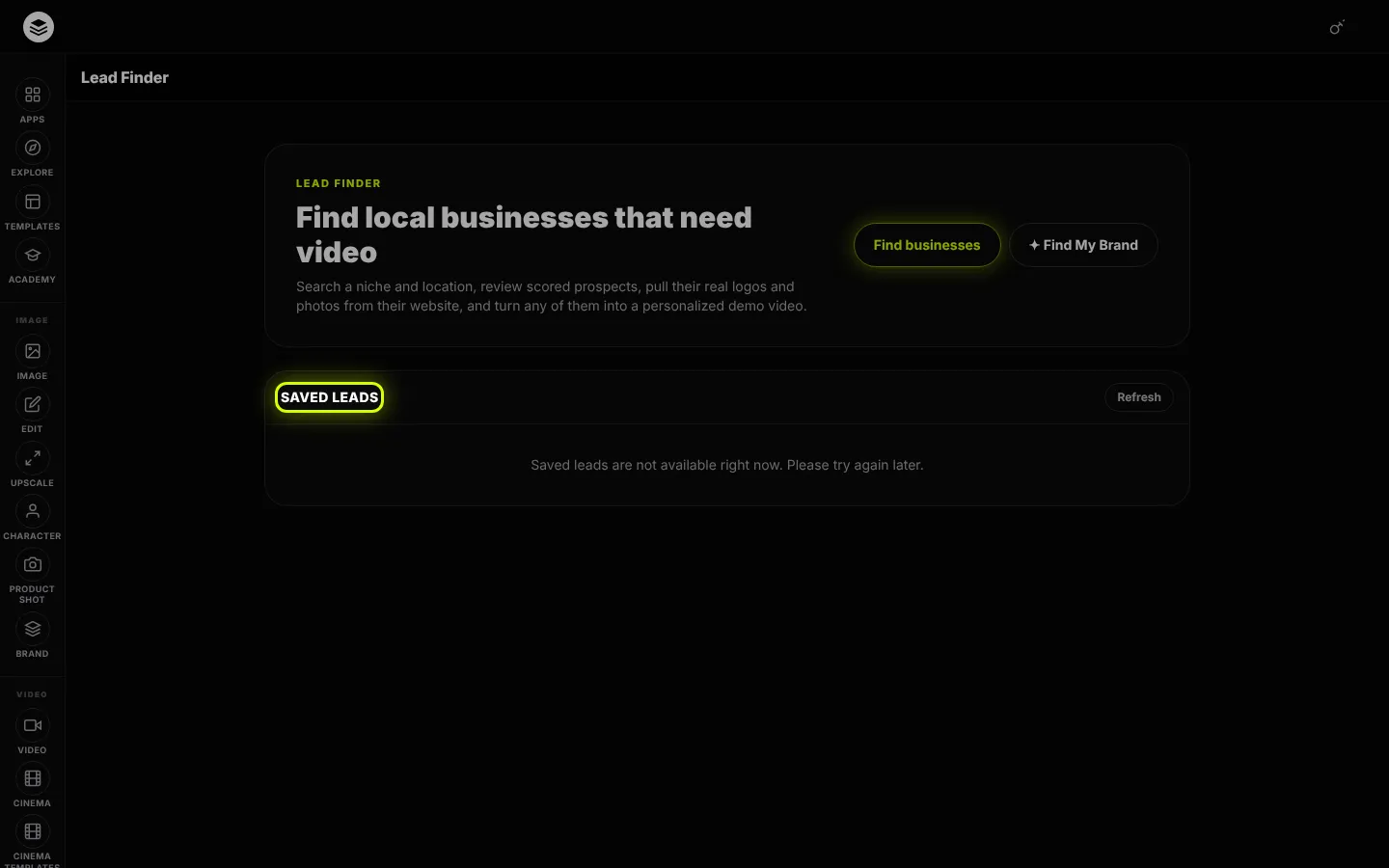
What it is: The Saved leads section loads your saved leads from the server. Each row shows name (with a star if starred), category or niche and location, address, website link, phone and a stage badge. Click Refresh to reload. The heading shows the count, for example Saved leads (3).

Why use it
Track your pipeline.
What you need
Being signed in.
Limits and rules
Messages: 'Loading saved leads...', 'Sign in to see your saved leads.', 'Saved leads are not available right now. Please try again later.', 'Could not load saved leads.', and 'No saved leads yet. Use "Find businesses" and save the prospects you like.'
Pipeline stages in Lead Finder
Pipeline stages
FEATURE 07

Pipeline stages

What it is: Every lead has a stage: New (default), Qualified, Shortlisted, Demo Created, Contacted, Responded, Converted or Not Interested. Update the stage with the Lead stage selector in the modal.

Why use it
Know who to follow up with.
What you need
A saved lead.
Limits and rules
Updating, saving or deleting leads requires sign in ('Sign in to update saved leads.', 'Sign in to save leads.', 'Sign in to delete saved leads.').
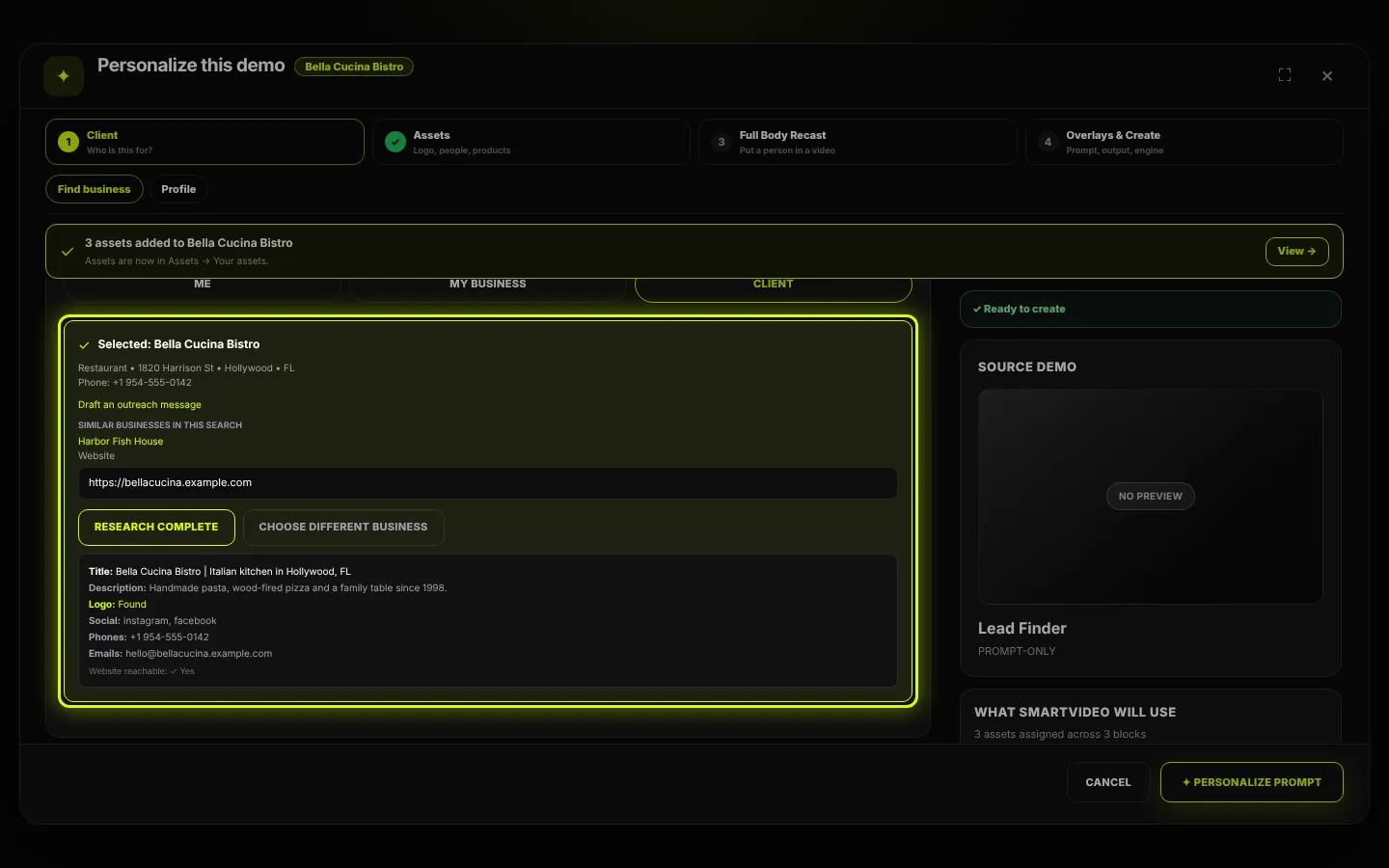
Selected business and website research in Lead Finder
Selected business and website research
FEATURE 08

Selected business and website research

What it is: After you pick a business, a summary shows the details found, and a research step can report a logo as Found. You can then save it as a client and continue to personalize a prompt, image or video.

Why use it
Go from prospect to demo.
What you need
A selected business.
Limits and rules
What is found depends on the business website.

How to use Lead Finder

  1. Click Find businesses.
  2. Choose niche, location and radius.
  3. Click Find Businesses and review results.
  4. Select a business and run Find My Brand on its website.
  5. Save the lead and set its stage.
  6. Click Refresh on the Saved leads list.

Inputs and outputs

What you give the studio, and what you get back.

InputDescriptionWhen to useRules
Business Type / Niche
Required
Kind of business to look for.Every search.Must be one of the 18 listed niches.
Location
Required
City or area text, e.g. Tampa, Florida.Every search.Free text; unrecognized places may return nothing.
Search Radius
Optional
5, 10, 15, 25 or 50 miles.To widen or narrow results.Those five choices only.
Website
Optional
A business website to discover branding from.When the business was found without a site.Discovery needs sign in.

What you get

  • List of scored business prospects
  • Saved leads with pipeline stage
  • Discovered logos, photos and branding
  • Personalized prompts, images or videos via the modal

Use cases and example workflows

Real jobs you can do, step by step.

Local video agency outreach

Find salons in your city and send each a personalized demo.

  1. Search Beauty / Salon.
  2. Save promising leads.
  3. Create a personalized demo for each.
  4. Move stages to Demo Created then Contacted.
Result: A tracked list of leads with demos.

Roofing prospects in Tampa

  1. Click Find businesses.
  2. Choose Home Contractors.
  3. Enter Tampa, Florida and pick 25 mi.
  4. Click Find Businesses.
  5. Select a roofer, run Find My Brand, save the lead and set the stage to Qualified.

Tips and best practices

  • Search a few niches rather than one broad one.
  • Star leads you want to return to.
  • Update stages as you go so the list stays useful.
  • Review each business website before pitching.
  • Record context in Notes.
  • Keep stage values current.

Limitations and troubleshooting

Know the limits before you start, and how to fix common problems.

LimitationWhat it meansWorkaround
Incomplete business dataMissing phone, address or website.Paste the website manually and use Find My Brand.
Sign in needed for leadsSaved leads list shows a sign-in message.Sign in and click Refresh.

Results lack contact details

Why: OpenStreetMap does not hold every business detail.

Fix: Open the business website and enter missing details by hand.

Stage did not change

Why: Not signed in, or the update failed.

Fix: Sign in and set the Lead stage again.

Glossary

Terms used in Lead Finder.

Lead
A business you may want to sell to.
Niche
The type of business, like Restaurants / Food.
Pipeline stage
Where a lead is in your sales process.
Prospect score
A score the search gives each result to help you sort them.

Frequently asked questions

Where does the business data come from?

From OpenStreetMap, searched by niche and location.

What are the lead stages?

New, Qualified, Shortlisted, Demo Created, Contacted, Responded, Converted and Not Interested. New is the default.

Do I need to sign in?

To save, update, delete or view saved leads, yes. Messages tell you when sign in is needed.

Is Lead Finder in the side menu?

No, open it from #/leadfinder or a link.

Try Lead Finder now

Open the studio and put these features to work, or browse the guides for all 53 studios.