AI Agents & Automation · Feature guide

Smart Video Viral Feature Guide

Continuously refreshed feed of trending AI prompts from X - copy any prompt into your studio and create.

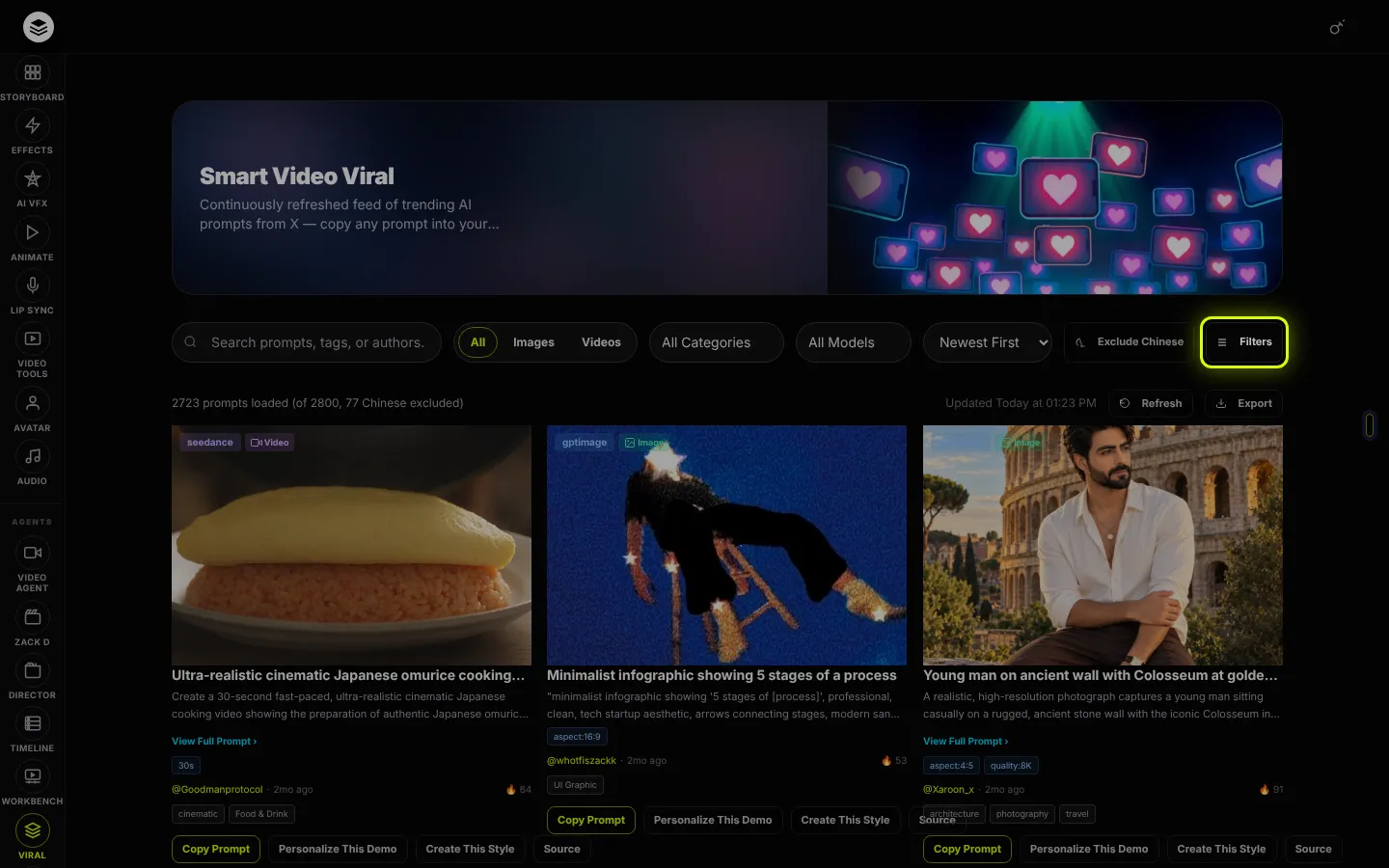
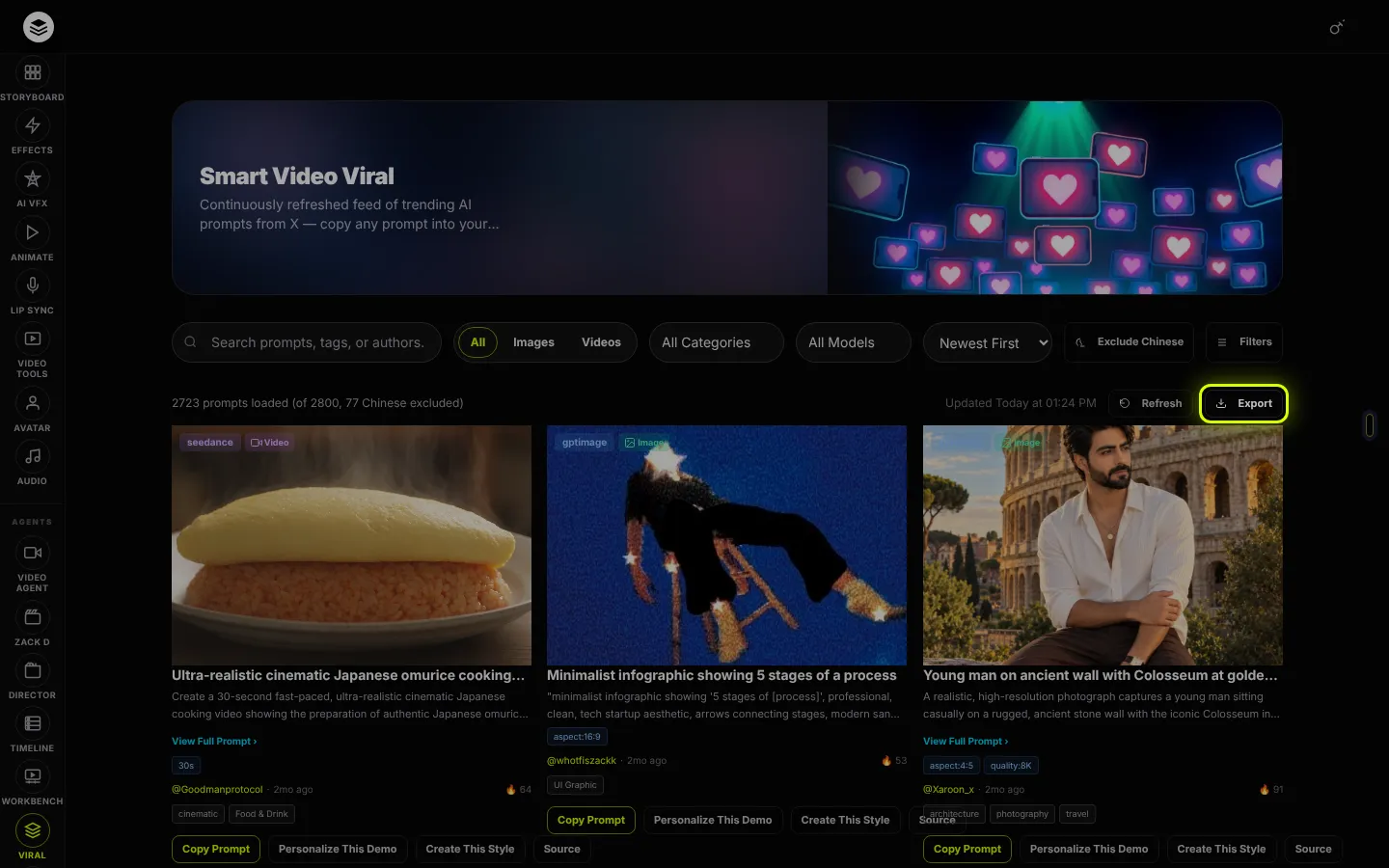
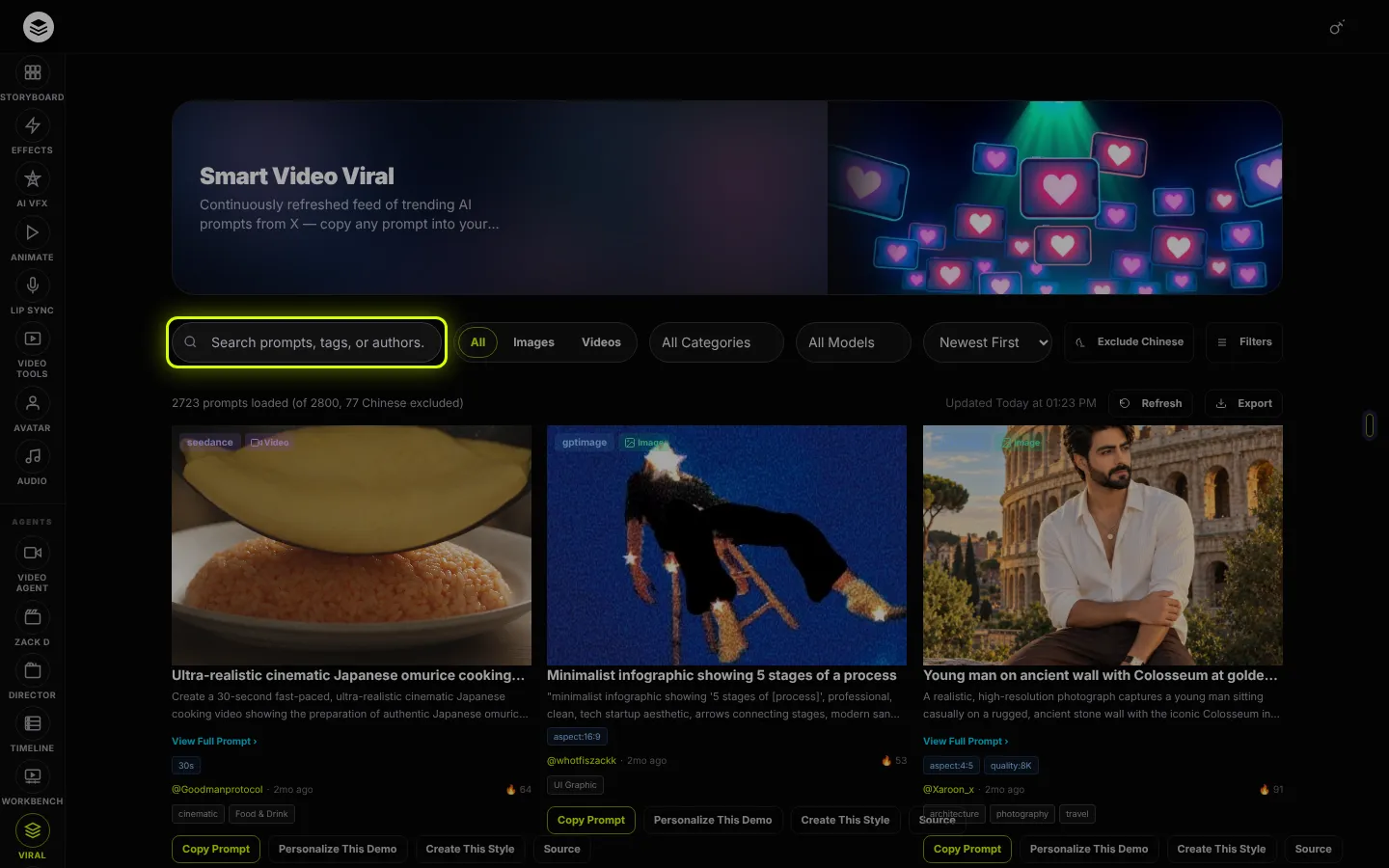
Smart Video Viral is a browsable feed of trending AI image and video prompts collected from X (Twitter), with preview media and source links. You copy a prompt, or send it straight to a creation studio, to make your own version.

Best for: Anyone who wants prompt ideas that are already working for other creators: beginners who do not know what to write, marketers looking for ad and product prompt styles, and creators who want to recreate a trending look.

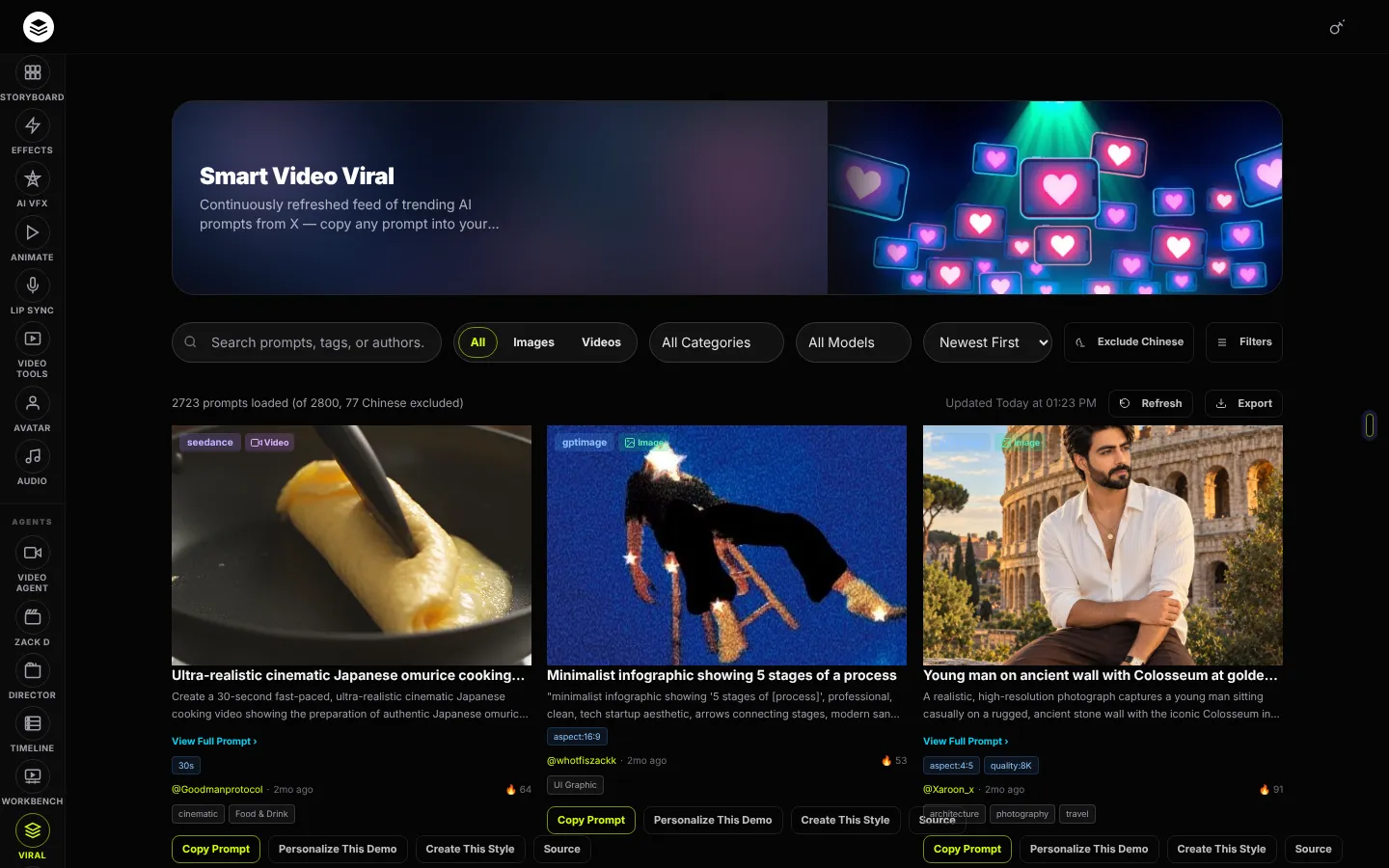
Smart Video Viral screenshot

Watch the Smart Video Viral tour

A 1:49 captioned walkthrough of the studio, with a sample file and prompt.

VIDEO · 1:49

What is Smart Video Viral?

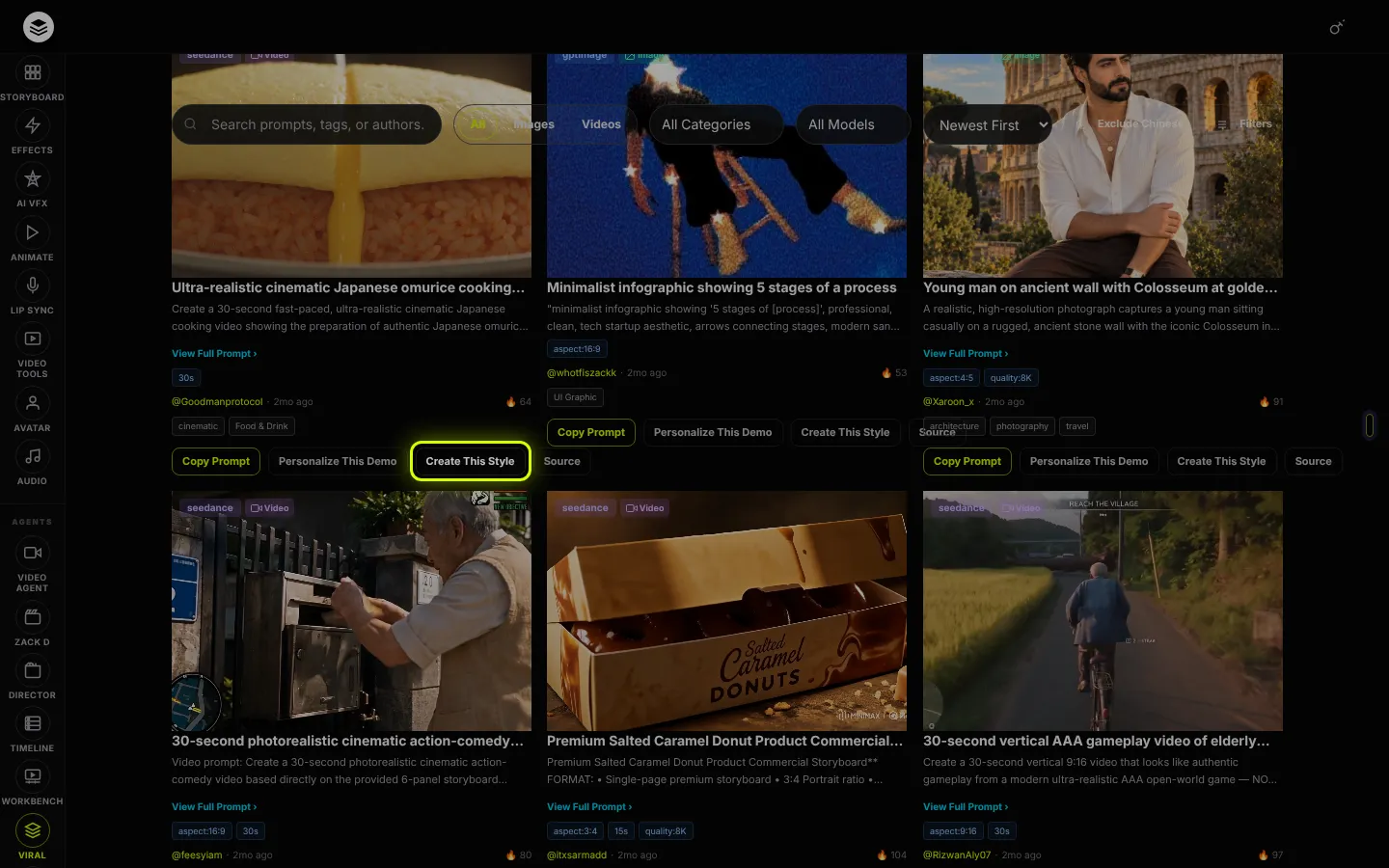
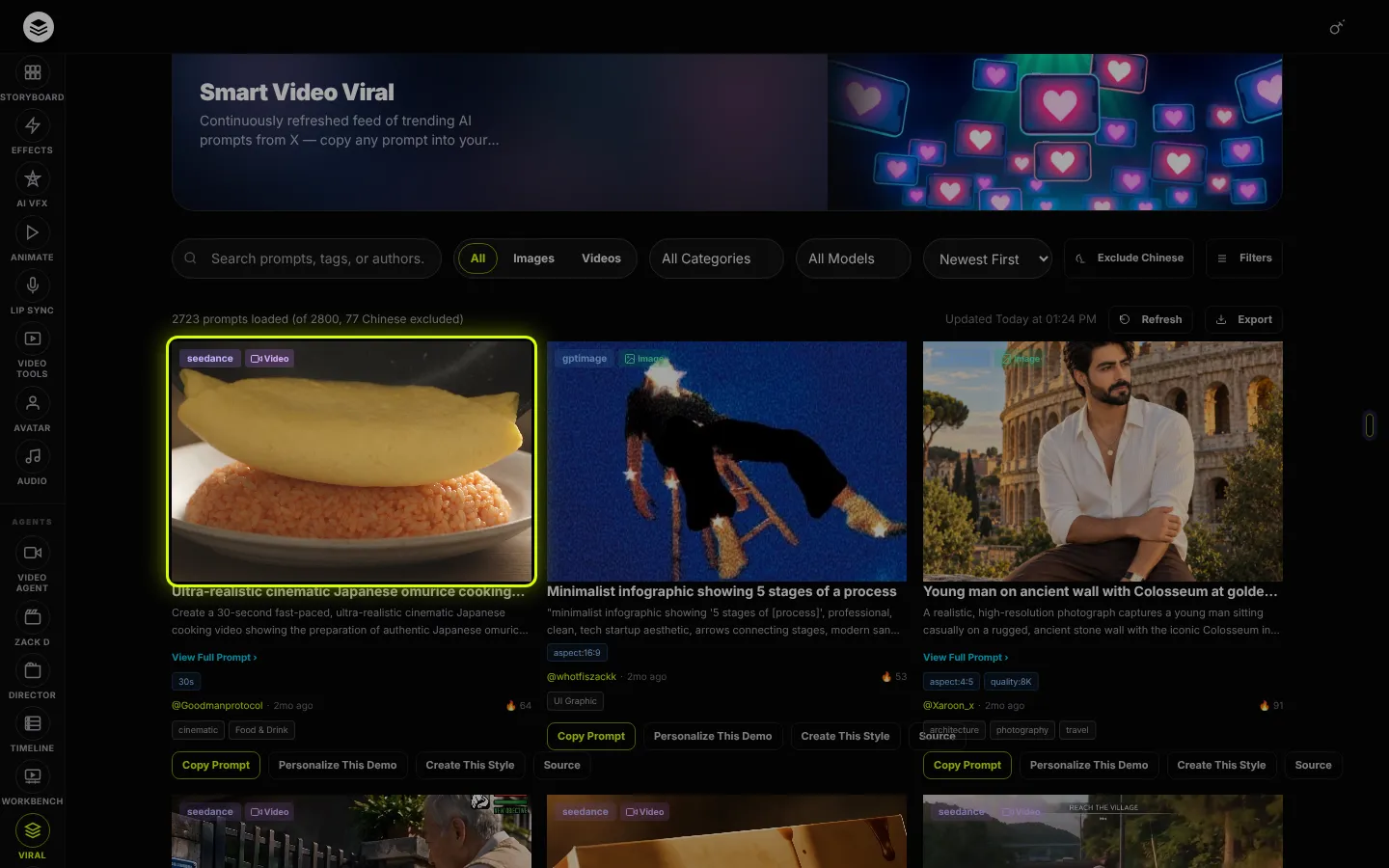
Smart Video Viral does not generate media itself. It is a prompt-inspiration library. It loads a feed of prompts from several sources (an upstream visual prompt feed on GitHub, a bundled Seedance prompt list and a bundled overflow list), shows each one as a card with a preview image or video, tags, a recommended model and a link to the original post, and lets you search, filter and sort. At the top you see counts of prompts, videos, images and providers and a carousel preview; below the controls are horizontal rails for Trending, Categories and Providers. On any card you can copy the prompt, open it in a creation studio with the prompt prefilled (Create This Style), personalize the demo for a business (Personalize This Demo), or open the original post (Source). The feed refreshes itself every 5 minutes and you can refresh it manually or export the filtered list as JSON.

When to use it

  • You do not know what prompt to write and want proven examples.
  • You want to see which AI image and video styles are trending and which model they were made with.
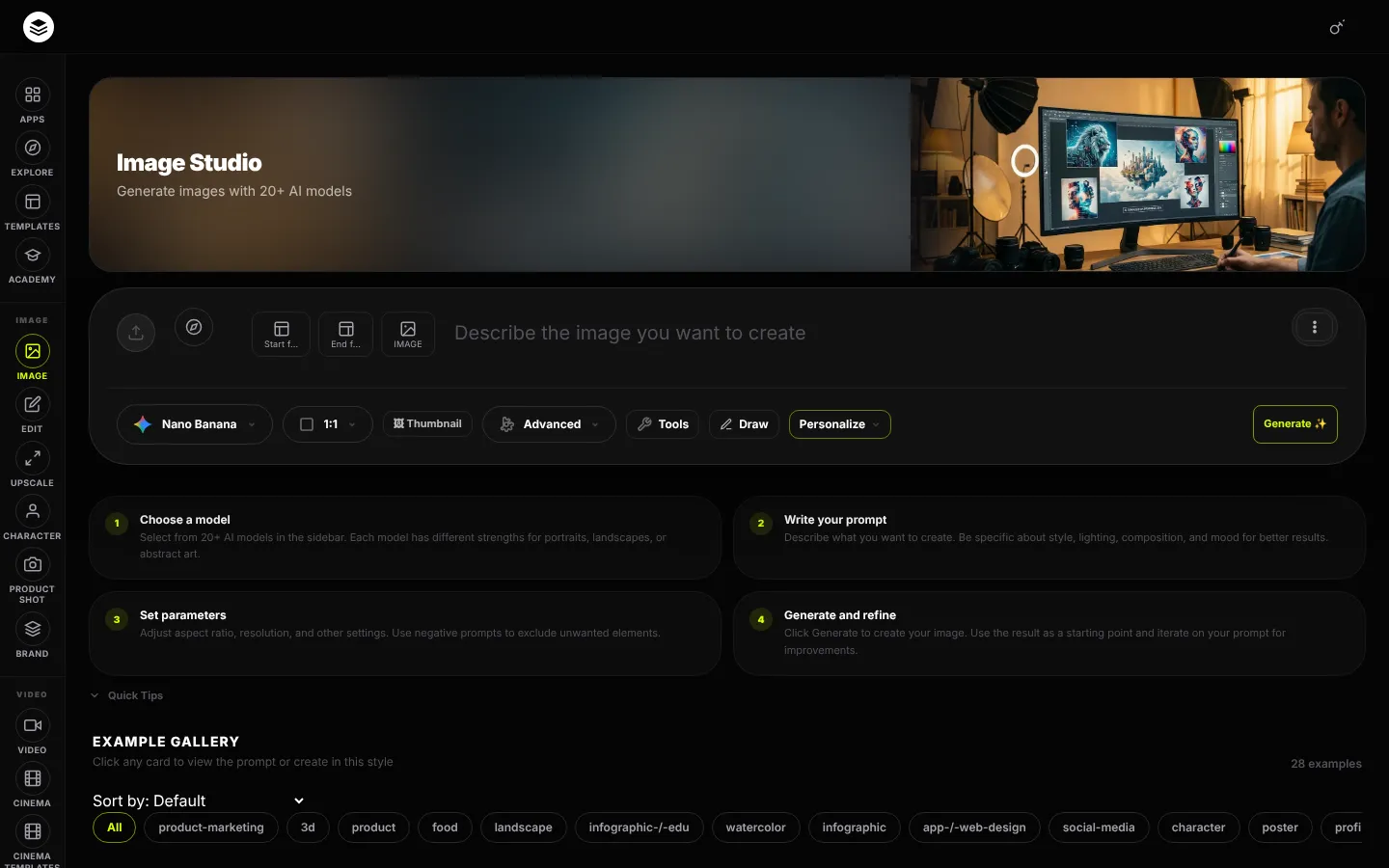
  • You want to start from a prompt and open it directly in Image Studio, Video Studio or another studio.
  • You want to collect or export prompts for a category such as product ads, cinematic or character.
  • You want to personalize a viral-style demo for a specific business.
  • Feed of trending AI image and video prompts with preview media.
  • Hero stats: prompts, videos, images and providers counts, plus a trending preview carousel.
  • Search box: 'Search prompts, tags, or authors… (press /)'.
  • Media filter buttons: All, Images, Videos.
  • Category dropdown (All Categories) with 15 categories.
  • Model dropdown (All Models), built from the models seen in the feed.
  • Sort options: Newest First, Most Popular, Most Likes.
  • Exclude Chinese / Include Chinese toggle (Chinese-language prompts are excluded by default).
  • Horizontal rails: Trending, Categories, Providers.
  • Card buttons: Copy Prompt, Personalize This Demo, Create This Style, Source, and 'View Full Prompt ›' for long prompts.
  • Refresh button, 'Updated ...' timestamp and automatic refresh every 5 minutes.
  • Export of the currently filtered prompts as a JSON file.
  • Infinite scroll in pages of 30 cards.
  • Keyboard shortcuts: / search, r refresh, c toggle Chinese, ? help.
  • On small screens a Filters button opens a bottom sheet with the same controls and an Apply Filters button.

Every Smart Video Viral feature, explained

10 features, each with a definition, why you would use it, what it needs and its limits.

Filters and sorting in Smart Video Viral
Filters and sorting
FEATURE 02

Filters and sorting

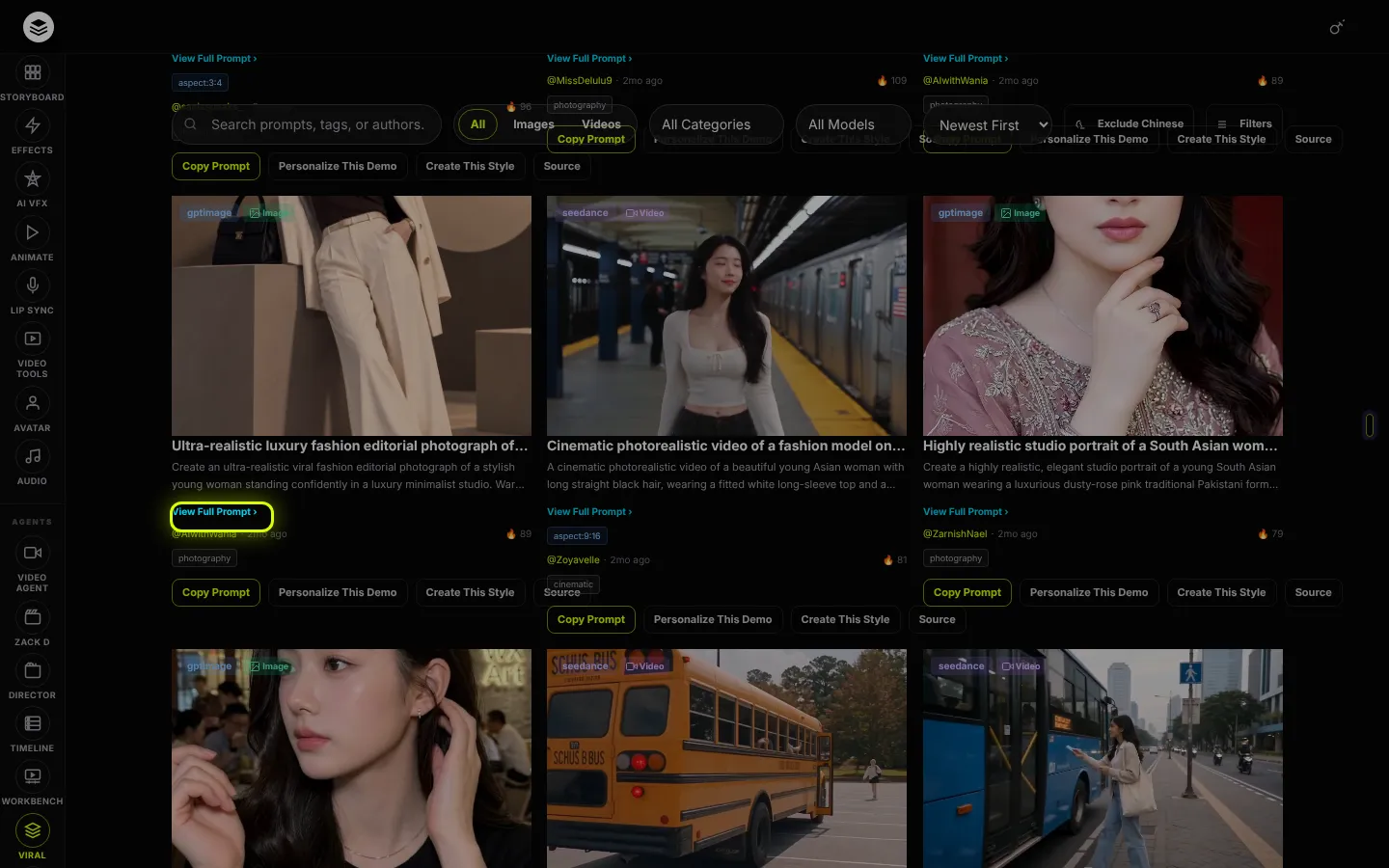
What it is: Use All / Images / Videos, the Category list, the Model list and the Sort list together. Sort offers Newest First, Most Popular and Most Likes.

Why use it
Narrow thousands of prompts to the few you need.
What you need
None.
Limits and rules
If nothing matches you see 'No prompts match your filters.' with a 'Reset All Filters' button.
Categories in Smart Video Viral
Categories
FEATURE 03

Categories

What it is: The 15 categories are: Animation, Architecture, Camera Moves, Character, Cinematic, Food & Drink, Illustration 3D, Nature, Photography, Poster Design, Product Ads, Product Brand, Travel, UGC and UI Graphic. You can also click a category pill in the Categories rail.

Why use it
Browse by type of content.
What you need
None.
Limits and rules
A prompt can belong to more than one category.
Exclude Chinese toggle in Smart Video Viral
Exclude Chinese toggle
FEATURE 04

Exclude Chinese toggle

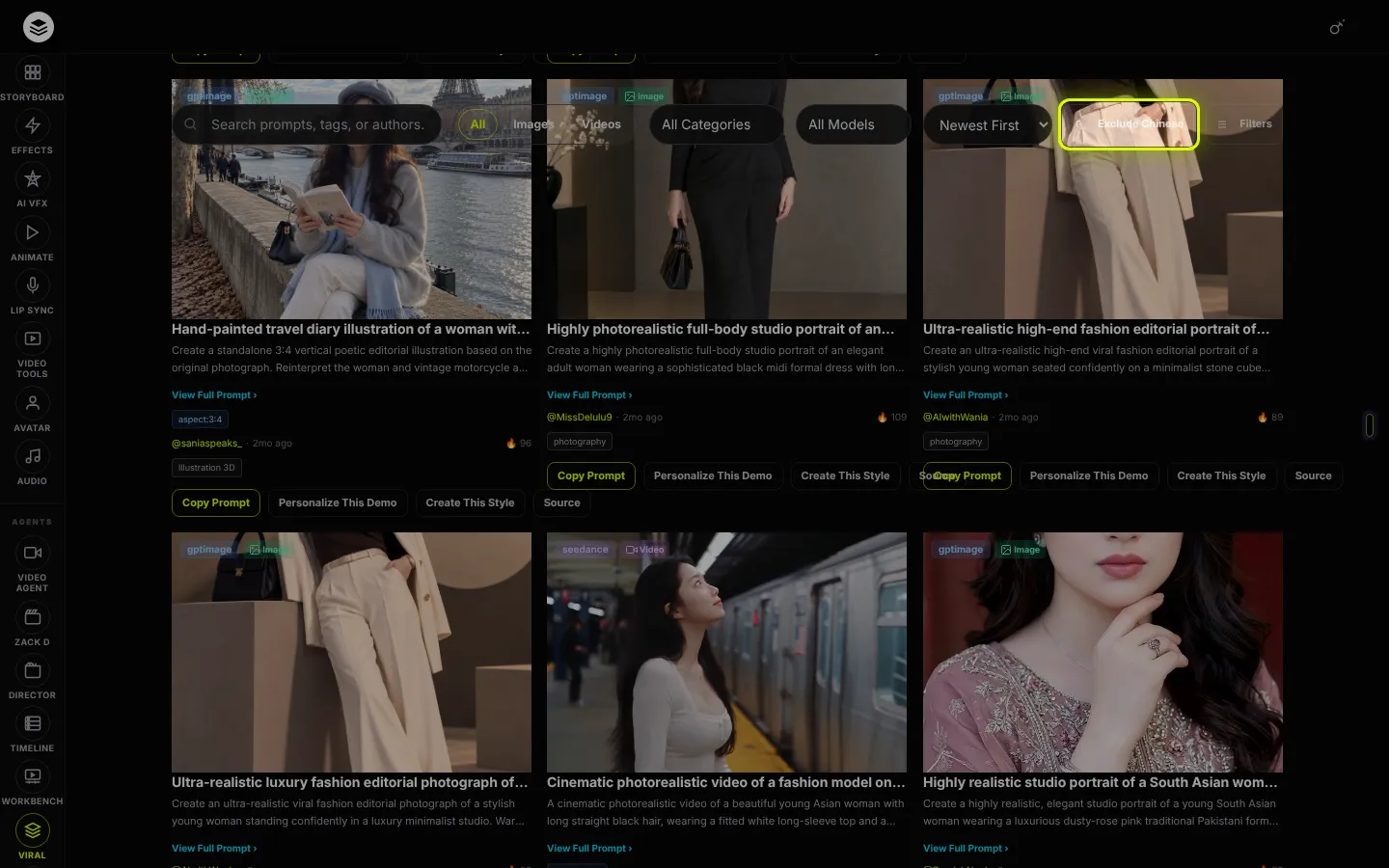
What it is: Hides prompts marked as Chinese language. It is ON by default. The button reads 'Exclude Chinese' when on and 'Include Chinese' when off. The count line shows how many were excluded.

Why use it
Keep the feed in a language you can read, or include them for more ideas.
What you need
None.
Limits and rules
Only affects items the feed marks as Chinese.
Copy Prompt in Smart Video Viral
Copy Prompt
FEATURE 05

Copy Prompt

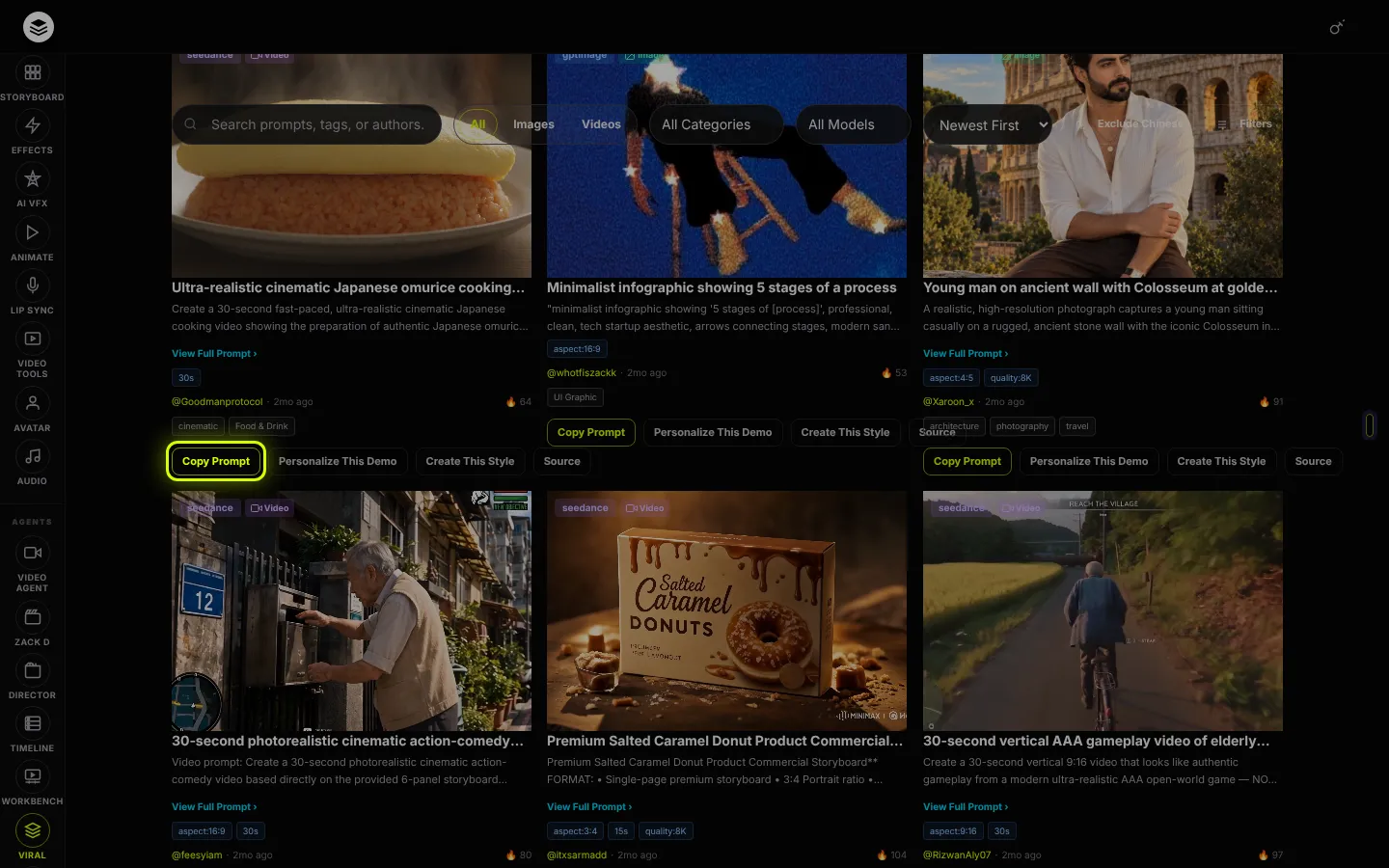
What it is: Copies the full prompt text to your clipboard and shows the toast 'Prompt copied to clipboard!'.

Why use it
Paste it into any studio.
What you need
None.
Limits and rules
If the browser blocks copying you see 'Failed to copy'.
Create This Style in Smart Video Viral
Create This Style
FEATURE 06

Create This Style

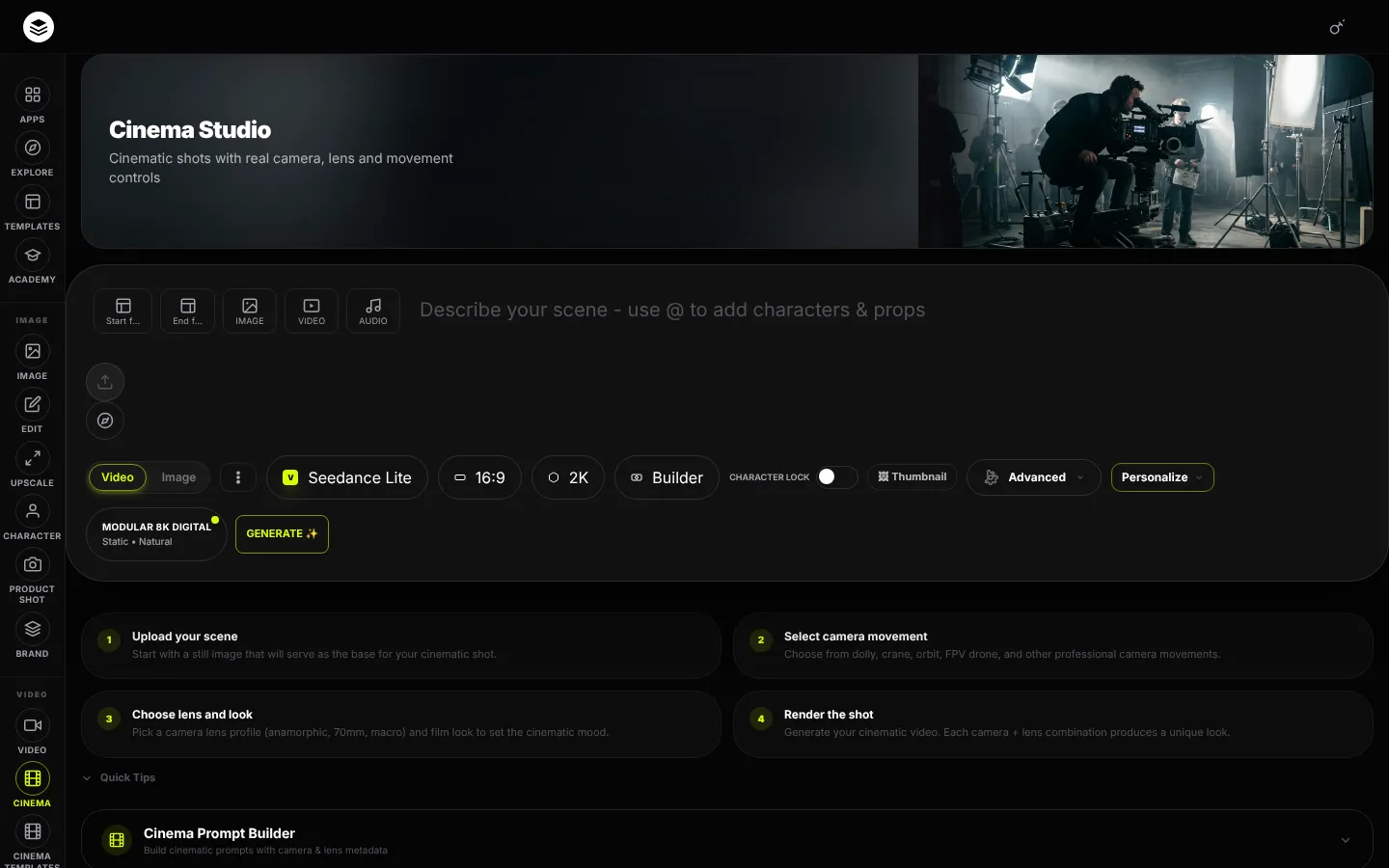
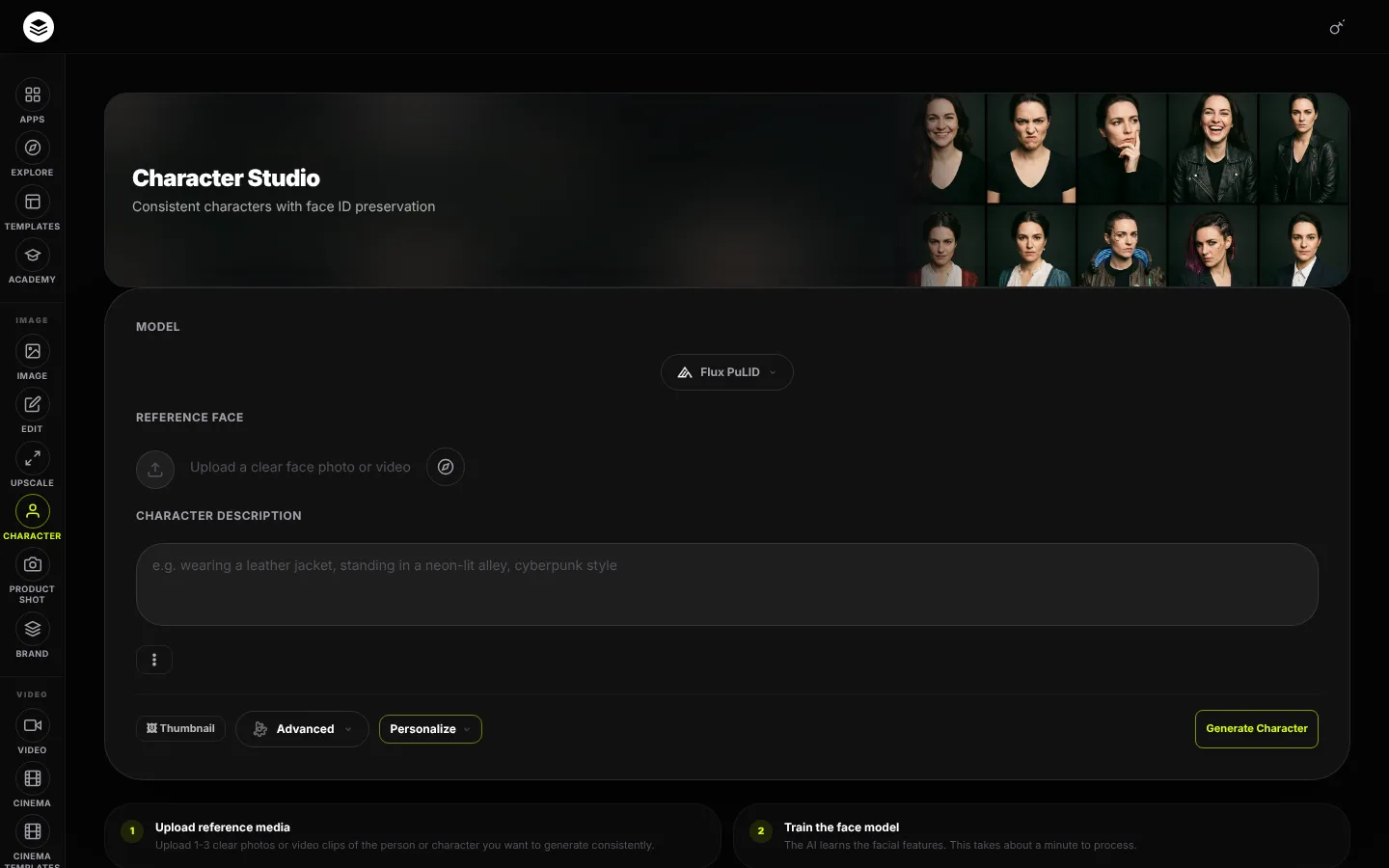
What it is: Opens a creation studio and passes the prompt (and, when available, a mapped model, aspect ratio, duration and audio setting). Video prompts open Video Studio and image prompts open Image Studio; for items without a clear type, categories decide (cinematic -> Cinema, character -> Character, product ads/brand -> Commercial, UGC/animation -> Video).

Why use it
Go from inspiration to your own generation in one click.
What you need
None.
Limits and rules
You still click Generate in the studio you land in, and you need credits there.
Personalize This Demo in Smart Video Viral
Personalize This Demo
FEATURE 07

Personalize This Demo

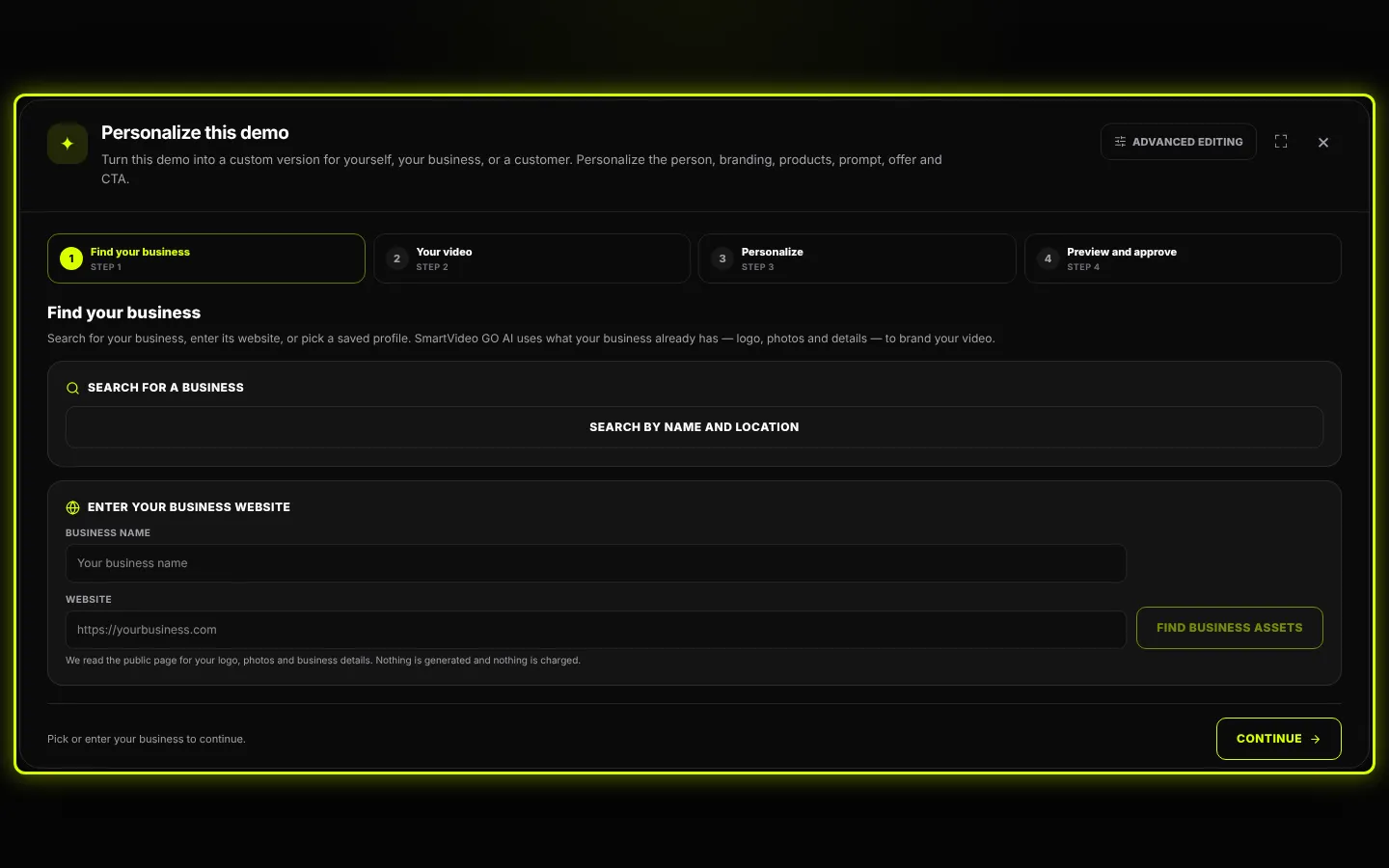
What it is: Opens a personalization dialog for that viral demo so you can adapt it for a business.

Why use it
Turn a trending style into a customized sales or outreach demo.
What you need
Details you enter in the dialog.
Limits and rules
The dialog's own steps are not documented in this studio's code.
Source and View Full Prompt in Smart Video Viral
Source and View Full Prompt
FEATURE 08

Source and View Full Prompt

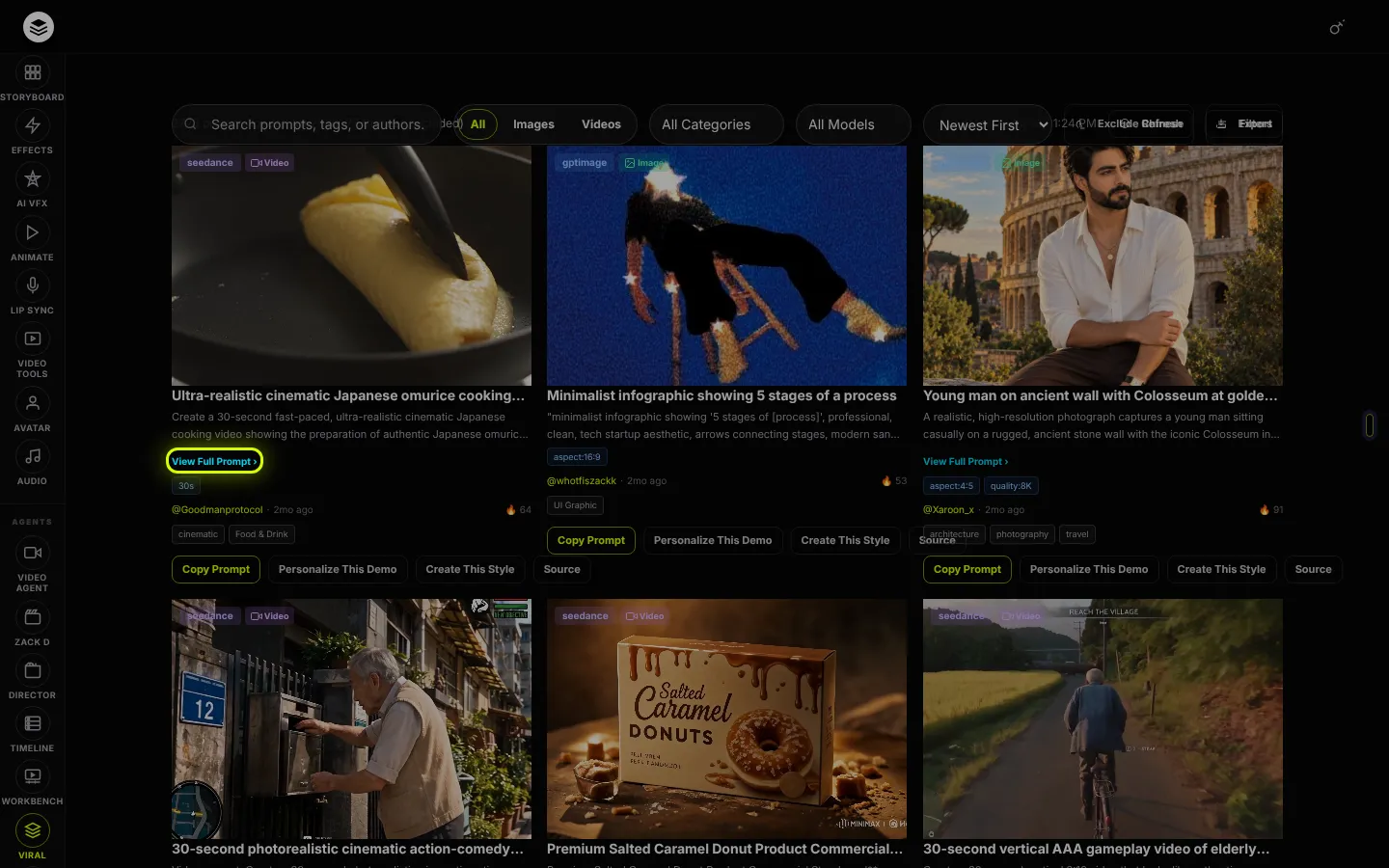
What it is: 'Source' opens the original post on X in a new tab. 'View Full Prompt ›' opens a detail viewer for long prompts.

Why use it
Credit the author and read the whole prompt.
What you need
None.
Limits and rules
Some items may lack a source link.
Video preview in Smart Video Viral
Video preview
FEATURE 09

Video preview

What it is: Video cards have a play toggle on the preview. If no video is available you see 'No video source available'.

Why use it
Watch what the prompt produced.
What you need
None.
Limits and rules
Depends on the media host being reachable.
Refresh and Export in Smart Video Viral
Refresh and Export
FEATURE 10

Refresh and Export

What it is: The refresh button (tooltip 'Refresh feed from upstream') reloads the feed; it also reloads automatically every 5 minutes. The export button (tooltip 'Export filtered prompts as JSON') downloads viral-prompts-YYYY-MM-DD.json with title, prompt, media type, categories, model, author and source URL, and shows 'Exported N prompts'.

Why use it
Keep a local copy of prompts for a category.
What you need
None.
Limits and rules
Export contains only what is currently filtered, as JSON.

How to use Smart Video Viral

  1. Browse or search the feed.
  2. Filter by media type, category, model and sort order.
  3. Open a card and read the full prompt.
  4. Copy the prompt or click Create This Style.
  5. Generate in the studio that opens.
  6. Optional: Personalize This Demo, view the Source, or export JSON.

Inputs and outputs

What you give the studio, and what you get back.

InputDescriptionWhen to useRules
Search
Optional
Free text matched against titles, prompt text, tags and authors.When you know the subject you want.Press / to focus the box when no input is active.
Media type
Optional
All, Images or Videos.To see only images or only videos.Default All.
Category
Optional
One of 15 categories or All Categories.To browse a content type.Default All Categories.
Model
Optional
The recommended model attached to the prompt (for example seedance, kling, nanobanana, gptimage, minimax, ideogram, flux).To see prompts made with a particular model.The list is built from the loaded data.
Sort
Optional
Newest First (default), Most Popular, Most Likes.To find fresh or highly liked prompts.Popularity depends on engagement data from the source post.
Exclude Chinese
Optional
Toggle that hides Chinese-language prompts.To include or exclude them.On by default.

What you get

  • Copied prompt text
  • A creation studio opened with the prompt prefilled
  • An exported JSON file of filtered prompts (viral-prompts-YYYY-MM-DD.json)
  • A personalized demo (via Personalize This Demo)

Use cases and example workflows

Real jobs you can do, step by step.

Prompt inspiration for beginners

See what good prompts look like and learn from them.

  1. Browse Trending.
  2. Open a card and read the full prompt.
  3. Copy it and adapt it in your studio.
Result: A better first prompt in Image or Video Studio.

Style research for a campaign

Collect prompts and recommended models for one category.

  1. Select a category.
  2. Filter by model.
  3. Export the filtered list as JSON.
Result: A JSON file of prompts, categories, models and source links.

Recreate a trending video style

  1. Click Videos.
  2. Sort by Most Popular.
  3. Open a card you like.
  4. Click 'Create This Style'.
  5. In Video Studio click Generate.

Collect product-ad prompts

  1. Choose the Category 'Product Ads'.
  2. Click Images or leave All.
  3. Click the export button to download the filtered prompts as JSON.

Personalize a demo for a prospect

  1. Find a demo you like.
  2. Click 'Personalize This Demo'.
  3. Fill in the business details in the dialog.

Tips and best practices

  • Sort by Most Popular to see what has the most engagement.
  • Use the same recommended model first, then try others.
  • Change names, products and details in the prompt to make it your own.
  • Click View Full Prompt before copying a long prompt so you know what is in it.
  • Credit the original author when you share a recreated style.
  • Test a prompt on the recommended model first.
  • Keep a JSON export of your favorite category for later.

Limitations and troubleshooting

Know the limits before you start, and how to fix common problems.

LimitationWhat it meansWorkaround
Feed can fail to loadYou may see 'Failed to load the prompt feed' with a Retry button.Click Retry or the refresh button. If the remote feed stays unavailable, the studio falls back to its bundled overflow prompts when available.
Different model, different resultA prompt that looked great on one model may look different on another.Use the card's recommended model in the studio, or adjust the prompt.
Chinese prompts hidden by defaultFewer results than the total.Click 'Exclude Chinese' to switch to 'Include Chinese'.

I expected to generate here

Why: Smart Video Viral is a prompt library, not a generator.

Fix: Click Create This Style to open a studio and generate there.

The count says fewer prompts than the hero number

Why: Your filters and the Chinese exclusion reduce the list; the count line shows 'N prompts loaded of Total'.

Fix: Reset filters or toggle Include Chinese.

Prompt is cut off on the card

Why: Long prompts are shortened on the card.

Fix: Click 'View Full Prompt ›'.

Glossary

Terms used in Smart Video Viral.

Prompt
The text you give an AI model to describe what to create.
Feed
The scrolling list of prompt cards that updates over time.
Recommended model
The AI model the prompt author used or that the feed suggests.
Rail
A horizontal scrolling row such as Trending, Categories or Providers.
Source
The original post on X where the prompt was shared.

Frequently asked questions

Where do the prompts come from?

They are collected from posts on X and shown with author and source link. The feed combines an upstream GitHub-hosted prompt feed, a bundled Seedance prompt list and a bundled overflow list.

Does it cost credits to browse?

Browsing, copying and exporting prompts does not generate anything. Generating in a studio uses that studio's credits.

How often does the feed update?

Automatically every 5 minutes while the page is open, or when you click the refresh button.

Can I use the prompt in any studio?

Yes. Copy it and paste it into any studio, or click Create This Style to send it to Image Studio or Video Studio (or another studio chosen by category).

What are the keyboard shortcuts?

/ focuses search, r refreshes, c toggles Chinese content, and ? shows a reminder. They do not work while typing in a box.

Can I export prompts?

Yes, as a JSON file of the currently filtered list using the export button.

Try Smart Video Viral now

Open the studio and put these features to work, or browse the guides for all 53 studios.