AI Agents & Automation · Feature guide

Find My Brand Feature Guide

Free: paste a website and pull its logo, photos and branding.

A free brand discovery tool. Paste a business website and SmartVideo reads the page it already has and shows the logo, photos, products and branding found on it, ready to review.

Best for: Business owners, freelancers and agencies who want to quickly see and collect the real brand assets on a website, without signing in or paying.

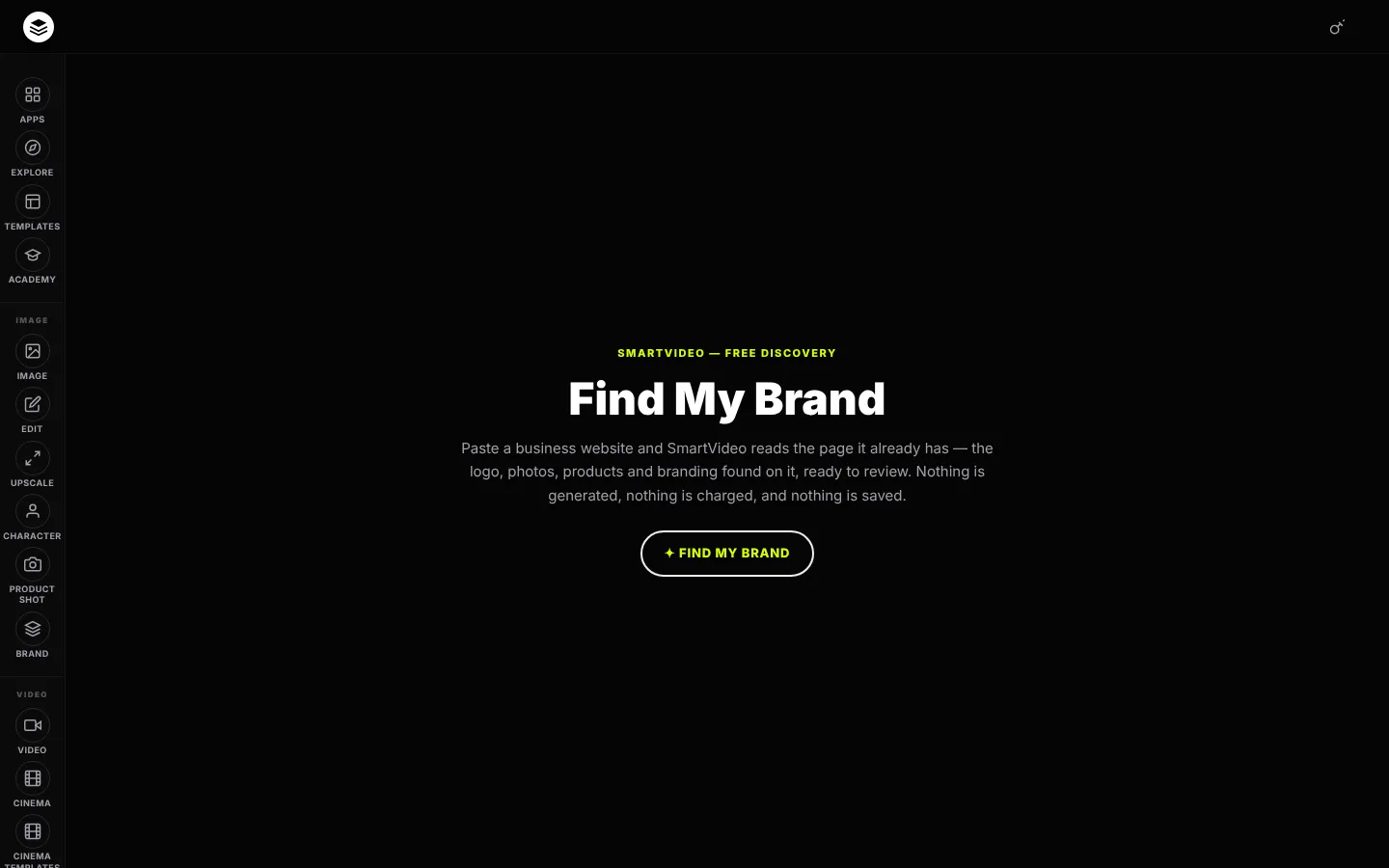
Find My Brand screenshot

Watch the Find My Brand tour

A 1:12 captioned walkthrough of the studio, with a sample file and prompt.

VIDEO · 1:12

What is Find My Brand?

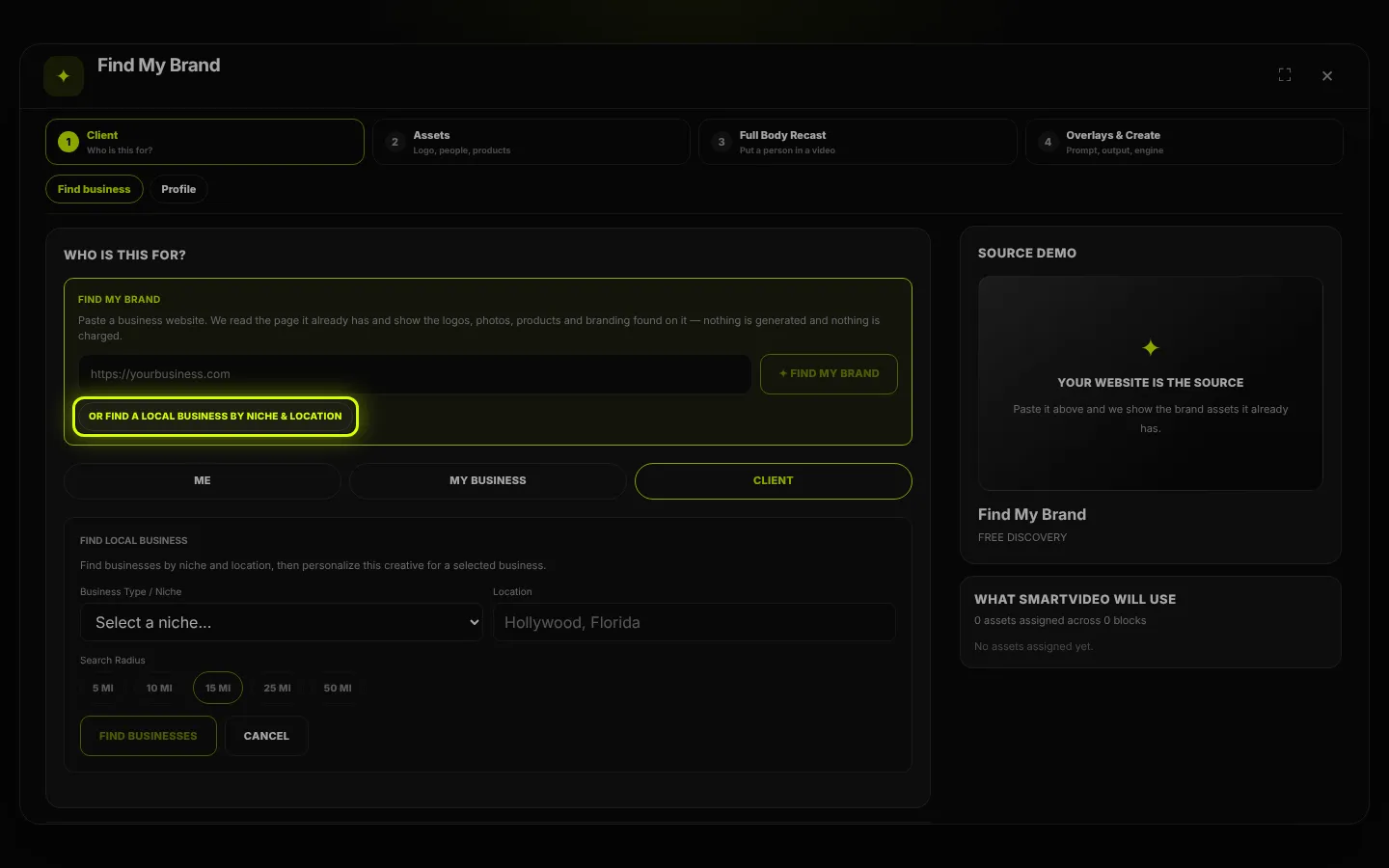
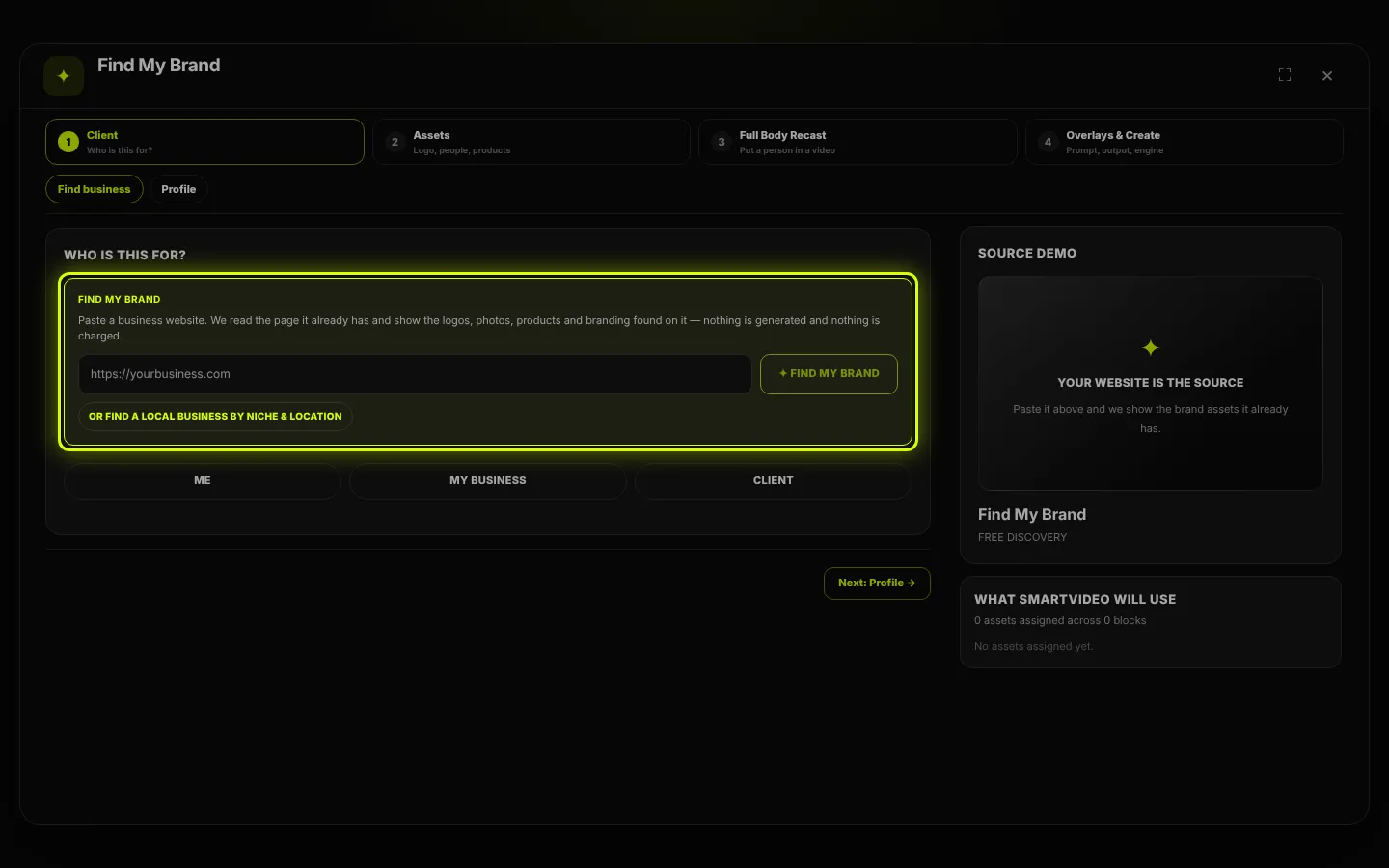
Find My Brand (#/find-my-brand, not in the side menu) is a simple page with the label 'SmartVideo - Free Discovery', the title Find My Brand and a button '✦ Find My Brand'. It opens the shared personalization modal in anonymous mode and opens it automatically when you arrive. In the modal you paste your website (placeholder https://yourbusiness.com), or search for a business instead, and the tool surfaces the logos, photos, products and branding already on the page for you to review and arrange. Per the page text, nothing is generated, nothing is charged and nothing is saved.

When to use it

  • You want your business logo, photos and products pulled from your own site.
  • You are about to make a video or page for a business and want its real assets.
  • You want to try the discovery step for free before using other studios.
  • Free and signed-out
  • Opens automatically when you arrive
  • Paste a website URL or search for a business
  • Shows logos, photos, products and branding found on the page
  • Review and arrange the assets into sections
  • Nothing is generated, charged or saved

Every Find My Brand feature, explained

4 features, each with a definition, why you would use it, what it needs and its limits.

Find My Brand button in Find My Brand
Find My Brand button
FEATURE 01

Find My Brand button

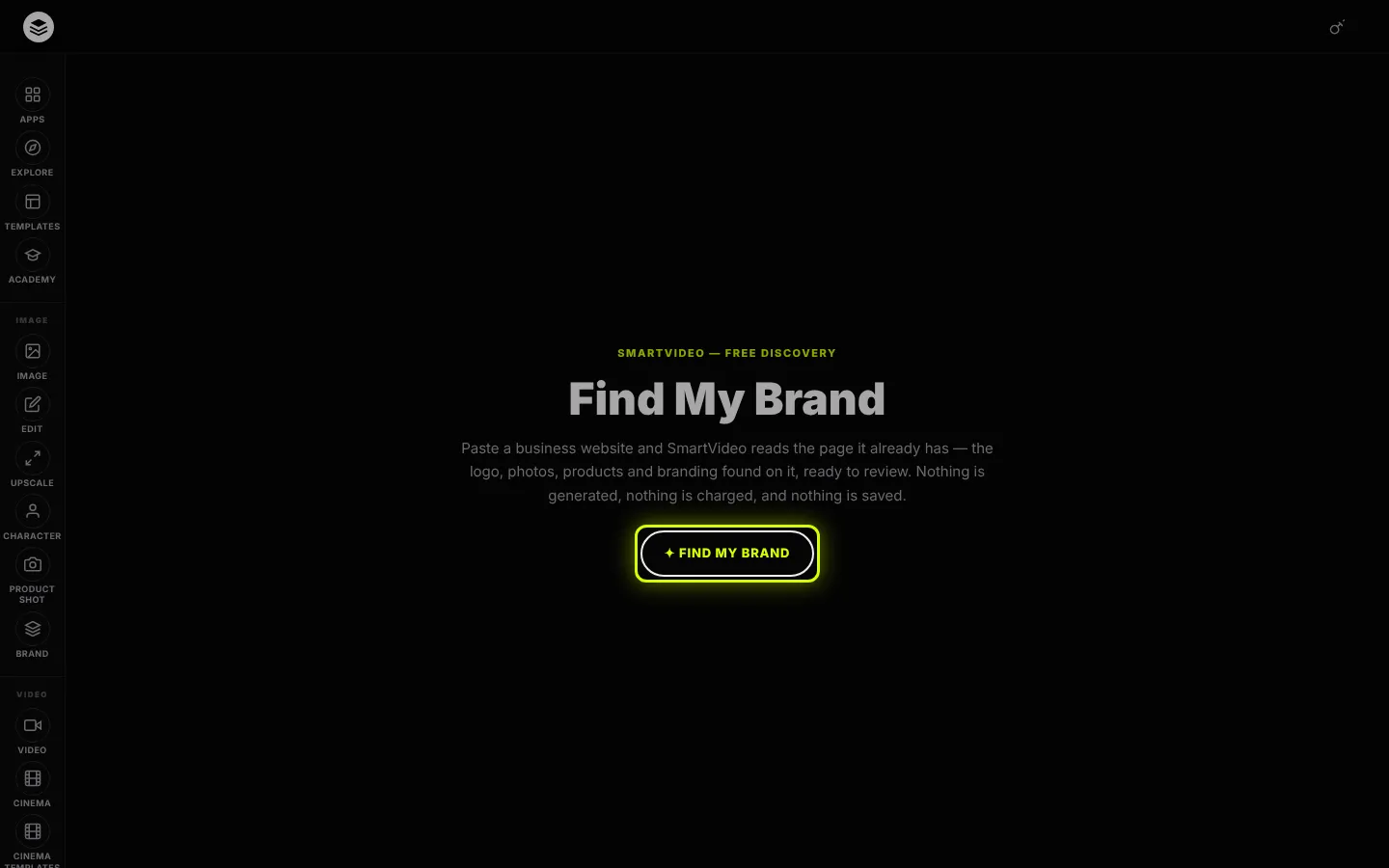
What it is: The big button '✦ Find My Brand' opens the discovery modal. The modal also opens by itself the first time you land on the page.

Why use it
Starts discovery.
What you need
None.
Limits and rules
If the modal is closed you can click the button to reopen it.
Website URL discovery in Find My Brand
Website URL discovery
FEATURE 02

Website URL discovery

What it is: Type or paste your website in the field (placeholder https://yourbusiness.com) and click '✦ Find My Brand'. While it runs the button reads 'Finding...'. Found assets appear to review.

Why use it
Collect real brand assets.
What you need
A website URL.
Limits and rules
Results depend on what the page contains.
Search for a business instead in Find My Brand
Search for a business instead
FEATURE 03

Search for a business instead

What it is: If you do not have the website, you can search for a business and then use its website for discovery. If a result has no website you are told: 'No website is listed for this business. Paste one in the Website field and use Find My Brand.'

Why use it
Handy when you only know the business name and place.
What you need
Business details.
Limits and rules
Business search data comes from OpenStreetMap and may be incomplete.
Review and arrange in Find My Brand
Review and arrange
FEATURE 04

Review and arrange

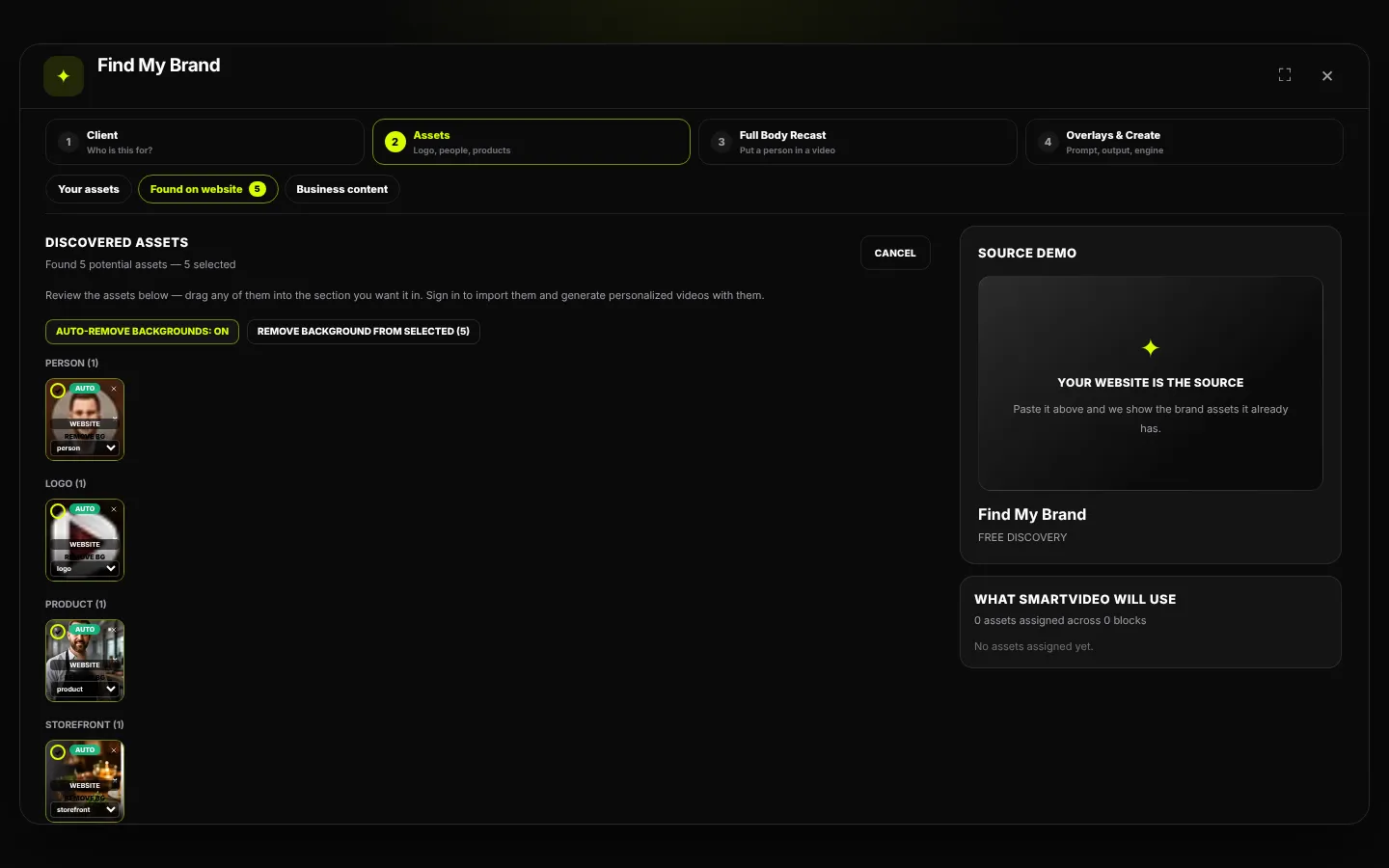
What it is: Discovered images appear in a Discovered section; you can drag them into the section you want (for example logos, products, brand references, other images), open a viewer with Previous and Next, edit or revert images and remove ones you do not want.

Why use it
Keep only the useful assets.
What you need
Discovery results.
Limits and rules
Importing and saving assets to a library requires sign in; the page says discovery is free and nothing is saved when signed out.

How to use Find My Brand

  1. Open #/find-my-brand.
  2. Paste the website address.
  3. Click Find My Brand.
  4. Review and arrange the results.

Inputs and outputs

What you give the studio, and what you get back.

InputDescriptionWhen to useRules
Website URL
Required
The business website to read.Always, unless you search for a business first.The site must be reachable and not too slow.

What you get

  • Found logo, photos, products and branding shown for review

Use cases and example workflows

Real jobs you can do, step by step.

Prepare a client video

See a client's real assets before making content.

  1. Paste the client site.
  2. Review logo and photos.
  3. Move on to Personalizer or Video.
Result: A set of reviewed brand assets.

Grab brand assets

  1. Open #/find-my-brand.
  2. Paste https://yourbusiness.com.
  3. Click Find My Brand.
  4. Drag the logo and best photos into place.

Tips and best practices

  • Use the business home page first.
  • Remove blurry or irrelevant images before moving on.
  • Check you have the right to use the assets you find.
  • Keep your own copy of important images.

Limitations and troubleshooting

Know the limits before you start, and how to fix common problems.

LimitationWhat it meansWorkaround
Depends on the pageFew or no assets if the site is sparse.Try another page or upload your own images in Personalizer.
Nothing savedResults are gone when you leave.Sign in and import assets, or download what you need.

Wrong or missing logo

Why: The page does not mark its logo clearly.

Fix: Choose a different image or upload your own.

Results lost after leaving

Why: Nothing is saved while signed out.

Fix: Sign in and import the assets you want.

Glossary

Terms used in Find My Brand.

Discovery
Reading a web page to find its images and branding.
Brand assets
Logos, photos and product images that represent a business.

Frequently asked questions

Is it free?

Yes. The page says nothing is generated, nothing is charged and nothing is saved.

Do I need to sign in?

No, it is a free, signed-out tool. Importing assets into your library needs sign in.

What does it find?

The logo, photos, products and branding already on the business page.

Try Find My Brand now

Open the studio and put these features to work, or browse the guides for all 53 studios.