Image Studios · Feature guide

Brand Studio Feature Guide

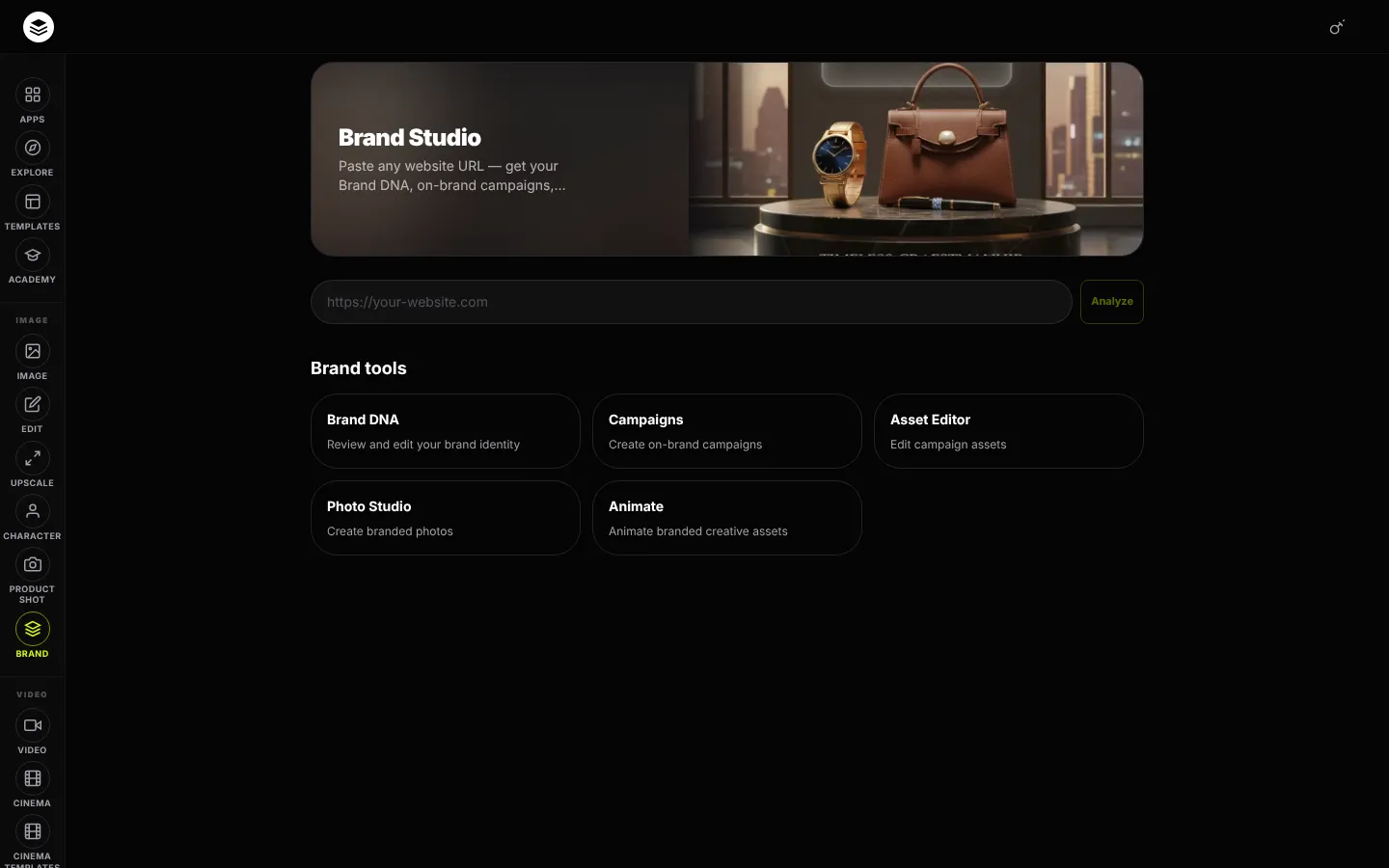
Paste any website URL - get your Brand DNA, on-brand campaigns, product photos and videos

Brand Studio turns a website URL into a saved Brand DNA (name, tagline, tone, colors, logo) and gives you linked tools to make on-brand campaigns, edit campaign assets, generate branded product photos and animate them.

Best for: Marketers, founders, agencies and e-commerce sellers who want on-brand social, ad and product visuals generated from their own website without designing from scratch.

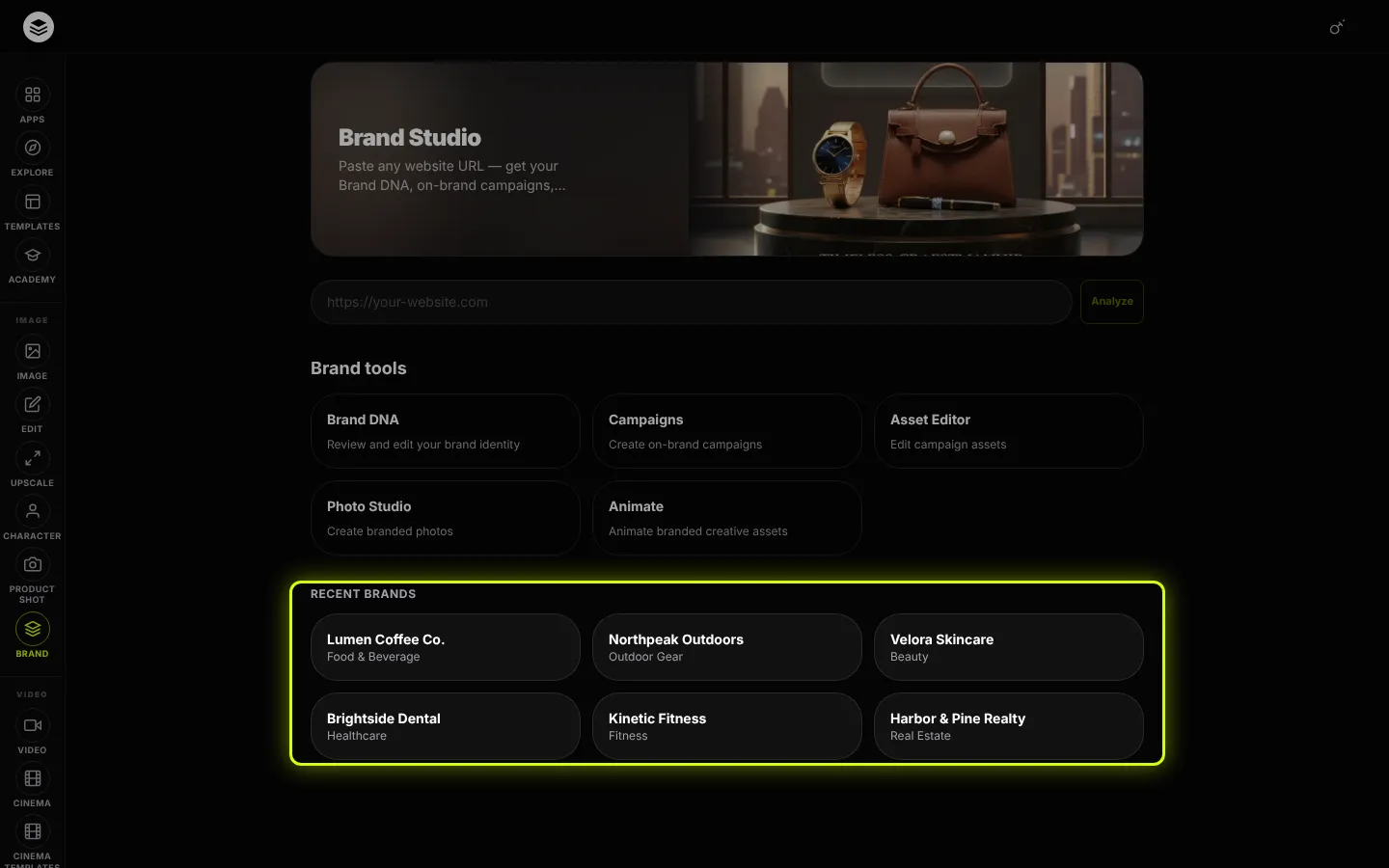
Brand Studio screenshot

Watch the Brand Studio tour

A 2:11 captioned walkthrough of the studio, with a sample file and prompt.

VIDEO · 2:11

What is Brand Studio?

Brand Studio (#/brand, 'Brand' in the Image group of the side menu) is a home page for five connected brand tools. You paste your website address and click Analyze; the app reads the site and builds a Brand DNA record saved in your browser. From the Brand DNA editor (#/brand-dna) you can review and edit the identity, then open Campaign Studio (#/campaign) to generate concepts and platform-specific creatives, the Asset Editor (#/asset-edit) to place and style the headline, body and CTA on a campaign asset, Photo Studio (#/photo-studio, also reachable as #/brand-photo-studio) to generate product photos from 30 presets, or Animate (#/animate) to bring branded assets to life. Only Brand Studio appears in the side menu; the sub-tools are reached from its Brand tools cards, from buttons on the Brand DNA page and from the asset cards in Campaign Studio. Brand data is stored locally in your browser.

When to use it

  • You want the app to learn your brand from your website URL.
  • You want campaign concepts (4 ideas) and creatives sized for Instagram, LinkedIn, Facebook, X, web banners, email headers and YouTube thumbnails.
  • You want batches of product photos in several settings and styles from one product image.
  • You want to place, restyle or reword the headline, body and CTA on a campaign creative.
  • You want to keep your brand name, tone, colors and key messages in one place.
  • Analyze: paste a website URL, get Brand DNA (name, industry, tagline, value proposition, tone, personality, audience, key messages, colors, fonts, logo, screenshot, imagery and layout style).
  • Recent Brands list (up to 6 cards).
  • Brand DNA editor with editable fields, chip lists, a full color palette editor and Past campaigns, saved locally.
  • Campaign Studio: 6 goals, 4 AI concepts, 8 platforms, up to three platforms generated at once with per-platform status.
  • Asset Editor: Headline/Body/CTA blocks on the asset's picture with Text, Position, Size, Align, Color, Background and Font, plus Swap image, Clean background and Upload image.
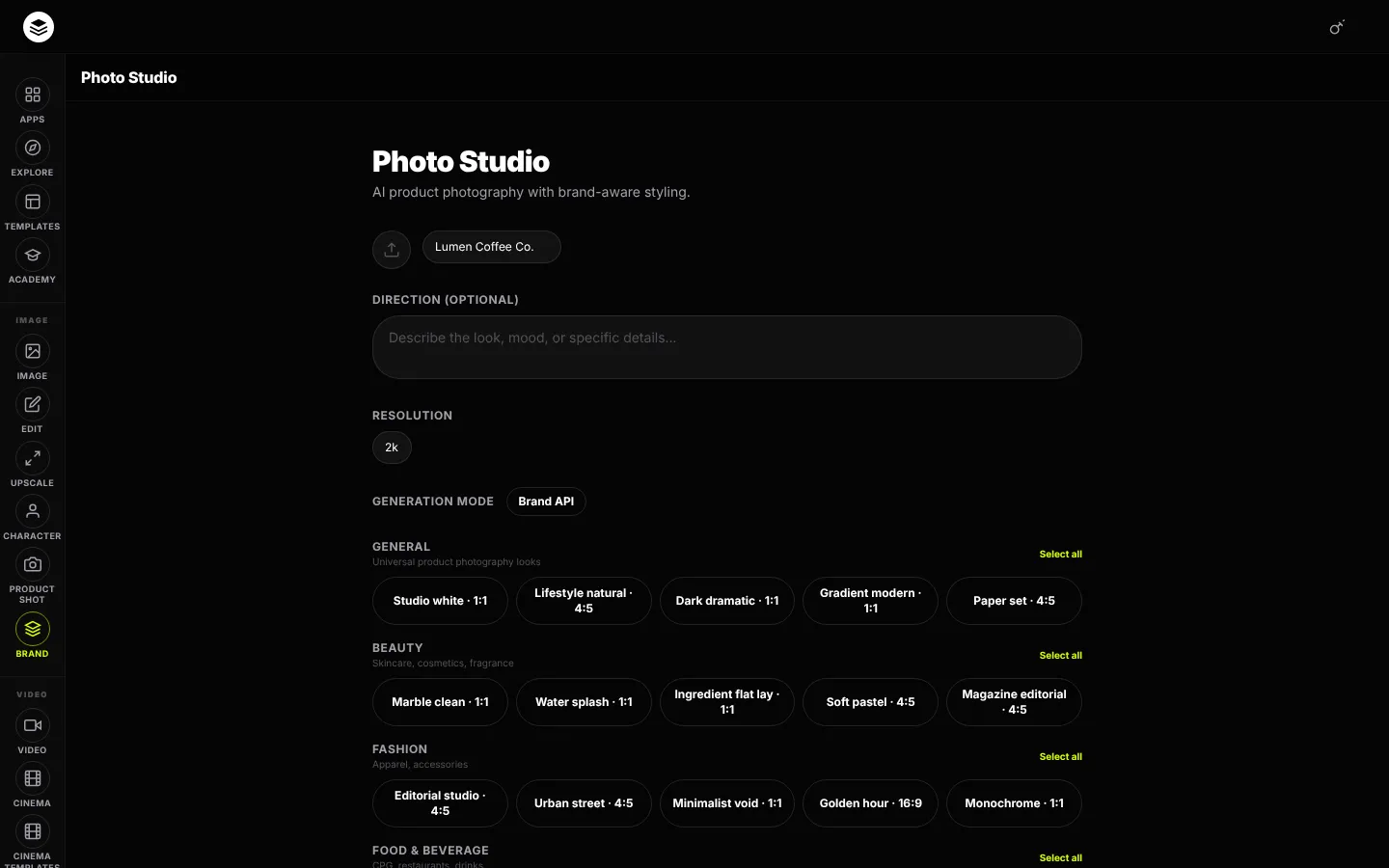
  • Photo Studio: 30 presets in 6 categories, multi-select, 1k/2k/4k, optional Direct MuAPI mode with advanced controls.
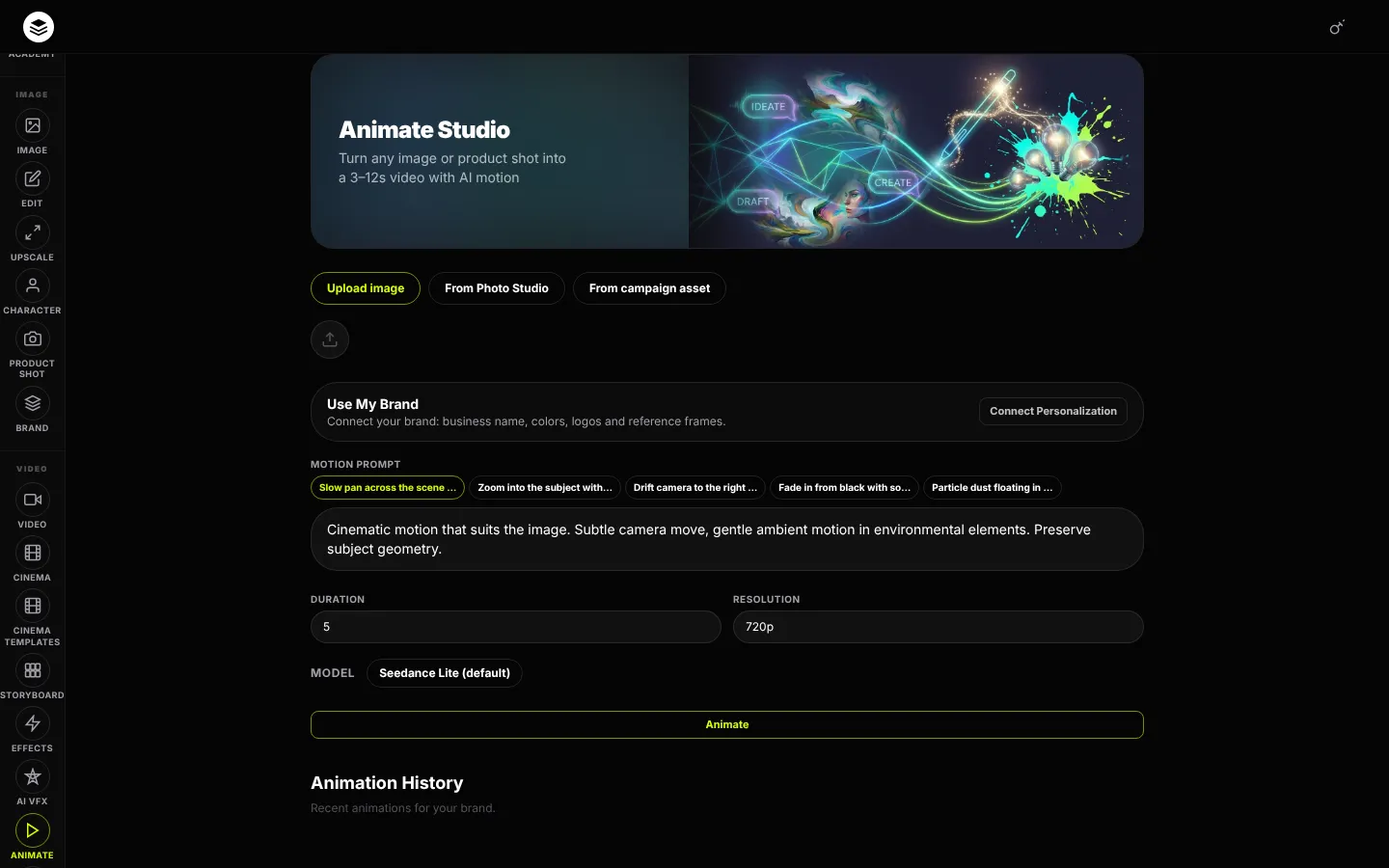
  • Animate shortcut for branded creative.
  • Personalize button on the Brand DNA page (when a screenshot exists) and on photo results.

Every Brand Studio feature, explained

8 features, each with a definition, why you would use it, what it needs and its limits.

Analyze (website to Brand DNA) in Brand Studio
Analyze (website to Brand DNA)
FEATURE 01

Analyze (website to Brand DNA)

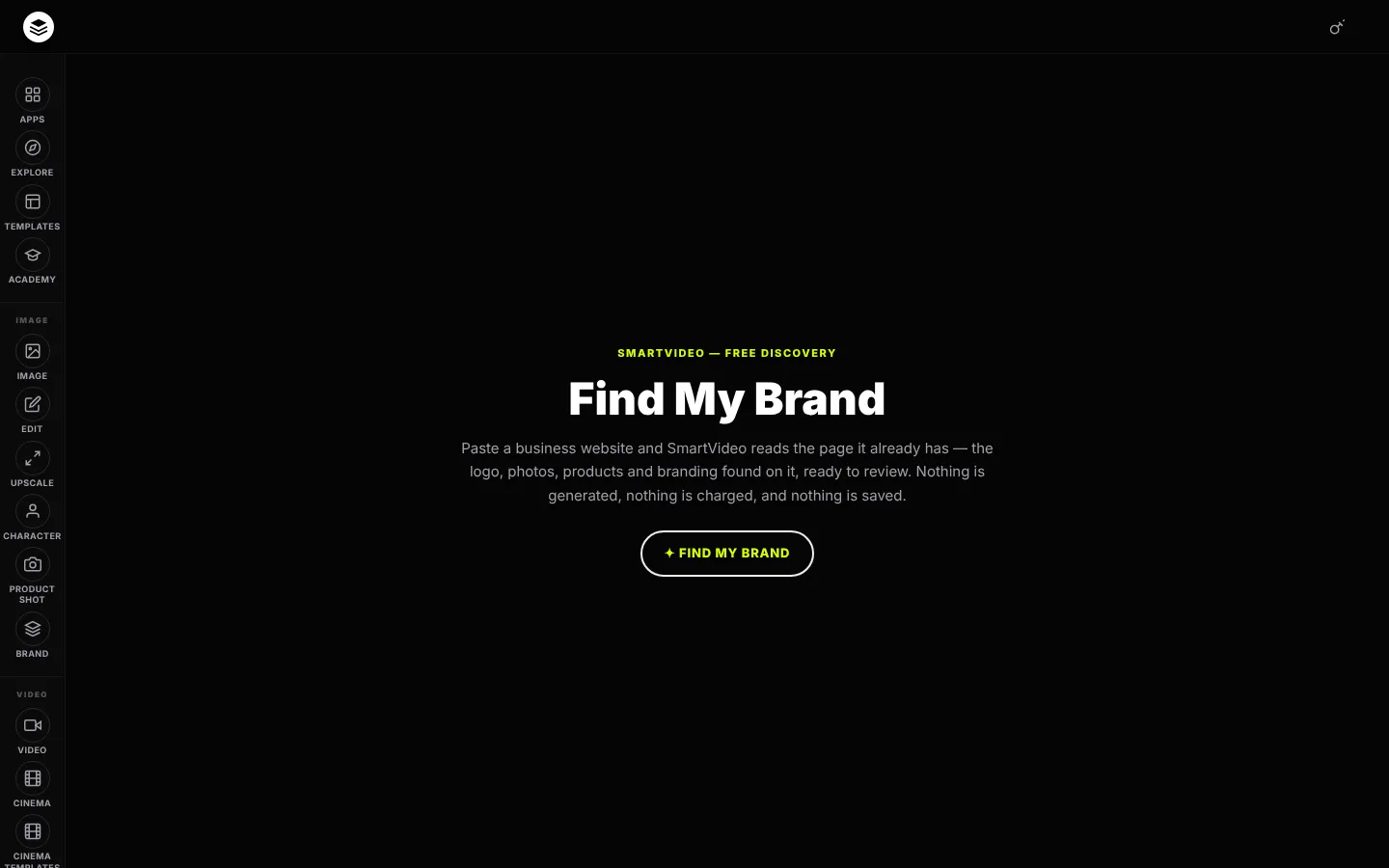
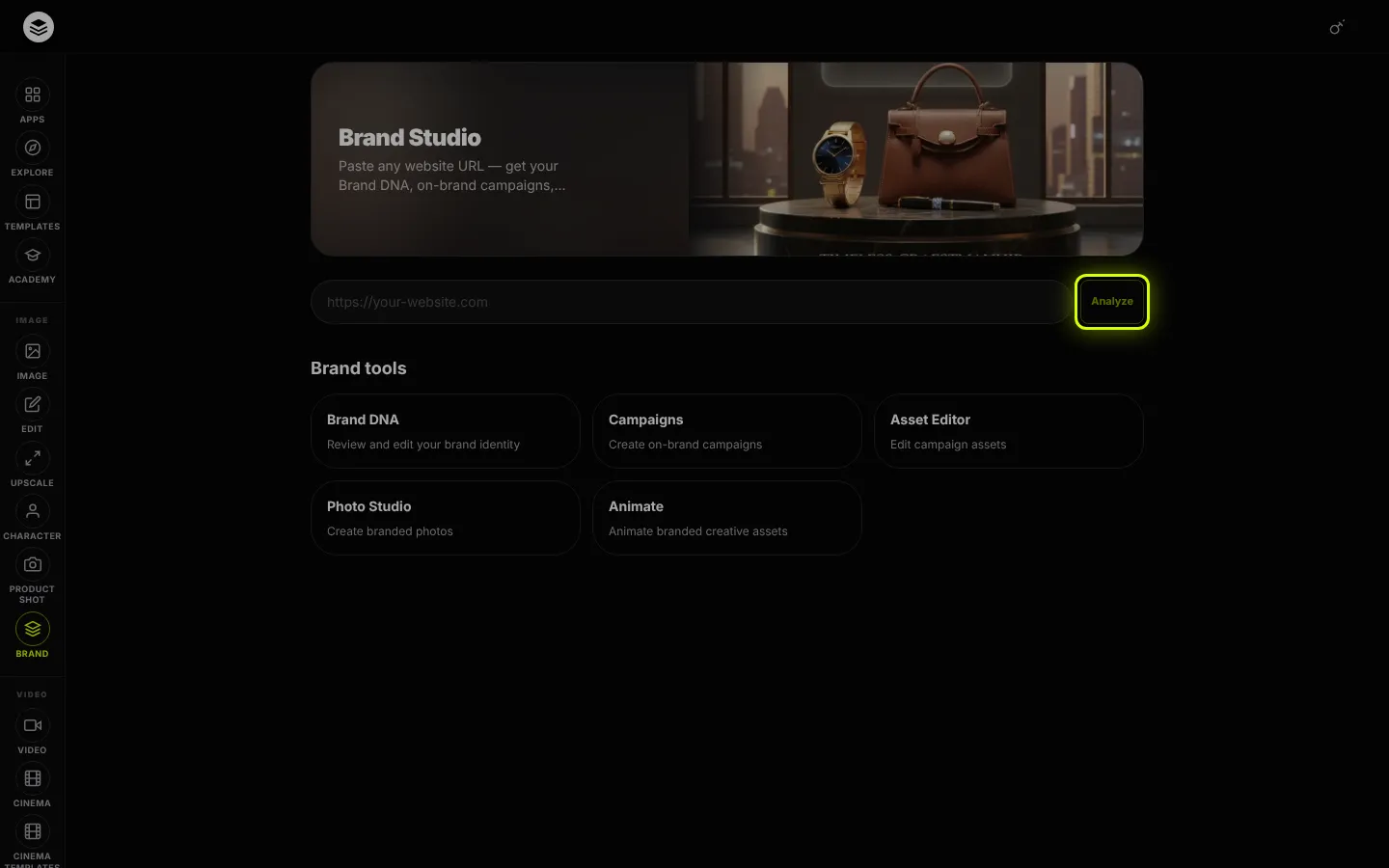
What it is: A URL box (placeholder 'https://your-website.com') and an Analyze button (enabled once you type). While running the button reads 'Extracting...' and a loading overlay says 'Extracting brand DNA...'. On success the Brand DNA is saved and the Brand DNA page opens. The app asks a backend to read the page (title, text, colors, fonts, logo candidates, screenshot), then uses AI to describe the brand from the text and, if a screenshot exists, the visuals.

Why use it
Starts everything; the other tools use this record.
What you need
A website URL starting with http:// or https://.
Limits and rules
Invalid input shows 'Please enter a valid website URL (e.g. https://example.com)'. An API key/sign-in dialog appears if no key is connected. If the page cannot be read, the AI guesses from the domain name (see limitations).
Brand tools grid in Brand Studio
Brand tools grid
FEATURE 02

Brand tools grid

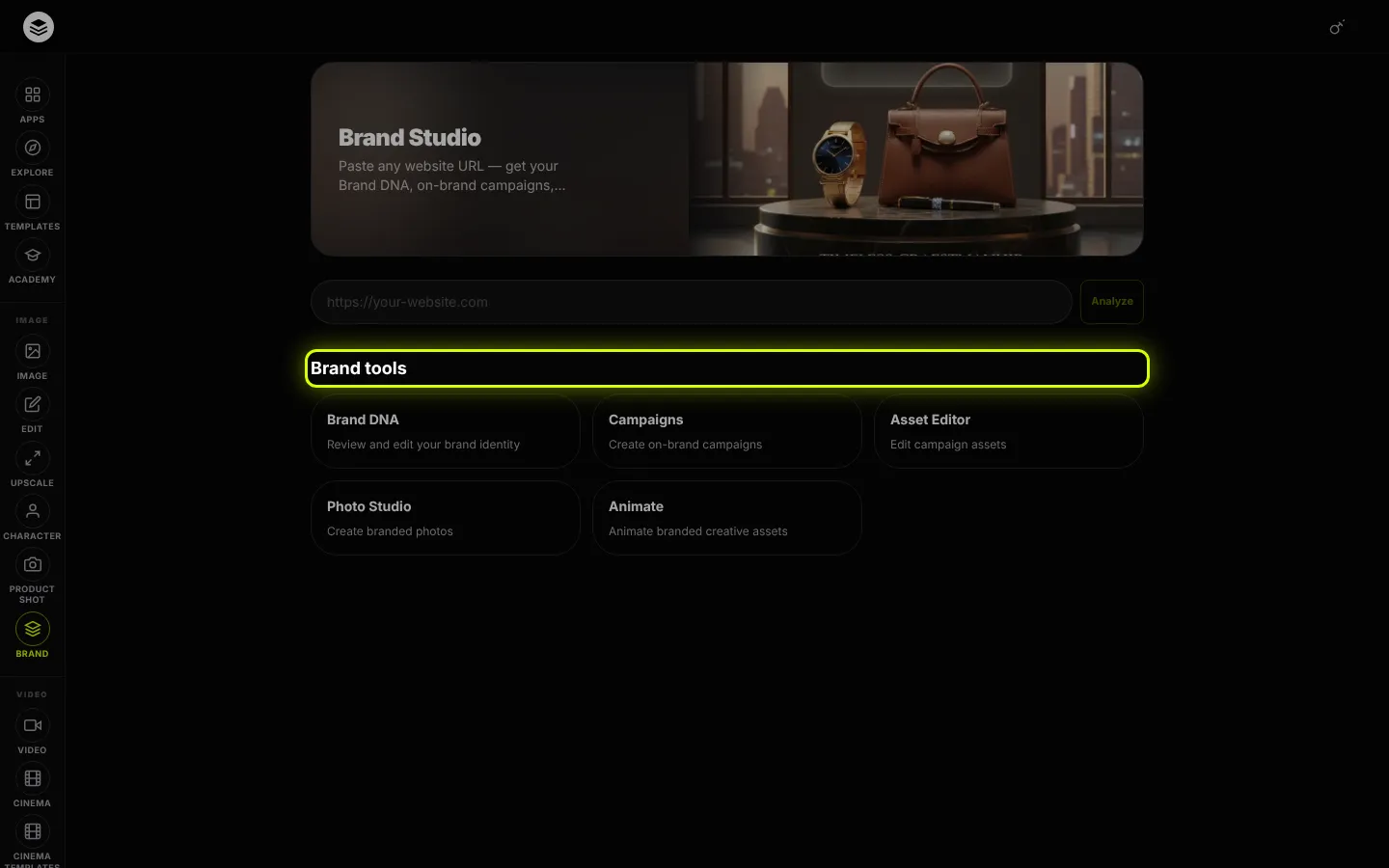
What it is: Five cards under 'Brand tools': Brand DNA ('Review and edit your brand identity'), Campaigns ('Create on-brand campaigns'), Asset Editor ('Edit campaign assets'), Photo Studio ('Create branded photos') and Animate ('Animate branded creative assets').

Why use it
Jump into any tool.
What you need
None.
Limits and rules
Brand DNA and Campaigns open the brand you used last, otherwise your first saved brand; 'Brand not found' only appears when you have no saved brands. Asset Editor opens the most recent asset of that brand's campaigns. If the brand has no assets yet it shows 'Create a campaign first to edit its assets' and opens Campaign Studio; with no saved brand it shows 'Analyze a brand first, then create a campaign to edit its assets' and stays on Brand Studio.
Recent Brands in Brand Studio
Recent Brands
FEATURE 03

Recent Brands

What it is: Up to six cards titled 'Recent Brands' showing brand name (or 'Untitled Brand') and industry (or 'No industry'). Clicking one opens its Brand DNA page.

Why use it
Return to an analysed brand.
What you need
At least one analysed brand.
Limits and rules
Stored in your browser (up to 50 brands).
Brand DNA editor in Brand Studio
Brand DNA editor
FEATURE 04

Brand DNA editor

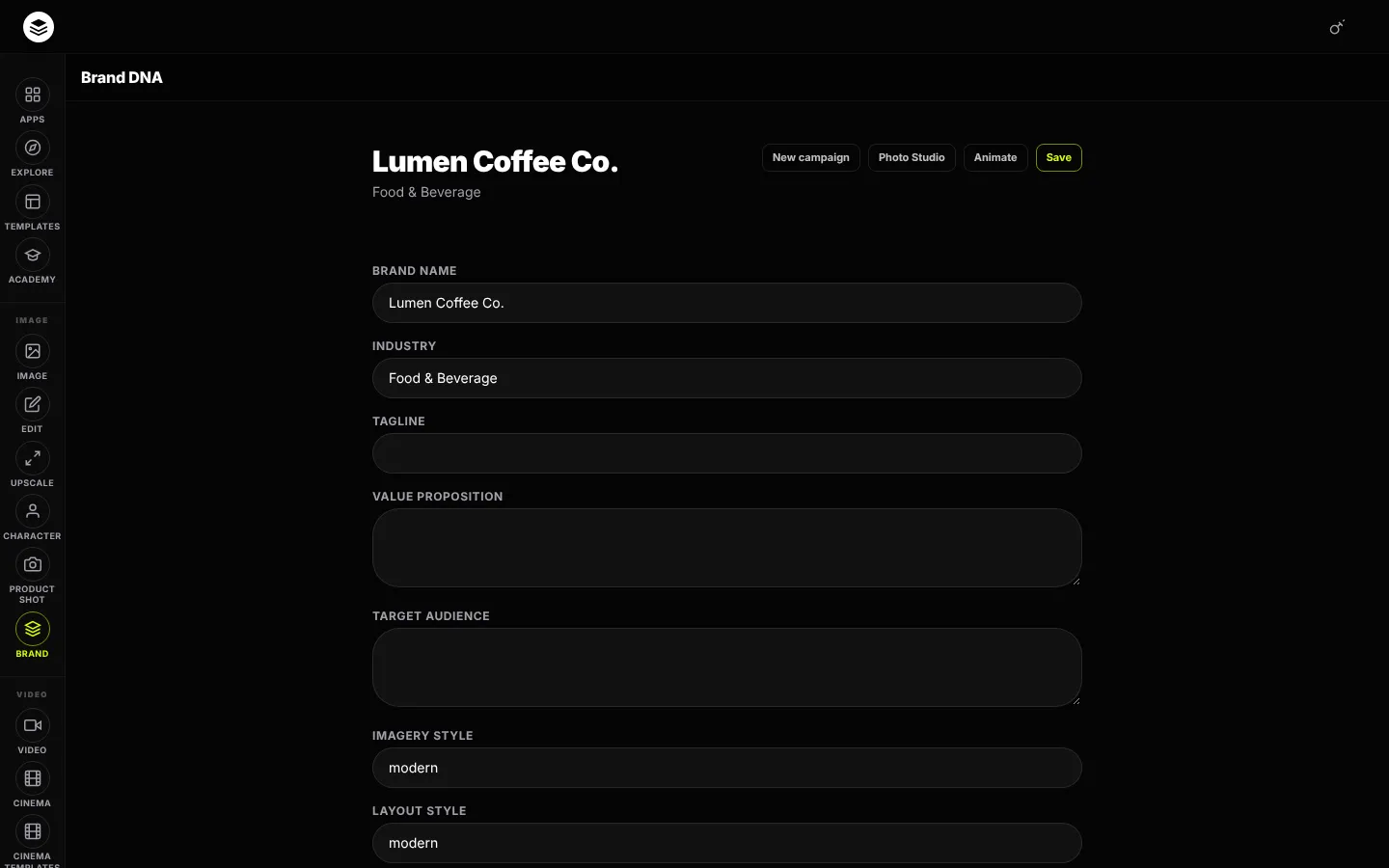
What it is: Shows brand name and industry, website screenshot and logo, then editable fields: Brand Name, Industry, Tagline, Value Proposition, Target Audience, Imagery Style, Layout Style and Logo URL; chip editors for Tone of Voice, Brand Personality, Key Messages and Detected Fonts (type then Add or press Enter; click × to remove); and a Colors section with Primary and Secondary palettes. Header buttons: New campaign, Photo Studio, Animate and Save (shows 'Saved!' for a moment). When the brand has campaigns, 'Past campaigns' lists them by goal (for example 'Product Launch').

Why use it
Correct anything the AI got wrong before generating assets.
What you need
None.
Limits and rules
Edits are not saved until you click Save. Every color swatch can be changed with its picker, removed with × or added with +. The website screenshot is shown but cannot be changed. A Personalize button appears only when the brand has a screenshot.
Campaign Studio in Brand Studio
Campaign Studio
FEATURE 05

Campaign Studio

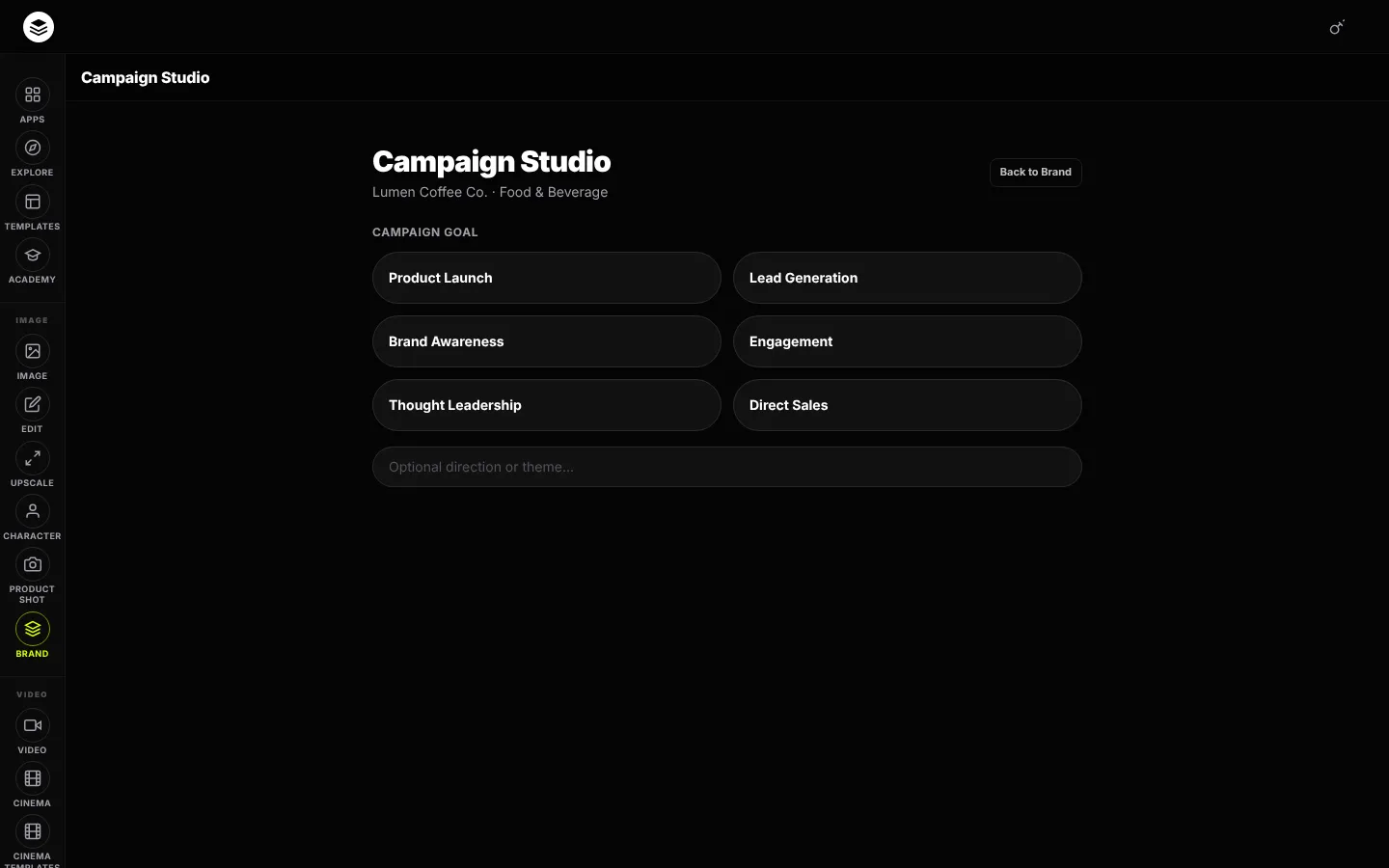
What it is: Pick a Campaign Goal (Product Launch, Lead Generation, Brand Awareness, Engagement, Thought Leadership, Direct Sales), optionally type 'Optional direction or theme...', then click Generate Concepts to get 4 on-brand concepts each with title, key message, CTA and Tone Notes. The goal cards stay visible, so you can switch goals before generating again. Click Select on one, choose platform chips (Instagram Feed, Instagram Story, LinkedIn, Facebook Ad, X / Twitter, Web Banner, Email Header, YouTube Thumbnail) and click Generate Assets. Up to three platforms run at once and each row shows running, done or error. Each asset card shows the picture, platform, format, headline, body and CTA, with Edit and Animate buttons.

Why use it
Fast multi-platform campaign creatives with matching copy.
What you need
A goal; a selected concept; at least one platform.
Limits and rules
Copy is trimmed to per-platform word limits (for example Instagram Feed: headline 8, body 30, CTA 3 words). Pictures follow the platform's aspect ratio (1:1, 9:16 or 16:9), contain no text (the copy is laid over them in the Asset Editor) and use your brand logo as a reference when it is a PNG, JPG or WebP image. Generating concepts again for the same goal updates one campaign; a different goal starts a new one. 'Back to Brand' returns to the Brand DNA page.
Asset Editor in Brand Studio
Asset Editor
FEATURE 06

Asset Editor

What it is: Opens one campaign asset (from an asset's Edit button, or the Asset Editor card for your brand's latest asset). The canvas shows the picture in the asset's platform shape with the Headline, Body and CTA on top. Pick a block with the Headline / Body / CTA tabs or by clicking it, then change its Text, Position (3 x 3 grid), Size (small, medium, large, huge), Align, Color, Background and Font (your brand fonts plus system fonts). The top bar has '← Back to campaign', Swap image and Clean background (new AI picture, with or without the headline drawn in), Upload image, 'Animate →', a status message and Save (toast 'Asset saved').

Why use it
Finish a campaign creative: place the copy where the picture has space and keep it on-brand.
What you need
A saved campaign asset.
Limits and rules
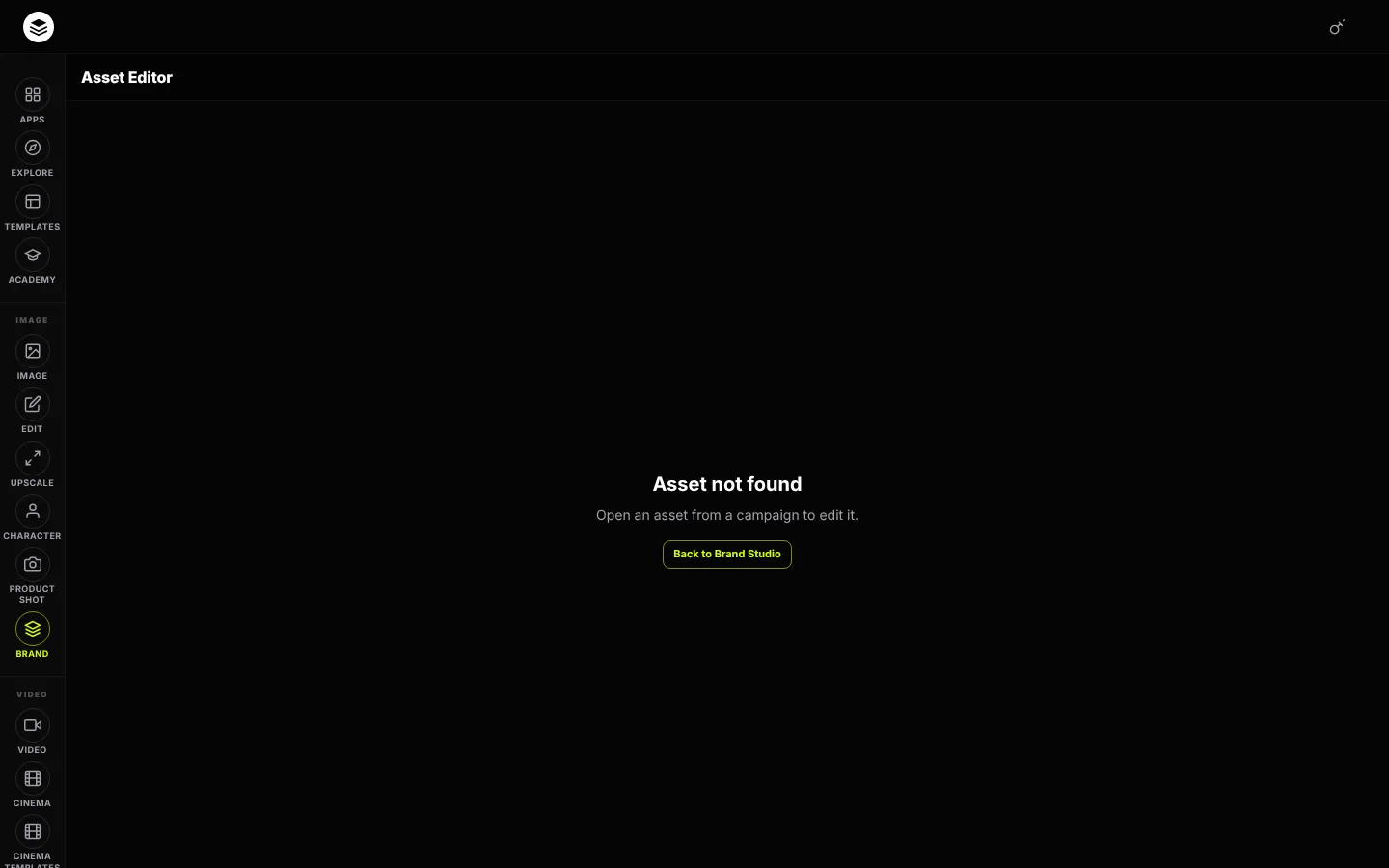
Changes are kept only when you click Save; there is no undo and no download/export. Swap image and Clean background need the asset's campaign concept. Opening #/asset-edit without an asset shows 'Asset not found'.
Photo Studio in Brand Studio
Photo Studio
FEATURE 07

Photo Studio

What it is: Upload a product image (images only), optionally choose a brand from a dropdown (first option: No brand logo), type an optional Direction ('Describe the look, mood, or specific details...'), pick Resolution (1k, 2k default, 4k), then select presets in six categories: General, Beauty, Fashion, Food & Beverage, Home & Living and Tech & Hardware, five styles each (for example Studio white, Marble clean, Urban street, Restaurant plated, Scandi living, Dark techy). Each preset button shows its aspect ratio (1:1, 4:5 or 16:9); 'Select all' picks a whole category and 'Clear' undoes it. Generate Product Photos makes one image per selected preset, two at a time. Each result shows Download, Personalize and 'Animate →'.

Why use it
Many product visuals from one photo.
What you need
A product image plus at least one preset.
Limits and rules
Toasts: 'Please upload a product image first', 'Please select at least one photo style', 'Generated N photos', 'N photo(s) failed'. The brand dropdown controls which logo and colors are used and which brand the photo is saved under; choosing 'No brand logo' uses no logo. Each result's 'Animate →' button sends that photo to Animate Studio.
Photo Studio: Generation Mode (Brand API / Direct MuAPI) in Brand Studio
Photo Studio: Generation Mode (Brand API / Direct MuAPI)
FEATURE 08

Photo Studio: Generation Mode (Brand API / Direct MuAPI)

What it is: A toggle button labelled Brand API (default) or Direct MuAPI. Brand API uses the brand photo recipe with the Nano Banana 2 edit model, your product image and your brand logo. Direct MuAPI shows 'MuAPI Model (I2I)' (a list of image-edit models) and advanced fields: Negative Prompt, Seed, Steps, Guidance Scale, Denoise Strength, CFG Scale, Style, Strength and Prompt Extend.

Why use it
Power users who want a specific model or tuning.
What you need
Choose a model in Direct mode.
Limits and rules
If Direct MuAPI is on but no model is selected the studio falls back to the Brand API route. In Direct mode the text sent is your Direction only (the preset wording is not added), so every selected preset makes an image from the same text.

How to use Brand Studio

  1. Open #/brand and paste your website URL.
  2. Click Analyze and wait for the Brand DNA page.
  3. Edit fields and click Save.
  4. Use New campaign for concepts and platform assets.
  5. Use an asset's Edit button (or the Asset Editor card) to style its text.
  6. Use Photo Studio for product photos.
  7. Use Animate for motion.

Generation modes

The ways this studio can work, and when to pick each one.

Brand API

Photo Studio uses a preset brand-photo recipe on the Nano Banana 2 edit model with your product and logo.

Best for: Fast on-brand product photos.

Direct MuAPI

You choose an image-edit model and tune its settings.

Best for: Experimentation.

Campaign generation

AI writes 4 concepts, then per-platform copy and an image.

Best for: Social/ad campaigns.

Inputs and outputs

What you give the studio, and what you get back.

InputDescriptionWhen to useRules
Website URL
Required
Address of the site to analyse.First step.Must be http or https.
Campaign Goal
Required
One of six goals.Campaign Studio.Choosing a goal card opens the Concepts step; the goal can be changed afterwards (a different goal starts a new campaign).
Platforms
Required
Toggle chips for the 8 platforms.Before Generate Assets.Selecting a different concept resets the platform choices.
Product image
Required
Photo of the product (images only).Photo Studio.Image upload limit 10MB.
Upload image (Asset Editor)
Optional
Your own picture behind an asset's text.To replace the AI picture.Images only. If hosting fails the editor keeps a local copy in the browser, so very large files may not save.

What you get

  • Saved Brand DNA record
  • 4 campaign concepts
  • Per-platform campaign assets (picture + headline + body + CTA)
  • Asset layout edits saved with the asset
  • Product photos (1:1, 4:5 or 16:9 PNG)
  • Entries in generation history

Use cases and example workflows

Real jobs you can do, step by step.

Agency onboarding

Capture a client's brand in minutes.

  1. Analyze client URL.
  2. Edit and Save.
  3. Generate campaigns.
Result: Saved brand and sample creatives.

Marketplace product visuals

Many looks per product.

  1. Photo Studio batches.
Result: Multiple styled photos (1:1, 4:5 or 16:9).

Email and social header set

Same concept across platforms.

  1. Select Email Header, Web Banner, Instagram Story.
Result: Matching creatives with copy.

From website to campaign

  1. Analyze your URL.
  2. Save the Brand DNA.
  3. Campaigns > Product Launch > Generate Concepts.
  4. Select a concept, choose Instagram Feed and LinkedIn.
  5. Generate Assets.

Product photo batch

  1. Open Photo Studio.
  2. Upload a product image.
  3. Under General select Studio white and Lifestyle natural; under Fashion select Golden hour (3 images).
  4. Pick 2k and click Generate Product Photos.
  5. Download the best, or click Animate →.

Polish a campaign asset

  1. Click Edit on a campaign asset (or the Asset Editor card in Brand Studio).
  2. Edit the headline, body and CTA text.
  3. Set Position, Size, Color and Background for each block.
  4. Click Save.

Tips and best practices

  • Analyze your homepage URL.
  • Fix the Brand DNA before generating campaigns.
  • Start Photo Studio with one or two presets to save time.
  • Use 1k while testing, 4k for finals.
  • Click Save after editing the Brand DNA.
  • Keep Key Messages short and specific.
  • Review every generated headline before publishing.

Limitations and troubleshooting

Know the limits before you start, and how to fix common problems.

LimitationWhat it meansWorkaround
Browser-only storageClearing site data or switching browser/device loses your brands.Re-run Analyze on your site; keep a note of edits.
Analysis may be a guess when the site cannot be scrapedColors, logo and text may be generic.Edit the Brand DNA fields and Save.
Asset Editor cannot exportYou cannot download the finished creative with its text from this tool.Screenshot the canvas. The picture alone can be sent to Animate, and campaign pictures are also saved to generation history (without text).

Colors are wrong

Why: Colors are extracted from the site and screenshot.

Fix: On the Brand DNA page change any Primary or Secondary swatch, remove extras with × or add one with +, then click Save.

Logo missing in results

Why: No logo was found on the site, or it is an SVG, ICO or GIF file, which the image models cannot use.

Fix: Put a PNG or JPG address in Logo URL on the Brand DNA page and click Save.

Text is hard to read on an asset

Why: The copy is laid over the picture.

Fix: In the Asset Editor give the block a Background color, change its Color, or click Clean background, then Save.

Glossary

Terms used in Brand Studio.

Brand DNA
A saved profile of your brand: name, tone, colors, audience, messages and style.
Concept
A campaign idea with a title, key message, call to action and tone notes.
CTA
Call to action, such as 'Shop Now'.
Category (Photo Studio)
One of six groups of presets, like Beauty or Tech & Hardware.
Style (Photo Studio)
A preset inside a category, like Marble clean or Dark techy, each with its own aspect ratio.
Direct MuAPI
Photo Studio mode where you pick the model yourself.
Asset
A finished creative: picture plus headline, body and CTA, editable in the Asset Editor.

Frequently asked questions

Does Brand Studio need my website?

Yes, to create a Brand DNA you paste a website URL. Photo Studio can be used with only a product image.

Where is my brand saved?

In your browser's local storage on this device.

What goals can I choose for campaigns?

Product Launch, Lead Generation, Brand Awareness, Engagement, Thought Leadership and Direct Sales.

Which platforms are supported?

Instagram Feed, Instagram Story, LinkedIn, Facebook Ad, X / Twitter, Web Banner, Email Header, YouTube Thumbnail.

What sizes are photos?

Each Photo Studio preset has its own shape (1:1, 4:5 or 16:9), at 1k, 2k (default) or 4k.

What is the difference between Photo Studio and brand-photo-studio?

They open the same Photo Studio page.

Can I edit the AI-written brand info?

Yes, on the Brand DNA page, then click Save.

What does the Asset Editor card open?

The most recent asset of your current brand's campaigns. If the brand has no assets yet it opens Campaign Studio so you can make some.

Try Brand Studio now

Open the studio and put these features to work, or browse the guides for all 53 studios.