AI Agents & Automation · Feature guide

Smart Video Scheduler Feature Guide

Page with Calendar, Publish and Analytics tabs (preview). The Publish tab opens Publish to Social.

An early page with Calendar, Publish and Analytics tabs. The Publish tab opens the Publish to Social window, which posts right away.

Best for: People who want to publish a video to YouTube, TikTok, Instagram or Facebook, with an AI thumbnail, from the scheduler page. Posts go out right away.

Smart Video Scheduler screenshot

Watch the Smart Video Scheduler tour

A 0:54 captioned walkthrough of the studio, with a sample file and prompt.

VIDEO · 0:54

What is Smart Video Scheduler?

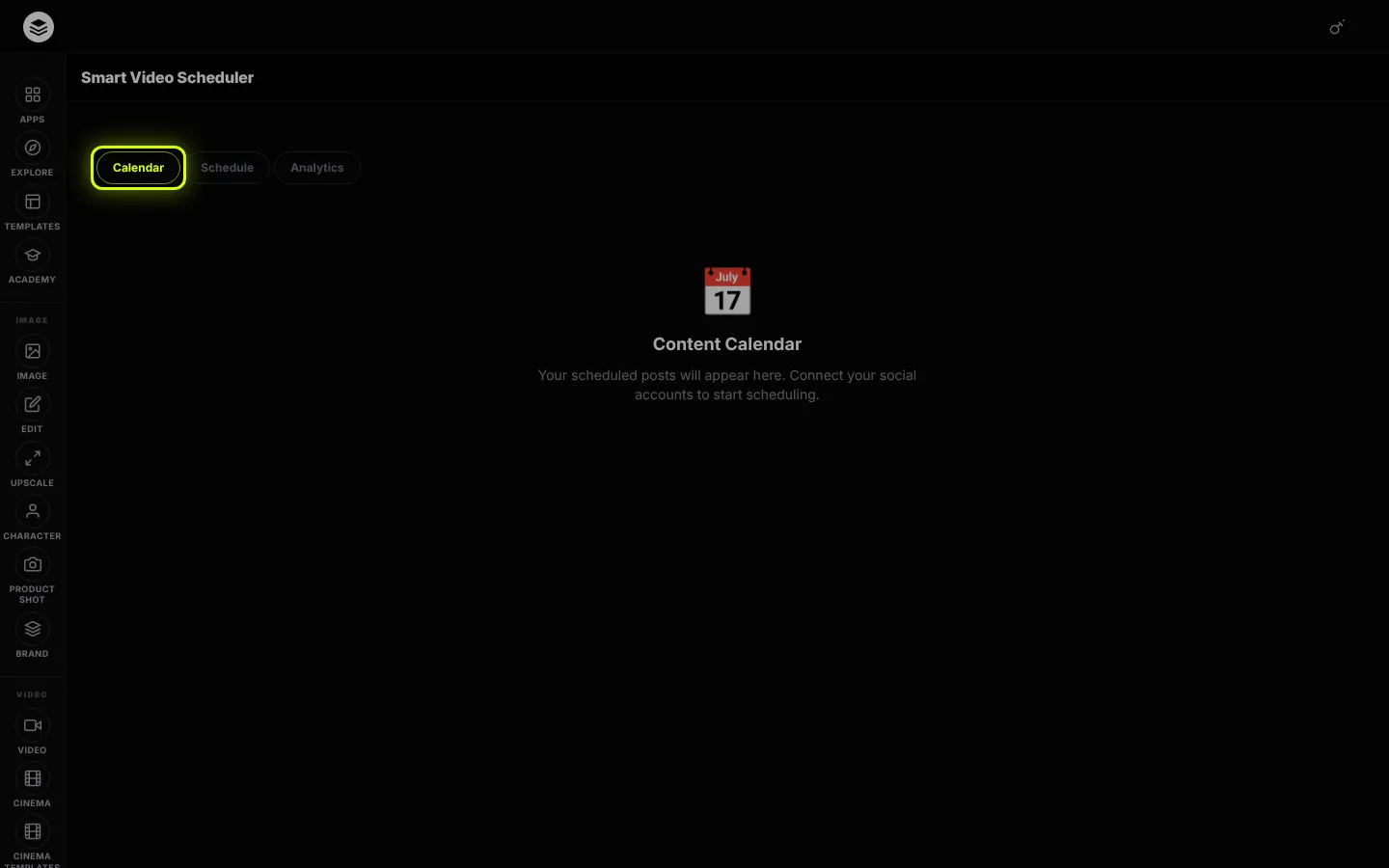
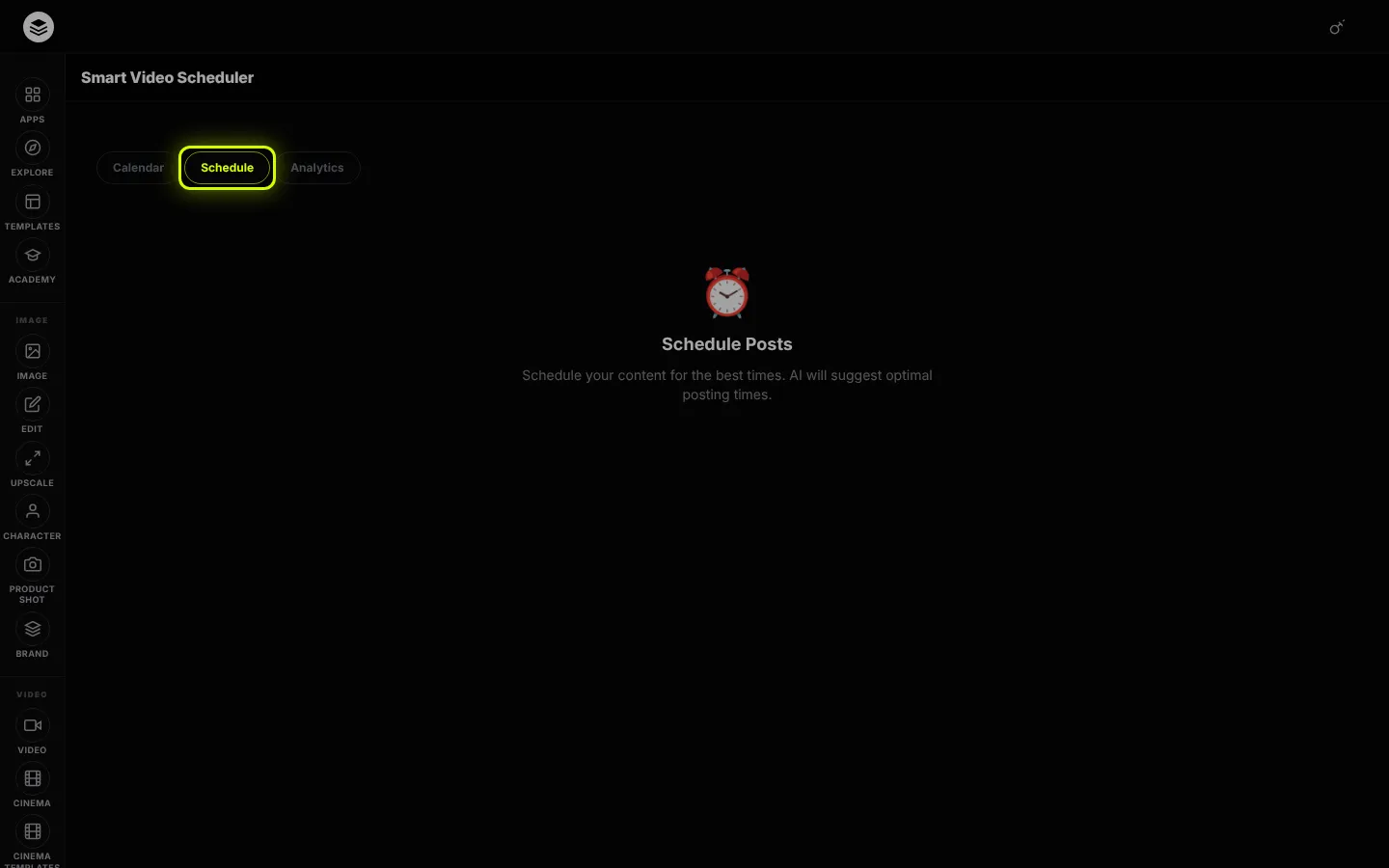
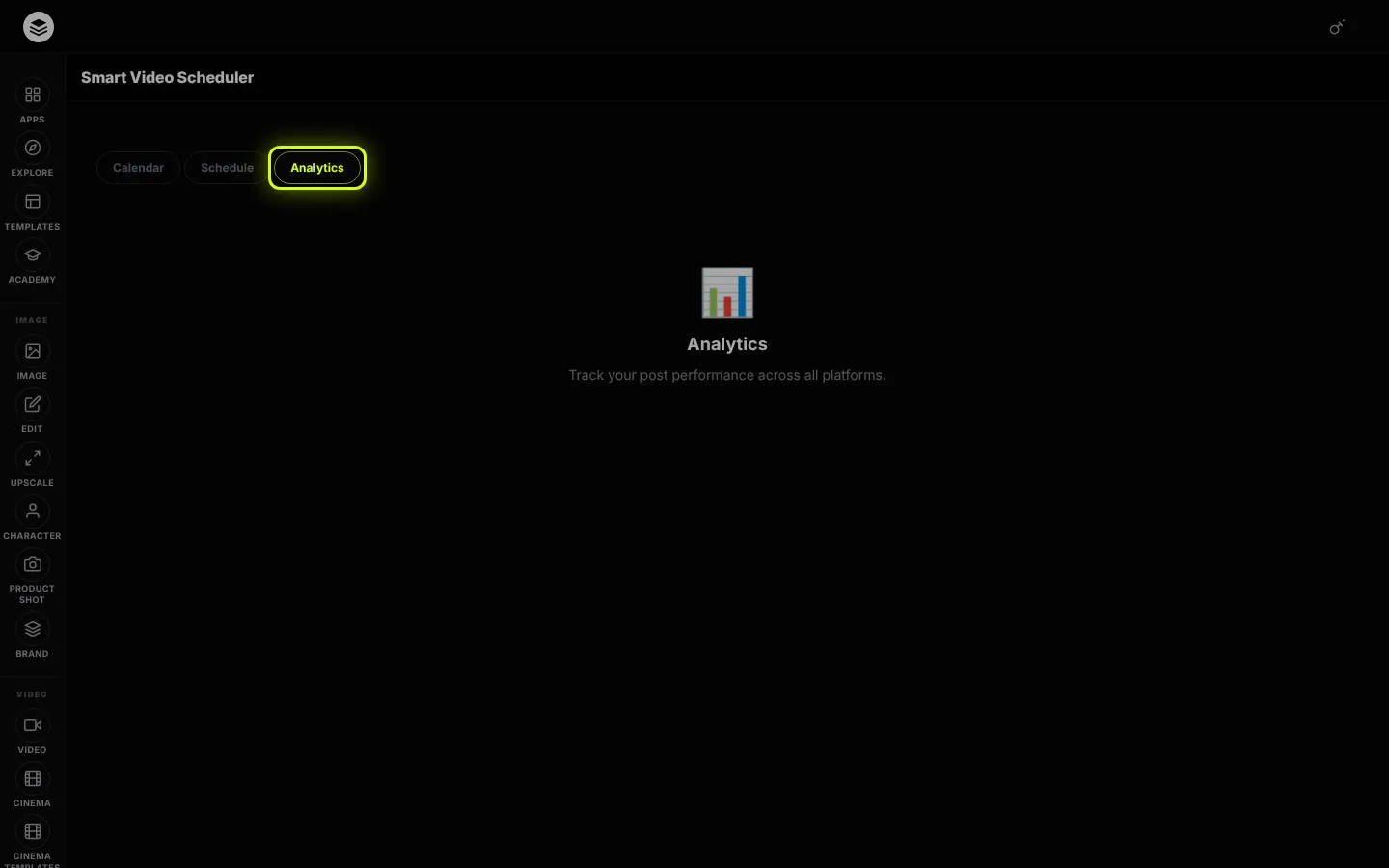
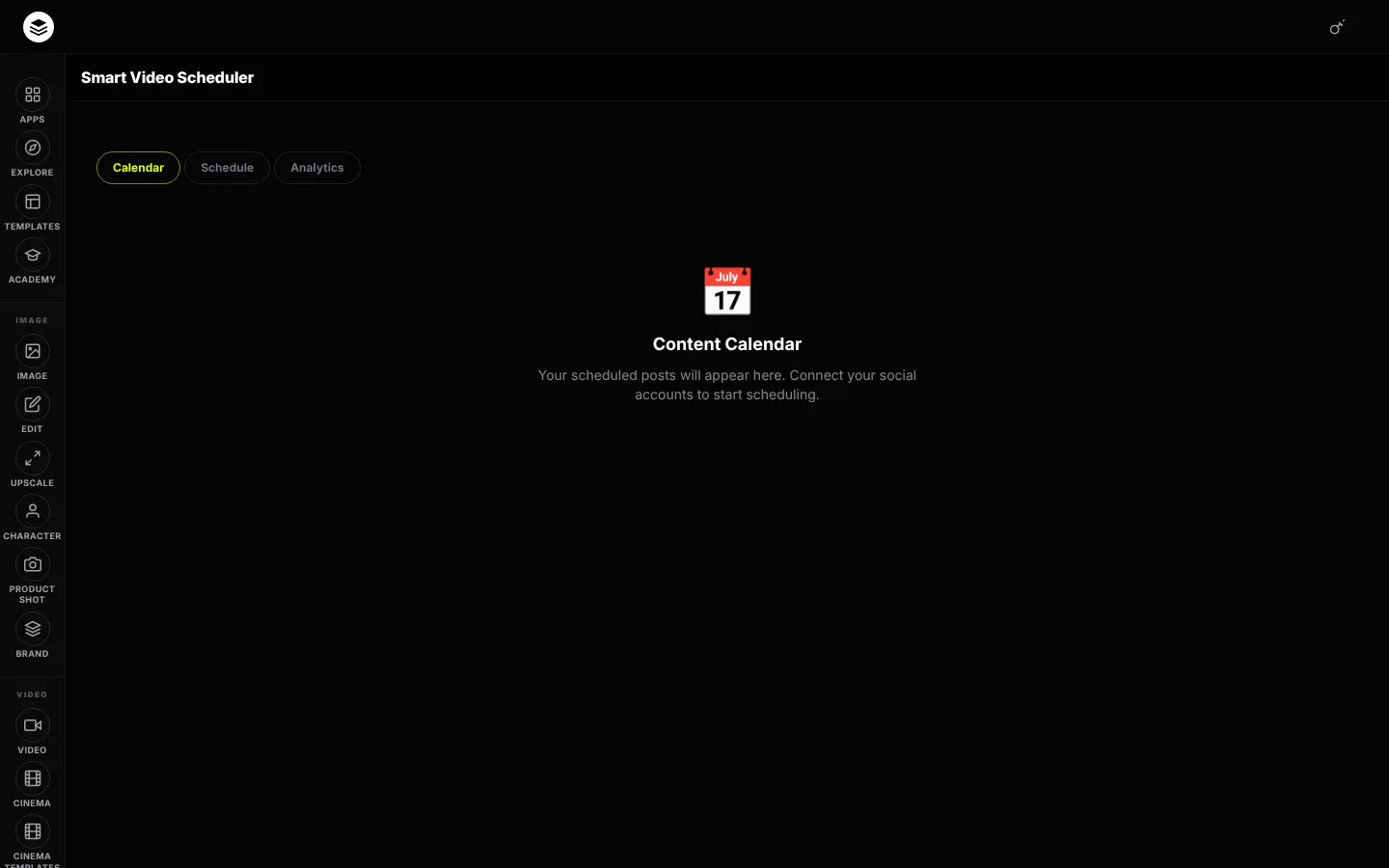
Smart Video Scheduler (#/smart-video-scheduler, also opened by #/brightbean) is an early page with three tabs. The page title reads 'Smart Video Scheduler'. Calendar shows 'Content Calendar - A calendar of your posts is not available yet. To post a video now, open the Publish tab.' Publish shows 'Publish a video - Choose a video, write the caption, make an AI thumbnail and publish it to your connected accounts right away.' with a 'Publish to Social' button that opens the Publish to Social window (steps: Media, Thumbnail, Copy, Platform, Preview) for YouTube, TikTok, Instagram or Facebook. Analytics shows 'Analytics - Track your post performance across all platforms.' Calendar and Analytics are placeholder messages with no data. Posts are published at the moment you create them: there is no date or time picker.

When to use it

  • You want to publish a video to your social accounts with an AI-generated thumbnail.
  • You were sent a link to #/smart-video-scheduler or #/brightbean and want to know what it is.
  • Calendar tab: 'Content Calendar' placeholder
  • Publish tab: 'Publish to Social' button that opens the Publish to Social window (posts right away)
  • Analytics tab: 'Analytics' placeholder
Every Smart Video Scheduler feature, explained

3 features, each with a definition, why you would use it, what it needs and its limits.

Calendar tab in Smart Video Scheduler
Calendar tab
FEATURE 01

Calendar tab

What it is: The tab that is open when the page loads. It shows 'Content Calendar' and the message 'A calendar of your posts is not available yet. To post a video now, open the Publish tab.'

Why use it
To see where a calendar of your posts may appear later.
What you need
None.
Limits and rules
Placeholder only: no calendar grid or posts are shown, and there is no button on this page to connect social accounts.
Publish tab in Smart Video Scheduler
Publish tab
FEATURE 02

Publish tab

What it is: Click 'Publish' to see 'Publish a video' and a 'Publish to Social' button. The button opens the Publish to Social window, where you choose the media, create or pick a thumbnail (including an AI-generated one), write the copy, pick a connected account and publish.

Why use it
To publish a video with a thumbnail without leaving the scheduler.
What you need
A public link to the video, a connected account and your muapi API key.
Limits and rules
Publishes immediately: there is no date or time picker.
Analytics tab in Smart Video Scheduler
Analytics tab
FEATURE 03

Analytics tab

What it is: Click 'Analytics' to see 'Analytics' and the message 'Track your post performance across all platforms.'

Why use it
To see the planned performance area.
What you need
None.
Limits and rules
Placeholder only: no numbers or charts are shown.

How to use Smart Video Scheduler

  1. Open #/smart-video-scheduler.
  2. Click Publish, then Publish to Social.
  3. Add the media, a thumbnail and the copy, choose an account and publish.

Use cases and example workflows

Real jobs you can do, step by step.

Publish with an AI thumbnail

Publish a video to a connected account with a generated thumbnail.

  1. Open the page
  2. Click Publish, then Publish to Social
  3. Create a thumbnail, write the copy, choose an account and publish
Result: The video is posted to the chosen account; on YouTube the thumbnail is applied after the upload.

Publish a video from the scheduler

  1. Open #/smart-video-scheduler.
  2. Click Publish, then Publish to Social.
  3. Paste the video link, create a thumbnail, write the copy, pick an account and publish.

Tips and best practices

  • Use Publish to Social on the Publish tab to post right away.
  • Add a thumbnail before publishing to Instagram; it is required.
  • Check the Platform step shows your connected account before you publish.

Limitations and troubleshooting

Know the limits before you start, and how to fix common problems.

LimitationWhat it meansWorkaround
Posts go out immediatelyYou cannot choose a future date or time for a post; Publish to Social posts right away.Open Publish to Social when you want the post live.

Cannot find a way to post at a later time

Why: Posts are published at the moment you create them; there is no date or time picker.

Fix: Use Publish to Social when you want the post live.

Glossary

Terms used in Smart Video Scheduler.

Content calendar
A plan of which posts go out on which days.

Frequently asked questions

Can I choose a later date or time for a post?

No. The Publish tab has a 'Publish to Social' button that posts right away; there are no date or time controls.

How do I connect my social accounts?

Inside the Publish to Social window, on the Platform step, use the Connect YouTube, Connect TikTok, Connect Instagram or Connect Facebook buttons. The scheduler page itself has no connect button.

Can the scheduler write captions with AI?

The Publish to Social window has a Copy step with an Enhance button for the title, description and caption, and a Thumbnail step that creates an AI thumbnail. The scheduler page itself has no caption helper.

What is #/brightbean?

Another address for the same Smart Video Scheduler page.

Try Smart Video Scheduler now

Open the studio and put these features to work, or browse the guides for all 53 studios.