Title banner
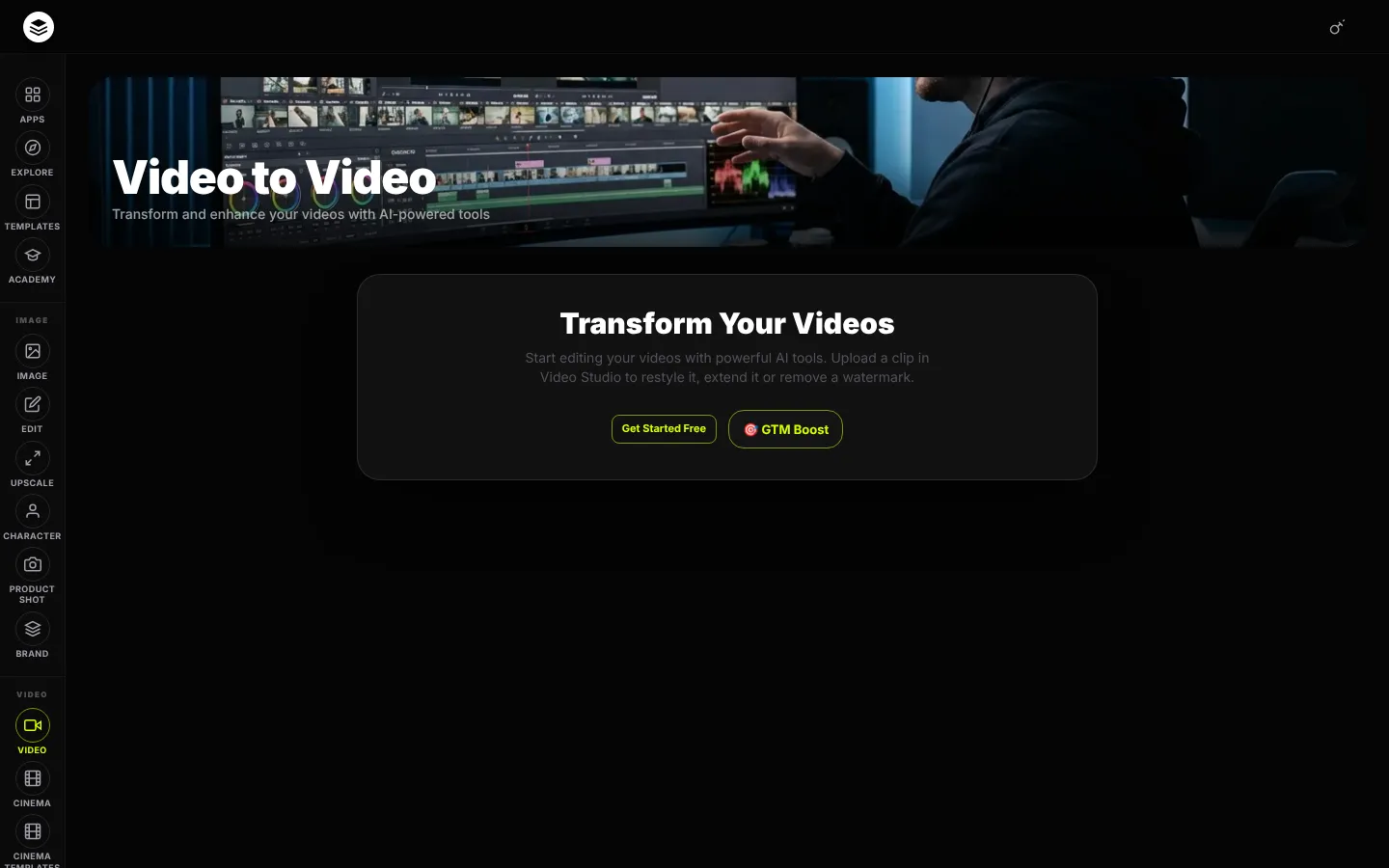
What it is: The page opens with a banner titled 'Video to Video' and the line 'Transform and enhance your videos with AI-powered tools'.
- Why use it
- Confirms where you are.
- What you need
- None.
- Limits and rules
- Information only.
Starting page for video-to-video; the work happens in Video Studio.
Video to Video is a short starting page: a title banner and a 'Transform Your Videos' section whose buttons open Video Studio, where you attach your clip and transform it.
Best for: Anyone who wants to transform a clip they already have; this page points you to Video Studio, where the video-to-video tools are.

A 1:19 captioned walkthrough of the studio, with a sample file and prompt.
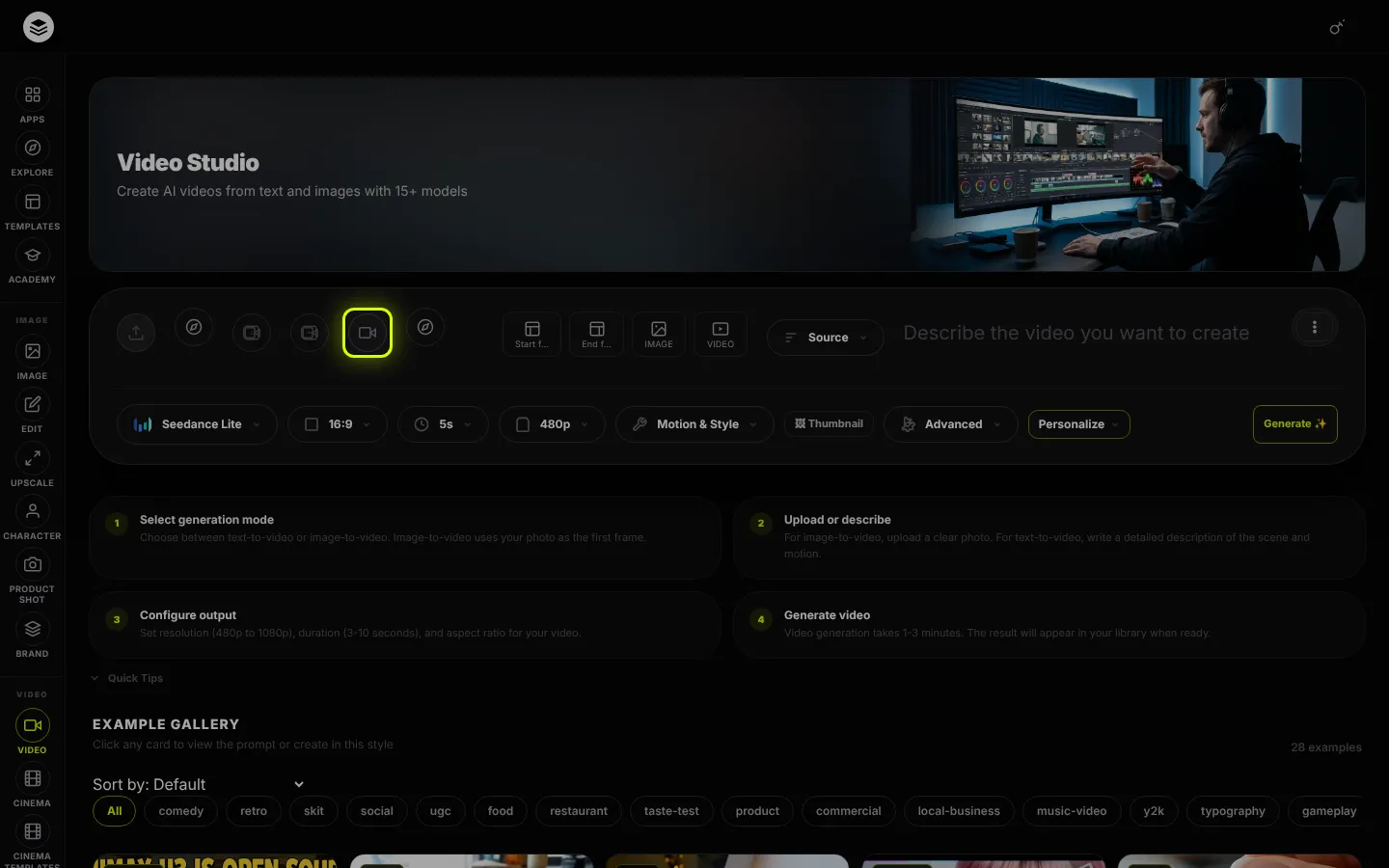
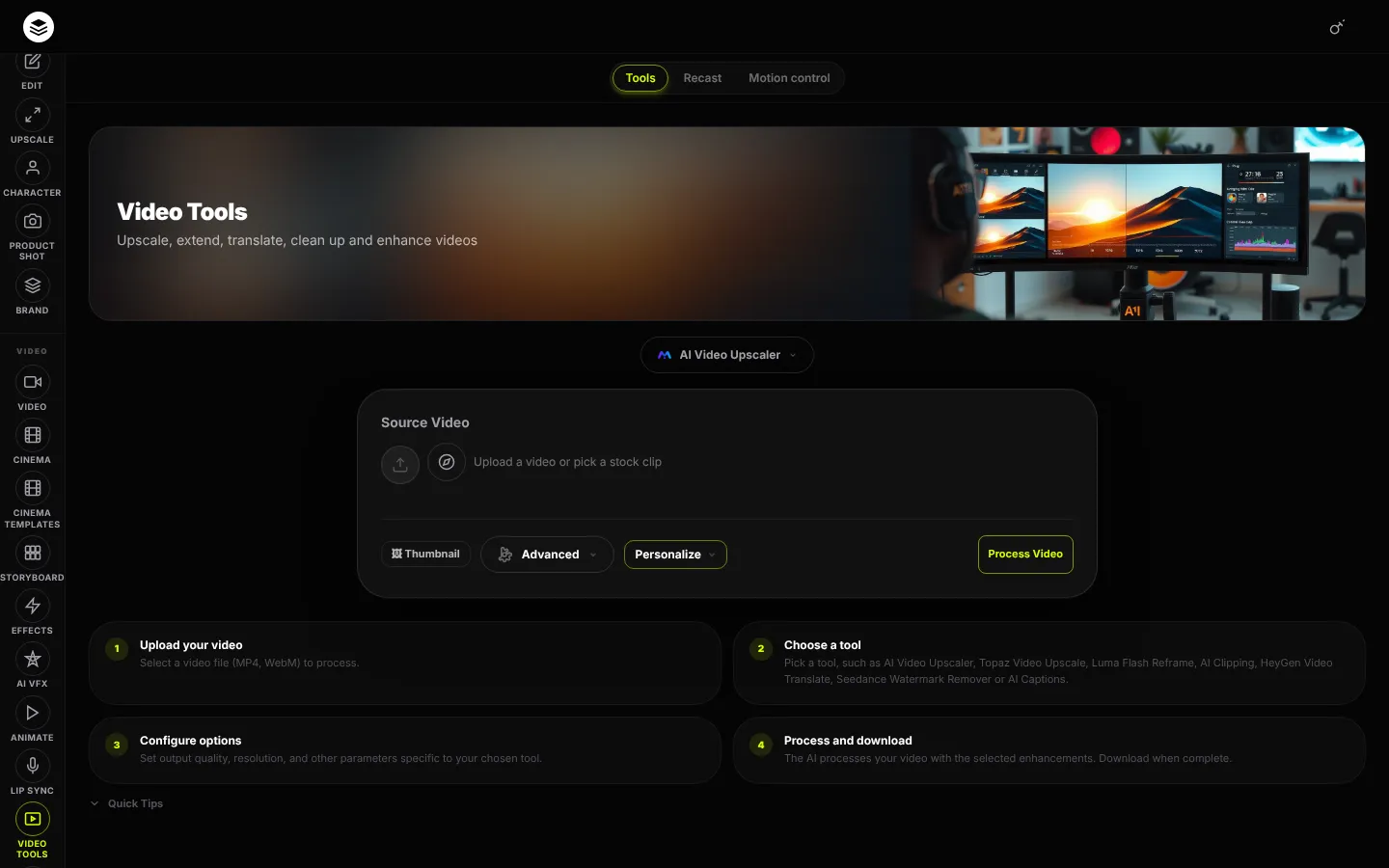
Video to Video (#/video-to-video) is a starting page, not an editor. It shows a banner titled 'Video to Video' ('Transform and enhance your videos with AI-powered tools') and a 'Transform Your Videos' section ('Start editing your videos with powerful AI tools. Upload a clip in Video Studio to restyle it, extend it or remove a watermark.') with two buttons: 'Get Started Free' opens Video Studio (#/video), and '🎯 GTM Boost' helps you write a marketing prompt and then opens Video Studio with it in the prompt box. There is no upload, prompt box or Generate button on this page. In Video Studio, attach a video with the video button (tooltip 'Upload video to remove watermark'): the studio switches to its video-to-video model list (77 entries; the first is AI Video Watermark Remover), with workflows such as Edit video, Extend uploaded video and Motion transfer.
4 features, each with a definition, why you would use it, what it needs and its limits.

What it is: The page opens with a banner titled 'Video to Video' and the line 'Transform and enhance your videos with AI-powered tools'.

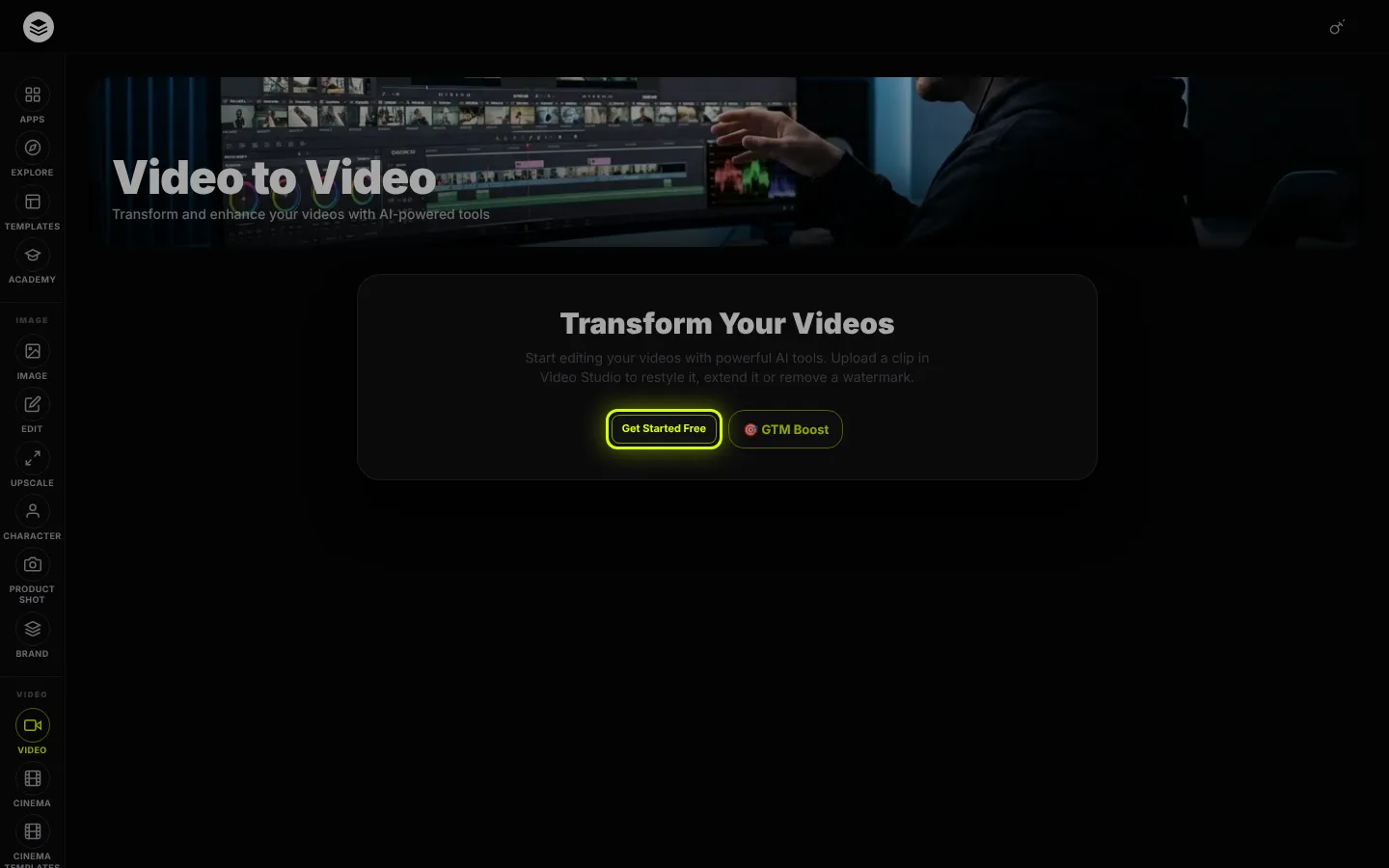
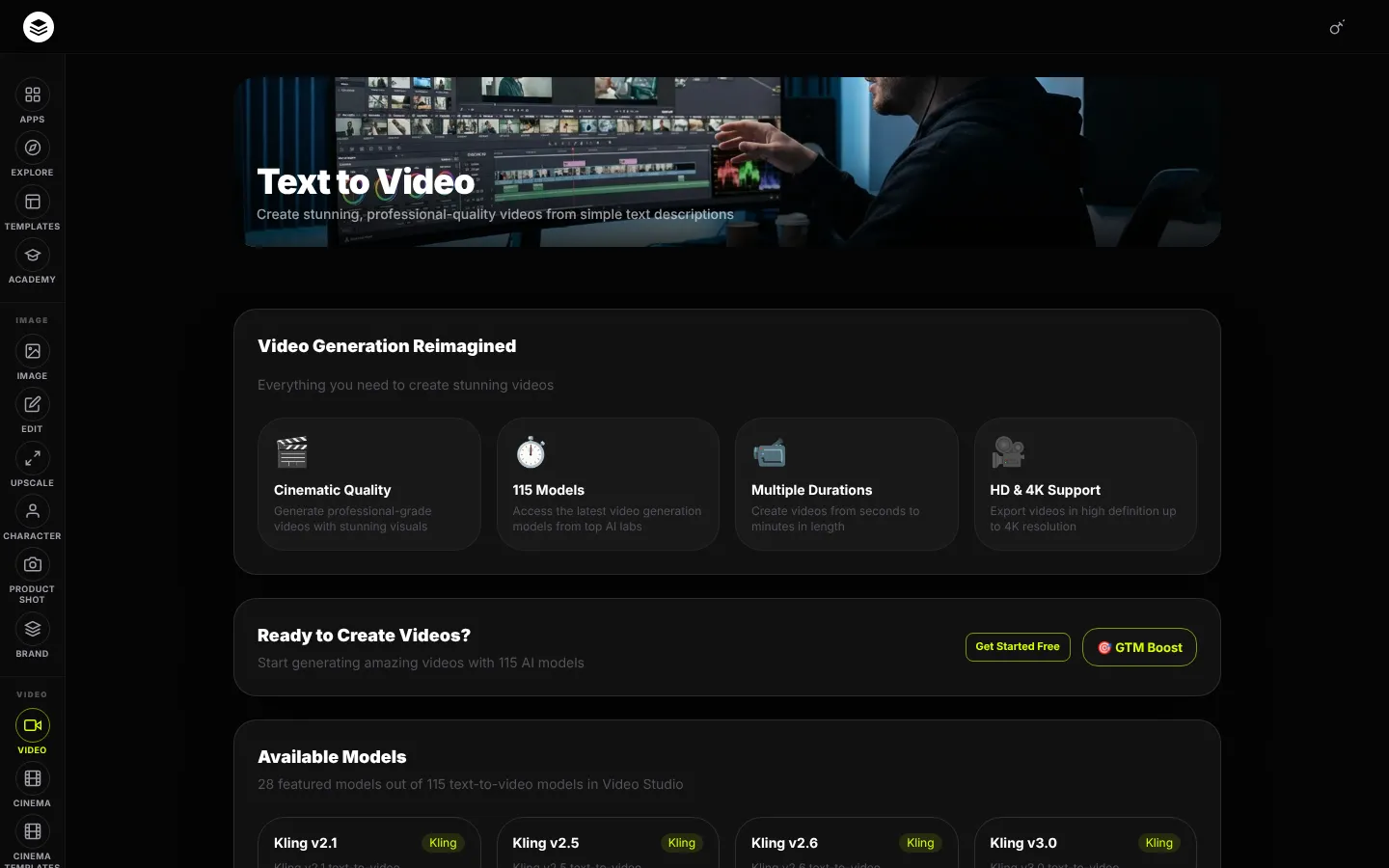
What it is: Below the banner, the 'Transform Your Videos' section says 'Start editing your videos with powerful AI tools. Upload a clip in Video Studio to restyle it, extend it or remove a watermark.' Its 'Get Started Free' button opens Video Studio (#/video).

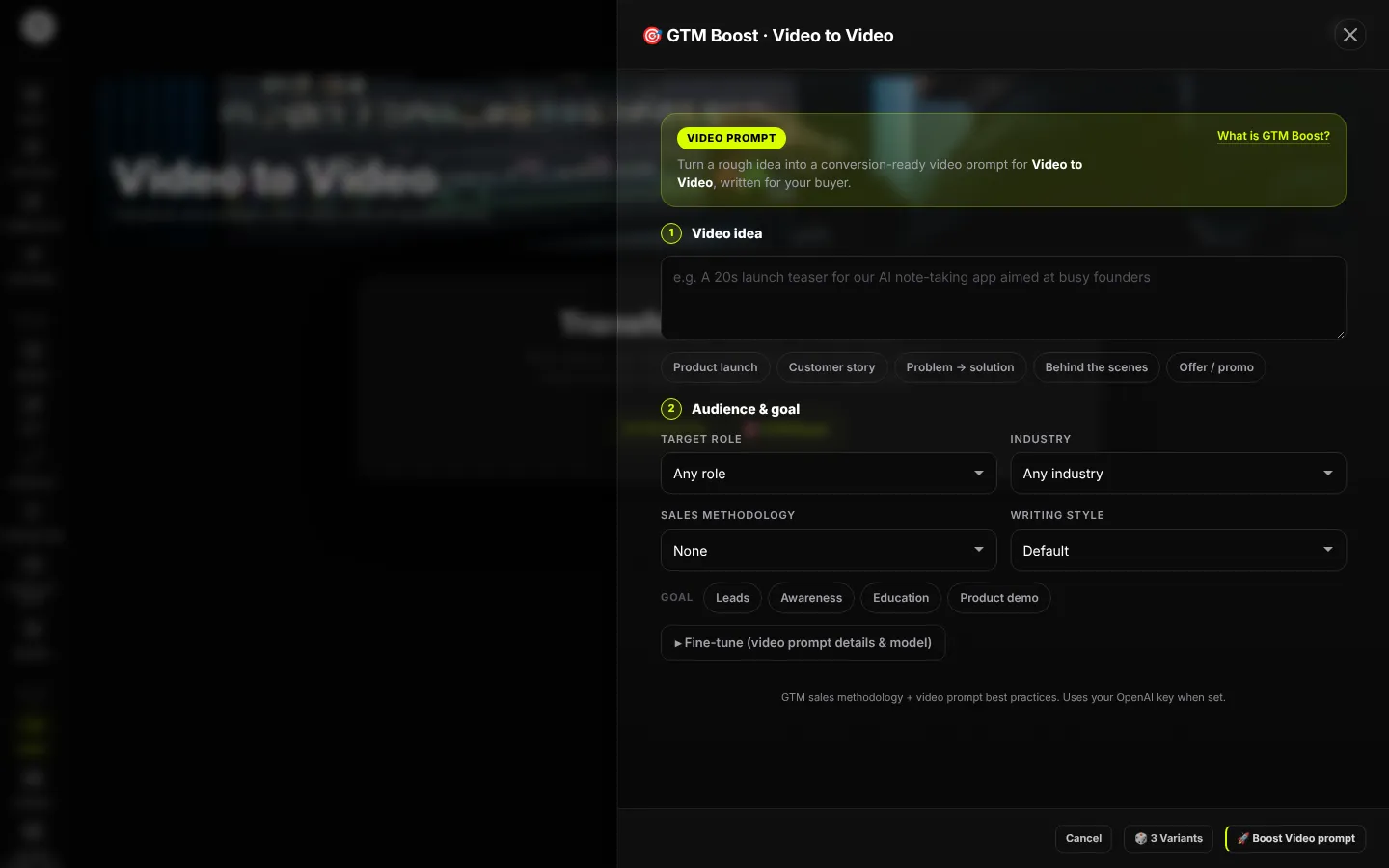
What it is: The '🎯 GTM Boost' button next to 'Get Started Free' opens the GTM Boost window ('🎯 GTM Boost · Video to Video'). You write your idea, pick an angle, audience and goal, and click the Boost button to get a conversion-focused prompt. 'Apply' closes the window and opens Video Studio with that prompt already in the prompt box.

What it is: In Video Studio, the video button (tooltip 'Upload video to remove watermark') attaches a video. The studio then switches to its video-to-video list, whose first model is 'AI Video Watermark Remover'; other workflows include Edit video, Extend uploaded video and Motion transfer.
The ways this studio can work, and when to pick each one.
'Get Started Free' and GTM Boost's Apply open Video Studio (#/video).
Starts when you attach a video in Video Studio; the first model is AI Video Watermark Remover.
What you give the studio, and what you get back.
| Input | Description | When to use | Rules |
|---|---|---|---|
| GTM Boost idea Optional | A short description of the video you want; GTM Boost turns it into a marketing-style prompt. | When you want help writing the prompt. | The prompt goes to Video Studio's prompt box; no video is attached. |
| Video file (in Video Studio) Required | The clip to transform, attached with Video Studio's video button. | For every video-to-video workflow. | Up to 50MB. |
Real jobs you can do, step by step.
Go from this page to the place where video transformations run.
Know the limits before you start, and how to fix common problems.
| Limitation | What it means | Workaround |
|---|---|---|
| No controls for the video itself | You cannot start a video-to-video job here. | Click 'Get Started Free' and attach your video in Video Studio. |
Why: The page is a starting point; uploads happen in Video Studio.
Terms used in Video to Video.
No. Click 'Get Started Free' to open Video Studio and attach your video there with the video button.
It turns your idea into a marketing-focused video prompt and, when you click Apply, opens Video Studio with that prompt in the prompt box.
Open the studio and put these features to work, or browse the guides for all 53 studios.