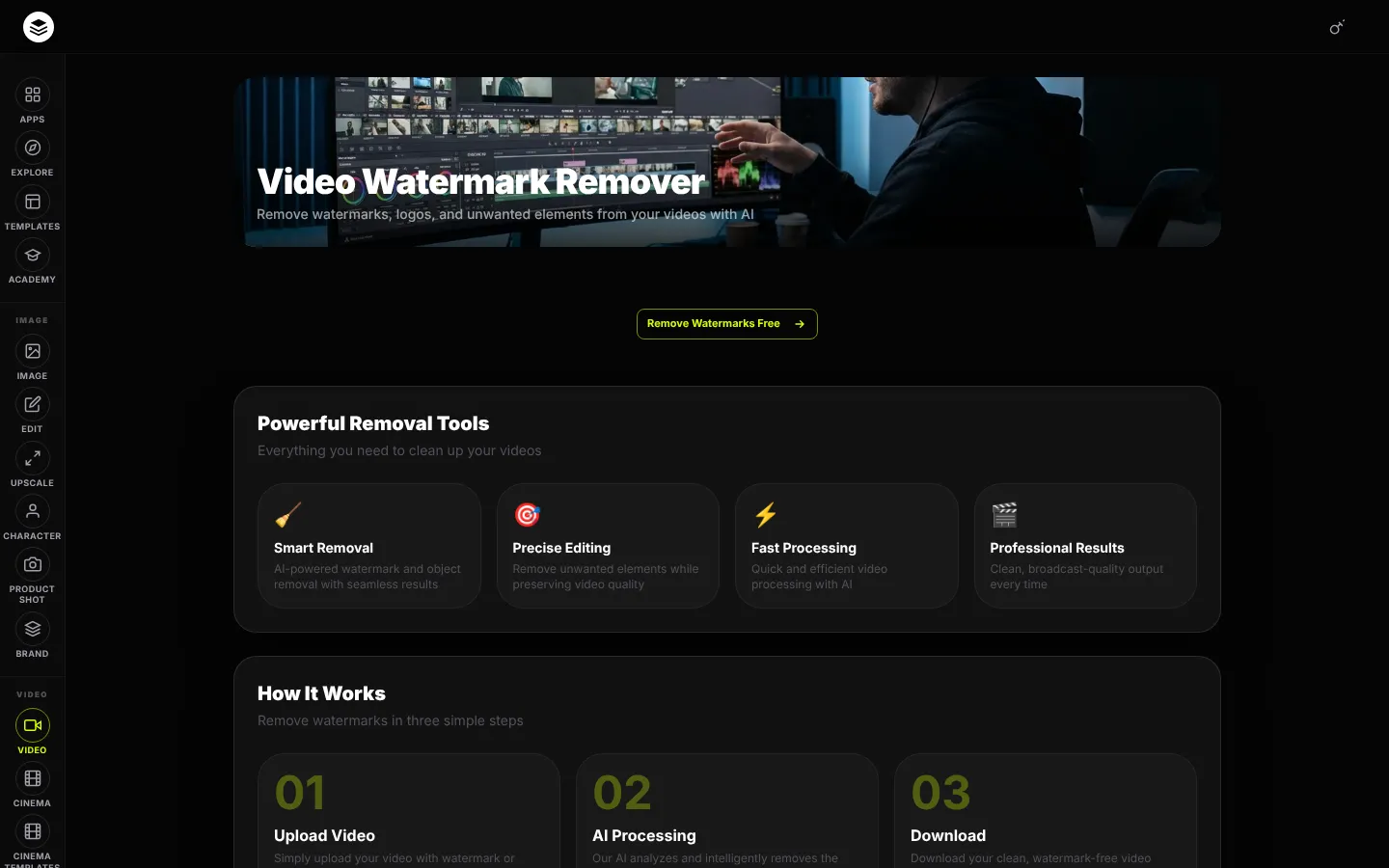
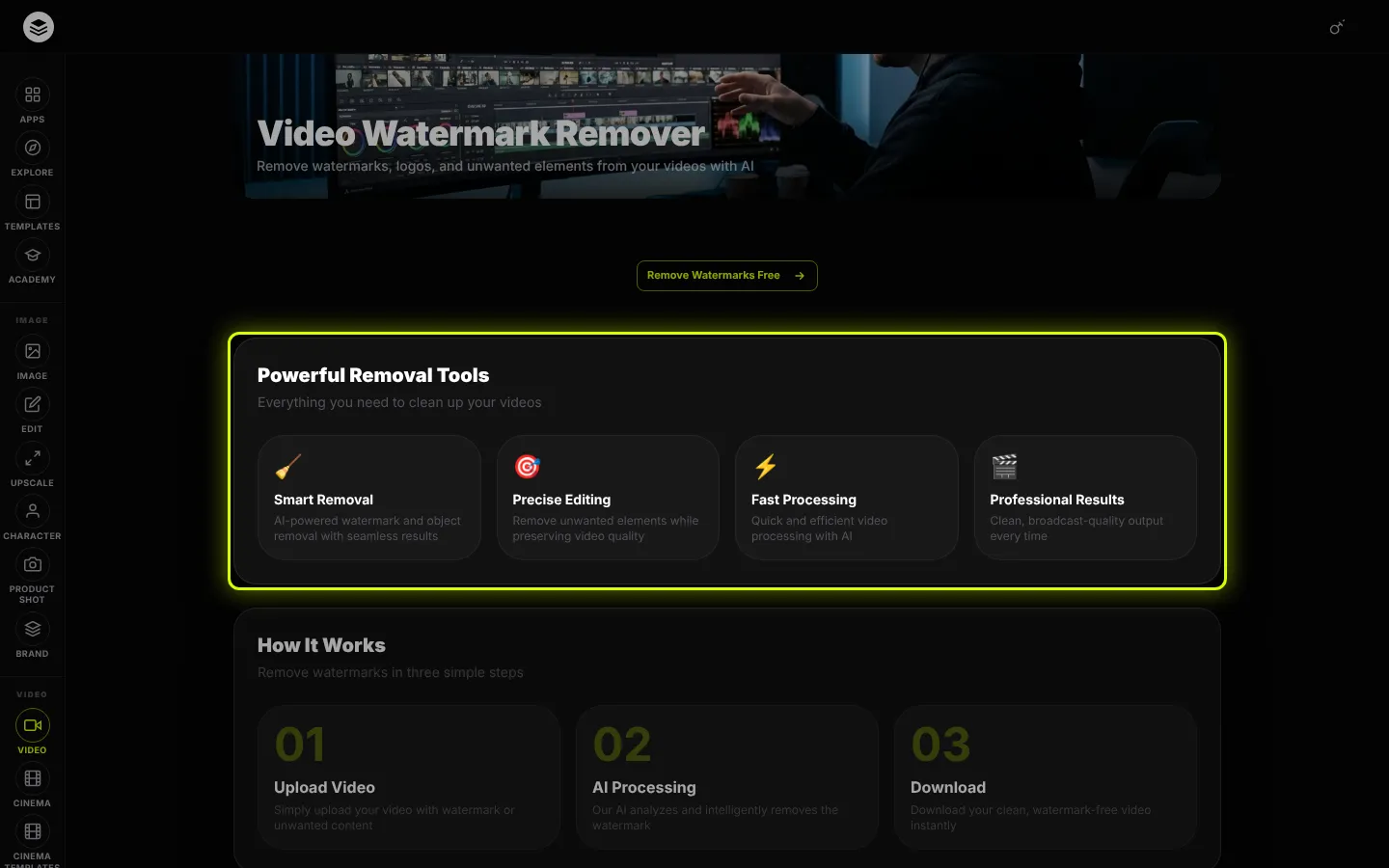
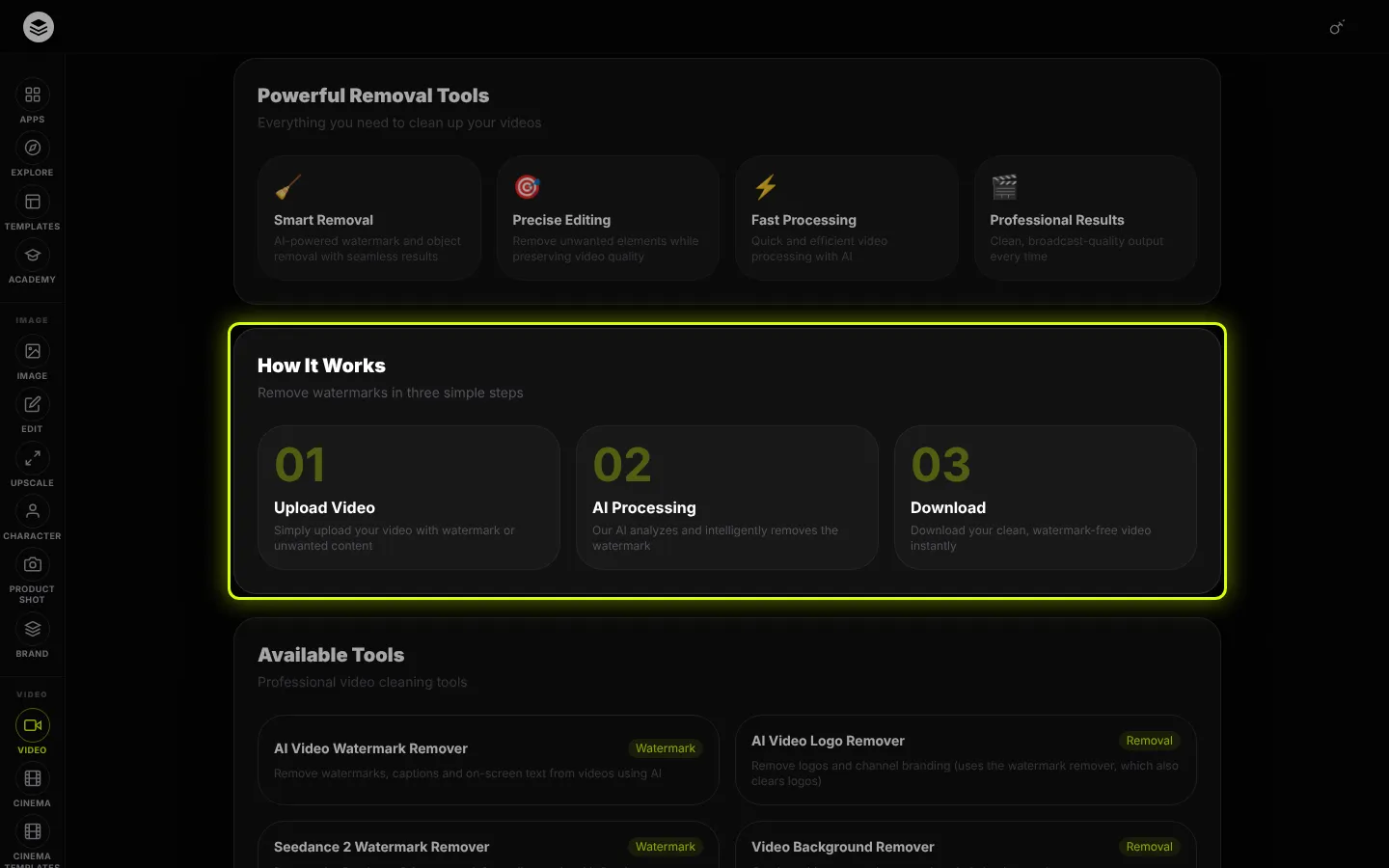
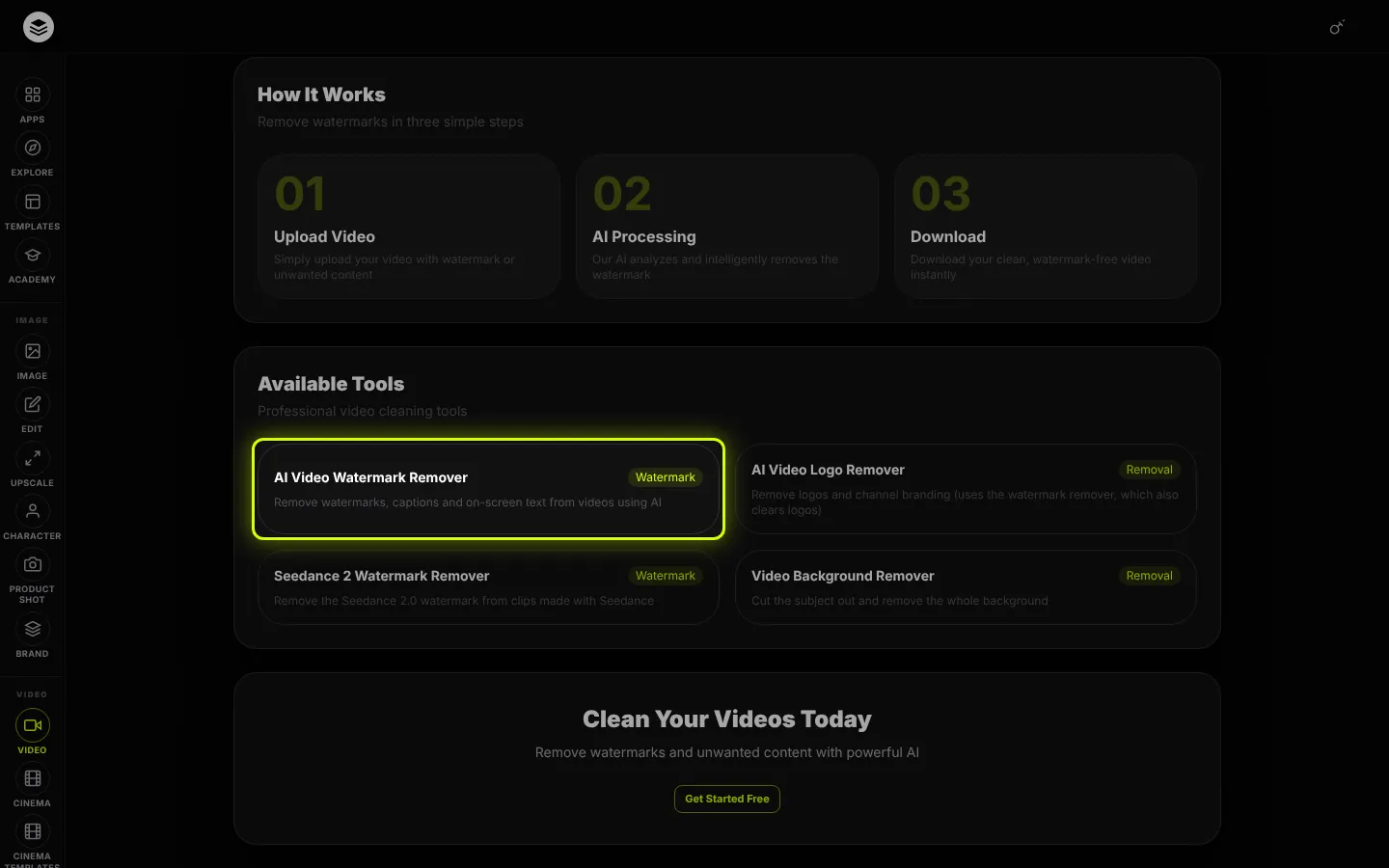
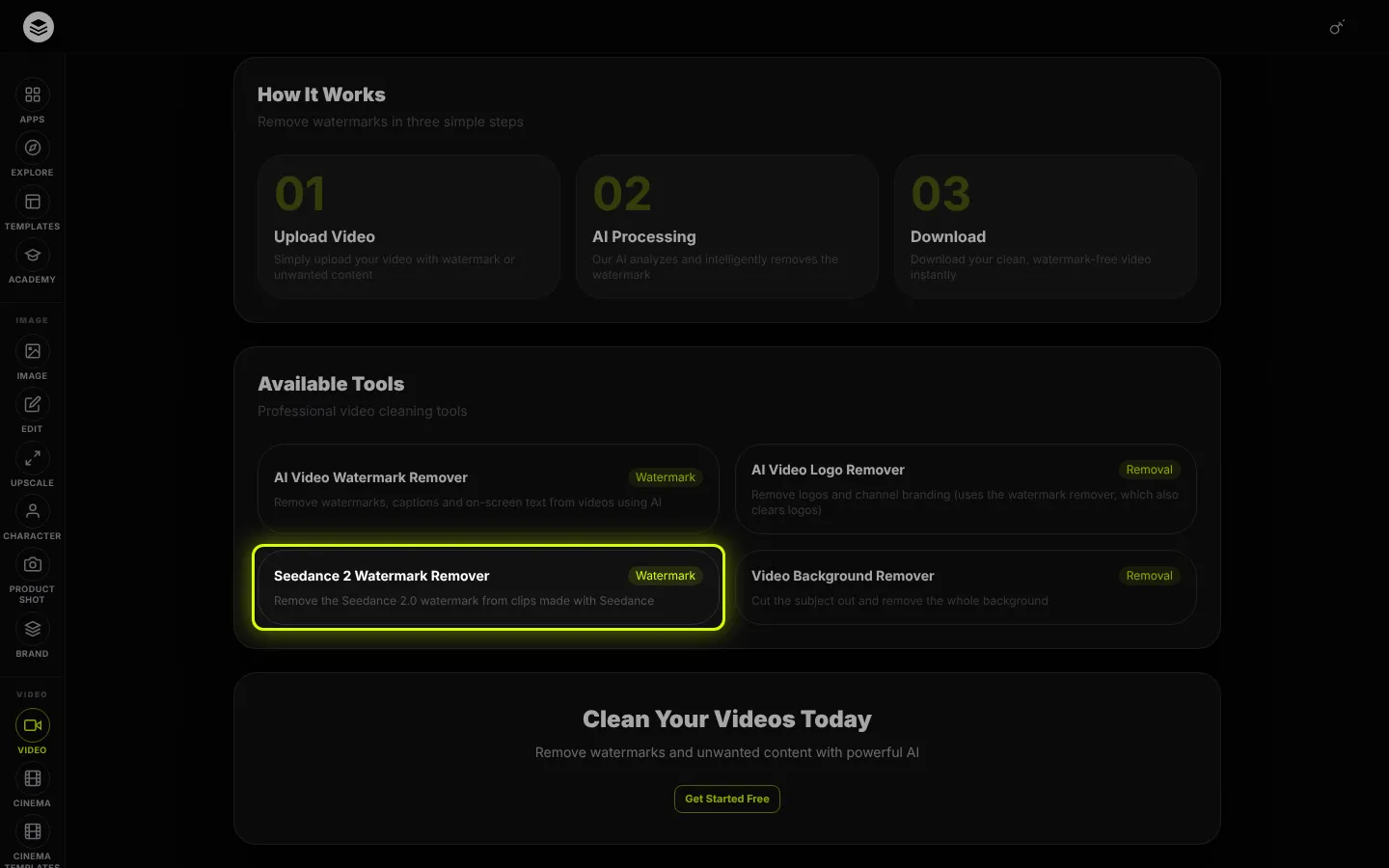
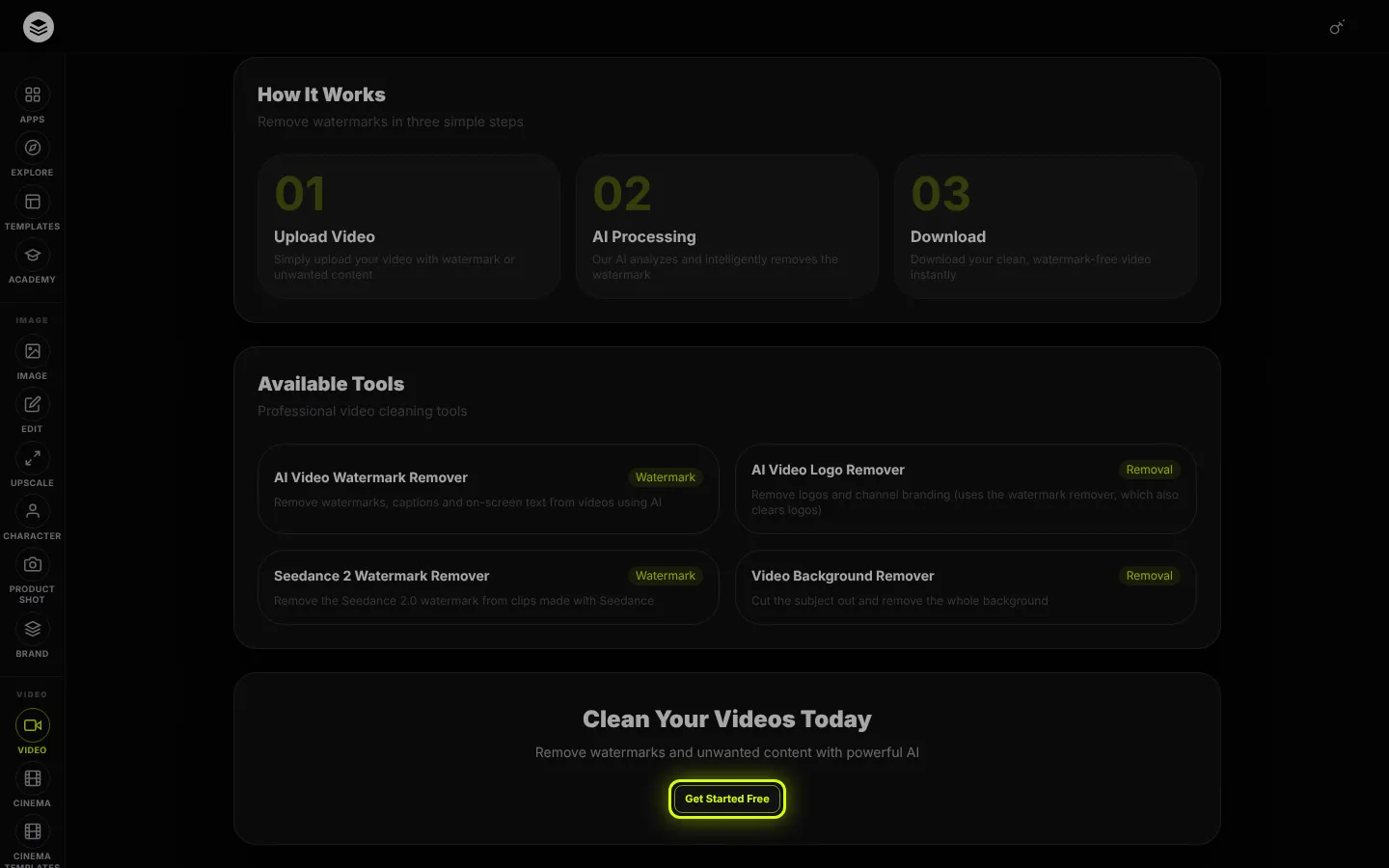
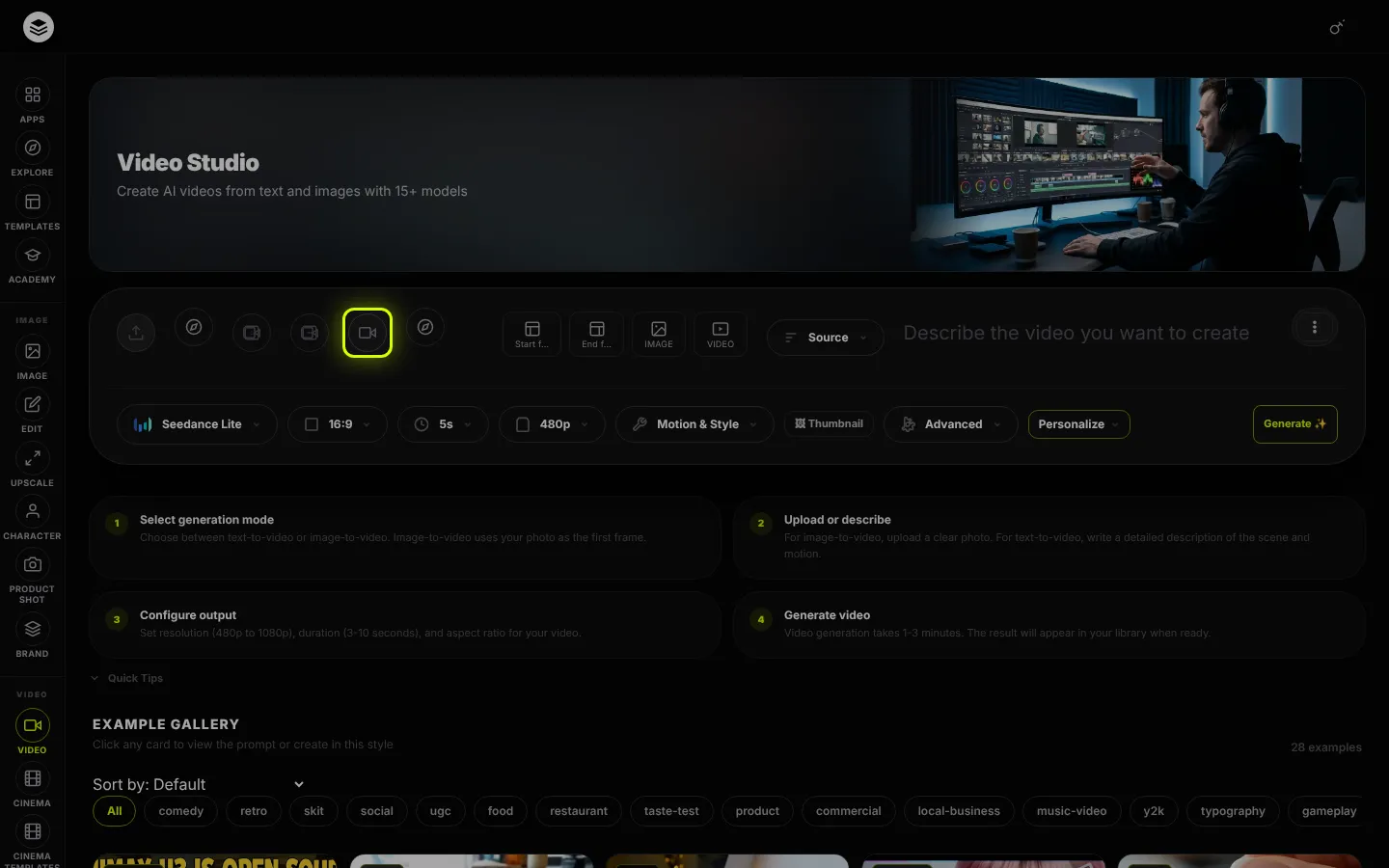
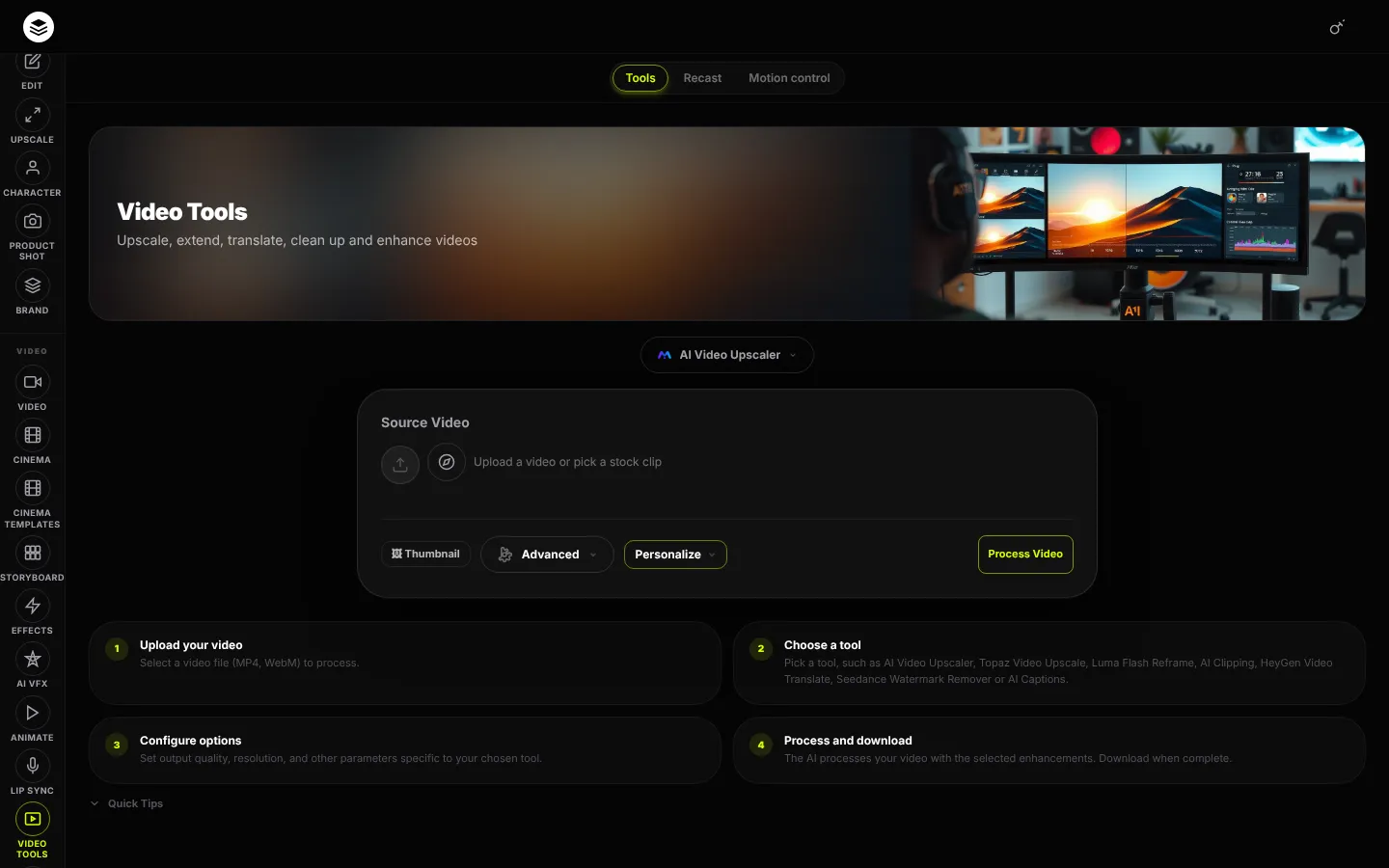
Video Watermark Remover (#/video-watermark, 'Watermark Remover' in the app menu) is an information page titled 'Video Watermark Remover - Remove watermarks, logos, and unwanted elements from your videos with AI'. It has a 'Remove Watermarks Free' button, a 'Powerful Removal Tools' section (Smart Removal, Precise Editing, Fast Processing, Professional Results), a 'How It Works' section (01 Upload Video, 02 AI Processing, 03 Download), an 'Available Tools' section with four cards (AI Video Watermark Remover, AI Video Logo Remover, Seedance 2 Watermark Remover, Video Background Remover) and a closing 'Clean Your Videos Today' box with 'Get Started Free'. Nothing is uploaded or processed on this page: every button and card opens Video Studio (#/video), and each card also picks its model there in video-to-video mode. The removal itself happens there: click the video button left of the prompt (tooltip 'Upload video to remove watermark'), choose a video, and the studio switches to the 'AI Video Watermark Remover' model, greys out the prompt with 'Video ready — click Generate to remove watermark', and Generate makes the clean video. Video Studio also lists 'Seedance 2 Video Watermark Remover Pro'. The Logo Remover card uses the AI Video Watermark Remover, which also clears logos; there is no separate object-remover model for video.
When to use it
- You want to know how video watermark removal works in the app.
- You want a quick way into Video Studio's watermark remover.
- 'Remove Watermarks Free' and 'Get Started Free' buttons open Video Studio
- 'Powerful Removal Tools' and 'How It Works' overview sections
- Available Tools cards: AI Video Watermark Remover, AI Video Logo Remover, Seedance 2 Watermark Remover, Video Background Remover
- The actual removal in Video Studio: upload a video and Generate with the AI Video Watermark Remover model