Video Studios · Feature guide

AI VFX Studio Feature Guide

Hollywood camera moves, explosive VFX and AI effects from a single image.

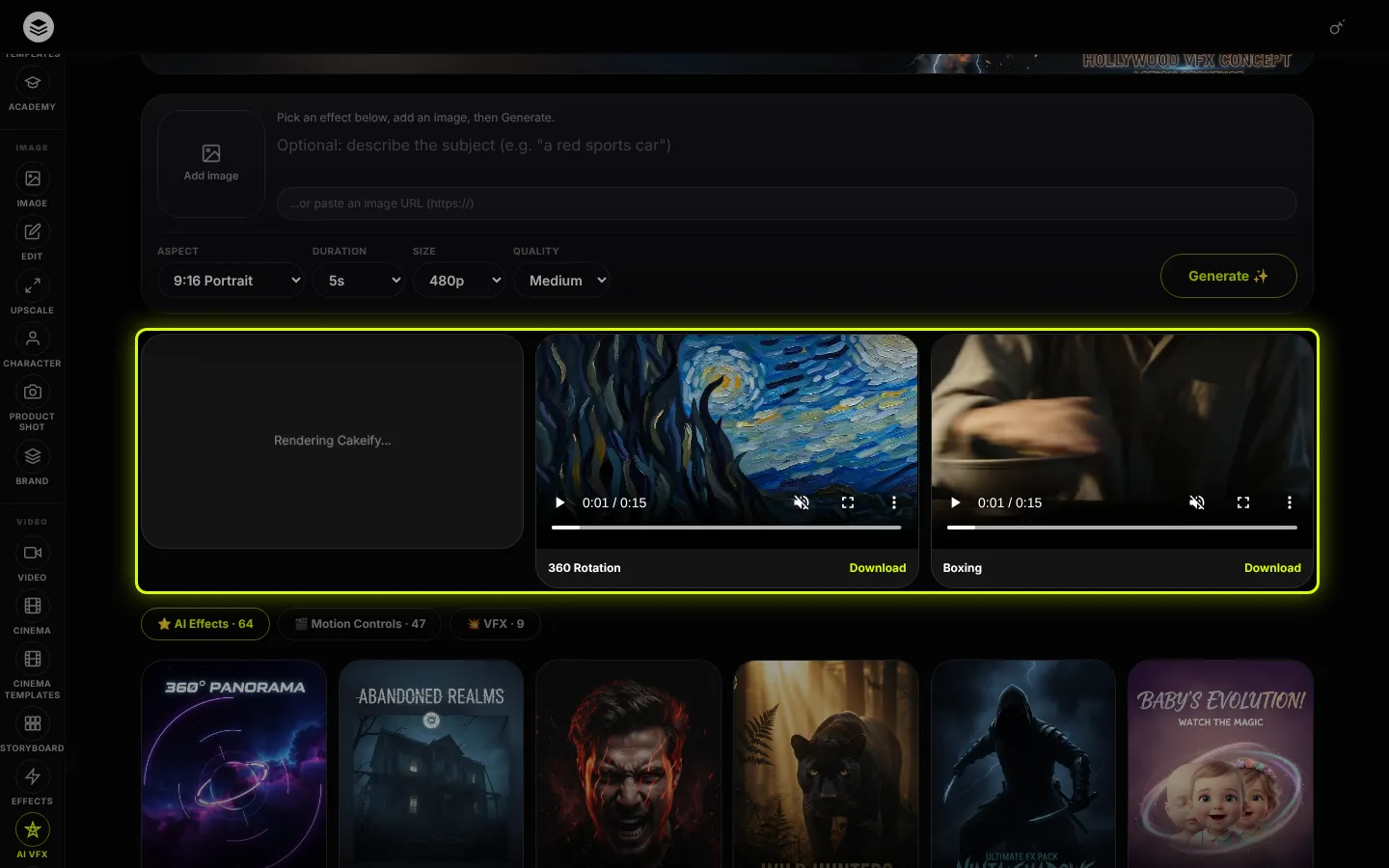
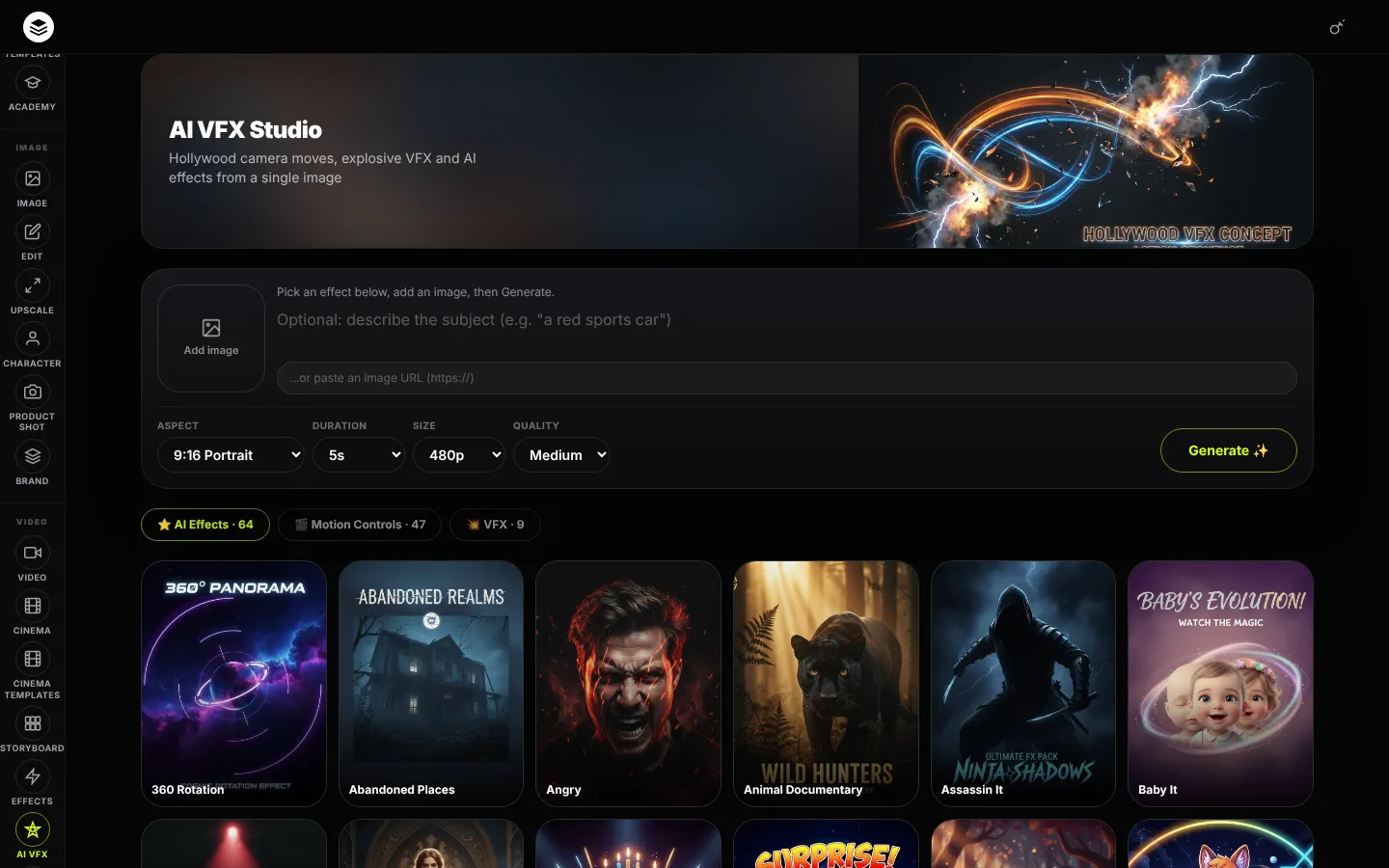
AI VFX Studio turns one still image into a short video using a preset effect: a camera move, an AI transformation or an explosion/element VFX. You pick an effect card, add an image, choose aspect ratio, duration, size and quality, and press Generate.

Best for: Creators who want fast cinematic camera moves, explosion or elemental VFX and viral-style AI transformations from a single photo, with simple controls for aspect ratio, length and quality.

AI VFX Studio screenshot

Watch the AI VFX Studio tour

A 1:43 captioned walkthrough of the studio, with a sample file and prompt.

VIDEO · 1:43

What is AI VFX Studio?

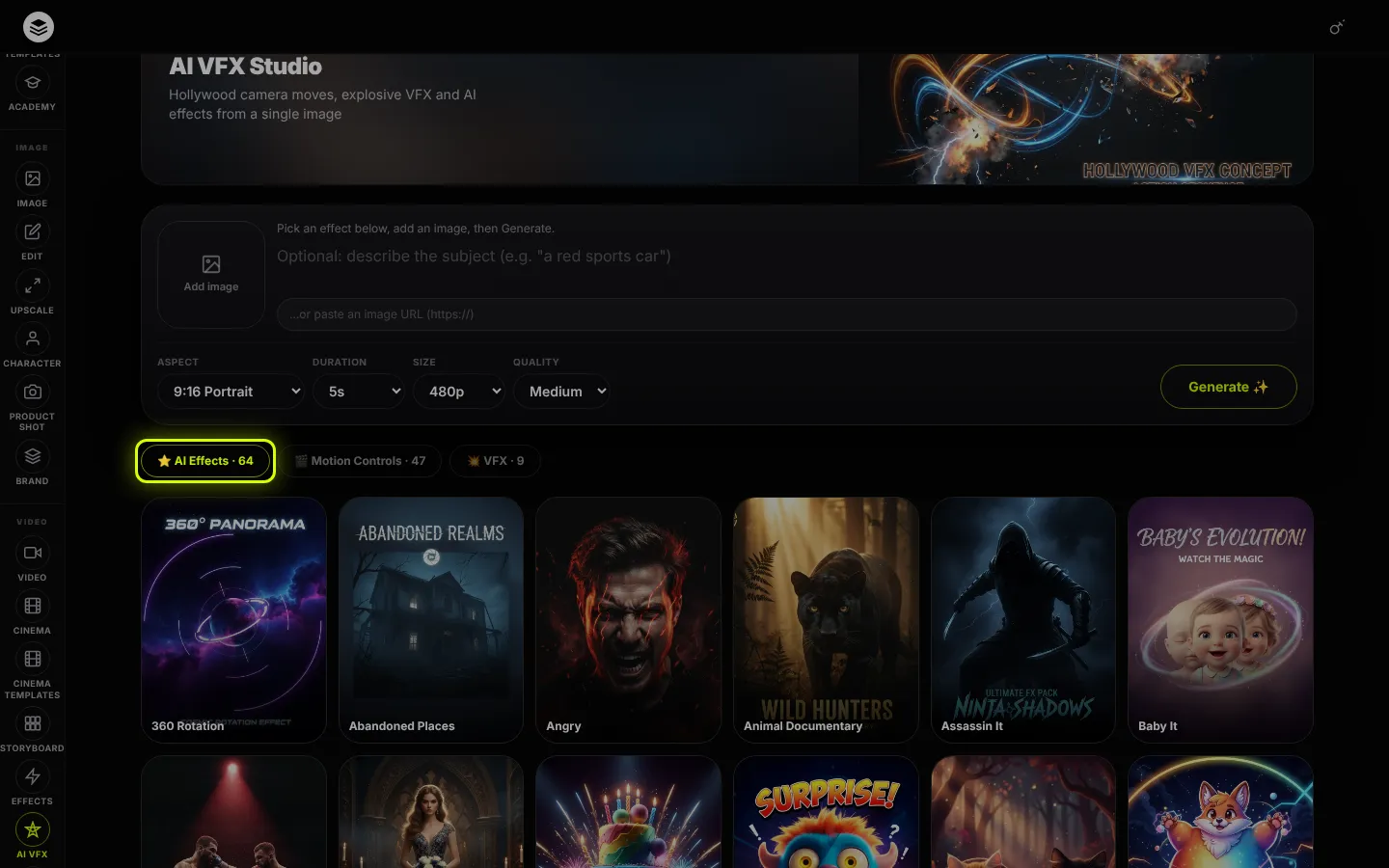
AI VFX Studio is a native in-app version of the open-source AI-VFX app. The page has an input bar at the top (image box, optional prompt, image URL field, four dropdowns and a Generate button) and a gallery of effect cards underneath, grouped in three tabs: AI Effects (64 presets), Motion Controls (47 camera moves) and VFX (9 elements and destruction effects). Everything runs through the MuAPI generate_wan_ai_effects endpoint, so you need a MuAPI key. Defaults are 9:16 portrait, 5 seconds, 480p and Medium quality, which keeps first tests quick. Finished videos appear in a results grid on the page with a Download link, and are also saved to your generation history.

When to use it

  • You have one image and want a ready-made camera move such as Dolly In, Crash Zoom In, 360 Orbit or FPV Drone Cam.
  • You want an element or destruction effect such as Building Explosion, Tornado, Electricity or Disintegration.
  • You want a viral-style AI transformation such as Hulk Transformation, Kamehameha or Cakeify.
  • You want to choose between portrait, landscape and square, and between 5 or 10 second clips.
  • You want to paste an image link instead of uploading a file.
  • Three category tabs with counts: AI Effects (64), Motion Controls (47), VFX (9).
  • Thumbnail grid of effect cards; click a card to select it.
  • Image input by upload or by pasting an https image URL.
  • Optional prompt: describe the subject, for example a red sports car.
  • Four dropdowns: Aspect, Duration, Size, Quality.
  • Generate button with live Rendering message and a results grid with Download links.
  • Results saved to your generation history.

Every AI VFX Studio feature, explained

7 features, each with a definition, why you would use it, what it needs and its limits.

AI Effects tab in AI VFX Studio
AI Effects tab
FEATURE 01

AI Effects tab

What it is: 64 transformation presets such as 360 Rotation, Abandoned Places, Angry, Animal Documentary, Assassin It, Baby It, Boxing, Bride It, Cakeify, Cartoon Jaw Drop, Cats, Crush It, Crying, Cyberpunk 2077, Deflate It, Disney Princess It, Dogs, Eye Close-Up, Fantasy Landscapes, Film Noir, Fire, Glamor, Goblin, Gun Reveal, Hulk Transformation, Inflate It, Jungle It, Jumpscare, Kamehameha, Kiss Cam, Kissing, Lego, Laughing, Little Planet, Live Wallpaper, Looping Pixel Art, Melt It, Mona Lisa It, Museum It, Muscle Show Off, Orc, Pixar, Pirate Captain, POV Driving, Samurai It, Sharingan Eyes, Skyrim Fus-Ro-Dah, Squish It, Steamboat Willie, Super Saiyan Transformation, Tsunami, Ultra Wide, VHS Footage, Wind Blast, Younger Self Selfie, Zen It, Zoom Call.

Why use it
Fun, attention-grabbing transformations for short-form content.
What you need
One image and one selected effect.
Limits and rules
The effect names are exactly the ones the API accepts; you cannot type a custom effect.
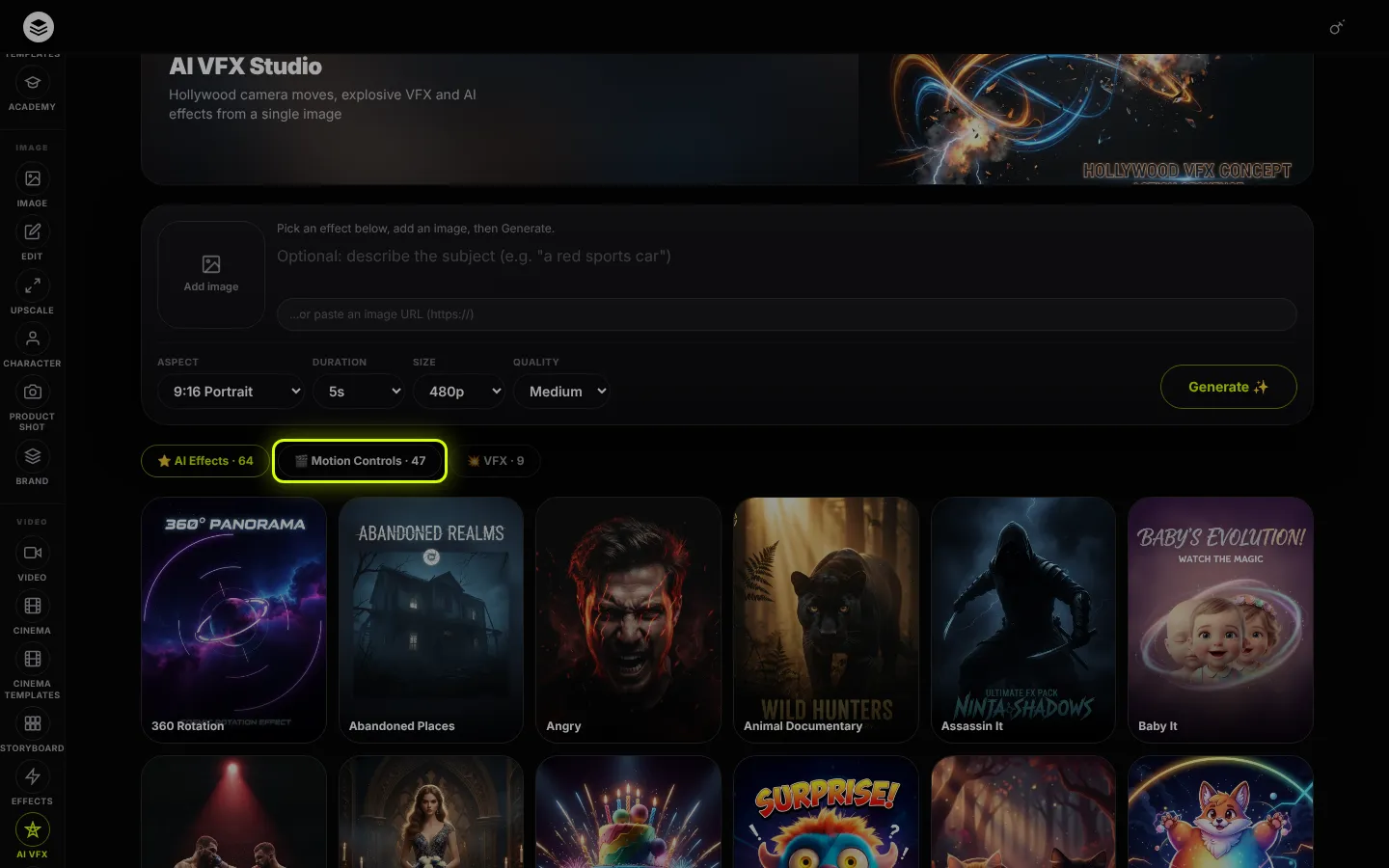
Motion Controls tab in AI VFX Studio
Motion Controls tab
FEATURE 02

Motion Controls tab

What it is: 47 camera moves: 360 Orbit, Arc Shot, Car Chase, Car Mount Cam, Crash Zoom In/Out, Crane Down, Crane Overhead, Crane Punch-In, Crane Up, Dirty Lens, Dolly In/Out/Left/Right, Dolly Zoom In/Out, Fast Dolly Zoom In/Out, Dutch Angle, Fisheye Lens, Focus Shift, FPV Drone Cam, Handheld Cam, Head Tracking, Hero Run, Human Timelapse, Landscape Timelapse, Lazy Susan, Lens Crack, Lens Flare, Matrix Shot, Motion Blur, Object POV, Overhead, Rap Video Cam, Robotic Cam, Snorricam, Tilt Down, Tilt Up, Whip Pan, Wiggle, Zoom In, Zoom In Through Object, Zoom Into Mouth, Zoom Out, Zoom Out Through Object.

Why use it
Give a still shot a professional camera move without describing it.
What you need
One image and one selected move.
Limits and rules
The prompt is inserted into the effect's template, so use it to name the subject.
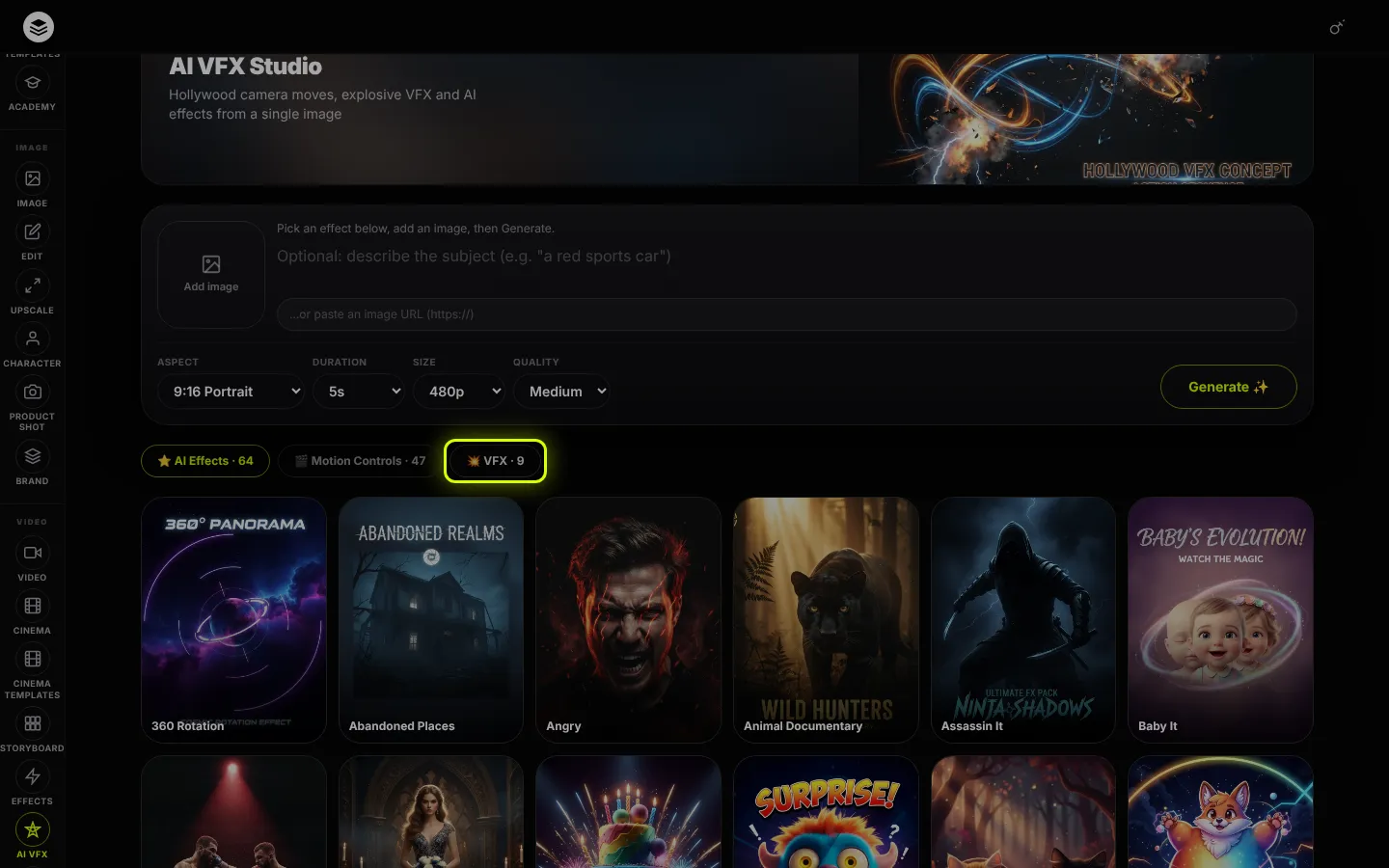
VFX tab in AI VFX Studio
VFX tab
FEATURE 03

VFX tab

What it is: 9 element and destruction effects: Building Explosion, Car Explosion, Decay Time-Lapse, Disintegration, Electricity, Flying, Huge Explosion, Levitate, Tornado.

Why use it
Dramatic action looks such as explosions, storms, levitation and decay.
What you need
One image and one selected effect.
Limits and rules
Results depend on the scene; building or car effects work best when the image clearly shows a building or car.
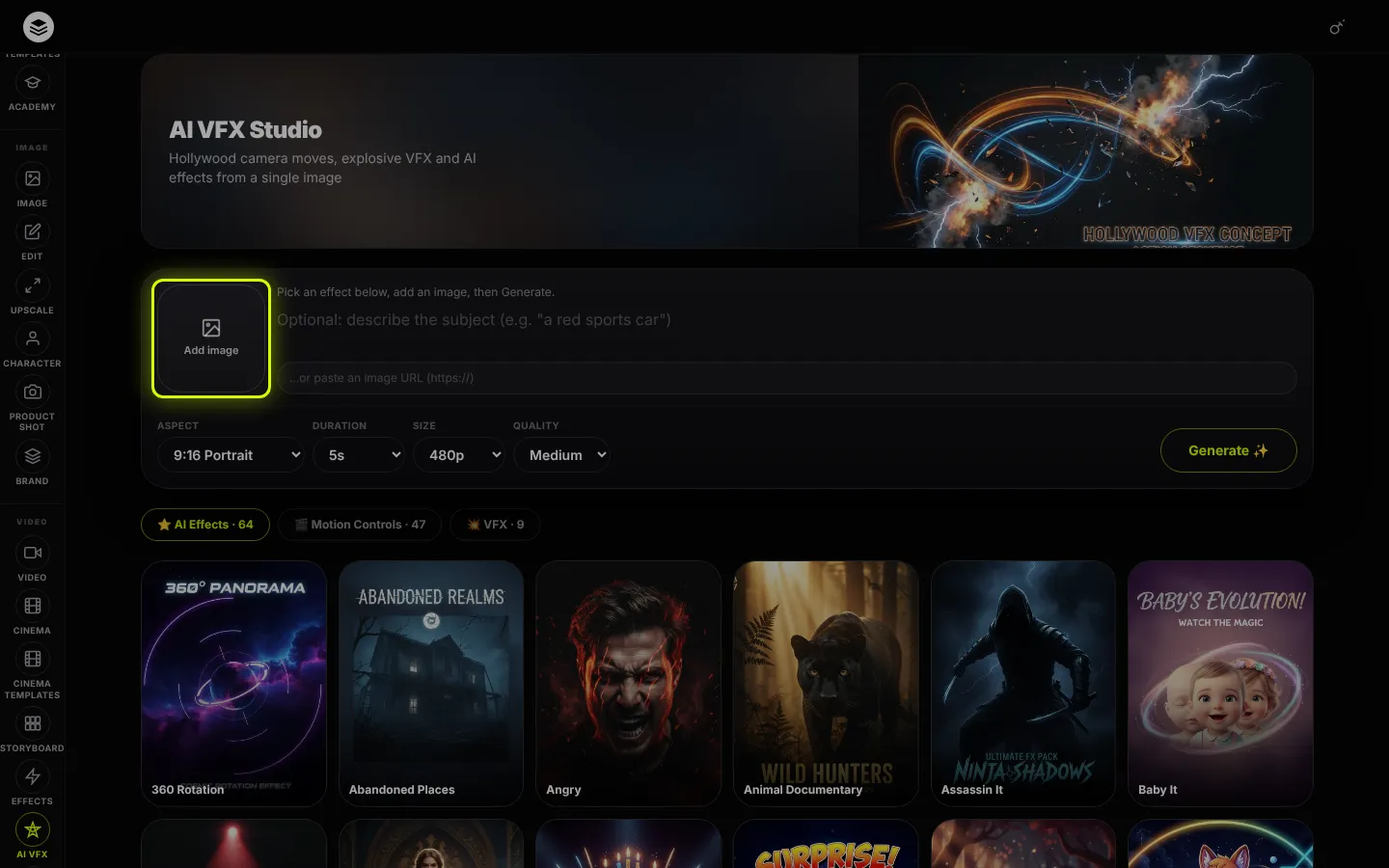
Image input (upload or URL) in AI VFX Studio
Image input (upload or URL)
FEATURE 04

Image input (upload or URL)

What it is: Click the dashed box labelled Add image to upload a JPEG, PNG, WebP or GIF, or paste a link into the field with the placeholder: ...or paste an image URL (https://). While uploading the box shows Uploading....

Why use it
Use upload for your own photos and the URL box for images already online.
What you need
One image. The studio does not take video input.
Limits and rules
The URL must start with http:// or https:// or you see the toast Image URL must start with http(s)://. Uploads are limited by MuAPI to 10 MB for images. Uploading needs a MuAPI key and prompts for it if missing.
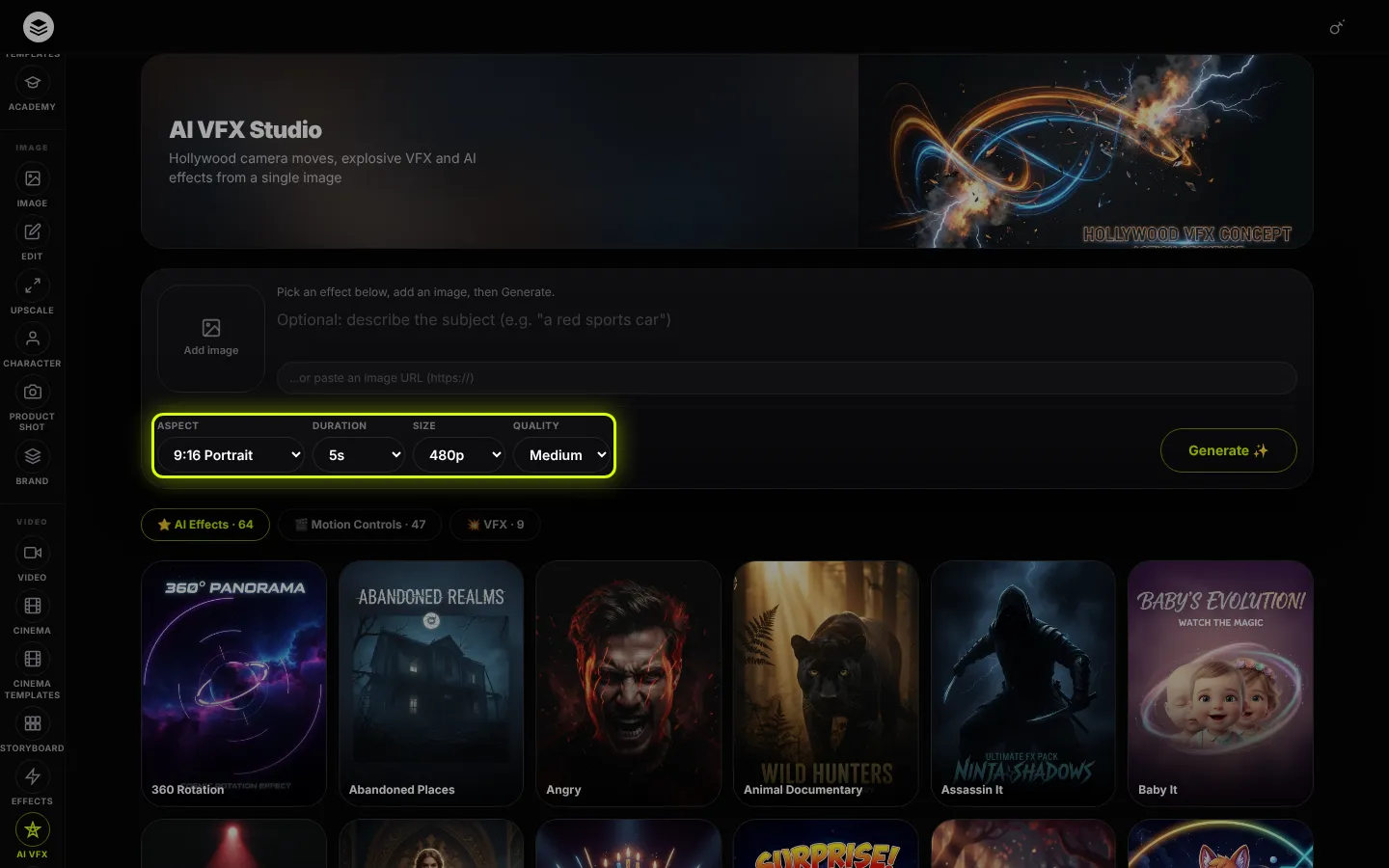
Aspect, Duration, Size, Quality dropdowns in AI VFX Studio
Aspect, Duration, Size, Quality dropdowns
FEATURE 05

Aspect, Duration, Size, Quality dropdowns

What it is: Aspect: 9:16 Portrait (default), 16:9 Landscape, 1:1 Square. Duration: 5s (default) or 10s. Size: 480p (default) or 720p. Quality: Medium (default) or High.

Why use it
Match the clip to the platform and trade speed for quality.
What you need
Optional; defaults apply.
Limits and rules
Only these options exist. The API limits resolution to 480p or 720p and quality to medium or high for this endpoint.
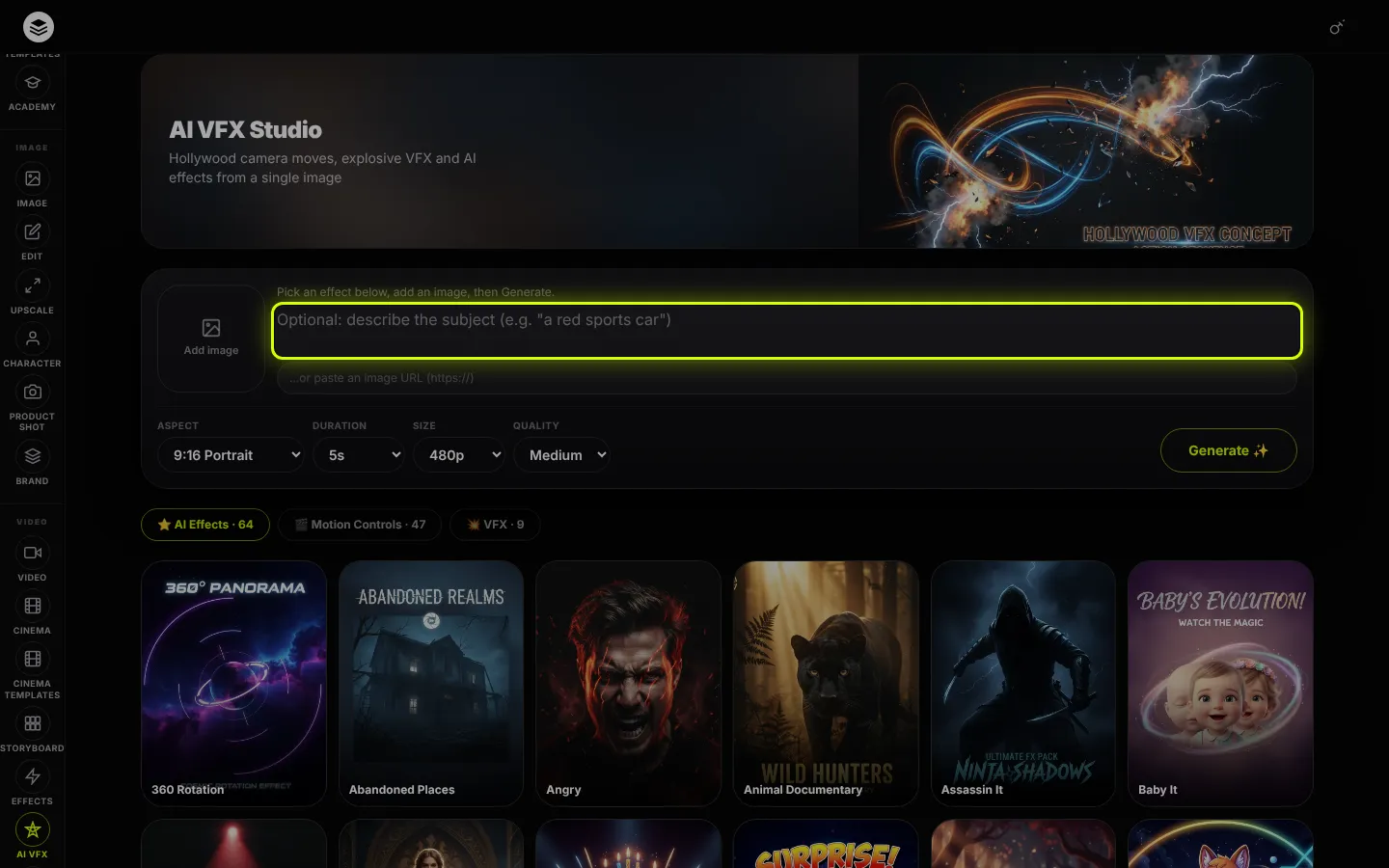
Prompt box in AI VFX Studio
Prompt box
FEATURE 06

Prompt box

What it is: Placeholder text: Optional: describe the subject (e.g. a red sports car). The text is passed into the effect's built-in prompt template.

Why use it
Name your subject so the effect is applied to the right thing.
What you need
Optional.
Limits and rules
Keep it short and about the subject; it is not a free-form scene description.
Results grid in AI VFX Studio
Results grid
FEATURE 07

Results grid

What it is: While rendering, a card says Rendering and the effect name. When ready a video card appears with playback controls, the effect name and a Download link. New results appear first.

Why use it
Preview and download without leaving the page.
What you need
A finished generation.
Limits and rules
The results grid only holds this visit's results; older ones are in your generation history. There are no Add to Library, Timeline, Compare or Publish buttons on this page.

How to use AI VFX Studio

  1. Open #/ai-vfx and pick a tab.
  2. Click an effect card.
  3. Add an image by upload or https link.
  4. Optionally describe the subject.
  5. Choose Aspect, Duration, Size and Quality.
  6. Press Generate and wait for Video ready.
  7. Press Download on the result card.

Generation modes

The ways this studio can work, and when to pick each one.

AI Effects

Creative AI transformations and character or scene effects (64 presets).

Best for: Viral clips, character transformations, fun reveals.

Motion Controls

Camera movements applied to your image (47 presets).

Best for: Cinematic push-ins, orbits, crane moves and lens looks.

VFX

Elements and destruction effects (9 presets).

Best for: Explosions, tornado, electricity, levitation and decay.

Inputs and outputs

What you give the studio, and what you get back.

InputDescriptionWhen to useRules
Effect (card)
Required
The preset you click in the grid. Without one, Generate shows the toast Select an effect first.Always.Switching tabs keeps your selected effect until you pick another.
Image (upload or URL)
Required
The still image to animate. Without one, Generate shows the toast Add an image (upload or https URL) first.Always.Upload accepts JPEG, PNG, WebP and GIF. MuAPI size limit for images is 10 MB. URL must start with http:// or https://. The image must be reachable by the service.
Prompt
Optional
Optional subject description.When the effect needs to know what the subject is.If empty no prompt is sent.
Aspect
Optional
Output shape: 9:16 Portrait, 16:9 Landscape or 1:1 Square.Match your target platform.Default 9:16.
Duration
Optional
5s or 10s.Use 10s for longer moves.Default 5s. Longer clips take longer to render.
Size
Optional
Resolution 480p or 720p.720p for final output.Default 480p. The page does not offer 1080p.
Quality
Optional
Medium or High.High for final output.Default Medium.

What you get

  • A short video clip in 9:16, 16:9 or 1:1.
  • 5 or 10 seconds long, at 480p or 720p.
  • Shown in the results grid with a Download link and saved to your generation history.

Use cases and example workflows

Real jobs you can do, step by step.

Product teaser

Create a camera-move teaser from a single product still.

  1. Pick a Motion Controls effect.
  2. Upload the product photo.
  3. Generate at 720p High.
Result: A 5 second product video with a camera move.

Action intro

Make a dramatic opener with explosion or tornado style VFX.

  1. Pick a VFX effect.
  2. Upload a matching scene image.
  3. Generate.
Result: A short VFX clip.

Meme-style clip

Apply a transformation effect to a photo of a friend or pet.

  1. Pick a card in AI Effects such as Cats, Dogs or Puppy it.
  2. Upload the photo.
  3. Generate and download.
Result: A funny short video.

Cinematic product push-in

  1. Open Motion Controls.
  2. Click Dolly In.
  3. Upload a clean product photo.
  4. Type the subject, for example a black leather watch.
  5. Keep 16:9 Landscape, set 720p and High.
  6. Press Generate and Download.

Explosion shot from a car photo

  1. Open the VFX tab and click Car Explosion.
  2. Upload a car photo.
  3. Choose 5s, 480p, Medium for a quick test.
  4. Press Generate and review.
  5. If good, repeat at 720p High.

Viral transformation for a short

  1. Open AI Effects and pick Hulk Transformation or Kamehameha.
  2. Upload a clear half-body photo.
  3. Keep 9:16 Portrait.
  4. Generate, then download the clip for upload to social.

Tips and best practices

  • Test with defaults first, then upgrade to 720p and High for the keeper.
  • Use sharp, well-lit images with a clear subject.
  • Match the subject to the effect: car for Car Explosion, person for transformations.
  • Keep prompts to a few words naming the subject.
  • Pick Aspect first so you do not need to re-render for a different platform.
  • Download clips you like right away.
  • Use short prompts and one effect per render.

Limitations and troubleshooting

Know the limits before you start, and how to fix common problems.

LimitationWhat it meansWorkaround
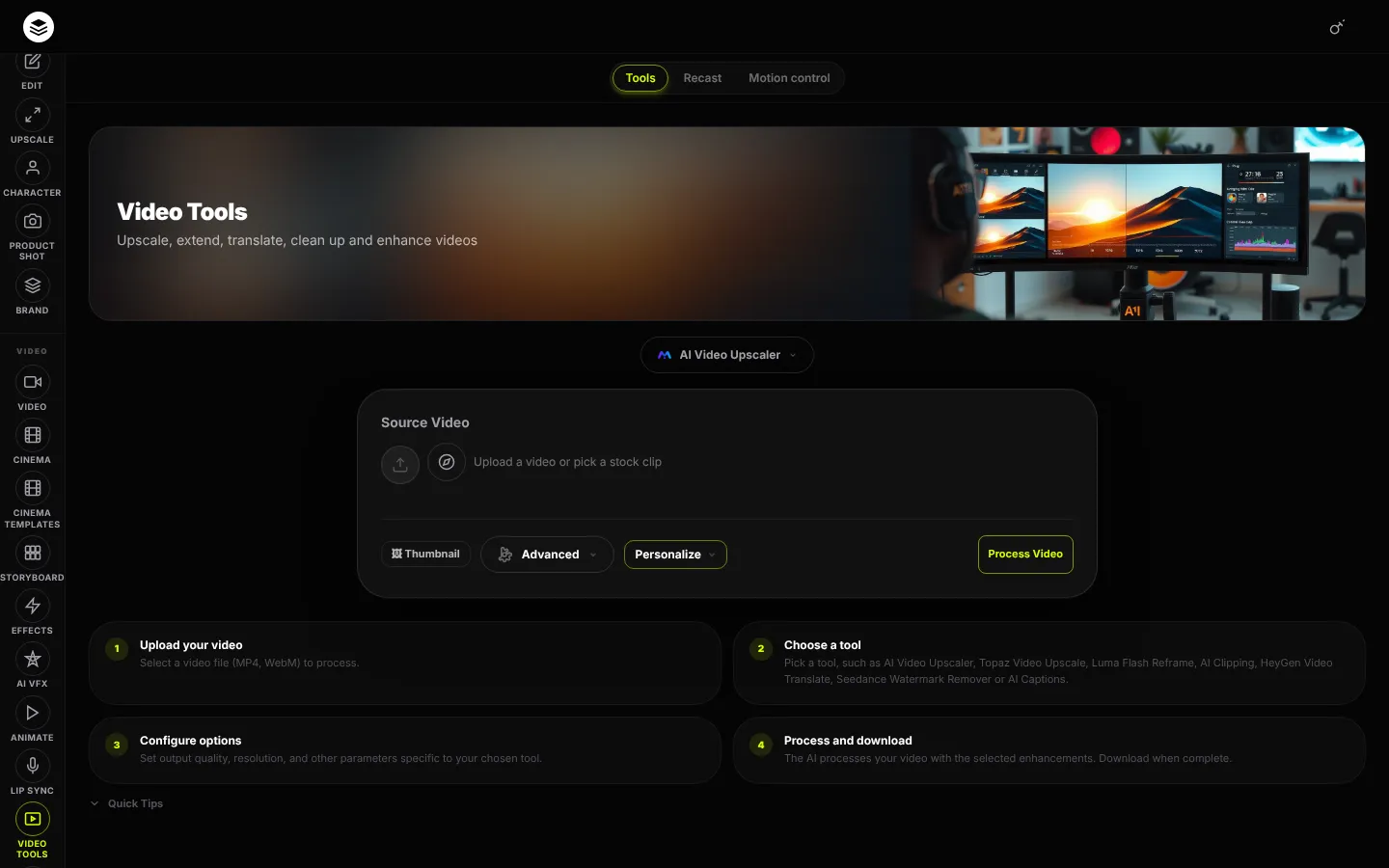
Only 480p or 720pOutput is not full HD.Use Upscale tools in Video Tools (#/videotools) to enlarge the finished clip.
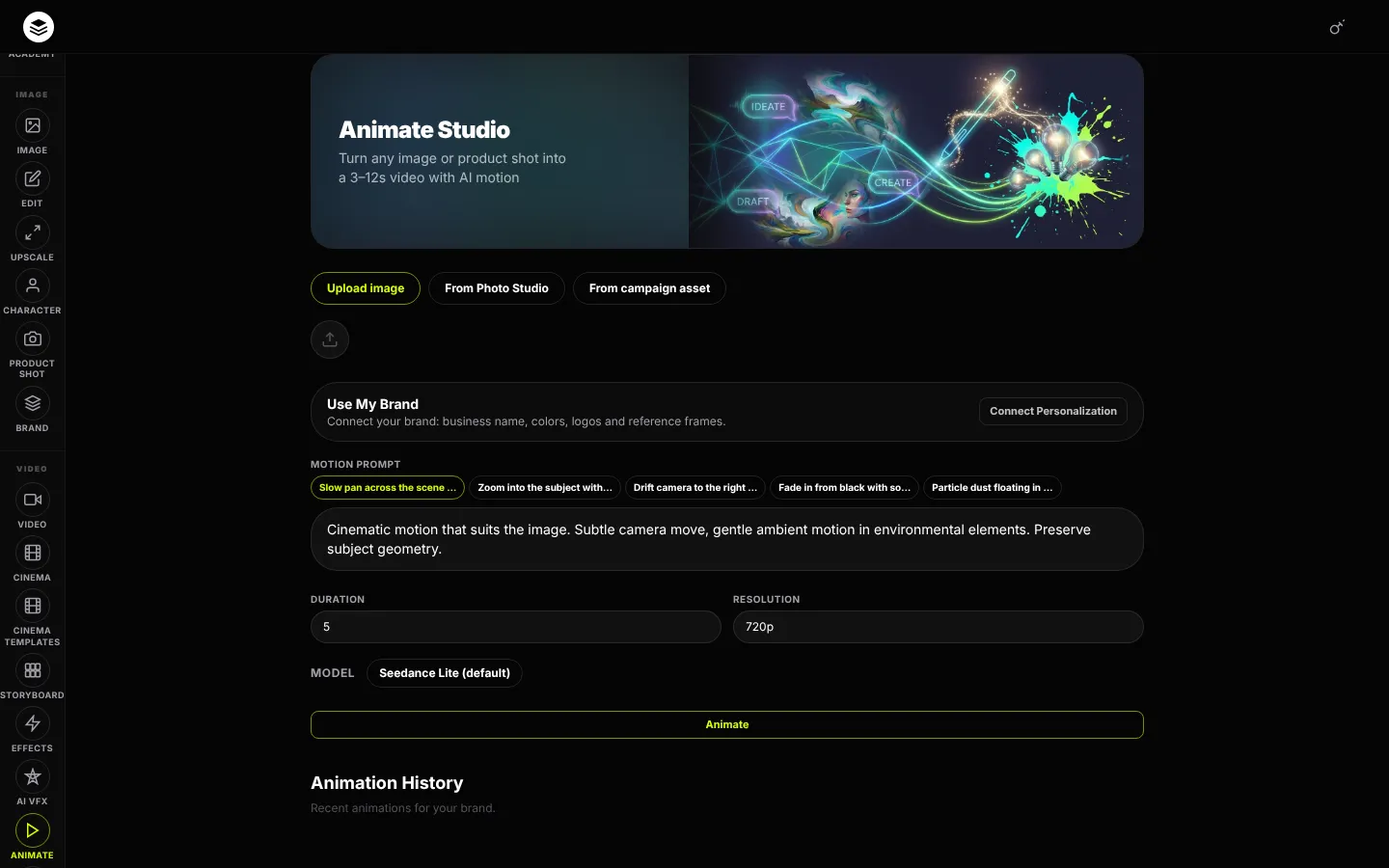
One image at a timeYou cannot blend several images into one effect.Use Animate Studio with a reference-style model, or Video Studio.
No library or timeline buttonsYou must download the clip to reuse it elsewhere.Use Download, then upload into Timeline or Video Tools. Your history also keeps the generation.

Output looks low resolution

Why: Default Size is 480p.

Fix: Change Size to 720p and Quality to High.

Portrait video when I wanted landscape

Why: Default Aspect is 9:16 Portrait.

Fix: Change Aspect to 16:9 Landscape before pressing Generate.

Effect ignores my prompt

Why: The prompt is dropped into the effect's template and is only meant to describe the subject.

Fix: Reword the prompt as a short noun phrase, like a red sports car.

Glossary

Terms used in AI VFX Studio.

VFX
Visual effects, such as explosions, electricity or levitation.
Motion Control
A preset camera move such as a dolly, orbit or crane shot.
Aspect
The shape of the video, such as 9:16 for phones or 16:9 for widescreen.
Size
The video resolution, 480p or 720p.
Quality
Medium or High processing level.
MuAPI
The service that renders the effects. A MuAPI key is required.

Frequently asked questions

How many effects are there?

The tabs show AI Effects 64, Motion Controls 47 and VFX 9, so 120 presets. The upstream project text mentions 80+ effects, but the numbers on the tab buttons in this app are the ones to trust.

Can I make a 10 second video?

Yes. Set Duration to 10s. The default is 5s.

What is the difference between this and Effects Studio?

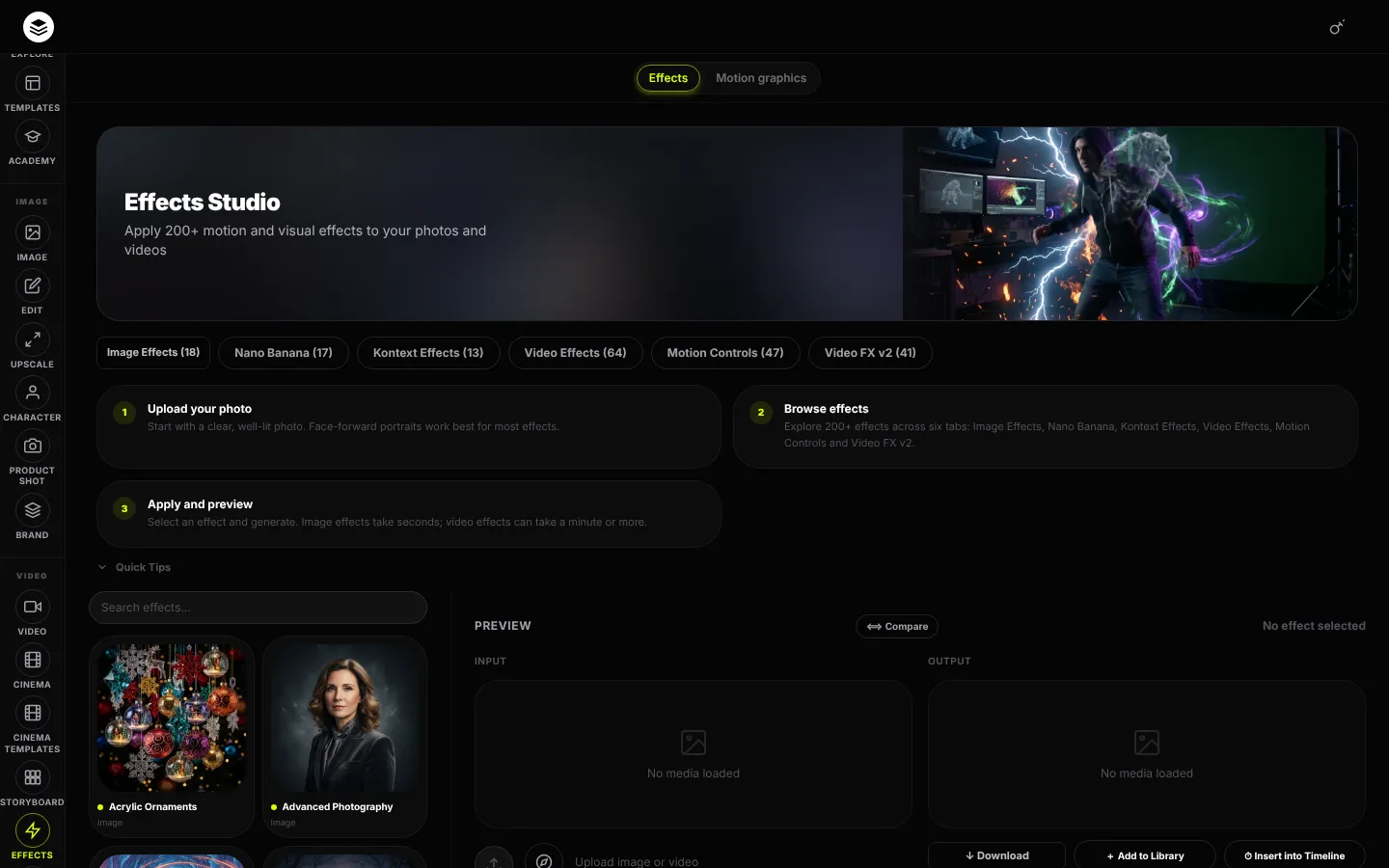
AI VFX Studio focuses on video-from-one-image with Aspect, Duration, Size and Quality controls and includes the VFX tab. Effects Studio also has still-image effect tabs, Video FX v2, compare, library, timeline and Advanced settings, but fixes video at 720p and 5 seconds.

Do I need a prompt?

No. It is optional and is only used to describe the subject.

Which image formats work?

The uploader accepts JPEG, PNG, WebP and GIF. You can also paste an https image link.

How long does it take?

The upstream README says typically 1 to 3 minutes. The page itself shows Rendering until the service replies; actual times vary by effect, duration and quality.

Where are my videos kept?

The results grid shows videos from this visit with a Download link, and each one is saved to your generation history.

Try AI VFX Studio now

Open the studio and put these features to work, or browse the guides for all 53 studios.