Video Studios · Feature guide

Effects Studio Feature Guide

Pick a preset effect, upload a photo or clip, and generate a styled image or an effect video.

Effects Studio applies ready-made visual and motion effects to a photo or video. You pick an effect from a catalogue of about 200 presets in six tabs, upload your media, and press Generate. A second mode called Motion graphics (also known as Vibe Motion) creates animated graphics from a text description.

Best for: Beginners and social creators who want a one-click transformation (figurine looks, comic styles, decade looks, camera moves, kiss/hug style clips, melt/inflate style clips) without writing prompts, and anyone who wants to quickly try many looks on the same photo.

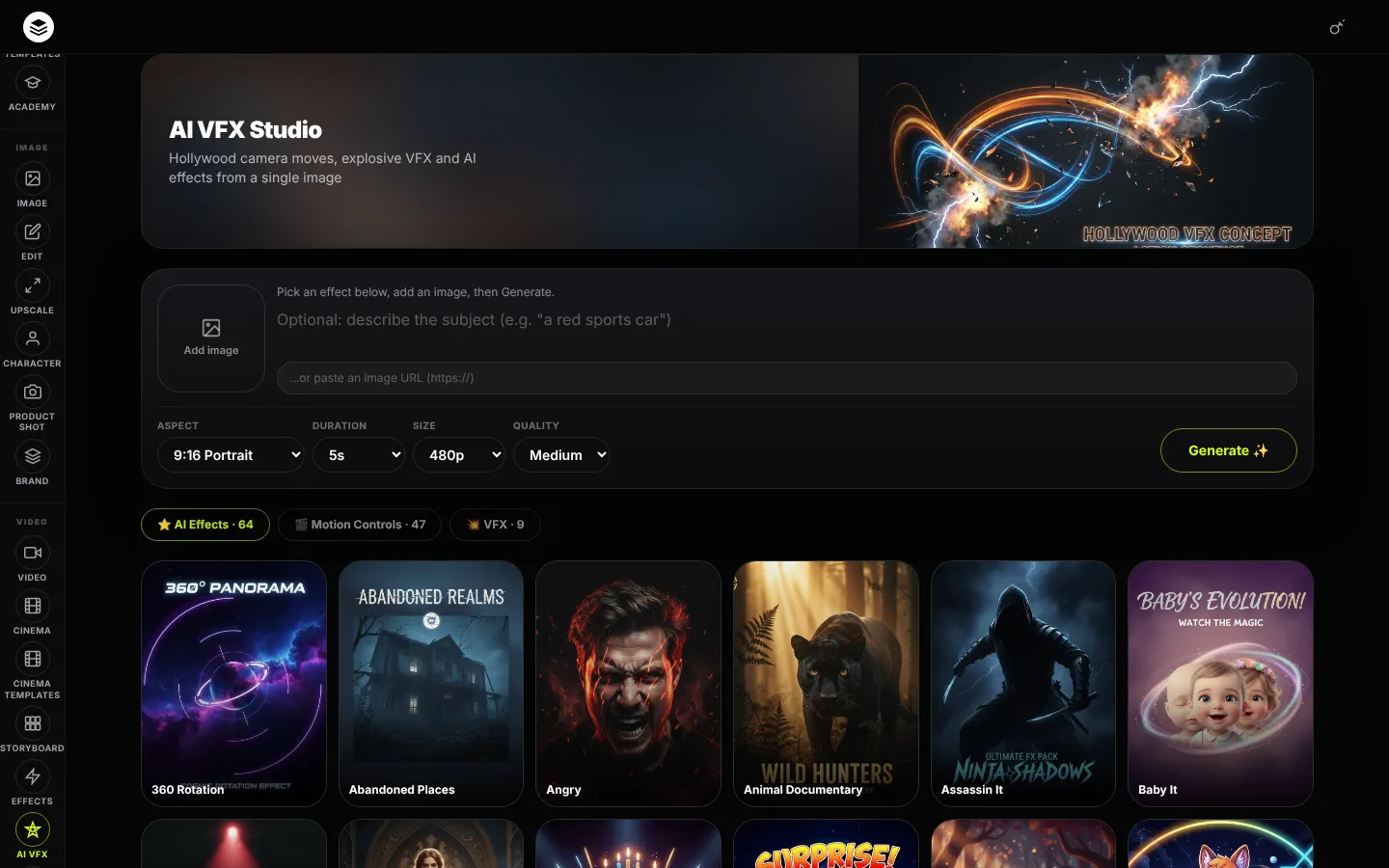
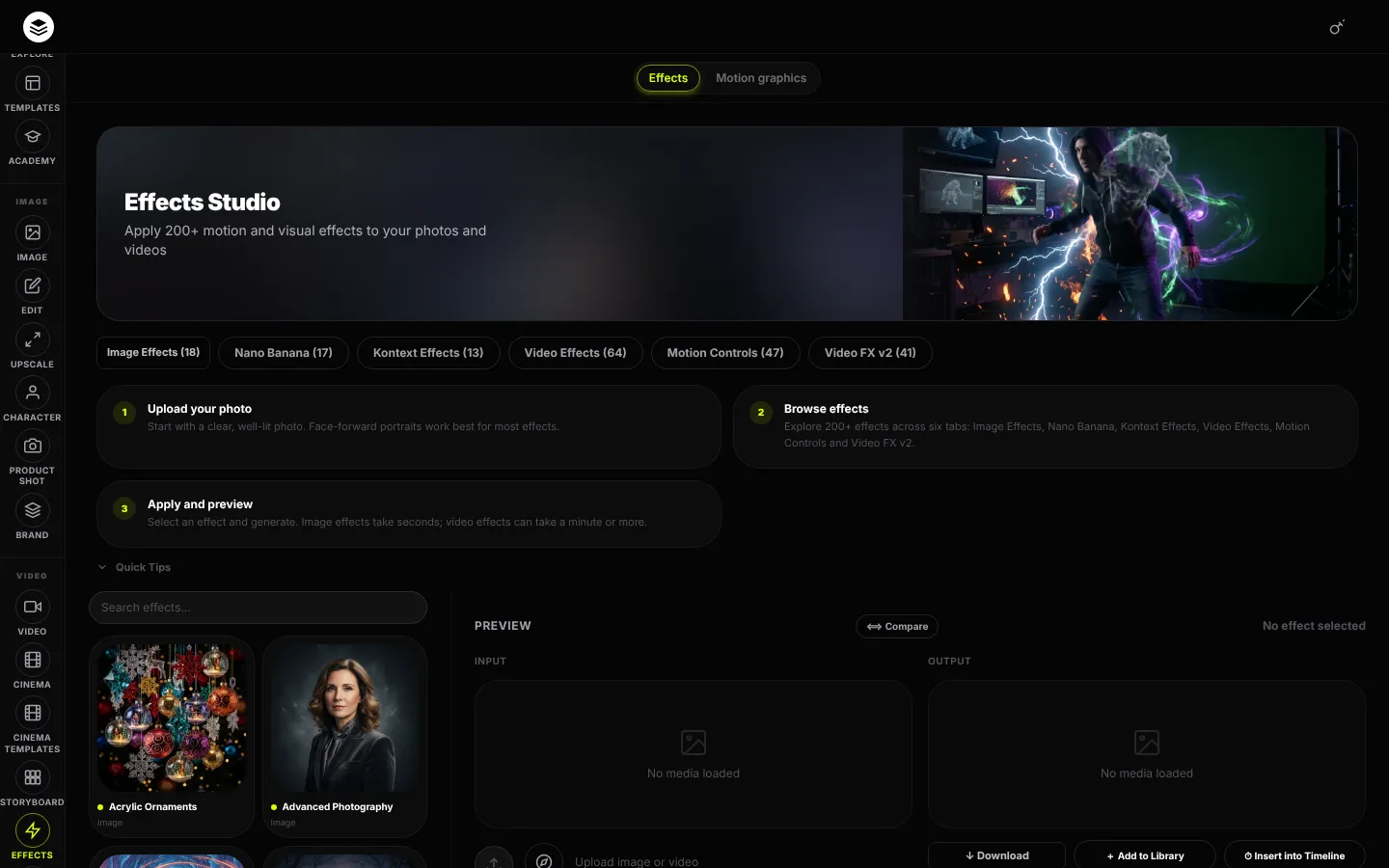
Effects Studio screenshot

Watch the Effects Studio tour

A 2:20 captioned walkthrough of the studio, with a sample file and prompt.

VIDEO · 2:20

What is Effects Studio?

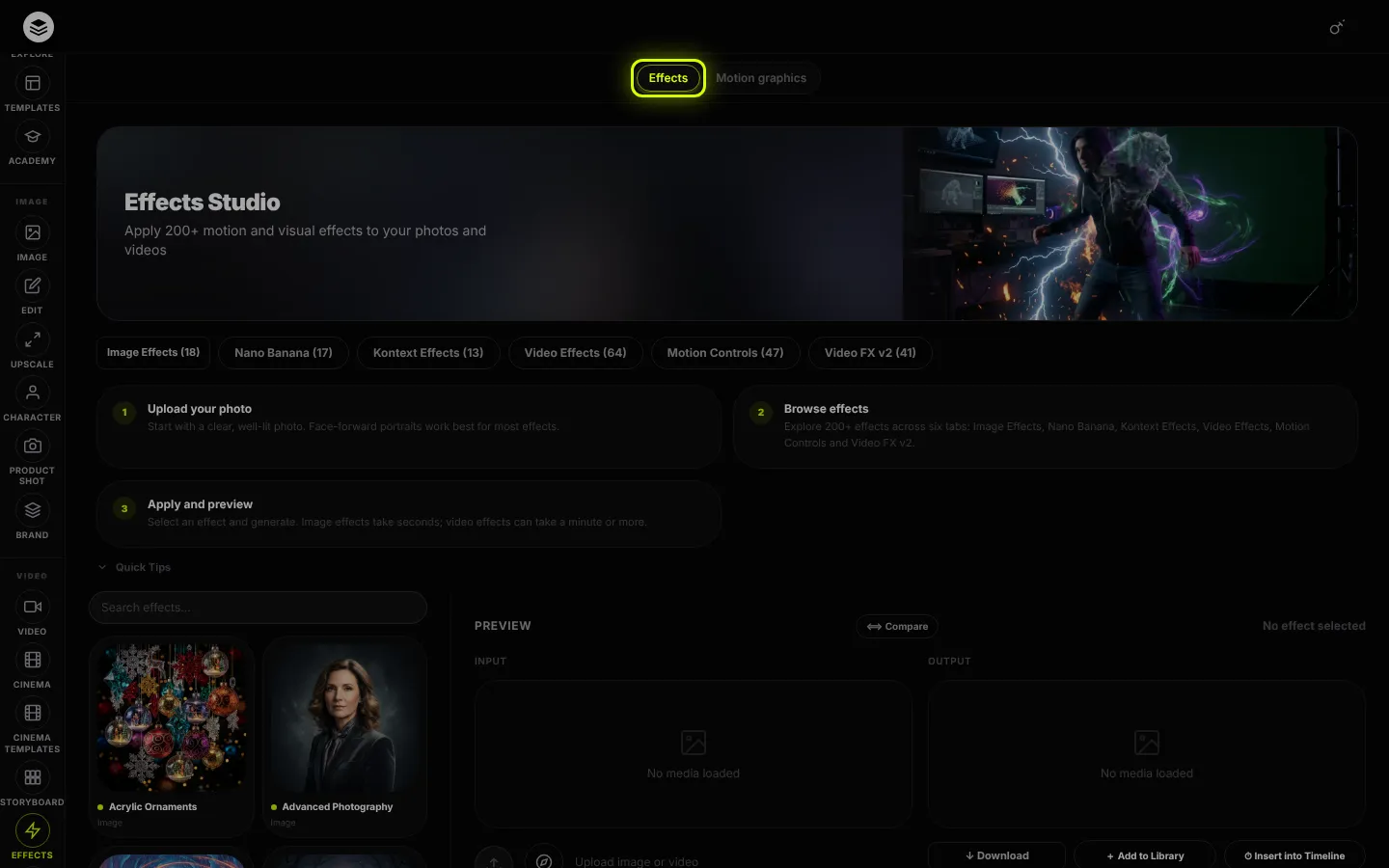
Effects Studio is a catalogue-driven studio. Instead of writing a long prompt, you choose a named effect (for example Angel Figurine, Dolly Zoom In, Cakeify or Kissing Pro), upload one image or video, optionally add a short prompt, and press Generate. The studio has six tabs: Image Effects, Nano Banana, Kontext Effects (these three output still images) and Video Effects, Motion Controls, Video FX v2 (these three output videos). Each tab shows its effect count and a thumbnail grid with a search box. After generating you can compare before and after, download, save to your library, insert into the timeline, add AI captions (videos only) or publish to social. A top toggle switches the page between Effects and Motion graphics, where you describe an animated graphic (kinetic text, charts, logo reveals) and can later remix a previous result. Generation runs through MuAPI and needs your MuAPI key plus an account with full access.

When to use it

  • You want a named, repeatable effect applied to a photo (for example 3D Figurine, Cyberpunk, Glass Ball, 1980s Decade).
  • You want to turn one photo into a short effect video (for example Cakeify, Melt It, Inflate It, Hulk Transformation).
  • You want a camera move on a still (for example Dolly In, Crash Zoom In, Arc Shot, FPV Drone Cam) from the Motion Controls tab.
  • You want to edit a photo with a short instruction such as 20 years older or Background Change using the Kontext Effects tab.
  • You want a quick animated motion graphic (title, chart, logo reveal) from text using the Motion graphics mode.
  • Six effect tabs: Image Effects (18), Nano Banana (17), Kontext Effects (13), Video Effects (64), Motion Controls (47), Video FX v2 (41). The counts are shown on each tab button and come from the model lists in the code.
  • Thumbnail grid of effect cards and a Search effects... box that filters by name.
  • Upload an image or a video, browse stock photos from Pexels, or attach extra reference files from the toolbar next to the prompt box.
  • Optional prompt box. For Kontext Effects, Video Effects and Motion Controls the studio fills in the effect name if you leave it empty.
  • Advanced panel with Guidance, Steps, Seed, Negative Prompt, Effect Strength and Denoise Strength, saved in your browser, with Reset to defaults.
  • Compare button for a side-by-side Input and Output view.
  • Result actions: Download, Add to Library, Insert into Timeline, Add AI Captions (video results only), Publish to Social.
  • Effect Layers with blend modes and opacity (experimental, see limitations).
  • Motion graphics (Vibe Motion) mode with Generate and Edit (Remix) and a saved gallery of your last 30 results in this browser.
  • Extras menu (three dots) with Recipes and Prompts, plus Thumbnail and Personalize buttons.

Every Effects Studio feature, explained

10 features, each with a definition, why you would use it, what it needs and its limits.

Image Effects tab in Effects Studio
Image Effects tab
FEATURE 01

Image Effects tab

What it is: 18 still-image presets such as Acrylic Ornaments, Advanced Photography, American Comic Style, Angel Figurine, Blurry Selfie, Cyberpunk, Exotic Charm, Felt 3D Polaroid, Felt Keychain, Furry Dream Doll, Futuristic American Comics, Glass Ball, In The Stadium, Lofi Pixel Character, Lying On Fluffy Belly, Landscape Mini World, My World, Plastic Bubble Figure. The default effect in the model definition is Angel Figurine.

Why use it
Fast stylised portraits, toy or figurine looks and comic looks from one photo.
What you need
One image and one selected effect. Prompt is optional.
Limits and rules
Output is an image. Image upload limit is 10 MB.
Nano Banana tab in Effects Studio
Nano Banana tab
FEATURE 02

Nano Banana tab

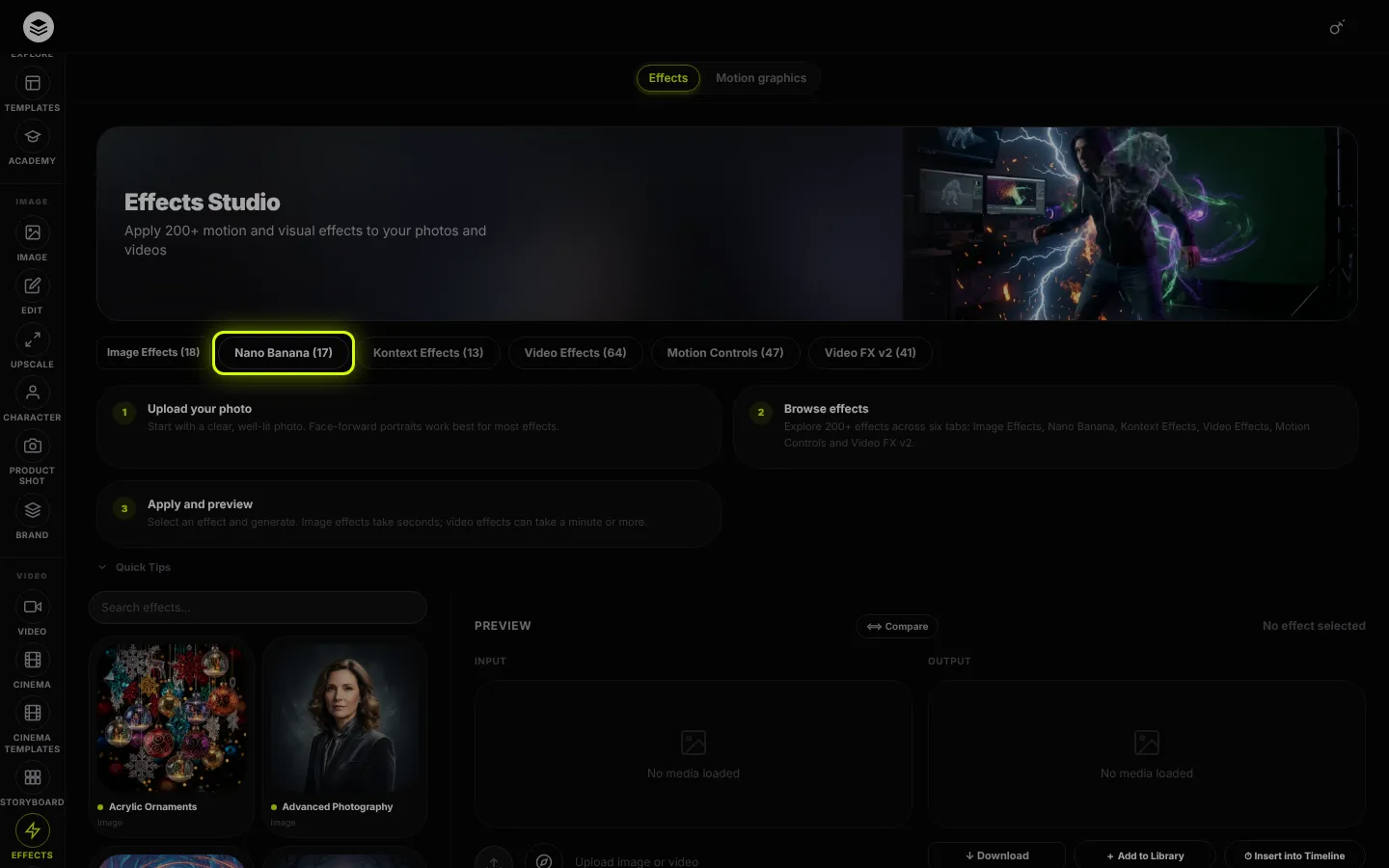
What it is: 17 presets from Google's Nano Banana family: 3D Figurine, 16bit Game Character, Action Figure, decade looks (1920s, 1950s, 1970s, 1980s Decade), art looks (American Gothic Art, Famous Art, Mona Lisa Art, Persistent Memory Art, Vincent Van Gogh Art) and landmark scenes (Egypts Landmark, Eiffel Tower Landmark, Great Wall of China Landmark, Statue of Liberty Landmark, Taj Mahal Landmark).

Why use it
Place yourself in a famous landmark or artwork, or restyle a photo as a decade look or a collectible figure.
What you need
One image and one selected effect. Prompt is optional.
Limits and rules
Output is an image. The studio does not show an aspect ratio control for this tab.
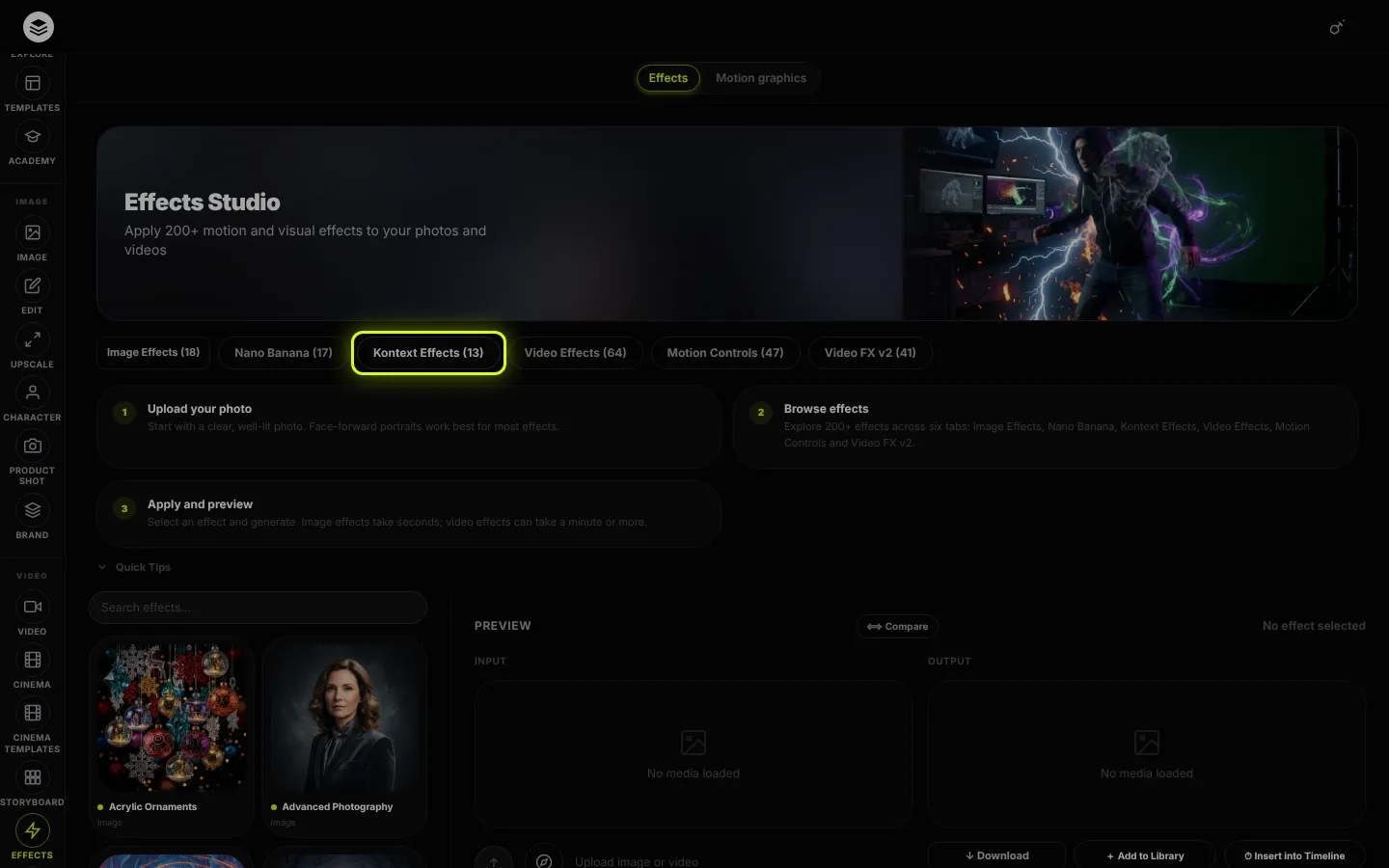
Kontext Effects tab in Effects Studio
Kontext Effects tab
FEATURE 03

Kontext Effects tab

What it is: 13 instruction-style edits powered by the Flux Kontext effects model: Age Progression, Background Change, Cartoonify, Color Correction, Expression Change, Face Enhancement, Hair Change, Object Removal, Professional Photo, Scene Composition, Style Transfer, Time of Day, Weather Effect.

Why use it
Targeted photo edits where you add a short instruction (the model's own example prompt is 20 years older).
What you need
One image, one selected effect and ideally a prompt. The API requires a prompt for this tab, so if you leave the prompt empty the studio sends the effect name as the prompt.
Limits and rules
Output is an image. Results depend on how clearly your prompt describes the change.
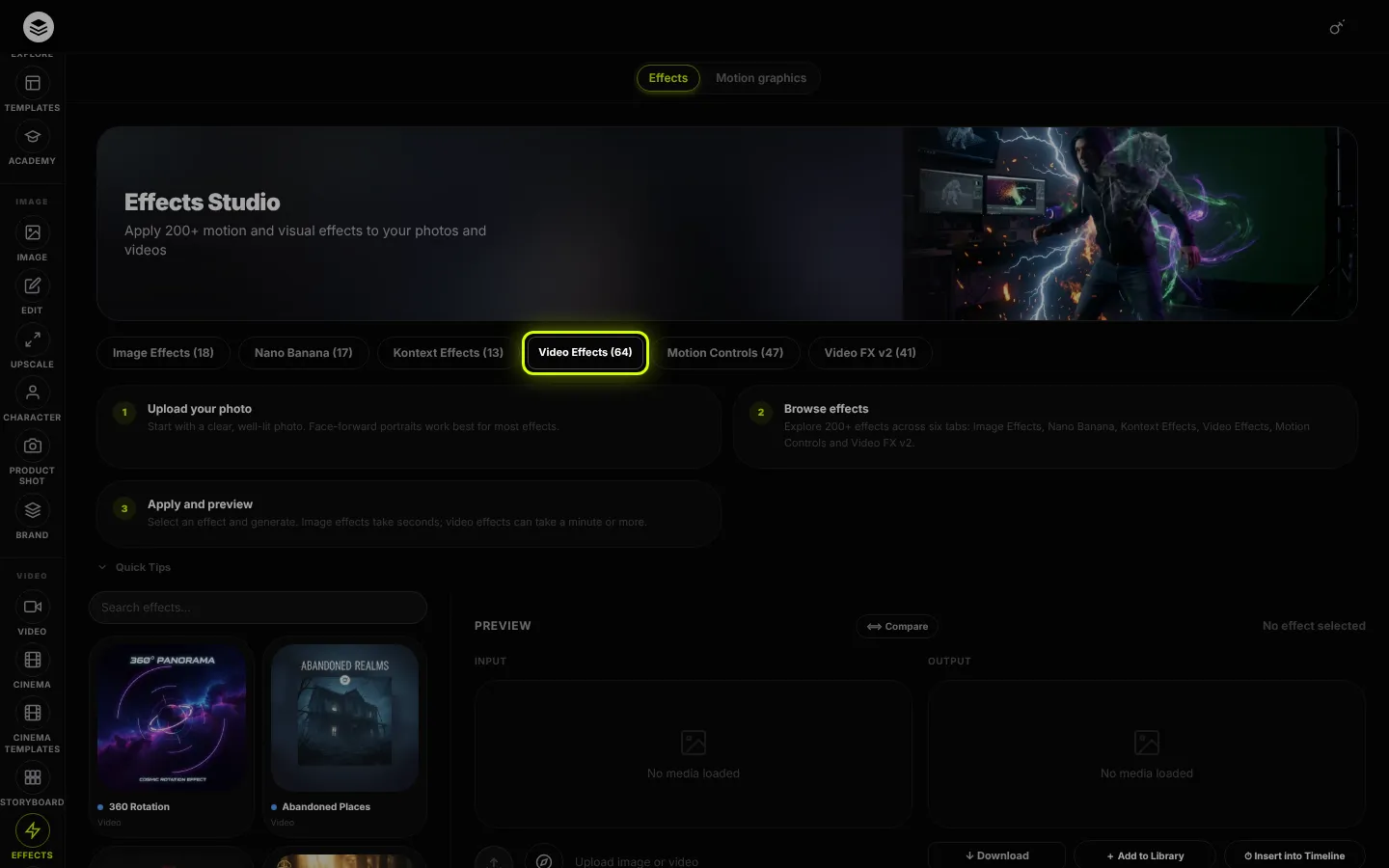
Video Effects tab in Effects Studio
Video Effects tab
FEATURE 04

Video Effects tab

What it is: 64 image-to-video effect presets that use the Wan AI effects endpoint. Examples: 360 Rotation, Abandoned Places, Angry, Animal Documentary, Assassin It, Baby It, Boxing, Bride It, Cakeify, Cartoon Jaw Drop, Cats, Crush It, Crying, Cyberpunk 2077, Deflate It, Disney Princess It, Dogs, Eye Close-Up, Fantasy Landscapes, Film Noir, Fire, Glamor, Goblin, Gun Reveal, Hulk Transformation, Inflate It, Jungle It, Jumpscare, Kamehameha, Kiss Cam, Kissing, Lego, Laughing, Little Planet, Live Wallpaper, Looping Pixel Art, Melt It, Mona Lisa It, Museum It, Muscle Show Off, Orc, Pixar, Pirate Captain, POV Driving, Samurai It, Sharingan Eyes, Skyrim Fus-Ro-Dah, Squish It, Steamboat Willie, Super Saiyan Transformation, Tsunami, Ultra Wide, VHS Footage, Wind Blast, Younger Self Selfie, Zen It, Zoom Call.

Why use it
Turn one photo into a short viral-style effect clip.
What you need
One image (the studio sends your upload as the source image), one selected effect. Prompt is optional and is inserted into the effect's built-in prompt template (the model's example is a cute kitten).
Limits and rules
The studio fixes the clip at 720p and 5 seconds. Allow up to about 3 minutes before the studio times out.
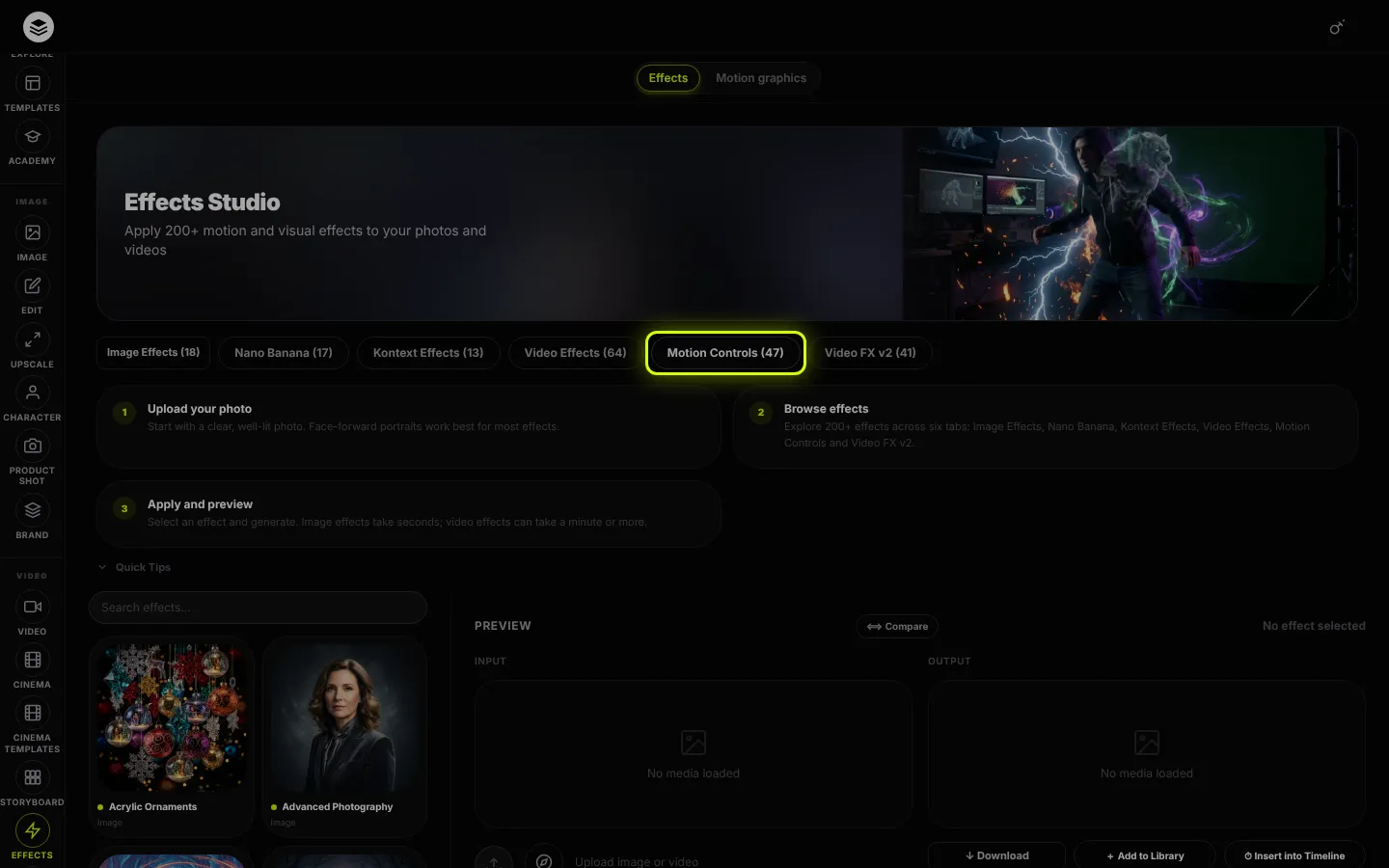
Motion Controls tab in Effects Studio
Motion Controls tab
FEATURE 05

Motion Controls tab

What it is: 47 camera-move presets using the same Wan AI effects endpoint: 360 Orbit, Arc Shot, Car Chase, Car Mount Cam, Crash Zoom In, Crash Zoom Out, Crane Down, Crane Overhead, Crane Up, Dirty Lens, Dolly In, Dolly Left, Dolly Out, Dolly Right, Dolly Zoom In, Dolly Zoom Out, Dutch Angle, Fisheye Lens, Focus Shift, FPV Drone Cam, Handheld Cam, Head Tracking, Hero Run, Human Timelapse, Landscape Timelapse, Lazy Susan, Lens Crack, Lens Flare, Matrix Shot, Motion Blur, Object POV, Overhead, Rap Video Cam, Robotic Cam, Snorricam, Tilt Down, Tilt Up, Whip Pan, Wiggle, Zoom In, Zoom In Through Object, Zoom Into Mouth, Zoom Out, Zoom Out Through Object and more.

Why use it
Give a still photo a cinematic camera move without describing it in words.
What you need
One image and one selected camera move. Prompt is optional; if empty, the effect name is sent.
Limits and rules
Output is a 720p, 5 second video. The prompt is inserted into the move's template, so describe the subject (for example a blueberry person) rather than the camera.
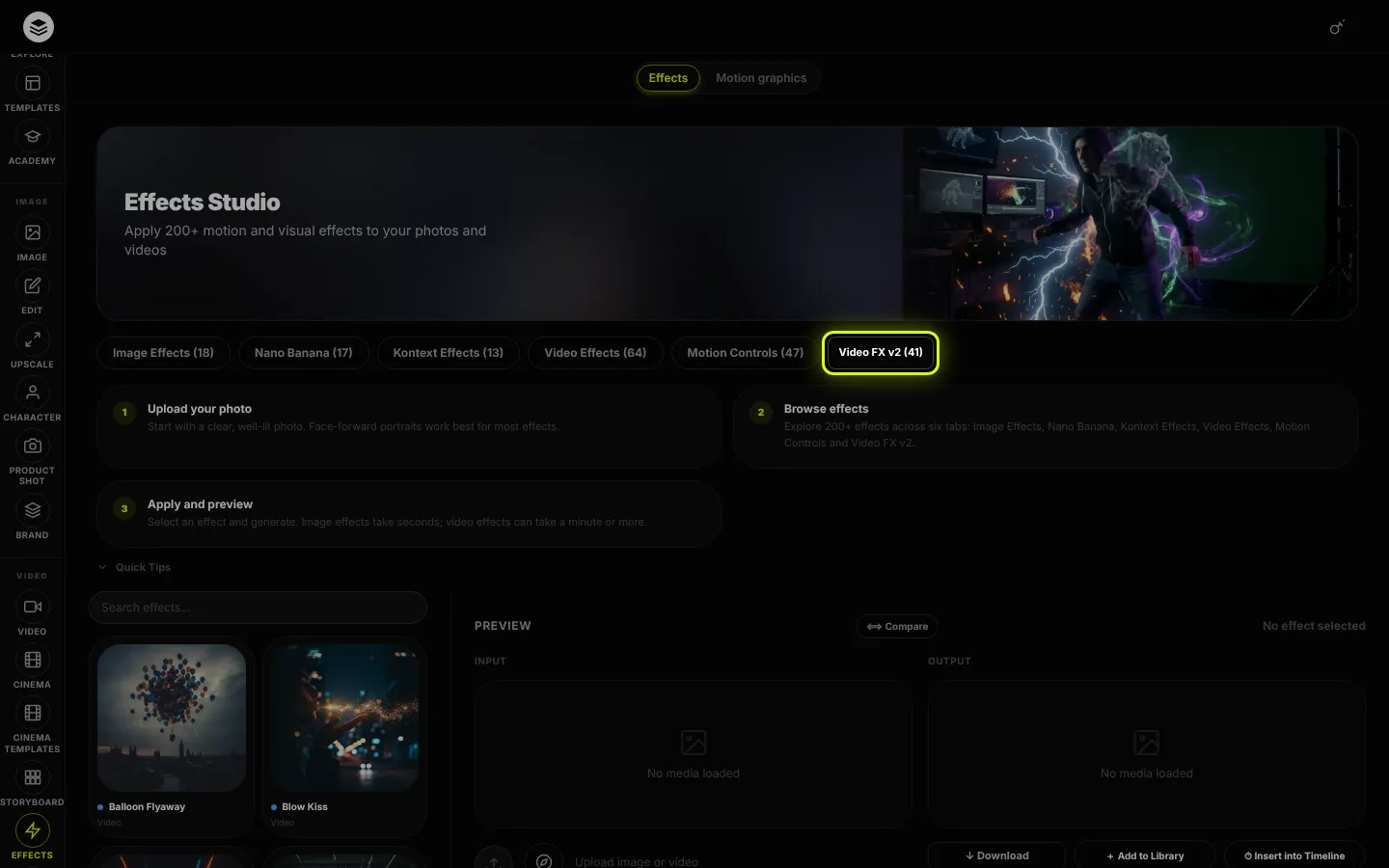
Video FX v2 tab in Effects Studio
Video FX v2 tab
FEATURE 06

Video FX v2 tab

What it is: 41 additional video presets, mostly people-focused transformations and moments: Balloon Flyaway, Blow Kiss, Body Shake, Break Glass, Carry Me, Cartoon Doll, Cheek Kiss, Child Memory, Couple Arrival, Fairy Me, Fashion Stride, Fisherman, Flower Receive, Flying, Gender Swap, Golden Epoch, Hair Swap, Hugging, Jiggle Up, Live Memory, Love Drop, Melt, Minecraft, Paperman, Pilot, Pinch, Pixel Me, Romantic Lift, Soul Depart, Squid Game, Toy Me, Walk Forward, Zoom In Fast, Zoom Out and more.

Why use it
Alternative video presets, especially for portraits and couples, that are not in the Video Effects tab.
What you need
One image (a clear person photo works best for people effects) and one selected effect. No prompt is required.
Limits and rules
Output is a 720p, 5 second video. Some effect names (for example Nap Me 360p) hint at lower resolution presets; the exact output size per effect is not documented in the code.
Advanced panel in Effects Studio
Advanced panel
FEATURE 07

Advanced panel

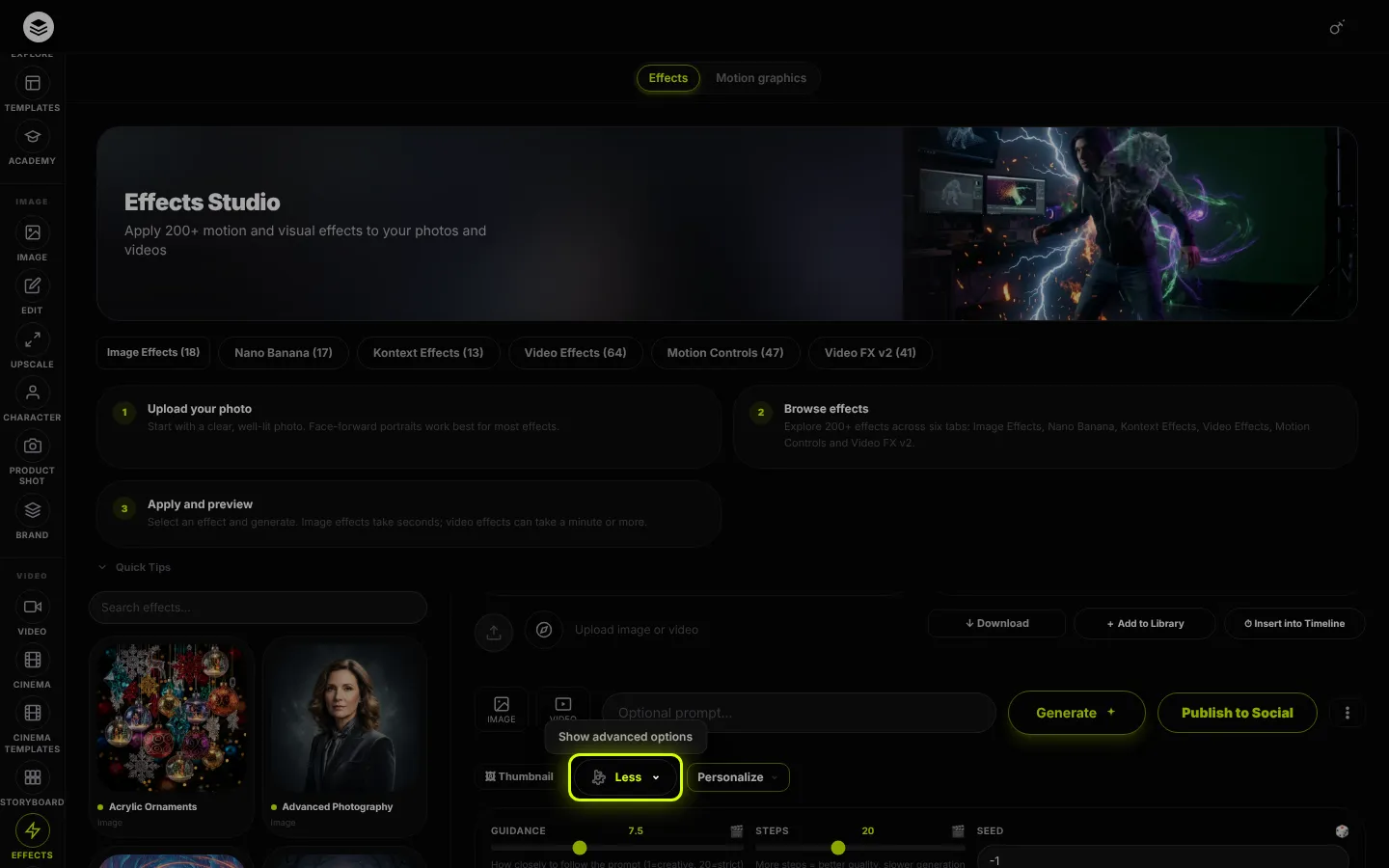
What it is: Press Advanced to open Guidance (1 to 20, default 7.5), Steps (1 to 50, default 20), Seed (default -1 means random, with a dice button to randomise), Negative Prompt, Effect Strength (0 to 100 percent, default 100 percent) and Denoise Strength (0 to 1, default 0.70). The button changes to Less when open. Press Reset to defaults to restore everything.

Why use it
Reproduce a result with a fixed seed, steer away from unwanted looks, or soften an effect.
What you need
None. Values are saved in this browser.
Limits and rules
The studio sends these values to the API only when they differ from defaults. Whether each specific effect honours each control is not documented, so changes may have little or no visible effect on some presets.
Compare in Effects Studio
Compare
FEATURE 08

Compare

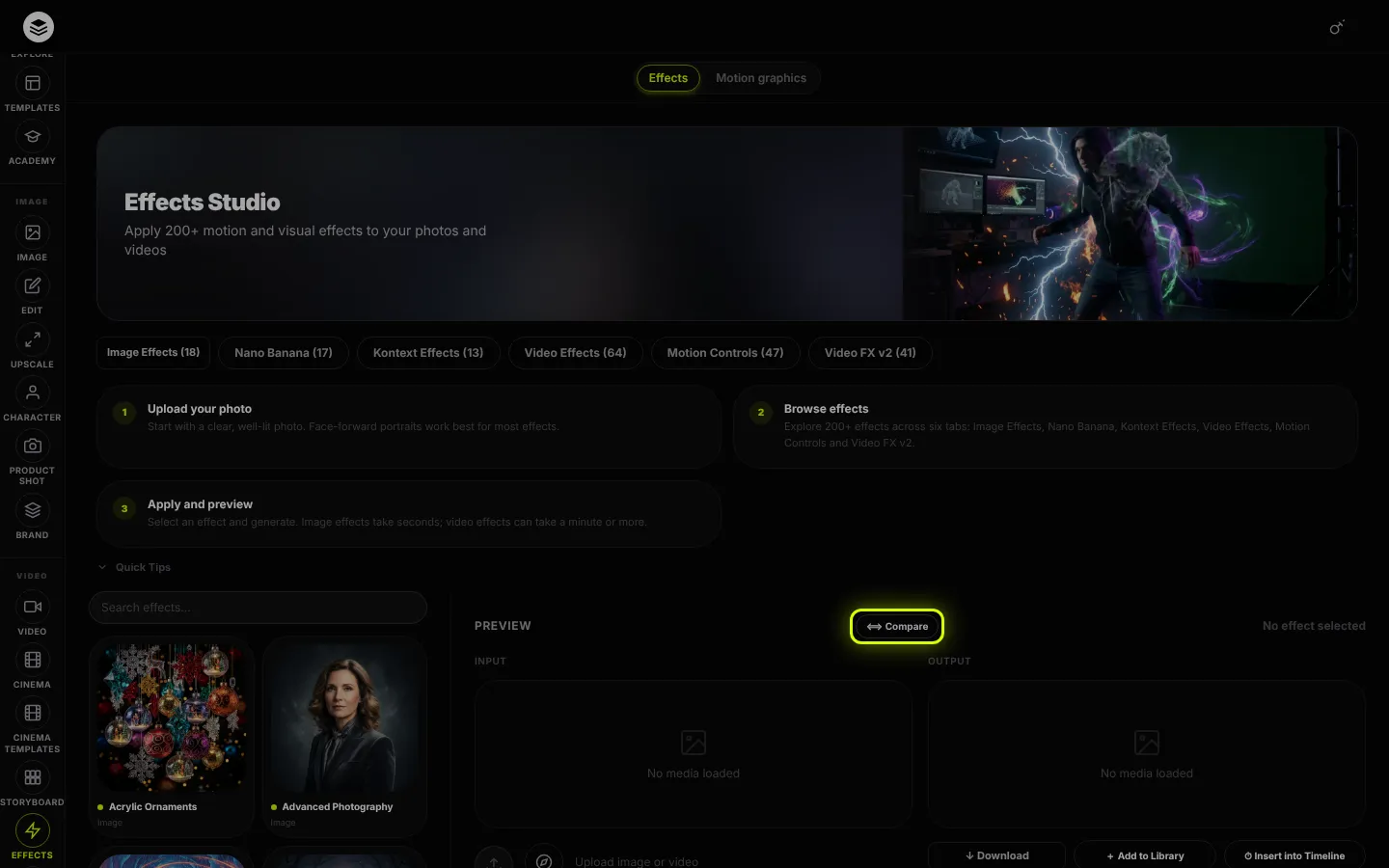
What it is: The Compare button (labelled Compare with a double arrow; Toggle Compare on mobile) shows your input and the output side by side after a result exists.

Why use it
Judge how strongly the effect changed your photo.
What you need
A finished result.
Limits and rules
Only works for the most recent result.
Result actions in Effects Studio
Result actions
FEATURE 09

Result actions

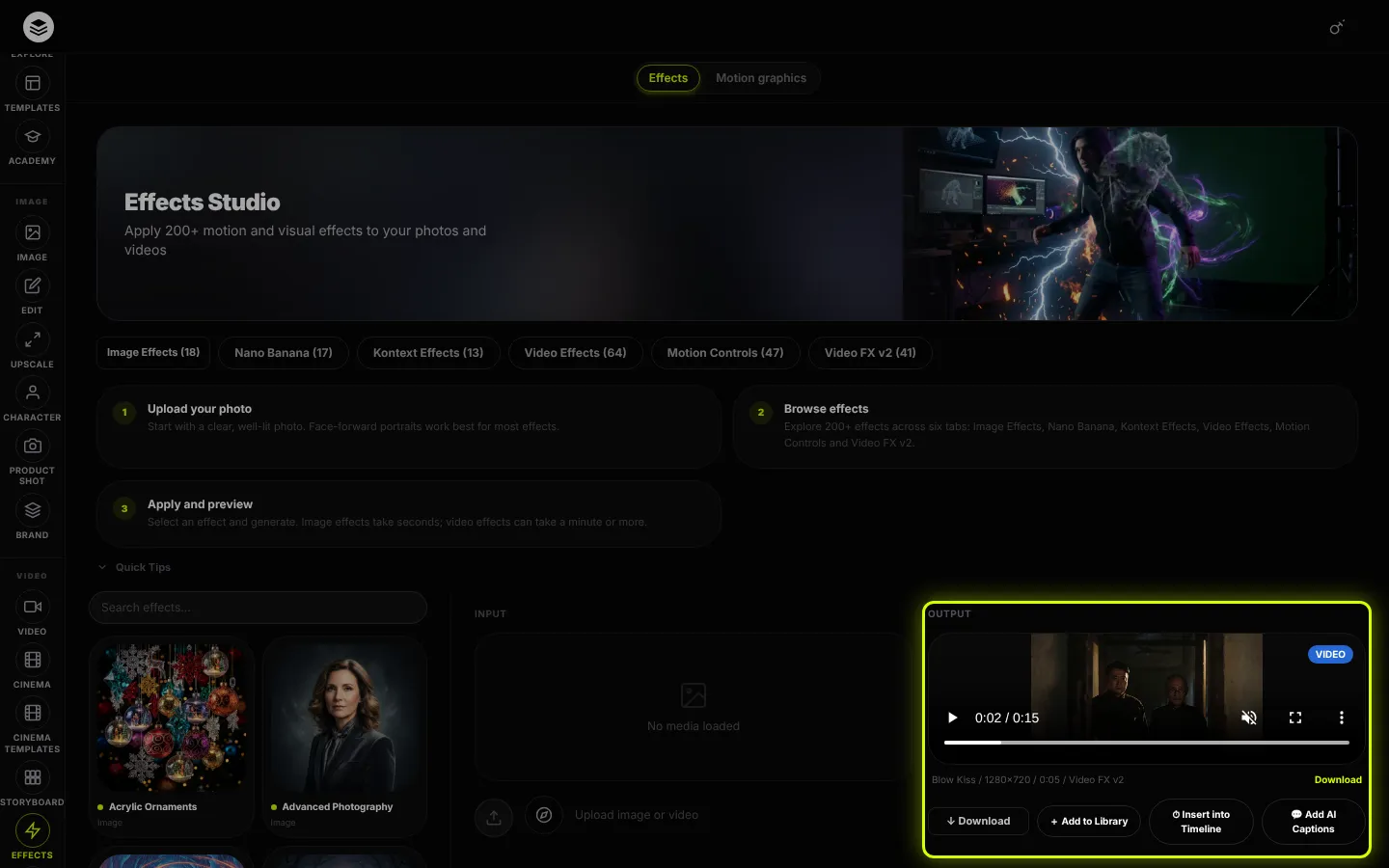
What it is: Download saves the file, Add to Library stores it in your media library, Insert into Timeline saves it and opens the Timeline with that asset, Add AI Captions appears only for video results, and Publish to Social opens the publishing dialog. Clicking the output preview opens a larger detail view.

Why use it
Move the result into the rest of your workflow.
What you need
A finished result.
Limits and rules
If there is no result yet you see toasts such as No result to download, No result to save or No result to insert.
Motion graphics (Vibe Motion) mode in Effects Studio
Motion graphics (Vibe Motion) mode
FEATURE 10

Motion graphics (Vibe Motion) mode

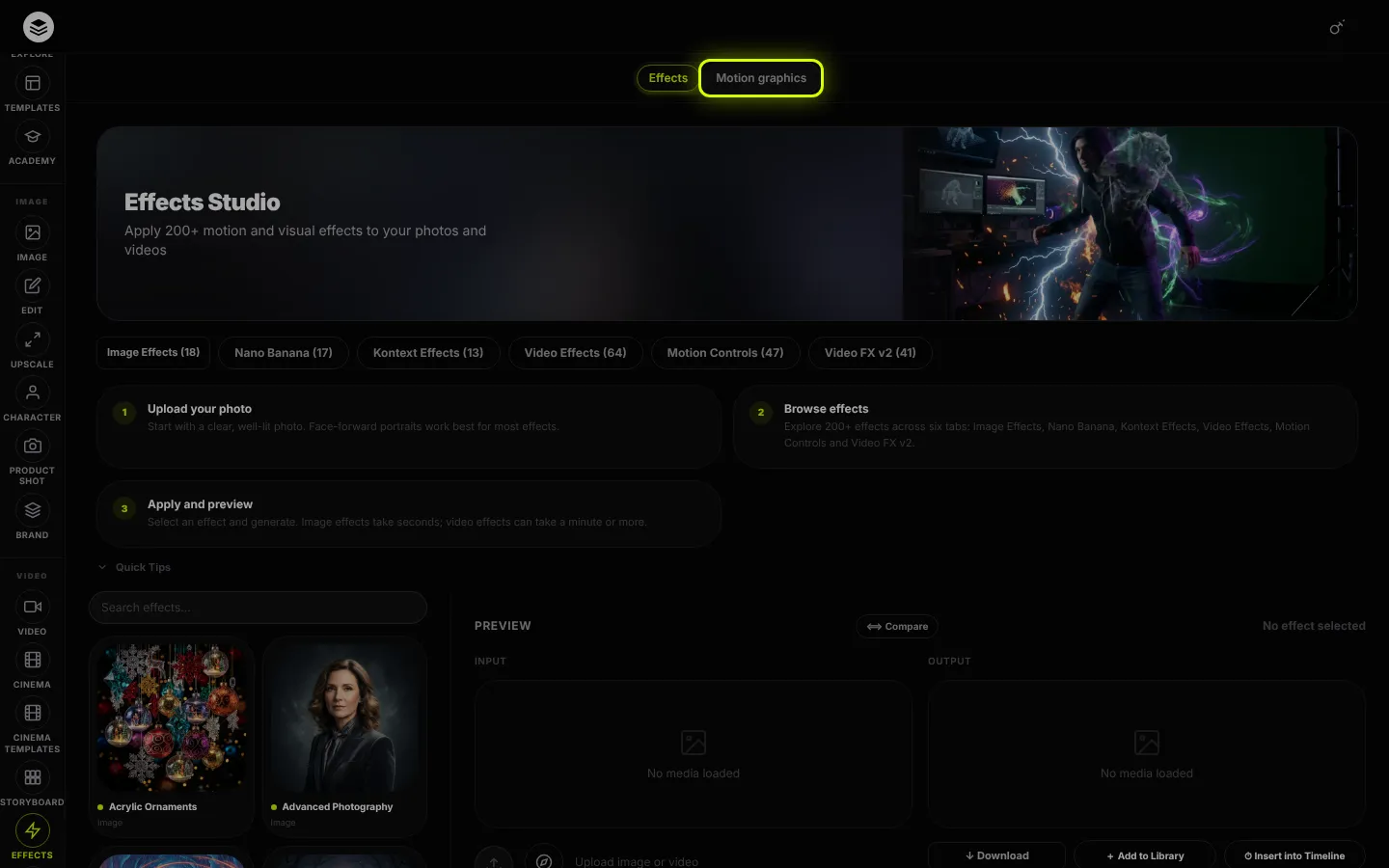
What it is: Switch the top toggle from Effects to Motion graphics (URL parameter ?mode=motion opens it directly). Type a description such as Animated sales dashboard with glowing bar charts and rising numbers, choose an aspect ratio (16:9, 9:16 or 1:1) and a duration (5, 6, 8, 10, 12, 15, 20, 25 or 30 seconds; default 6s), then press Generate. Use the Generate / Edit toggle or Remix this generation on a result to change it, for example change background to dark navy, make bars gold, add particles.

Why use it
Animated titles, data charts, logo reveals and kinetic typography without a source photo.
What you need
A text description. Edit mode also needs a source generation (Pick source).
Limits and rules
You can only edit results whose animation code was saved by the service. Otherwise the studio shows: This generation can't be remixed - the animation code wasn't saved server-side. Generate a new motion graphic first, then remix that result. Your gallery keeps the last 30 results in this browser only.

How to use Effects Studio

  1. Open Effects Studio (#/effects) and choose a tab.
  2. Search and click an effect card so it is highlighted and named in the preview header.
  3. Upload an image or video, or pick a Pexels stock photo.
  4. Optionally write a prompt and open Advanced for fine controls.
  5. Press Generate and wait for the Output panel to fill.
  6. Compare, then download, save to library, insert into the timeline, caption or publish.

Generation modes

The ways this studio can work, and when to pick each one.

Image effect (still)

Image Effects, Nano Banana and Kontext Effects tabs. One image in, one styled image out.

Best for: Profile pictures, figurines, comic and decade looks, quick photo edits.

Video effect (5 second clip)

Video Effects and Video FX v2 tabs. One image in, one short effect video out at 720p and 5 seconds.

Best for: Short-form social clips such as Cakeify, Melt It, Kissing, Hugging.

Camera move (Motion Controls)

Motion Controls tab. Applies a named camera move to your image.

Best for: Dolly, crane, orbit and zoom moves for product shots and portraits.

Motion graphics: Generate

Creates a new animated graphic from text.

Best for: Animated dashboards, titles, logo stingers.

Motion graphics: Edit / Remix

Changes a previous motion graphic result with a new instruction. Button reads Remix while in edit mode and a banner shows Editing and the prompt of the source.

Best for: Iterating on colours, backgrounds or particles without starting over.

Inputs and outputs

What you give the studio, and what you get back.

InputDescriptionWhen to useRules
Effect (card selection)
Required
The preset you click in the grid. Generate refuses to start without one and shows the message Select an effect first.Always.Changing tabs clears the selected effect, so pick again after switching tabs.
Input image or video
Required
The file the effect is applied to. The hint beside the upload button reads Upload image or video. Without it Generate shows Upload an image or video first.Always. Use the upload button, drag-and-drop in the picker, or the Pexels button for stock photos.MuAPI upload limits are 10 MB for images and 50 MB for videos. The studio passes your upload as the source image for the effect; the code does not confirm that every effect accepts a video as the source.
Optional prompt
Optional
Short text input (placeholder Optional prompt...). It is inserted into the effect template on the video tabs and acts as the instruction on Kontext Effects.Kontext Effects, and any video effect where you want to name the subject.If left empty on Kontext Effects, Video Effects or Motion Controls the effect name is sent instead. You can use personalization tokens through the Personalize button.
Reference attachments
Optional
Attachment toolbar next to the prompt for extra reference images or videos. Uploaded files show the toast Reference uploaded.When you want to send additional reference media along with the effect.Whether each effect uses reference media is not documented, so it may be ignored.
Advanced settings
Optional
Guidance, Steps, Seed, Negative Prompt, Effect Strength and Denoise Strength.To repeat a look with a fixed seed or to steer away from unwanted artefacts.Defaults: Guidance 7.5, Steps 20, Seed -1, Effect Strength 100 percent, Denoise 0.70. Negative prompt is limited to 500 characters in the validator.
Motion graphics description
Required
Text prompt in Motion graphics mode plus Aspect ratio (16:9, 9:16, 1:1) and Duration pills.Only in Motion graphics mode.Empty prompt shows: Describe the motion graphic you want first. In Edit mode an empty prompt shows: Describe the change you want to make., and no source shows: Pick the generation you want to edit.

What you get

  • A styled image (Image Effects, Nano Banana, Kontext Effects tabs).
  • A 5 second 720p video (Video Effects, Motion Controls; Video FX v2 as well in the studio defaults).
  • A motion graphics video in 16:9, 9:16 or 1:1 (Motion graphics mode).
  • The result is saved to your generation history automatically; Add to Library saves it as an asset.

Use cases and example workflows

Real jobs you can do, step by step.

Social profile makeover

Restyle a profile photo as a figurine, comic character or decade look.

  1. Open Image Effects or Nano Banana.
  2. Pick a look and upload a portrait.
  3. Generate and download.
Result: A styled still image of the same person.

Short-form teaser clip

Create an eye-catching 5 second effect from a product or portrait photo.

  1. Open Video Effects.
  2. Choose an effect and upload a photo.
  3. Generate and publish.
Result: A 720p 5 second video ready for social.

Quick photo fix

Change the background, time of day or weather with the Kontext Effects tab.

  1. Open Kontext Effects.
  2. Pick Background Change, Time of Day or Weather Effect.
  3. Describe the change in the prompt and generate.
Result: An edited still image.

Turn a portrait into a collectible figure

  1. Open the Nano Banana tab.
  2. Search for 3D Figurine or Action Figure and click the card.
  3. Upload a clear portrait.
  4. Press Generate, then Compare.
  5. Press Add to Library or Download.

Make a short viral effect clip

  1. Open the Video Effects tab.
  2. Pick an effect such as Cakeify or Melt It.
  3. Upload a photo of an object or person.
  4. Optionally type a subject in Optional prompt....
  5. Press Generate and wait up to 3 minutes.
  6. Press Add AI Captions if you want subtitles, then Publish to Social.

Add a camera move to a product photo

  1. Open the Motion Controls tab and click Dolly In or Arc Shot.
  2. Upload the product photo.
  3. Type the subject in the prompt, for example a ceramic coffee mug.
  4. Press Generate and review the 5 second clip.
  5. Use Insert into Timeline to continue editing.

Create an animated chart intro

  1. Switch the top toggle to Motion graphics.
  2. Choose 16:9 and a duration such as 8s.
  3. Type: Animated sales dashboard with glowing bar charts and rising numbers.
  4. Press Generate.
  5. Switch to Edit, choose the result as source and ask to make bars gold, then press Remix.

Tips and best practices

  • Use a high resolution, well lit, front-facing photo for face and portrait effects.
  • Try several effects on one photo and use Compare to choose.
  • For Kontext Effects, write a specific instruction instead of leaving the prompt blank.
  • Use a fixed Seed in Advanced when you want to repeat a look.
  • Use Search effects... with a single keyword such as kiss, zoom or dolly.
  • Use Add to Library early so you do not lose a result.
  • Choose the tab by output type first: first three for images, last three for video.
  • Keep source files well under 10 MB for images and 50 MB for videos.
  • Describe the subject, not the camera, in the prompt on Motion Controls.
  • Generate one effect at a time; layers multiply the number of generations.

Limitations and troubleshooting

Know the limits before you start, and how to fix common problems.

LimitationWhat it meansWorkaround
Fixed clip length and size on video tabsYou always get a 5 second 720p clip.Use AI VFX Studio for 10 second clips, or extend and edit the clip in Video Tools or Timeline.
Generation timeoutIf the effect takes longer than about 90 seconds (images) or 180 seconds (videos) the studio cancels and shows an error.Press Retry (the Generate button changes to a retry state after a failure), try a smaller or simpler photo, or try again later.
Upload sizeFiles over the MuAPI limit are rejected with: This file is too large for MuAPI (images 10 MB, videos 50 MB, other 10 MB).Compress or trim the file before uploading.
The count is 200 presets, not moreThe six tabs add up to 200 presets (18 + 17 + 13 + 64 + 47 + 41), which is what the header and Apps card now say (200+).Trust the counts shown on the tab buttons.

Face looks wrong or the effect is weak

Why: Face effects work best with a clear, well-lit, front-facing photo. Small or occluded faces give poor results.

Fix: Use a higher resolution portrait with the face clearly visible, then retry.

Video is only 5 seconds

Why: The studio fixes video effects at 5 seconds and 720p.

Fix: Use AI VFX Studio for a 10 second option, or join clips in Timeline.

Settings keep coming back after refresh

Why: Advanced values are saved in your browser (key effects_studio_advanced_settings).

Fix: Open Advanced and press Reset to defaults.

Kontext Effects gives an unexpected edit

Why: With an empty prompt the studio uses only the effect name as the instruction.

Fix: Write a specific prompt, for example make the person look 20 years older.

Glossary

Terms used in Effects Studio.

Effect
A named preset (for example Cakeify or Dolly In) that tells the AI what transformation to apply.
Prompt
Optional short text that adds detail to the effect.
Seed
A number that makes a result repeatable. -1 means random.
Guidance
How strictly the AI follows your prompt, from 1 (creative) to 20 (strict).
Steps
How many refinement passes the AI makes. More steps can look better but are slower.
Denoise Strength
How much the output may change from your source. 0 preserves, 1 fully regenerates.
Effect Strength
How strongly the effect is applied, from 0 to 100 percent.
Negative Prompt
Things you want the AI to avoid, such as blurry or watermark.
Kontext
Flux Kontext, an instruction-following image editing model family from Black Forest Labs.
Nano Banana
Google's image model family used for the Nano Banana tab.
Vibe Motion
The name of the Motion graphics mode that generates animated graphics from text.
MuAPI
The service that runs the generation. Your MuAPI key is needed.

Frequently asked questions

How many effects does Effects Studio have?

The tabs list 200 presets: Image Effects 18, Nano Banana 17, Kontext Effects 13, Video Effects 64, Motion Controls 47 and Video FX v2 41.

Do I need to write a prompt?

No. The prompt is optional. For Kontext Effects, Video Effects and Motion Controls the studio sends the effect name if you leave it empty. A short prompt usually gives better, more specific results.

Can I choose the video length or resolution?

Not in Effects Studio. Video tabs use 720p and 5 seconds. AI VFX Studio lets you pick 5s or 10s and 480p or 720p.

Can I upload a video?

The upload picker accepts videos (up to 50 MB), but the effect tabs are described as image-to-effect tools and the code sends your upload as the source image. Use a photo for reliable results.

Where do my results go?

Each finished result is saved to your generation history. Press Add to Library to keep it as an asset, Insert into Timeline to edit it, or Download to save a file.

What is Motion graphics mode?

It is a second mode on the same page (toggle at the top, or ?mode=motion in the URL) that generates animated graphics from a text description, with durations from 5 to 30 seconds and aspect ratios 16:9, 9:16 and 1:1. You can remix a previous result.

Why does Generate ask for a key or an upgrade?

Generation uses MuAPI, so you need a MuAPI key saved in settings, and your account must have full access.

Try Effects Studio now

Open the studio and put these features to work, or browse the guides for all 53 studios.