Place, style and save the text on a campaign creative
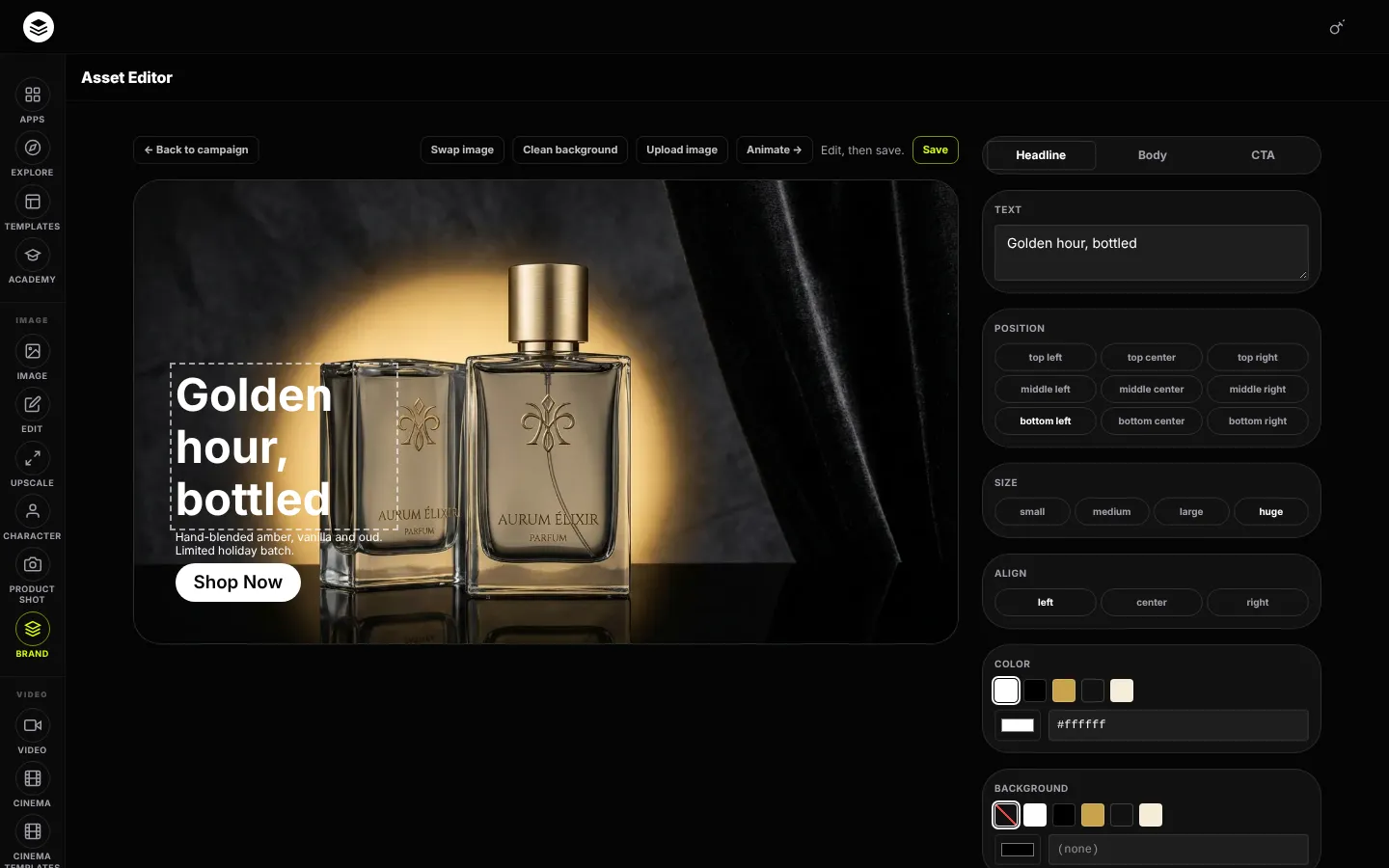
The Asset Editor lays a campaign asset's headline, body and CTA over its picture and lets you change their text, position, size, color, background and font.
Best for: Anyone finishing a Campaign Studio creative who wants the copy placed and styled on the picture.
A 2:13 captioned walkthrough of the studio, with a sample file and prompt.
VIDEO · 2:13
What is Asset Editor?
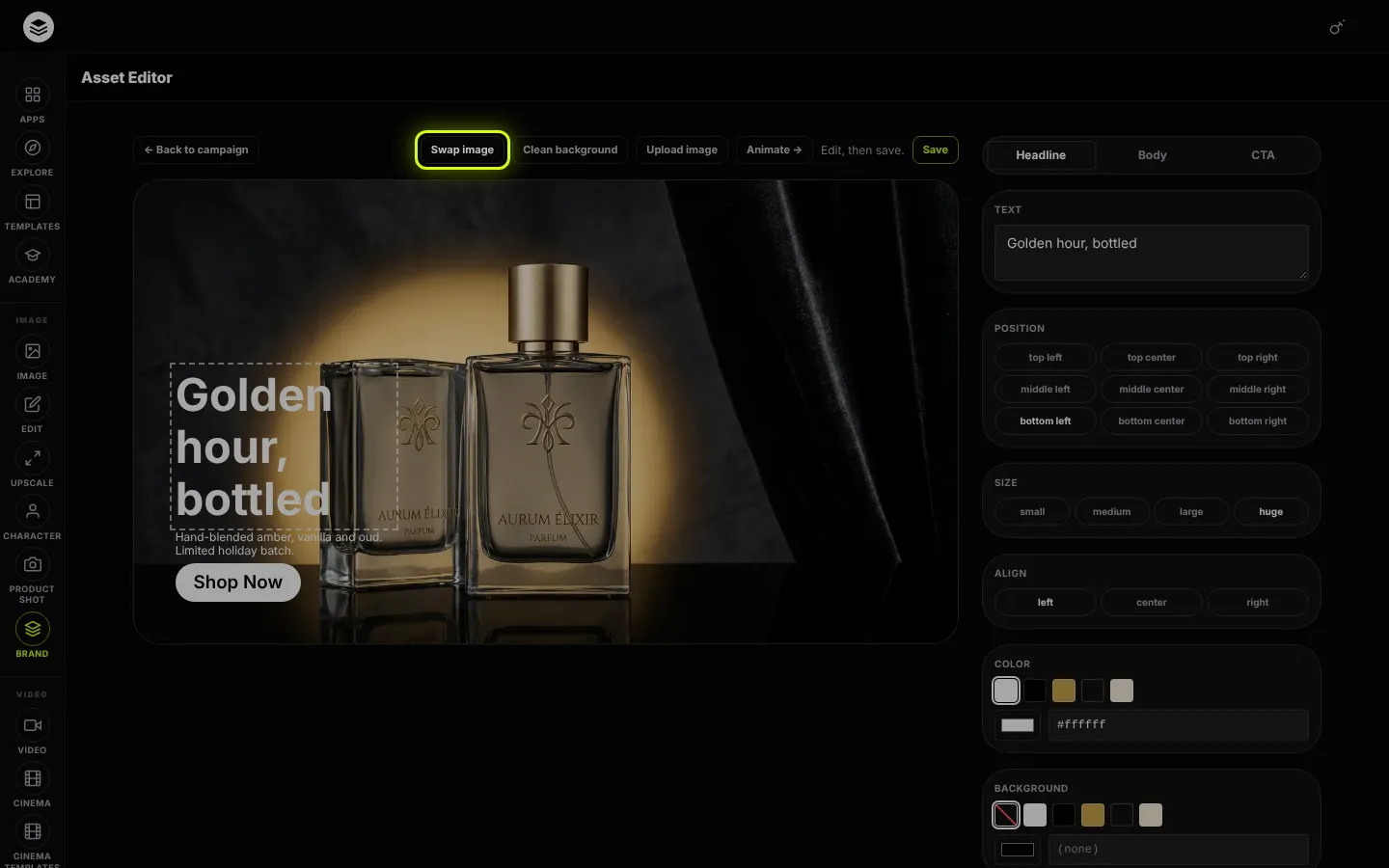
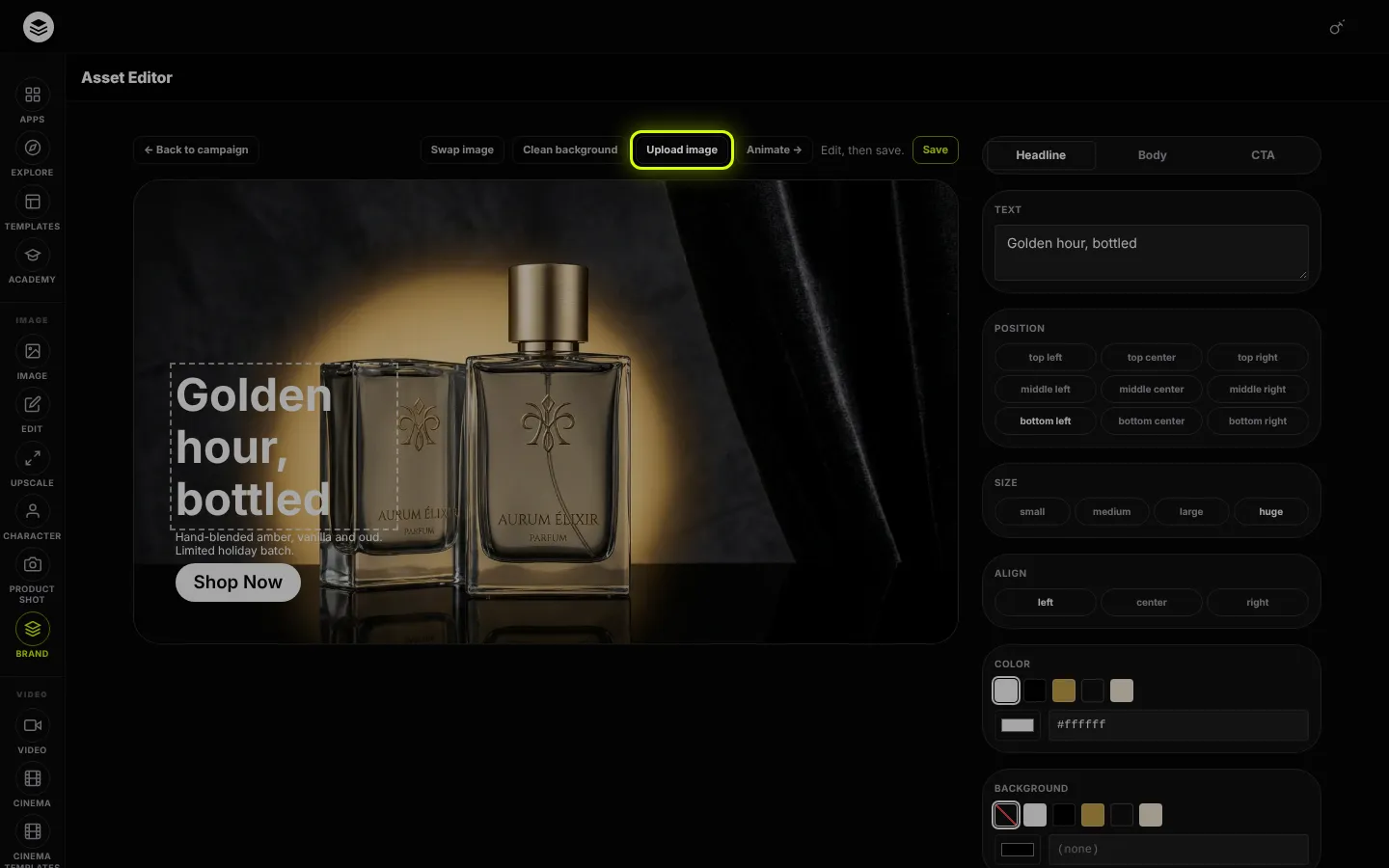
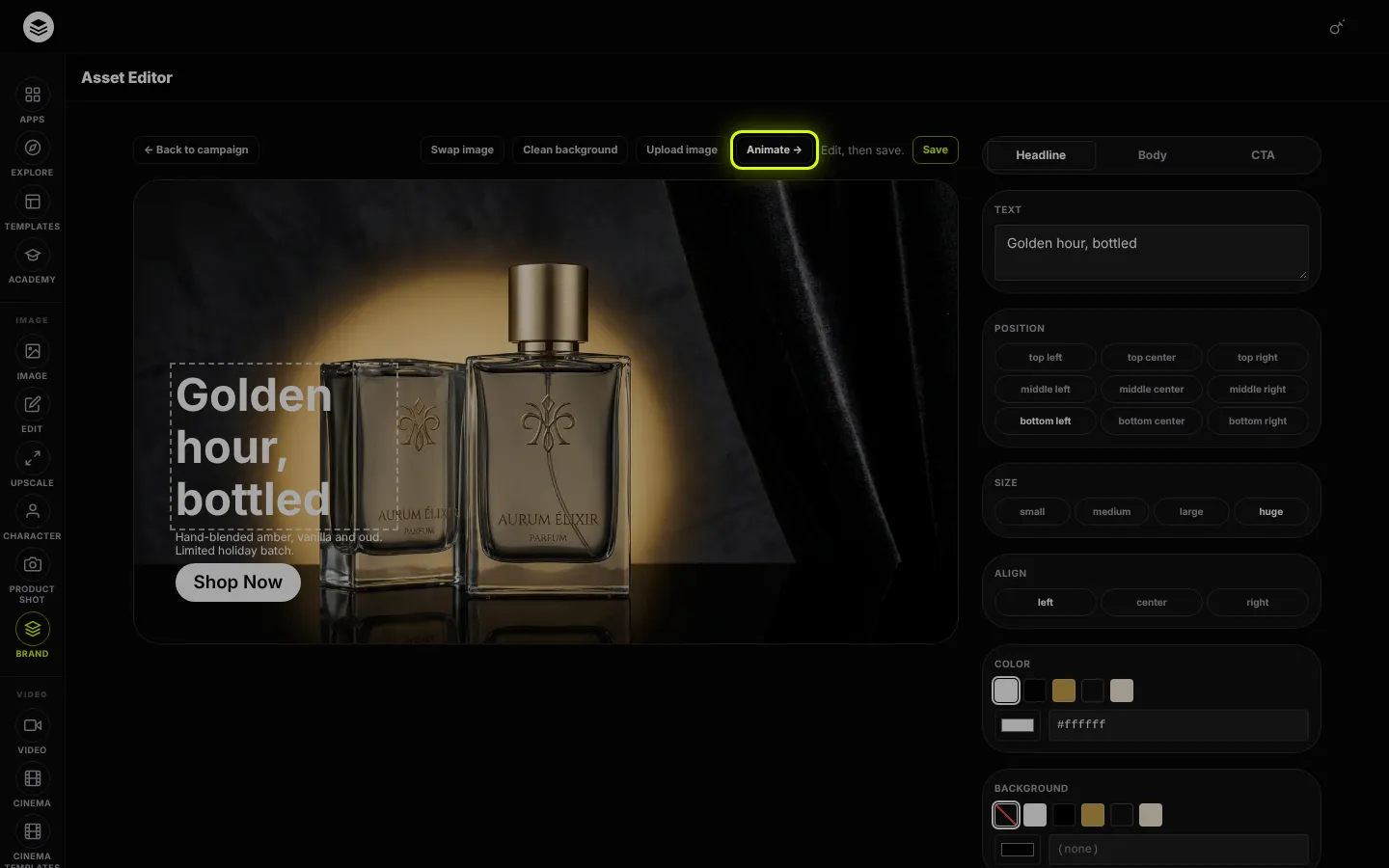
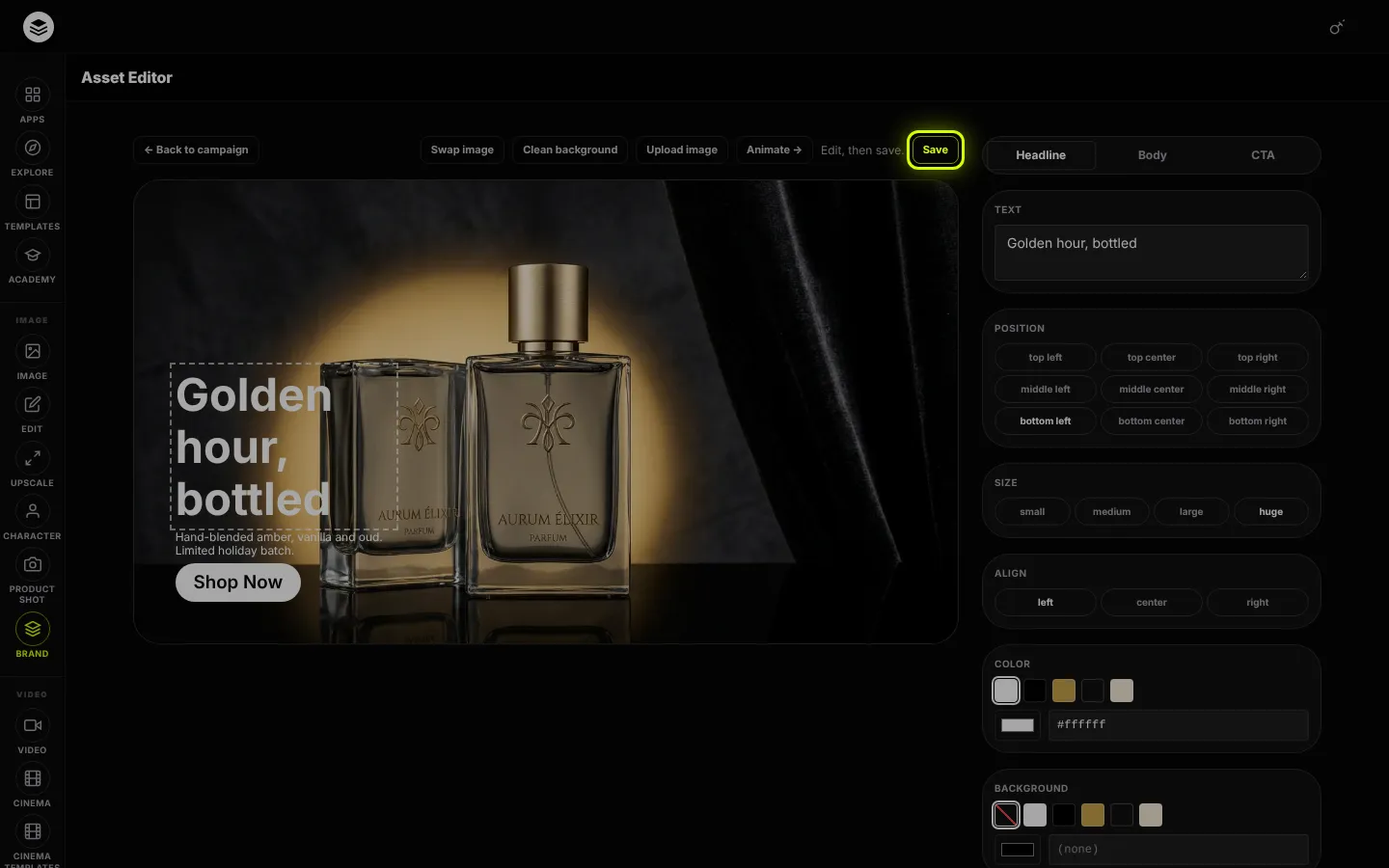
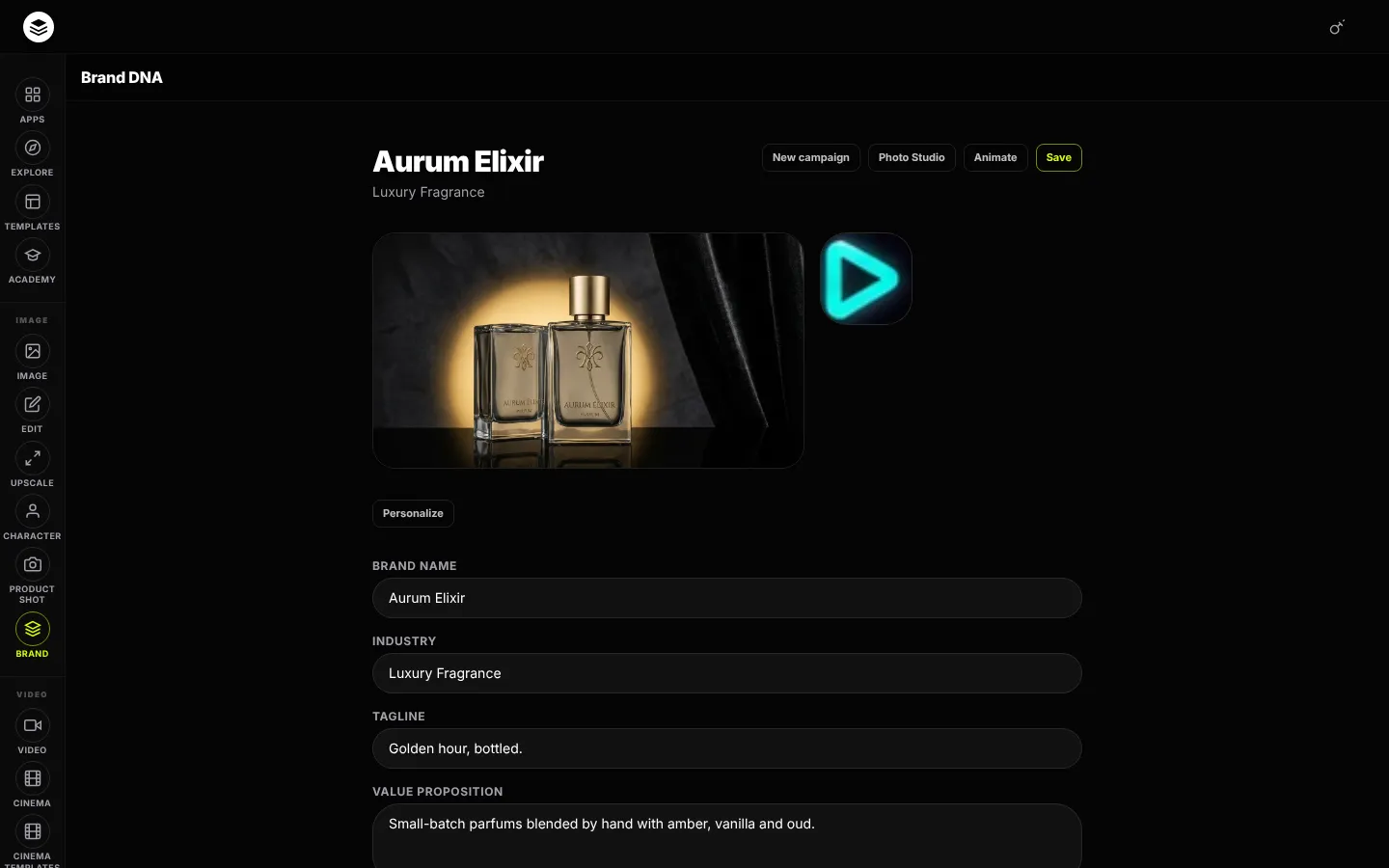
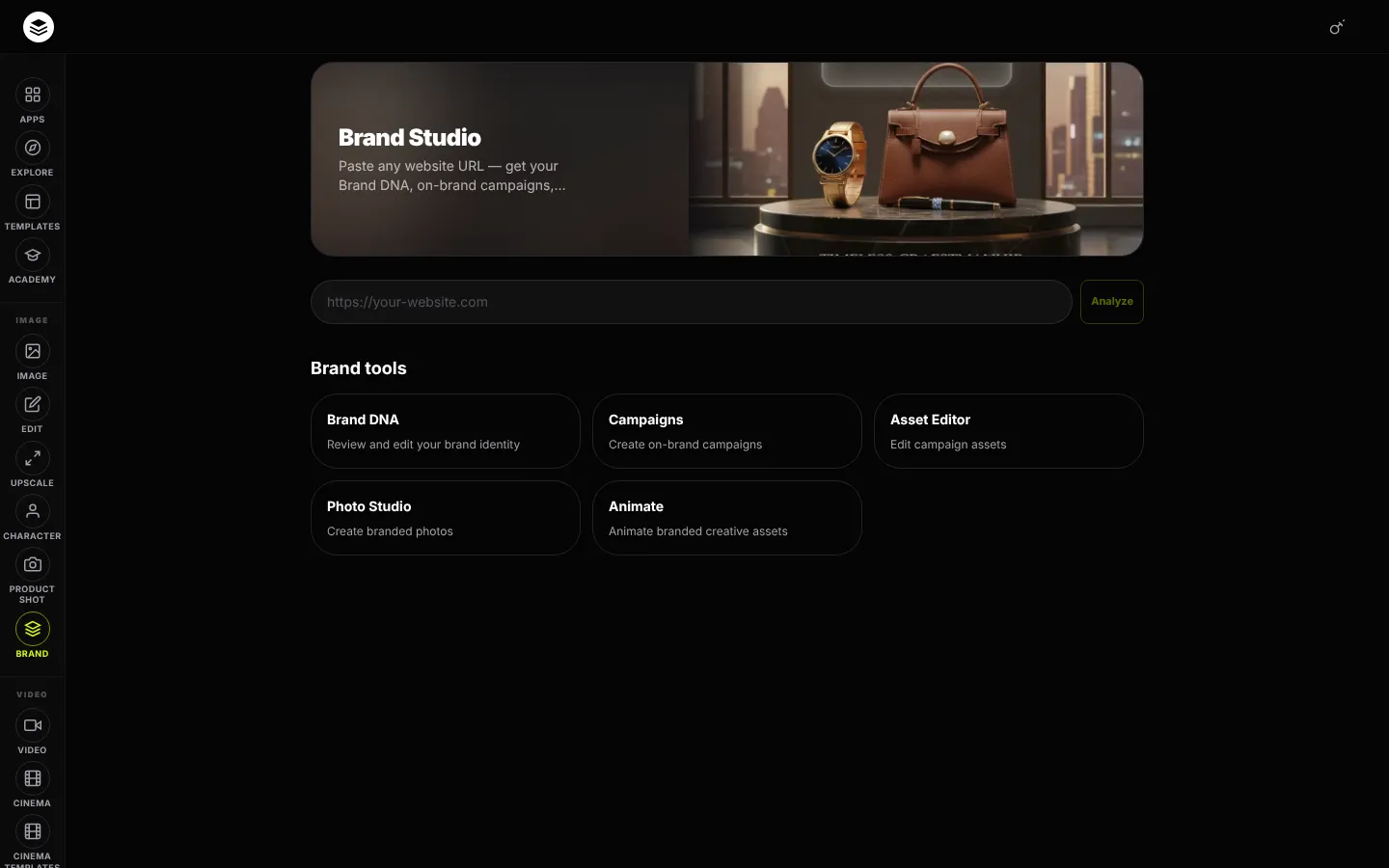
The Asset Editor (#/asset-edit) opens one campaign asset, from the Edit button on an asset in Campaign Studio or on a campaign page, or from the Asset Editor card in Brand Studio (which opens your brand's most recent asset). It shows a canvas in the asset's platform shape (for example 1:1 for Instagram Feed, 16:9 for Web Banner) with the picture filling it and the Headline, Body and CTA laid on top on a 3 x 3 grid. Pick a block with the Headline / Body / CTA tabs or by clicking it on the canvas, then change its Text, Position, Size, Align, Color, Background and Font in the right-hand panel. The top bar has Swap image and Clean background (AI makes a new picture), Upload image, Animate →, a status message and Save. Your brand's colors and fonts are offered as choices. Changes are kept only when you click Save ('Asset saved').
When to use it
The text on a campaign asset needs to move, resize or change color.
You want to reword the headline, body or CTA of an asset.
You want a different picture behind the text: a new AI picture, a text-free background or your own upload.
You want to send the finished picture to Animate Studio.
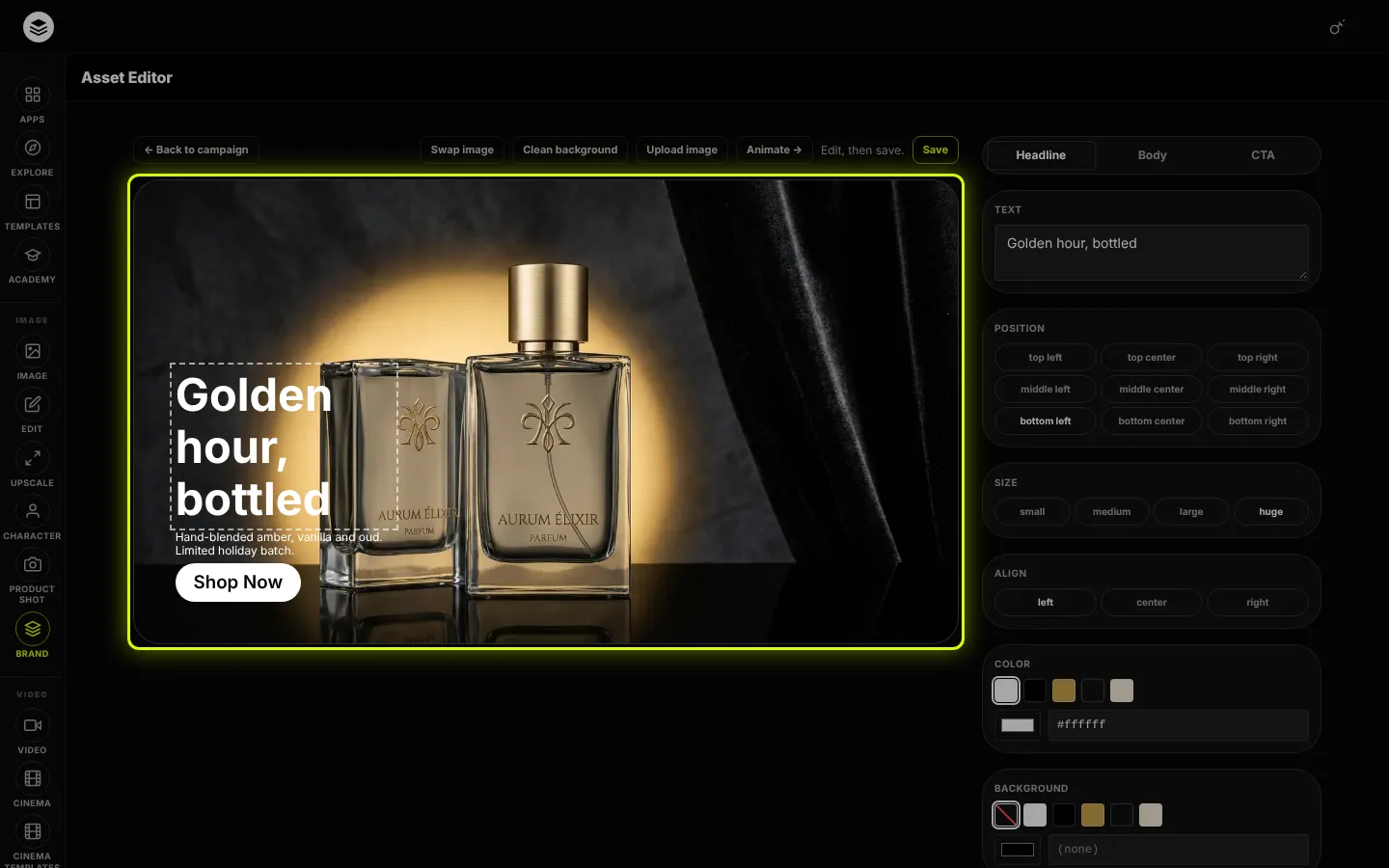
Canvas in the asset's platform shape with live text over the picture.
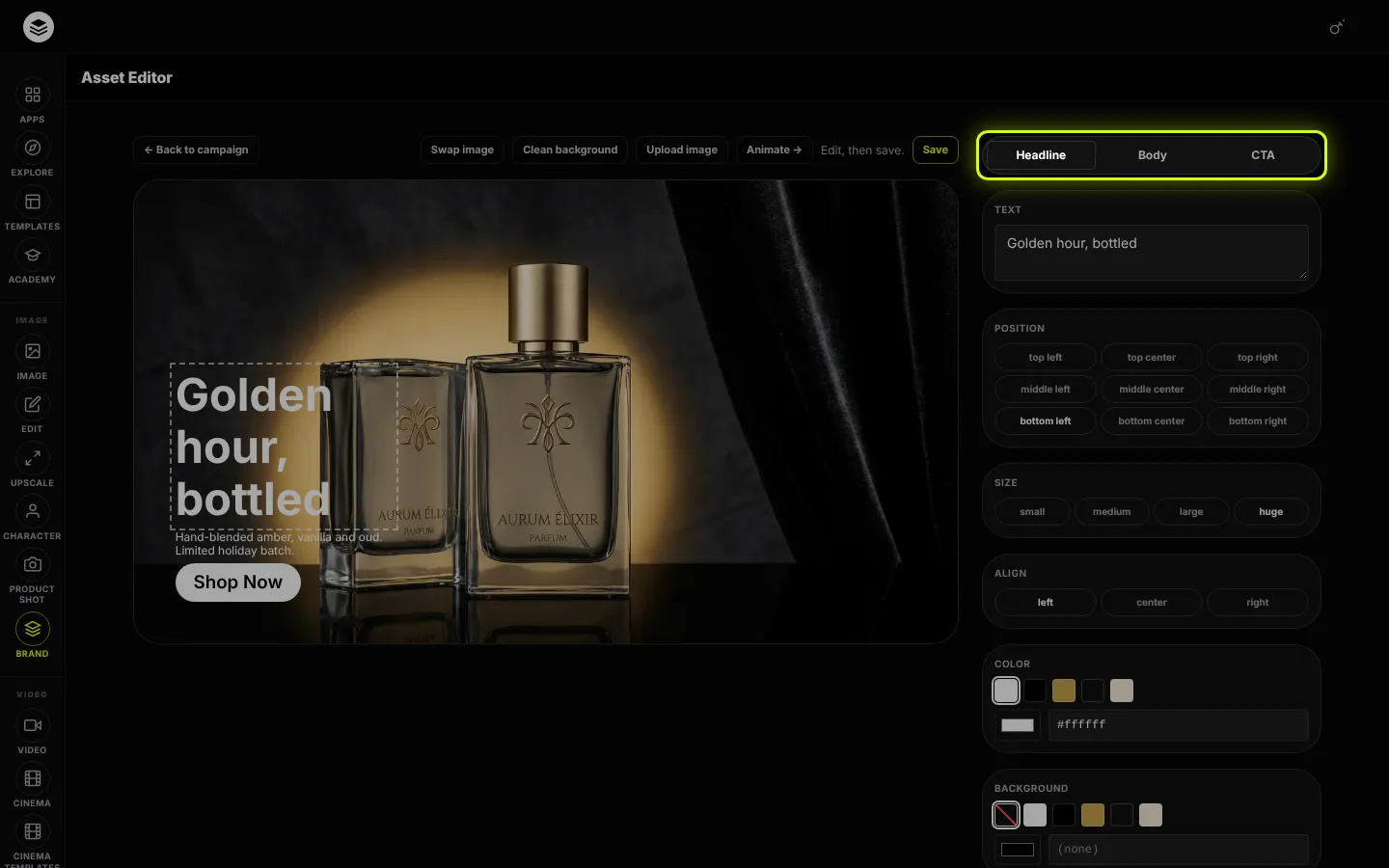
Headline / Body / CTA tabs; click a block on the canvas to select it.
Text, Position (3 x 3 grid), Size, Align, Color, Background and Font controls per block.
Brand colors as swatches and brand fonts in the Font list.
Swap image and Clean background (AI), Upload image.
Animate → to Animate Studio.
Save with status messages.
Every Asset Editor feature, explained
14 features, each with a definition, why you would use it, what it needs and its limits.
Canvas
FEATURE 01
Canvas
What it is: The main area shows the asset in its platform's shape (Instagram Feed, LinkedIn and Facebook Ad 1:1; Instagram Story 9:16; X / Twitter, Web Banner, Email Header and YouTube Thumbnail 16:9) with the picture filling it. The headline, body and CTA are drawn on top; Click a text block to select it; the selected block has a dashed outline. New campaign assets start with all three blocks at the bottom left, the headline huge and white, the body small and white, and the CTA medium black text with a white background.
Why use it
See exactly how the creative will look while you edit.
What you need
An asset opened from a campaign.
Limits and rules
Tall formats are limited to 75% of the window height. A block with empty text is not shown on the canvas.
Headline, Body and CTA tabs
FEATURE 02
Headline, Body and CTA tabs
What it is: Three tabs above the controls choose which text block the panel edits. Clicking a block on the canvas does the same.
Why use it
Style each block separately.
What you need
None.
Limits and rules
One block is edited at a time.
Text
FEATURE 03
Text
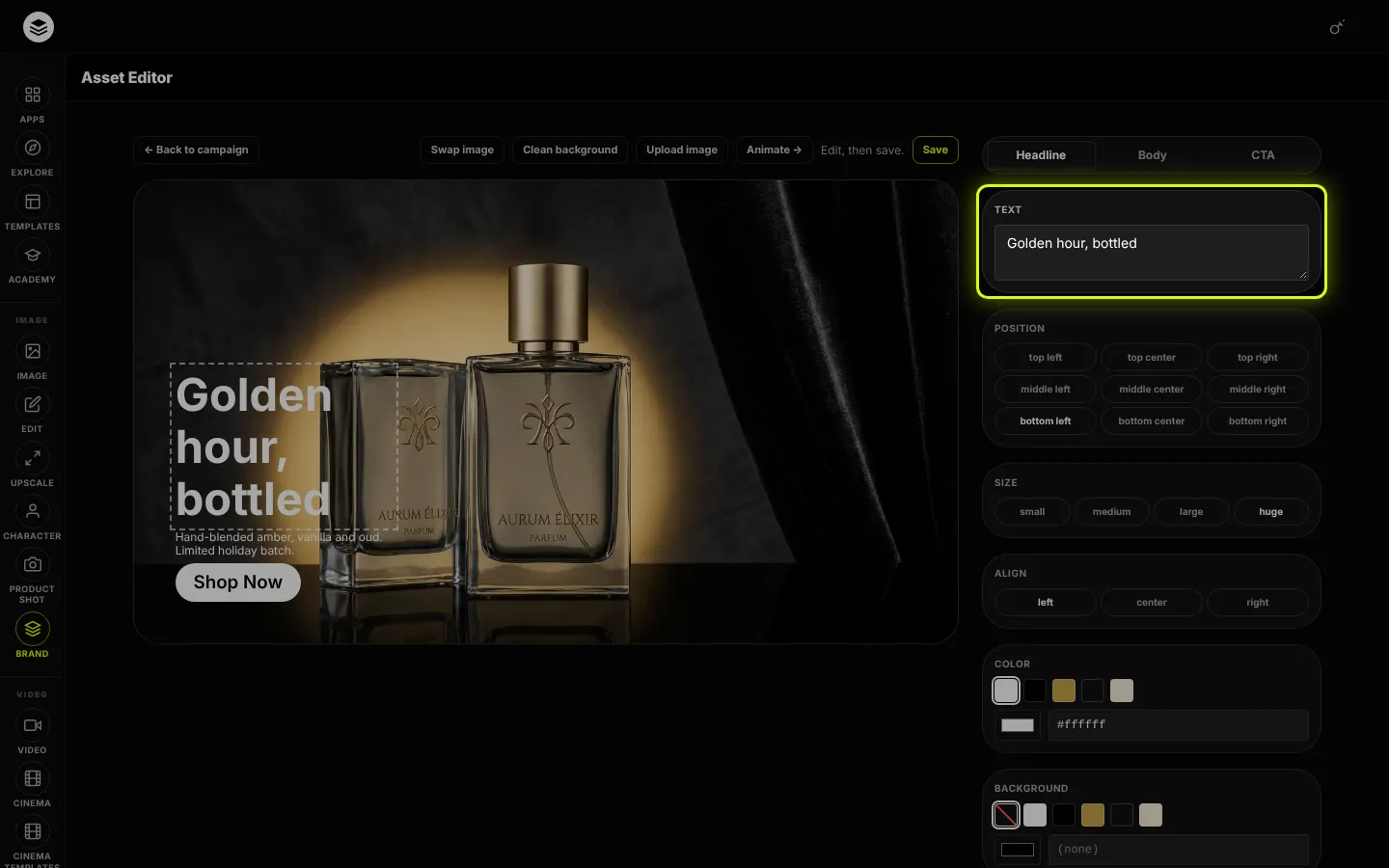
What it is: A text box with the selected block's words. The canvas updates as you type.
Why use it
Reword AI copy or fix typos.
What you need
None.
Limits and rules
No word limit is applied here (Campaign Studio's platform word limits only apply when the copy is generated).
Position
FEATURE 04
Position
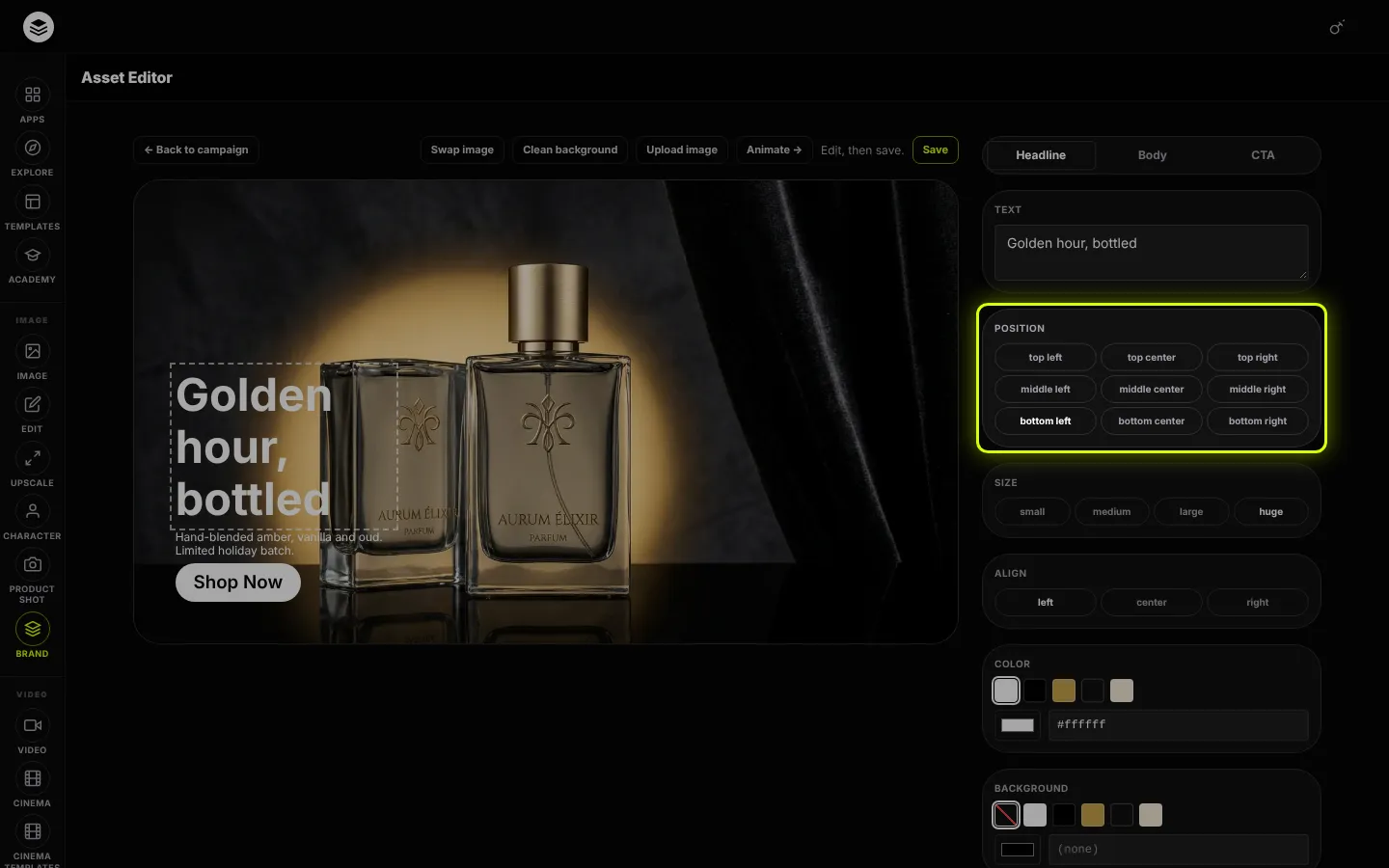
What it is: Nine buttons (top left, top center, top right, middle left, middle center, middle right, bottom left, bottom center, bottom right) place the selected block in that part of the canvas. Blocks sharing a position stack in order Headline, Body, CTA.
Why use it
Put the text where the picture has empty space.
What you need
None.
Limits and rules
Only these nine spots; there is no free dragging.
Size
FEATURE 05
Size
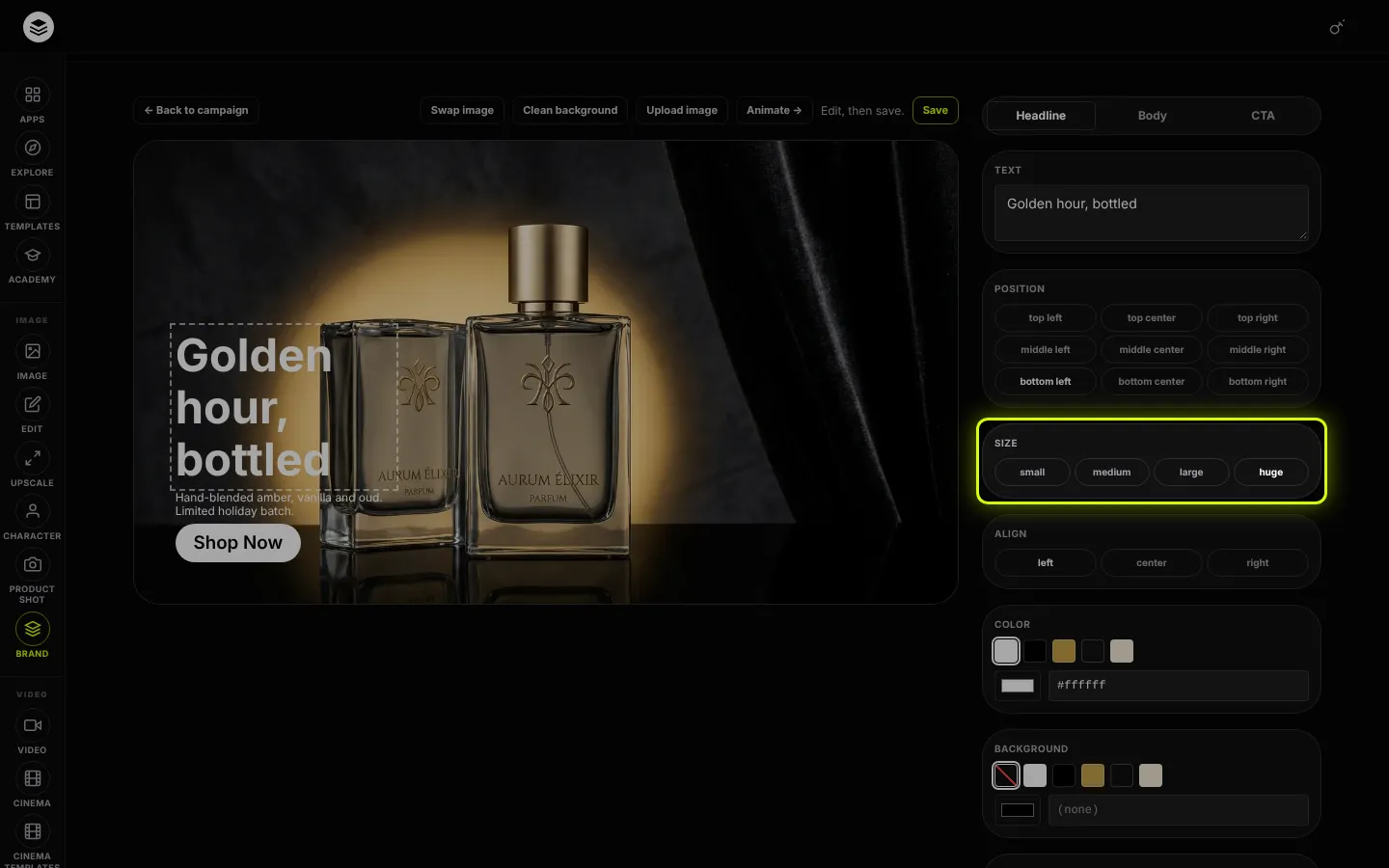
What it is: Four sizes: small, medium, large and huge. Sizes scale with the canvas width.
Why use it
Set the visual hierarchy between headline, body and CTA.
What you need
None.
Limits and rules
No exact point size can be typed.
Align
FEATURE 06
Align
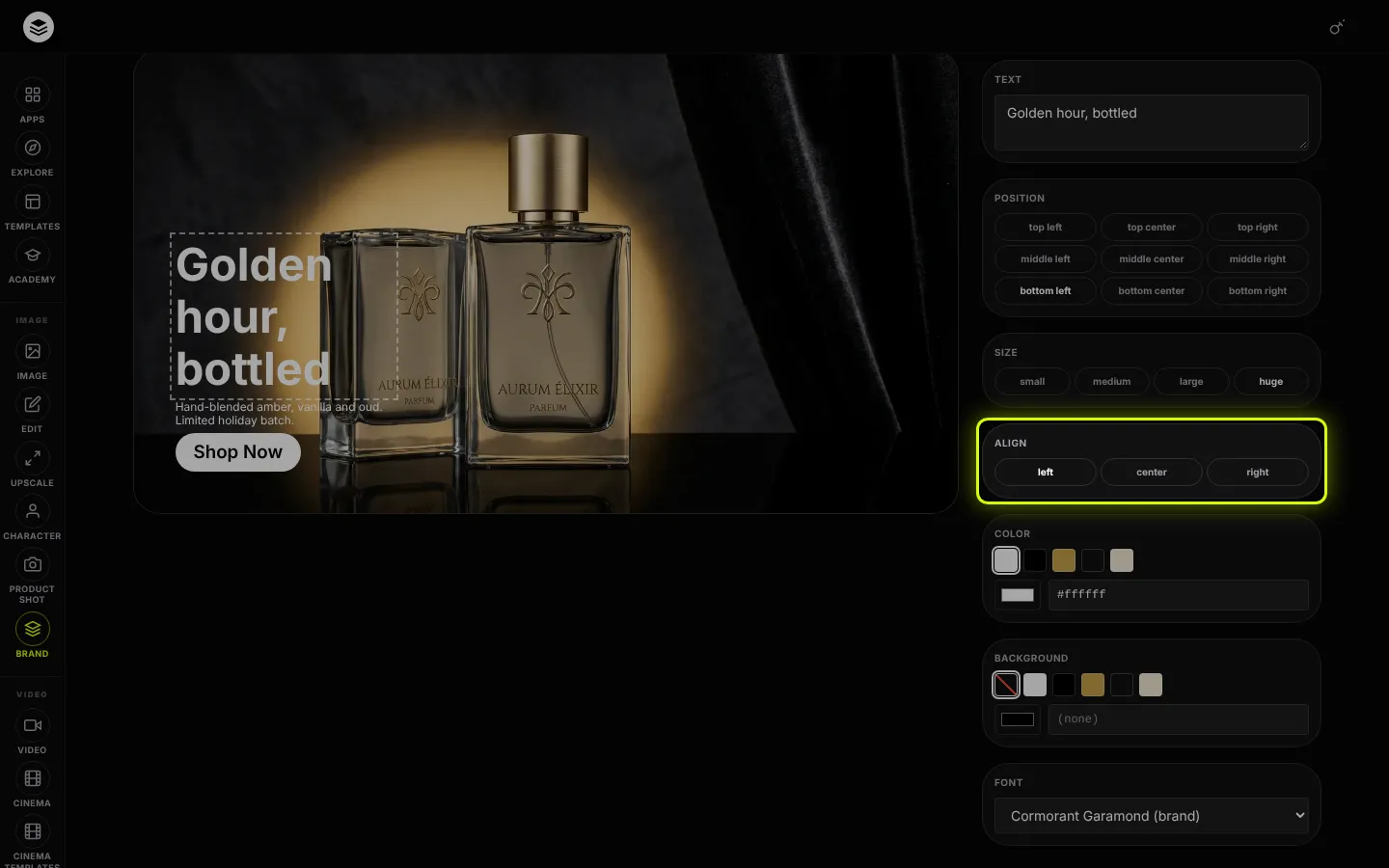
What it is: left, center or right text alignment for the selected block.
Why use it
Match the alignment to the block's position.
What you need
None.
Limits and rules
None in the code.
Color
FEATURE 07
Color
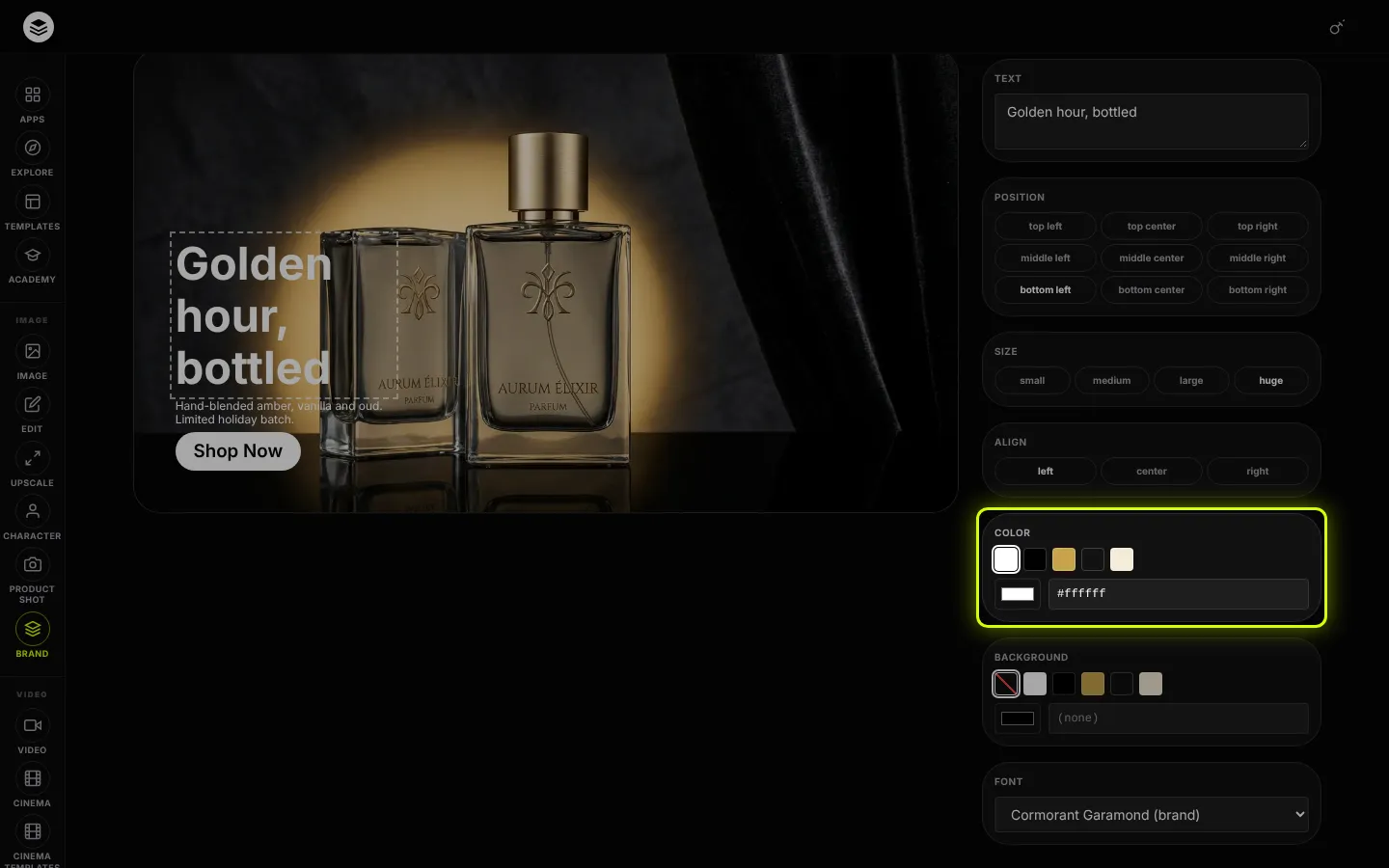
What it is: Text color for the selected block: swatches for white, black and your brand's primary and secondary colors, a color picker, and a box where you can type a hex code (placeholder '#3366ff').
Why use it
Keep text readable and on-brand.
What you need
None.
Limits and rules
Only brand colors saved as six-digit hex codes (like #c9a24a) appear as swatches.
Background
FEATURE 08
Background
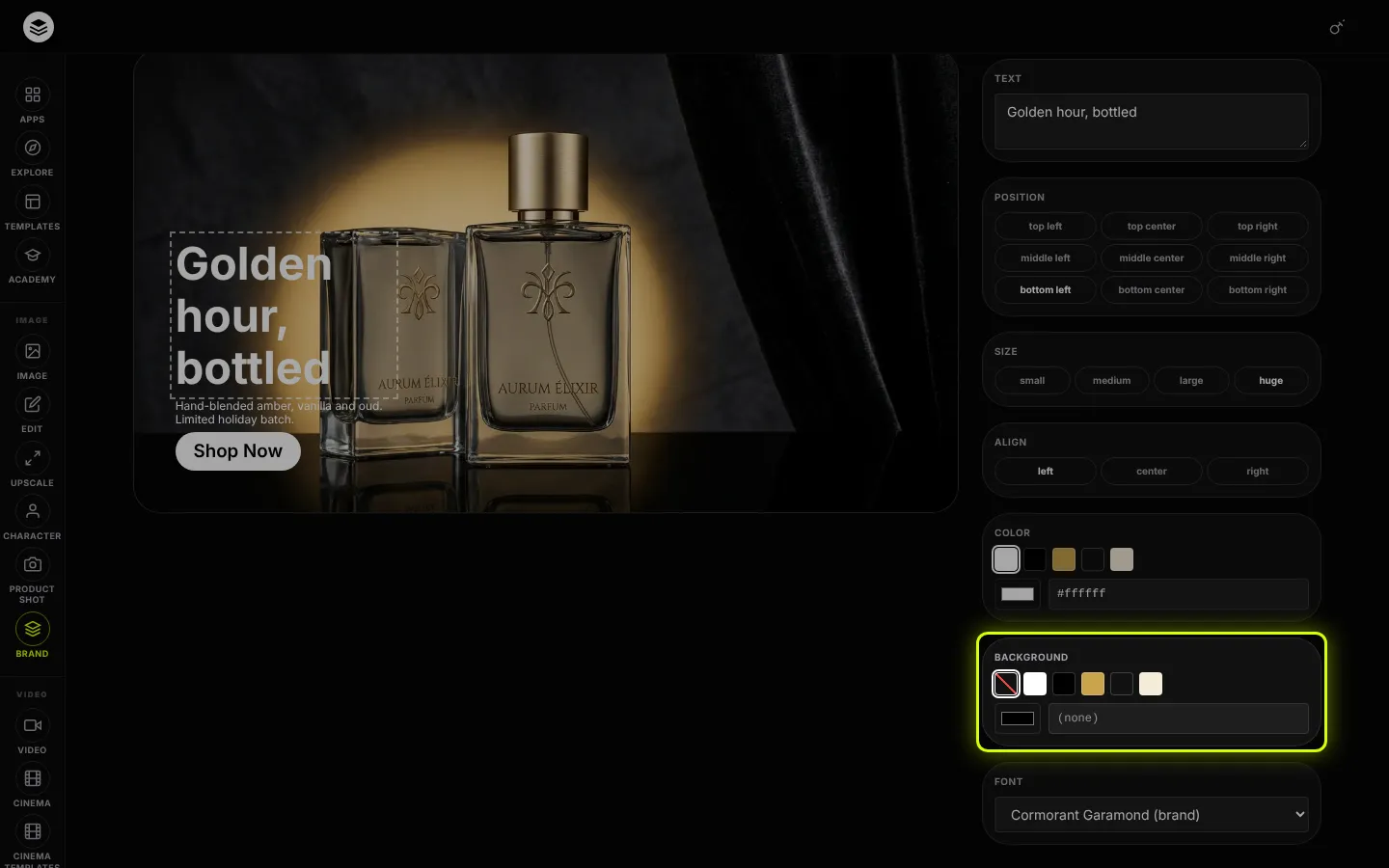
What it is: A color behind the selected block's text. The first swatch (crossed out) means none; then white, black and your brand colors, plus a color picker and a hex box (placeholder '(none)'). The canvas shows the color as a box behind the text (rounded for body and headline, a pill shape for the CTA).
Why use it
Make text stand out on a busy picture or give the CTA a colored button shape.
What you need
None.
Limits and rules
This colors the text block, not the whole canvas. Choose none to remove it.
Font
FEATURE 09
Font
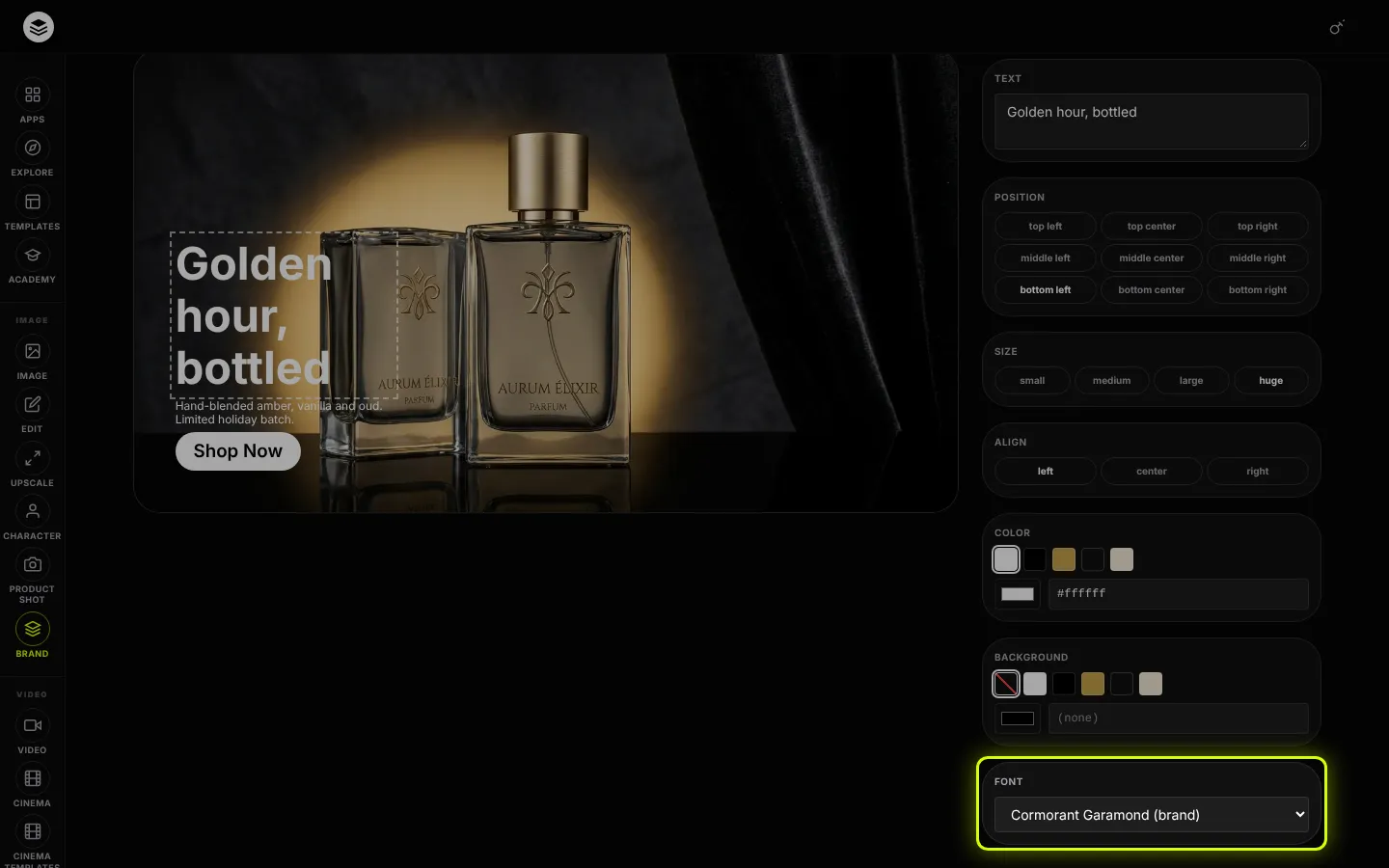
What it is: A dropdown with your brand's Detected Fonts (marked '(brand)') followed by System Sans, System Serif, System Mono, Inter, Helvetica and Georgia. Each option is shown in its own font.
Why use it
Use your brand typeface or a clean fallback.
What you need
None.
Limits and rules
A brand font only displays correctly if your browser has it.
Swap image and Clean background
FEATURE 10
Swap image and Clean background
What it is: Two top-bar buttons that ask the AI for a new picture for this asset from its campaign concept. Swap image ('Generate a new image for this asset') makes a picture with the current headline drawn into it; Clean background ('Generate a clean background with no baked-in text') makes one with no text. While working the button reads 'Regenerating…' and other picture buttons are disabled. Then the status says 'New image ready — save to keep it'.
Why use it
Try another visual without leaving the editor.
What you need
An asset that came from a Campaign Studio concept, and a connected API key.
Limits and rules
Shows 'This asset has no campaign concept to regenerate from' if the asset has no concept or platform. The new picture is lost unless you click Save.
Upload image
FEATURE 11
Upload image
What it is: Pick an image file from your computer to use as the picture. The button reads 'Uploading…' while it works; then the status says 'Image uploaded — save to keep it'. If hosting the file fails, the editor keeps a local copy and says 'Upload failed (...); using a local copy'.
Why use it
Use your own photo behind the copy.
What you need
An image file.
Limits and rules
Images only. A local copy is stored inside the browser's brand data, so very large files may not save. Click Save to keep it.
Animate
FEATURE 12
Animate
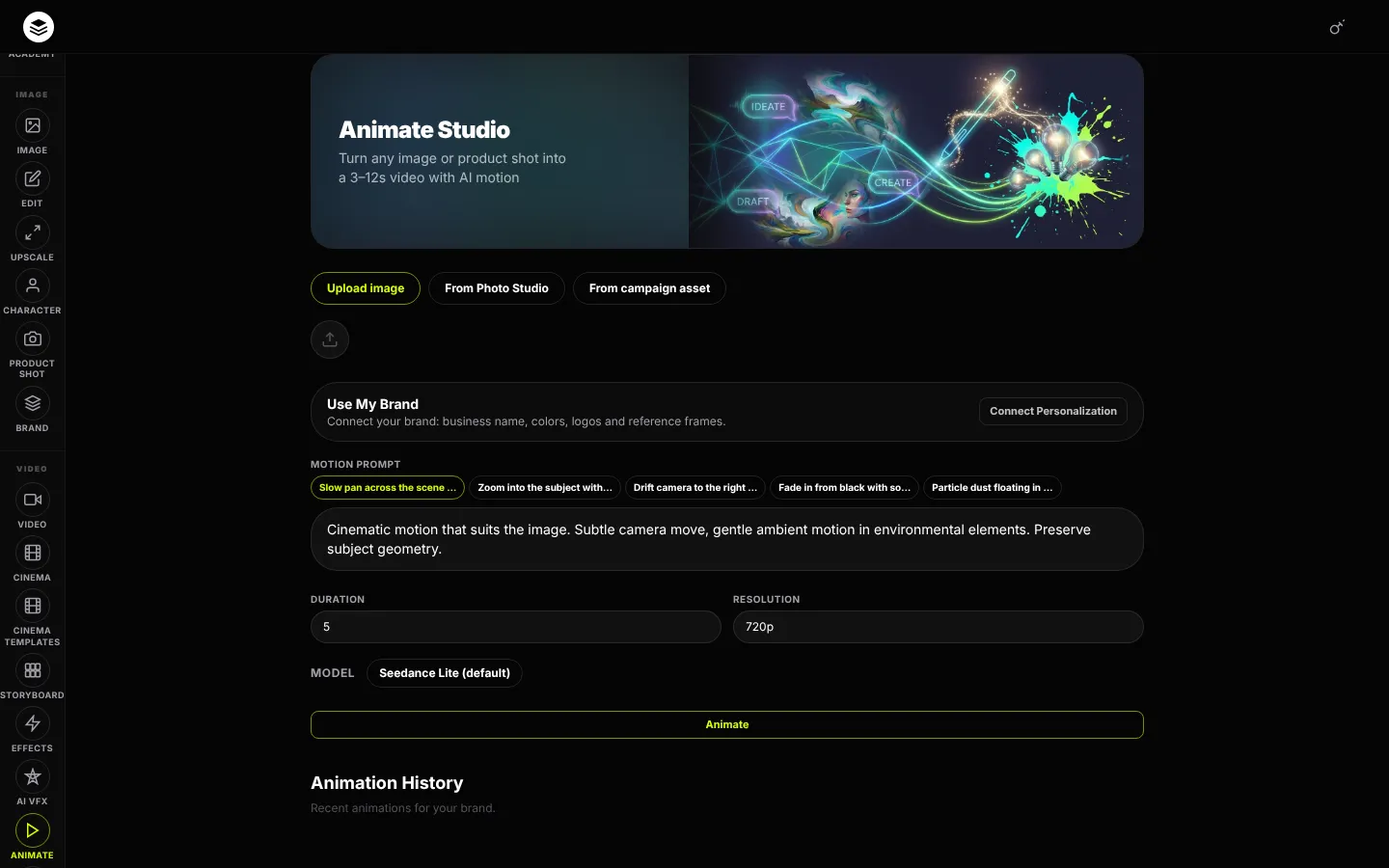
What it is: The 'Animate →' button sends the current picture to Animate Studio.
Why use it
Turn the creative's picture into a short video.
What you need
An asset with a picture.
Limits and rules
Only shown when the asset has a picture. It sends the picture only, not the text you placed on it.
Save
FEATURE 13
Save
What it is: Save stores the headline, body and CTA text, the picture and the full layout (positions, sizes, colors, fonts) with the asset. It shows the toast 'Asset saved' and the status 'Saved'. Before that the status reads 'Edit, then save.' or 'Unsaved changes'.
Why use it
Keep your edits; the campaign page and Campaign Studio cards then show the new text.
What you need
None.
Limits and rules
There is no undo, auto-save or download/export button.
Back to campaign
FEATURE 14
Back to campaign
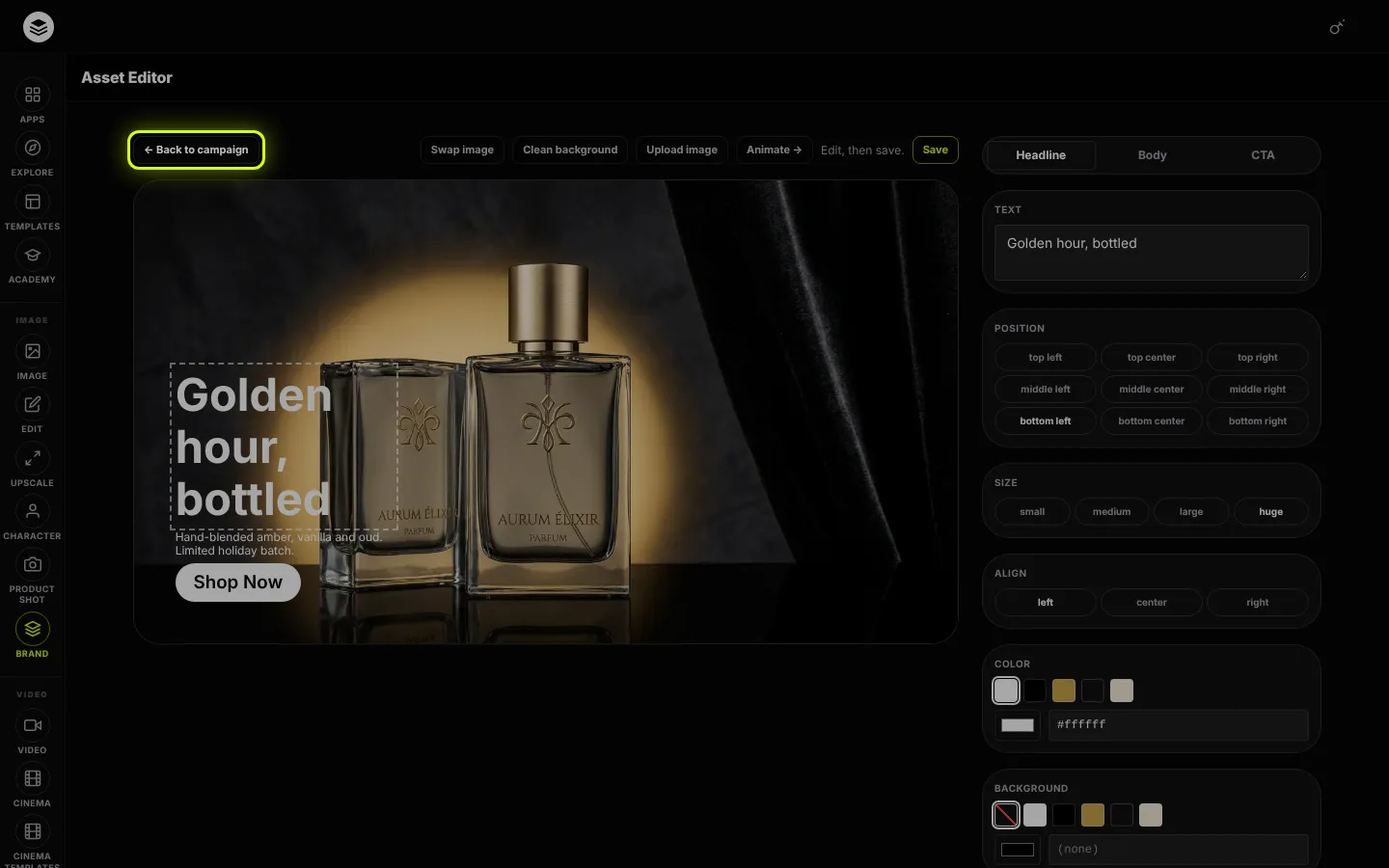
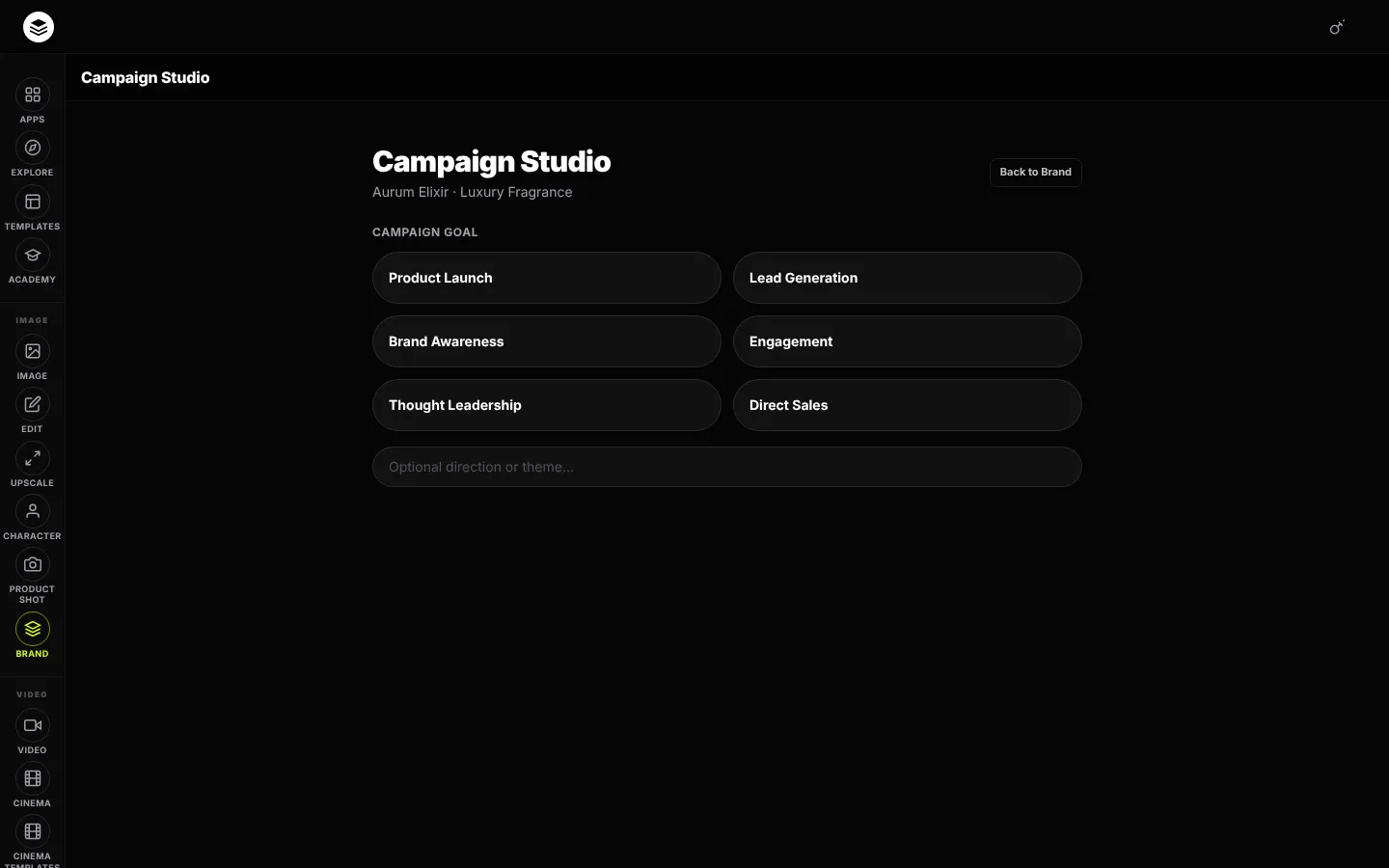
What it is: '← Back to campaign' opens the campaign page this asset belongs to (or the Brand DNA page if the asset has no campaign).
Why use it
Return to the other assets of the campaign.
What you need
None.
Limits and rules
Unsaved changes are lost; click Save first.
How to use Asset Editor
Click Edit on a campaign asset.
Choose Headline, Body or CTA.
Edit Text, Position, Size, Align, Color, Background and Font.
Optionally change the picture.
Click Save.
Generation modes
The ways this studio can work, and when to pick each one.
Swap image
A new picture from the asset's campaign concept with the current headline drawn into it.
Best for: When you want the headline baked into the picture.
Clean background
A new picture from the concept with no text, leaving space for the overlaid copy.
Best for: When you place the text with the editor's controls.
Inputs and outputs
What you give the studio, and what you get back.
Input
Description
When to use
Rules
Position Optional
One of nine spots on a 3 x 3 grid.
To move a block.
No free placement.
Size Optional
small, medium, large or huge.
To change text size.
Scales with the canvas.
Uploaded image Optional
Your own picture behind the text.
To replace the AI picture.
Image files only.
What you get
The updated asset (text, picture and layout) saved in your browser
Use cases and example workflows
Real jobs you can do, step by step.
Brand-consistent social post
Polish an AI creative with brand fonts and colors.
Pick brand font and colors.
Place text.
Save.
Result: A saved asset with styled copy over its picture.
Fix a banner
Click Edit on a Web Banner asset.
Headline: Position top left, Size huge.
CTA: Color set to a brand color.
Click Save.
Own photo with brand copy
Click Upload image and pick your photo.
Adjust text color for contrast.
Click Save, then Animate →.
Tips and best practices
Use Clean background when you place text with the editor.
Pick a text Color that contrasts with the picture.
Save often; there is no undo.
Keep the headline short for small formats.
Check contrast between text and picture.
Limitations and troubleshooting
Know the limits before you start, and how to fix common problems.
Limitation
What it means
Workaround
No export
You cannot download the finished creative with its text from here.
Take a screenshot of the canvas, or use the picture via Animate.
Needs an asset
Opening #/asset-edit directly, without an asset, shows 'Asset not found'.
Click Edit on an asset in Campaign Studio or on a campaign page, or use the Asset Editor card in Brand Studio.
Headline may appear twice
Why: Swap image draws the headline into the picture while the editor also overlays it.
Fix: Use Clean background instead, or clear the overlaid headline text.
Brand font looks like a default font
Why: The font is not available in your browser.
Fix: Choose a system font from the Font list.
Glossary
Terms used in Asset Editor.
Block
One piece of text on the canvas: Headline, Body or CTA.
CTA
Call to action, the short action phrase such as 'Shop Now'.
Clean background
A new AI picture with no text in it.
Swap image
A new AI picture that includes the headline.
Frequently asked questions
How do I open the Asset Editor?
Click Edit on an asset in Campaign Studio or on a campaign page. The Asset Editor card in Brand Studio opens your brand's most recent asset; if the brand has none it opens Campaign Studio ('Create a campaign first to edit its assets'), and with no brand it shows 'Analyze a brand first, then create a campaign to edit its assets'.
Can I download the result?
No, the editor has no download or export button.
Can I drag the text?
No. Use the nine Position buttons.
Where do the color swatches come from?
White and black plus your brand's Primary and Secondary colors from the Brand DNA page.
Do Swap image and Clean background use AI?
Yes. They make a new picture from the asset's campaign concept; Clean background leaves out text.