A 1:53 captioned walkthrough of the studio, with a sample file and prompt.
VIDEO · 1:53
What is Campaign Studio?
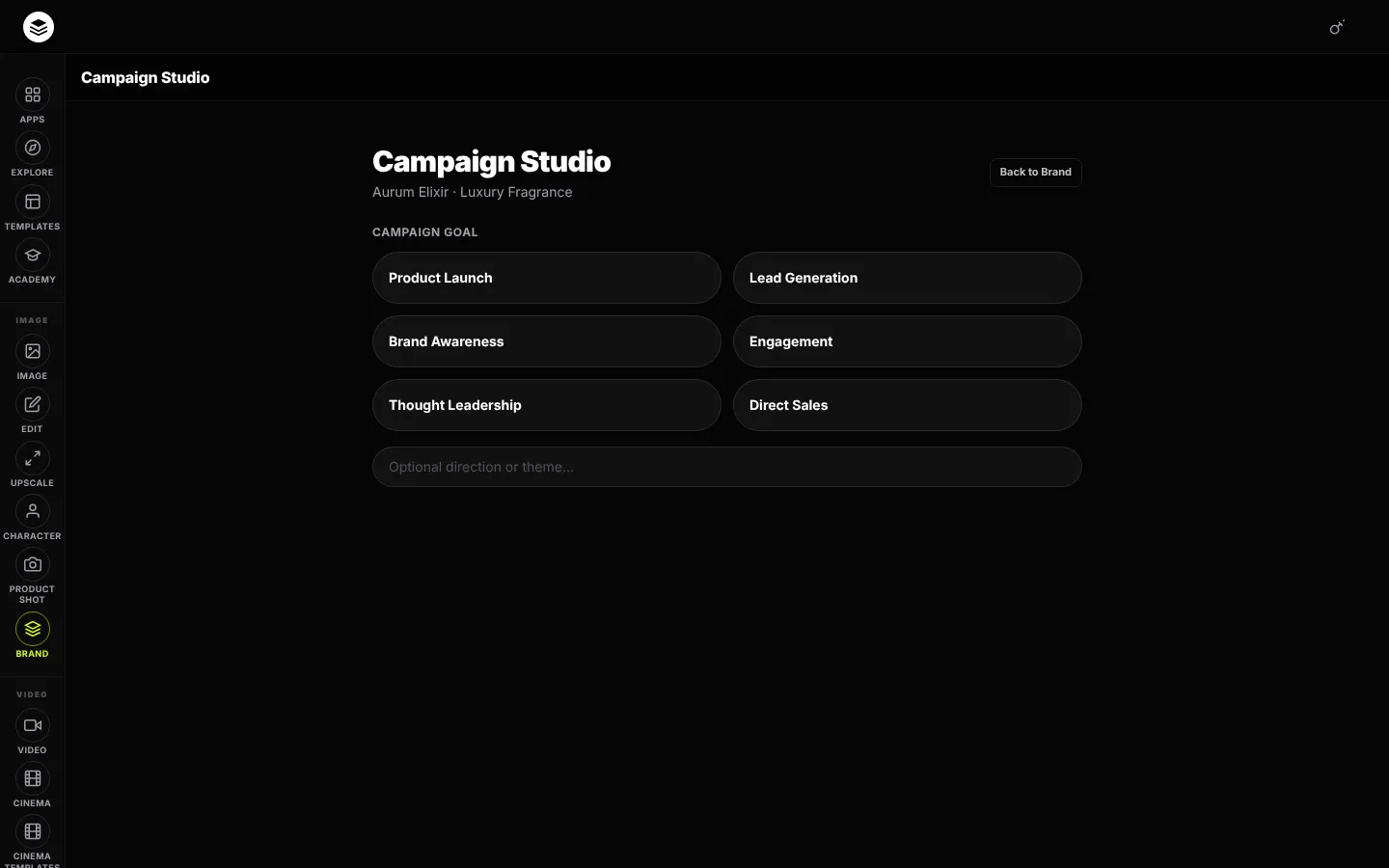
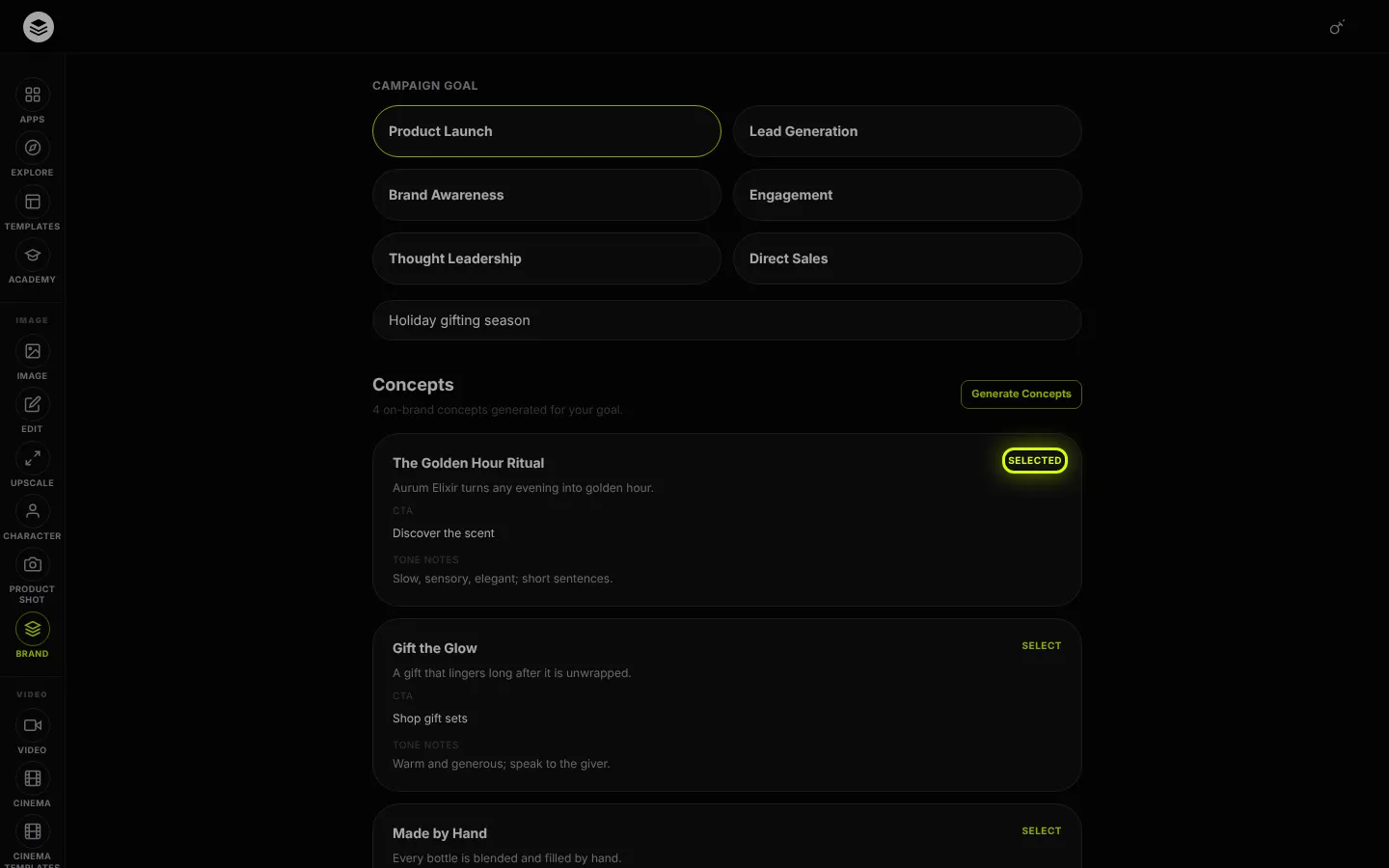
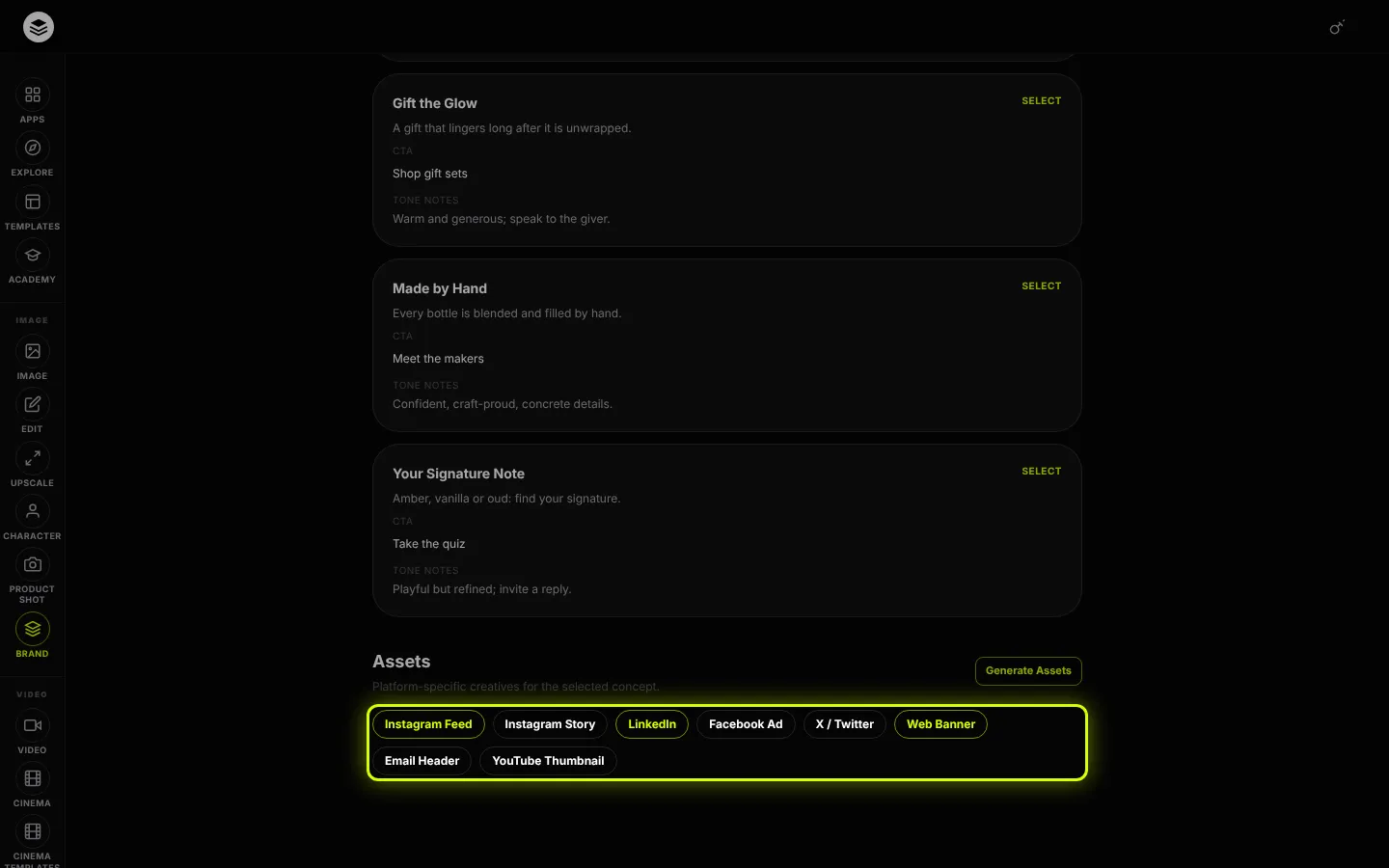
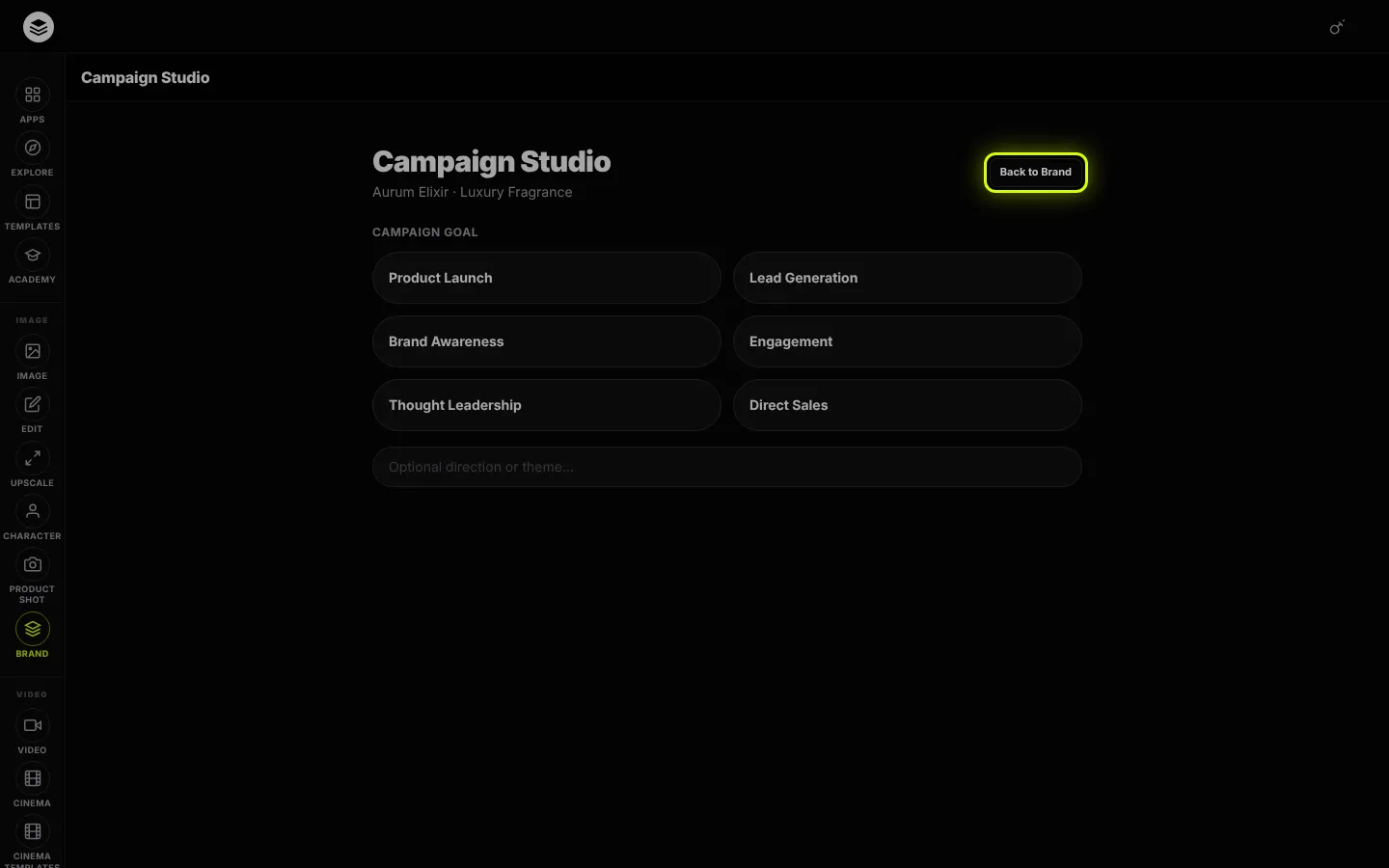
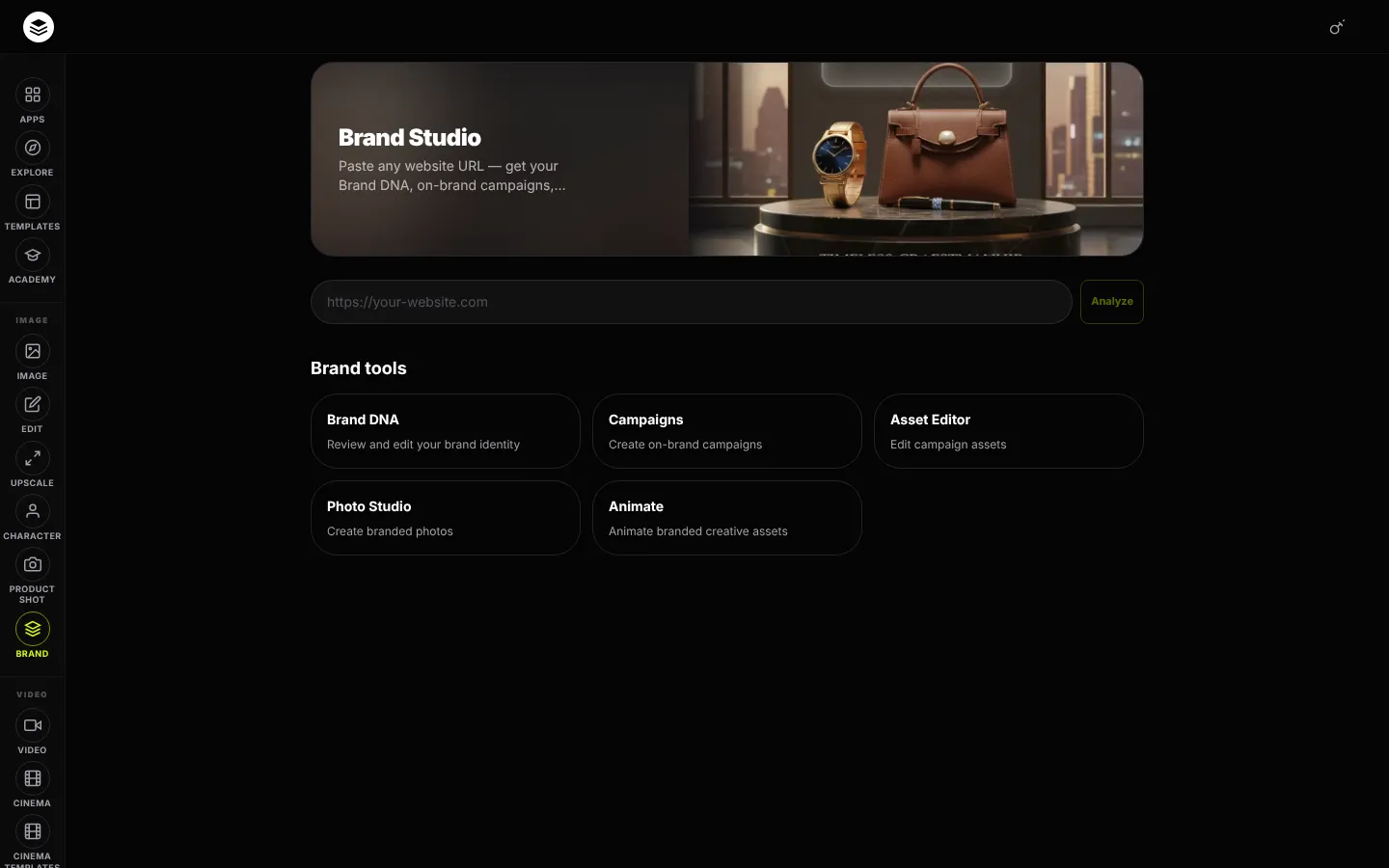
Campaign Studio (#/campaign) is part of Brand Studio. It opens for one of your saved brands (the brand you came from, otherwise the brand you used last, otherwise your first brand). You pick a Campaign Goal (Product Launch, Lead Generation, Brand Awareness, Engagement, Thought Leadership or Direct Sales), can add an optional direction, and click Generate Concepts. The goal cards and direction box stay on the page, so you can change either before generating again to get 4 concepts written in your brand's voice. Select one concept, toggle the platforms you need (Instagram Feed, Instagram Story, LinkedIn, Facebook Ad, X / Twitter, Web Banner, Email Header, YouTube Thumbnail) and click Generate Assets. Each asset gets a headline, body and call to action trimmed to that platform's word limits and a matching picture with no text baked in. Each goal's run is saved as a campaign: generating concepts again for the same goal updates that campaign, while picking a different goal starts a new one. The 'View campaign' button and the 'Past campaigns' cards on the Brand DNA page open the campaign page (#/campaign-page), which shows the saved goal, direction, concepts and assets with Edit and Animate buttons. Campaigns and assets are stored in your browser.
When to use it
You have analysed your brand in Brand Studio and want campaign ideas for a specific goal.
You need the same idea as creatives for several platforms at once (feed, story, LinkedIn, ads, banners, email header, YouTube thumbnail).
You want headline, body and call-to-action copy that respects each platform's word limits.
You want to reopen an earlier campaign and keep editing or animating its assets.
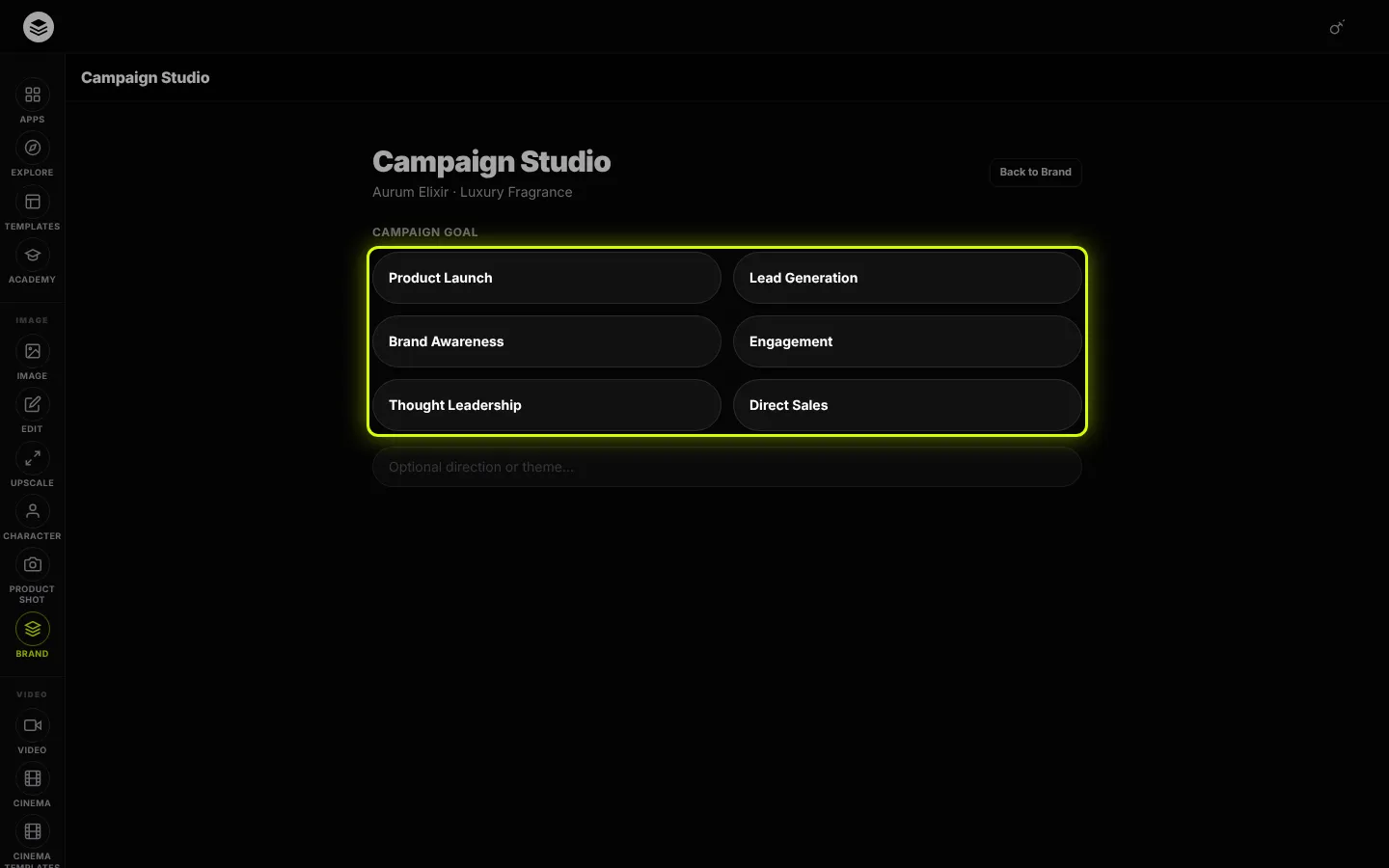
6 campaign goals; the chosen goal stays highlighted and can be changed.
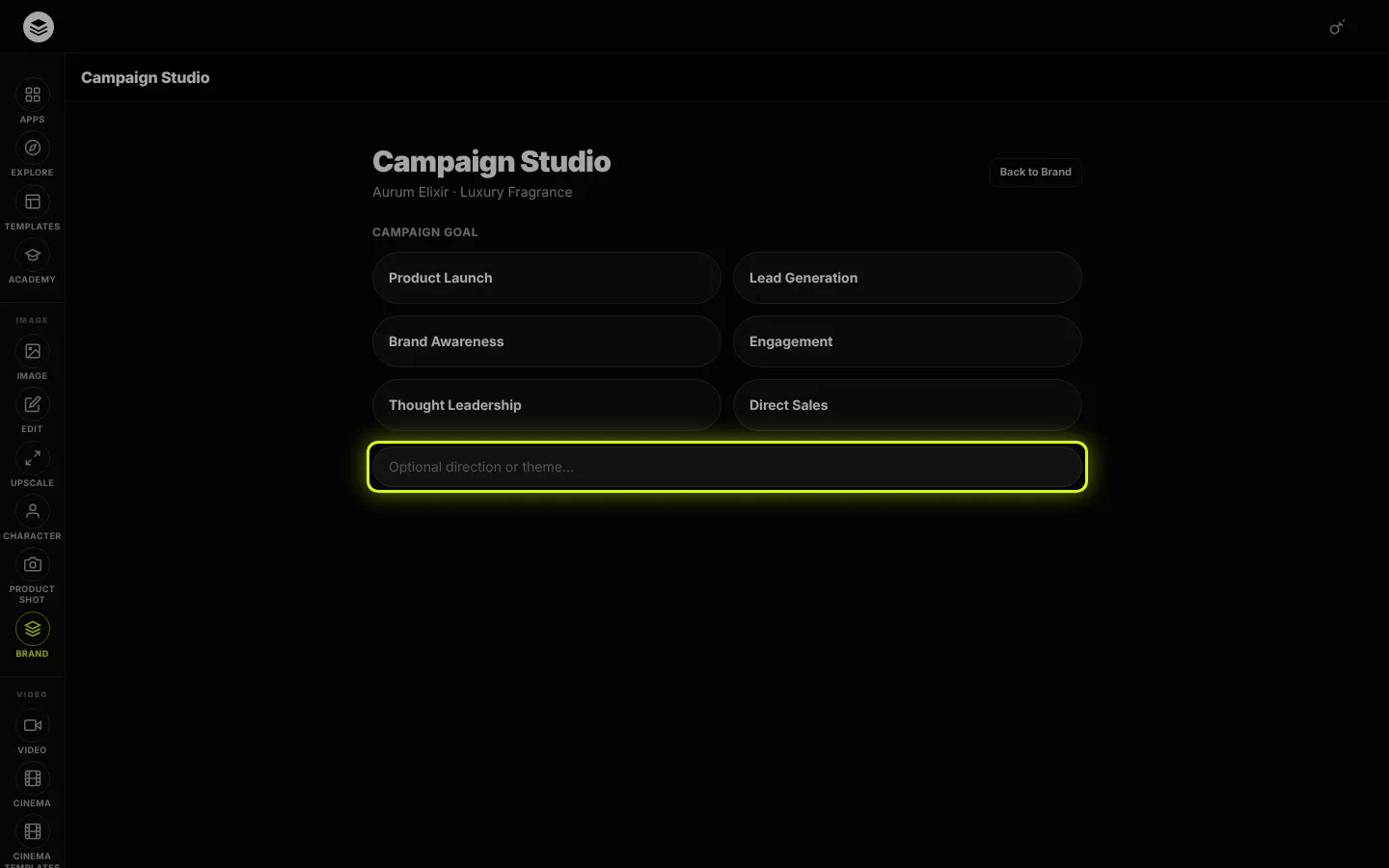
Optional direction or theme for the concepts.
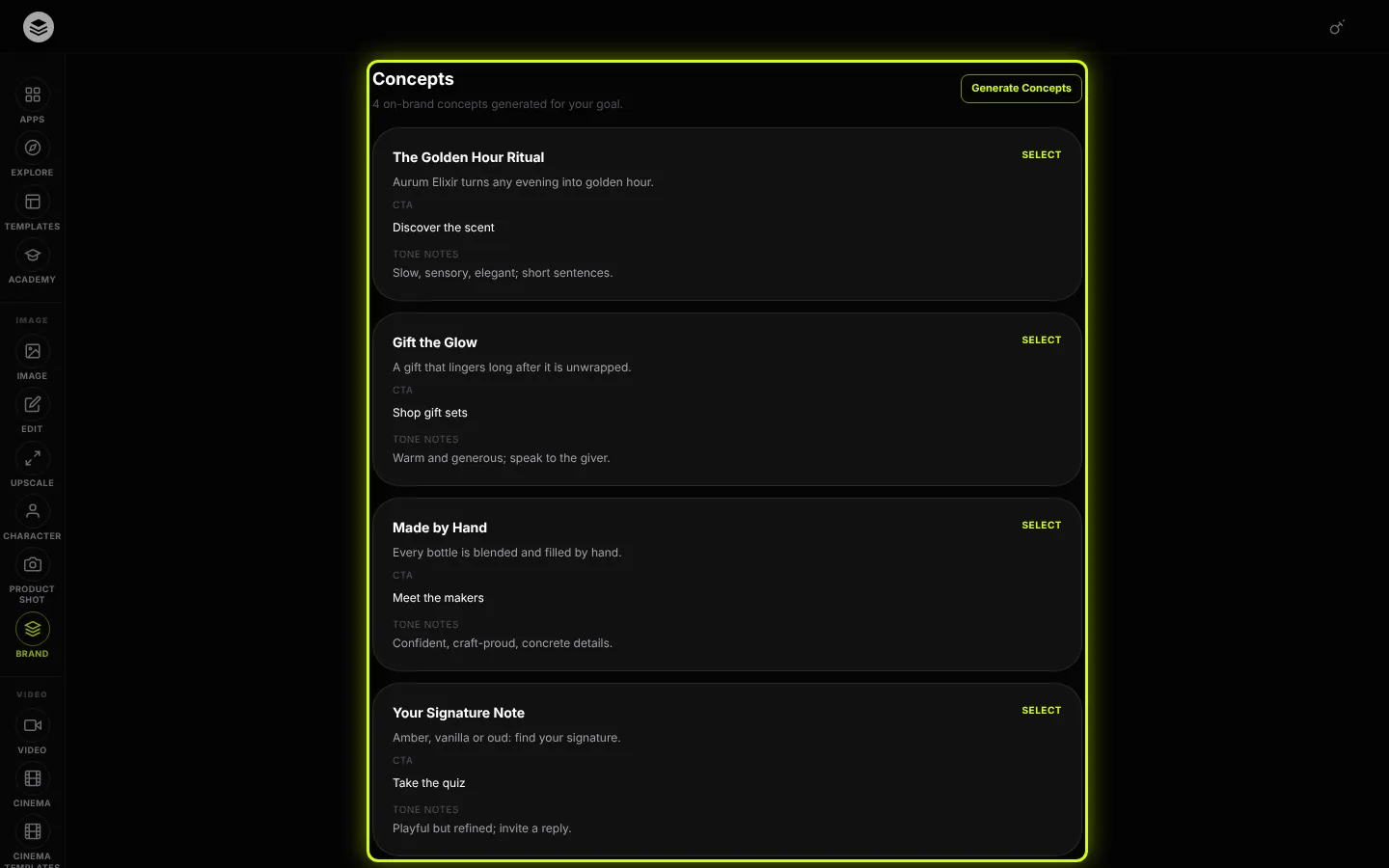
4 AI-written concepts per run, each with title, key message, CTA and tone notes.
8 platform chips with per-platform aspect ratios and copy word limits.
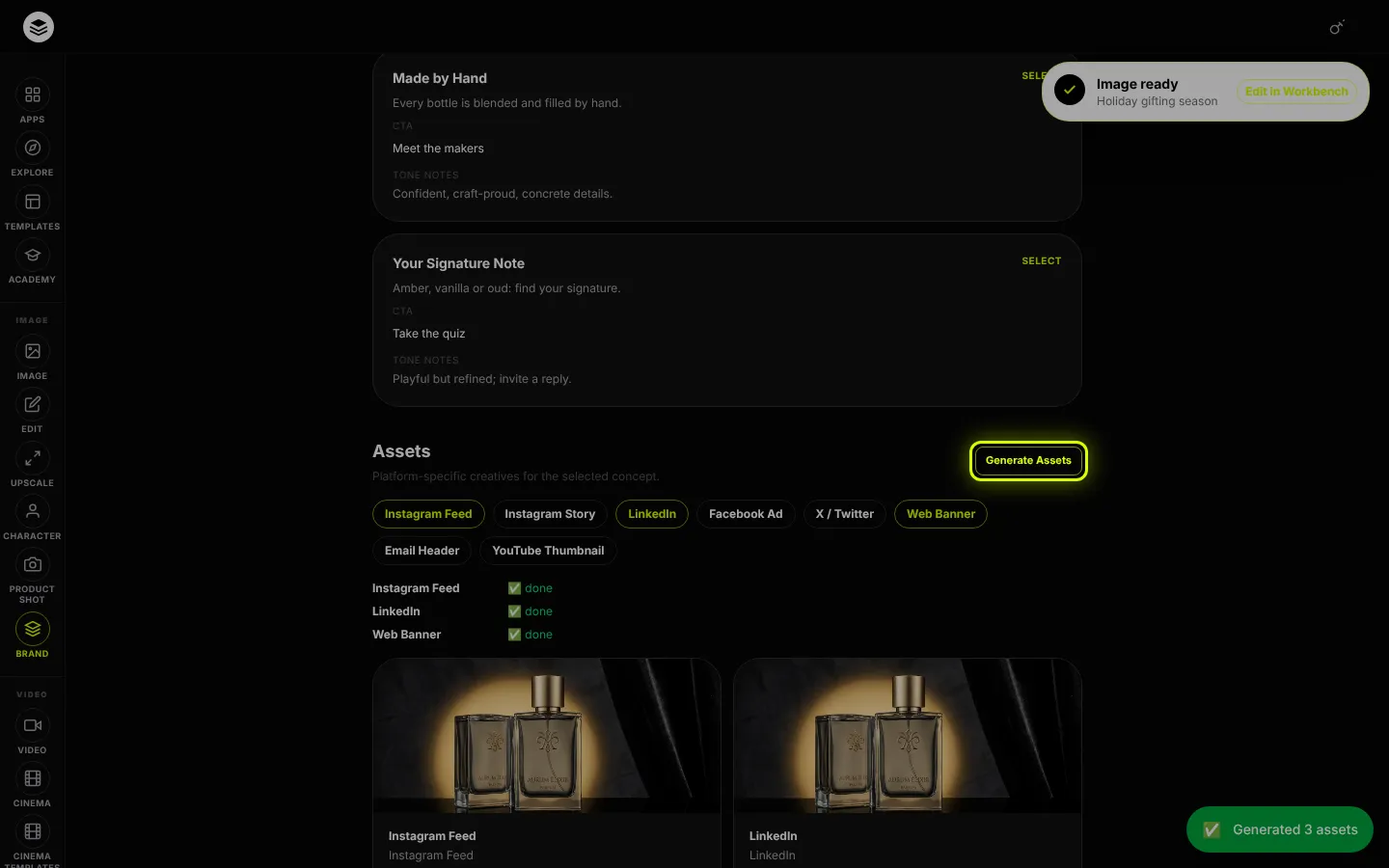
Assets generated up to three platforms at a time with running / done / error status rows.
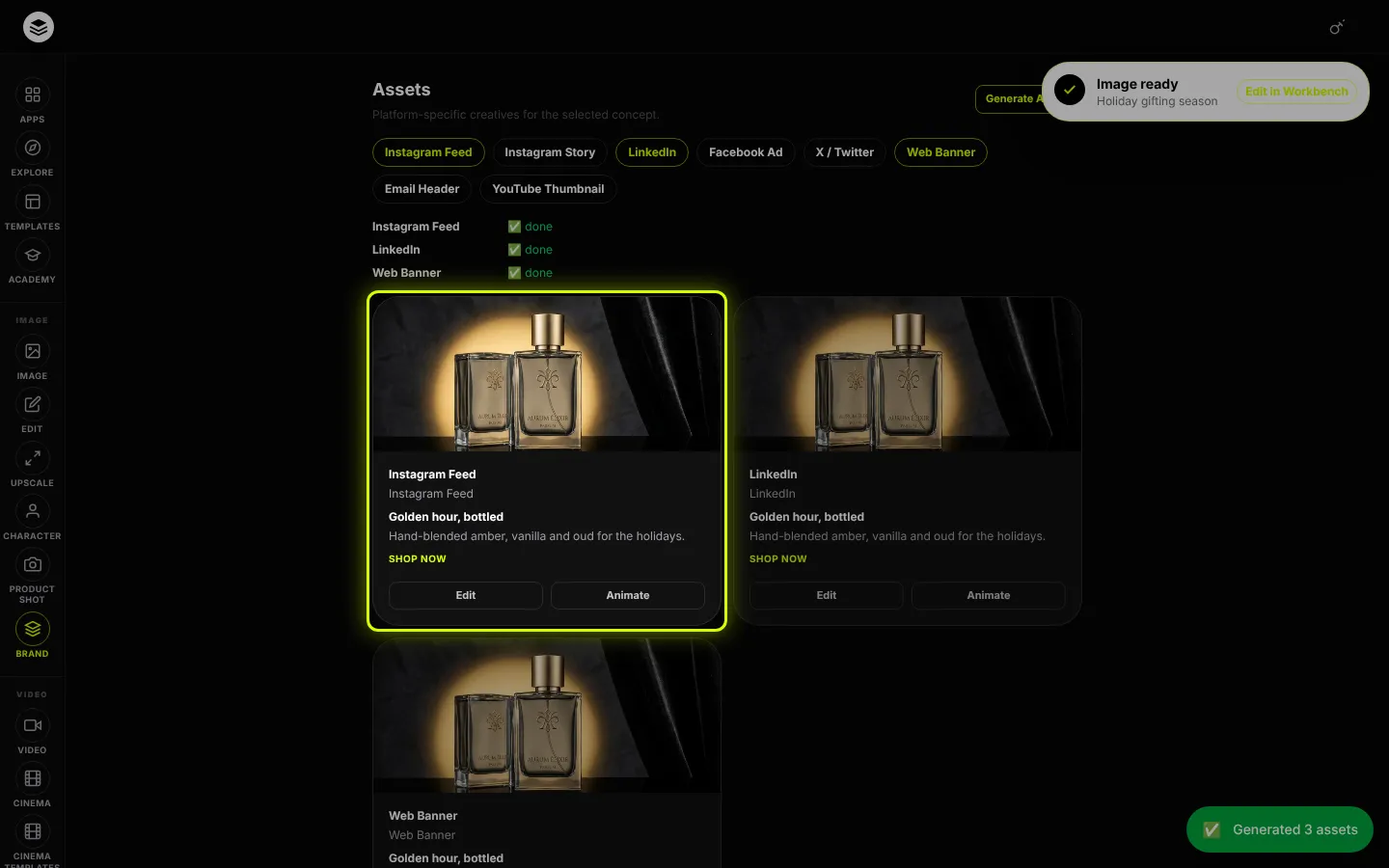
Asset cards with Edit (Asset Editor) and Animate (Animate Studio) buttons.
Each goal's run saved as a campaign you can reopen from 'View campaign' or the Brand DNA page's 'Past campaigns'.
Every Campaign Studio feature, explained
10 features, each with a definition, why you would use it, what it needs and its limits.
Campaign Goal
FEATURE 01
Campaign Goal
What it is: Under 'Campaign Goal' you see six cards: Product Launch, Lead Generation, Brand Awareness, Engagement, Thought Leadership and Direct Sales. Clicking a card picks that goal (its border is highlighted) and opens the Concepts step below. The goal cards and the direction box stay visible, so you can switch goals at any time. The header shows 'Campaign Studio' with your brand name and industry.
Why use it
The goal steers what the 4 concepts are about.
What you need
A saved brand, and one goal card.
Limits and rules
Switching to a different goal clears the concepts, the selected concept and the assets shown, and the next Generate Concepts saves a new campaign (assets already made stay saved in the earlier campaign). Clicking the goal that is already picked keeps the concepts but hides the Assets step until you click Select again. With no saved brand the page shows 'Brand not found - Select a brand first to create a campaign.' and a 'Back to Brand Studio' button.
Optional direction or theme
FEATURE 02
Optional direction or theme
What it is: A text box below the goal cards (placeholder 'Optional direction or theme...'). What you type is added to the concept request as the user direction and is saved with the campaign.
Why use it
Point the concepts at a season, offer, product or angle (for example 'Holiday gifting season').
What you need
None; it is optional.
Limits and rules
It is read when you click Generate Concepts, so you can type or change it before or after picking a goal. No length limit is set in the code.
Generate Concepts
FEATURE 03
Generate Concepts
What it is: In the Concepts step, the 'Generate Concepts' button asks the AI for exactly 4 distinct concepts for your brand and goal. While it runs the button reads 'Generating…' and an overlay says 'Generating campaign concepts...'. Each concept card shows its title, key message, CTA and Tone Notes. The concepts are written from your Brand DNA (name, industry, tagline, value proposition, audience, tone, personality, key messages, primary colors, imagery and layout style). The campaign is saved as soon as the concepts arrive.
Why use it
Get four different on-brand angles to choose from.
What you need
A goal (the button does nothing without one).
Limits and rules
Needs a connected API key. Errors appear as a red toast with the error text, e.g. 'Concepts response had no concepts'. Clicking Generate Concepts again for the same goal replaces the concepts and updates the same campaign instead of saving a new one.
Select a concept
FEATURE 04
Select a concept
What it is: Each concept card has a 'Select' link. Clicking it marks that card 'Selected', opens the Assets step ('Platform-specific creatives for the selected concept.') and scrolls down to it.
Why use it
Choose which idea the platform assets are built from.
What you need
Generated concepts.
Limits and rules
Selecting a concept (including a different one) clears any platforms you had chosen. Only one concept is used per Generate Assets run.
Platform chips
FEATURE 05
Platform chips
What it is: Eight toggle chips: Instagram Feed, Instagram Story, LinkedIn, Facebook Ad, X / Twitter, Web Banner, Email Header and YouTube Thumbnail. A selected chip turns highlighted; click again to deselect. Each platform has its own picture shape (Instagram Feed, LinkedIn and Facebook Ad 1:1; Instagram Story 9:16; X / Twitter, Web Banner, Email Header and YouTube Thumbnail 16:9) and its own copy limits (for example Instagram Feed: headline 8, body 30, CTA 3 words; YouTube Thumbnail: headline 5 words, no body, CTA 2 words).
Why use it
Get creatives sized and worded for where they will run.
What you need
A selected concept.
Limits and rules
At least one chip must be on, otherwise Generate Assets does nothing.
Generate Assets
FEATURE 06
Generate Assets
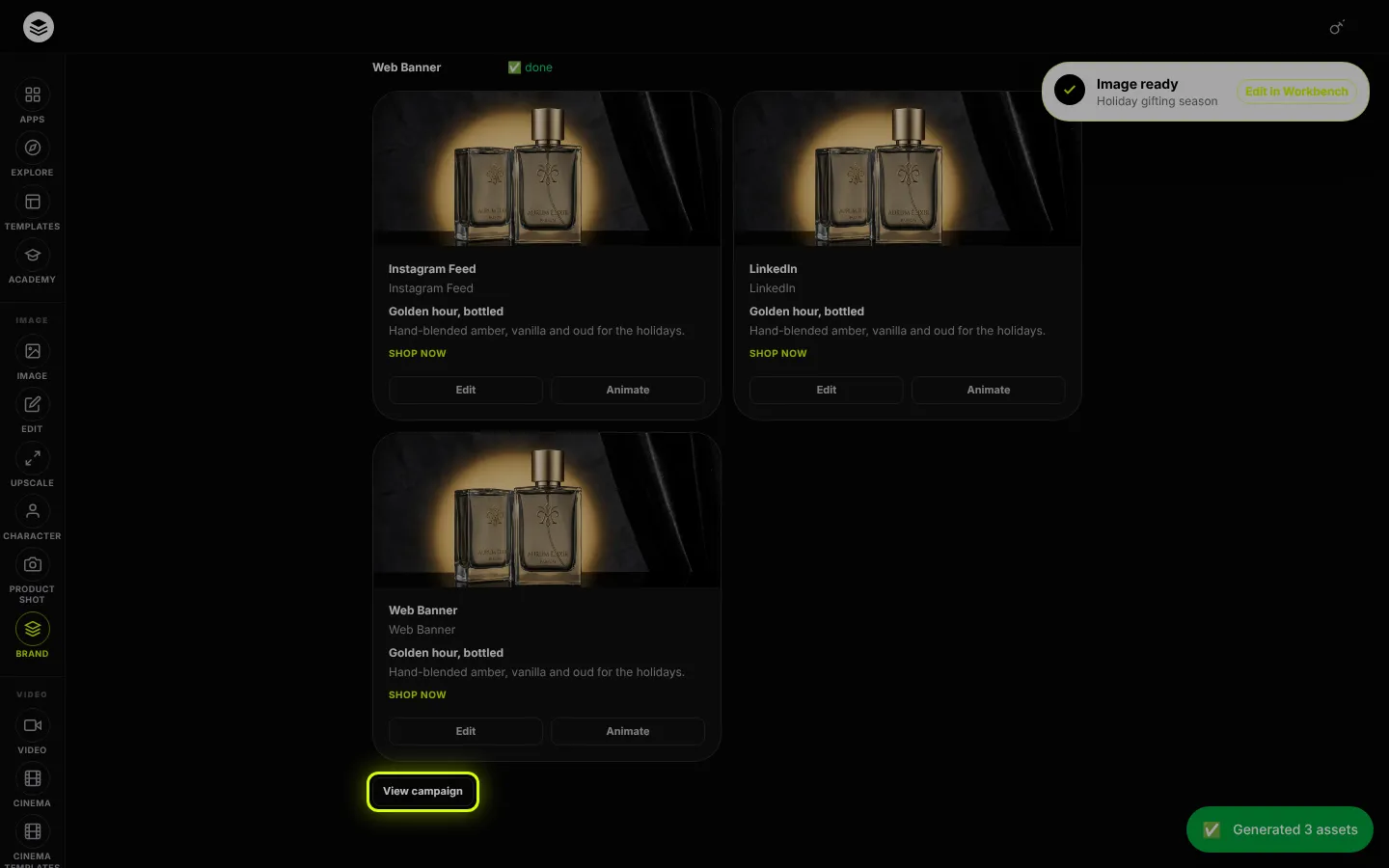
What it is: Makes one asset per selected platform, up to three platforms at a time. A status row per platform shows running, done or error (with the error text). The overlay reads 'Generating platform assets...'. For each platform the AI writes a headline, body and CTA in your brand voice (cut to the platform's word limits) and makes a picture with no text in it, because the copy is laid over it later in the Asset Editor. If your brand has a PNG, JPG or WebP logo it is sent as a reference image; otherwise the picture is made from the text prompt alone. Toasts: 'Generated N assets' and 'N platform(s) failed'.
Why use it
Turn one concept into a full set of platform creatives in one go.
What you need
A selected concept and at least one platform.
Limits and rules
Needs a connected API key. Assets are saved to your brand store and image results are also added to your generation history. An SVG, ICO or GIF logo is not used as a reference.
Asset cards: Edit and Animate
FEATURE 07
Asset cards: Edit and Animate
What it is: Each finished asset is shown as a card with its picture, platform name (for example 'Instagram Feed' or 'X / Twitter'), format, headline, body and CTA, plus two buttons. Edit opens the asset in the Asset Editor. Animate sends the asset's picture to Animate Studio.
Why use it
Fine-tune the layout and text, or turn the creative into motion.
What you need
A generated asset.
Limits and rules
Animate shows 'This asset has no image to animate' if the asset has no picture. Copy cannot be edited on the card itself; use Edit.
View campaign
FEATURE 08
View campaign
What it is: After at least one asset is made, a 'View campaign' button appears under the assets. It opens the campaign page for this run.
Why use it
See the whole campaign (goal, direction, concepts and all assets) on one page.
What you need
At least one generated asset in this run.
Limits and rules
Only appears after a successful Generate Assets run.
Campaign page (saved campaigns)
FEATURE 09
Campaign page (saved campaigns)
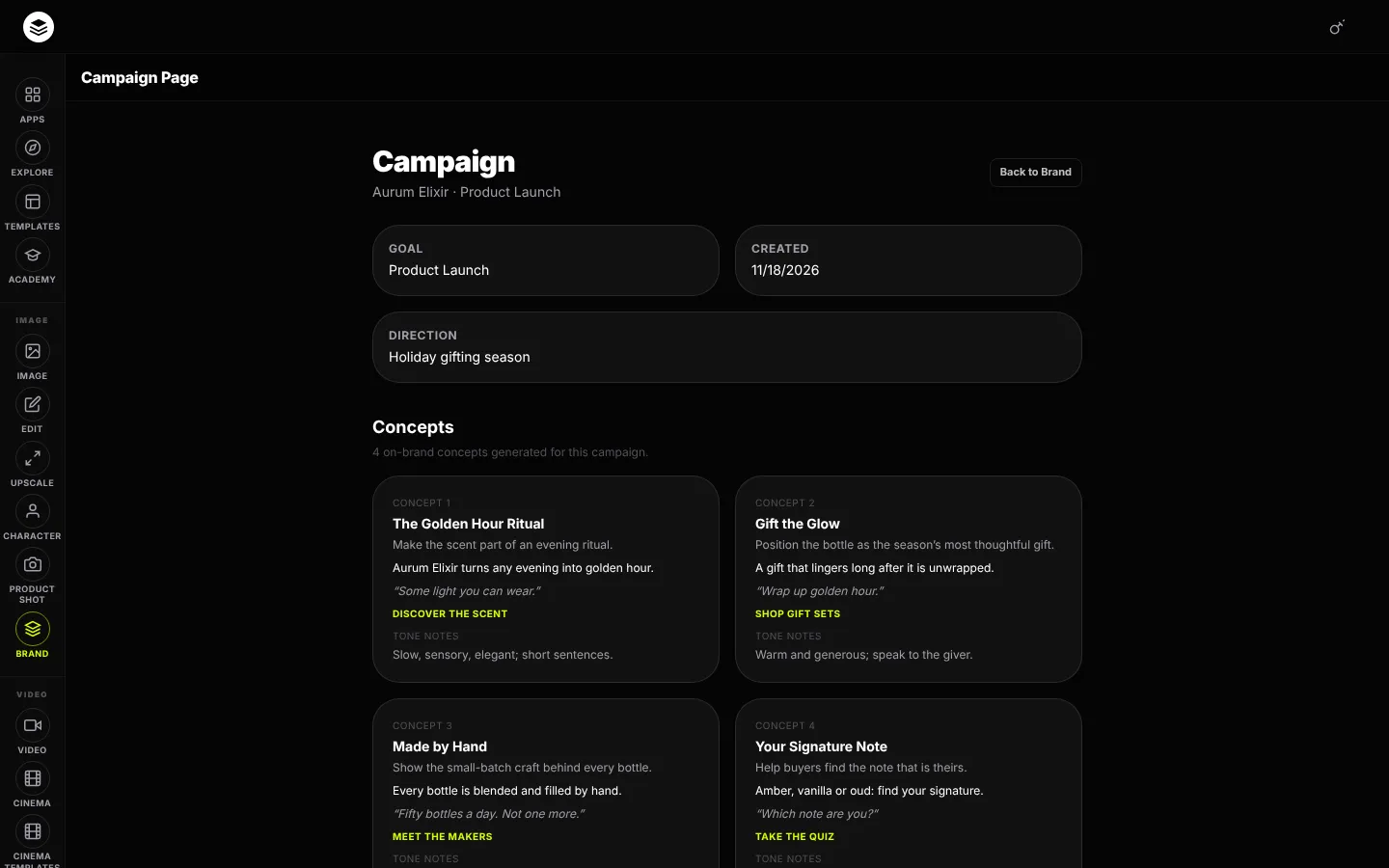
What it is: The campaign page (#/campaign-page) shows a saved campaign: a 'Campaign' header with the brand name and goal (for example 'Product Launch'), Goal, Created and Direction cards, the Concepts (each with Concept number, title, theme, key message, hook, CTA and Tone notes) and the Assets ('N generated assets for this campaign.'), each card with its platform name, Edit and Animate buttons. Its 'Generate Assets' button opens Campaign Studio for the same brand and 'Back to Brand' opens the Brand DNA page. You reach it from 'View campaign' or from a card under 'Past campaigns' on the Brand DNA page.
Why use it
Come back to an earlier campaign and keep working on its assets.
What you need
A saved campaign.
Limits and rules
A link to a campaign that no longer exists shows 'Campaign not found'. 'Generate Assets' starts a fresh Campaign Studio run; it does not add assets to the campaign you were viewing. Shows 'No assets generated yet.' when the campaign has none.
Back to Brand
FEATURE 10
Back to Brand
What it is: The 'Back to Brand' button in the header opens the Brand DNA page for the brand this campaign belongs to.
Why use it
Fix the brand's details or start something else for the same brand.
What you need
None.
Limits and rules
Concepts and assets are already saved when they are generated, but the selected concept and platform chips are not kept when you leave.
How to use Campaign Studio
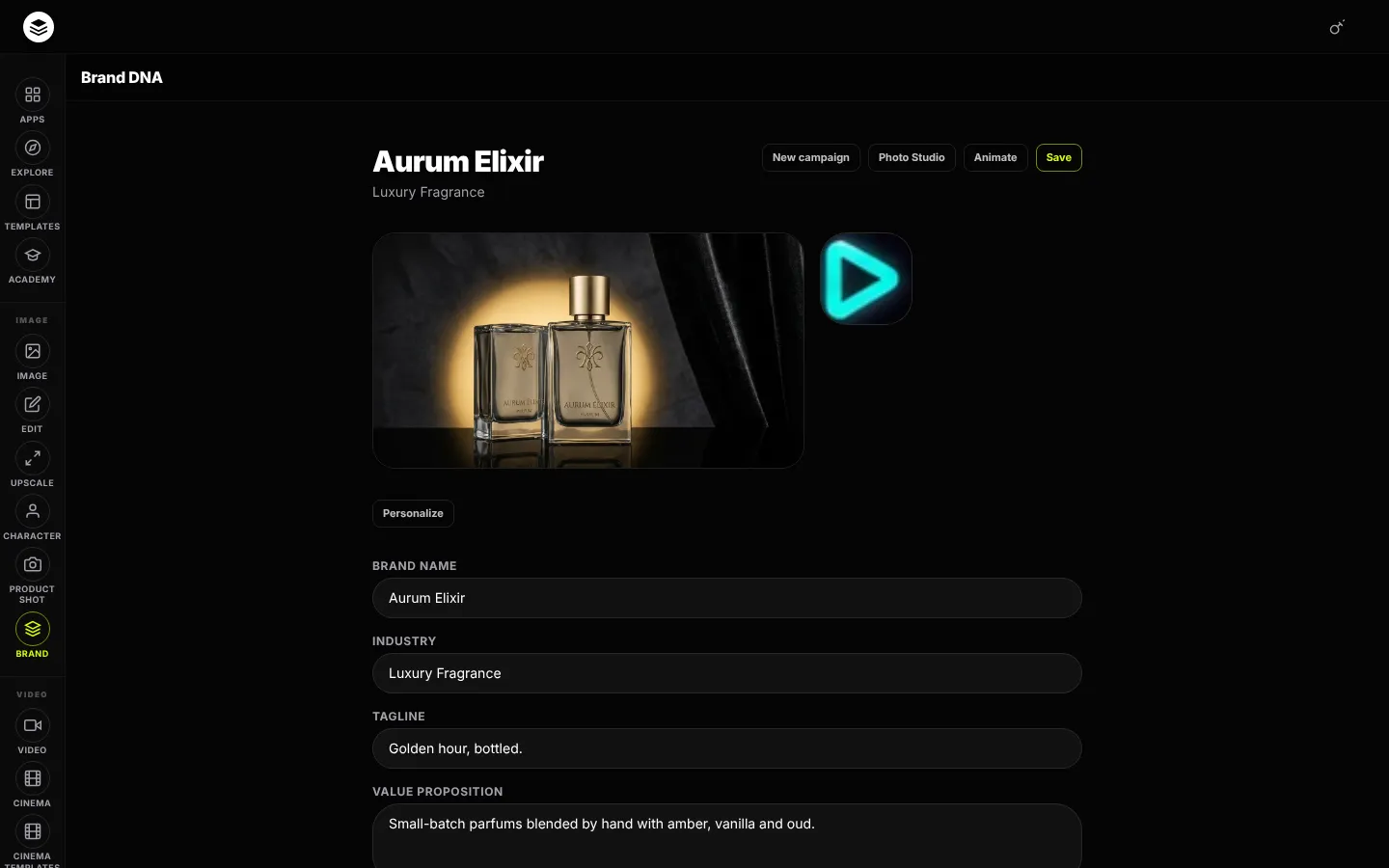
Open Campaign Studio from the Brand DNA page ('New campaign').
Click a Campaign Goal.
Type an optional direction.
Click Generate Concepts.
Click Select on a concept.
Turn on platform chips.
Click Generate Assets.
Edit or Animate the results, or click View campaign.
Generation modes
The ways this studio can work, and when to pick each one.
Concept generation
The AI writes exactly 4 distinct concepts for your brand and goal, each with title, theme, key message, hook, CTA, tone notes and visual direction.
Best for: Exploring campaign angles.
Asset generation
For each platform the AI writes headline, body and CTA within the platform's word limits, then makes a text-free picture in the platform's aspect ratio using your colors, imagery style and the concept's visual direction.
Best for: Producing a ready-to-edit creative set.
Inputs and outputs
What you give the studio, and what you get back.
Input
Description
When to use
Rules
Campaign Goal Required
Product Launch, Lead Generation, Brand Awareness, Engagement, Thought Leadership or Direct Sales.
First step.
Can be changed at any time; a different goal clears the current concepts and starts a new campaign.
Direction or theme Optional
Free text added to the concept request.
To focus the concepts on an offer, season or angle.
Used the next time you click Generate Concepts.
Concept Required
One of the 4 generated concepts.
Before choosing platforms.
Changing the concept clears the platform choices.
Platforms Required
Toggle chips for 8 platforms.
Before Generate Assets.
Each platform has fixed aspect ratio and copy word limits.
What you get
A saved campaign (goal, direction, 4 concepts)
One asset per selected platform: picture, headline, body, CTA and an editable layout
Generation history entries for asset pictures
A campaign page listing the concepts and assets
Use cases and example workflows
Real jobs you can do, step by step.
Product launch across channels
One idea as feed, story, LinkedIn and banner creatives.
Pick Product Launch.
Generate and select a concept.
Select the four platforms and Generate Assets.
Result: Four assets with matching copy in the right shapes.
Thought-leadership post
LinkedIn creative with a professional tone.
Pick Thought Leadership.
Select a concept.
Turn on LinkedIn and Generate Assets.
Result: A 1:1 LinkedIn creative with up to 10-word headline and 50-word body.
Holiday launch set
Click Product Launch.
Type 'Holiday gifting season' in the direction box.
Click Generate Concepts.
Select the concept you like.
Turn on Instagram Feed, Instagram Story and Email Header.
Click Generate Assets.
Polish and animate
Click View campaign.
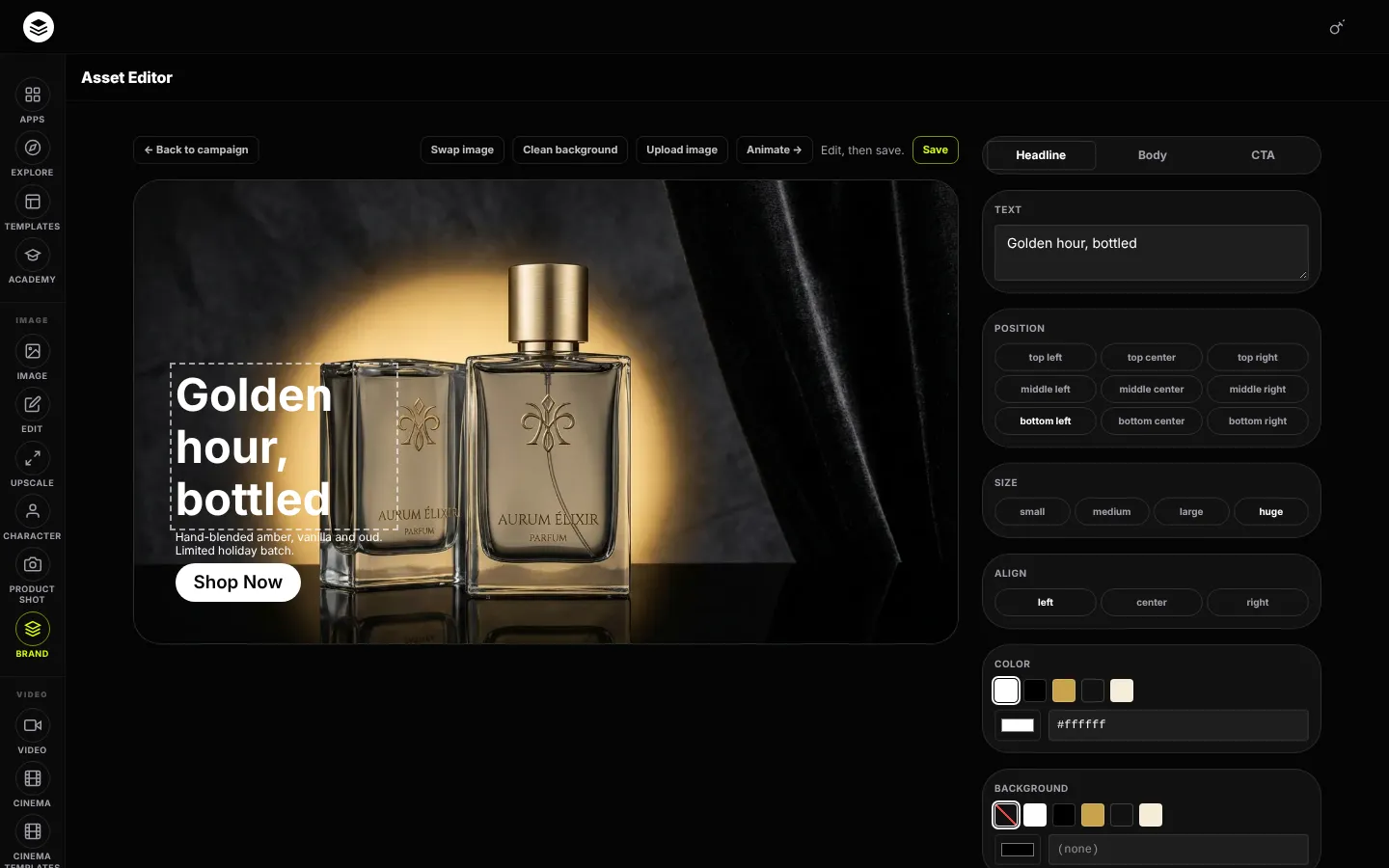
Click Edit on an asset and adjust the text in the Asset Editor, then Save.
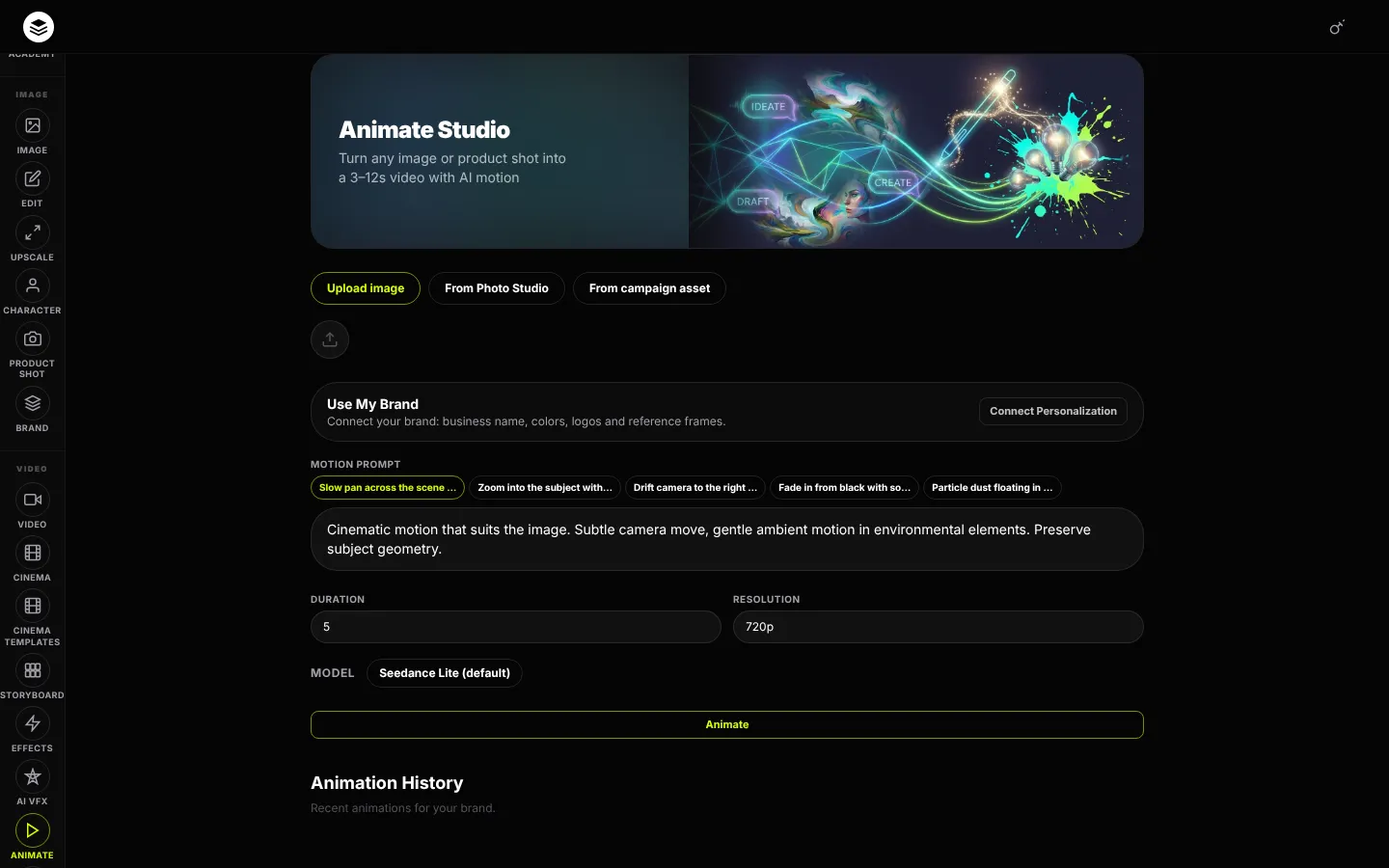
Click Animate to send the picture to Animate Studio.
Tips and best practices
You can change the goal or direction before each Generate Concepts.
Start with one or two platforms to check the style, then add the rest.
Give the brand a PNG or JPG logo URL on the Brand DNA page so assets can use it.
Use the Asset Editor to place the text where the picture has space.
Save an accurate Brand DNA before generating.
Review every headline and CTA before publishing.
Pick the concept first, then the platforms.
Limitations and troubleshooting
Know the limits before you start, and how to fix common problems.
Limitation
What it means
Workaround
Browser-only storage
Clearing site data or switching browser loses saved campaigns and assets.
Keep important creatives elsewhere, for example via generation history.
Text-free pictures
The image alone has no headline in it.
Open the asset in the Asset Editor, where the headline, body and CTA are placed over the picture.
My platform choices were cleared
Why: Selecting a concept resets the platform chips.
Fix: Pick the concept first, then the platforms.
Several campaigns appear under Past campaigns
Why: Each goal you generate concepts for is saved as its own campaign, and each new visit to Campaign Studio starts a new one.
Fix: Open the one you want from the Brand DNA page. To refine one campaign, stay on the same goal and click Generate Concepts again.
My concepts disappeared after clicking a goal
Why: Switching to a different goal clears the concepts and assets on screen (they stay saved in the earlier campaign).
Fix: Open the earlier campaign from 'Past campaigns' on the Brand DNA page, or switch back and generate again.
Glossary
Terms used in Campaign Studio.
Campaign Goal
What the campaign should achieve, such as Product Launch or Lead Generation.
Concept
A campaign idea with a title, key message, CTA and tone notes.
CTA
Call to action, a short phrase like 'Shop gift sets'.
Asset
One platform creative: picture plus headline, body and CTA.
Campaign page
The saved view of a campaign's goal, concepts and assets.
Frequently asked questions
Which goals can I pick?
Product Launch, Lead Generation, Brand Awareness, Engagement, Thought Leadership and Direct Sales.
How many concepts do I get?
Four per Generate Concepts click.
Which platforms are supported?
Instagram Feed, Instagram Story, LinkedIn, Facebook Ad, X / Twitter, Web Banner, Email Header and YouTube Thumbnail.
Why is there no text in the generated picture?
Pictures are made text-free on purpose; the headline, body and CTA are placed over them in the Asset Editor.
Where are my campaigns saved?
In your browser. Open them again from 'Past campaigns' on the Brand DNA page.
Does it use my logo?
Yes, as a reference image when the logo is a PNG, JPG or WebP. SVG, ICO and GIF logos are skipped.
Can I change the goal after picking it?
Yes. The goal cards stay on the page; click another goal. That clears the current concepts and the next Generate Concepts saves a new campaign.