Brand & Campaigns · Feature guide

Brand DNA Editor Feature Guide

Review and fix your brand's name, voice, messages, fonts and colors

The Brand DNA Editor lets you review and correct a saved brand: name, tagline, audience, tone, messages, fonts, colors and logo, plus its past campaigns.

Best for: Anyone who analysed a website in Brand Studio and wants the brand's voice, messages, colors and logo to be right before generating campaigns or photos.

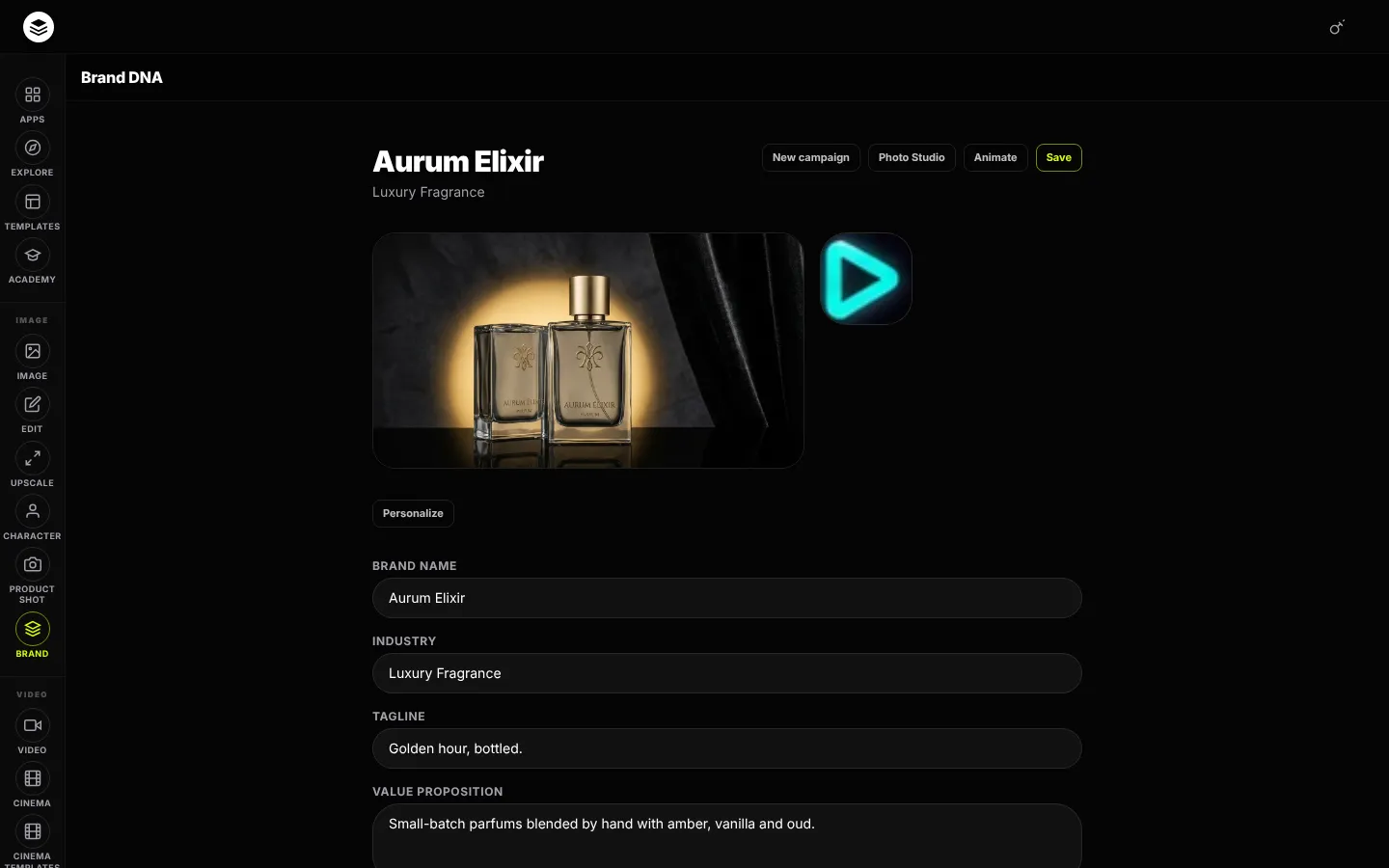
Brand DNA Editor screenshot

Watch the Brand DNA Editor tour

A 2:03 captioned walkthrough of the studio, with a sample file and prompt.

VIDEO · 2:03

What is Brand DNA Editor?

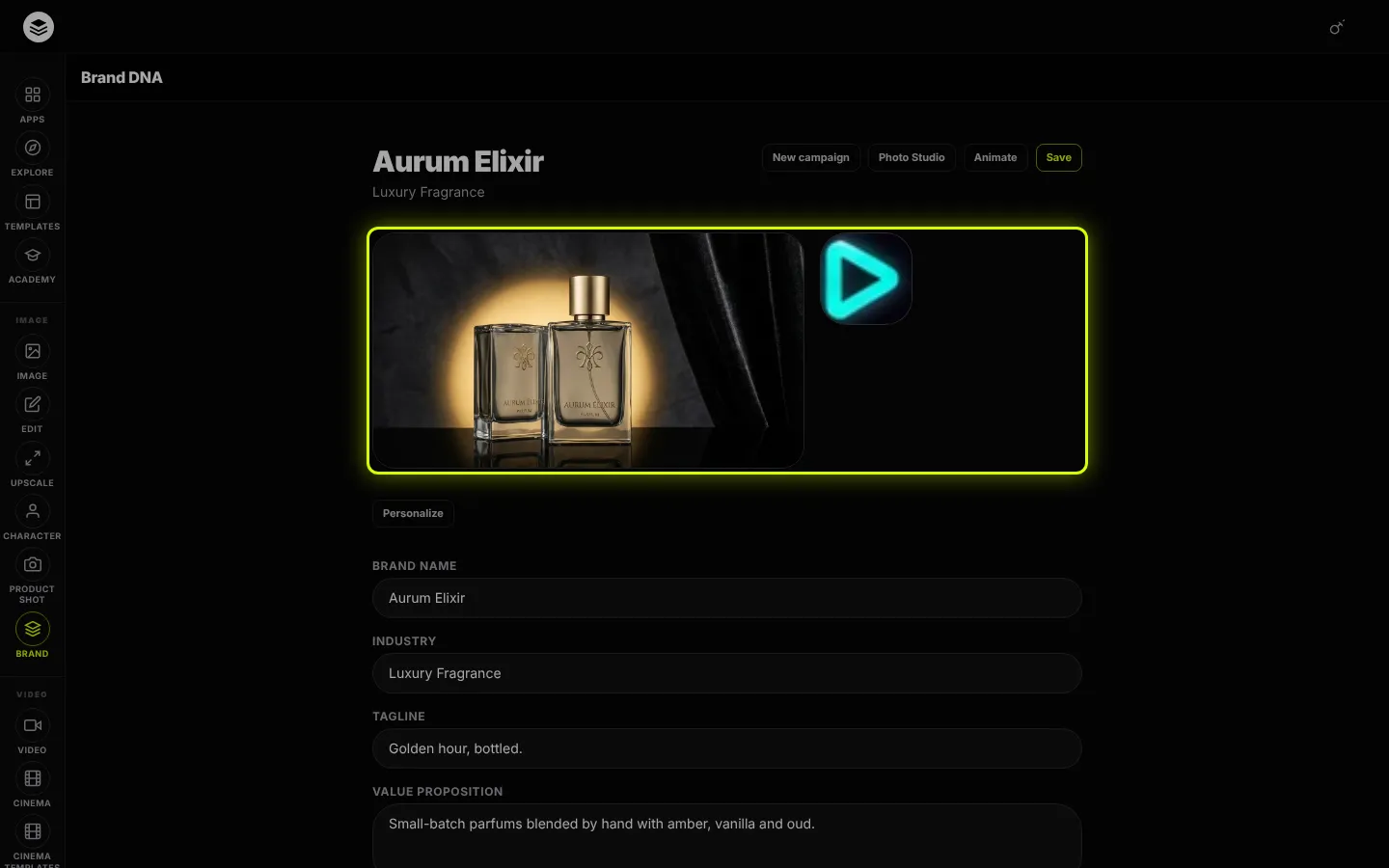
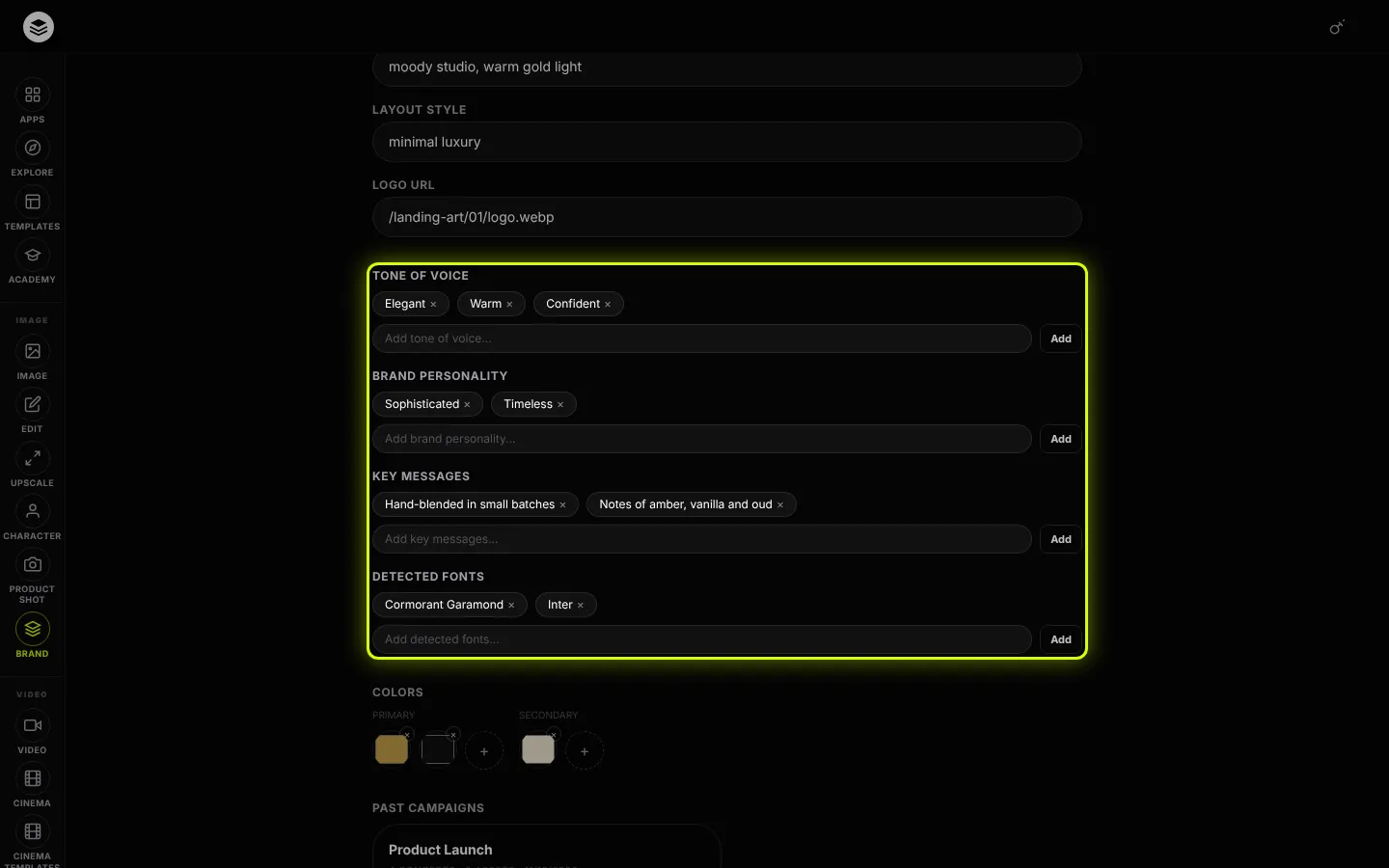
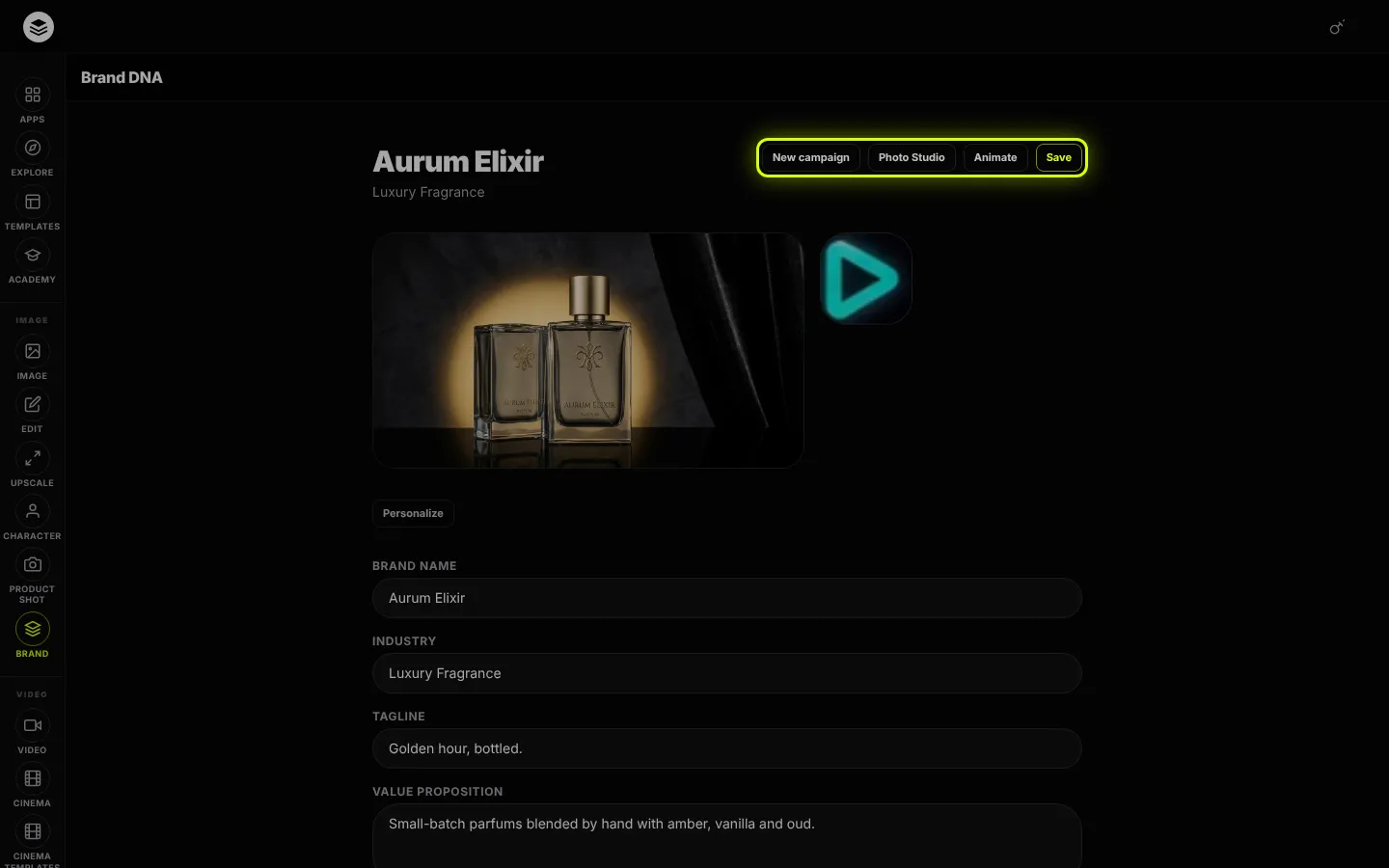
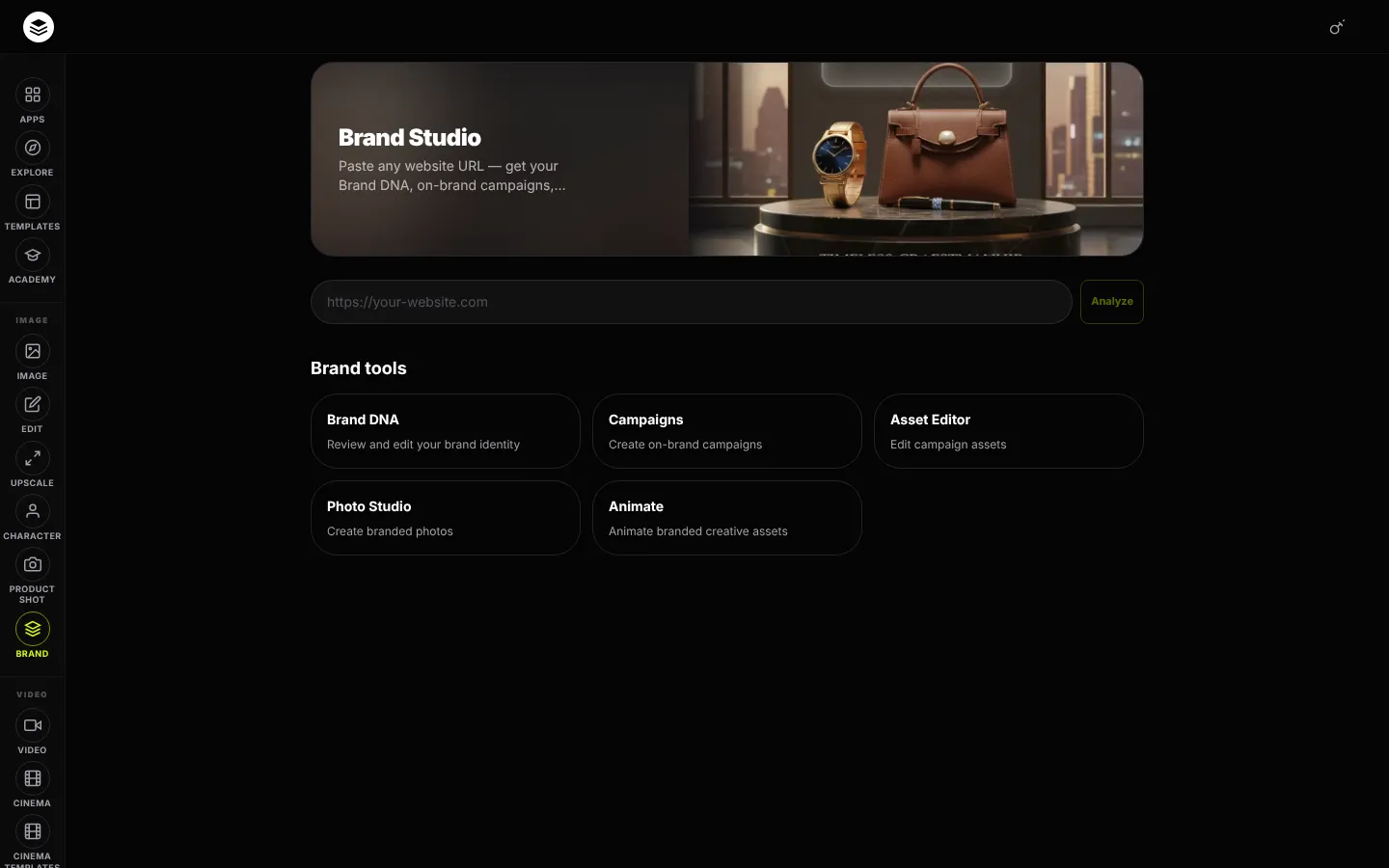
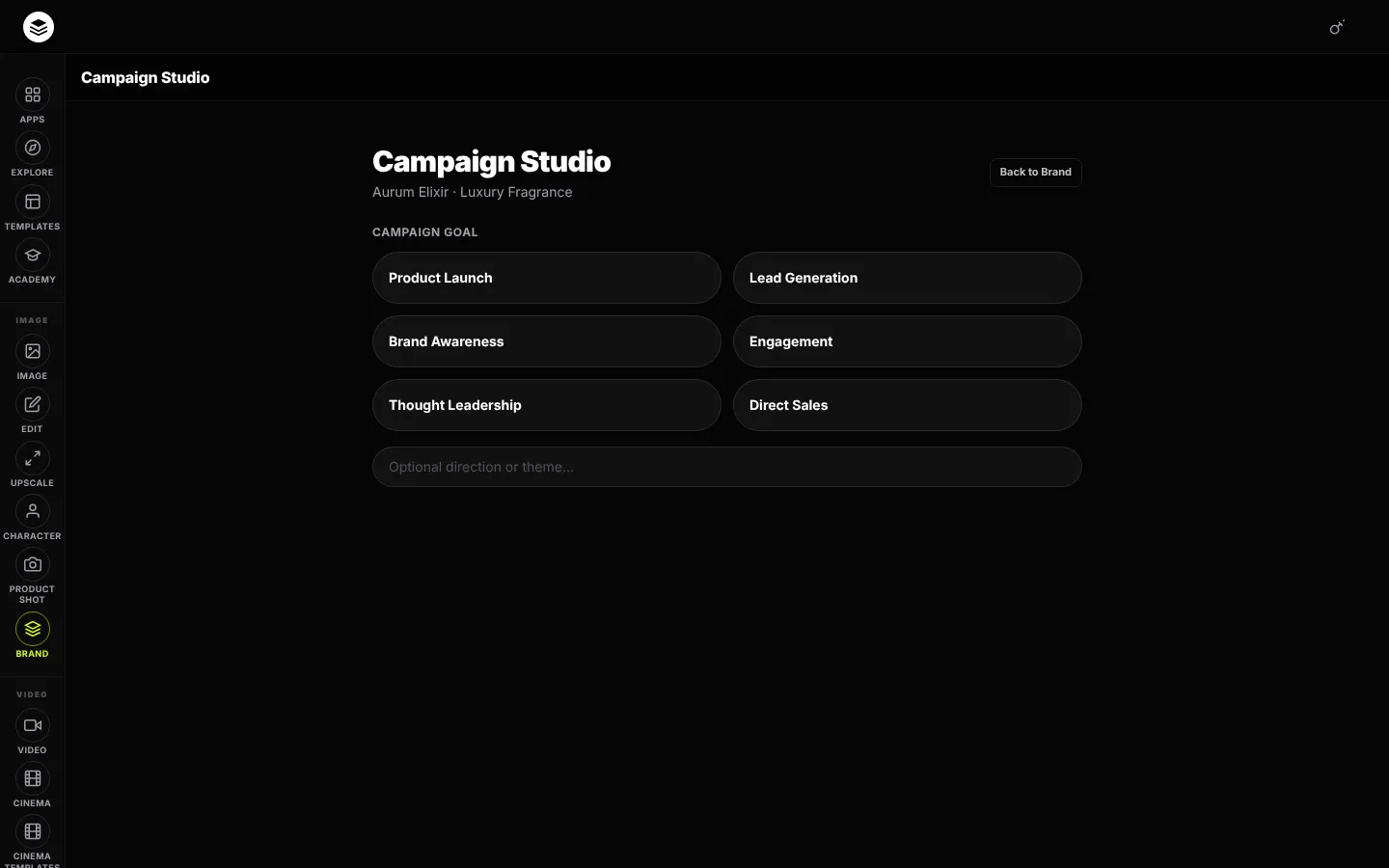
The Brand DNA Editor (#/brand-dna, titled 'Brand DNA') opens after Brand Studio analyses a website, or when you click a brand under Recent Brands or the Brand DNA card in Brand Studio. It shows the brand's website screenshot and logo, then editable fields (Brand Name, Industry, Tagline, Value Proposition, Target Audience, Imagery Style, Layout Style, Logo URL), chip lists (Tone of Voice, Brand Personality, Key Messages, Detected Fonts) and Primary and Secondary color palettes. Nothing is stored until you click Save. Header buttons open Campaign Studio ('New campaign'), Photo Studio and Animate for this brand, a Personalize button opens the personalization tool on the website screenshot, and 'Past campaigns' lists the campaigns made for this brand. The page itself uses no AI; it only edits the brand record kept in your browser, which Campaign Studio, the Asset Editor and Photo Studio then use.

When to use it

  • Brand Studio's analysis got something wrong (name, tone, audience, colors, logo).
  • You want to add or remove tone words, personality traits or key messages.
  • You want to change the brand palette or fonts used in the Asset Editor.
  • You want to start a new campaign, a product photo shoot or an animation for this brand.
  • You want to reopen a past campaign.
  • Website screenshot and logo preview.
  • Editable brand fields including Logo URL.
  • Chip editors for Tone of Voice, Brand Personality, Key Messages and Detected Fonts.
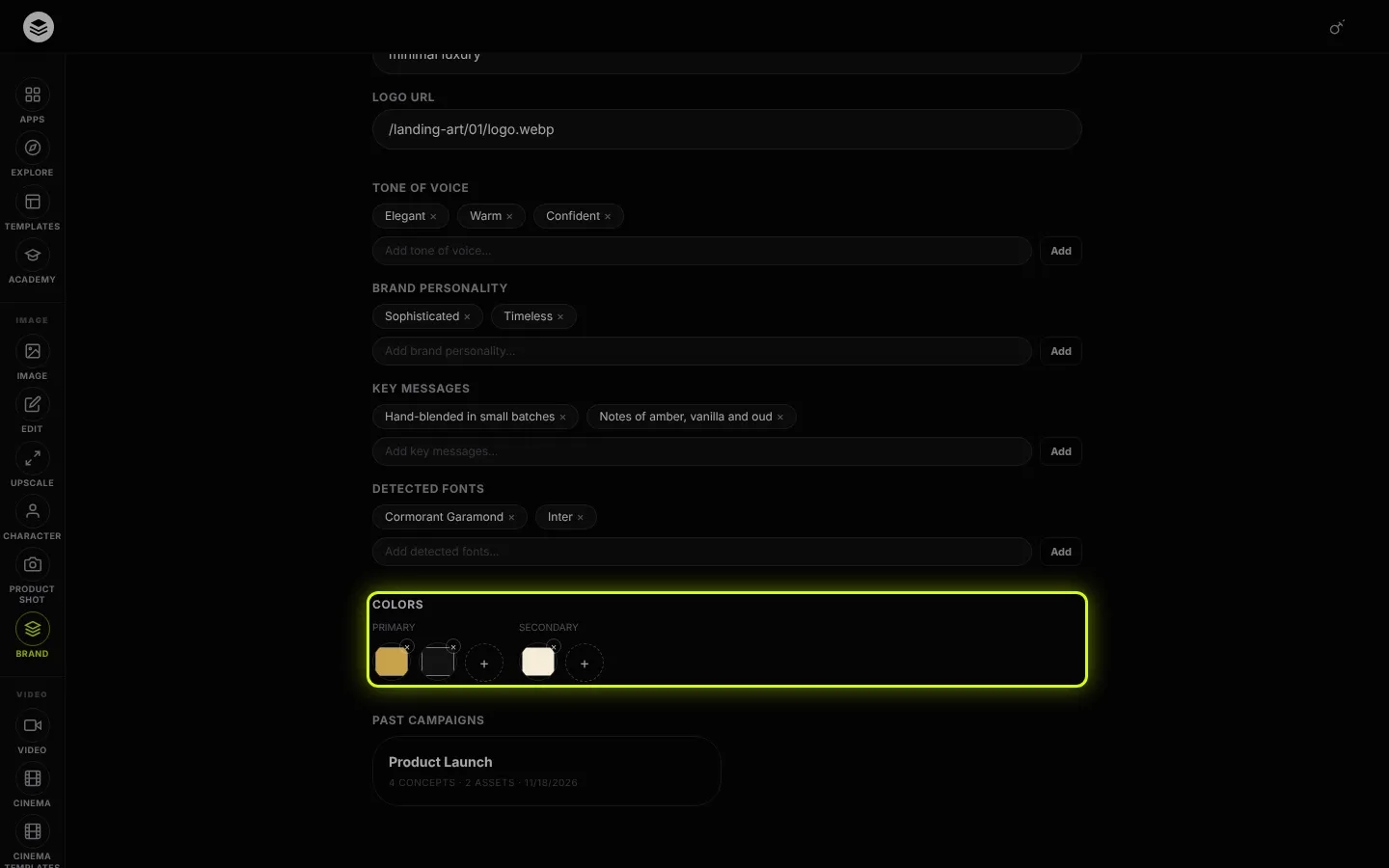
  • Primary and Secondary color palettes: edit, remove or add swatches.
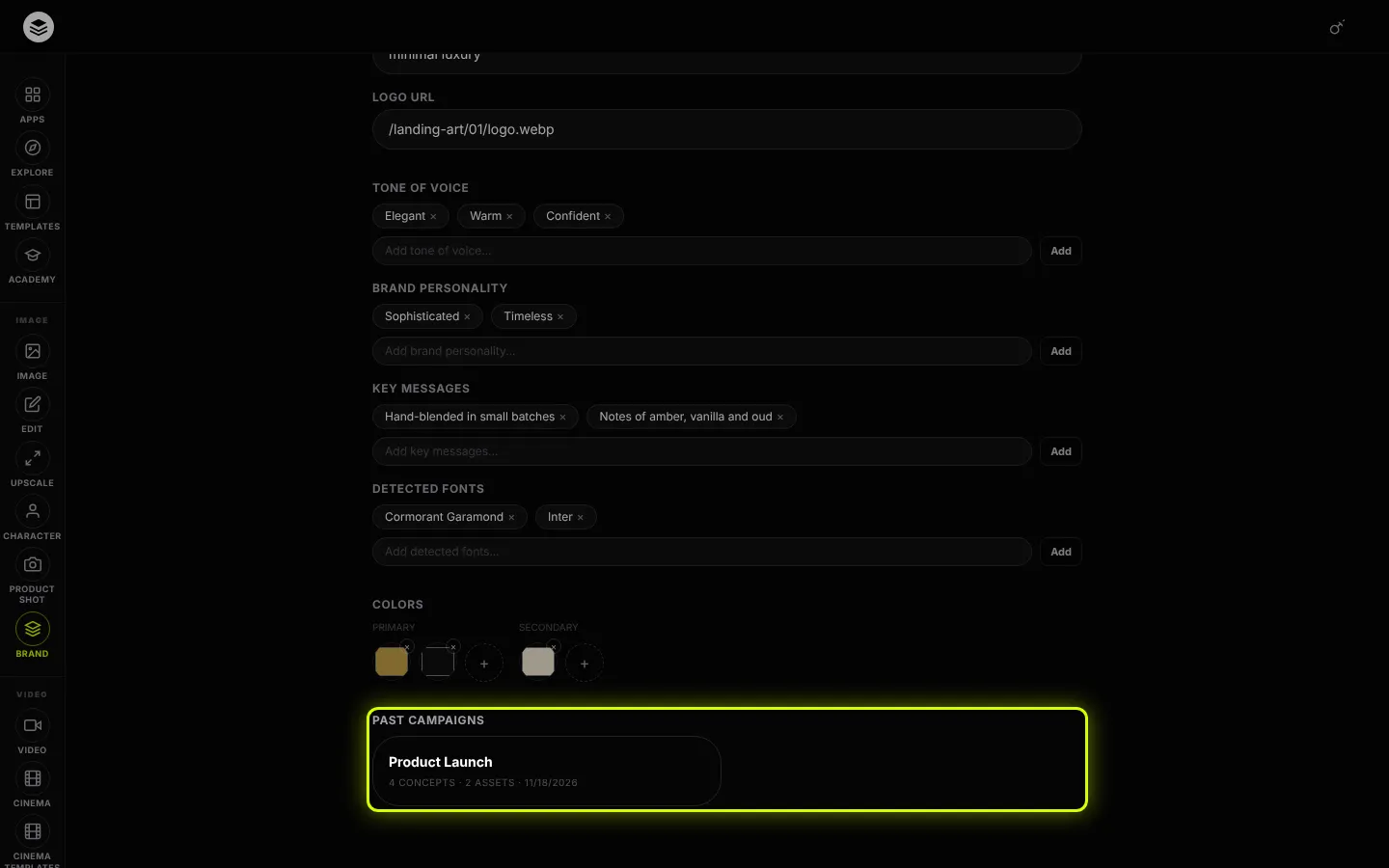
  • Past campaigns list.
  • New campaign, Photo Studio and Animate shortcuts.
  • Personalize the website screenshot.
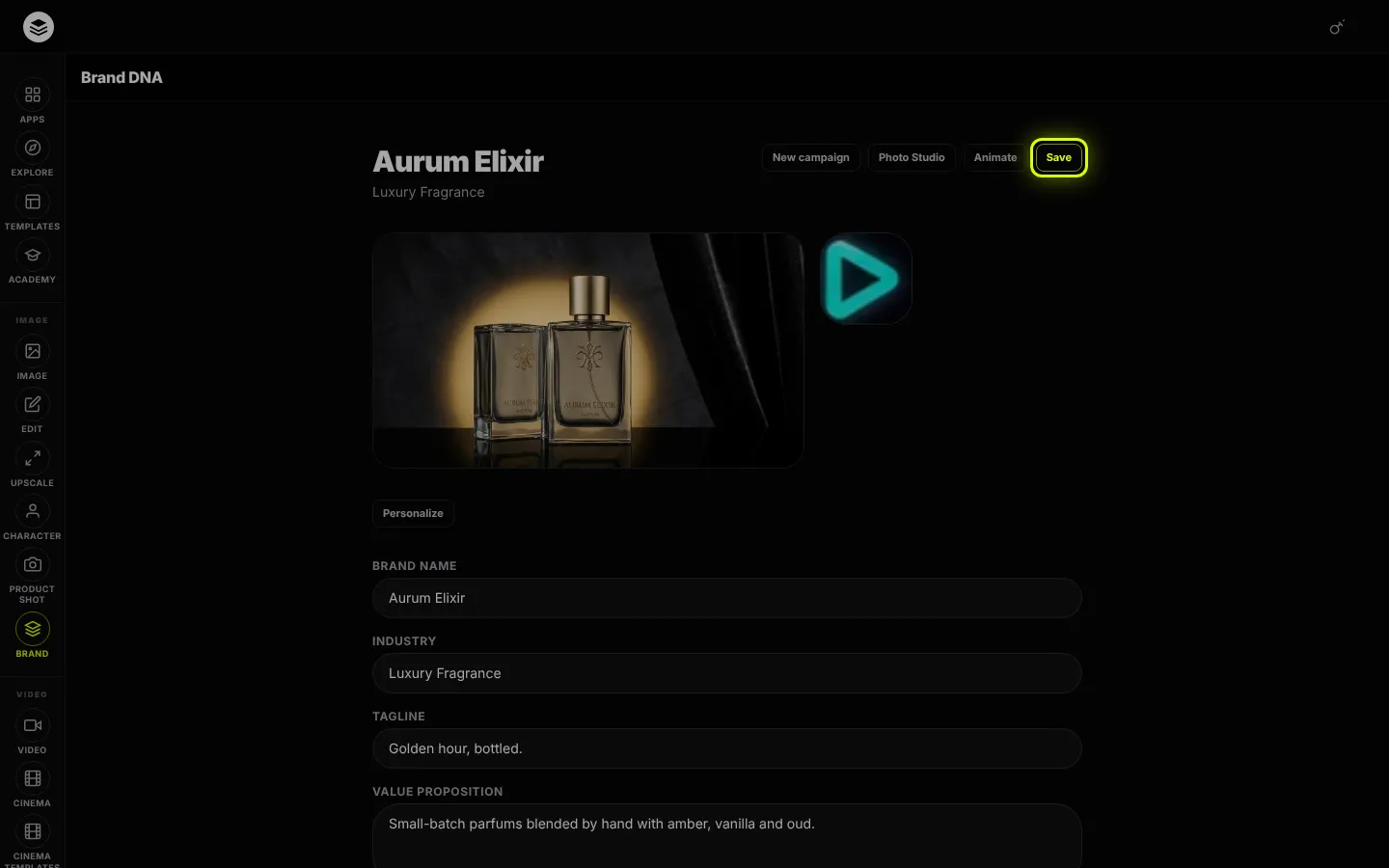
  • Save (shows 'Saved!').

Every Brand DNA Editor feature, explained

9 features, each with a definition, why you would use it, what it needs and its limits.

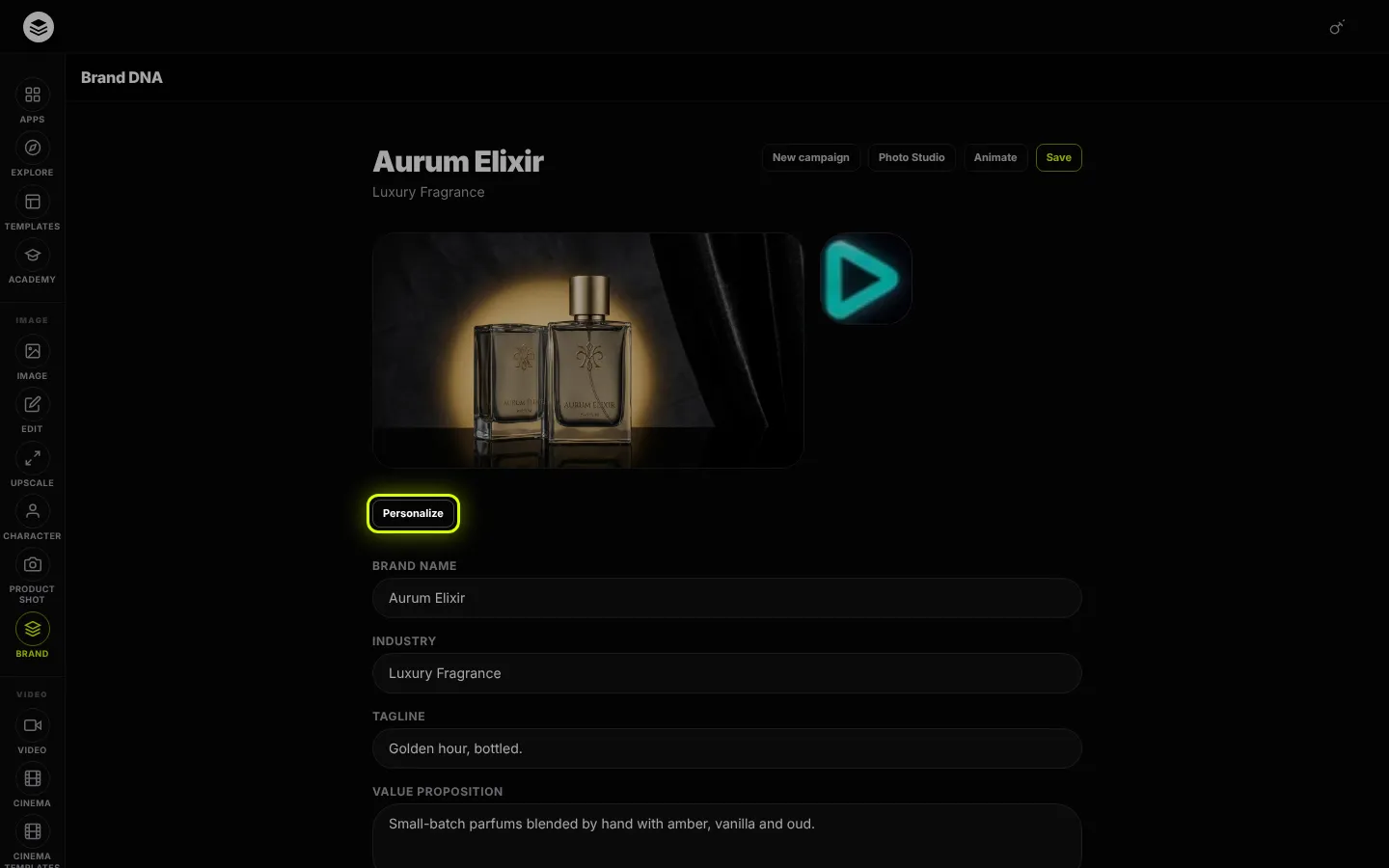
Personalize in Brand DNA Editor
Personalize
FEATURE 02

Personalize

What it is: A Personalize button under the screenshot opens the shared personalization tool (the same one behind Personalize buttons in other studios) with the website screenshot as a 16:9 image and the tagline, or else the value proposition, as the prompt.

Why use it
Make personalized versions of your site visual, for example for outreach.
What you need
A brand with a website screenshot.
Limits and rules
Only shown when the brand has a screenshot.
Brand details fields in Brand DNA Editor
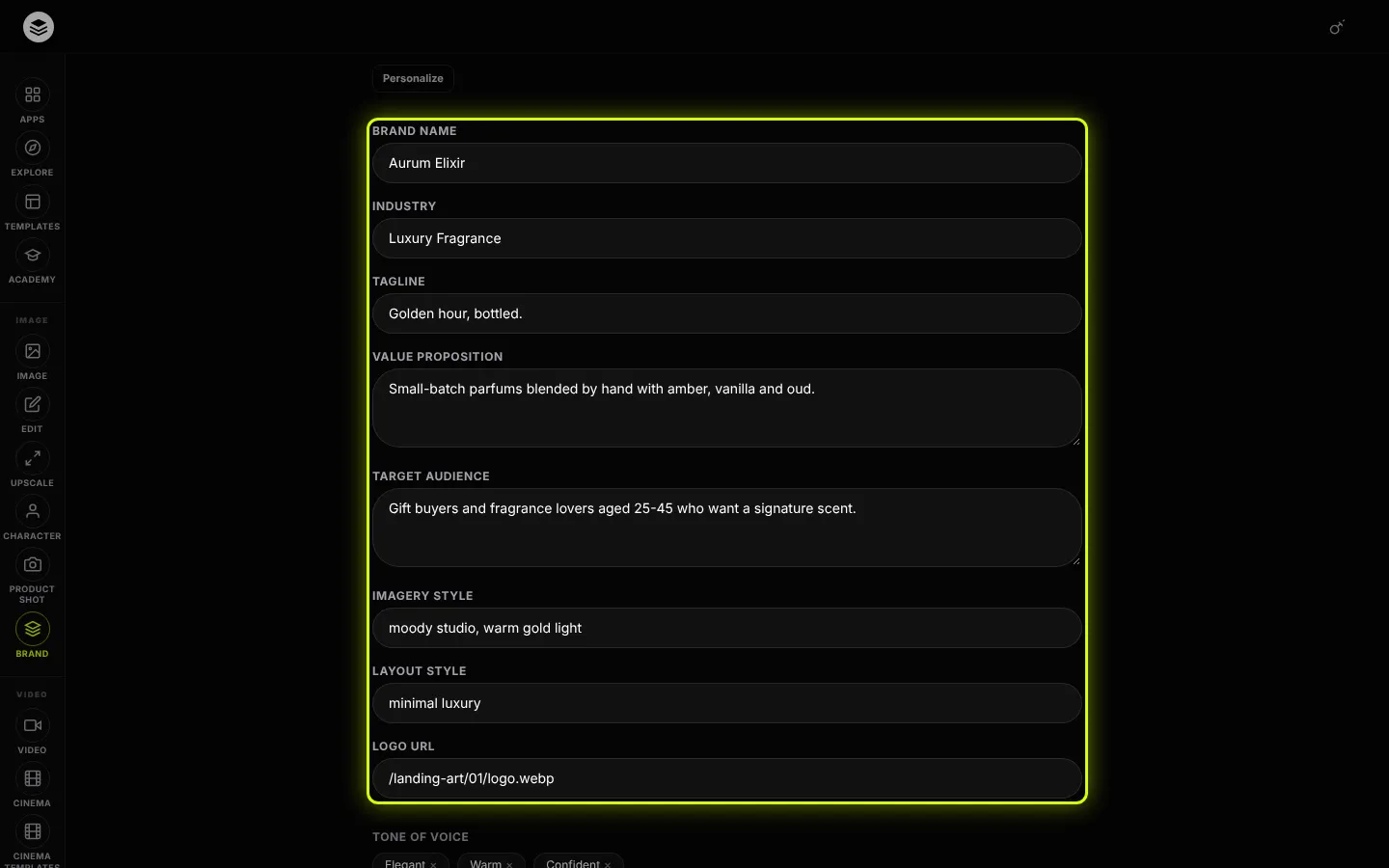
Brand details fields
FEATURE 03

Brand details fields

What it is: Text fields for Brand Name, Industry, Tagline, Imagery Style, Layout Style and Logo URL, and larger boxes for Value Proposition and Target Audience. Imagery Style and Layout Style start as 'modern' if the analysis left them empty.

Why use it
These fields are written into every campaign concept and creative, so correcting them improves all later results.
What you need
None.
Limits and rules
Changes are kept only after you click Save. Campaign Studio uses the Logo URL as a reference image only if it points to a PNG, JPG or WebP picture.
Tone of Voice, Brand Personality and Key Messages in Brand DNA Editor
Tone of Voice, Brand Personality and Key Messages
FEATURE 04

Tone of Voice, Brand Personality and Key Messages

What it is: Three chip lists. Type in the box (for example 'Add tone of voice...') and click Add or press Enter to add a chip; click the × on a chip to remove it.

Why use it
Campaign concepts and copy are written to match these words and messages.
What you need
None.
Limits and rules
Empty text is ignored. Changes are kept only after Save.
Detected Fonts in Brand DNA Editor
Detected Fonts
FEATURE 05

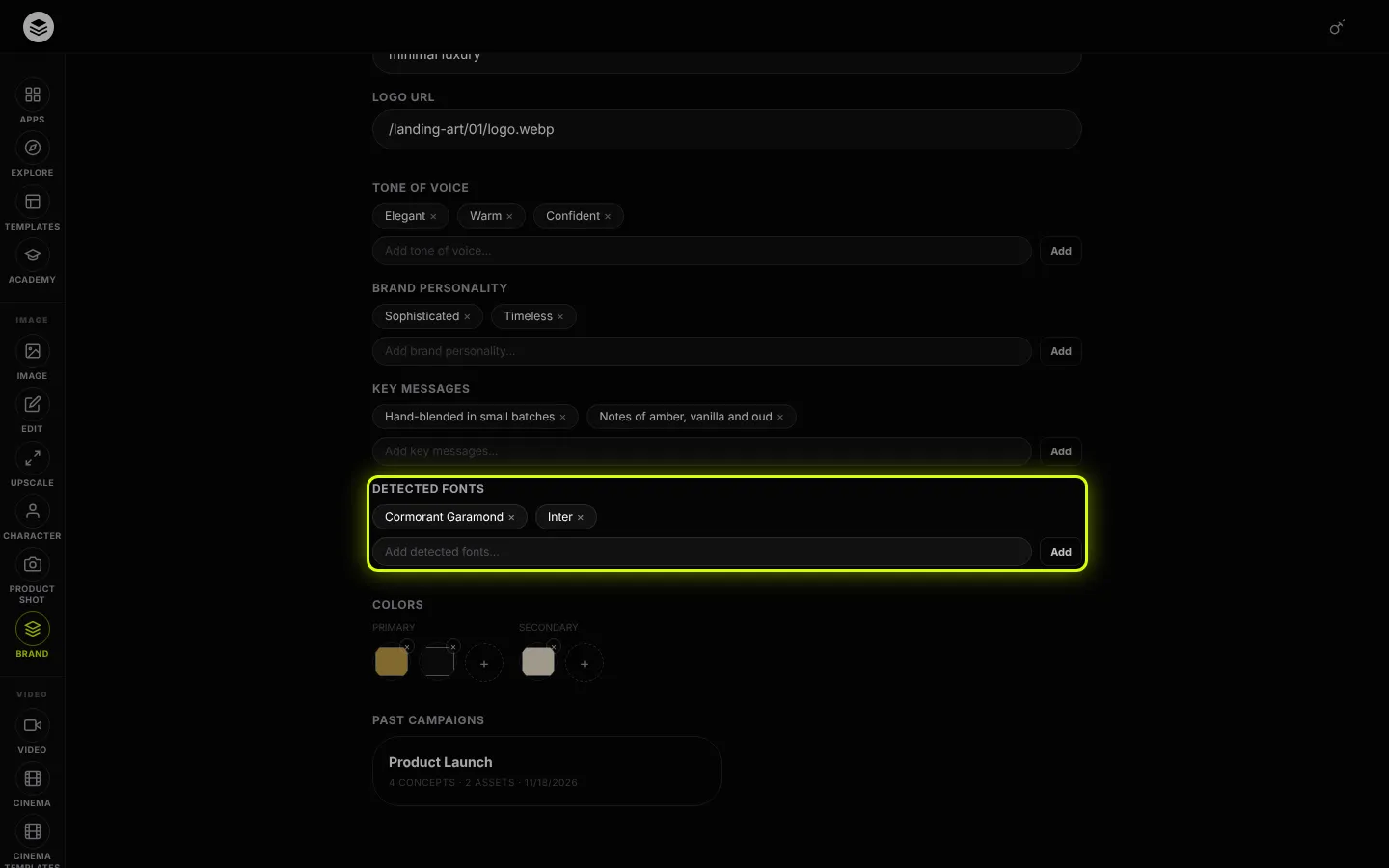
Detected Fonts

What it is: A chip list of the fonts found on the website ('Add detected fonts...'). You can add or remove fonts the same way as the other chips.

Why use it
These fonts appear first in the Asset Editor's Font list, marked '(brand)', and new campaign assets use the first one.
What you need
None.
Limits and rules
Font names are only labels; the font shows correctly only if it is available in your browser.
Colors in Brand DNA Editor
Colors
FEATURE 06

Colors

What it is: Under 'Colors' there are Primary and Secondary palettes. Click a swatch to change it with a color picker, click its × to remove it, or click + to add a new swatch (it starts as #3366ff).

Why use it
The palette is written into campaign image prompts and offered as swatches in the Asset Editor.
What you need
None.
Limits and rules
Changes are kept only after Save.
Past campaigns in Brand DNA Editor
Past campaigns
FEATURE 07

Past campaigns

What it is: When the brand has campaigns, a 'Past campaigns' section lists them newest first. Each card shows the campaign goal (for example 'Product Launch' or 'Direct Sales') and '<N> concepts · <N> assets · <date>'. Clicking a card opens that campaign's page with its concepts and assets.

Why use it
Go back to an earlier campaign to edit or animate its assets.
What you need
At least one campaign made in Campaign Studio for this brand.
Limits and rules
Hidden when there are no campaigns. A campaign saved without a goal is titled 'Campaign'.
New campaign, Photo Studio and Animate in Brand DNA Editor
New campaign, Photo Studio and Animate
FEATURE 08

New campaign, Photo Studio and Animate

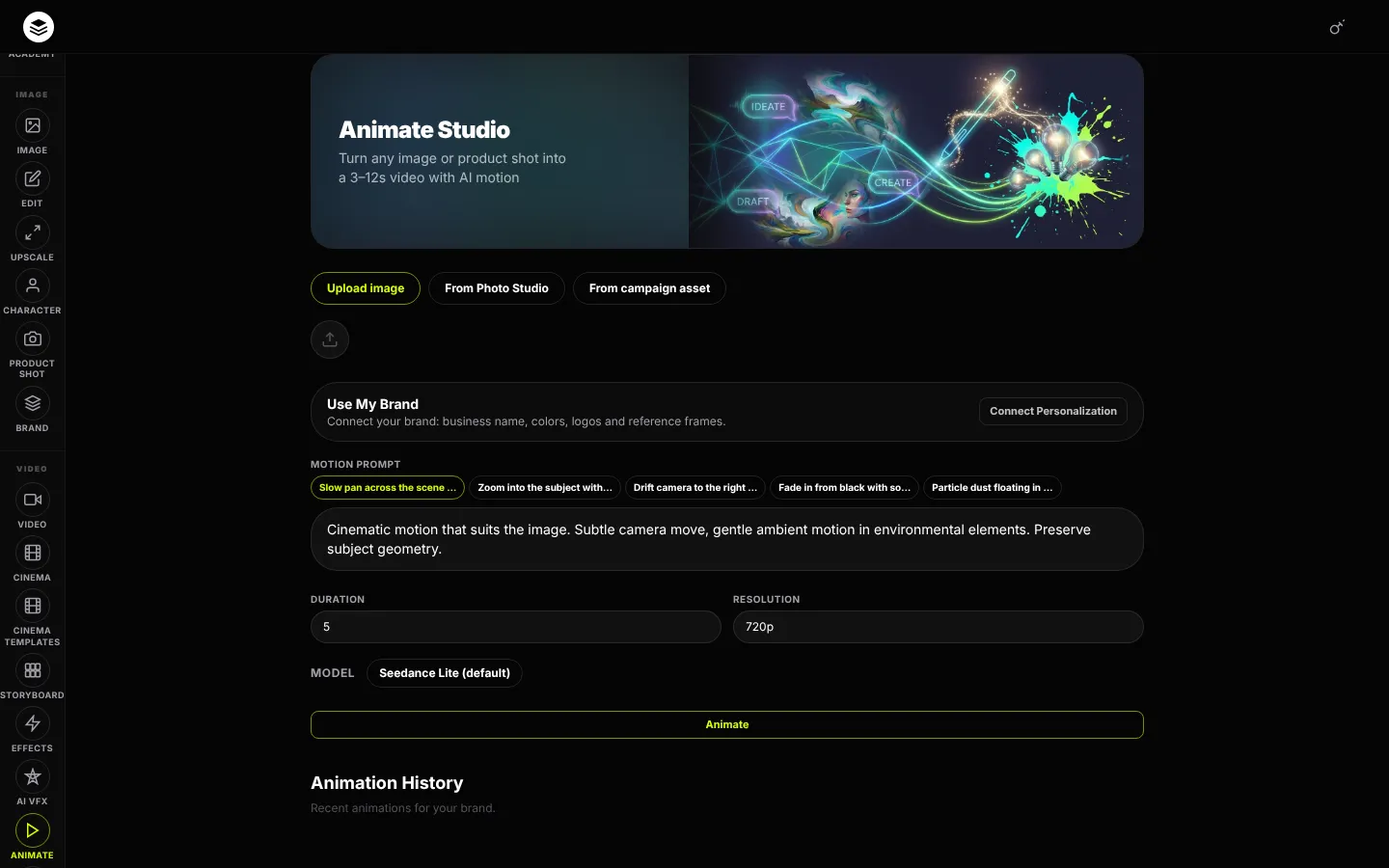
What it is: Header buttons that open Campaign Studio, Photo Studio and Animate Studio for this brand.

Why use it
Move straight on to making content with this brand.
What you need
None.
Limits and rules
They do not save your edits first; click Save before leaving or unsaved changes are lost.
Save in Brand DNA Editor
Save
FEATURE 09

Save

What it is: The Save button in the header stores all fields, chips, fonts, colors and the logo URL in your browser. The button reads 'Saved!' for a moment to confirm.

Why use it
Keep your corrections so every brand tool uses them.
What you need
None.
Limits and rules
Nothing on the page is saved until you click it. Brand data is kept in this browser only.

How to use Brand DNA Editor

  1. Open the brand from Brand Studio.
  2. Fix the text fields.
  3. Edit the chip lists.
  4. Adjust colors.
  5. Click Save.
  6. Open New campaign, Photo Studio, Animate or a past campaign.

Generation modes

The ways this studio can work, and when to pick each one.

Editing only

This page has no AI generation; it reads and writes the brand record.

Best for: Correcting the brand before using generation tools.

Inputs and outputs

What you give the studio, and what you get back.

InputDescriptionWhen to useRules
Logo URL
Optional
Web address of the brand logo.When the detected logo is wrong or missing.Campaign Studio uses it as a reference only if it is a PNG, JPG or WebP image.
Key Messages
Optional
Short statements the brand always wants to get across.To steer campaign concepts.Added one at a time with Add or Enter.
Colors
Optional
Primary and Secondary swatches.To keep creatives on palette.New swatches start as #3366ff.

What you get

  • An updated Brand DNA record in your browser

Use cases and example workflows

Real jobs you can do, step by step.

Agency client setup

Make sure a client's voice and palette are right before producing work.

  1. Edit fields and chips.
  2. Save.
  3. Start a new campaign.
Result: A corrected brand used by every brand tool.

Clean up after analysis

  1. Fix Brand Name and Tagline.
  2. Remove generic tone words and add your own.
  3. Add three Key Messages.
  4. Correct the primary color.
  5. Click Save.

Reopen a campaign

  1. Scroll to Past campaigns.
  2. Click the campaign card.
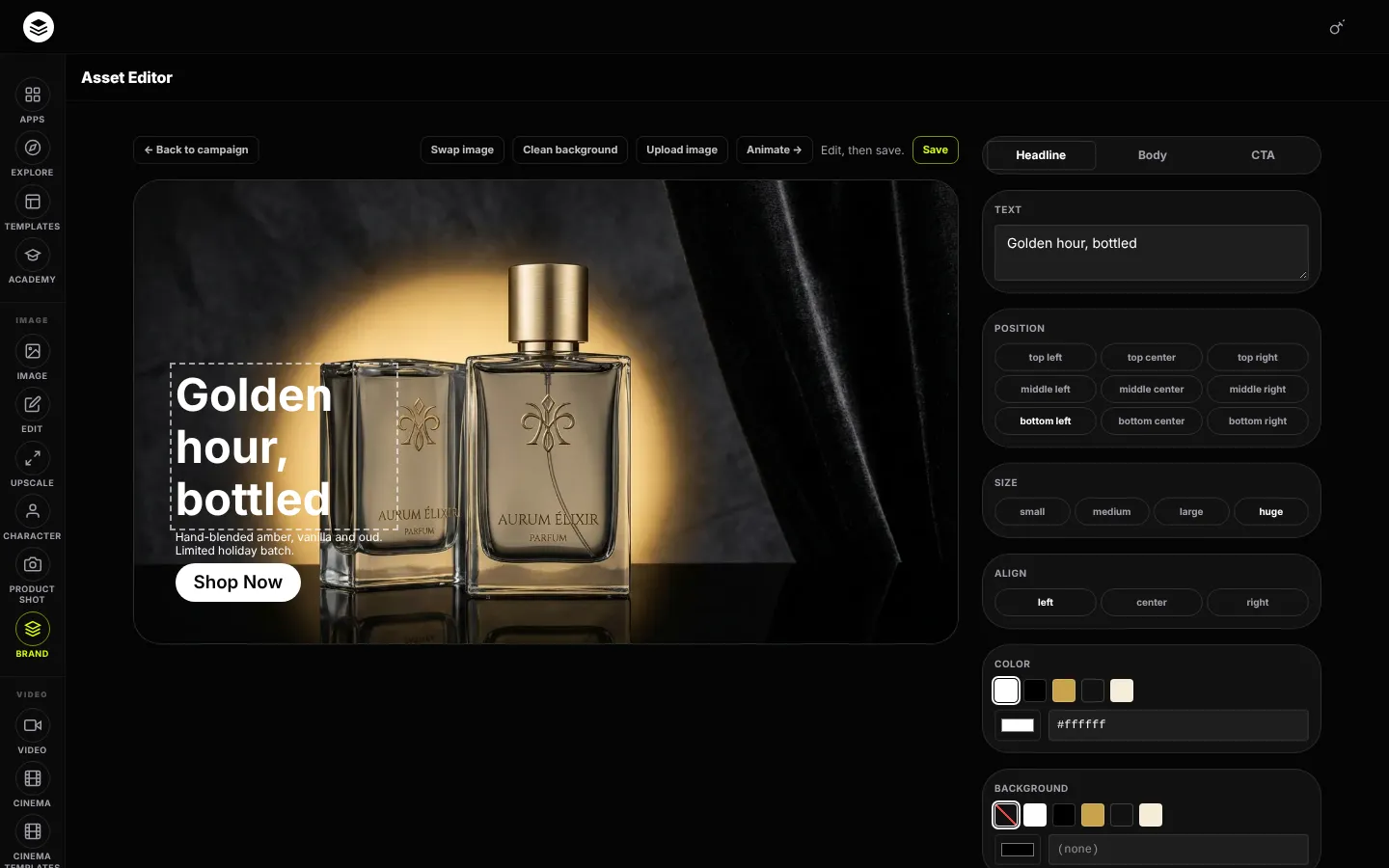
  3. Click Edit on an asset.

Tips and best practices

  • Keep Key Messages short and specific.
  • Use a PNG or JPG logo URL so campaign images can use it.
  • Click Save before clicking New campaign.
  • Review every field after analysis.
  • Limit tone words to a few that really describe the brand.

Limitations and troubleshooting

Know the limits before you start, and how to fix common problems.

LimitationWhat it meansWorkaround
No auto-saveLeaving with New campaign, Photo Studio, Animate or a past campaign card drops unsaved edits.Click Save first and wait for 'Saved!'.
Browser-only storageAnother browser or cleared site data will not have your brand.Analyse the website again and redo your edits.

Colors in creatives look off

Why: The palette came from the website analysis.

Fix: Fix the Primary and Secondary swatches and click Save.

A brand font does not display in the Asset Editor

Why: Detected Fonts are names only; the browser needs the font available.

Fix: Pick one of the system fonts in the Asset Editor instead.

Glossary

Terms used in Brand DNA Editor.

Brand DNA
The saved profile of your brand used by all brand tools.
Chip
A small removable tag such as a tone word or key message.
Primary / Secondary colors
The main and accent colors of the brand palette.
Detected Fonts
Font names found on your website.

Frequently asked questions

Does this page use AI?

No. It only edits the saved brand.

Do my edits save automatically?

No. Click Save; the button shows 'Saved!'.

Can I change more than one color?

Yes. Edit, remove or add any number of Primary and Secondary swatches.

Where are the fonts used?

In the Asset Editor's Font list (marked '(brand)') and as the default font of new campaign assets.

How do I get back to an old campaign?

Click its card under Past campaigns.

Try Brand DNA Editor now

Open the studio and put these features to work, or browse the guides for all 53 studios.