AI Agents & Automation · Feature guide

Director Feature Guide

AI agentic editor with 48 agents that analyse and edit an existing video through chat.

Director is a chat-and-agents workspace where you load a video and ask AI agents to summarize it, find highlights, add subtitles, dub it, cut shorts, fix color and more. It has 48 agents backed by VideoDB, OpenAI and FFmpeg.

Best for: People who already have a video and want AI help understanding, cutting, captioning, translating or enhancing it, rather than generating new footage from scratch.

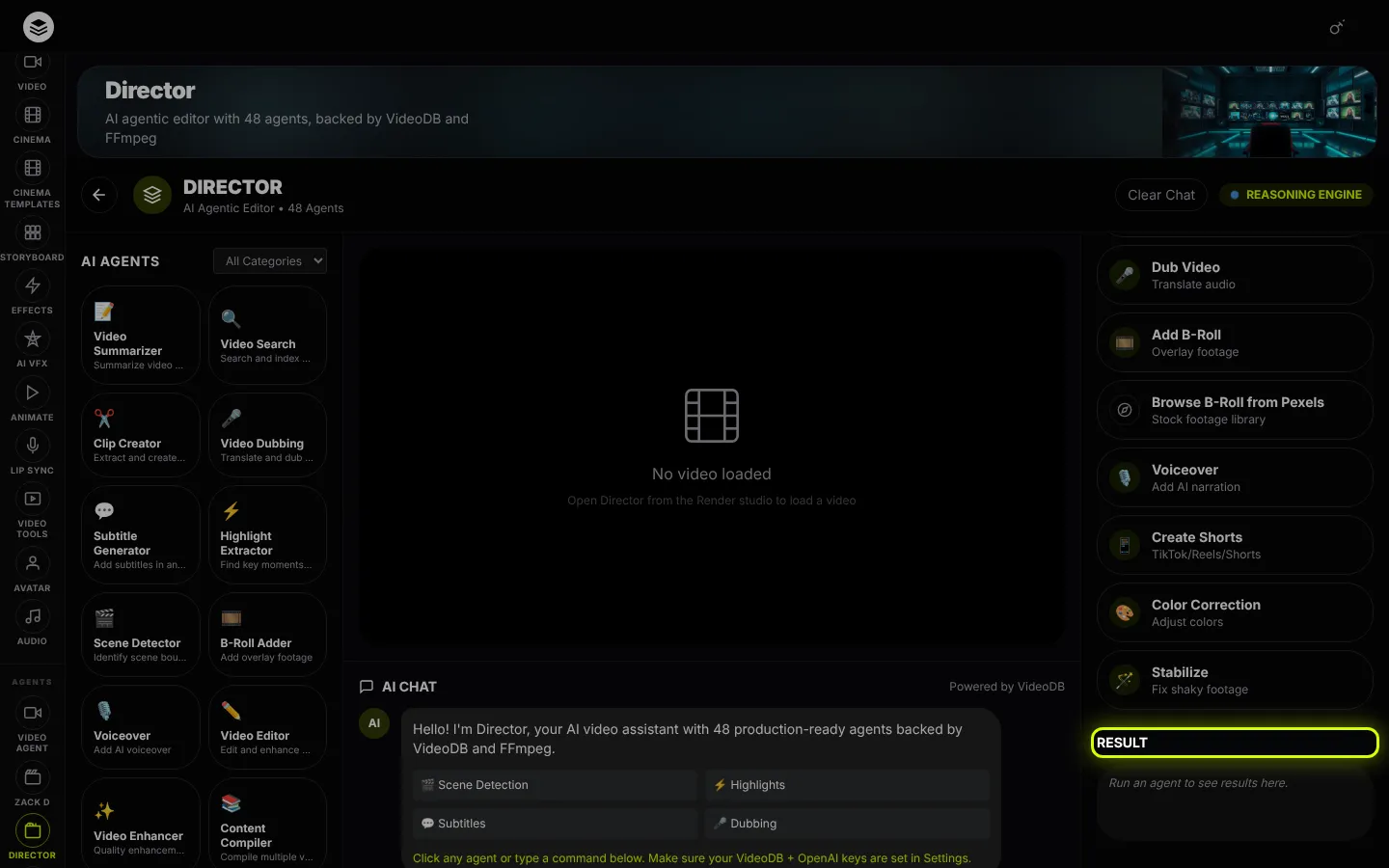
Director screenshot

Watch the Director tour

A 1:52 captioned walkthrough of the studio, with a sample file and prompt.

VIDEO · 1:52

What is Director?

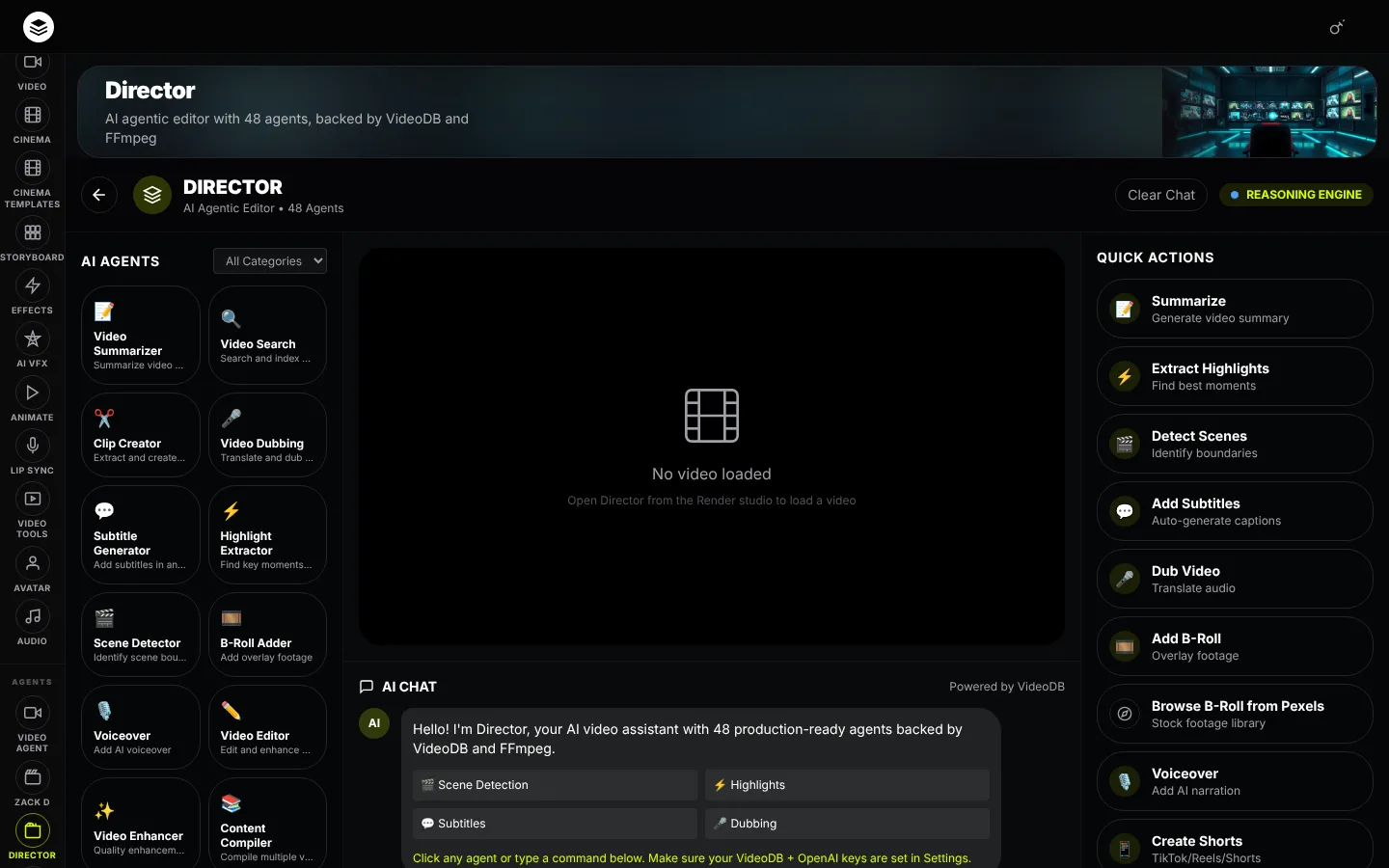
Director (also labelled DIRECTOR - AI Agentic Editor - REASONING ENGINE on the page) works on a video you already have. You open it with a video loaded (normally by going to Director from the Render studio), then either click one of the 48 agent cards, click a Quick Action, or type a command such as 'Summarize this video'. Director matches your words to an agent, shows processing steps and a progress bar, and returns a result (a summary, highlights, scenes, subtitles, a dubbed or processed video, a timeline and so on) in the RESULT panel. Most agents run as jobs on the backend using VideoDB and OpenAI keys; a few (B-roll, shorts, color correction, upscaling, stabilization, speed, reverse) use FFmpeg-based actions. You need your own VideoDB and OpenAI keys saved in Settings, and an active plan.

When to use it

  • You want a summary, scene list or highlights of an existing video.
  • You want subtitles or an SRT file for a video.
  • You want to dub or translate a video into another language.
  • You want short vertical clips for TikTok, Reels or Shorts cut from a longer video.
  • You want to find moments by what is said (keyword search) or what is seen (visual search).
  • You want quick fixes: color correction, stabilization, speed change, reverse or upscale.
  • You want a voiceover, a meme, a trailer narration or other creative remix built on your video.
  • 48 AI agents in ten categories: Analysis, Search, Extract, Translate, Accessibility, Enhance, Audio, Edit, Create and Social.
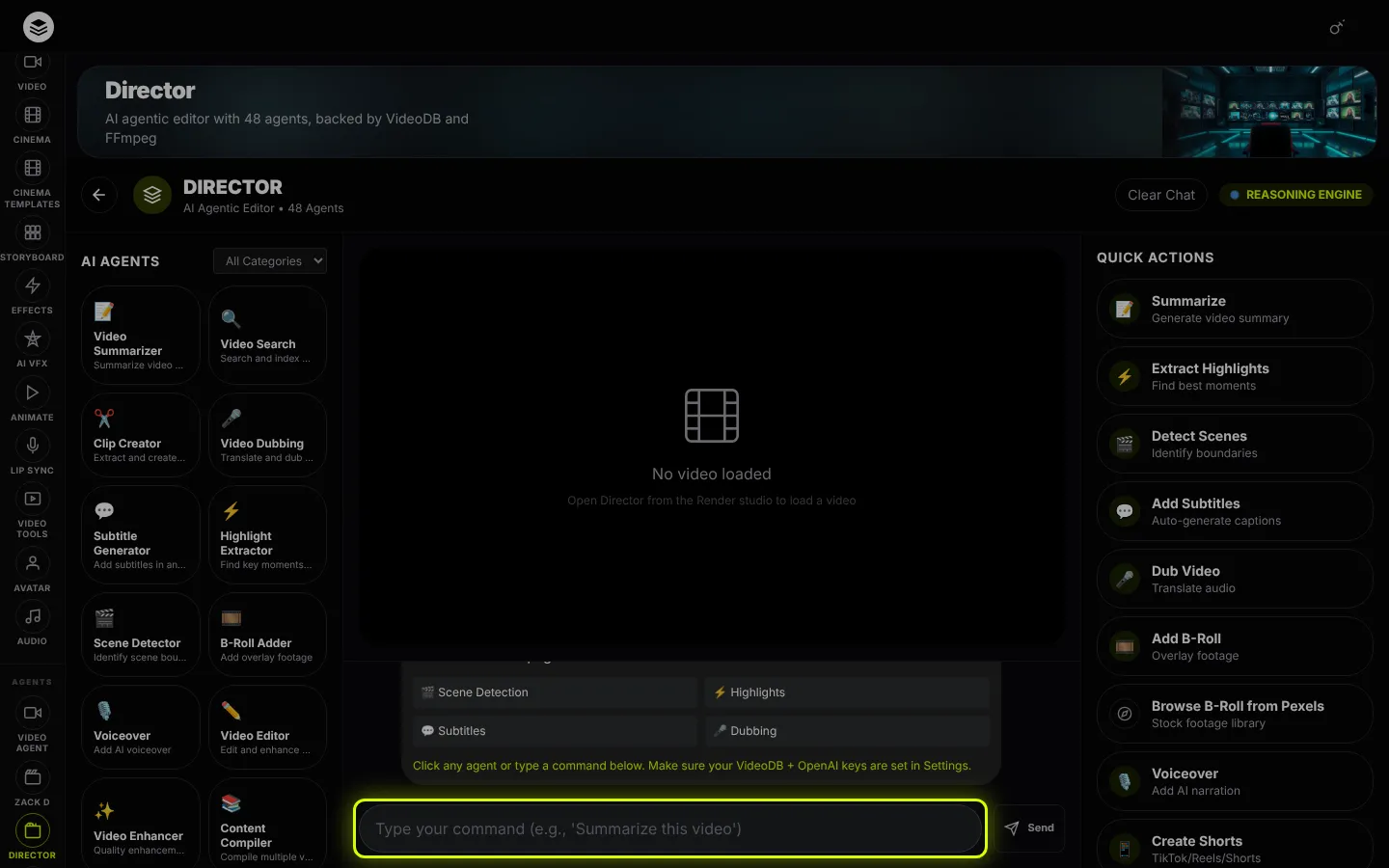
  • AI CHAT with a command box: type a request and Director picks the matching agent by keywords.
  • AI AGENTS panel with a category filter (All Categories plus each category).
  • QUICK ACTIONS: Summarize, Extract Highlights, Detect Scenes, Add Subtitles, Dub Video, Add B-Roll, Browse B-Roll from Pexels, Voiceover, Create Shorts, Color Correction, Stabilize.
  • Live PROCESSING panel with step names and a Progress percentage bar, plus a Cancel button.
  • ACTIVE AGENTS list and RECENT ACTIONS history in the left panel.
  • RESULT panel that shows summaries, counts, playable video or audio, and a Download link.
  • Inline mini-forms for agents that need extra input (for example voice text, two video URLs or a collection id).
  • Chat history is remembered in your browser; Clear Chat resets it.
  • Automatic retry for network errors, 429 and 5xx responses (up to 3 attempts).

Every Director feature, explained

8 features, each with a definition, why you would use it, what it needs and its limits.

Command box (AI CHAT) in Director
Command box (AI CHAT)
FEATURE 01

Command box (AI CHAT)

What it is: Type a request in the box with placeholder 'Type your command (e.g., 'Summarize this video')' and click Send or press Enter. Director looks for keywords in your sentence (for example summarize, subtitle, dub, highlight, scene, shorts, color, stabilize, speed, reverse, thumbnail, trailer, meme, slack) and runs the first matching agent.

Why use it
The quickest way to run an agent in plain language.
What you need
A sentence containing a keyword for the agent you want.
Limits and rules
If no agent matches, Director replies 'I couldn't match that to a specific agent. Try one of these or use a keyword:' and shows suggestion chips. Only one job runs at a time.
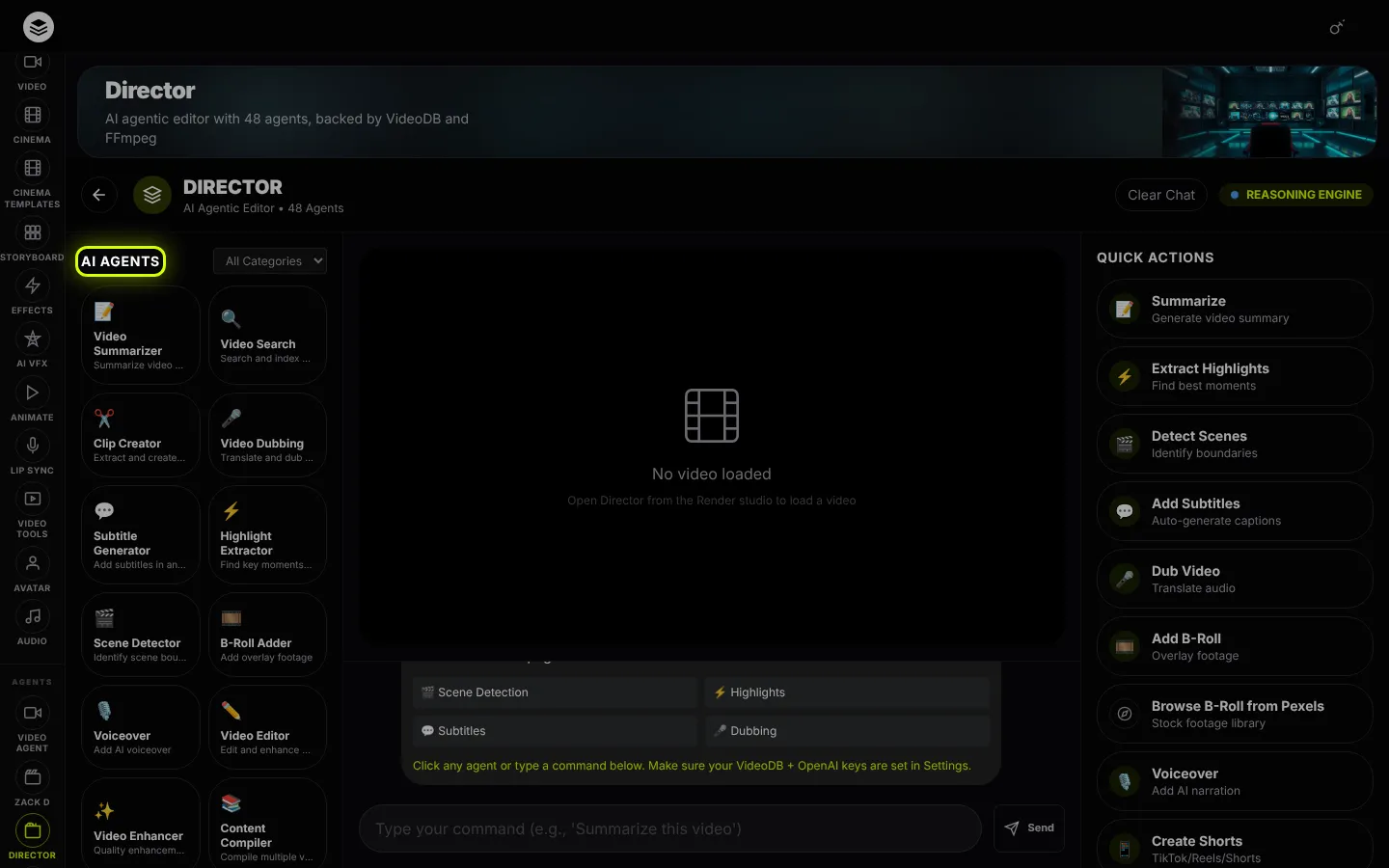
AI AGENTS panel in Director
AI AGENTS panel
FEATURE 02

AI AGENTS panel

What it is: A grid of 48 agent cards. Clicking a card runs that agent using its description as the command. The drop-down 'All Categories' filters the grid by category.

Why use it
Browse what is possible and run an agent without typing.
What you need
A loaded video.
Limits and rules
Without a video, clicking a card says 'Please open Director with a video URL (from the Render studio) before running <agent>.' and a 'No video loaded' notice appears.
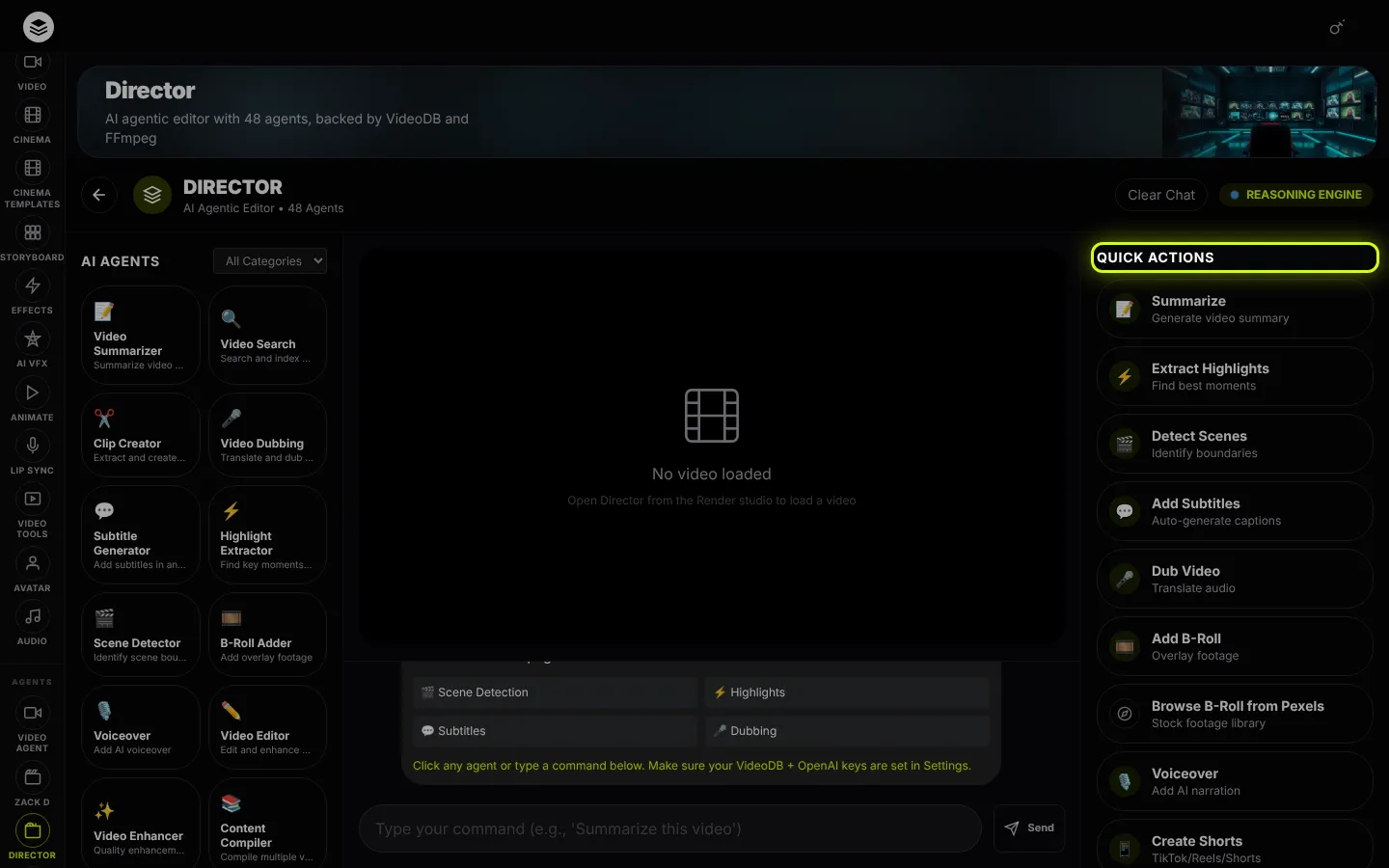
QUICK ACTIONS in Director
QUICK ACTIONS
FEATURE 03

QUICK ACTIONS

What it is: Ready-made buttons that send a command for you: Summarize ('summarize this video'), Extract Highlights, Detect Scenes, Add Subtitles, Dub Video (sends 'dub to Spanish'), Add B-Roll, Voiceover, Create Shorts (TikTok/Reels/Shorts), Color Correction, Stabilize.

Why use it
One-click common jobs.
What you need
A loaded video.
Limits and rules
Dub Video defaults to Spanish; type your own command (for example 'dub to French') to choose another language.
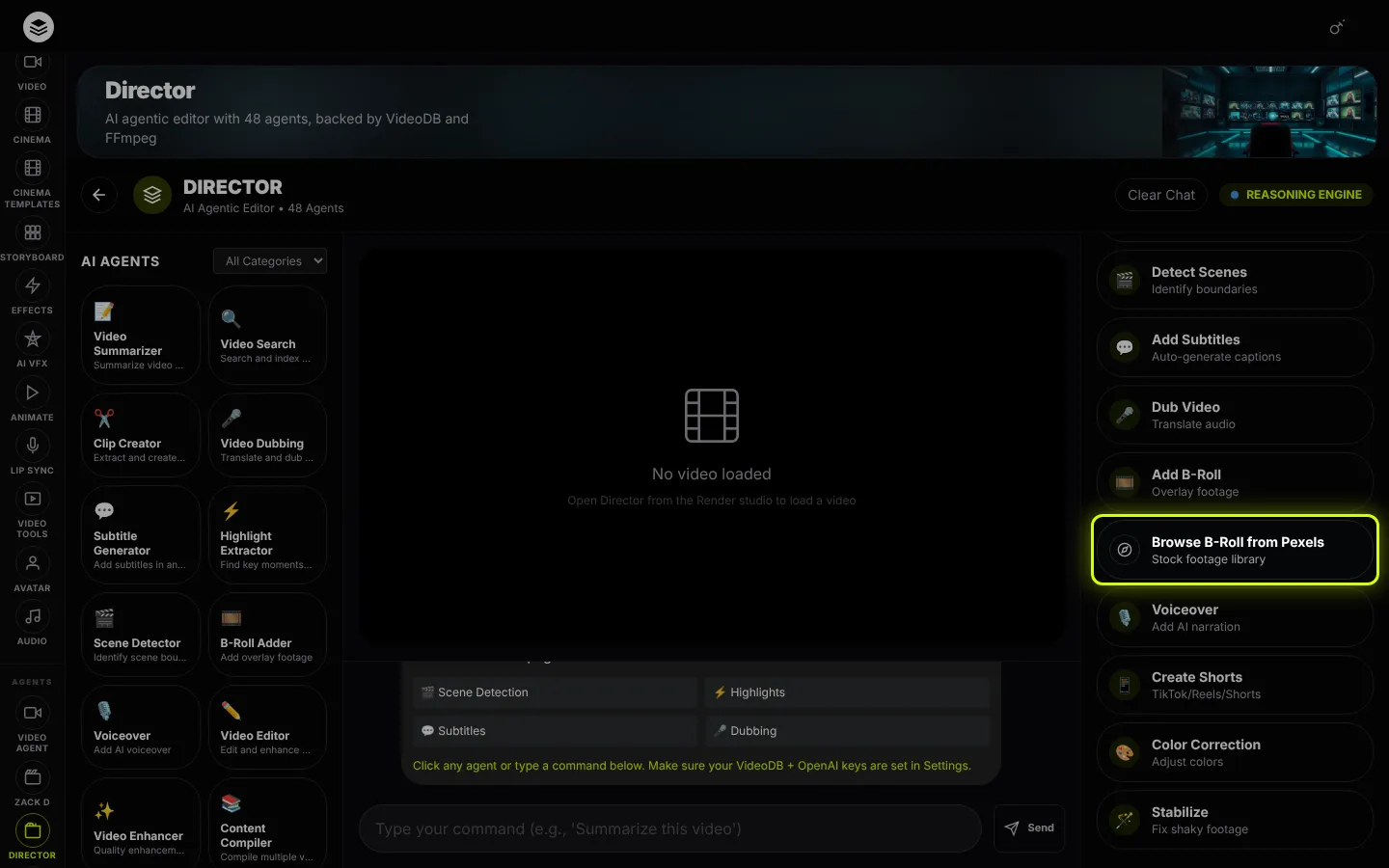
Browse B-Roll from Pexels in Director
Browse B-Roll from Pexels
FEATURE 04

Browse B-Roll from Pexels

What it is: Opens a Pexels stock-footage browser titled 'Browse B-Roll'. Selecting a clip adds it as B-roll and shows the photographer attribution chip.

Why use it
Find free stock footage to overlay.
What you need
None.
Limits and rules
Attribution to the Pexels photographer is shown with the selection.
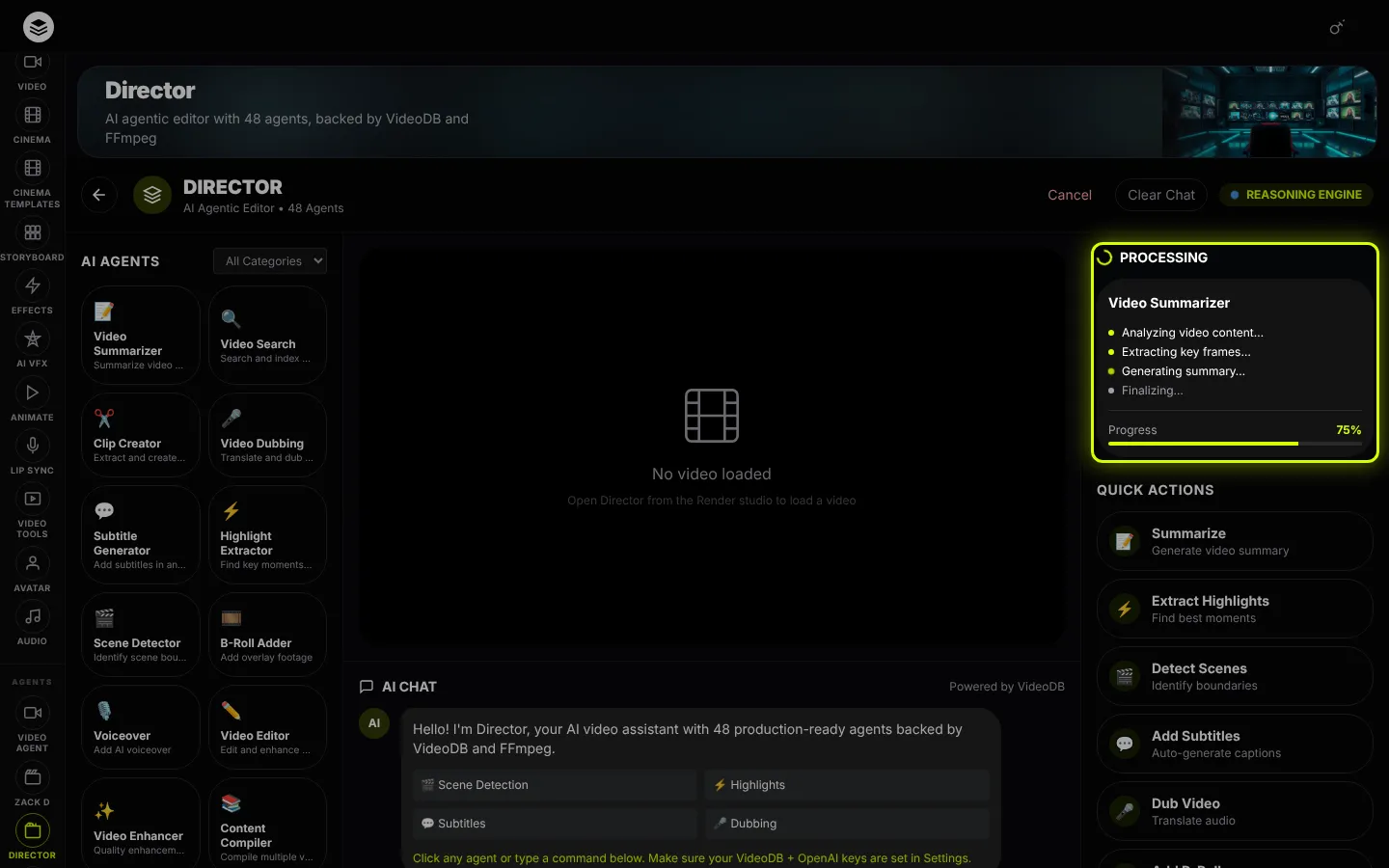
Processing panel and Cancel in Director
Processing panel and Cancel
FEATURE 05

Processing panel and Cancel

What it is: While a job runs, the PROCESSING panel shows the agent name, step lines (for example 'Analyzing video content...', 'Generating summary...') and a Progress percentage. A Cancel button appears in the header.

Why use it
See what is happening and stop a job you no longer want.
What you need
None.
Limits and rules
Cancel stops waiting for the job and shows 'Job cancelled'. Jobs time out after 10 minutes: 'Job timed out after 10 minutes'.
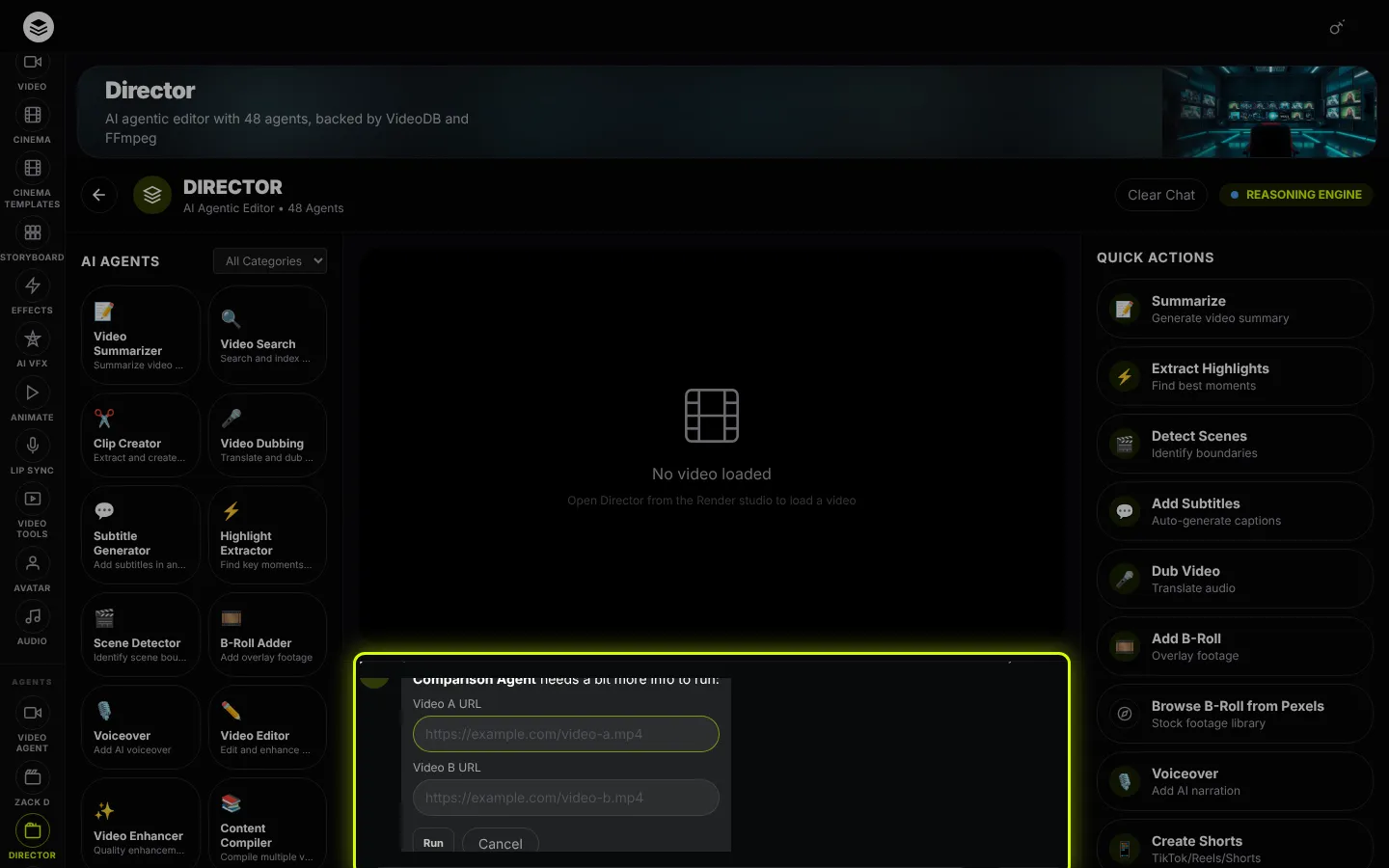
Extra-input forms in Director
Extra-input forms
FEATURE 06

Extra-input forms

What it is: Some agents ask for more information in a small form in the chat with Run and Cancel buttons. Voice Cloning asks for 'Text to synthesize'. Gen AI Audio Overlays and AI Voiceovers ask for 'Audio description / script'. Comparison Agent asks for 'Video A URL' and 'Video B URL'. Content Compiler, Compilation Builder and Montage Builder ask for 'VideoDB Collection ID' (default 'default').

Why use it
Provides the data those agents cannot get from the loaded video.
What you need
The fields shown.
Limits and rules
Empty required fields show 'Please provide a value for "<field>".' Press Enter to run or Escape to cancel.
RESULT panel in Director
RESULT panel
FEATURE 07

RESULT panel

What it is: Shows what the agent produced: summary text, counts such as scenes, highlights, matches or shorts, SRT size, a playable video or audio player, and a Download link.

Why use it
Read or download the output.
What you need
None.
Limits and rules
Which fields appear depends on the agent; before any run it says 'Run an agent to see results here.'
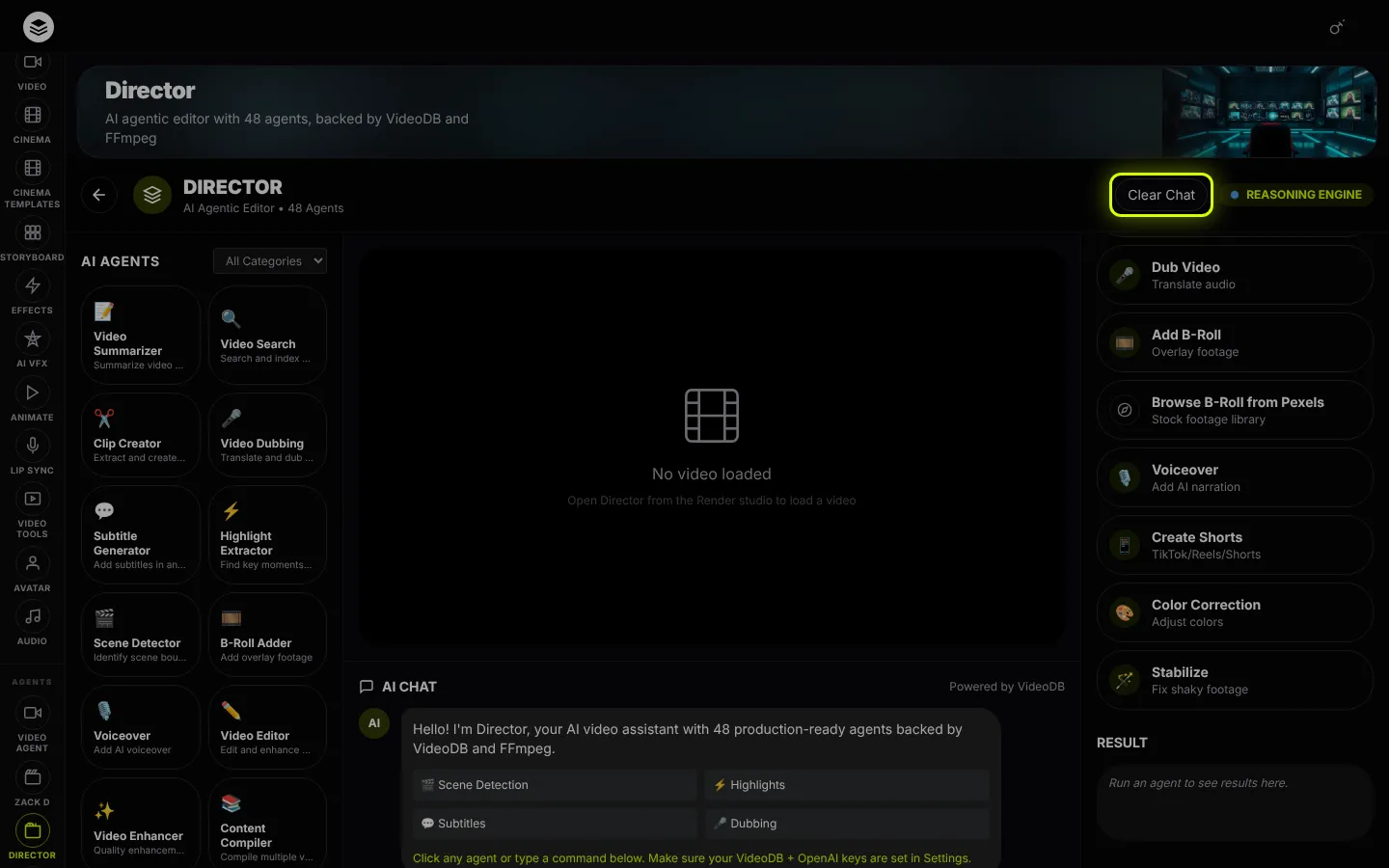
Clear Chat and Back in Director
Clear Chat and Back
FEATURE 08

Clear Chat and Back

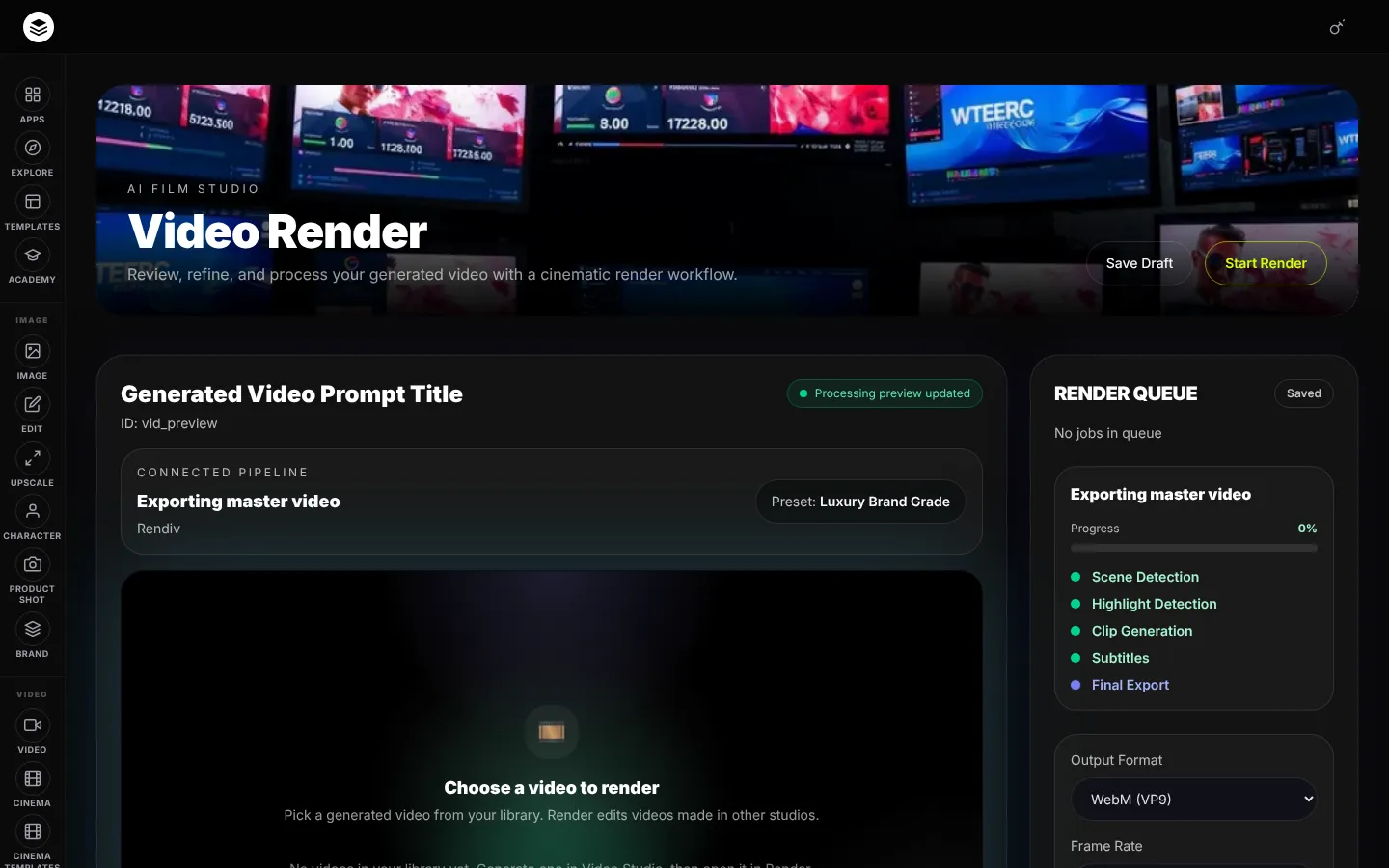
What it is: Clear Chat wipes the saved conversation and restores the greeting. The back arrow in the header returns to the Render studio with your video.

Why use it
Start fresh, or go back to finishing your video.
What you need
None.
Limits and rules
Chat history is stored in this browser only.

How to use Director

  1. Open Director from the Render studio so a video is loaded.
  2. Save your VideoDB and OpenAI keys in Settings.
  3. Click an agent card, a Quick Action, or type a command and click Send.
  4. Fill in any extra-input form and click Run.
  5. Follow progress in the PROCESSING panel; Cancel if needed.
  6. Review the result in RESULT, download it if offered.
  7. Use the back arrow to return to Render.

Generation modes

The ways this studio can work, and when to pick each one.

Backend job agents (VideoDB + OpenAI)

The request is submitted as a job and polled every 1.5 seconds until it completes, fails or is cancelled (10 minute limit). Used by summaries, highlights, scene detection, subtitles, dubbing, search, text-to-movie, storyboarding, memes, trailers, voiceover and cloning, ad films, lyric video, profanity remover, sales assistant, comparison, Slack, intro/outro, brand elements, dynamic ads and more.

Best for: Analysis and creative AI tasks.

FFmpeg actions

Returns results directly without job polling. Used by B-Roll Adder, Social Media Clip (create shorts), Color Correction, Video Enhancer (upscale), Video Stabilize, Speed Control and Reverse Video.

Best for: Fast technical fixes.

VideoDB timeline compile

Content Compiler, Compilation Builder and Montage Builder search your VideoDB collection semantically for your prompt and compile the matches into a timeline.

Best for: Building a compilation from many stored videos. If nothing matches you get 'No matching moments found in the collection.'

Inputs and outputs

What you give the studio, and what you get back.

InputDescriptionWhen to useRules
Loaded video
Required
The video Director works on. It is taken from the page link (videoUrl and videoId), which the Render studio provides.Before clicking agent cards.With no video the player shows 'No video loaded - Open Director from the Render studio to load a video'.
VideoDB key
Required
Your VideoDB API key used by the VideoDB-backed agents.Save once in Settings.Missing key messages include 'VideoDB API key not configured. Add your VideoDB key in Settings.' or 'Missing API key. Add your VideoDB + OpenAI keys in Settings to use <agent>.'
OpenAI key
Required
Your OpenAI key used by the AI agents.Save once in Settings.Same missing-key message as above.
Command text
Optional
A sentence describing the task.When you prefer typing over clicking.Must contain a recognised keyword to match an agent.
Extra fields
Optional
Per-agent extra inputs shown in a form.Voice Cloning, Gen AI Audio Overlays, AI Voiceovers, Comparison Agent, Content Compiler, Compilation Builder, Montage Builder.Required fields cannot be empty.

What you get

  • Text results in chat (summaries, counts, transcripts)
  • Subtitles (SRT)
  • Processed or dubbed video, shorts, color-corrected or stabilized video
  • Audio such as voiceovers or overlays
  • A compiled timeline from a VideoDB collection
  • Playable media and a Download link in the RESULT panel

Use cases and example workflows

Real jobs you can do, step by step.

Social clips from a webinar

Find the best moments and make vertical clips.

  1. Run Extract Highlights.
  2. Run Create Shorts.
  3. Download the clips.
Result: Short clips ready to post.

Accessibility captions

Add subtitles for viewers who watch without sound.

  1. Click Add Subtitles.
  2. Wait for the SRT to be generated.
  3. Download the result.
Result: Subtitles (SRT) for your video.

Summarize and caption a video

  1. From the Render studio open Director with your video.
  2. Click the Summarize Quick Action and read the summary in RESULT.
  3. Click Add Subtitles and wait for the SRT result.
  4. Click the back arrow to return to Render.

Turn a long video into shorts

  1. Open Director with the video loaded.
  2. Click Create Shorts.
  3. Check the result count in RESULT and play or download the clips.

Dub into another language

  1. Type 'dub to French' in the command box and click Send.
  2. Follow the PROCESSING steps (extract audio, transcribe, translate, synthesize, mix).
  3. Play or download the dubbed video.

Tips and best practices

  • Use the category drop-down to find agents quickly.
  • Include a number in speed commands.
  • Name the language in dubbing commands.
  • Run Detect Scenes or Summarize first to understand a long video.
  • Start from the Render studio so your video is loaded.
  • Keep keys current in Settings.
  • Run one agent at a time and review the RESULT before the next.
  • Use shorter videos for faster jobs.

Limitations and troubleshooting

Know the limits before you start, and how to fix common problems.

LimitationWhat it meansWorkaround
No video loadedAgent cards will not run and show 'No video loaded'.Go to the Render studio, load a video, then open Director from there.
Keyword matchingA sentence without a recognised keyword gets 'I couldn't match that to a specific agent'.Click an agent card or use words like summarize, subtitle, dub, highlight, shorts, color or stabilize.
Plan requiredWithout an active plan you see 'This feature requires an active subscription. Please check your plan in Settings.'Check or upgrade your plan.

Dub Video always dubs to Spanish

Why: The Quick Action sends the fixed command 'dub to Spanish'.

Fix: Type your own command such as 'dub to French' in the command box.

Speed Control used 1.5x

Why: Speed is read from your command text and defaults to 1.5 when no number is found.

Fix: Include the number, for example 'speed 2'.

Old chat reappears

Why: Chat history is saved in your browser.

Fix: Click Clear Chat.

Glossary

Terms used in Director.

Agent
A specialised AI helper that does one video task, such as subtitles or highlights.
VideoDB
A video-as-data service Director uses to index, search and process videos.
Collection
A group of videos stored in your VideoDB account.
B-roll
Extra cutaway footage laid over the main video.
SRT
A common subtitle file format.
Job
A background task that Director starts and checks on until it finishes.

Frequently asked questions

How many agents does Director have?

48, shown in the AI AGENTS panel and in the header line 'AI Agentic Editor - 48 Agents'.

Do I need API keys?

Yes. Most agents need your VideoDB key and your OpenAI key saved in Settings.

Can I upload a video inside Director?

No upload control was found. Director reads the video from the page link, normally set when you open it from the Render studio.

Where is my chat saved?

In your browser's local storage on this device. Clear Chat removes it.

Can I cancel a running agent?

Yes, click Cancel in the header while a job runs.

Can Director add stock footage?

Yes. Use Add B-Roll, or Browse B-Roll from Pexels to pick a clip yourself; Pexels attribution is shown.

Try Director now

Open the studio and put these features to work, or browse the guides for all 53 studios.