AI Agents & Automation · Feature guide

Workbench Feature Guide

Edit your generations with motion cards, sound and AI chat on a multi-track timeline.

Workbench is a multi-track video editor for the things you generate in SmartVideo. You drop your generated videos, images and audio onto a timeline, add motion cards, sound and themes, edit with an AI chat, and export an MP4 from your browser.

Best for: Creators who already have clips, images and audio from the other SmartVideo studios and want to assemble, caption and polish them into a finished video without leaving the app.

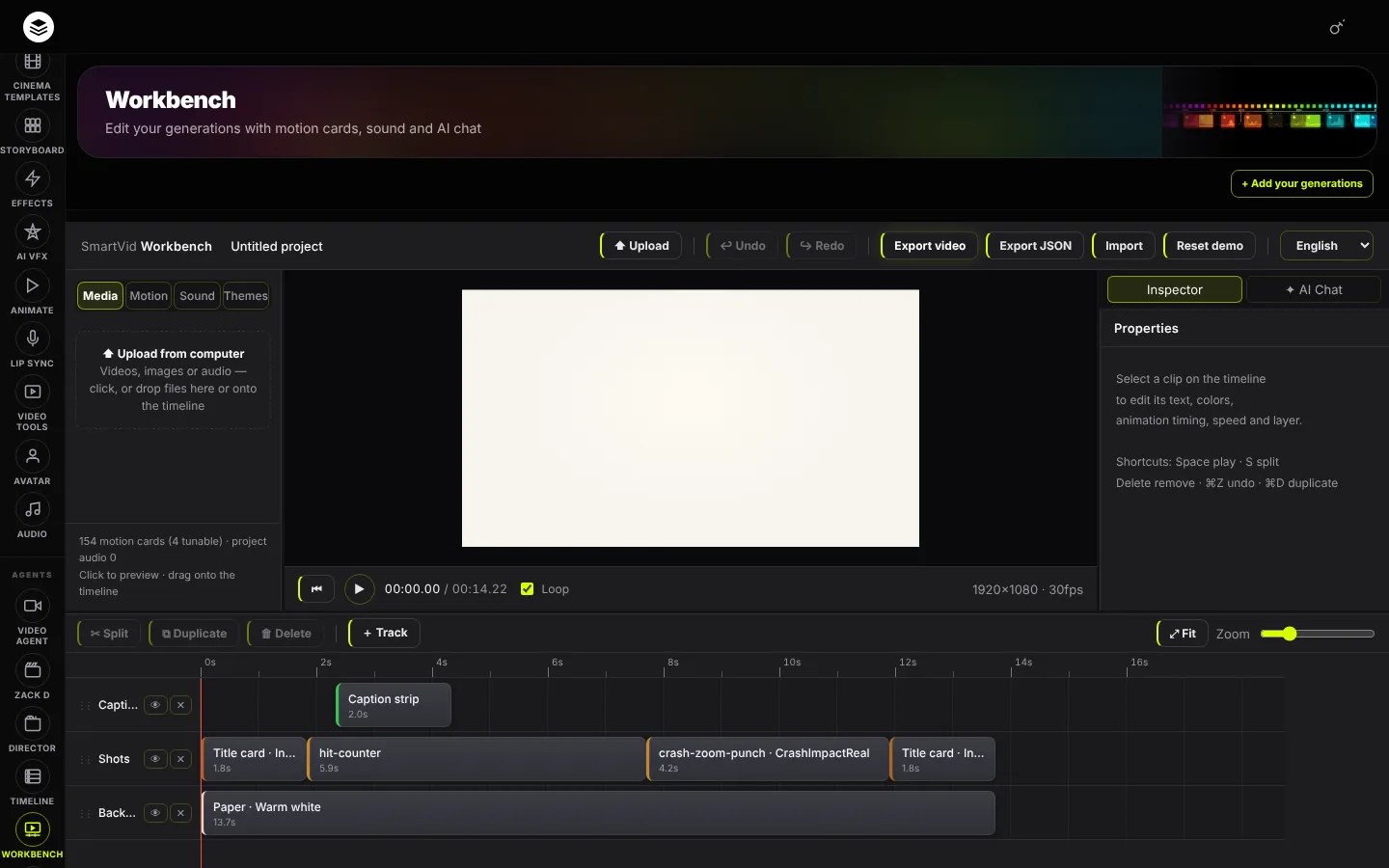
Workbench screenshot

Watch the Workbench tour

A 2:20 captioned walkthrough of the studio, with a sample file and prompt.

VIDEO · 2:20

What is Workbench?

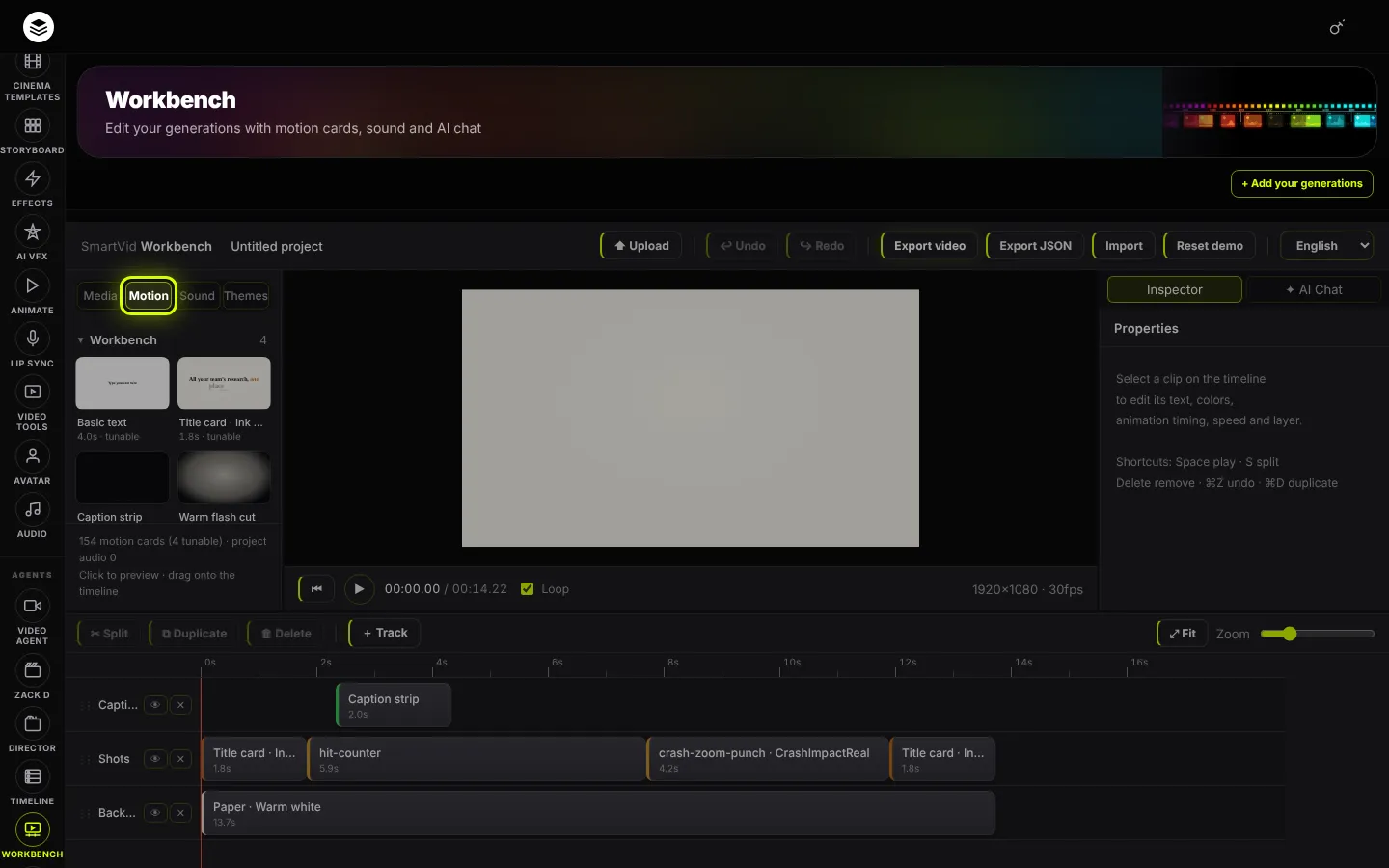
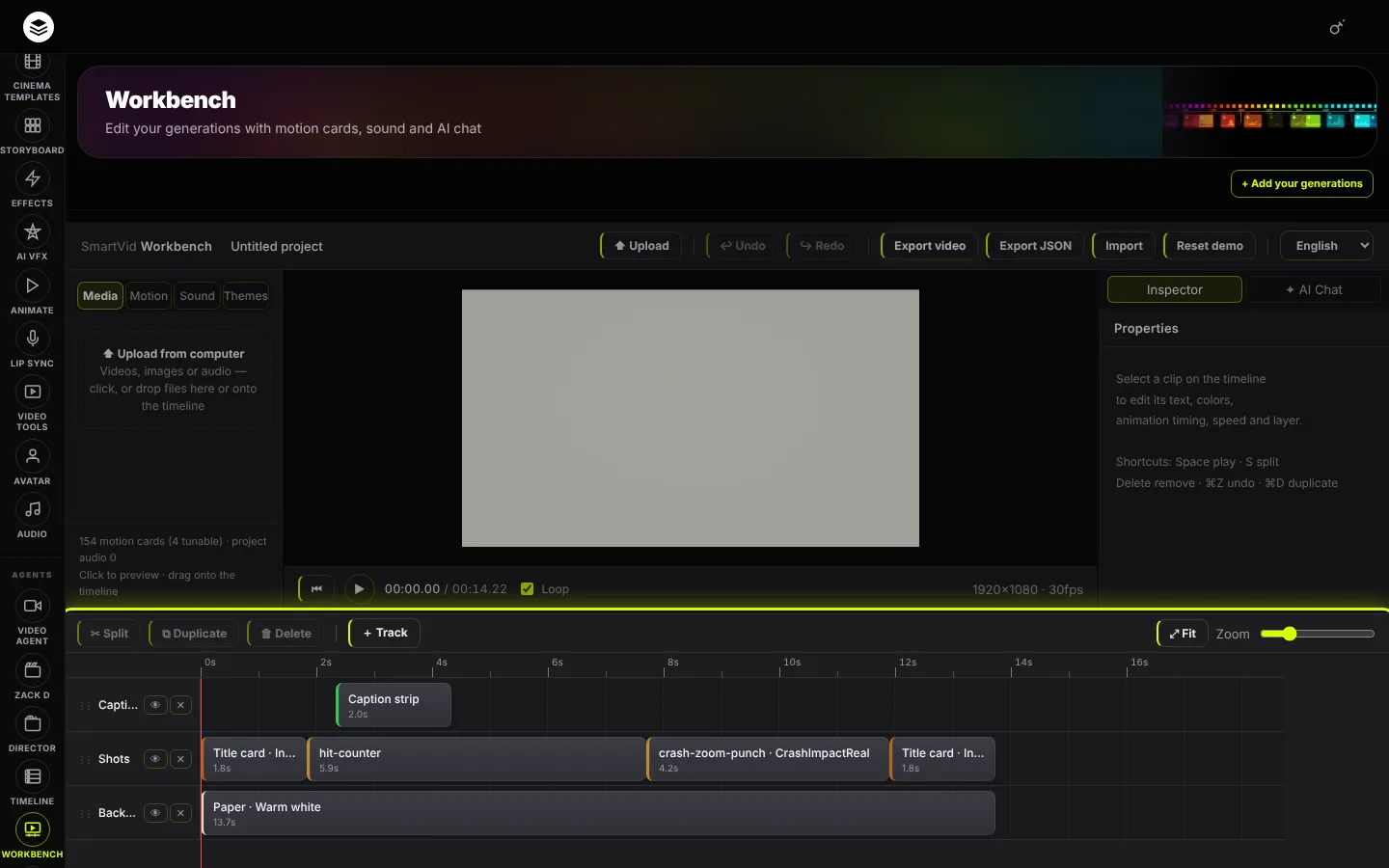
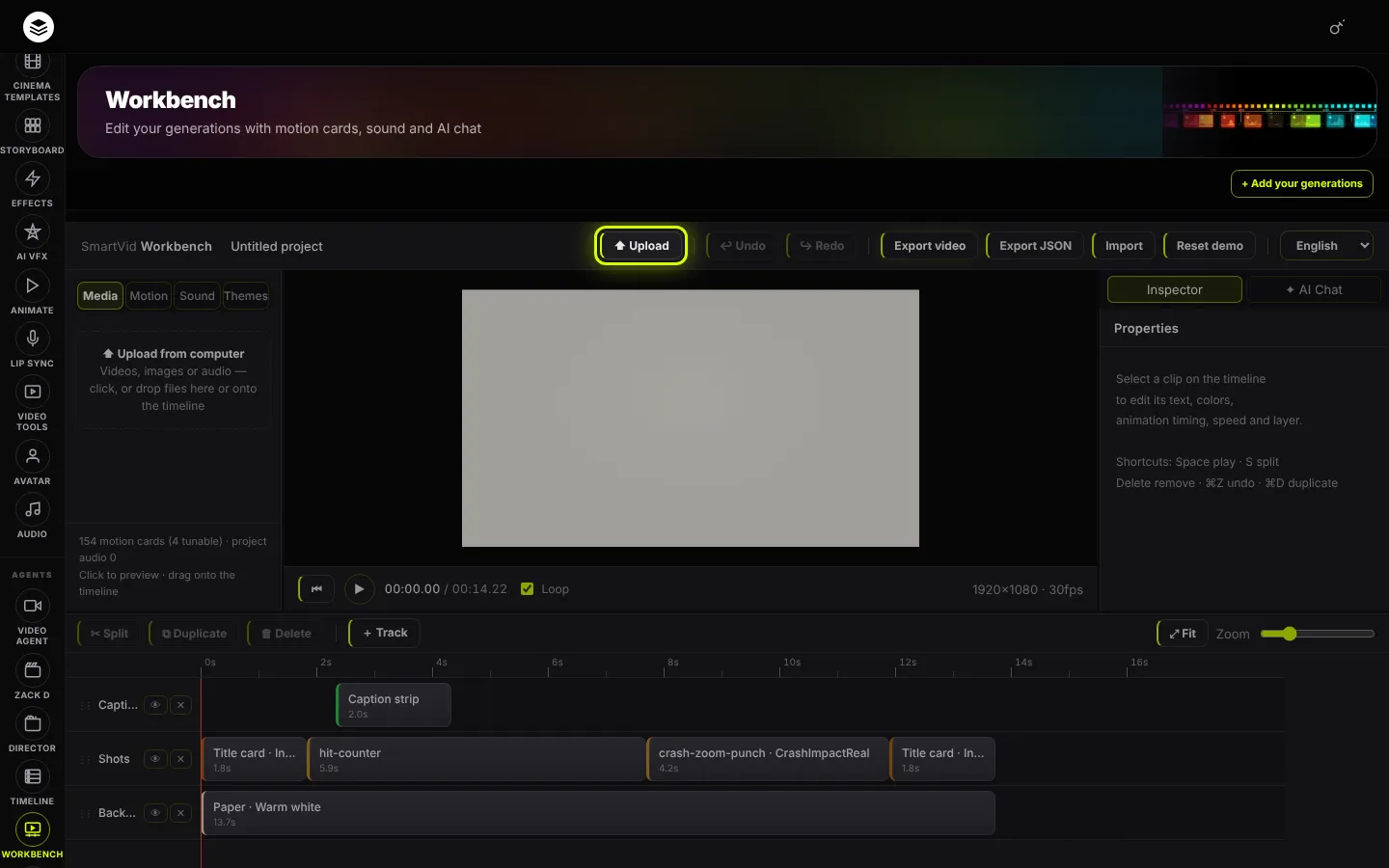
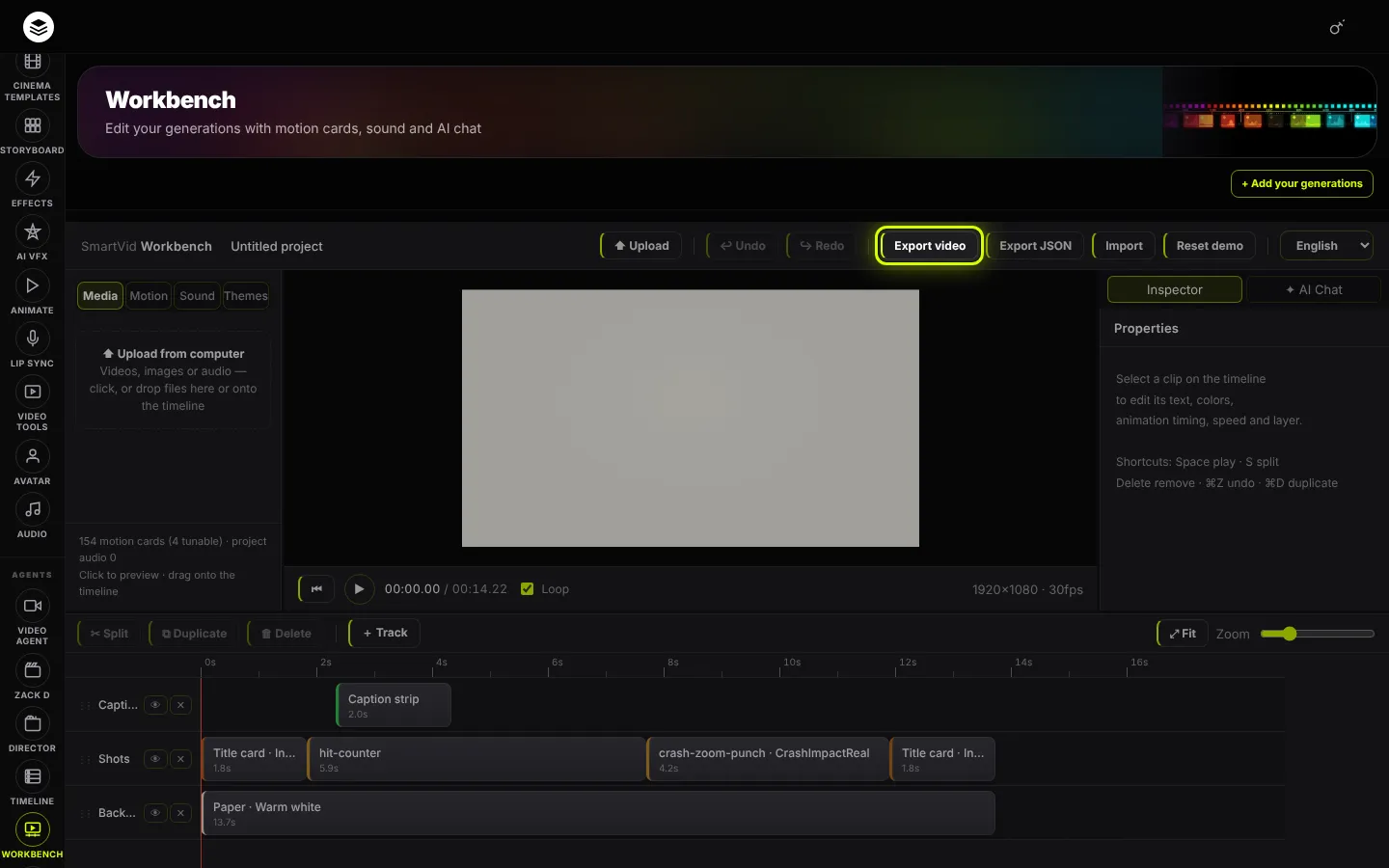
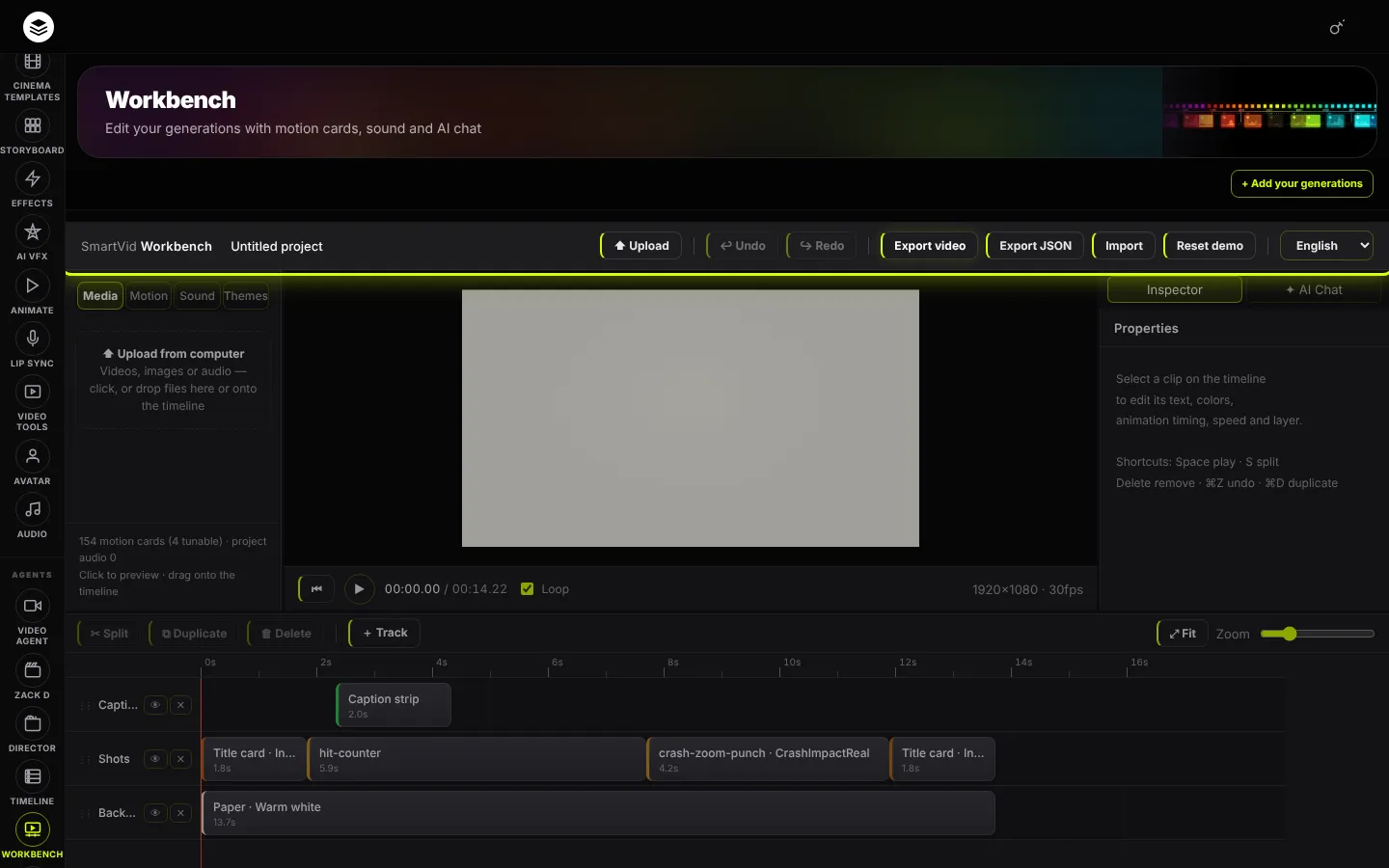
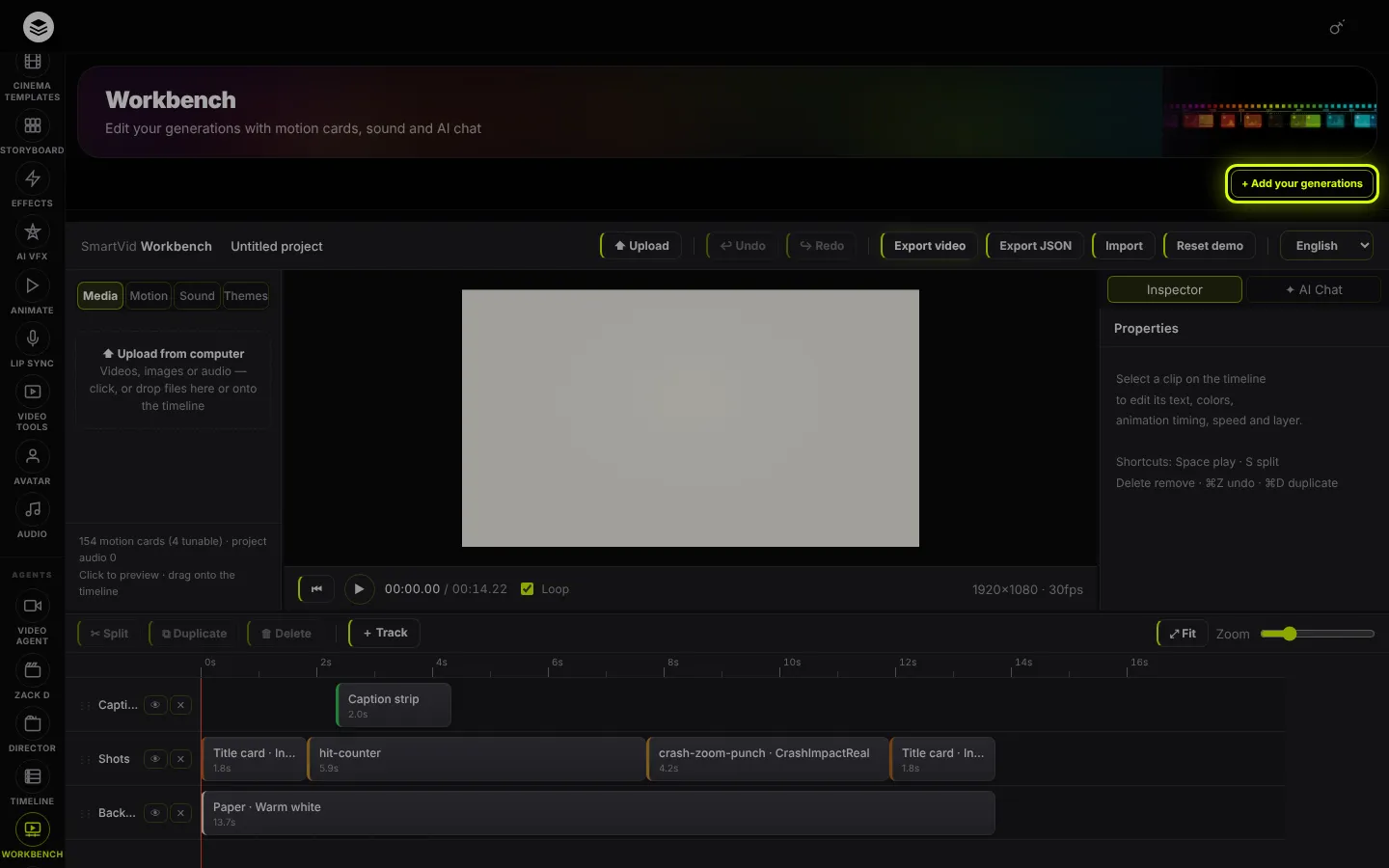
Workbench (the Motion Workbench) is a post-production editor shown inside SmartVideo. It has a library on the left (Media, Motion, Sound and Themes tabs), a live preview in the middle, a Properties inspector on the right and a multi-track timeline at the bottom. You bring in your own generations (images, videos and audio made in other studios) with the + Add your generations button or the Edit in Workbench option that appears after generating, or upload files from your computer. You can drag motion cards (title cards, caption strips, transitions and about 150 demo animation cards) onto the timeline, trim, split, change speed, adjust opacity and position, and change card text and colors. An AI chat called 'Edit with AI' applies edits you describe in plain language, and every AI edit can be undone. Export video renders an MP4 in your own browser and saves it to your library. The older CineGen Studio route (#/cinegen) now opens the Workbench. Note: Workbench is a timeline editor; it is not a node graph for chaining generation steps.

When to use it

  • You generated several clips or images in other studios and want to combine them into one video.
  • You want to add title cards, captions, transitions or motion effects from the Motion library.
  • You want to add or adjust sound: your own audio, the project's audio or background music options.
  • You want to trim, split, speed up or slow down clips (speed 0.25x to 4x).
  • You want to tell an AI 'trim the first clip to 3 seconds' or 'add a title card that says Hello' and have it applied for you.
  • You want to export a finished MP4 from your browser.
  • Multi-track timeline: upper tracks cover lower ones; drag clips, trim both ends, split, duplicate, move between tracks.
  • Library tabs: Media, Motion, Sound and Themes. Click an item to preview it; drag it onto the timeline to add it.
  • Motion cards: native text card, Ink Press title card, narration caption strip, warm-white flash transition and about 150 demo animation cards in categories.
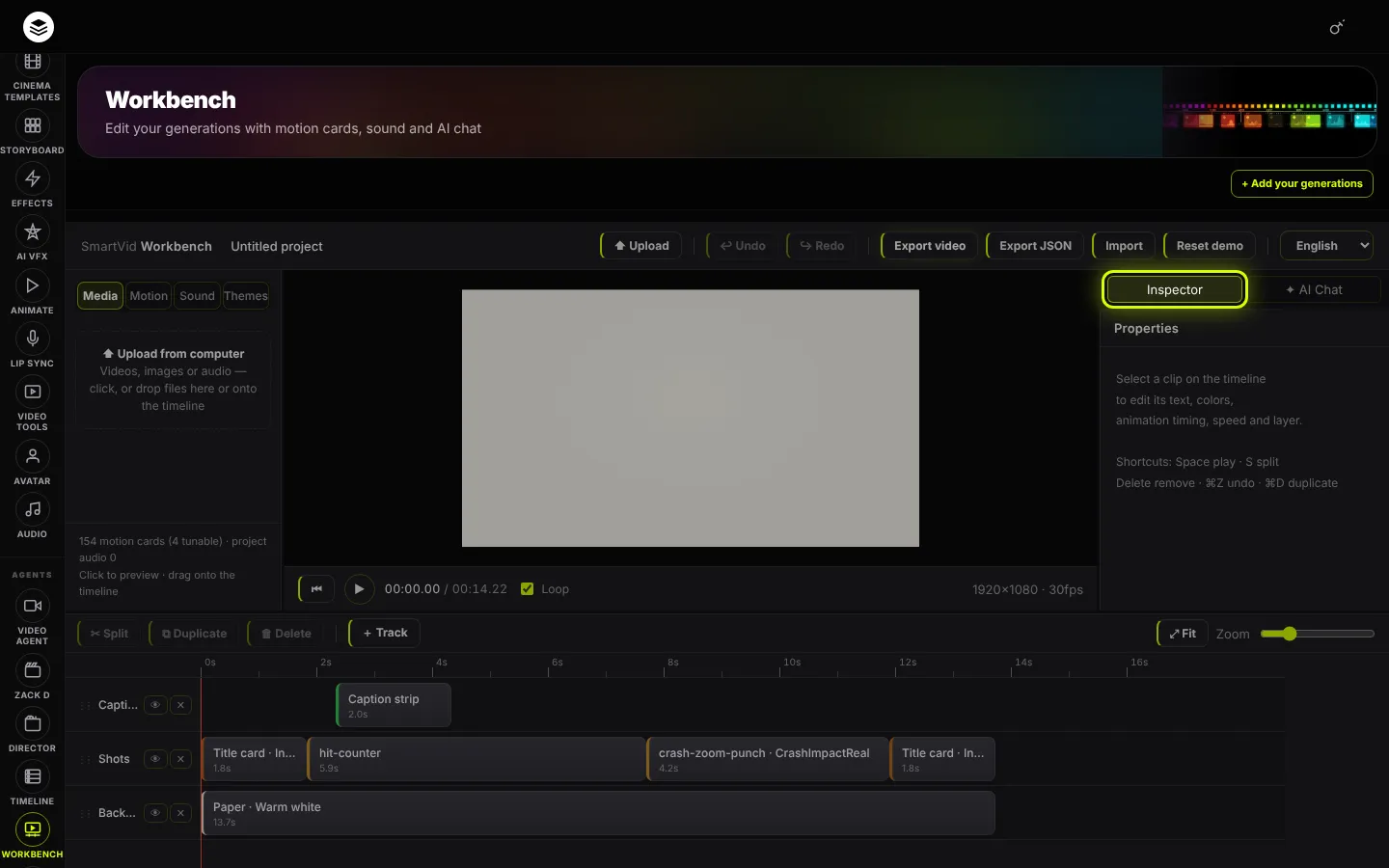
  • Properties inspector: Content & style, Timing & speed (Start, Duration, Speed, In point), Layer (Opacity, Scale, Offset X, Offset Y).
  • Live preview with play controls; the preview matches the final render.
  • Edit with AI chat using your own OpenAI key; every AI edit can be undone.
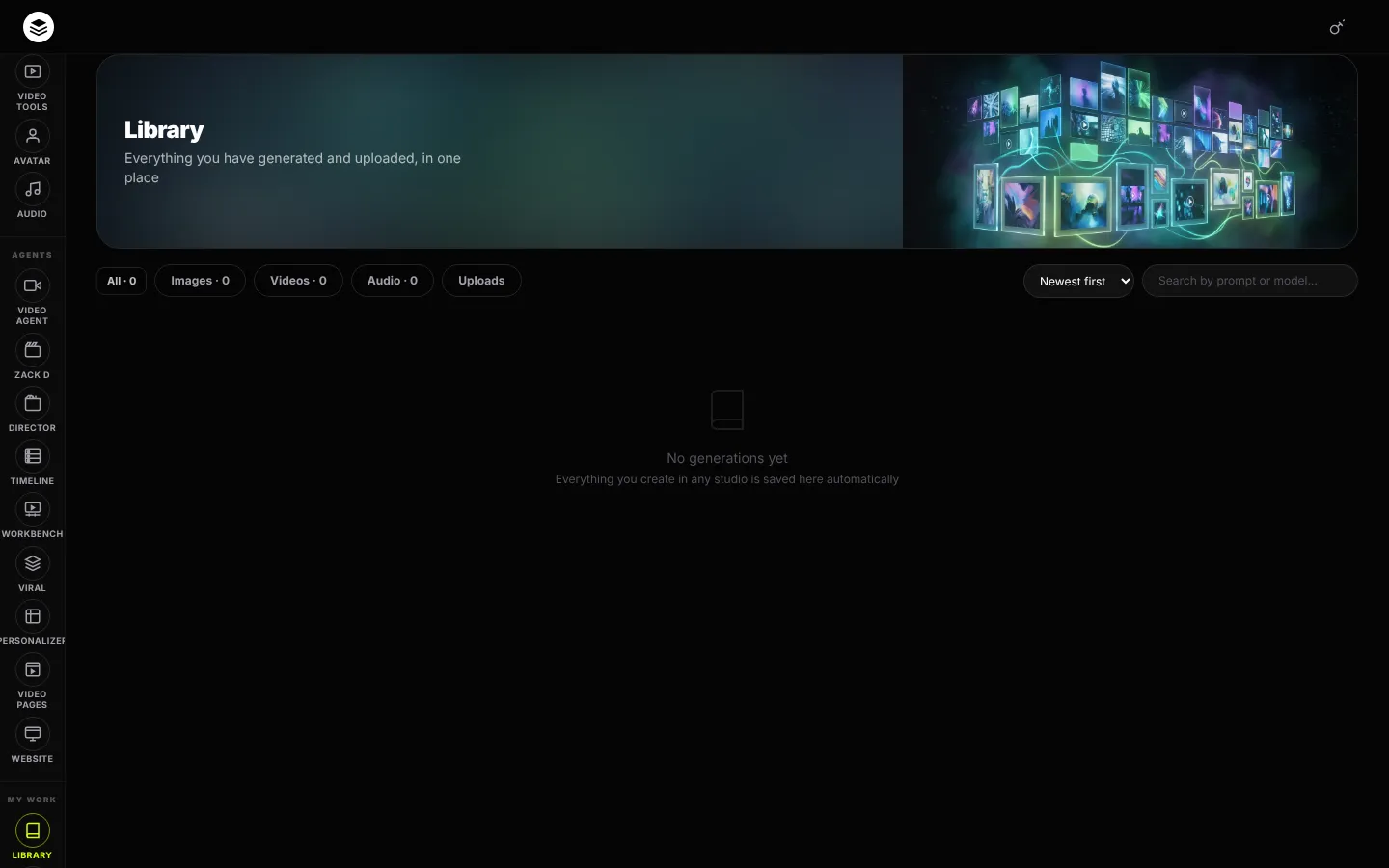
  • + Add your generations picker for images, videos and audio you made in SmartVideo studios.
  • Upload from computer (video, image, audio) with size limits.
  • Export video renders MP4 in your browser and saves it to your library.
  • Export JSON and Import for the project file; Undo and Redo; Reset to the sample project.
  • Interface language: English, Chinese or Russian.
  • Autosave in your browser.

Every Workbench feature, explained

9 features, each with a definition, why you would use it, what it needs and its limits.

+ Add your generations in Workbench
+ Add your generations
FEATURE 01

+ Add your generations

What it is: A button in the bar above the editor opens a picker titled 'Add your generations' showing your recent generations (up to 120) as tiles with VIDEO, IMAGE or AUDIO badges. Click tiles to select them; the footer button reads 'Add to timeline' or 'Add N to timeline'. Close with the Close button.

Why use it
Quickest way to bring work from other studios onto the timeline.
What you need
At least one saved generation.
Limits and rules
If you have none it says 'No generations yet. Create something in any AI studio (Image, Video, Cinema, Audio...) first.' Generations from Director, Timeline and Video Agent are not offered because those studios keep their own editors.
Edit in Workbench hand-off in Workbench
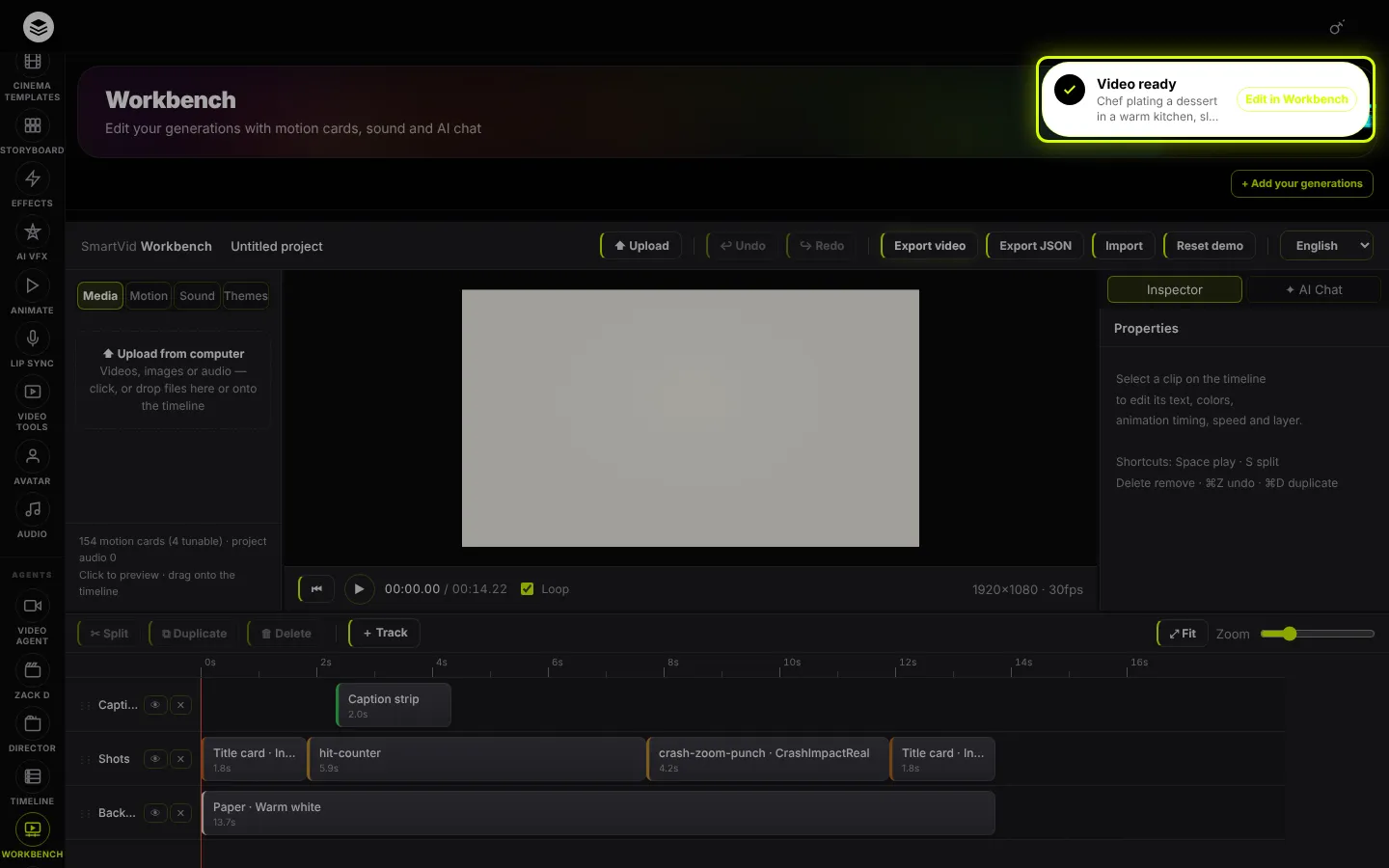
Edit in Workbench hand-off
FEATURE 02

Edit in Workbench hand-off

What it is: After a studio finishes a generation, its notification can offer 'Edit in Workbench', which opens the Workbench with that result ready to add. The hand-off expires after 10 minutes.

Why use it
Skip manual picking.
What you need
A finished generation.
Limits and rules
Not offered for Director, Timeline, Video Agent or Workbench's own exports.
Library: Media, Motion, Sound, Themes in Workbench
Library: Media, Motion, Sound, Themes
FEATURE 03

Library: Media, Motion, Sound, Themes

What it is: Media holds your imported clips and an 'Upload from computer' drop area. Motion lists motion cards (native cards first, then demo cards by category); thumbnails are still frames and play when you hover. Sound lists project audio and BGM options, with a 'Find sounds on Freesound' link. Themes holds color palettes you can apply and save, with Import palette and Export palette. Hint: 'Click to preview, drag onto the timeline'.

Why use it
Everything you can add to your video lives here.
What you need
None.
Limits and rules
Cards marked 'tunable' have editable text and style fields; other demo cards can be trimmed, sped up, frozen and transformed but not re-worded. Some Sound features (such as project audio and Freesound downloading) belong to the developer workflow and may not apply to normal use.
Timeline in Workbench
Timeline
FEATURE 04

Timeline

What it is: Toolbar buttons: Split (S) cuts the selected clip at the playhead, Duplicate (Ctrl/Cmd+D), Delete (Delete key), + Track (adds a track on top), Fit (zoom to fit) and a Zoom slider. Track headers let you drag to reorder, Hide track or Show track, and Delete track (asks for confirmation). Clips snap to other clips; drag the side handles to trim.

Why use it
Assemble and refine your edit.
What you need
None.
Limits and rules
Clips on the same track may overlap; use more tracks for layering. Speed is a constant speed change (no speed curves).
Properties inspector in Workbench
Properties inspector
FEATURE 05

Properties inspector

What it is: Select a clip to edit it. Content & style shows the card's own fields (text, colors, sizes). Timing & speed has Start, Duration, Speed, In point and a restore-original-duration button. Layer has Opacity, Scale, Offset X and Offset Y. A Delete clip button is at the bottom.

Why use it
Precise control of each clip.
What you need
A selected clip.
Limits and rules
With nothing selected it says 'Select a clip on the timeline to edit its text, colors, animation timing, speed and layer.'
Edit with AI (chat) in Workbench
Edit with AI (chat)
FEATURE 06

Edit with AI (chat)

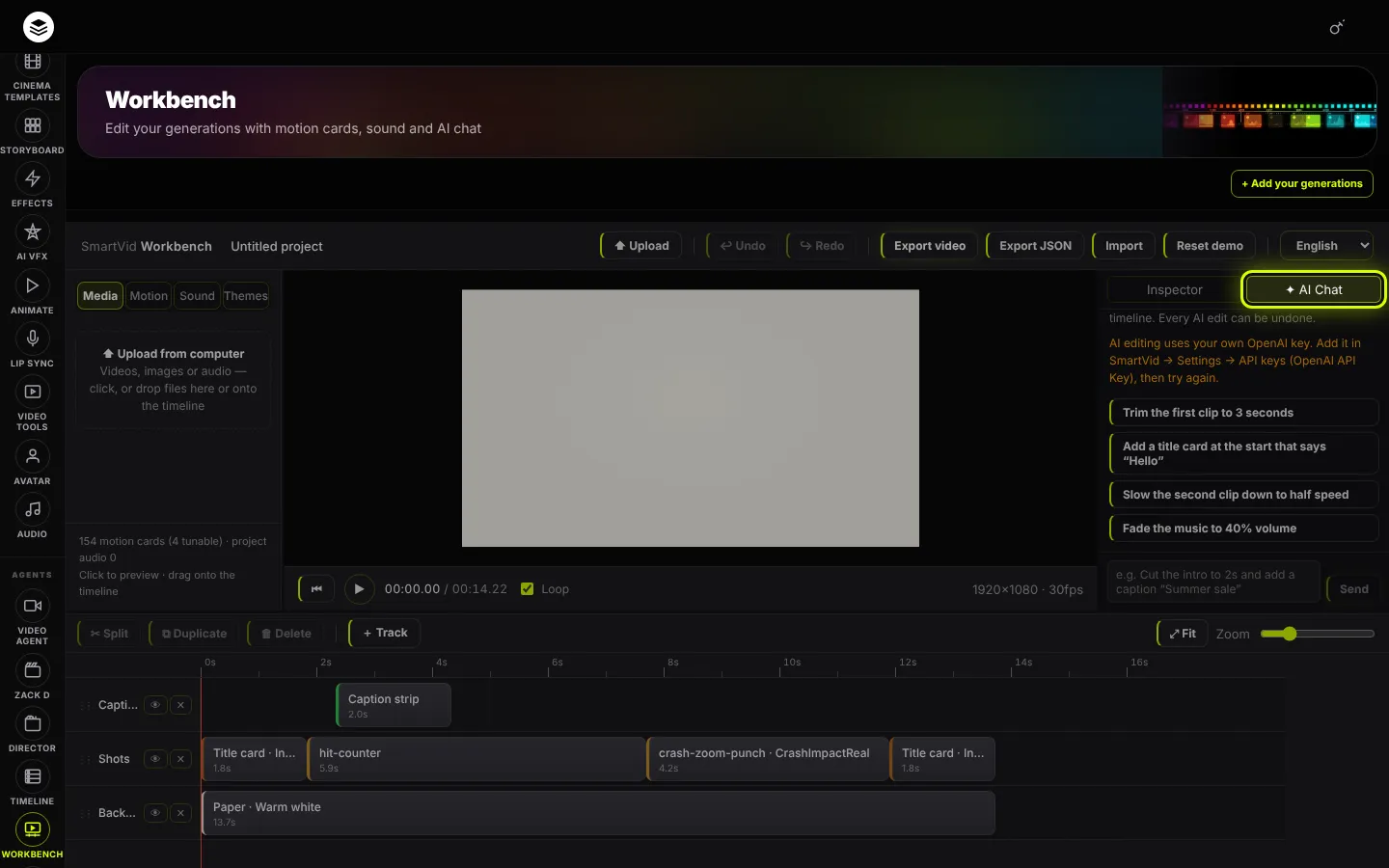
What it is: Describe an edit such as 'Cut the intro to 2s and add a caption "Summer sale"'. The AI replies briefly and returns edit operations (update a clip, set card text, add, remove, split or move clips, add or remove tracks, rename the project or set its background). The app checks every operation and applies only valid ones, then shows a note such as '2 changes applied - Ctrl/Cmd+Z to undo' and, if some were skipped, how many. While it works it shows 'Editing...'. Suggestion buttons include 'Trim the first clip to 3 seconds', 'Add a title card at the start that says "Hello"', 'Slow the second clip down to half speed' and 'Fade the music to 40% volume'.

Why use it
Faster than clicking through panels for simple edits.
What you need
Your own OpenAI key saved in Settings and a message.
Limits and rules
Messages are cut at 4,000 characters, the last 12 chat turns are sent as history, and the project must be under about 200,000 characters of data ('Project is too large for AI editing.'). The AI can only reuse media files already in your project; it is told never to invent file addresses. Speed must stay between 0.25 and 4, opacity 0 to 1, durations at least 2 frames.
Upload from computer in Workbench
Upload from computer
FEATURE 07

Upload from computer

What it is: Drop or choose a video, image or audio file in the Media tab. It is stored so the clip keeps working after reload. The status text shows 'Uploading <name>...' then '<name> saved', or 'Couldn't save <name> - <reason>'.

Why use it
Use your own footage, pictures or music.
What you need
A media file.
Limits and rules
Maximum sizes are 50 MB for video, 10 MB for images and 10 MB for audio. Wrong types show '<name> isn't a video, image or audio file.' and large files show '<name> is too large (max N MB for <type>).' Accepted extensions include mp4, mov, webm, m4v, mkv, ogv, 3gp (video), jpg, jpeg, png, gif, webp, svg, bmp, avif, heic (image) and mp3, wav, aac, ogg, flac, m4a, opus, aiff, aif (audio).
Export video in Workbench
Export video
FEATURE 08

Export video

What it is: The top bar Export video button renders the project to MP4 in your browser (tooltip 'Render the current project to MP4 in your browser'). It shows 'Exporting N%', then 'Exported - Download again'; on failure 'Export failed - Retry' or 'Export failed to start'. The finished MP4 is also uploaded to your library, with status text 'Saving export to your library...' then 'Export saved to your library'.

Why use it
Get your finished video.
What you need
A project with clips.
Limits and rules
Runs in your browser tab, so keep it open. If the upload fails you see 'Export downloaded - couldn't save to library (<reason>)'.
Project tools in Workbench
Project tools
FEATURE 09

Project tools

What it is: Project name (click to edit), Undo and Redo (Ctrl/Cmd+Z and Shift+Ctrl/Cmd+Z), Export JSON, Import (project JSON) and Reset to sample. Interface language selector. Changes autosave in your browser.

Why use it
Back up and manage your project.
What you need
A project JSON for Import.
Limits and rules
Invalid files show 'Import failed: not a valid project JSON'.

How to use Workbench

  1. Open Workbench or choose Edit in Workbench from a generation notification.
  2. Add media with + Add your generations or Upload from computer.
  3. Add motion cards and sound by dragging from the library onto tracks.
  4. Select clips and fine-tune them in Properties.
  5. Trim, split and rearrange on the timeline.
  6. Optionally ask Edit with AI to make changes.
  7. Preview with Space.
  8. Click Export video and download the MP4.

Generation modes

The ways this studio can work, and when to pick each one.

Manual timeline editing

Drag, trim, split and adjust clips yourself.

Best for: Precise control.

Edit with AI (chat edits)

You describe a change; the AI returns a list of validated edit operations that are applied to the project.

Best for: Quick structural or text changes.

Library hand-off

Generations arrive from + Add your generations or Edit in Workbench, either as a new project or appended to the current one.

Best for: Bringing in material from other studios.

Inputs and outputs

What you give the studio, and what you get back.

InputDescriptionWhen to useRules
Generations from your library
Optional
Images, videos and audio you created in SmartVideo studios.To assemble earlier work.Not available for Director, Timeline, Video Agent or Workbench exports.
Uploaded files
Optional
Your own video, image or audio files.When the material was not generated here.Video 50 MB, image 10 MB, audio 10 MB maximum.
OpenAI API key
Optional
Your own key, used only for the Edit with AI chat.Only if you use AI chat editing.Without it you see 'AI editing uses your own OpenAI key. Add it in SmartVid -> Settings -> API keys (OpenAI API Key), then try again.' A rejected key gives 'OpenAI rejected your API key. Check it in SmartVid -> Settings -> API keys.' Rate limit or no credit gives 'Your OpenAI account is rate-limited or out of credit. Check your OpenAI billing, then try again.'
Project JSON
Optional
A saved project file.To restore or share a project.Must be a valid project file.

What you get

  • A multi-track edited project (autosaved in your browser)
  • An MP4 exported from your browser and saved to your library
  • A project JSON file (Export JSON)
  • A color palette JSON (Themes tab, Export palette)

Use cases and example workflows

Real jobs you can do, step by step.

Social video from AI shots

Combine several AI clips with captions and music.

  1. Add your clips and an audio file.
  2. Add a caption card from the Motion tab.
  3. Trim to a target length and export.
Result: A single MP4 ready to post.

Photo slideshow with transitions

Make images flow with transition cards.

  1. Add images from your generations.
  2. Place a transition card between clips.
  3. Adjust durations in Properties.
Result: A slideshow MP4.

Stitch three clips with a title

  1. Open Workbench and click + Add your generations.
  2. Select three video tiles and click Add 3 to timeline.
  3. Open the Motion tab, preview a title card and drag it to a top track at the start.
  4. Edit its text in Properties under Content & style.
  5. Click Export video and download the MP4.

Fix pacing with AI chat

  1. Open Edit with AI.
  2. Type 'Slow the second clip down to half speed' and send.
  3. Check the note that says how many changes were applied.
  4. Press Ctrl/Cmd+Z if you want to undo.

Tips and best practices

  • Hover Motion thumbnails to see them animate.
  • Use Fit to see the whole timeline.
  • Use Hide track to check what is underneath.
  • Use Export JSON before big experiments.
  • Name your project at the top so exports are easy to find.
  • Keep text on top tracks and footage underneath.
  • Make AI edits one at a time so you can undo cleanly.
  • Keep the tab open during export.

Limitations and troubleshooting

Know the limits before you start, and how to fix common problems.

LimitationWhat it meansWorkaround
AI chat needs an OpenAI keyWithout a key, chat replies with an error message instead of editing.Add your OpenAI key in Settings, API keys, or edit manually.
Large projectsVery large projects return 'Project is too large for AI editing.'Split work into smaller projects or edit manually.
Upload size limitsBig files are refused with a too-large message.Compress or trim the file first, or use a generation from your library.
Browser exportLong or heavy projects export slowly.Keep the tab open, close other heavy tabs, or shorten the project.

I cannot change the text of a motion card

Why: Demo cards without the 'tunable' tag have no text fields.

Fix: Use a native text card or a card marked tunable, or add a separate text card.

Clips overlap and one is hidden

Why: Upper tracks cover lower ones.

Fix: Reorder tracks by dragging the handle, hide a track, or move the clip to another track.

The AI did not do what I asked

Why: Invalid edits are skipped.

Fix: Press Ctrl/Cmd+Z, rephrase, or make the change manually.

Glossary

Terms used in Workbench.

Clip
One piece of media or one motion card placed on a track.
Track
A horizontal layer on the timeline. Upper tracks cover lower ones.
Playhead
The marker showing the current time.
Motion card
A ready-made animated element such as a title or transition.
Tunable
A card whose text and style can be edited in Properties.
In point
Where inside the source clip playback starts.
Theme
A saved color palette that restyles the project.

Frequently asked questions

Do I need an API key?

Only for the Edit with AI chat, which uses your own OpenAI key. Manual editing and export need no key.

Where does my export go?

It is rendered in your browser, offered for download, and uploaded to your library.

What happened to CineGen Studio?

The #/cinegen address now opens the Workbench.

Can I undo AI edits?

Yes. Every AI edit can be undone with Ctrl/Cmd+Z.

How big can uploaded files be?

Up to 50 MB for video, 10 MB for images and 10 MB for audio.

Does my project save automatically?

It autosaves in your browser. Use Export JSON for a backup file.

Can I use the Workbench for Director or Video Agent output?

Those studios keep their own editors and are not offered in the Workbench hand-off or picker. You can still upload a downloaded file from your computer.

Try Workbench now

Open the studio and put these features to work, or browse the guides for all 53 studios.