AI Agents & Automation · Feature guide

Motion Director Feature Guide

Chat that plans a film from a prompt and your website using shot recipes, then lets you edit and export it.

Motion Director is a chat that plans a short promotional film from your prompt and your website, builds it from a library of about 150 motion shot recipes, and opens it in an editable Motion Workbench where you can adjust and export an MP4.

Best for: Founders, marketers and agencies who want a polished launch or promo film made from their own website pages without building a timeline by hand, and who want to edit the result afterwards.

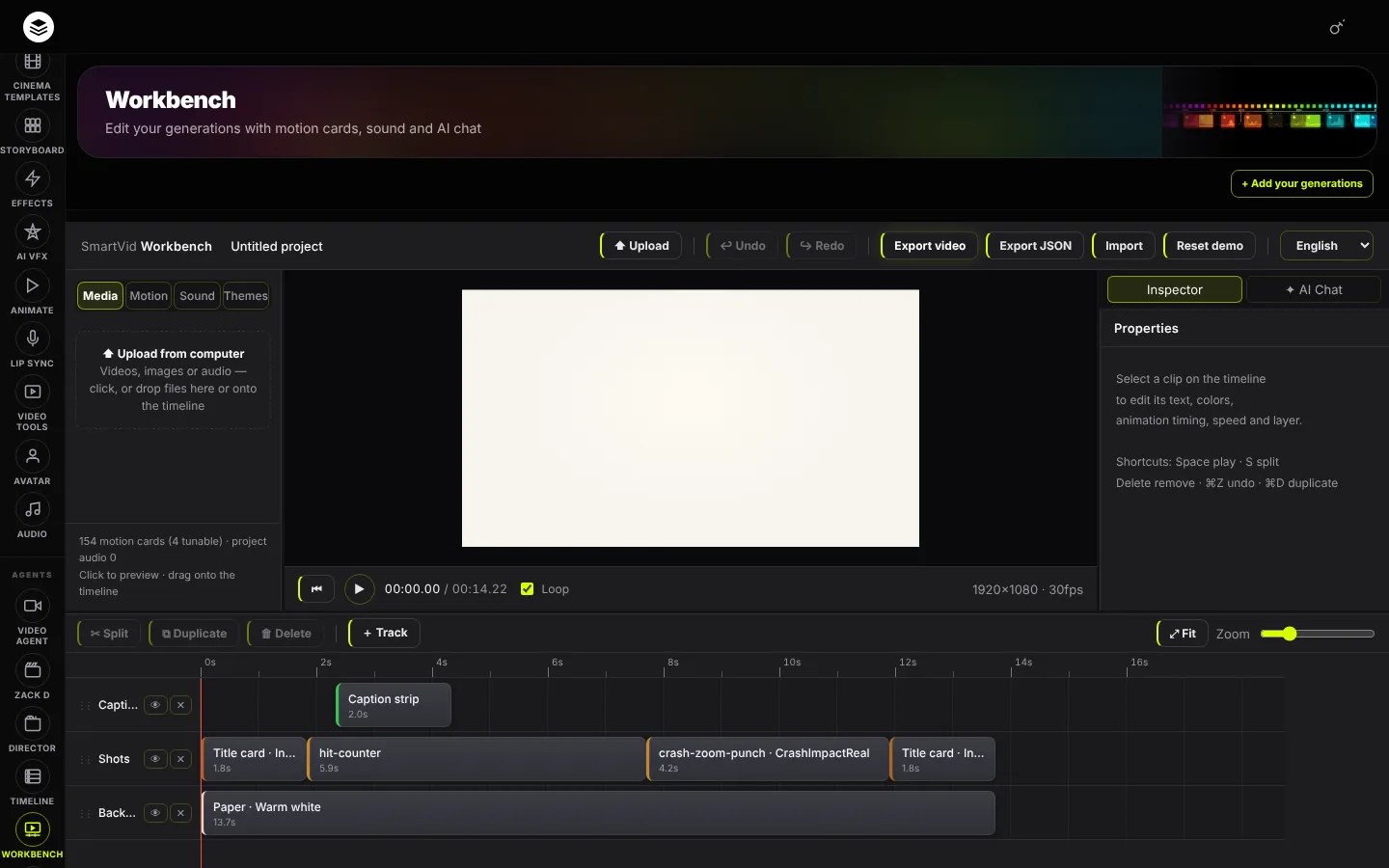
Motion Director screenshot

Watch the Motion Director tour

A 2:04 captioned walkthrough of the studio, with a sample file and prompt.

VIDEO · 2:04

What is Motion Director?

Motion Director is an AI film director for product and launch videos. You describe the film (and usually give your website address); the director captures your real web pages, proposes a storyboard built from motion shot recipes (title cards, product-page shots, camera moves, data shots, transitions, outros), builds an editable film, and lets you play it in the chat. You can then click Open in Motion Workbench to fine-tune the timeline, text, colors and music with an Edit agent, and export an MP4. It has two views on the same route family: the chat at #/motion-director and the editor (Motion Workbench) at #/motion-director/workbench. It is not listed in the side menu; you reach it by its address. It needs your own OpenAI key for the director AI and a plan that includes SmartVideo GO to start a film.

When to use it

  • You want a promo or launch film made from your website's real pages.
  • You want the AI to plan shots (storyboard) and you to approve or change it.
  • You want to pick specific shot cards (templates) and have them used in order.
  • You want a finished film that stays editable on a timeline, with an Edit agent to change text and styling.
  • You want a vertical (9:16), square (1:1) or widescreen (16:9) film.
  • Chat that turns a prompt plus your site address into a storyboard and then a film.
  • Real page capture of your website for product-page shots.
  • About 150 shot recipes in ten categories: opening, typography, ui-entrance, camera, data, interaction, transition, rhythm, effects, outro.
  • Ink Press template: a validated paper-and-ink launch film structure the director can offer.
  • 'Work it out together' guided mode: the director proposes a product check, a visual direction and a shot plan, and you confirm each step.
  • Templates picker to choose shot cards by hand (up to 12) with live previews, search and categories.
  • Aspect ratio choice: 16:9, 9:16 or 1:1.
  • Attach images, video or audio from your computer, and connect your brand (Use My Brand).
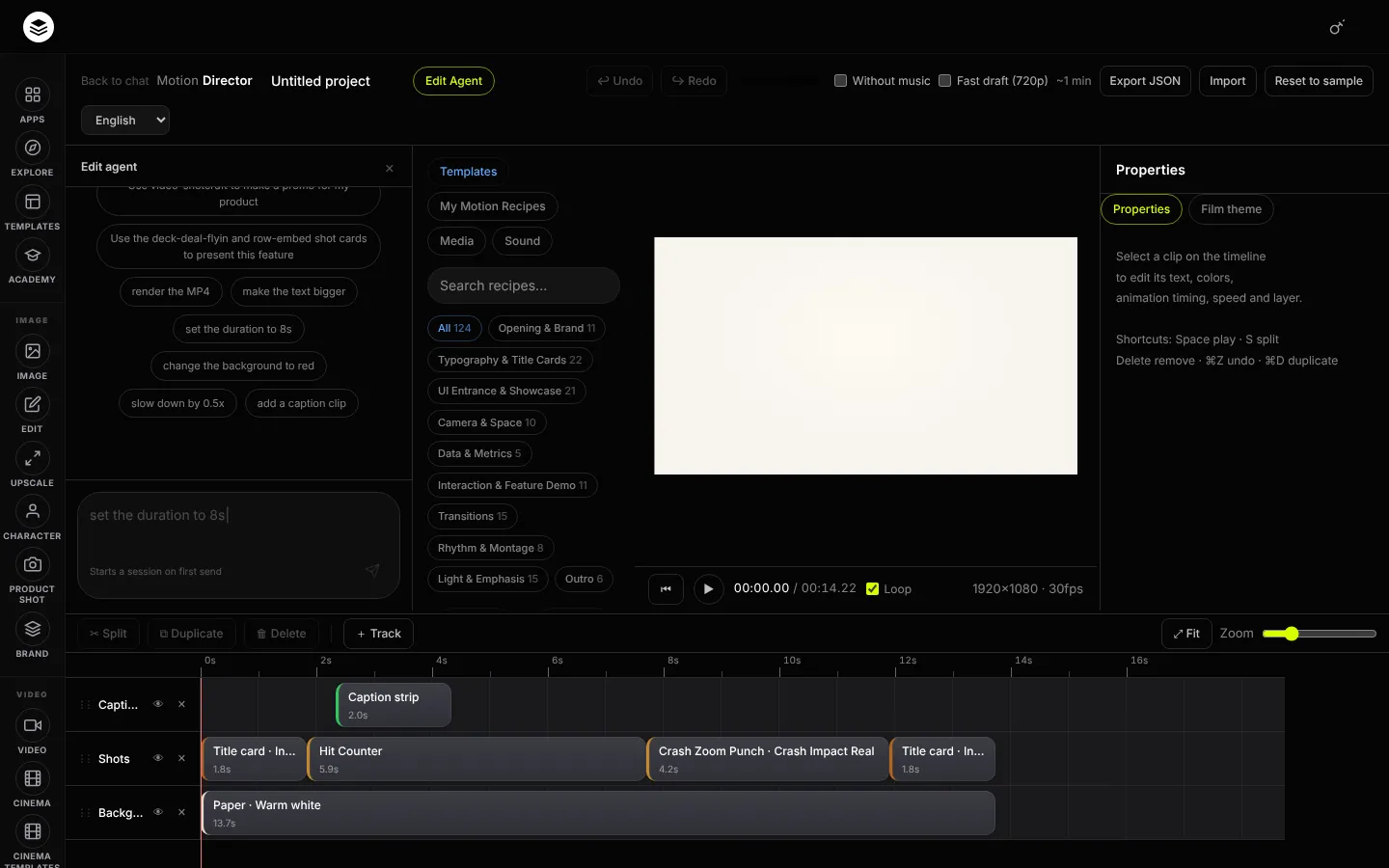
  • Open in Motion Workbench: timeline, library, properties inspector, preview, Edit agent.
  • Export video to MP4 in your browser with Fast draft (720p) and Without music options.
  • Undo and redo, Export JSON, Import and Reset to sample for projects.
  • Interface languages English, Chinese and Russian in the editor.

Every Motion Director feature, explained

9 features, each with a definition, why you would use it, what it needs and its limits.

Describe your motion video (chat composer) in Motion Director
Describe your motion video (chat composer)
FEATURE 01

Describe your motion video (chat composer)

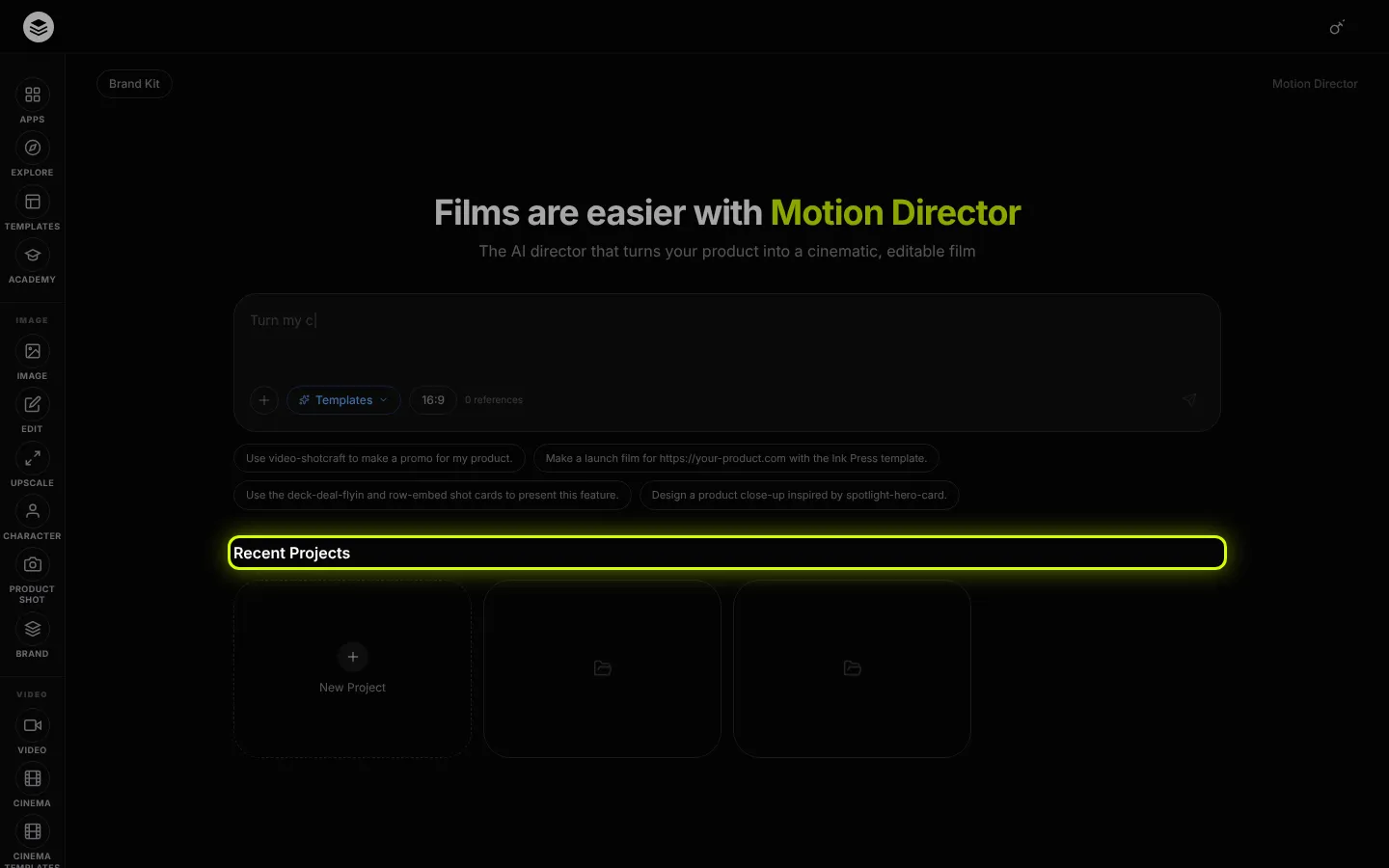
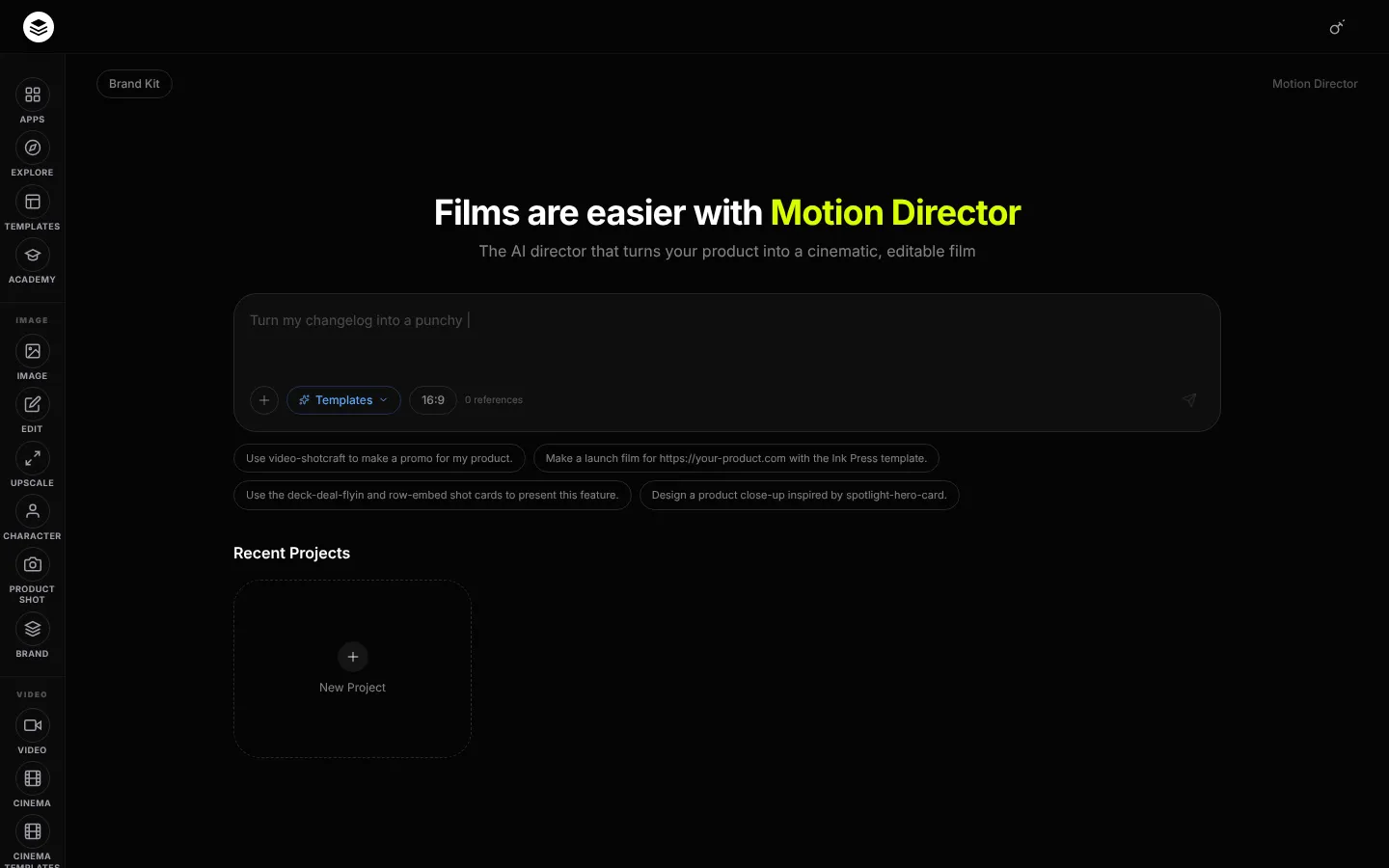
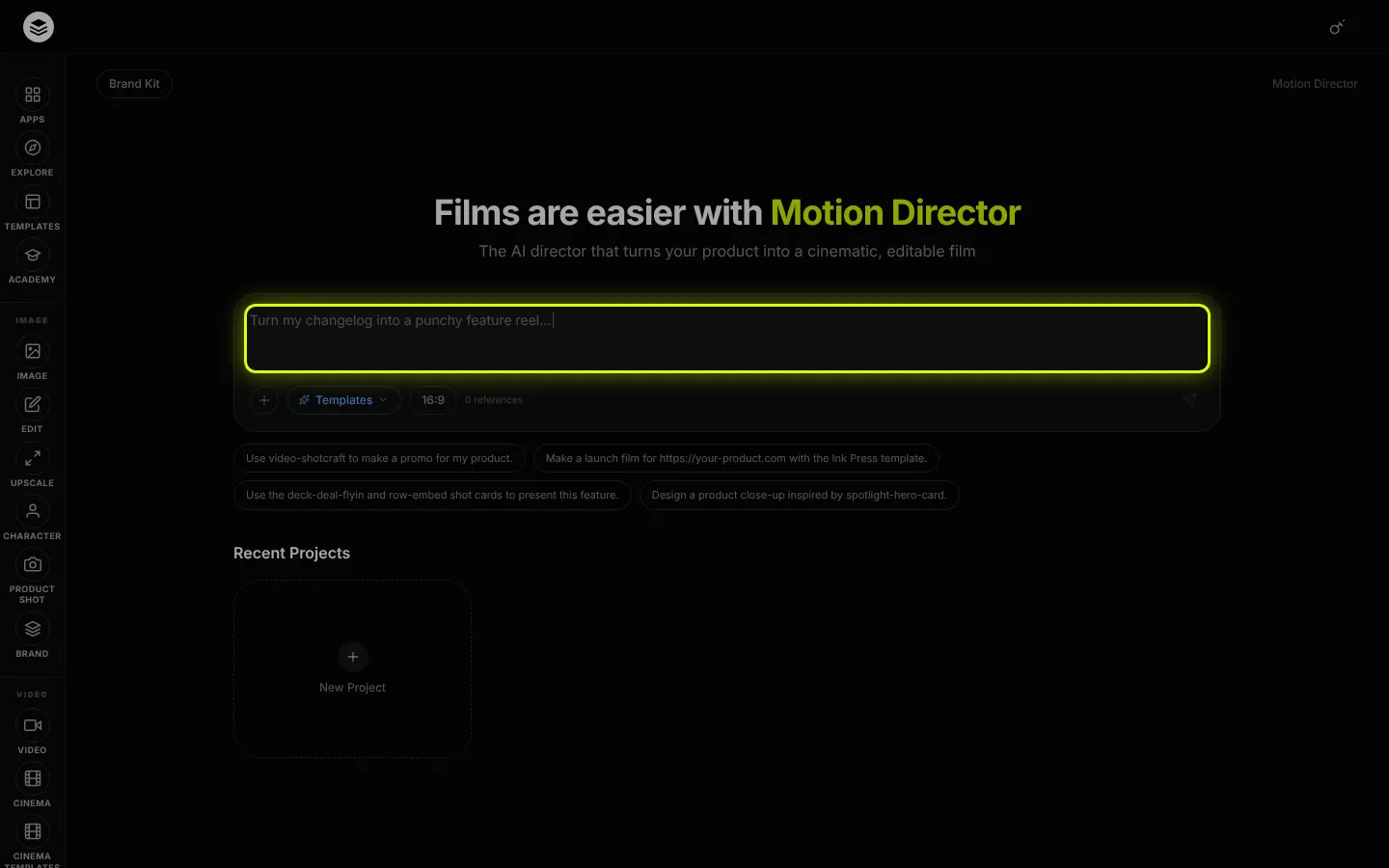
What it is: On the chat screen, titled 'Films are easier with Motion Director', type what you want in the box (label 'Describe your motion video'). The placeholder changes with the conversation stage. The send button says Generate for a new film and Send while you are answering the director.

Why use it
This is how every film starts. Include your website address, the length (for example 'a 30 second video') and the goal.
What you need
A text message. A site address is strongly recommended.
Limits and rules
If you do not say a length, 20 seconds is used. Film length is kept between 5 and 90 seconds, with 2 to 14 scenes, each scene between 1.5 and 12 seconds. A plan is needed to start (see limitations).
Storyboard planning with your options in Motion Director
Storyboard planning with your options
FEATURE 02

Storyboard planning with your options

What it is: After your prompt the director may ask a question such as 'Use Ink Press? Or I can let the director pick shots from the whole library...' with buttons Use Ink Press, Let the director pick shots and Work it out together. You then see a storyboard and can tell it what to change before the film is built.

Why use it
Lets you control the look and the shots before time is spent building.
What you need
Your answer in the chat or a button click.
Limits and rules
In the guided flow the confirm buttons read 'Looks right - next', 'Use my recommendation' and 'Looks right - write the storyboard'.
Templates picker in Motion Director
Templates picker
FEATURE 03

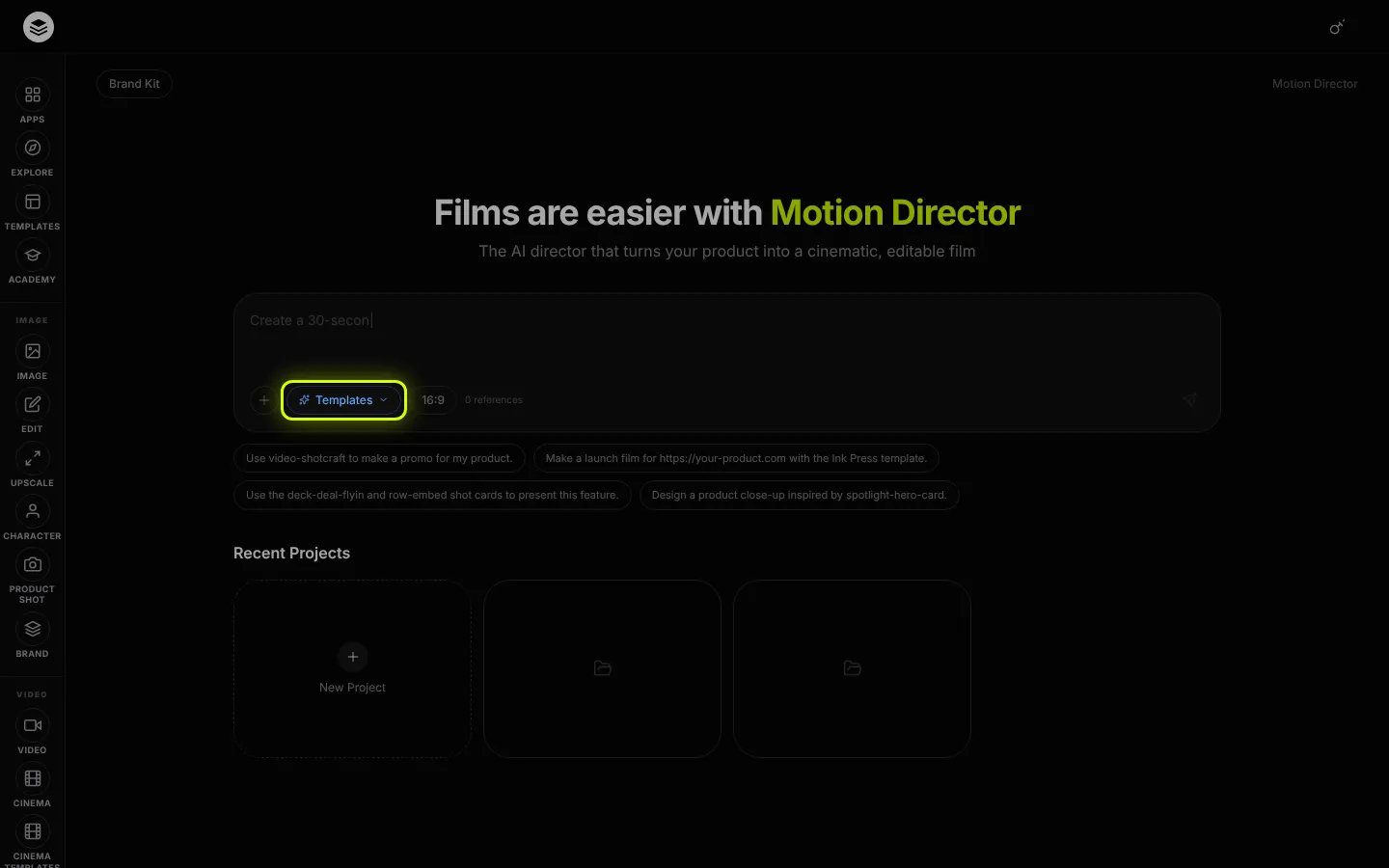
Templates picker

What it is: The Templates pill opens 'Motion Templates' where you pick shot cards. Picking a card adds it (or removes it if already chosen) and returns you to the chat box. You can open Templates again to add more; the film uses them in the order picked. Tags warn when a shot 'Shows your site's pages', 'Draws a sample screen; your site appears beside it' or is 'Slow to export'.

Why use it
When you know which kind of shots you want.
What you need
None.
Limits and rules
Up to 12 shot cards can be picked (the storyboard holds 14 scenes and two go to title cards).
Aspect ratio in Motion Director
Aspect ratio
FEATURE 04

Aspect ratio

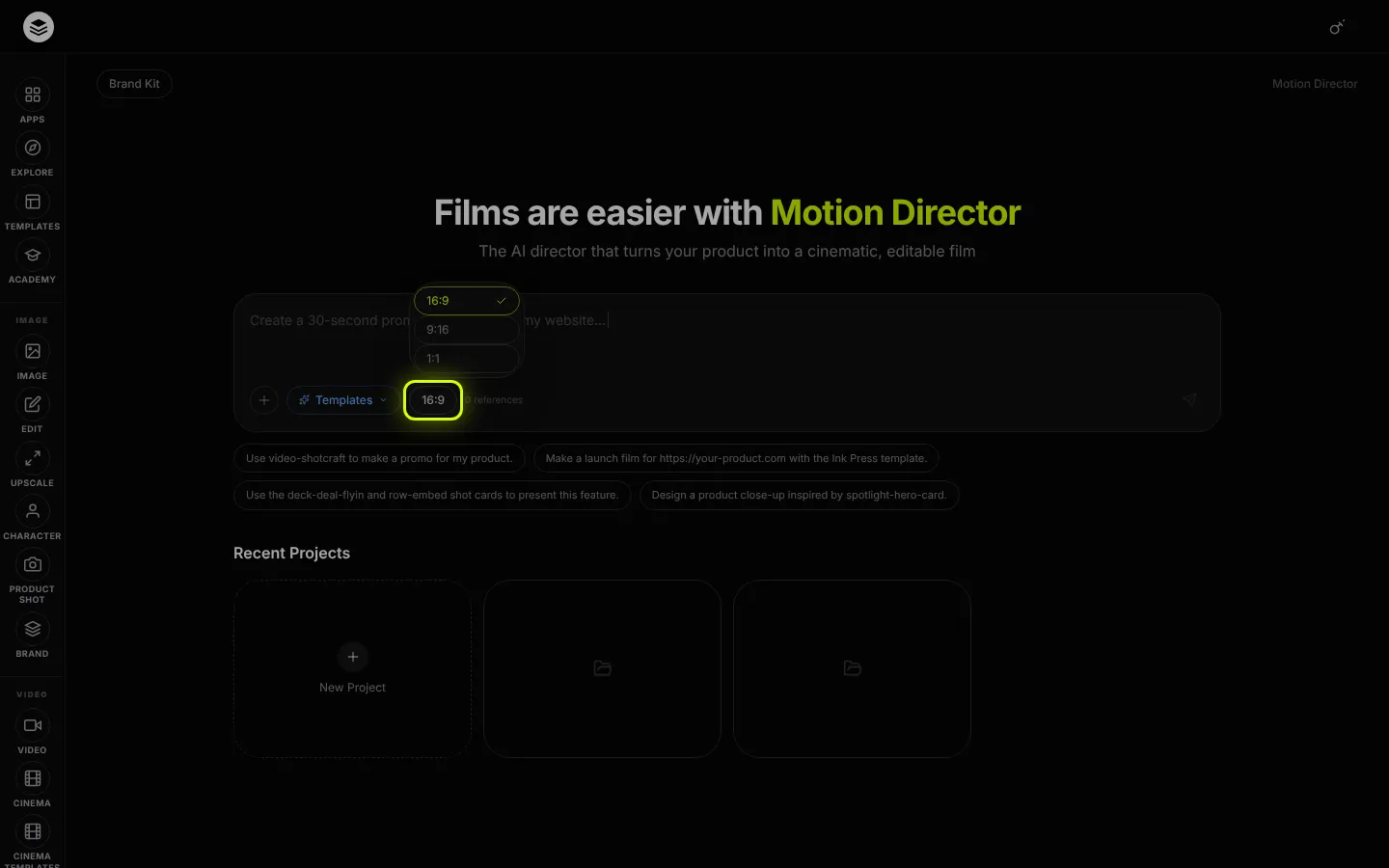
What it is: An Aspect ratio pill in the composer lets you choose 16:9, 9:16 or 1:1.

Why use it
Pick vertical for TikTok/Reels/Shorts, square for feeds, widescreen for websites and YouTube.
What you need
None, default is set by the app.
Limits and rules
Only those three ratios.
Attach image / video / audio in Motion Director
Attach image / video / audio
FEATURE 05

Attach image / video / audio

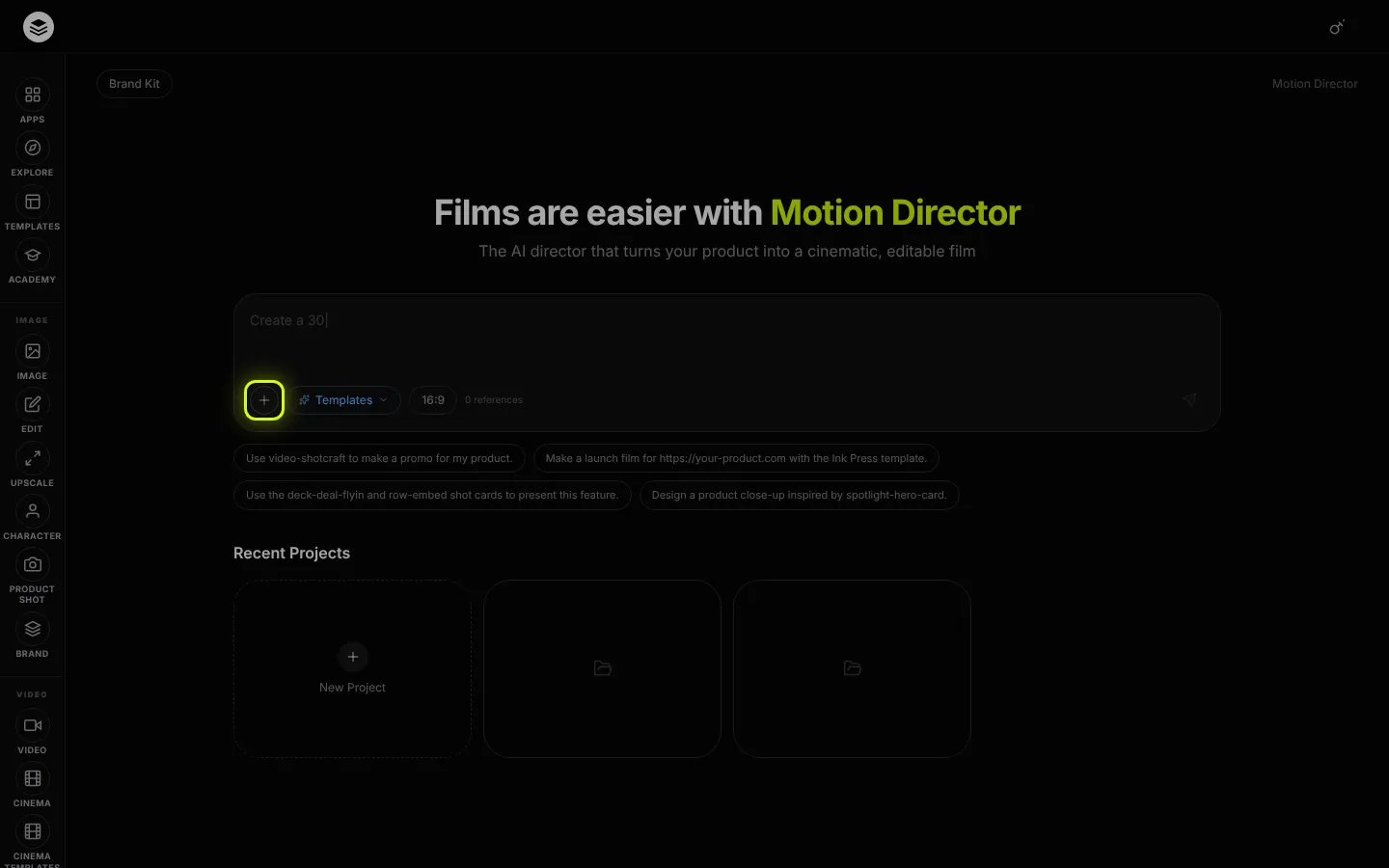
What it is: The attach button (label 'Attach image / video / audio') adds local files from your computer; they appear as small chips you can remove with the x button and are carried into the new film.

Why use it
To use your own screenshots, clips or music.
What you need
Local files.
Limits and rules
Files are used locally in the browser; exact size limits for this attach button were not confirmed.
Use My Brand in Motion Director
Use My Brand
FEATURE 06

Use My Brand

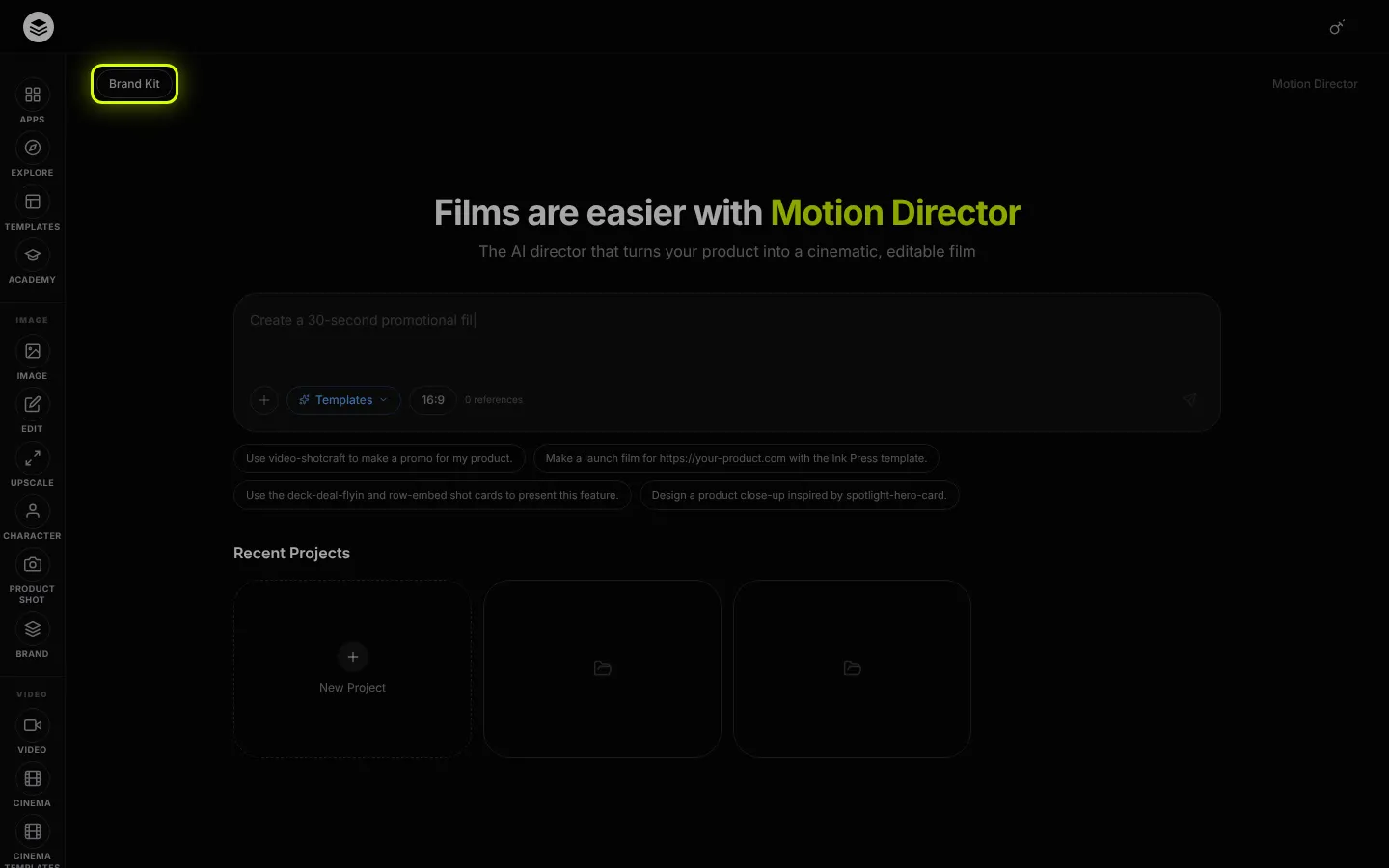
What it is: Connects your brand kit (business name, colors, logos, images and reference frames) through the shared personalization modal. A chip shows the Brand Kit company in use; clicking it clears it.

Why use it
To make the film follow your brand colors and logo, especially if you have no site address.
What you need
A saved brand or the brand form fields.
Limits and rules
A site address you give in the prompt wins over the Brand Kit company.
Open in Motion Workbench in Motion Director
Open in Motion Workbench
FEATURE 07

Open in Motion Workbench

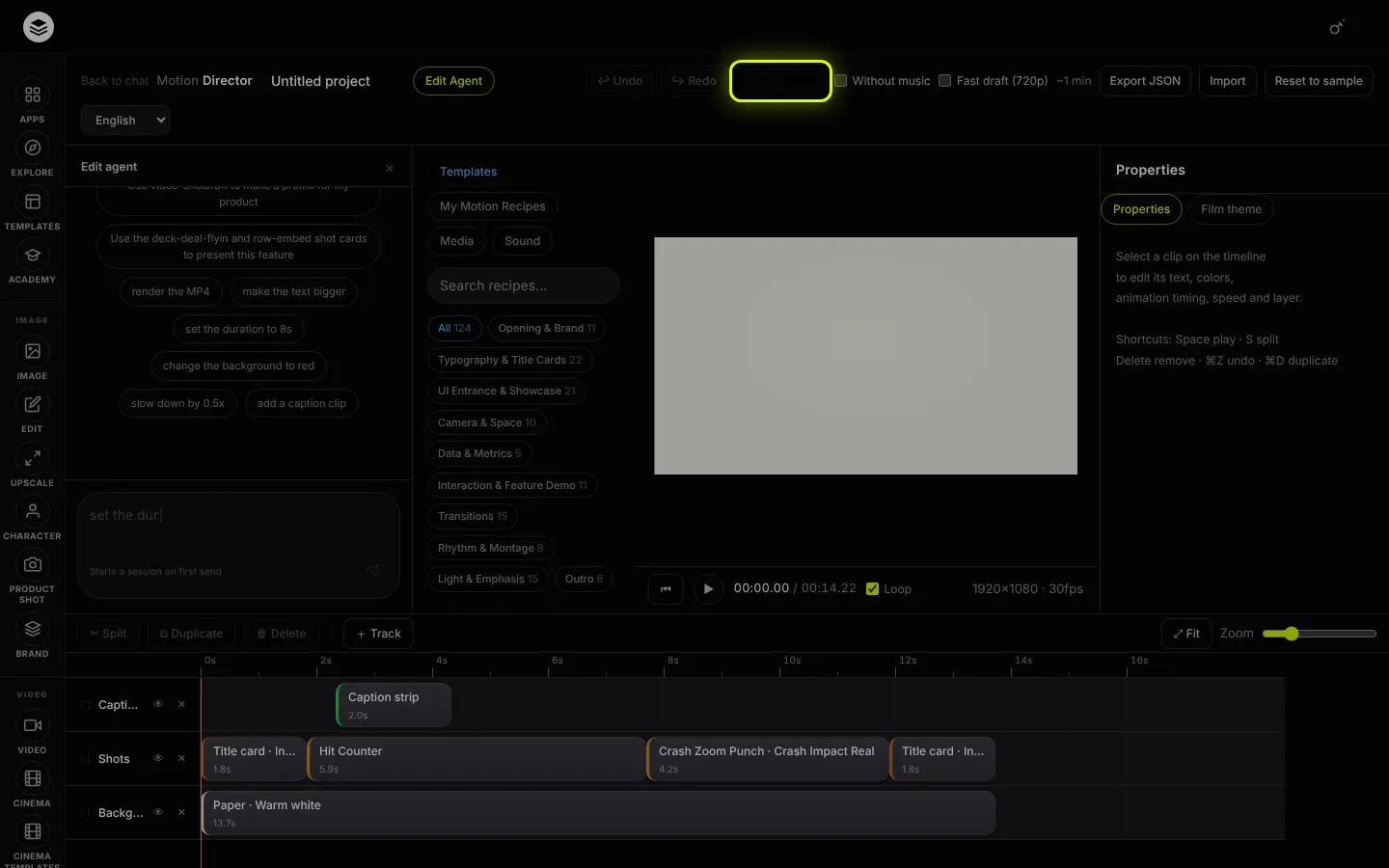
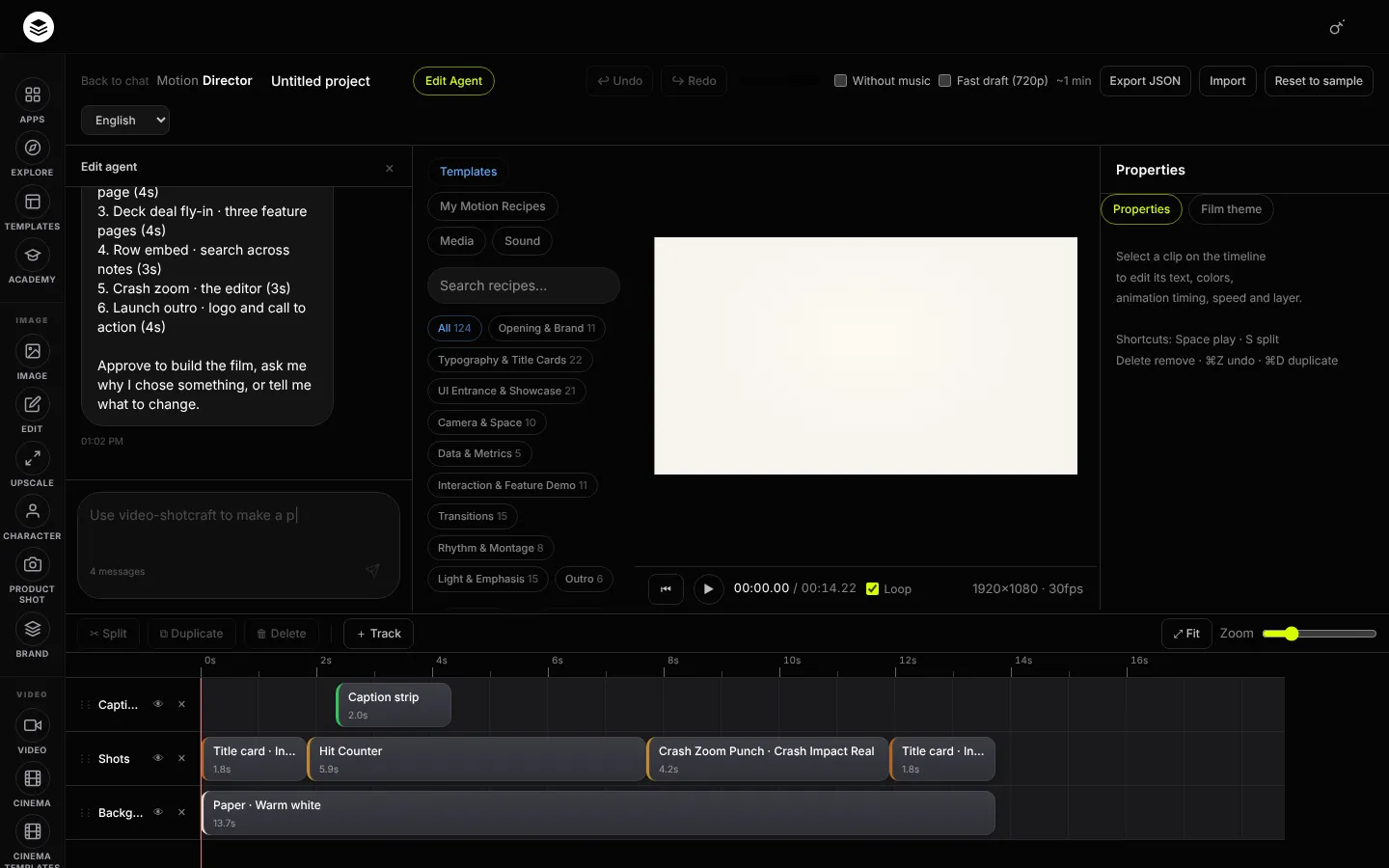
What it is: When a film is finished you get a card with a player, a Render MP4 button and Open in Motion Workbench. The Workbench (#/motion-director/workbench) has an 'Edit agent' panel (tell it what to change in this film), the shot library, the Properties inspector, the preview and a multi-track timeline. A 'Back to chat' button returns to the chat and your film stays available as Continue editing.

Why use it
Fine-tune text, timing, colors, music and shot order.
What you need
A built film.
Limits and rules
Keyboard shortcuts: Space play or pause, S split at the playhead, Delete or Backspace remove the selected clip, Ctrl/Cmd+D duplicate, Ctrl/Cmd+Z undo, Shift+Ctrl/Cmd+Z redo, Left and Right arrows step 1 frame (hold Shift for 10).
Export video in Motion Director
Export video
FEATURE 08

Export video

What it is: The Workbench top bar has Export video. It renders the film to MP4 inside your browser tab with the Remotion web renderer (the button tooltip says to keep the tab open). While running it shows 'Exporting N%', with a Cancel button; on success it shows 'Exported' with a way to show or download the file; on error it shows 'Export failed - Retry'. Extra options: 'Fast draft (720p)' (about a third faster) and 'Without music'. A rough time estimate is shown.

Why use it
Get the final MP4.
What you need
A project with clips.
Limits and rules
Heavy shots and long films take longer. Some shot cards are tagged 'Slow to export'.
Project file tools in Motion Director
Project file tools
FEATURE 09

Project file tools

What it is: The Workbench top bar also offers Undo, Redo, Export JSON (saves the project as a .json file), Import (loads a project JSON) and Reset to sample (asks 'Replace the current project with the sample project? You can undo this.').

Why use it
Back up or share a project, or start over from a sample.
What you need
A project JSON for Import.
Limits and rules
Bad files show 'Import failed: not a valid project JSON'.

How to use Motion Director

  1. Go to #/motion-director.
  2. Check that your OpenAI key is saved in Settings.
  3. Describe the film in 'Describe your motion video' and include your site address and length.
  4. To use a customer's landing page, paste its full address (https://...) into that description; the director captures the page and uses the screenshots, words and logo in the film.
  5. Optionally set Aspect ratio, Templates, attached files or Use My Brand.
  6. Click Generate and answer the director's questions.
  7. Review and adjust the storyboard in chat.
  8. Play the finished film, then click Open in Motion Workbench for edits.
  9. Click Export video to get the MP4.

Generation modes

The ways this studio can work, and when to pick each one.

Use Ink Press

A validated launch-film template: a bold paper-and-ink title card, your real pages in product shots with caption strips, flash cuts on the beat, whoosh and impact sound design, and a launch outro. Default colors are a paper background (#f7f4ee), ink text (#1c1a17) and amber accent (#b5651d) unless brand colors are given.

Best for: The fastest path to a polished launch film.

Let the director pick shots

The director chooses shots from the whole library to fit your product.

Best for: When you have no strong preference.

Work it out together

The director reads your site and proposes a product check, a visual direction (up to three options labelled A, B, C) and a shot plan; you confirm each step before it writes the storyboard.

Best for: When you want to steer the creative direction.

Named or picked shot cards

You name shot cards in chat (for example deck-deal-flyin and row-embed) or pick them in Templates.

Best for: When you know exactly which effects you want.

Edit agent (in Workbench)

A panel where you tell the agent what to change in the film (for example make text bigger). It proposes edits to clips and text.

Best for: Quick changes without manual timeline work.

Inputs and outputs

What you give the studio, and what you get back.

InputDescriptionWhen to useRules
Prompt
Required
Your description of the film. The director also reads the first web address in it.Always.Empty requests do nothing (the server answers 'Describe the film first').
Website address
Optional
A URL in your prompt (for example https://your-product.com). The director captures the pages to build product-page shots.Whenever you have a site.The capture needs the site to be reachable; if it cannot be captured the film will lean on non-site shots.
OpenAI API key
Required
Your own key, used by the director AI.Save once in Settings.Without it the server responds 'Add your OpenAI API key in SmartVideo GO Settings to use the Motion Studio director.' A rejected key gives 'OpenAI rejected the API key'.
Aspect ratio
Optional
16:9, 9:16 or 1:1.Choose before generating.Three options only.
Templates (shot cards)
Optional
Specific shot recipes you want used, in the order picked.When you want specific effects.Up to 12.
Attached media
Optional
Images, video or audio from your computer.To include your own assets.Size limits not confirmed.

What you get

  • A storyboard shown in the chat
  • An editable film project (tracks and clips) opened in the Motion Workbench
  • A playable film in the chat result card
  • An MP4 file rendered in your browser (Export video / Render MP4)
  • A project JSON file (Export JSON)

Use cases and example workflows

Real jobs you can do, step by step.

Product launch teaser

Short film showing your real pages with bold titles.

  1. Give your site address and a 20 to 30 second length.
  2. Choose 9:16 for social.
  3. Accept the Ink Press structure or ask for another look.
Result: An editable film exported as MP4.

Feature walkthrough reel

Present one feature with specific shot cards.

  1. Name shots such as deck-deal-flyin and row-embed in your message.
  2. Generate and review.
  3. Edit text in the Workbench.
Result: A film focused on the feature.

Turn my customer's landing page into a film

  1. Open #/motion-director and check your OpenAI key is saved in Settings.
  2. In 'Describe your motion video' type the length and goal and paste the page's full address, for example 'Make a 30 second promo for https://customer-site.com'. The director reads the first web address in your message.
  3. Optionally set the Aspect ratio, and open Templates to pick shot cards tagged 'Shows your site's pages' so the real page appears in the film.
  4. Click Generate. The progress list shows 'Capturing https://customer-site.com' with a running seconds counter while the page is read and screenshotted; this usually takes about 2 minutes.
  5. Read the director's message: it says what it read from the page (title, headline, calls to action) and what it captured (pages, card crops, found pictures, site images, the logo).
  6. Answer the director's questions (for example Use Ink Press, Let the director pick shots or Work it out together) and review the storyboard; it says 'using your captured pages' when the real screenshots are in it.
  7. Ask for changes in the chat, then approve to build and play the film.
  8. Click Open in Motion Workbench to edit text and timing, then click Export video.

Launch film from my website

  1. Open #/motion-director.
  2. Type 'Make a launch film for https://your-product.com with the Ink Press template' (one of the example prompts).
  3. Click Generate and choose Use Ink Press if asked.
  4. Review the storyboard and ask for tweaks.
  5. Play the film, then click Open in Motion Workbench.
  6. Use the Edit agent to change the headline, then click Export video.

Hand-picked shots

  1. Click the Templates pill and pick a few shot cards, one at a time.
  2. Write a short message about your product.
  3. Click Generate; the picked cards are used in order.
  4. Open in Motion Workbench to adjust timing.

Tips and best practices

  • Always include your website address and a length in the first message.
  • Say 'you decide' when you do not mind the director choosing.
  • Use Fast draft (720p) while iterating, then export at full quality.
  • Use Export JSON to back up a project before big changes.
  • Confirm the storyboard before building the film.
  • Keep headlines short (about 70 characters) and captions about 90.
  • Hold key moments at least a second so viewers can read them.
  • Keep the tab open during export.

Limitations and troubleshooting

Know the limits before you start, and how to fix common problems.

LimitationWhat it meansWorkaround
Plan requiredClicking Generate can open an upgrade prompt instead of starting.Upgrade your plan to one that includes SmartVideo GO, or contact support.
OpenAI key requiredThe director cannot plan without your key.Add your OpenAI API key in Settings and retry.
Slow exportsSome shot cards are tagged 'Slow to export' and long films take longer.Tick Fast draft (720p) for a quicker preview export, choose lighter shots, or shorten the film.
Scene and length capsVery long or very busy briefs are trimmed to the limits.Make several shorter films.

My customer's landing page is not in the film

Why: The address was not in the message, was not a full https:// address, the capture failed or timed out, or the chosen shots do not show site pages.

Fix: Paste the full address into 'Describe your motion video', wait for the director's 'I captured ...' message, and pick shot cards tagged 'Shows your site's pages' in Templates. If the capture fails, attach screenshots of the page.

The film does not look like my site

Why: No site address was given or the capture failed, so generic shots were used.

Fix: Include your full website address and ask the director to use real page shots, or use Use My Brand for colors and logos.

I picked too many shot cards

Why: A film holds at most 14 scenes and two are title cards, so 12 shots can be picked.

Fix: Remove some picks by clicking the x on their chips.

Changes in the Edit agent were skipped

Why: Every edit is checked; invalid edits are skipped.

Fix: Rephrase the instruction or use the Properties inspector manually. Undo with Ctrl/Cmd+Z.

Glossary

Terms used in Motion Director.

Shot recipe / shot card
A ready-made motion design for one scene, such as a title card or a product-page zoom.
Storyboard
The shot-by-shot plan the director writes before building the film.
Ink Press
A paper-and-ink launch film template the director can use.
Motion Workbench
The editor with timeline, library, properties and Edit agent that opens from a finished film.
Edit agent
A chat panel in the editor that changes the film from your instructions.
Fast draft (720p)
An export option that renders at 720p for speed.
Playhead
The marker showing the current time on the timeline.

Frequently asked questions

How do I add a customer's landing page to the video?

Paste the page's full web address into 'Describe your motion video', for example 'Make a 30 second promo for https://customer-site.com', and click Generate. Motion Director captures the page in the background (the progress list shows 'Capturing <address>' with a seconds counter, normally about 2 minutes), reads its title, headline and calls to action, takes page screenshots, card crops, pictures and the logo, and then writes a storyboard that uses them. The director's message lists what it captured, and the storyboard says it uses your captured pages. If you have no address, attach screenshots with 'Attach image / video / audio' instead. Shots tagged 'Shows your site's pages' use the real screenshots; shots tagged 'Draws a sample screen; your site appears beside it' show a sample screen next to your site.

Where is Motion Director in the menu?

It is not in the side menu. Open it at #/motion-director. The editor is at #/motion-director/workbench.

Do I need an OpenAI key?

Yes. The director uses your own OpenAI key from Settings.

Do I need a paid plan?

Starting a film checks for a plan that includes SmartVideo GO and shows an upgrade prompt otherwise.

How long can the film be?

Between 5 and 90 seconds. If you do not say a length, the composer uses 20 seconds.

Is this the same as Workbench?

No. Workbench (#/workbench) is a separate studio for editing your generated clips, images and audio. Motion Director has its own editor called Motion Workbench, which opens from a film made in the chat.

Where is my exported MP4?

Export video renders in your browser and offers the file to download. Whether it is also saved to your library from this editor was not confirmed.

Can I change the text after the film is built?

Yes. Use the Edit agent, or select a clip in the timeline and change its text and style in Properties.

Try Motion Director now

Open the studio and put these features to work, or browse the guides for all 53 studios.