Learn AI creator skills in 15 tracks, 66 lessons and 77 templates, then jump into SmartVideo studios to make things.
Academy (page title "AI Creator Academy", breadcrumb "Smart Video Academy") is SmartVideo's learning area. It has 15 tracks, 66 lessons and 77 templates. Each lesson has Learn, See and Create tabs, and you can mark lessons complete, bookmark them and copy a share link.
Best for: Beginners and creators who want a structured path (ads and UGC, filmmaking, faceless channels, avatars, audio, product photos, fashion, real estate, headshots, merch, stock, tool choice, freelancing, agents) and ready-to-fill templates before using a studio.
A 2:17 captioned walkthrough of the studio, with a sample file and prompt.
VIDEO · 2:17
What is Academy?
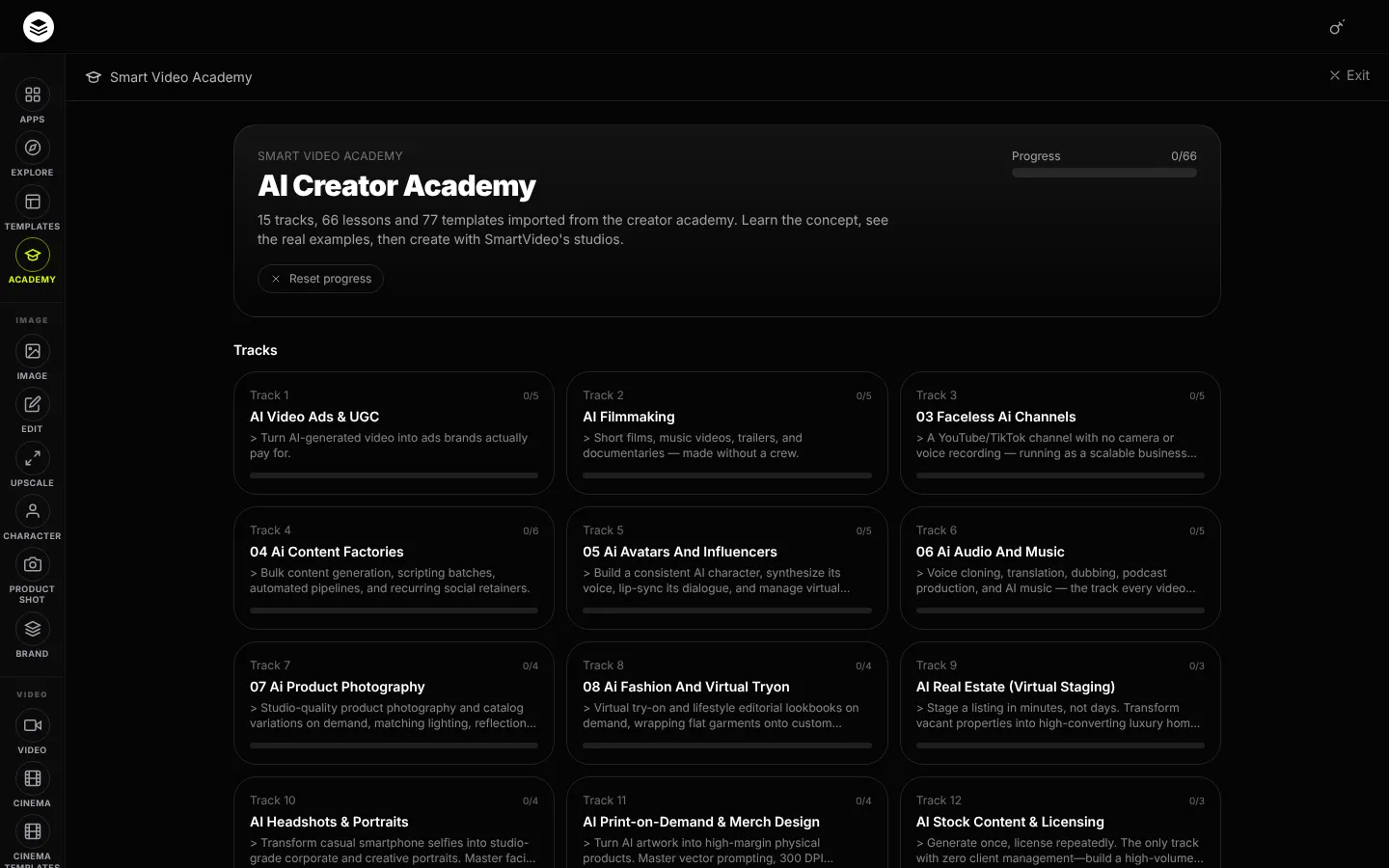
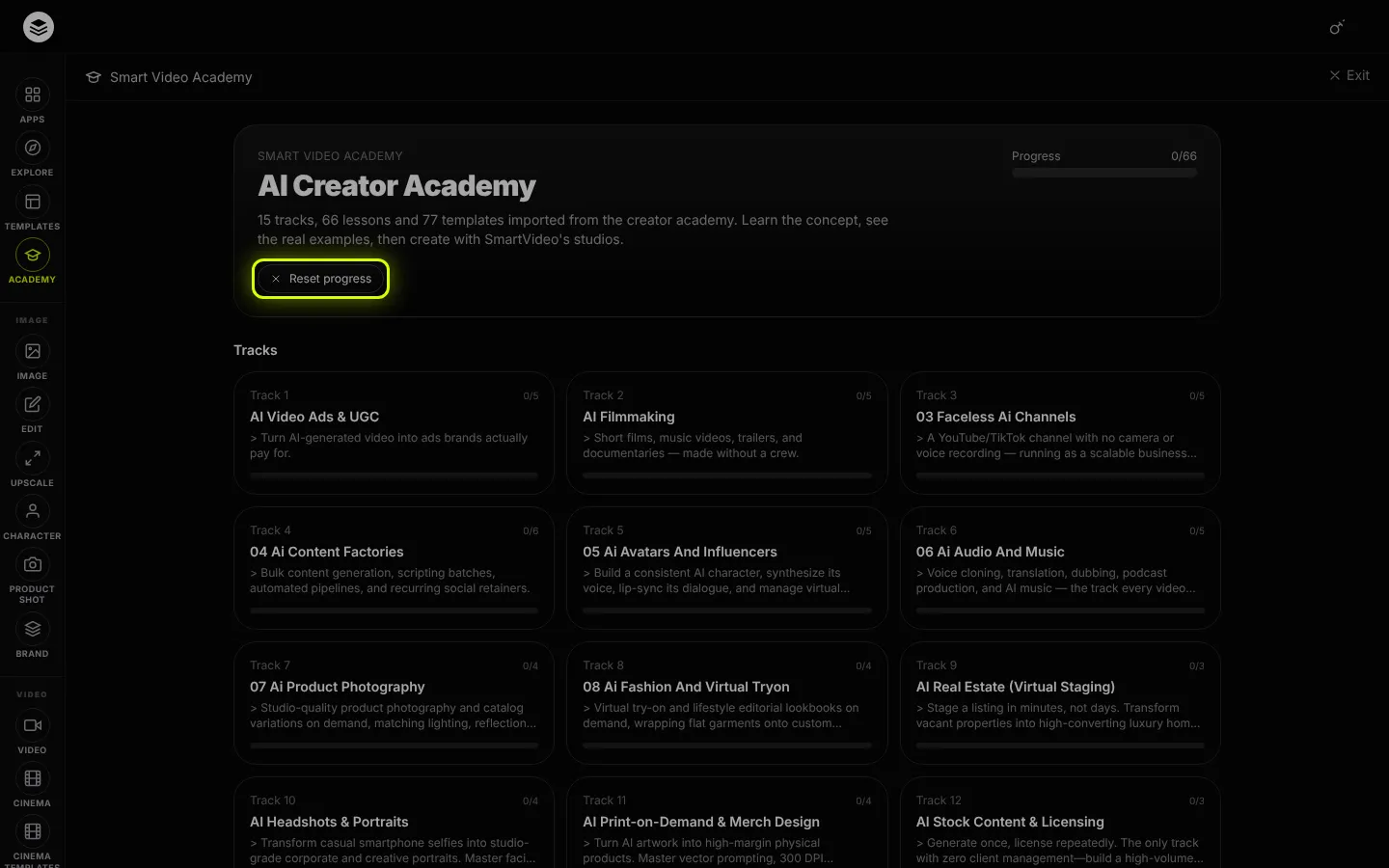
The Academy is a read-and-practice area, not a generator. The hub (#/academy) shows the heading "AI Creator Academy", a summary line ("15 tracks, 66 lessons and 77 templates imported from the creator academy. Learn the concept, see the real examples, then create with SmartVideo's studios."), an overall Progress bar, a "Reset progress" button, a Bookmarks list (once you bookmark something) and a grid of Tracks. Click a track card to see its Lessons and Templates side by side. Click a lesson to open it with three tabs: Learn (the concept, plus a "Read full lesson" button), See (example media and, for some lessons, a link to an app or studio) and Create (linked templates). Click a template to open an editor with tabs Create, See and Learn. Your progress (in-progress and completed lessons) and bookmarks are saved only in your browser's local storage on that device. Lessons can be shared with the "Copy link" button, which copies a URL of the form #/academy/track/<trackSlug>/lesson/<lessonId>. Track 01 (AI Video Ads & UGC) has the richest lessons (The problem, The concept, Do it, Launch it (get paid), Exercises) and 7 interactive template editors; the other 14 tracks show lessons and templates as documents. The Academy itself never generates images, video or audio; it points you to the studios that do.
When to use it
You are new to AI video/image creation and want step-by-step lessons.
You want to learn how to turn a skill into a service or income (pricing, outreach, retainers, licensing).
You want a fill-in template (ad brief, UGC script, batch matrix, outreach message, retainer proposal).
You want to track which lessons you have finished and bookmark ones for later.
You want to share a specific lesson with someone using a link.
15 tracks, 66 lessons and 77 templates (counts come from the catalog).
Overall Progress bar on the hub and a per-track "completed/total" counter.
"Mark as completed" / "Mark as incomplete" round check button on each lesson row and on the lesson page.
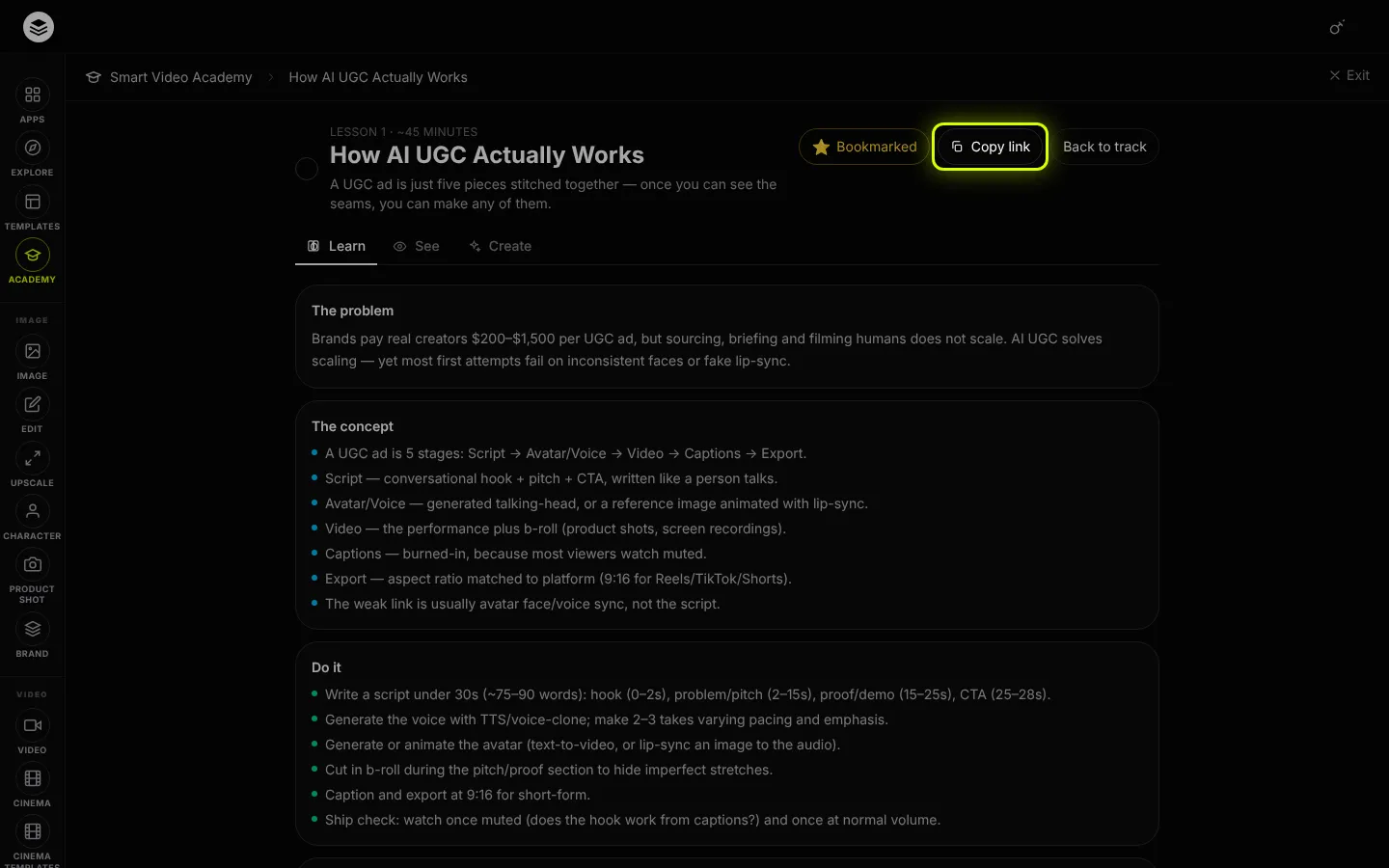
Bookmarks: "Bookmark for later" (star), "Bookmarked", "Remove bookmark"; bookmarked lessons are listed on the hub under "Bookmarks (N)".
"Copy link" button on a lesson page that copies a share URL (button text changes to "Copied!").
Lesson tabs: Learn, See, Create.
Template editor tabs: Create, See, Learn.
"Create With Smart Video" and "Use Template" buttons on templates; "Try this in <Studio>" on example media.
"Reset progress" button on the hub.
Every Academy feature, explained
25 features, each with a definition, why you would use it, what it needs and its limits.
Hub (all tracks)
FEATURE 01
Hub (all tracks)
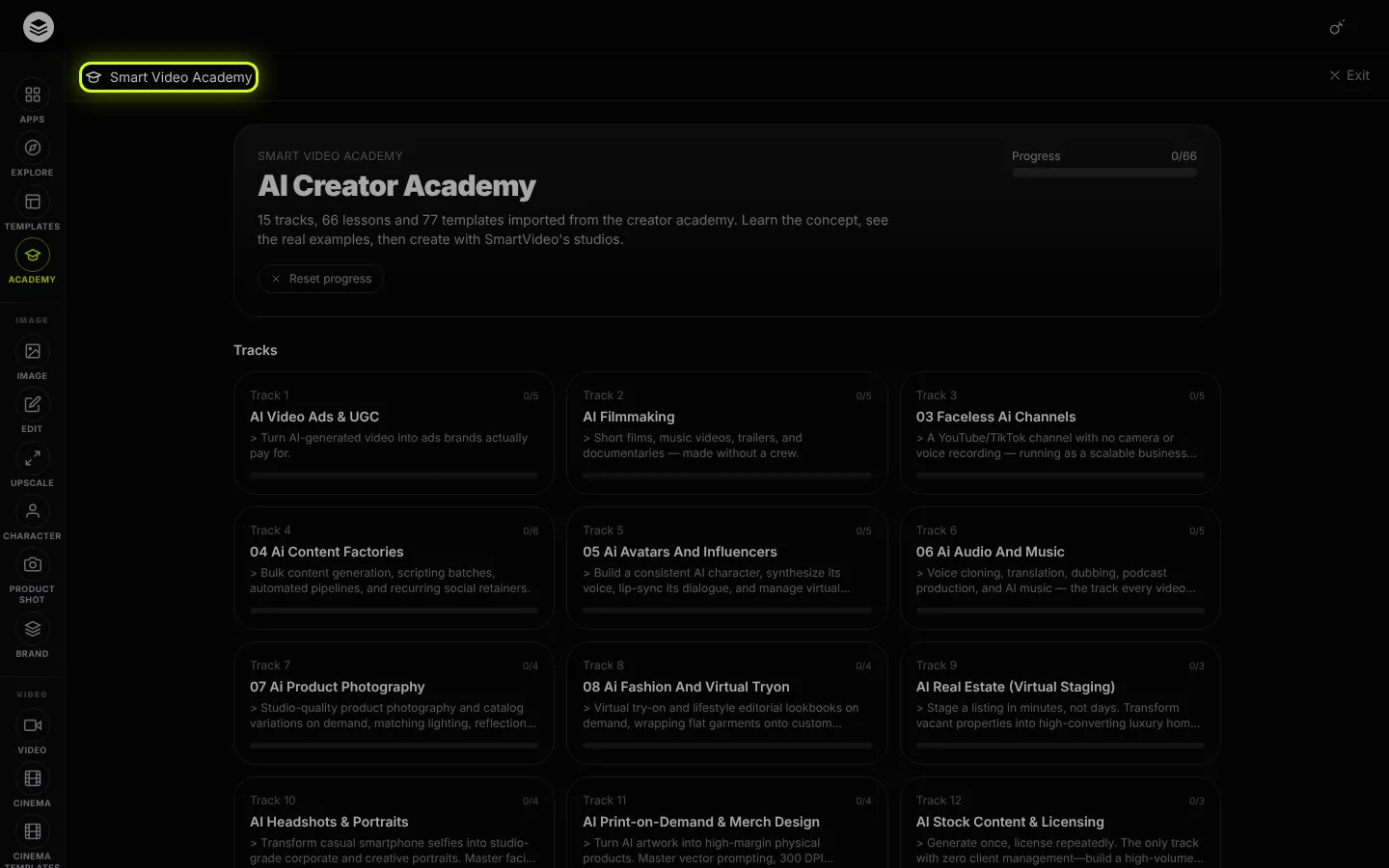
What it is: Opening #/academy shows the "AI Creator Academy" header, the counts line, an overall Progress bar (shown as completed/total lessons, e.g. 3/66), your Bookmarks list (only if you have bookmarks) and the Tracks grid. Each track card shows "Track N", the title, a short summary and a progress bar with completed/total once the track has lessons. Click a card to open the track. A "Smart Video Academy" button in the top bar returns to the hub and "Exit" goes to the Apps page.
Why use it
Starting point to pick a track and see how far you have got.
What you need
None.
Limits and rules
Progress and bookmarks shown are only those stored in this browser.
Track page
FEATURE 02
Track page
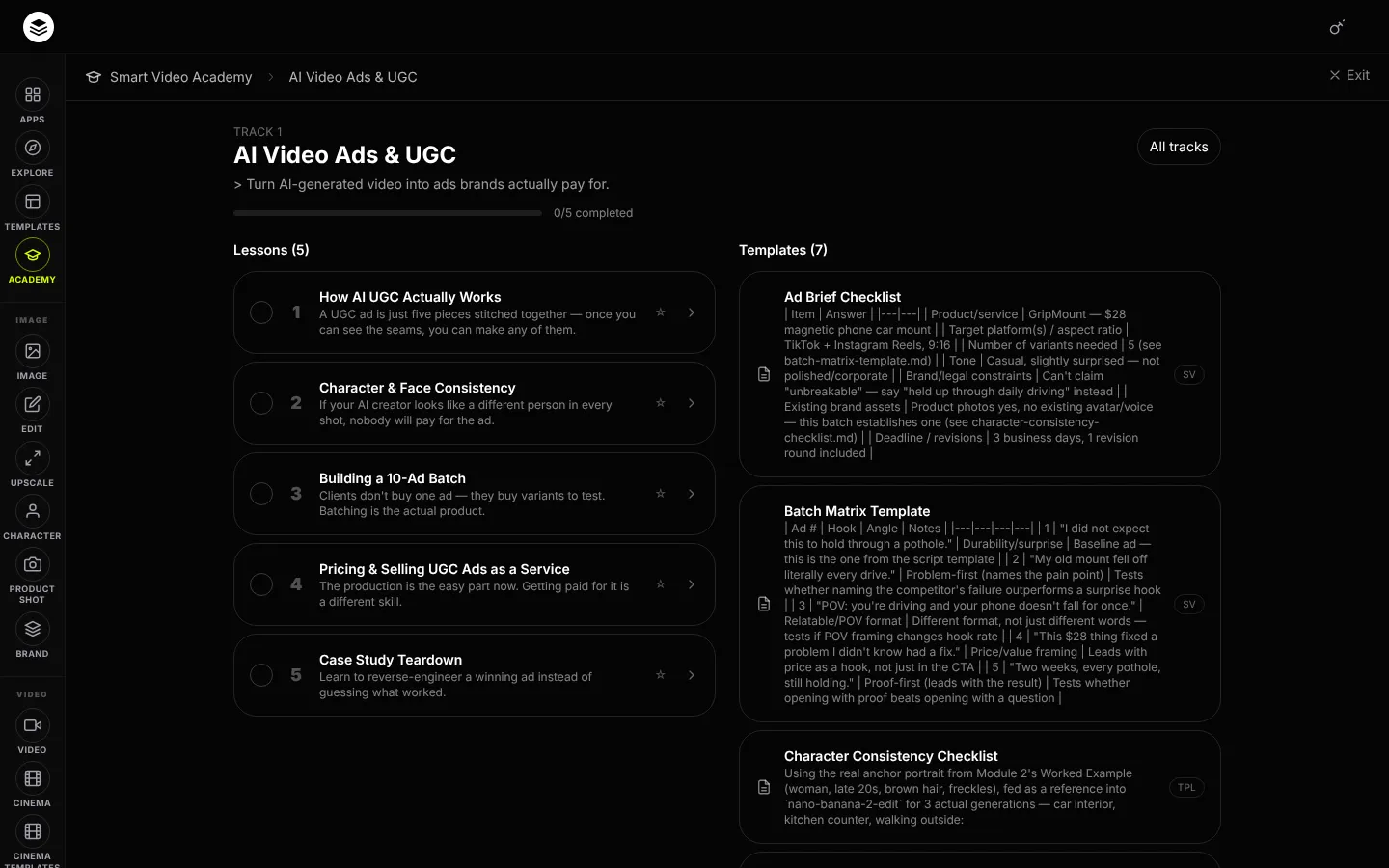
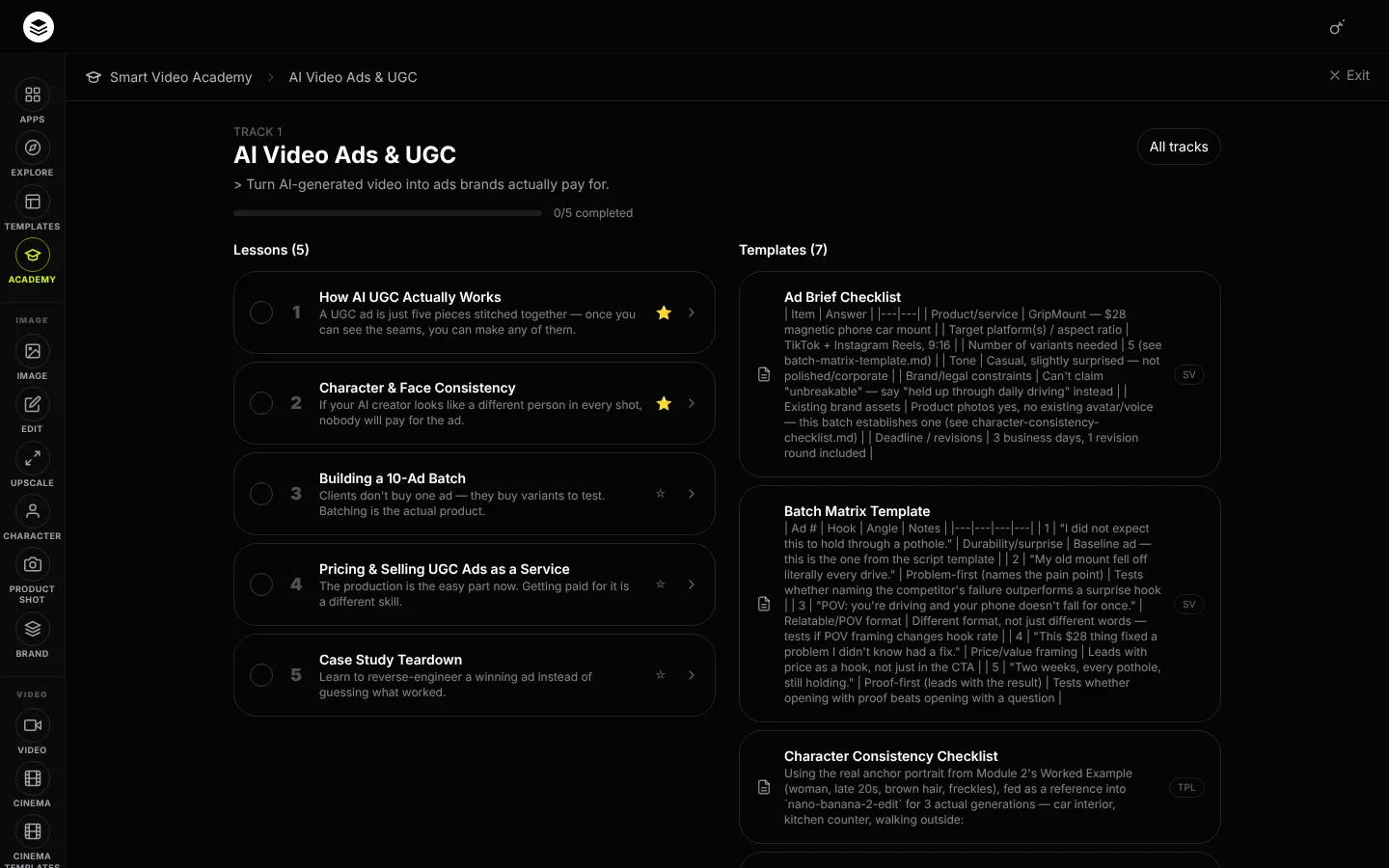
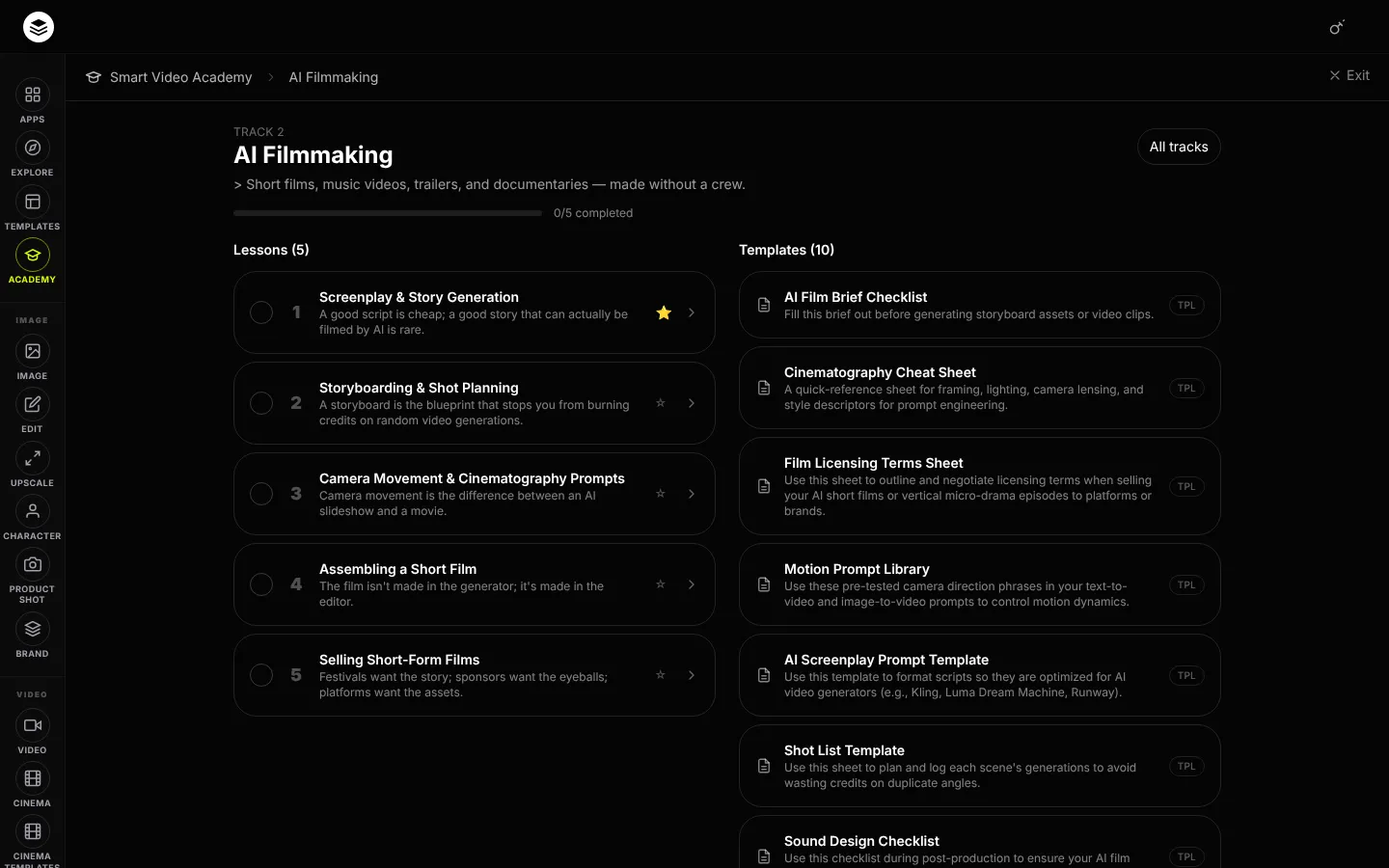
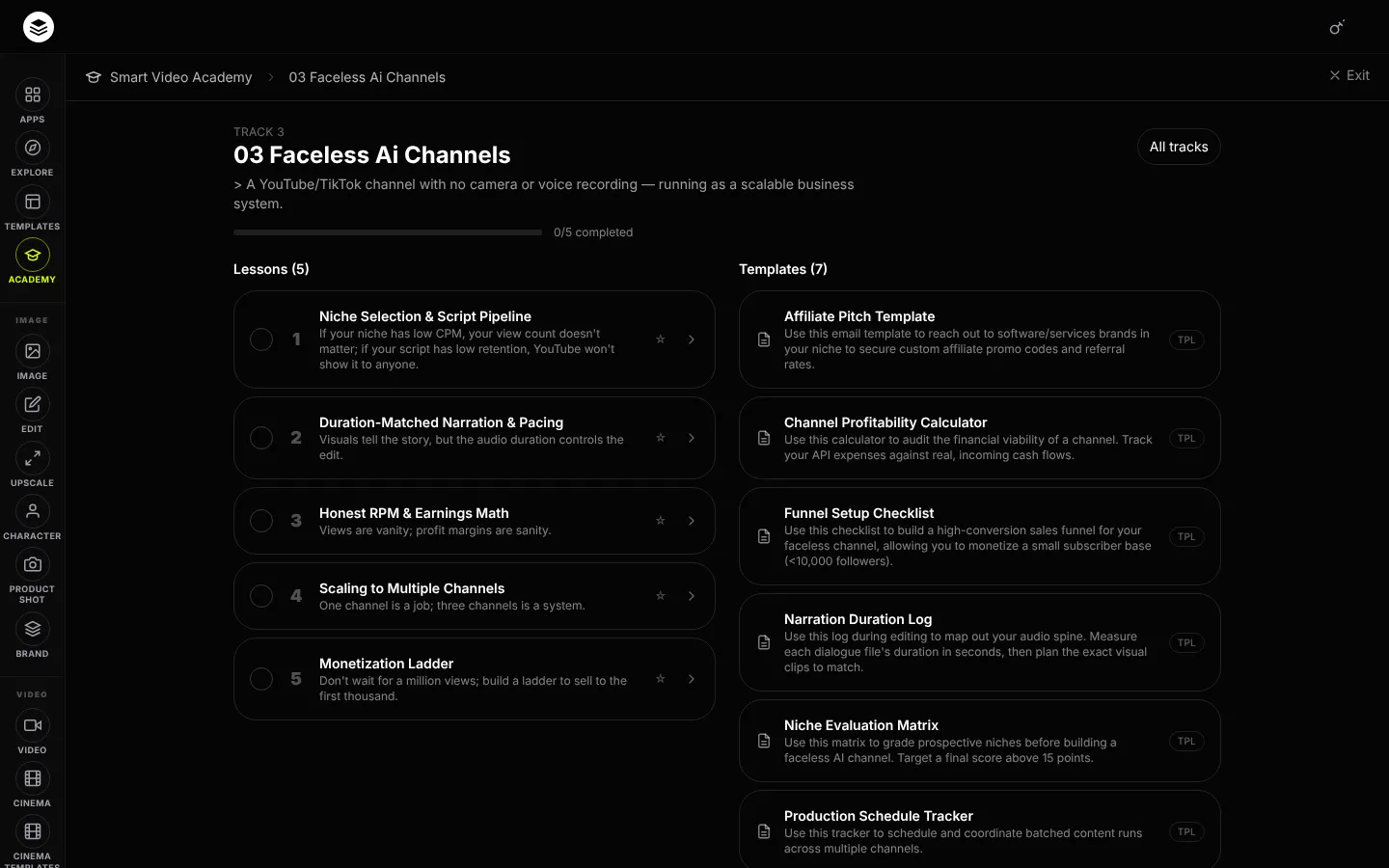
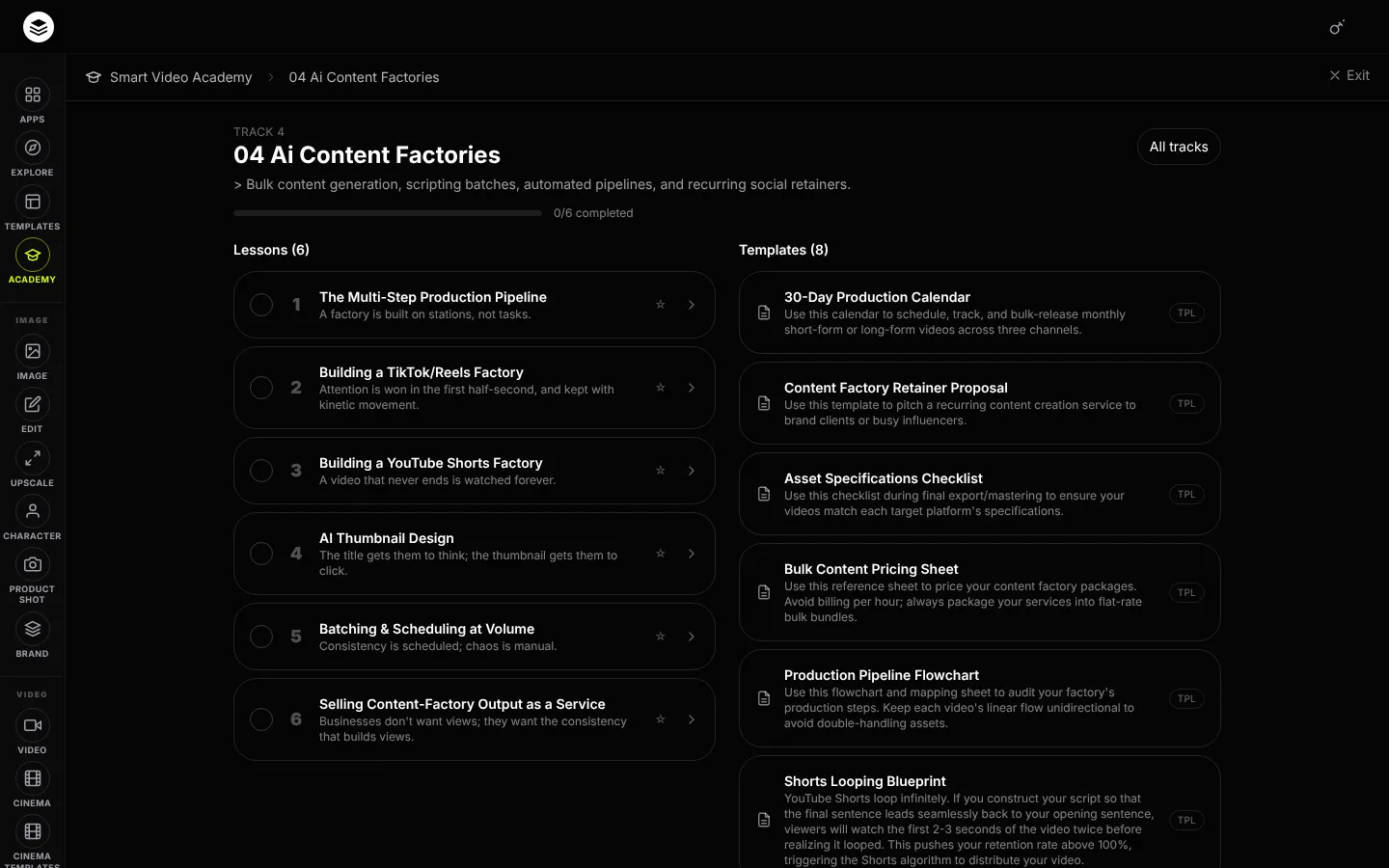
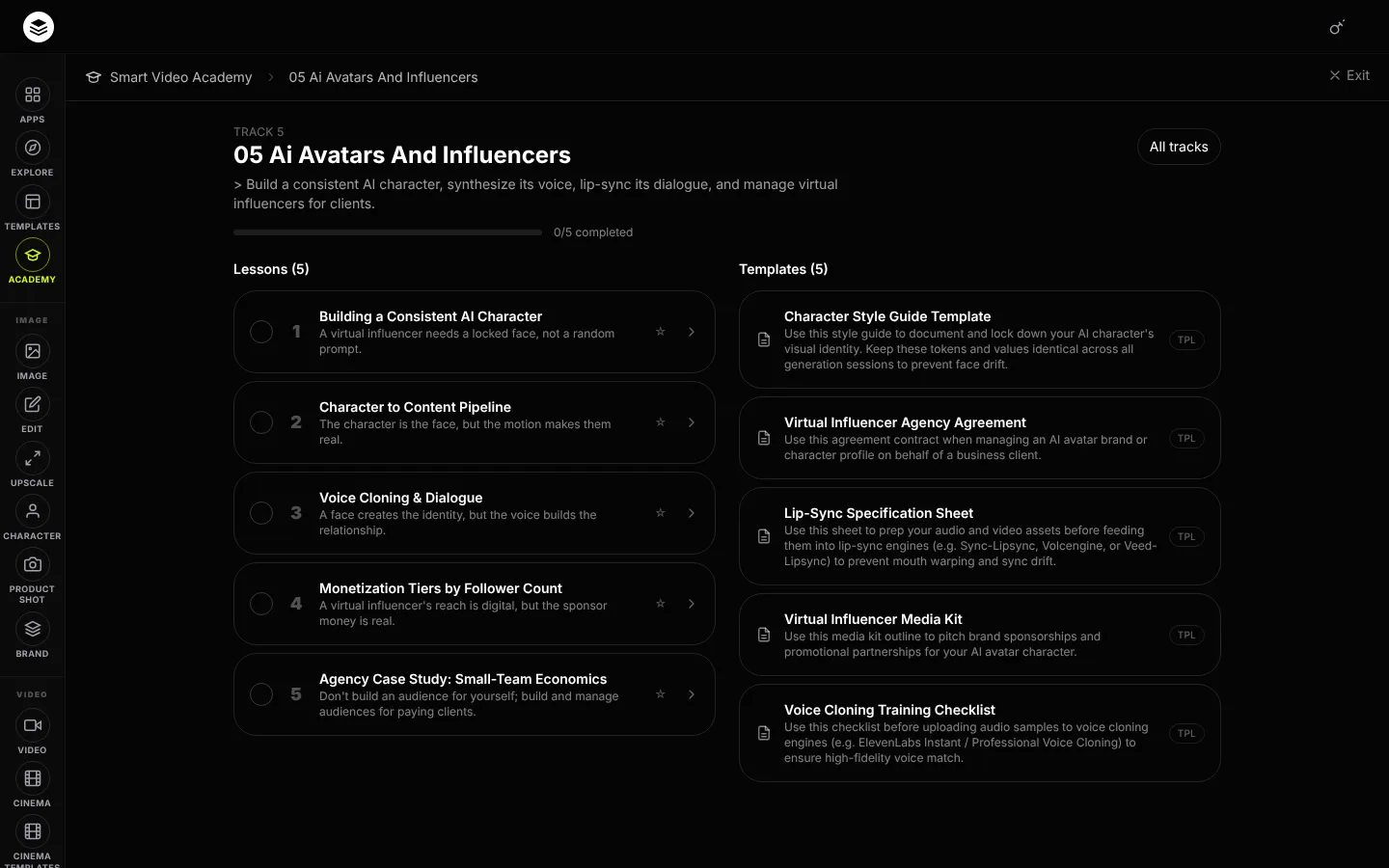
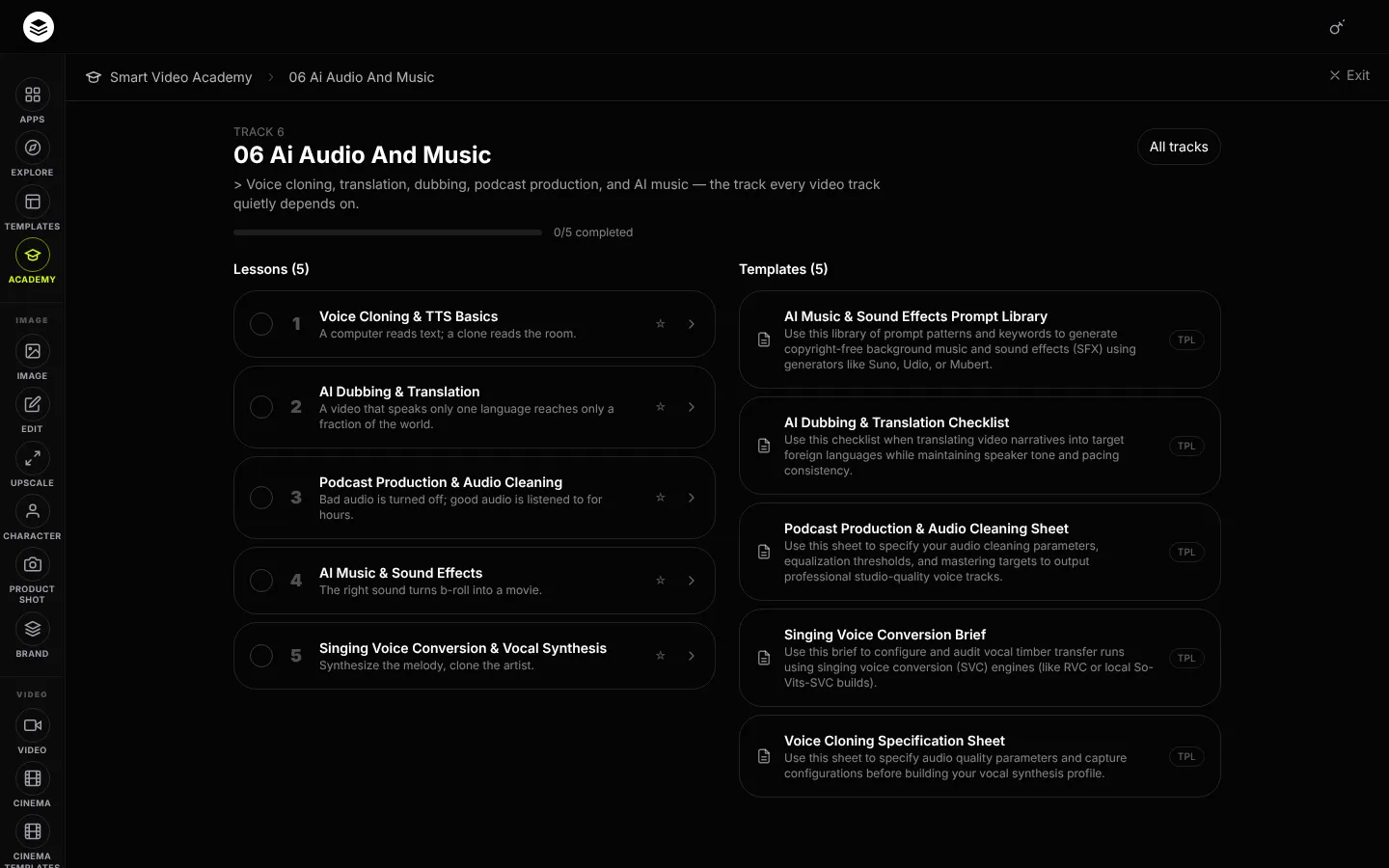
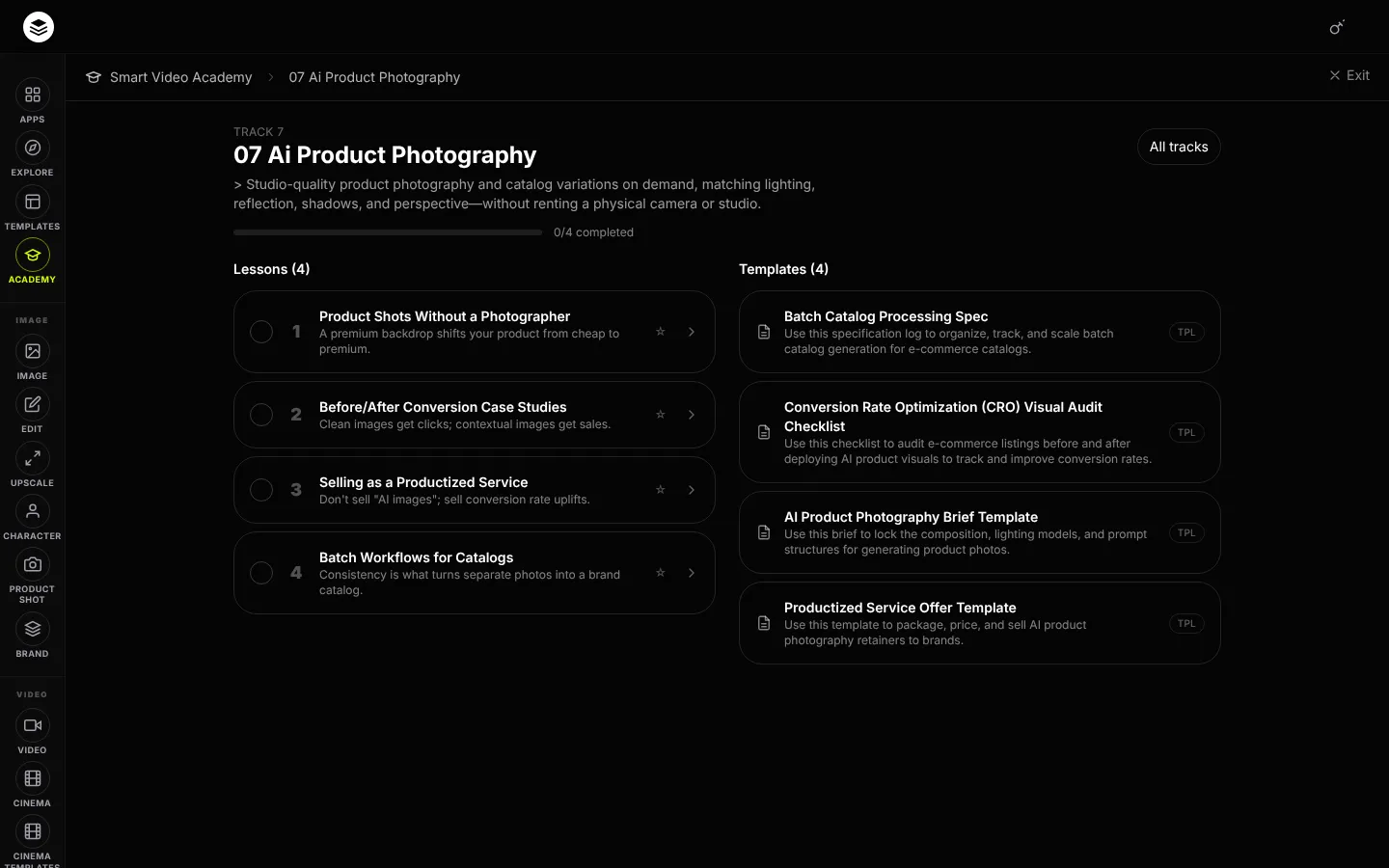
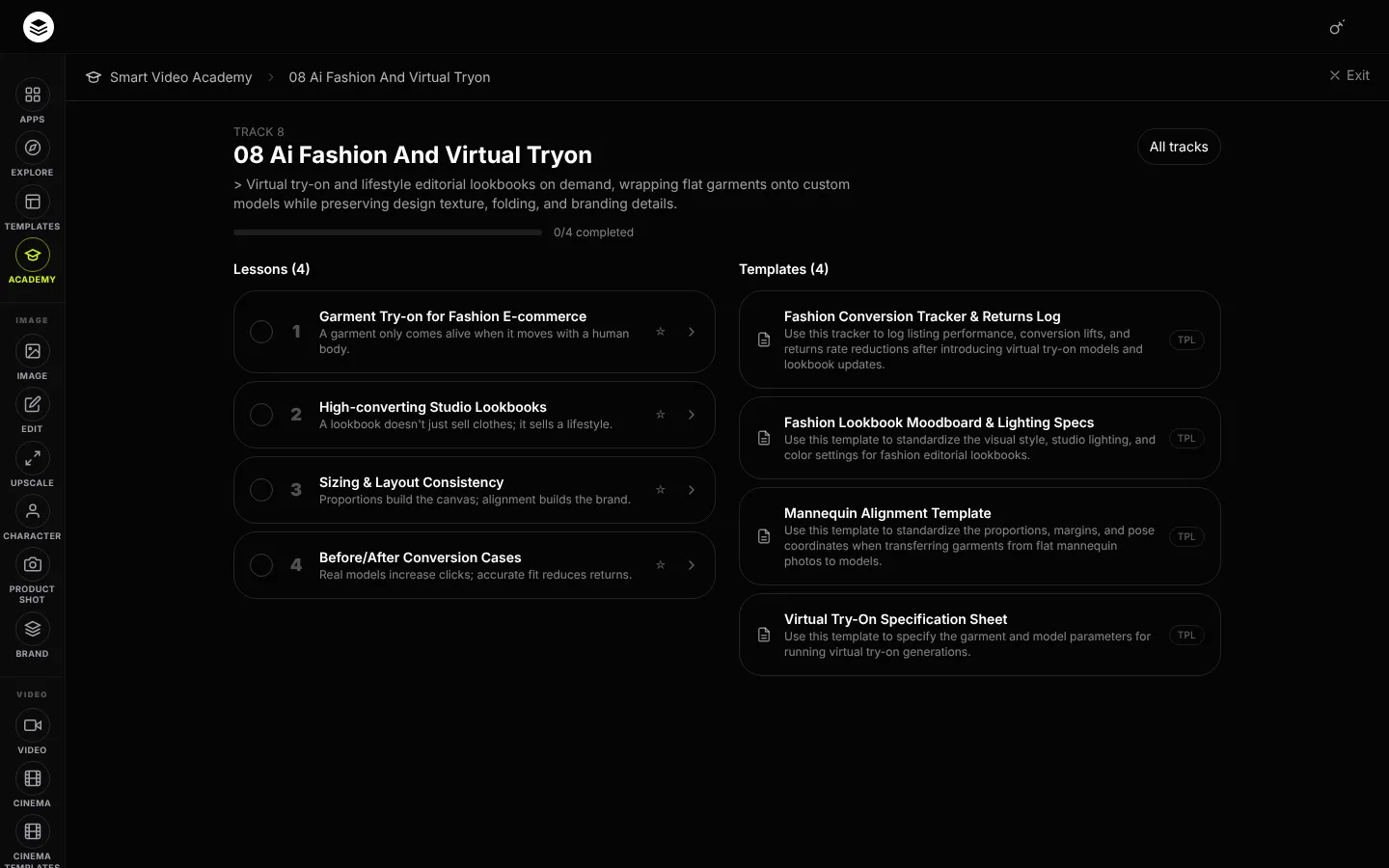
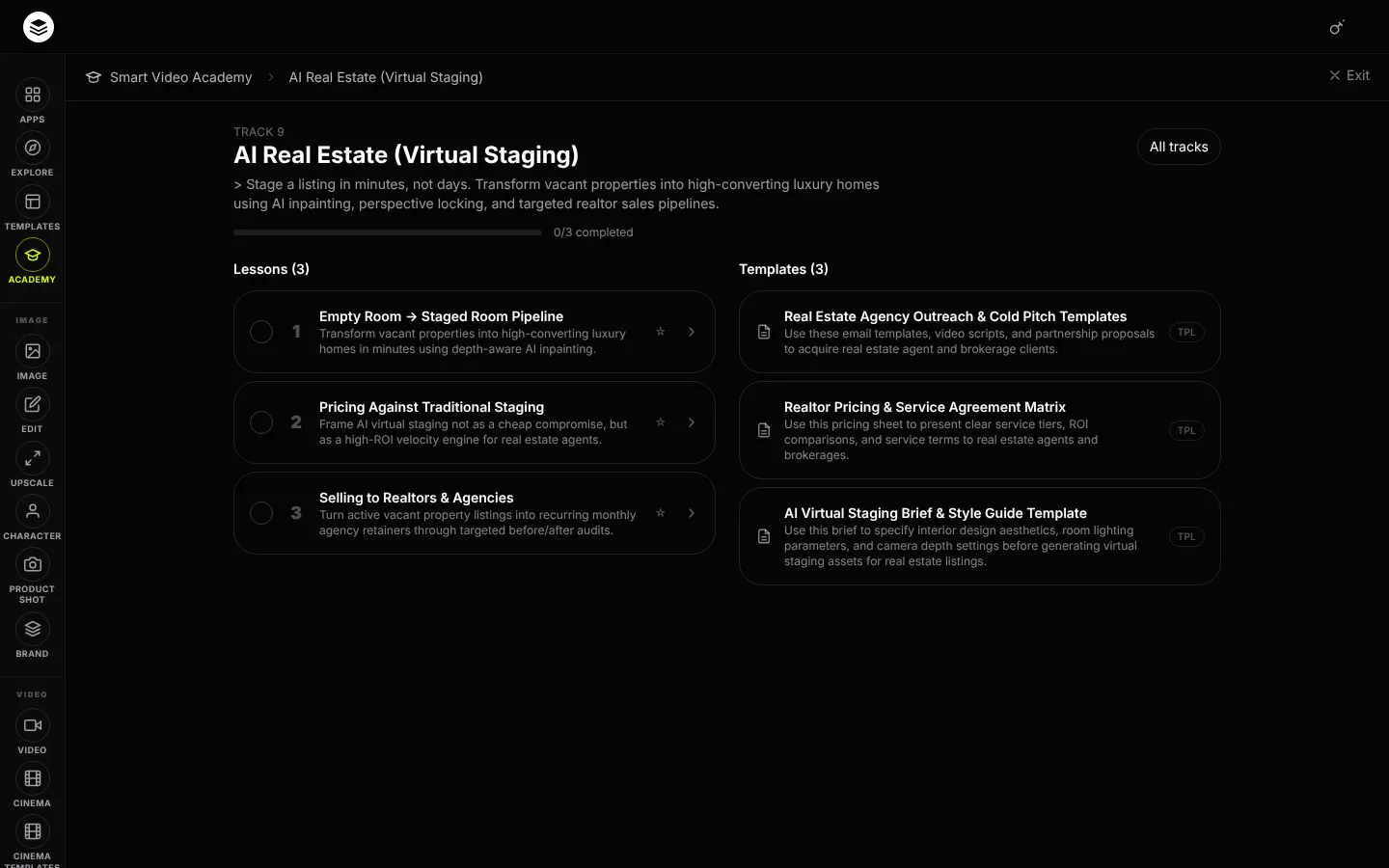
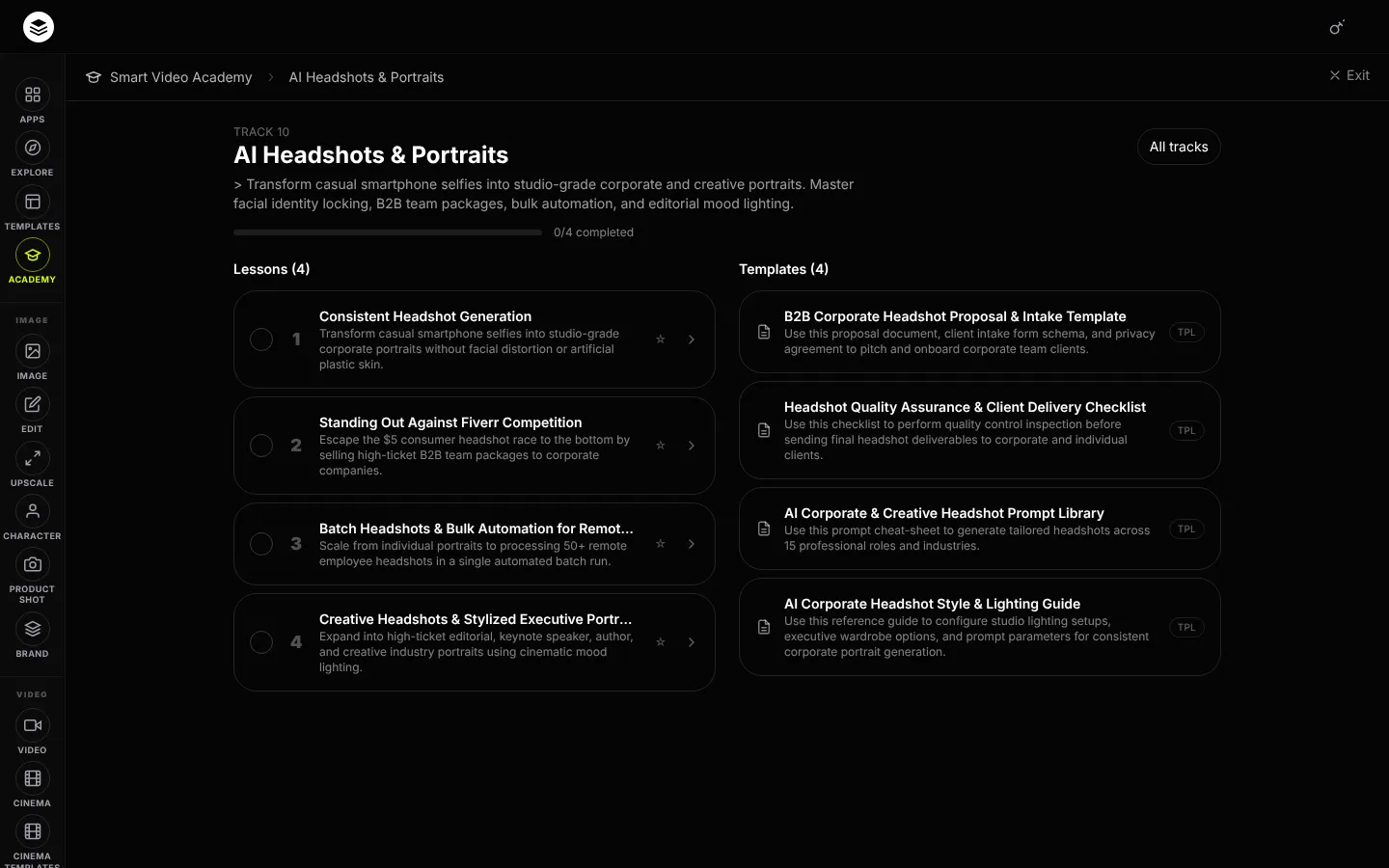
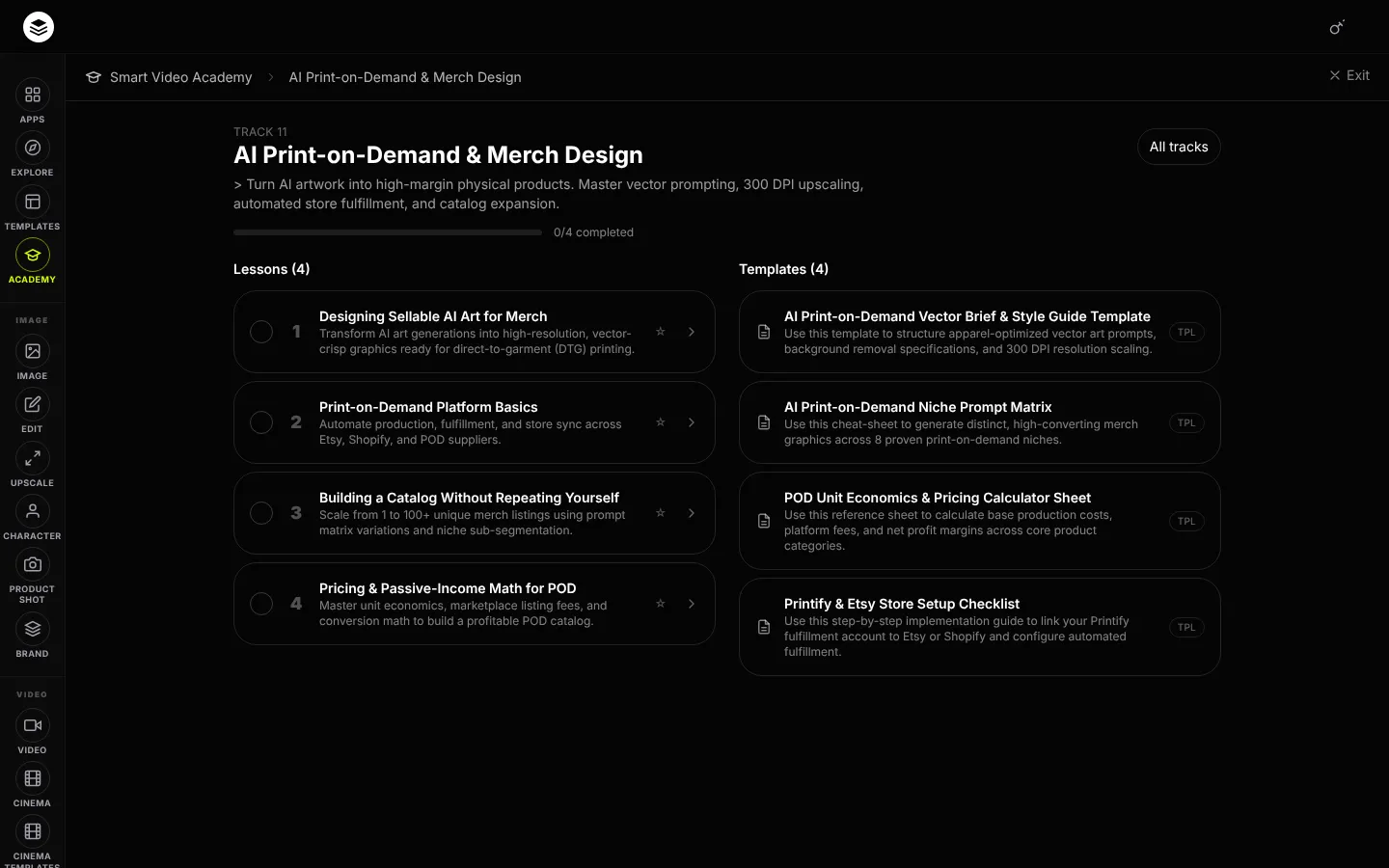
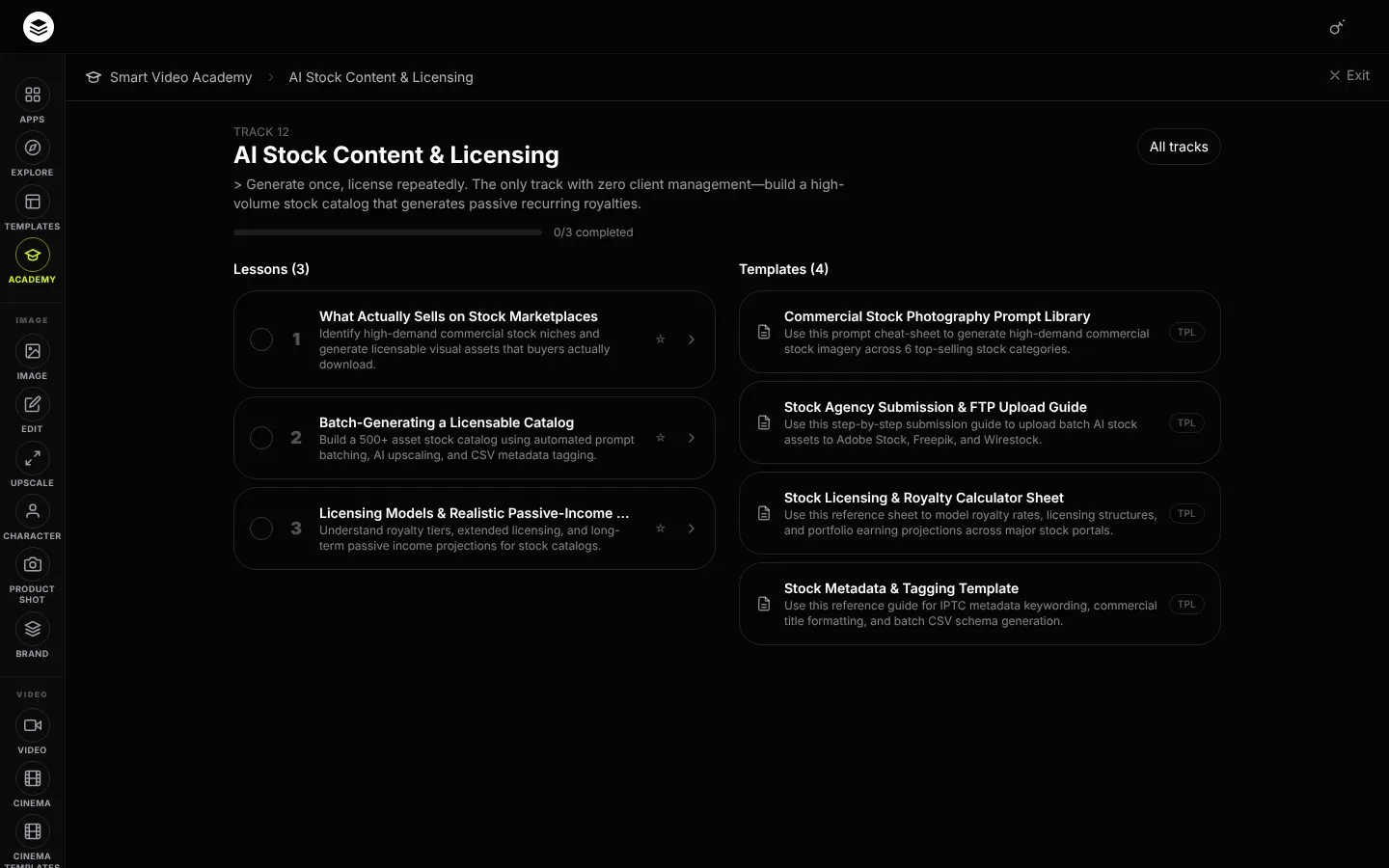
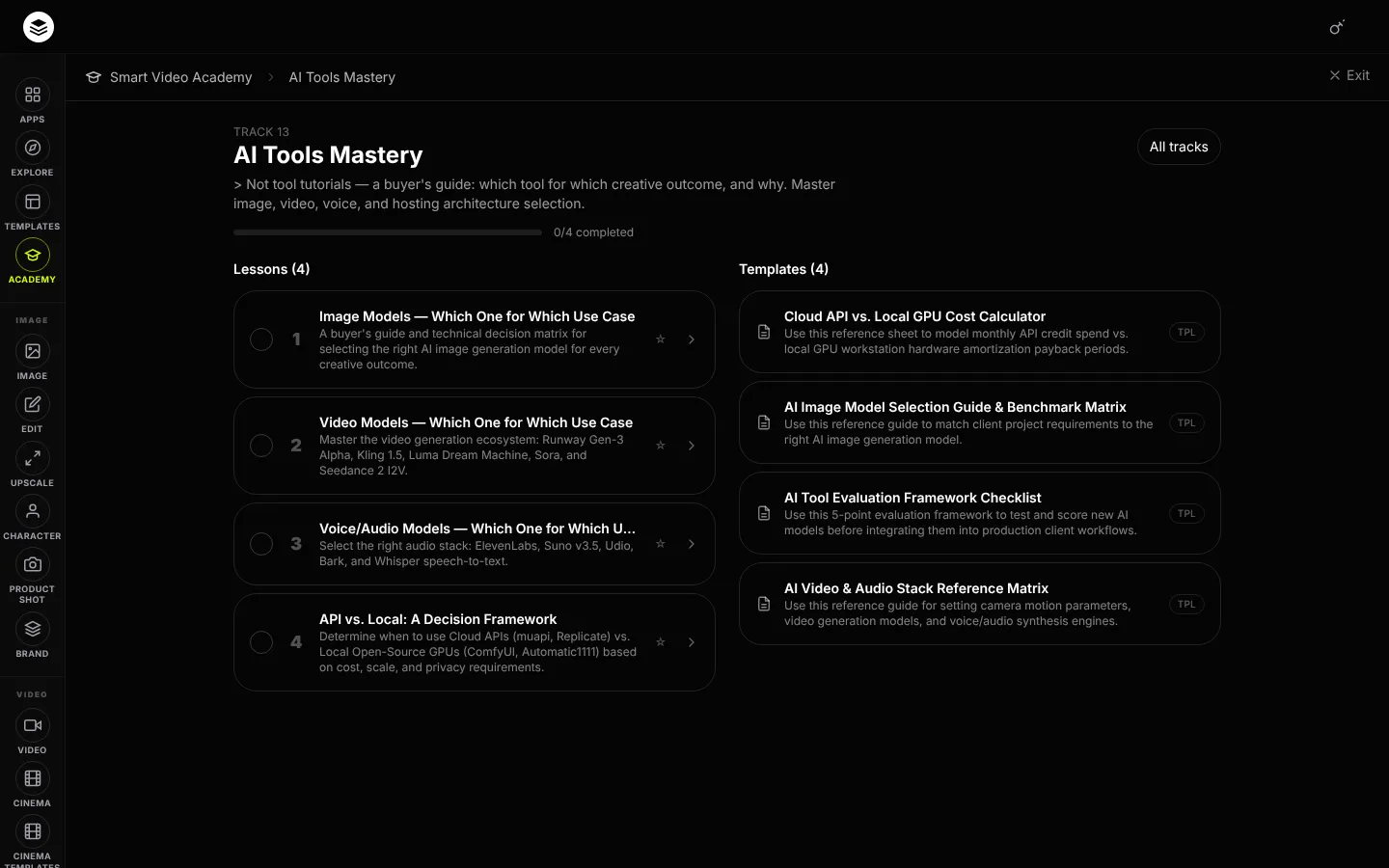
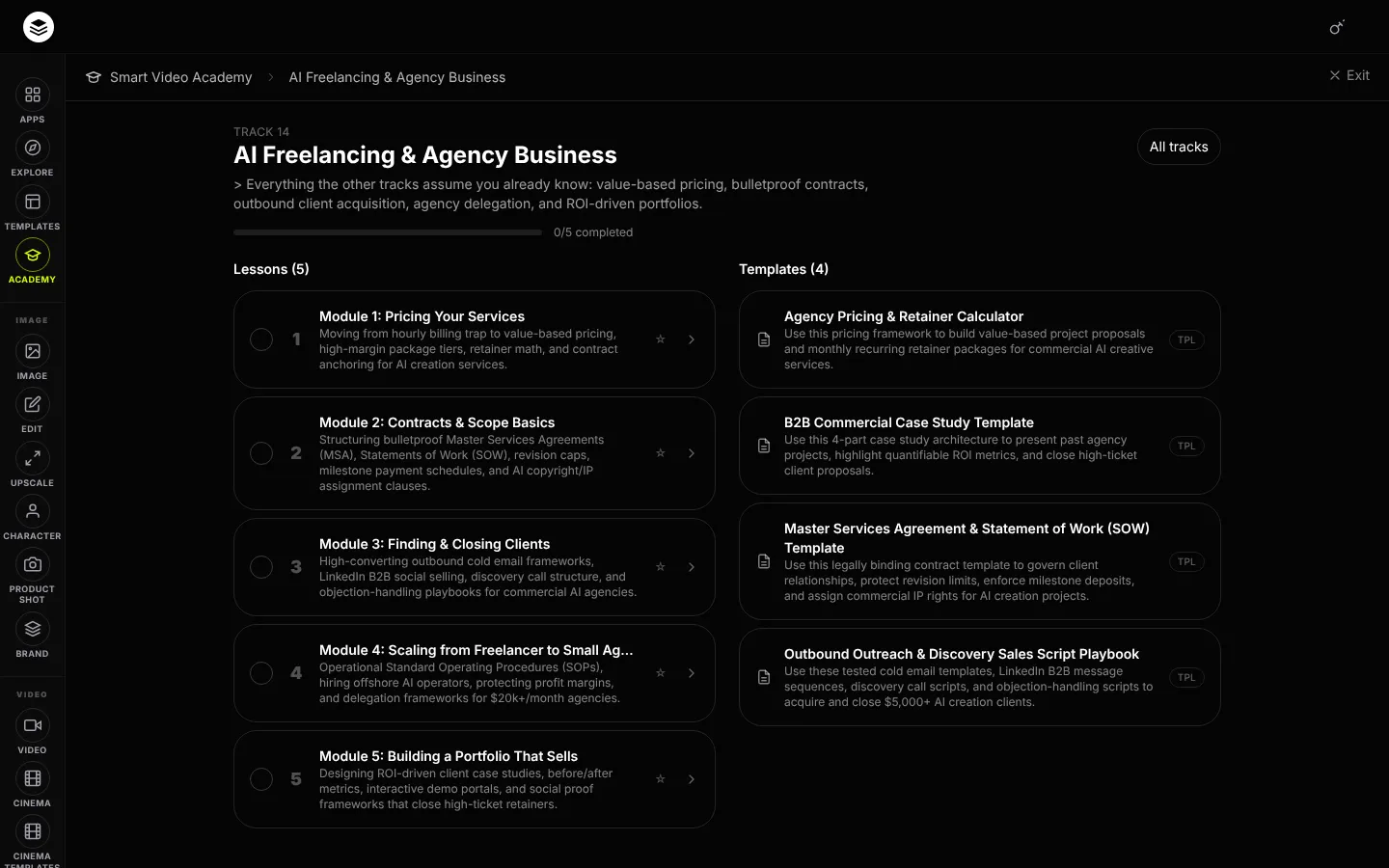
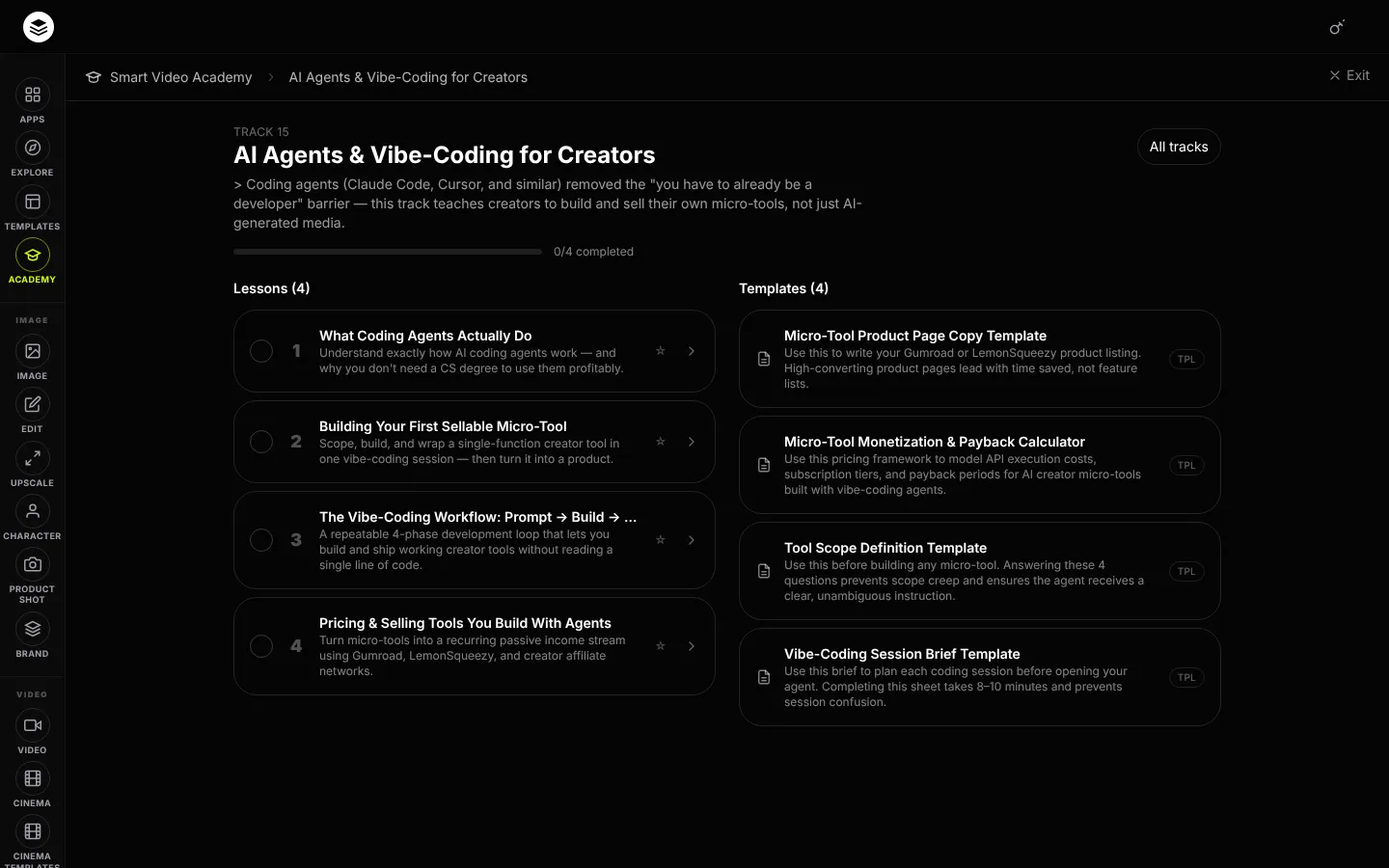
What it is: Shows "Track N", the track title and summary, a progress bar with "completed/total completed", an "All tracks" button, a "Lessons (N)" column and a "Templates (N)" column. Clicking a lesson opens it and marks it as in-progress (unless already completed). Each lesson row has a round status button, its number, title, one-line summary, a star (bookmark) and an arrow. Template rows show a small "SV" badge if the template's button is "Create With Smart Video", otherwise "Tpl".
Why use it
See everything in one track and continue where you left off.
What you need
Pick a track.
Limits and rules
None known.
Lesson page: Learn tab
FEATURE 03
Lesson page: Learn tab
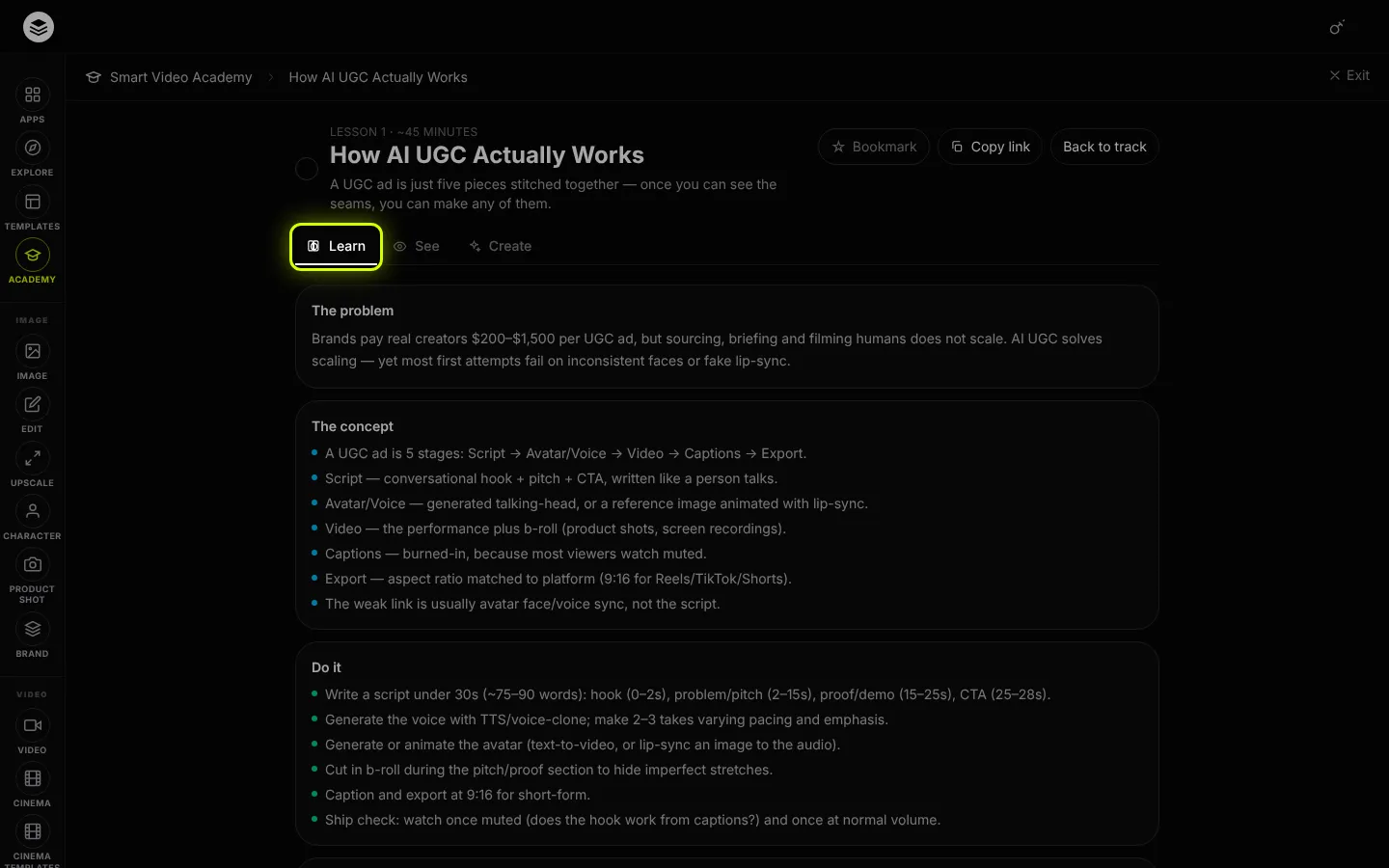
What it is: For the five Track 01 lessons the Learn tab shows cards titled "The problem", "The concept", "Do it", "Launch it (get paid)" and "Exercises". For other lessons it shows the lesson summary. Every lesson has a "Read full lesson" button (toggles to "Hide full lesson") that loads the full Markdown text. The header shows "Lesson N" plus an estimated time (for example "~45 minutes") when the lesson has one.
Why use it
Read the concept and the steps before you create.
What you need
None.
Limits and rules
If the full lesson text cannot be loaded you see "Could not load content."; while loading it shows "Loading...".
Lesson page: See tab
FEATURE 04
Lesson page: See tab
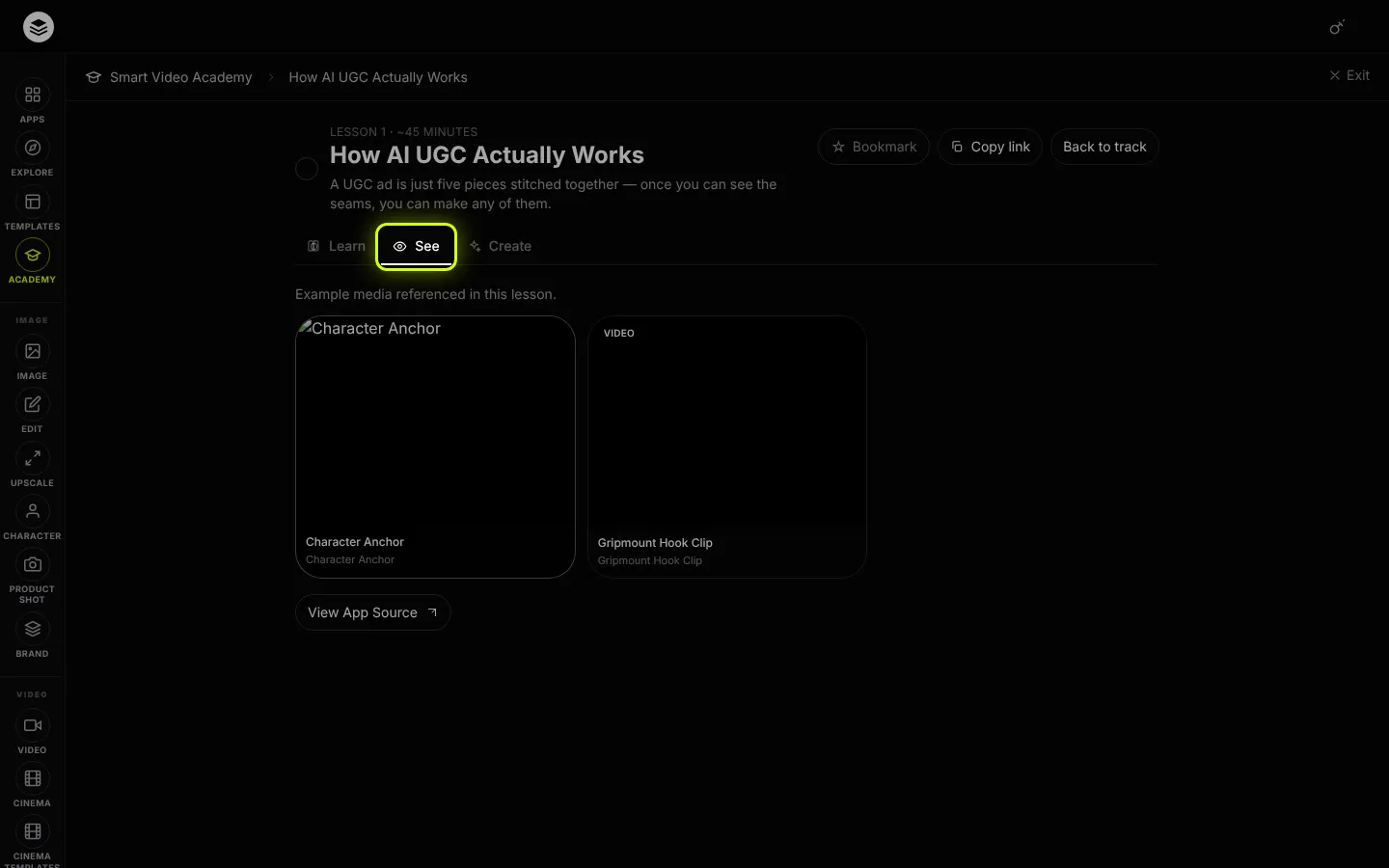
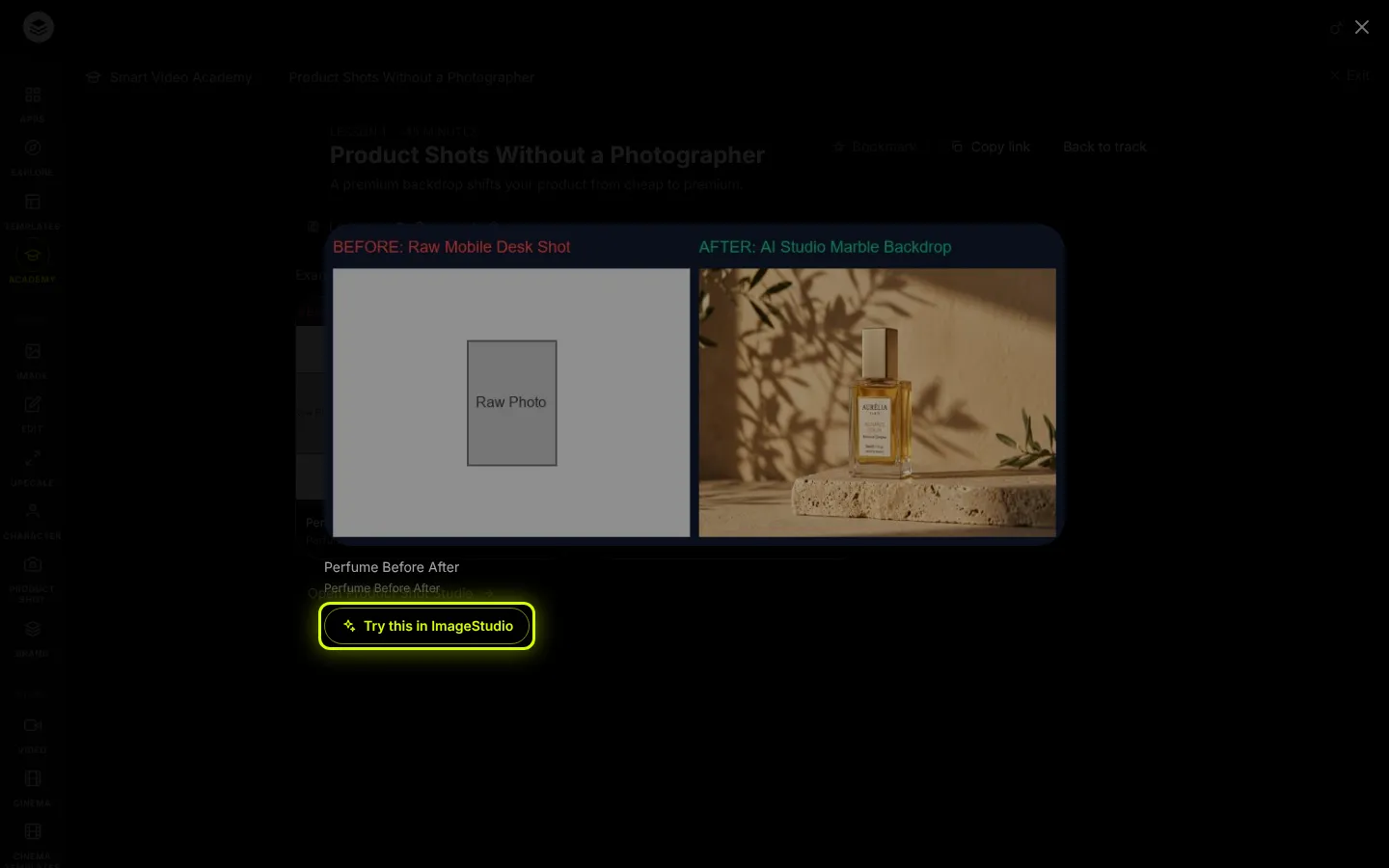
What it is: Says "Example media referenced in this lesson." and shows a gallery of example images/videos (shows "No example media for this item." if none). Click one to open a larger view with a "Try this in <Studio>" button. Below the gallery, some lessons show "Open <app name>" (tracks 07 and 08 open an in-app studio page), "View App Source" (an external GitHub link for lessons marked existing) or the note "App for this lesson is under development." (lessons marked needed).
Why use it
See real examples and jump to the right tool.
What you need
None.
Limits and rules
Not every lesson has media or an app link.
Lesson page: Create tab
FEATURE 05
Lesson page: Create tab
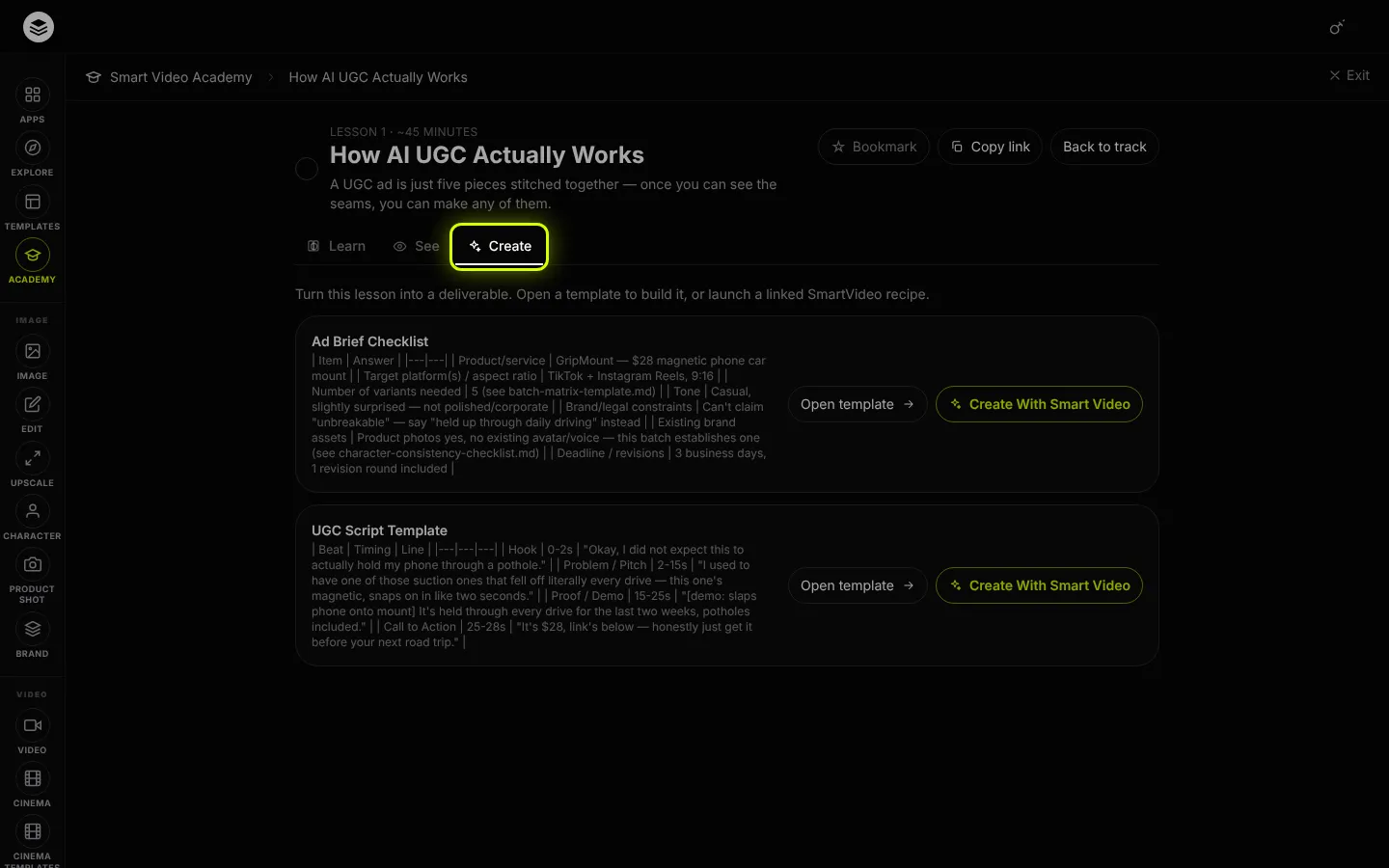
What it is: Says "Turn this lesson into a deliverable. Open a template to build it, or launch a linked SmartVideo recipe." Each linked template is listed with an "Open template" button, and some also have a "Create With Smart Video" button that launches a linked recipe. Shows "No linked templates." if none.
Why use it
Turn a lesson into a real deliverable.
What you need
None.
Limits and rules
Only templates linked to that lesson appear.
Progress tracking
FEATURE 06
Progress tracking
What it is: Each lesson is either not started, in-progress (blue dot) or completed (green check). Opening a lesson from a track or the hub marks it in-progress (unless already completed). Click the round button on a lesson row or lesson page to complete it; click a completed one again (tooltip "Mark as incomplete") to clear it. Stored in the browser's localStorage under the key academy_progress. "Reset progress" on the hub clears everything at once with no confirmation.
Why use it
Keep track of what you have finished.
What you need
Click the round status button.
Limits and rules
Saved per browser/device only, not synced to an account. Clearing site data, using private mode or switching browsers loses it.
Bookmarks
FEATURE 07
Bookmarks
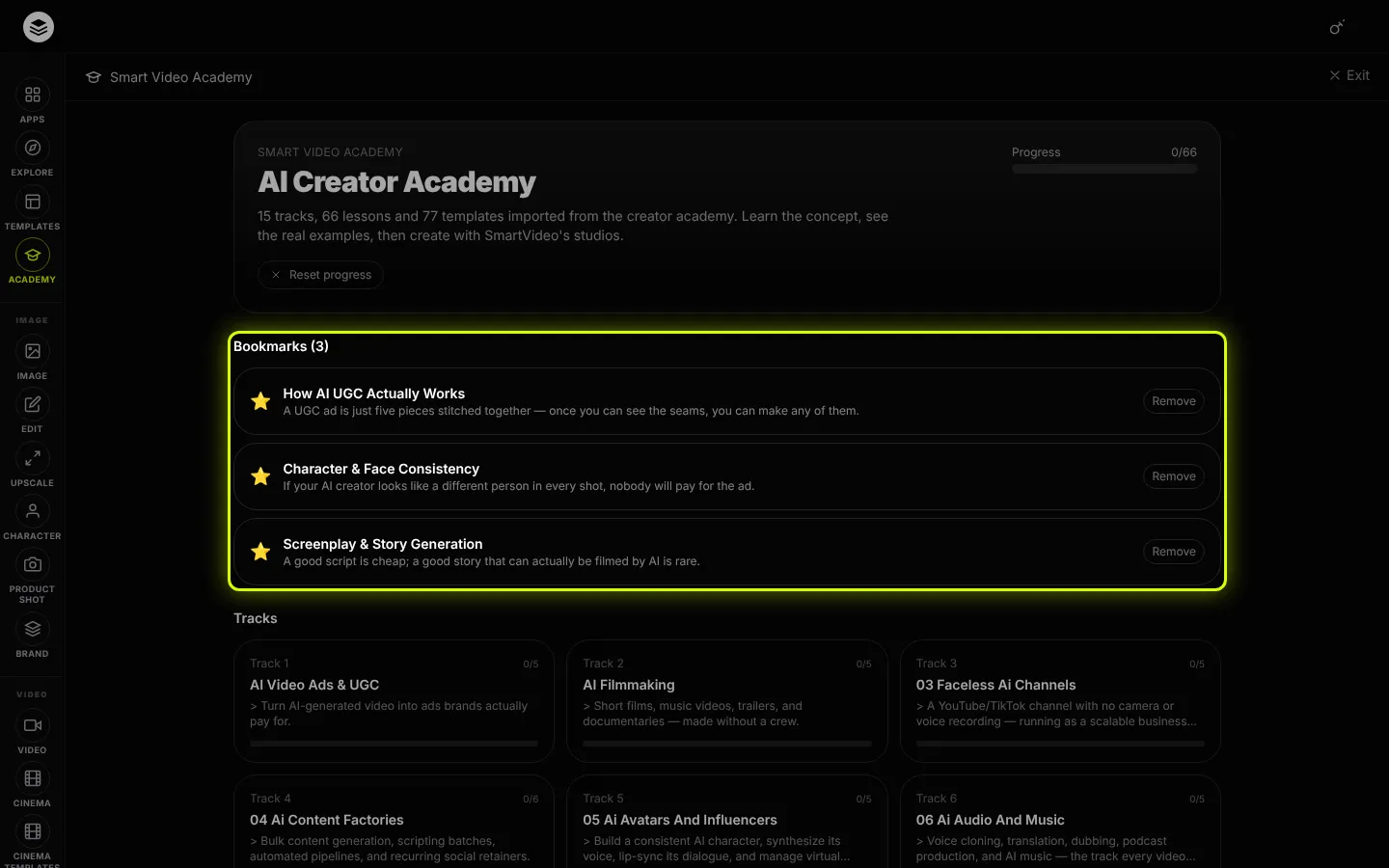
What it is: Click the star (tooltip "Bookmark for later") on a lesson row or the "Bookmark" button on a lesson page. Bookmarked lessons appear on the hub under "Bookmarks (N)" with a "Remove" button. Stored in localStorage under academy_bookmarks.
Why use it
Save lessons to come back to.
What you need
Click the star.
Limits and rules
Browser-local only; lessons only (not templates).
Copy link (share a lesson)
FEATURE 08
Copy link (share a lesson)
What it is: On a lesson page, "Copy link" copies the current site address plus #/academy/track/<trackSlug>/lesson/<lessonId> to your clipboard and shows "Copied!" for about two seconds. Track 01 lesson IDs have no number prefix (e.g. how-ugc-works); tracks 02-15 use <trackSlug>::<NN-file-slug> (e.g. 02-ai-filmmaking::01-screenplay-and-story).
Why use it
Send someone directly to a lesson.
What you need
None.
Limits and rules
The link only opens the lesson if the lesson ID exists; otherwise the hub opens. The person opening it does not receive your progress or bookmarks.
Template editor
FEATURE 09
Template editor
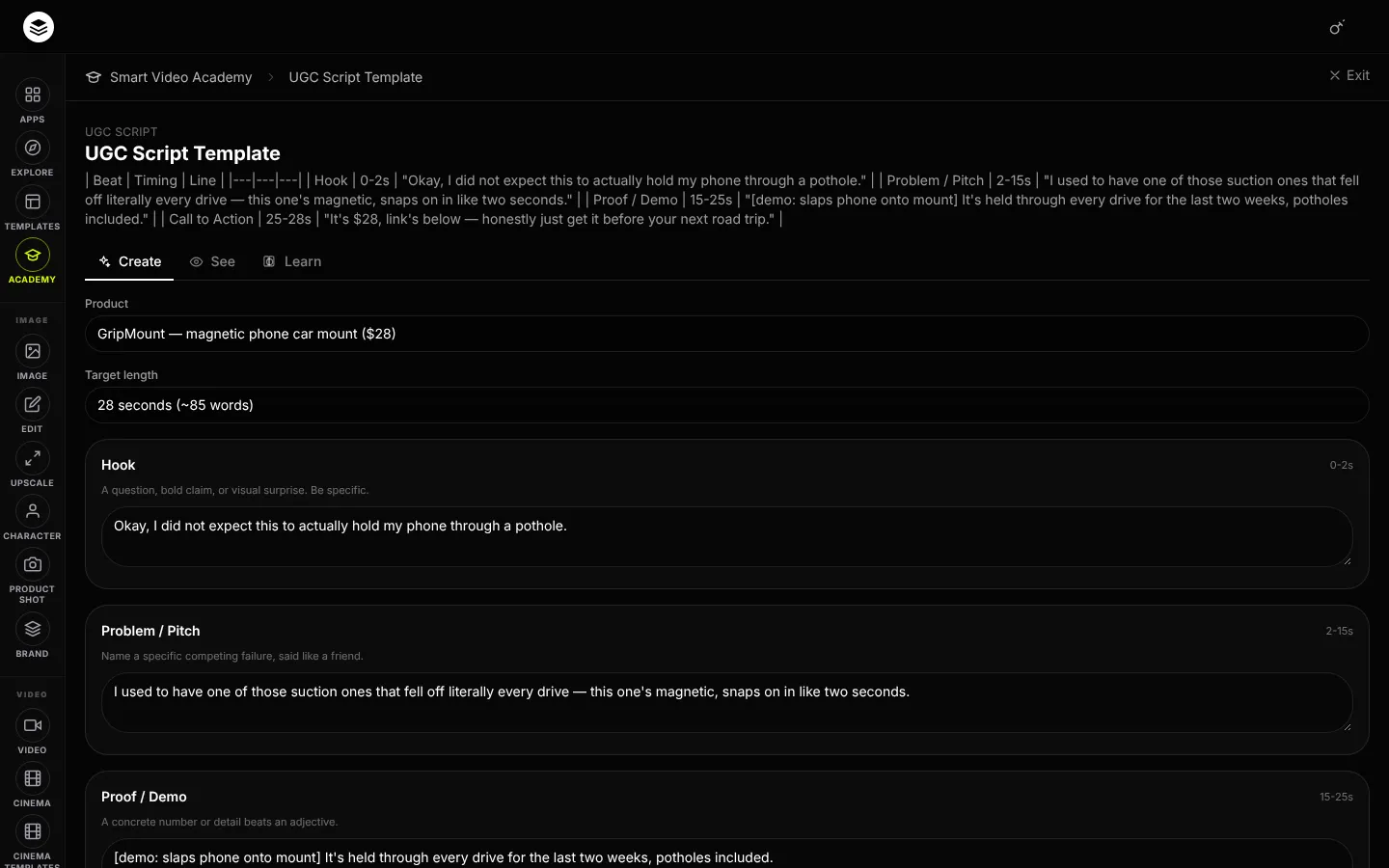
What it is: Opening a template shows its kind, title and description with tabs Create, See and Learn. Track 01 has seven interactive editors: UGC Script Template (ugc-script), Ad Brief Checklist (ad-brief), Batch Matrix Template (batch-matrix), Character Consistency Checklist, Outreach Template, Retainer Proposal Template and Ad Teardown Worksheet. Each has a "Show example" toggle (becomes "Clear example") that fills in a sample, and a button: "Create With Smart Video" (UGC script, ad brief, batch matrix) opens a brief dialog with "Copy brief" and "Open in Studio"; "Use Template" copies the filled text to your clipboard (button shows "Copied!"). Templates in tracks 02-15 are shown as a document with "Use Template" (copies the raw Markdown), "Open linked lesson" and, where a recipe exists, "Create With Smart Video". The Learn tab has an "Open linked lesson" button.
Why use it
Get a working checklist, script or proposal quickly.
What you need
Fill the fields (track 01) or just read/copy (others).
Limits and rules
What you type in template editors is not saved when you leave the page.
Track 01: ai-video-ads-ugc - AI Video Ads & UGC (5 lessons, 7 templates)
FEATURE 10
Track 01: ai-video-ads-ugc - AI Video Ads & UGC (5 lessons, 7 templates)
What it is: Turn AI-generated video into ads brands pay for. Lessons: How AI UGC Actually Works, Character & Face Consistency, Building a 10-Ad Batch, Pricing & Selling UGC Ads as a Service, Case Study Teardown.
Why use it
Best first track for ads and UGC.
What you need
None.
Limits and rules
None known.
Track 02: 02-ai-filmmaking - AI Filmmaking (5 lessons, 10 templates)
FEATURE 11
Track 02: 02-ai-filmmaking - AI Filmmaking (5 lessons, 10 templates)
What it is: Short films, music videos, trailers and documentaries without a crew: screenplay and story, storyboarding and shots, camera movement, assembling a short film, selling short films.
What it is: YouTube/TikTok channel with no camera or voice recording run as a business system: niche and script, narration and pacing, RPM and earnings, scaling channels, monetization ladder. (The hub card shows this title as "03 Faceless Ai Channels".)
What it is: Bulk content generation, scripting batches, automated pipelines and recurring social retainers: production pipeline, TikTok/Reels factory, YouTube Shorts factory, thumbnail design, batching and scheduling, selling content services. (Hub card title: "04 Ai Content Factories".)
What it is: Build a consistent AI character, synthesize its voice, lip-sync its dialogue and manage virtual influencers for clients. (Hub card title: "05 Ai Avatars And Influencers".)
Why use it
Virtual influencer or character work.
What you need
None.
Limits and rules
None known.
Track 06: 06-ai-audio-and-music - AI Audio & Music (5 lessons, 5 templates)
FEATURE 15
Track 06: 06-ai-audio-and-music - AI Audio & Music (5 lessons, 5 templates)
What it is: Voice cloning, translation, dubbing, podcast production and AI music: voice cloning/TTS, dubbing and translation, podcast production, music and SFX generation, singing/vocal synthesis. (Hub card title: "06 Ai Audio And Music".)
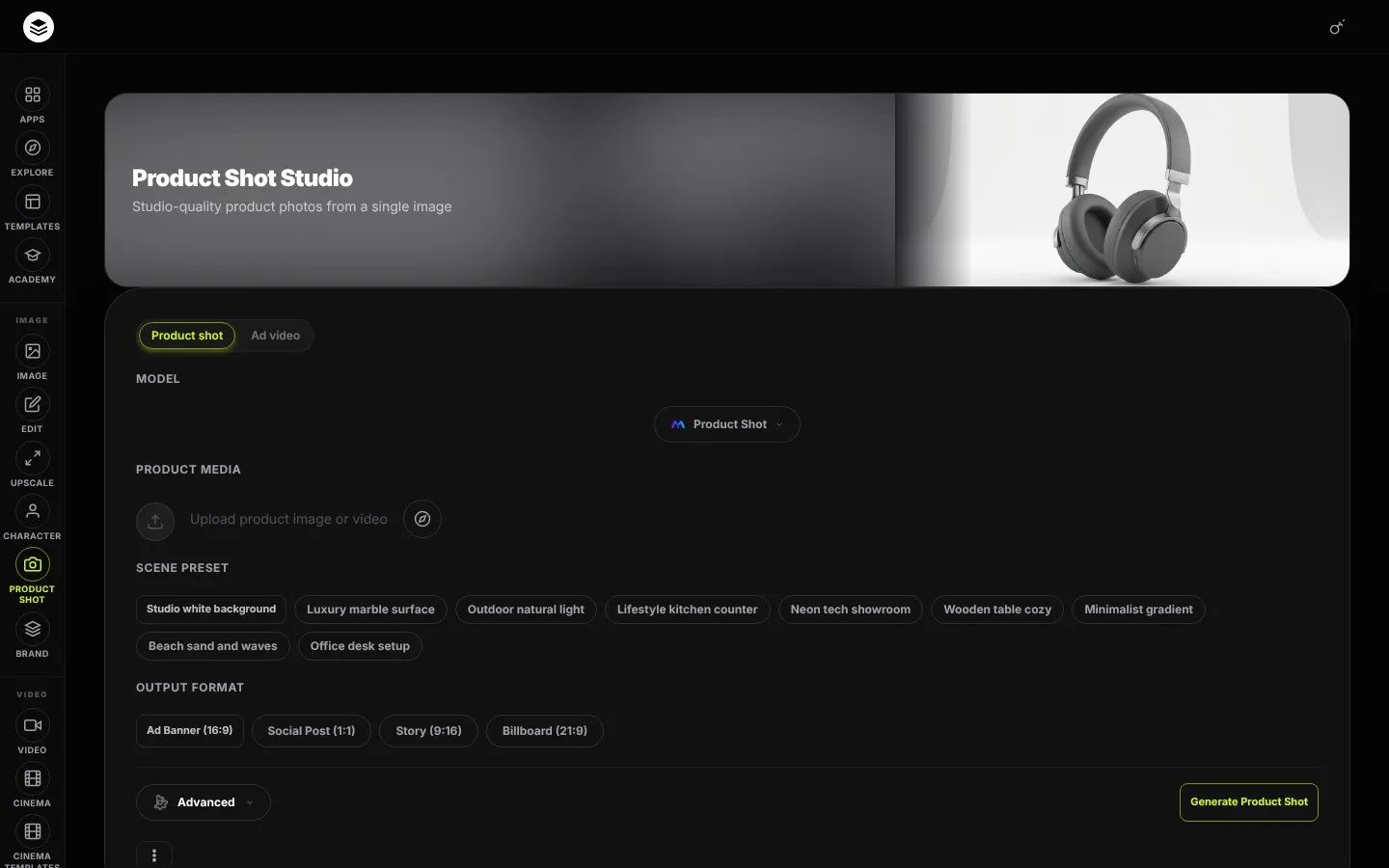
What it is: Studio-quality product photos and catalog variations on demand, matching lighting, reflections, shadows and perspective. On the lesson's See tab, three of its lessons show "Open Product Shot Studio" (Product Shot Studio) and the batch-workflows lesson shows "Open Photo Studio" (Photo Studio with its 30 product-photography presets).
Why use it
Product images for stores.
What you need
None.
Limits and rules
The button only opens the studio; it does not carry the lesson's example into it.
What it is: Virtual try-on and lifestyle lookbooks, wrapping flat garments onto models while keeping texture, folds and branding. On the lesson's See tab, all four lessons show "Open Edit Studio (Change Dress)", which opens Edit Studio with the Change Dress tool already selected (you upload the person photo and an outfit image).
Why use it
Fashion imagery.
What you need
None.
Limits and rules
The button opens Edit Studio's Change Dress tool; there is no separate fashion studio, and it does not carry the lesson's example into it.
Track 09: 09-ai-real-estate-staging - AI Real Estate (Virtual Staging) (3 lessons, 3 templates)
FEATURE 18
Track 09: 09-ai-real-estate-staging - AI Real Estate (Virtual Staging) (3 lessons, 3 templates)
What it is: Stage a listing quickly: turn vacant properties into furnished homes with AI inpainting, perspective locking and realtor sales pipelines.
What it is: Turn smartphone selfies into studio-grade corporate and creative portraits: identity locking, B2B team packages, bulk automation, editorial lighting.
What it is: A buyer's guide rather than tool tutorials: which tool for which creative outcome across image, video, voice and hosting.
Why use it
Choosing the right model/tool.
What you need
None.
Limits and rules
None known.
Track 14: 14-ai-freelancing-and-agency-business - AI Freelancing & Agency Business (5 lessons, 4 templates)
FEATURE 23
Track 14: 14-ai-freelancing-and-agency-business - AI Freelancing & Agency Business (5 lessons, 4 templates)
What it is: Value-based pricing, contracts, outbound client acquisition, agency delegation and ROI-driven portfolios.
Why use it
Turn skills into clients.
What you need
None.
Limits and rules
None known.
Track 15: 15-ai-agents-and-vibe-coding - AI Agents & Vibe-Coding for Creators (4 lessons, 4 templates)
FEATURE 24
Track 15: 15-ai-agents-and-vibe-coding - AI Agents & Vibe-Coding for Creators (4 lessons, 4 templates)
What it is: Use coding agents (Claude Code, Cursor and similar) to build and sell your own micro-tools, not just AI media.
Why use it
Build your own tools without being a developer.
What you need
None.
Limits and rules
None known.
"Try this in <Studio>" on example media
FEATURE 25
"Try this in <Studio>" on example media
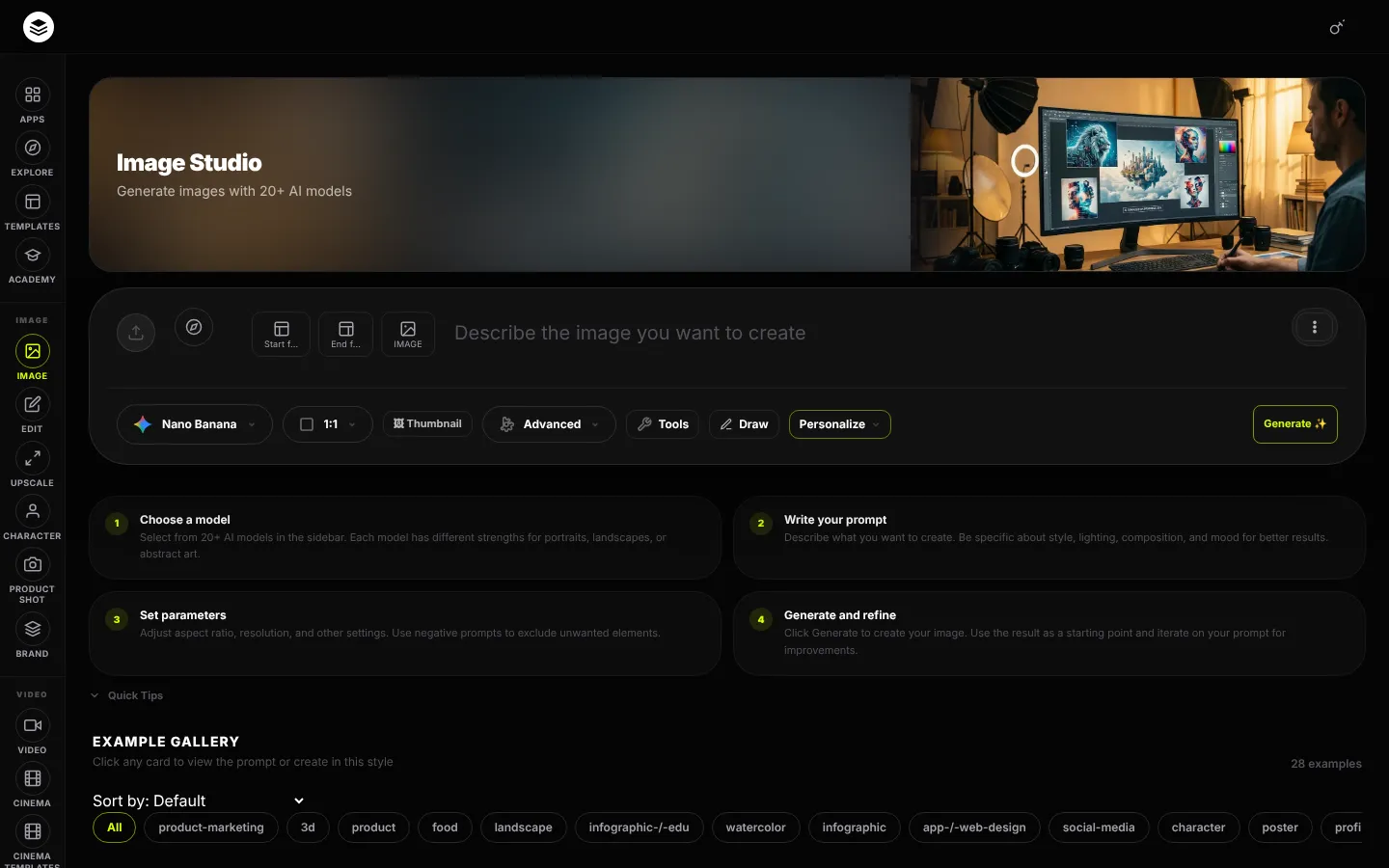
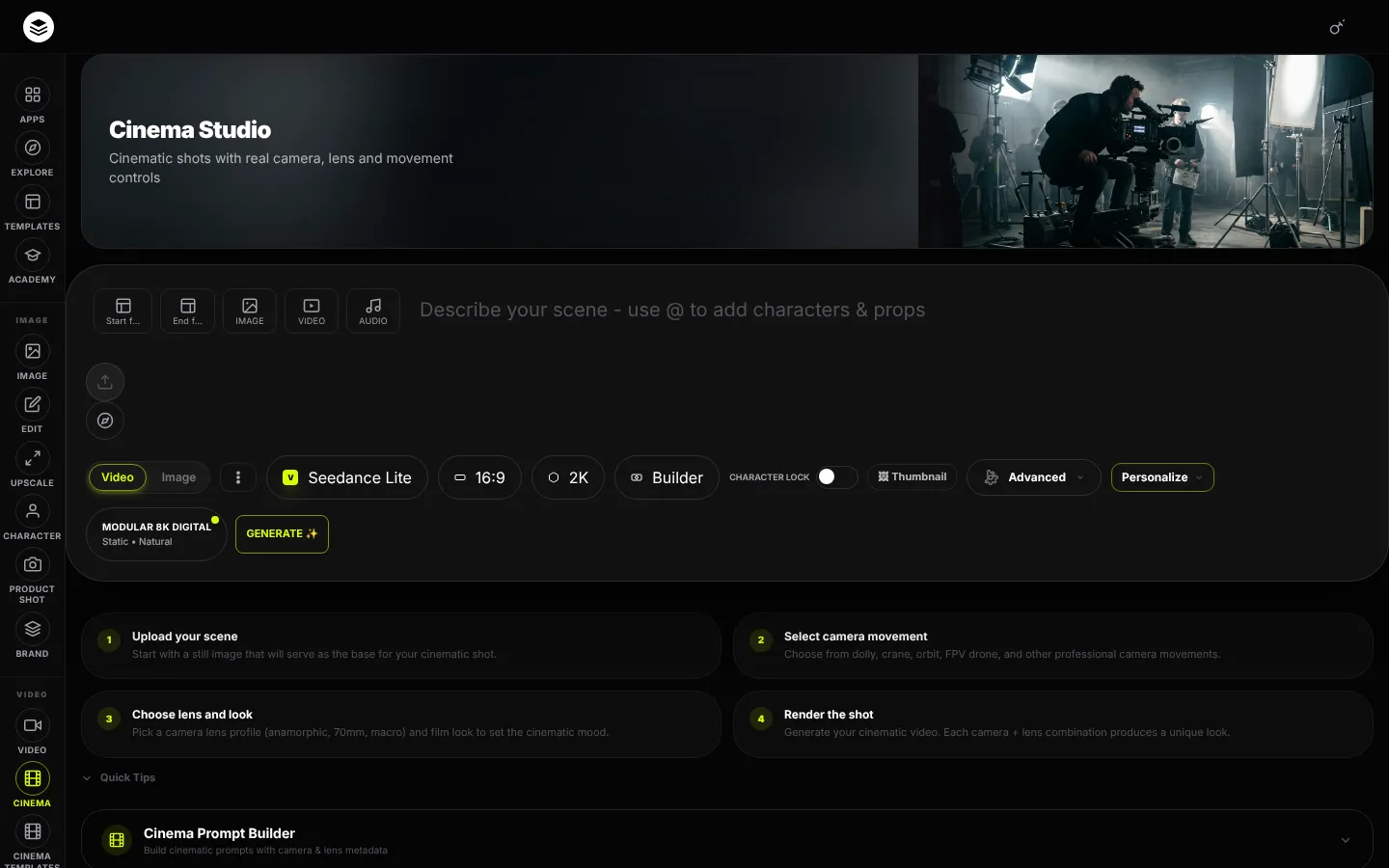
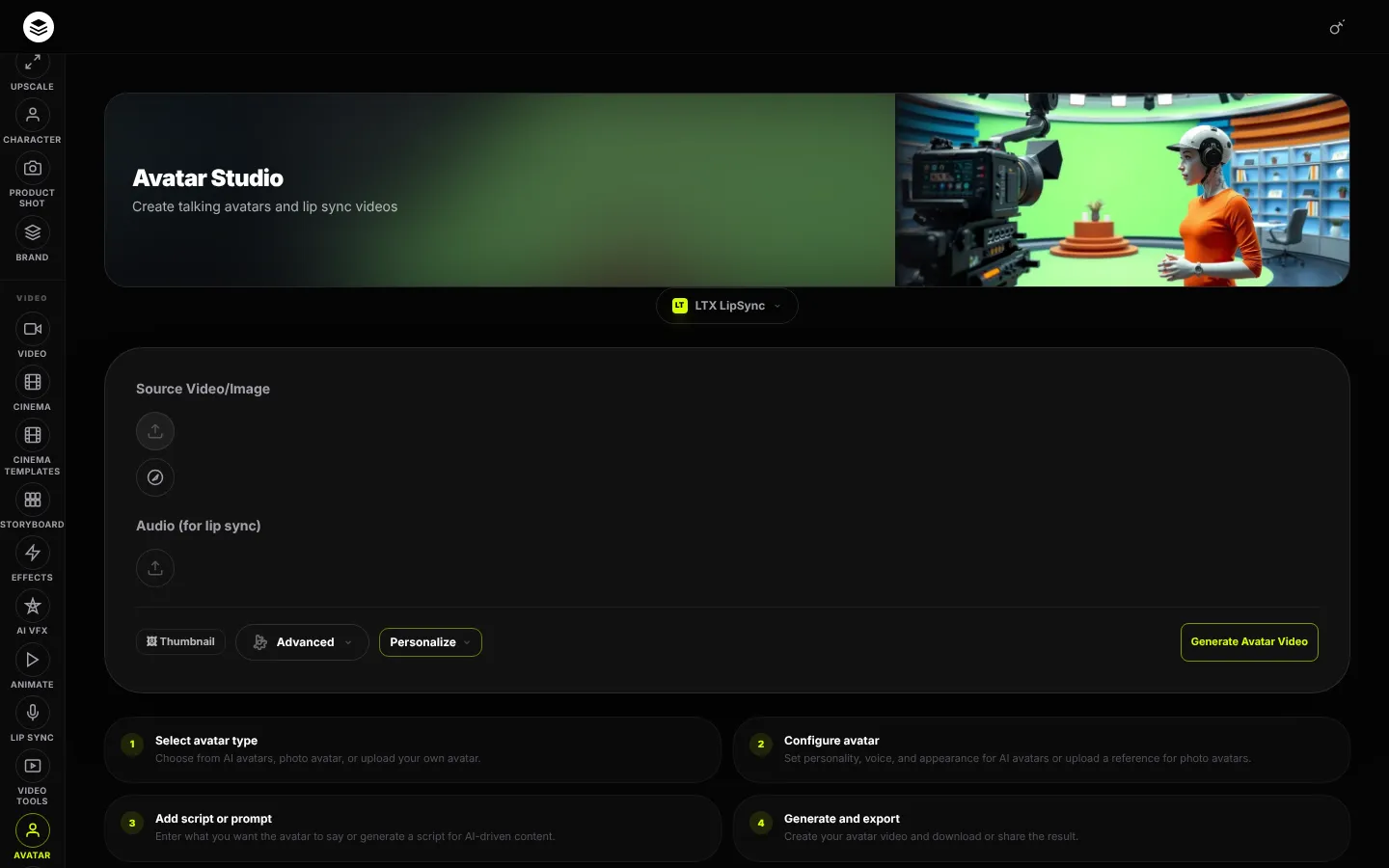
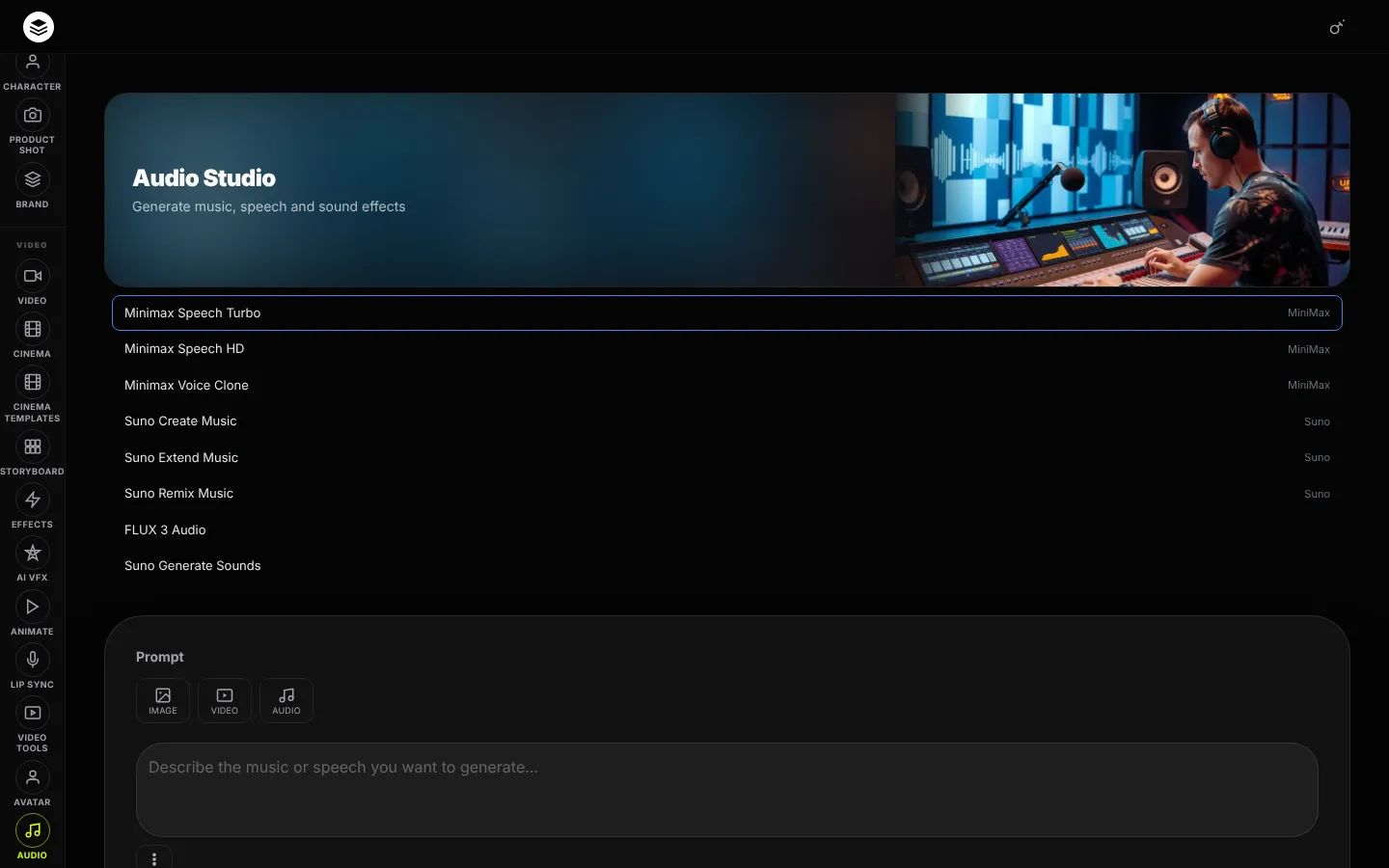
What it is: In the See tab, open an example and click "Try this in <Studio>". It sends the example's title and description as a prompt to a studio chosen by the example's track: 01 Video Studio (with model MiniMax Hailuo 3 (H3) preselected), 02 Cinema Studio, 03 Video Studio, 04 Template Studio (templates), 05 Avatar Studio, 06 Audio Studio, 07-11 Image Studio, 12 Video Studio, 13 Video Studio, 14 Template Studio, 15 Video Studio. If an example has no mapping the button reads "Try this in Studio" and opens the image route.
Why use it
Recreate an example yourself.
What you need
Open an example image/video.
Limits and rules
Pre-fills the studio; you still generate there, and generation uses that studio's own rules and credits.
How to use Academy
Open Academy from the side menu (#/academy).
Click a track card under "Tracks".
Click a lesson under "Lessons (N)".
On the Learn tab, read it and click "Read full lesson" for the full text.
Open the See tab for example media and app links.
Open the Create tab and click "Open template" on a linked template.
Fill the template and click "Use Template" or "Create With Smart Video".
Click the round check button to mark the lesson completed.
Use the star ("Bookmark for later") and "Copy link" as needed.
Generation modes
The ways this studio can work, and when to pick each one.
Learn / See / Create tabs
Not generation modes. Learn reads the lesson, See shows examples, Create links to templates. Template pages order the tabs Create, See, Learn.
Best for: Move from reading to making.
Inputs and outputs
What you give the studio, and what you get back.
Input
Description
When to use
Rules
Lesson status button Optional
Round button on each lesson row/page: empty circle (not started), blue dot (in-progress), green check (completed).
When you finish or want to unmark a lesson.
Saved in this browser only (localStorage key academy_progress).
Bookmark star Optional
Star icon to save a lesson; shows as a filled star when bookmarked.
To save a lesson for later.
Saved in this browser only (localStorage key academy_bookmarks).
Template fields Optional
Text boxes in track 01 templates, for example Product / service, Target platform(s) / aspect ratio, Number of variants needed, Tone, Brand / legal constraints, Existing brand assets, Deadline / revision rounds (Ad Brief); Brand, Contact name, Product, Sample ad link, Turnaround (days), Your name (Outreach); Client, Scope, Price, Includes, Turnaround, Term, Why this works (Retainer).
When building a brief, outreach message or proposal.
Not saved when you leave the page; copy it with "Use Template" first.
What you get
Lessons and templates to read
Filled-in template text copied to your clipboard ("Use Template", "Copy brief")
A pre-filled studio (via "Try this in <Studio>" or "Open in Studio")
A share link ("Copy link")
Saved progress and bookmarks in your browser
Use cases and example workflows
Real jobs you can do, step by step.
Start earning with UGC ads
Follow track 01 from concept to pricing.
Open the AI Video Ads & UGC track.
Work through the five lessons in order.
Use the UGC Script Template and Batch Matrix Template.
Use the Outreach Template and Retainer Proposal Template to pitch clients.
Result: Filled templates you copied out, and five lessons marked completed.
Pick the right AI tool
Use the AI Tools Mastery track as a buyer's guide.
Open the track 13-ai-tools-mastery.
Read the first lesson on image models.
Open the related studio from the side menu.
Result: A clear choice of tool for your goal.
Plan a short film
Use the AI Filmmaking track for story and shots.
Open AI Filmmaking.
Read screenplay, storyboard and camera lessons.
Open the track's templates and click "Use Template".
Result: A copied template and a plan to take into Cinema Studio.
Learn UGC ads then build a brief
Open #/academy and click "AI Video Ads & UGC".
Click lesson "How AI UGC Actually Works" and read The problem and The concept.
Open the Create tab and click "Open template" on "Ad Brief Checklist".
Click "Show example" to see a sample, then clear it and fill your own fields.
Click "Create With Smart Video", review the brief, then "Copy brief" or "Open in Studio".
Go back and click the round check button to mark the lesson completed.
Save and share a lesson
Open a track and click a lesson.
Click "Bookmark for later".
Click "Copy link" (it shows "Copied!") and paste the link to a teammate.
Later, find the lesson under "Bookmarks (N)" on the hub.
Try an example in a studio
Open a lesson and go to the See tab.
Click an example image or video to enlarge it.
Click "Try this in <Studio>".
Review the pre-filled prompt in the studio and generate there.
Tips and best practices
Click "Show example" in track 01 templates first to see what a good answer looks like.
Use "Use Template" to copy your work before leaving a template page.
Bookmark lessons you want to revisit; they show on the hub.
The browser back button works between hub, track, lesson and template pages.
Work through a track in lesson order.
Read the lesson, then use the Create tab to produce something.
Mark lessons complete only when you have finished the exercise.
Do not rely on progress being available on other devices.
Limitations and troubleshooting
Know the limits before you start, and how to fix common problems.
Limitation
What it means
Workaround
Progress is per browser
A different browser, device or a cleared cache shows no progress or bookmarks.
Keep using the same browser profile; there is no export in the code.
Template inputs are not saved
Leaving the template page loses what you typed.
Click "Use Template" to copy the text and paste it somewhere safe before leaving.
No confirmation on Reset progress
All completed/in-progress marks disappear at once.
Only click it if you really want to start over; you can re-mark lessons manually.
Bookmarks apply to lessons only
Templates cannot be bookmarked.
Bookmark the linked lesson.
Shared lesson link goes to the hub
Why: The page falls back to the hub when the track or lesson ID is not found.
Fix: Re-copy the link with "Copy link" from the lesson page.
Progress not on my other device
Why: Progress is saved in that browser's localStorage only.
Fix: Mark lessons again on the other device.
Track titles look odd, for example "03 Faceless Ai Channels"
Why: The catalog stores those titles in that form for tracks 03-08.
Fix: No fix needed; the track slug and summary identify the track.
Reset progress wiped everything
Why: The button has no confirmation.
Fix: Re-mark lessons manually.
Glossary
Terms used in Academy.
Track
A group of related lessons and templates, such as AI Filmmaking.
Lesson
A reading page with Learn, See and Create tabs.
Template
A fill-in or copyable document such as a brief, script, worksheet or proposal.
Learn / See / Create
The three lesson tabs: read, see examples, make a deliverable.
In-progress
A lesson you opened but have not marked completed.
Completed
A lesson you marked with the green check.
Bookmark
A star on a lesson to find it under Bookmarks on the hub.
Track slug
The short folder-style track name in the URL, such as 02-ai-filmmaking.
Recipe
A prepared SmartVideo setup that "Create With Smart Video" launches.
UGC
User-generated-content style ads, the subject of track 01.
Frequently asked questions
Does the Academy generate videos or images?
No. It is a learning area. Buttons such as "Try this in <Studio>" or "Open in Studio" take you to a studio where you generate.
Is my progress saved to my account?
The code saves progress (academy_progress) and bookmarks (academy_bookmarks) in your browser's localStorage only. Nothing in the code syncs them to an account or other devices.
How many tracks, lessons and templates are there?
15 tracks, 66 lessons and 77 templates, according to the catalog.
How do I mark a lesson complete?
Click the round check button next to the lesson title (on the lesson page or the track list). Click it again to mark it incomplete.
How do I share a lesson?
Open the lesson and click "Copy link". The link looks like #/academy/track/<trackSlug>/lesson/<lessonId> after your site address.
How do I reset everything?
On the hub, click "Reset progress". It clears all lesson progress immediately. It does not clear bookmarks.
What does "Use Template" do?
It copies the template text to your clipboard and briefly shows "Copied!".
What does "Create With Smart Video" do?
On track 01 templates it opens a brief dialog with "Copy brief" and "Open in Studio". In the Create tab of a lesson it launches the linked SmartVideo recipe directly. It only appears on templates that have a recipe linked.
Which track should I start with?
Track 01, AI Video Ads & UGC, has the most structured lessons and interactive templates. Pick any track that matches your goal.